
01Who this is for
- Support managers who need a single place to monitor open requests and assign work quickly.
- Team members who handle client tickets and require fast bulk updates.
02Tickets list page, explained
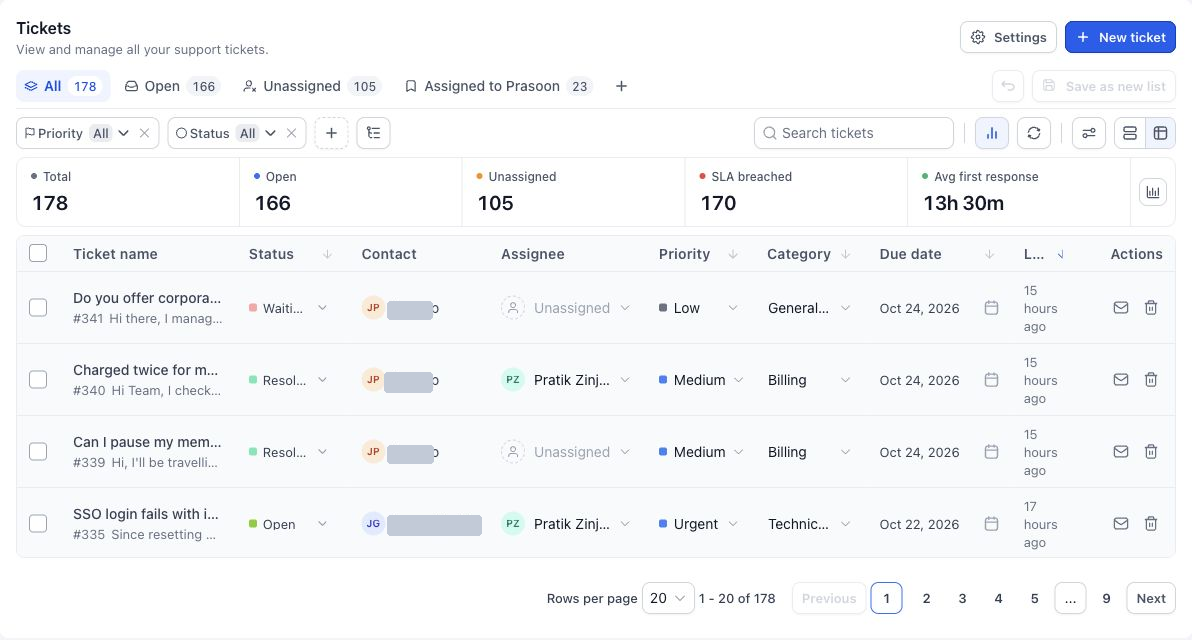
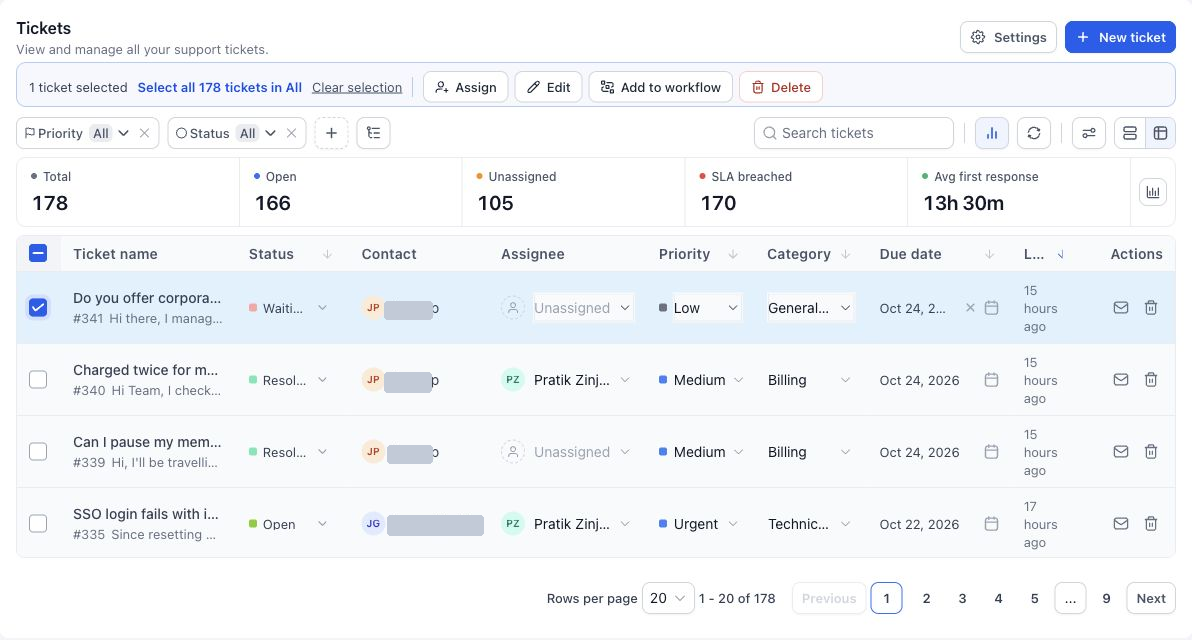
The Tickets list page provides a searchable queue of all support requests you have permission to see. It shows built in lists such as All, Open and Unassigned, and lets you create custom Smart Lists that store filter, column and sort settings for later reuse.
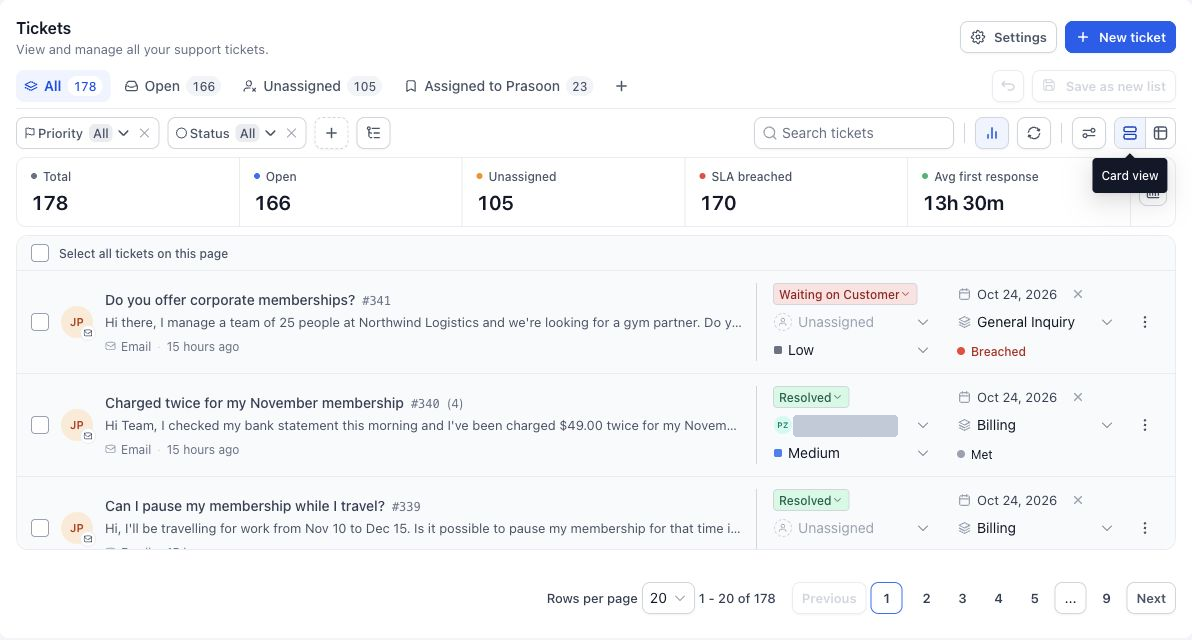
You can switch between List and Card layouts, apply quick filter chips, build complex advanced filters, configure which columns appear and in what order, and edit ticket fields directly from the row or card. Bulk actions let you modify or delete many tickets at once, and a configurable metrics strip summarizes counts like total tickets, SLA breaches and average response times.
All of these tools live on the Tickets page, accessed via the left navigation under the subaccount. The toolbar at the top holds view controls, filter options, bulk action menus and the metrics toggle.
03How businesses use the tickets list page
- IT support firm. The team sets up an advanced filter to show tickets marked High priority and Unassigned, then saves the view as a Smart List called "Urgent unassigned". Agents open the list each day to claim tickets and update status directly from the queue.
- Managed service provider. They configure the column layout to show Owner, SLA, and Due Date, sort by the nearest due date, and use bulk Assign to allocate the day’s tickets to the appropriate technician without opening each ticket.
- Online retailer. Customer service creates a Smart List that filters for tickets with the "Order issue" category, displays the metrics card for "Due soon", and runs a bulk Edit to change the Status to "In Progress" for all matching tickets.
04How to set up and use the tickets list page in HighLevel
Search and apply quick filters
- Choose the desired list tab.
- Enter a ticket name, contact name, or ticket ID into the Search tickets field.
- Click the quick filter chips for options such as Priority, Status, or Assignee.
- Press Add filter and select additional quick filter fields.
- Use the clear button or deselect filters to reset the view.
Build advanced filters
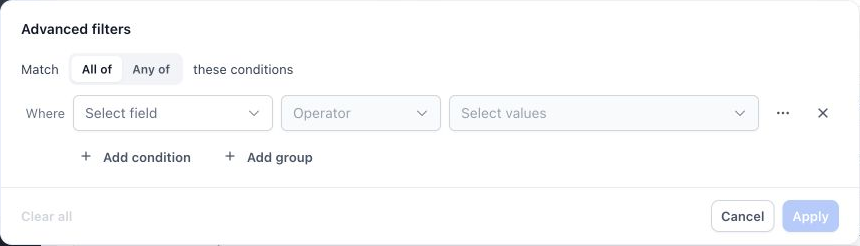
- Click the Advanced filters button next to the quick filter area.
- Select All of or Any of to define how multiple conditions are combined.
- Pick a field, choose an operator, and enter a value for the first condition.
- Click Add condition to create another rule or Add group to start a grouped set.
- Press Apply to run the filter.
Save a Smart List
- Arrange the filters, columns, and sort order you wish to keep.
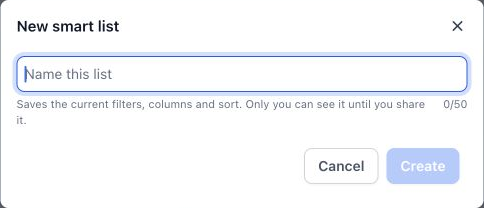
- Click Save as new list or the plus icon beside the list tabs.
- Type a short, descriptive name for the list.
- Confirm by selecting Create.
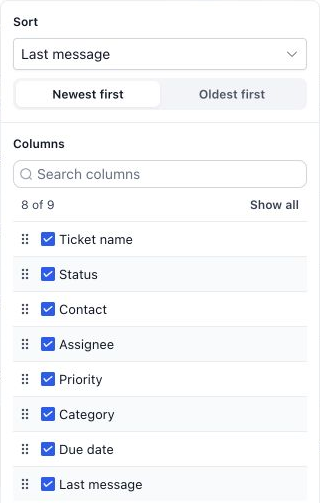
Choose columns and sorting
- Switch the view mode to List view.
- Open the View options panel.
- Choose the field and direction for sorting.
- Check or uncheck column boxes to show or hide columns.
- Drag column handles to reorder the visible columns.
Update tickets from the queue
- Locate the row or card containing the ticket to edit.
- Use the inline dropdowns to change Status, Priority, Category, or Assignee.
- Click the envelope icon in the row actions to mark the ticket as read or unread.
- Verify the new value appears after the edit.
Apply bulk actions
- Tick the checkboxes beside individual tickets or use the header checkbox for the current page.
- Choose Select all [count] tickets to target the entire filtered set if needed.
- Review the selected count displayed in the selection toolbar.
- Pick an action such as Assign, Edit, Add to workflow, or Delete.
- Confirm the operation in the dialog that appears.
Show and configure metrics
- Click Metrics in the toolbar to reveal or hide the metrics strip.
- Press Configure metrics at the end of the strip.
- Select the metric cards you want to display and close the configuration.
Refresh the queue
- Click Refresh in the toolbar to request an updated list.
- If no tickets appear, clear filters or return to the All list to verify the broader queue.
05What it looks like in HighLevel
06Settings that matter
- Advanced filters. Controls the logical conditions, fields, operators and values used to narrow the ticket list.
- View options. Controls which columns are visible, their order, and the default sorting field and direction.
- Metrics. Controls whether the metrics strip is shown and which metric cards appear within it.
07Things to know before you rely on it
- Smart Lists store view settings only; they do not create duplicate tickets.
- Built in lists such as All, Open and Unassigned are system views and cannot be removed.
- Bulk Delete removes tickets permanently; there is no restore function.
- The header checkbox selects only tickets on the current page; a separate Select all control is required for the full matching set.
- Advanced filter groups must be reviewed to ensure the logical intent matches the displayed results.
08If something goes wrong
- A ticket is missing. Check the list, search, filters, and assigned data permissions.
- A bulk action affects fewer tickets than expected. Review whether you selected one page or the full matching set and whether any failures were reported.
- A saved view does not show the expected requests. Review its saved conditions and the current ticket values.
- A property cannot be edited. Check permissions and whether that field is editable in the current view. Open ticket details if needed.
- Metrics differ between users. Compare their filters and access scope before comparing numbers.
09How it connects to the rest of HighLevel
- Create tickets and link email providers Create Tickets
- Open a ticket to view full details and reply Ticket Details
- Add tickets to automated workflows Ticket Automations
- Configure ticketing preferences for your support team Ticket Settings
Michael's take

When you have a steady stream of support requests, the tickets list page lets you triage, edit and bulk act on tickets without opening each one. The ability to save Smart Lists and see metrics helps keep the team focused on the right work.
If your support volume is low or you rarely need bulk updates, the extra time spent learning the list, card and Smart List controls may not be worth it. In those cases a simple ticket detail view can handle the occasional request just fine.