
01Who this is for
- Agency owners who manage client projects benefit from automatic task creation to keep work organized.
- Marketing teams gain consistency by syncing lead data directly into Asana tasks.
- Operations managers use the integration to keep project updates aligned across tools.
02Asana actions and triggers, explained
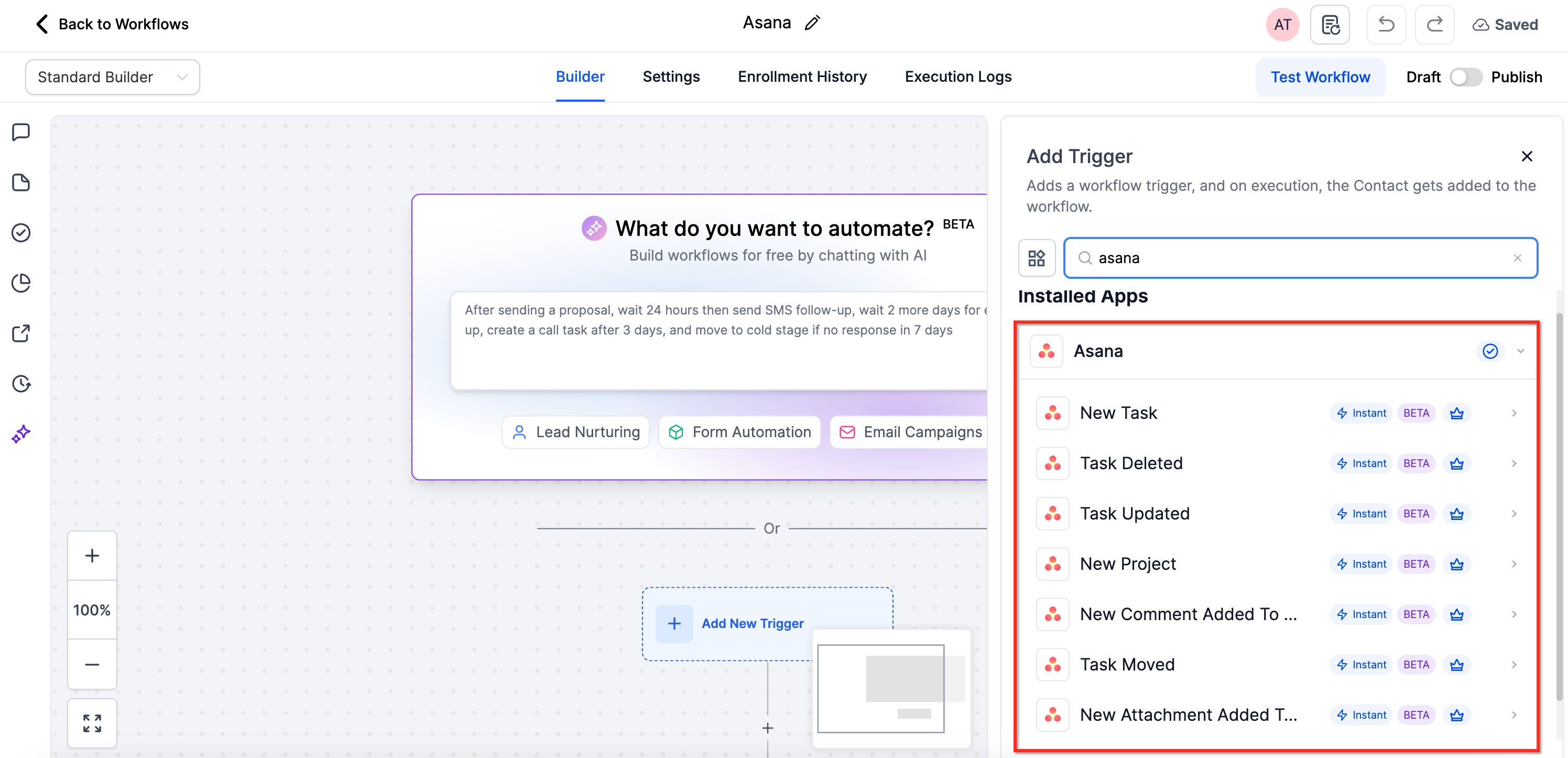
The feature introduces built in Asana triggers and actions inside the workflow builder. Triggers fire the moment Asana registers events such as a new task, a comment, or a project creation. Actions let the workflow create or modify tasks, sections, comments, subtasks, and more, all from within HighLevel.
These capabilities appear in the workflow editor where you can search for Asana items, connect your Asana account, and then configure the trigger and subsequent actions. The integration runs on webhooks, so events are delivered right away without polling.
03How businesses use asana actions and triggers
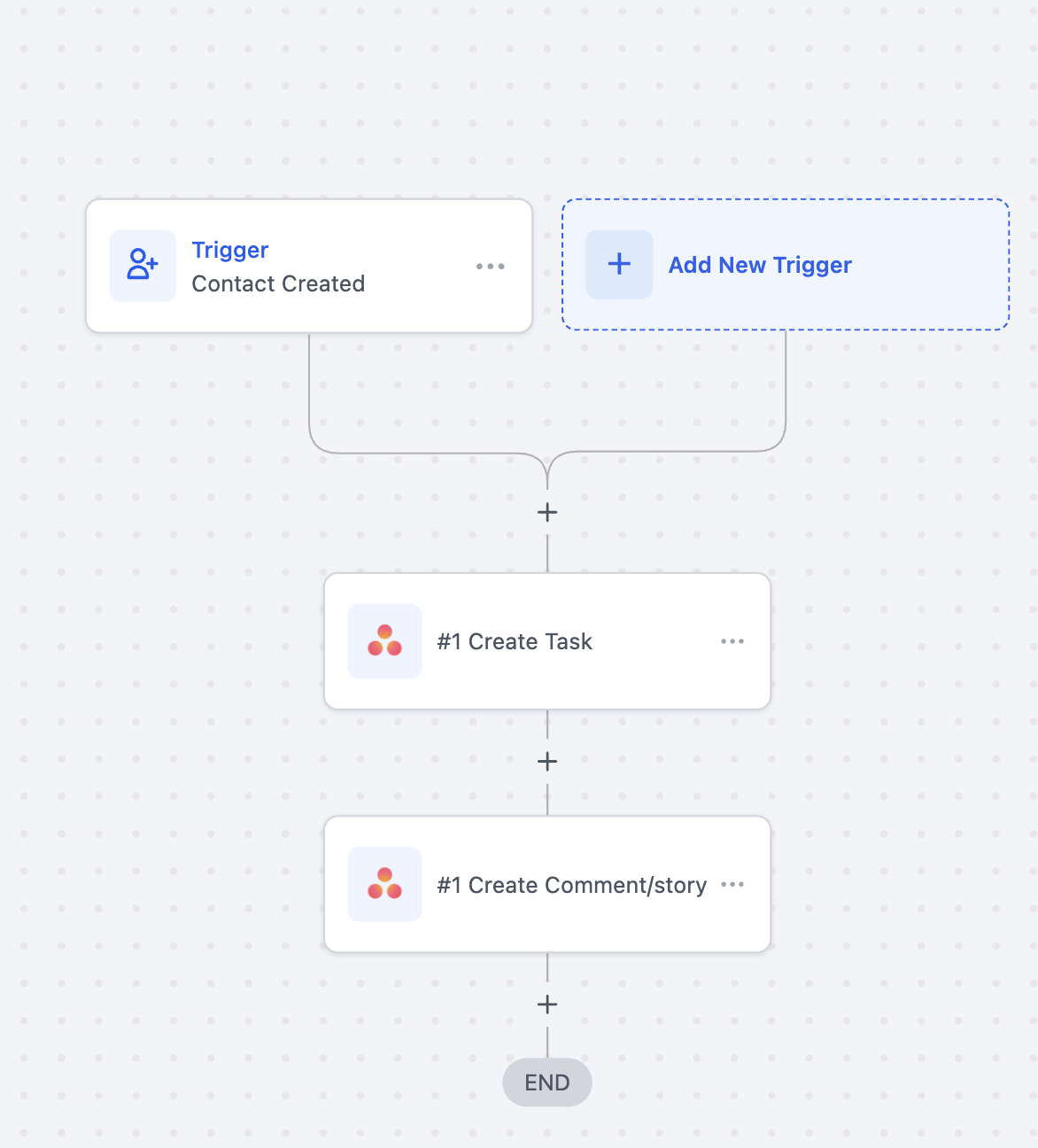
- Marketing agency. When a new lead enters HighLevel, the workflow uses the Contact Created trigger, then runs a Create Task action in Asana with the lead’s name and contact details. A comment is added to the task to note the next follow up step.
- Software development firm. The team selects the Task Updated trigger and adds the Fields Changed filter to watch only status changes. When a developer moves a task to "Ready for Review," the workflow posts a notification to Slack and updates the corresponding tag in HighLevel.
- Operations team. A Project Created trigger in Asana starts a workflow that runs a Create Project action in ClickUp, ensuring a new project appears in both platforms at the same time.
04Before you start
- A HighLevel account with access to the workflow builder.
- An active Asana account linked to HighLevel.
05How to set up and use asana actions and triggers in HighLevel
Set up an Asana trigger
- Open the workflow builder and type the name of an Asana trigger, such as Task Created, into the search bar.
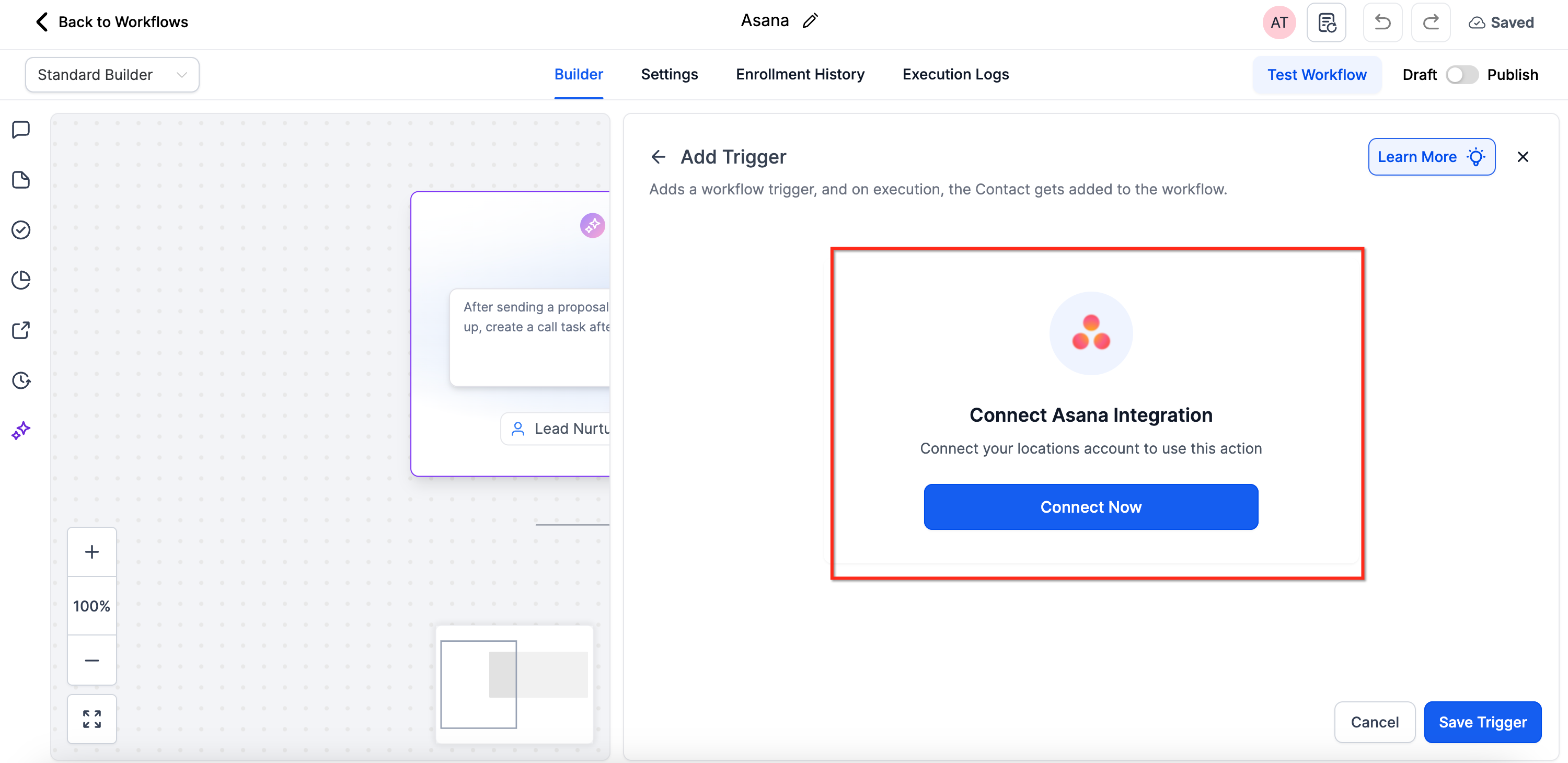
- If the Asana account is not yet linked, click Connect Now and sign in using Asana credentials.
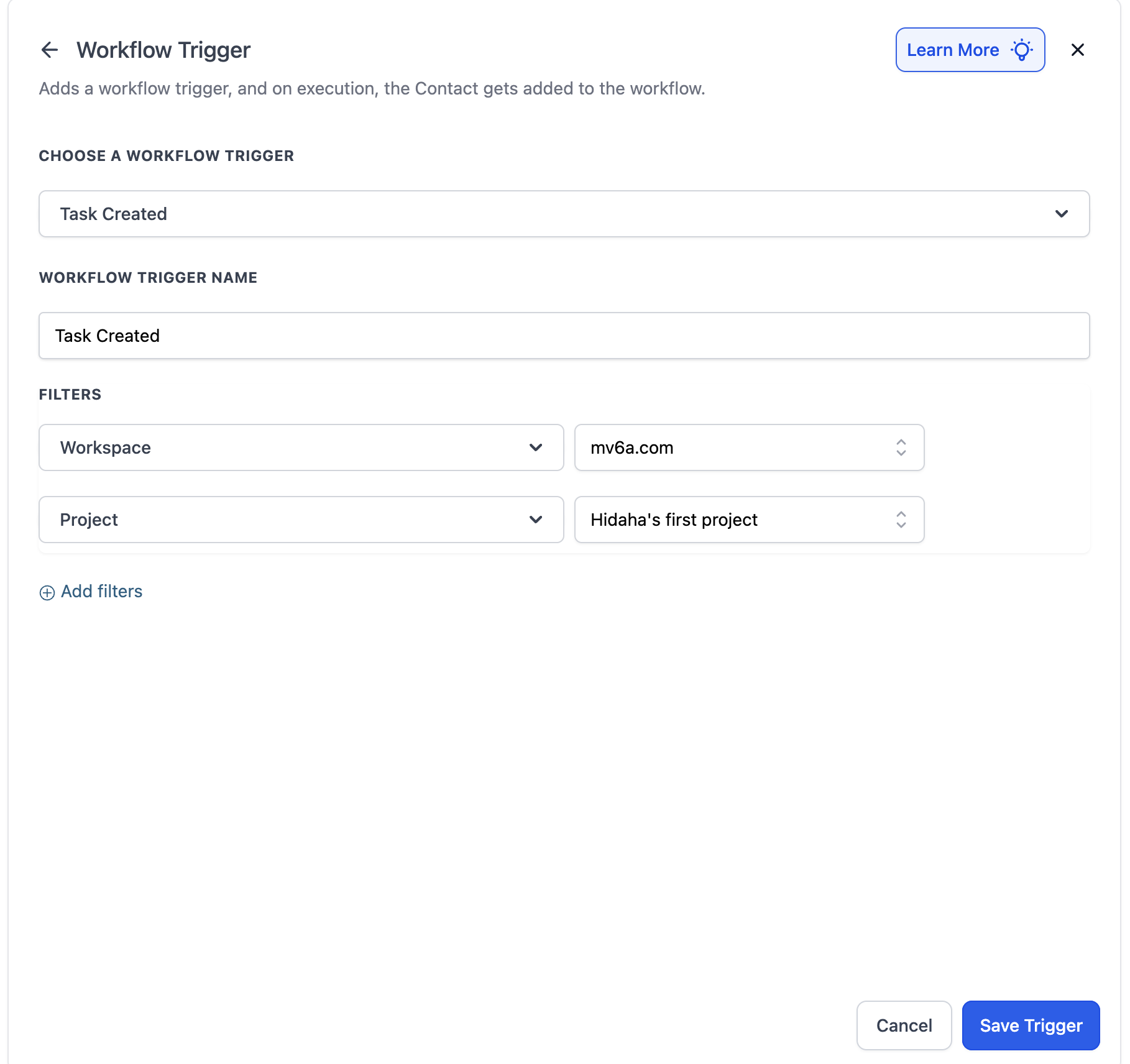
- Select the desired trigger, give it a label, and press Test Trigger to pull a sample task.
Add Fields Changed filter (recommended)
- After choosing the Task Updated trigger, click the Add Filter button.
- Select Fields Changed from the filter list and pick the specific fields you want to monitor.
- Save the filter so the workflow runs only when those fields are modified.
06What it looks like in HighLevel
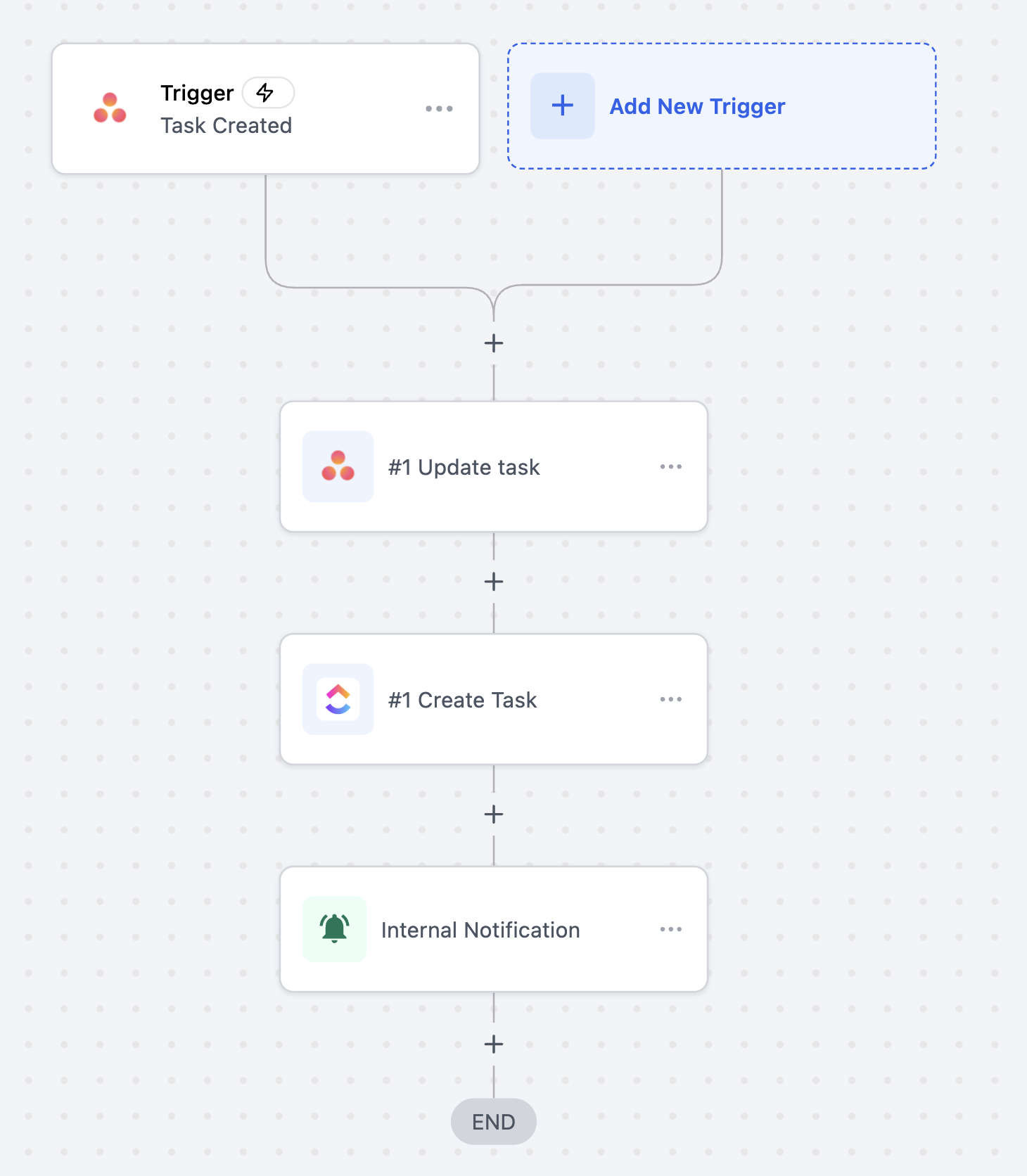
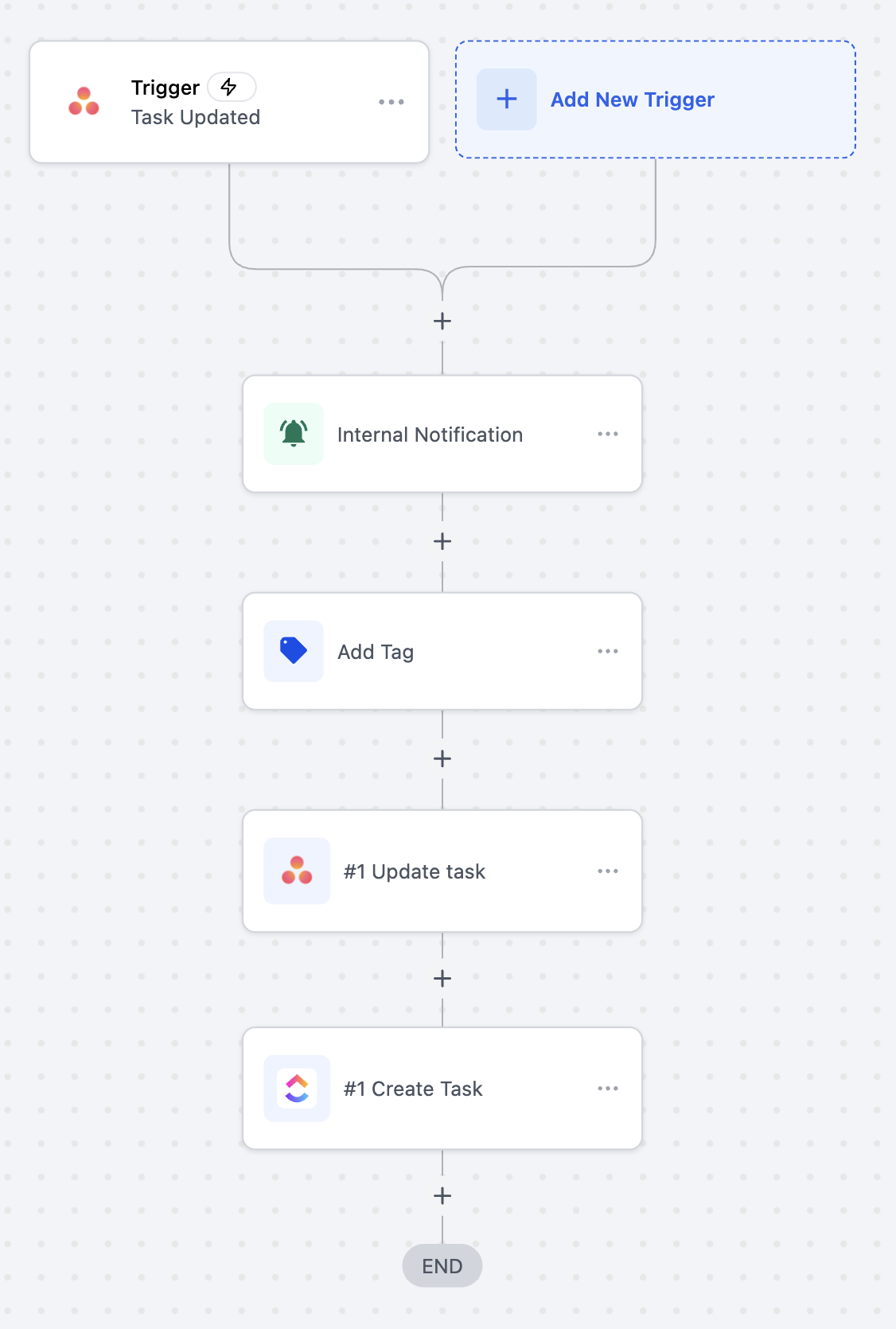
07Settings that matter
- Fields Changed filter. Specifies which task fields must be altered for the Task Updated trigger to activate the workflow.
08Things to know before you rely on it
- Tag Added to Task and New Subtask triggers are marked as coming soon and cannot be used yet.
- All Asana actions and triggers are premium items and are charged according to the automation rates of your plan.
- The integration currently supports only one way data flow; it can either receive events from Asana or send updates to Asana, not both simultaneously.
- Free Asana accounts work with the integration, but features such as multiple projects or guest access may require a paid Asana subscription.
09How it connects to the rest of HighLevel
- Basics of building workflows in HighLevel Workflow basics
- How to enable and pay for premium workflow features Premium billing
- Overview of HighLevel pricing and plan options Pricing
Michael's take

People often assume the Asana triggers will keep every field perfectly in sync without any extra steps. In reality, Asana can fire multiple update events for a single change, so you end up with more workflow runs than you expect.
I would add the Fields Changed filter to the Task Updated trigger and then test with a single field change to confirm only the intended updates fire. That way you avoid unnecessary cycles and keep your automation tidy.