
01Who this is for
- Founders who need to ensure their site works across the most popular browsers.
- Marketing managers looking for clues about bot traffic or repeat visitors.
- Security officers who monitor high frequency IP addresses for potential threats.
02Top browsers and client IP analytics, explained
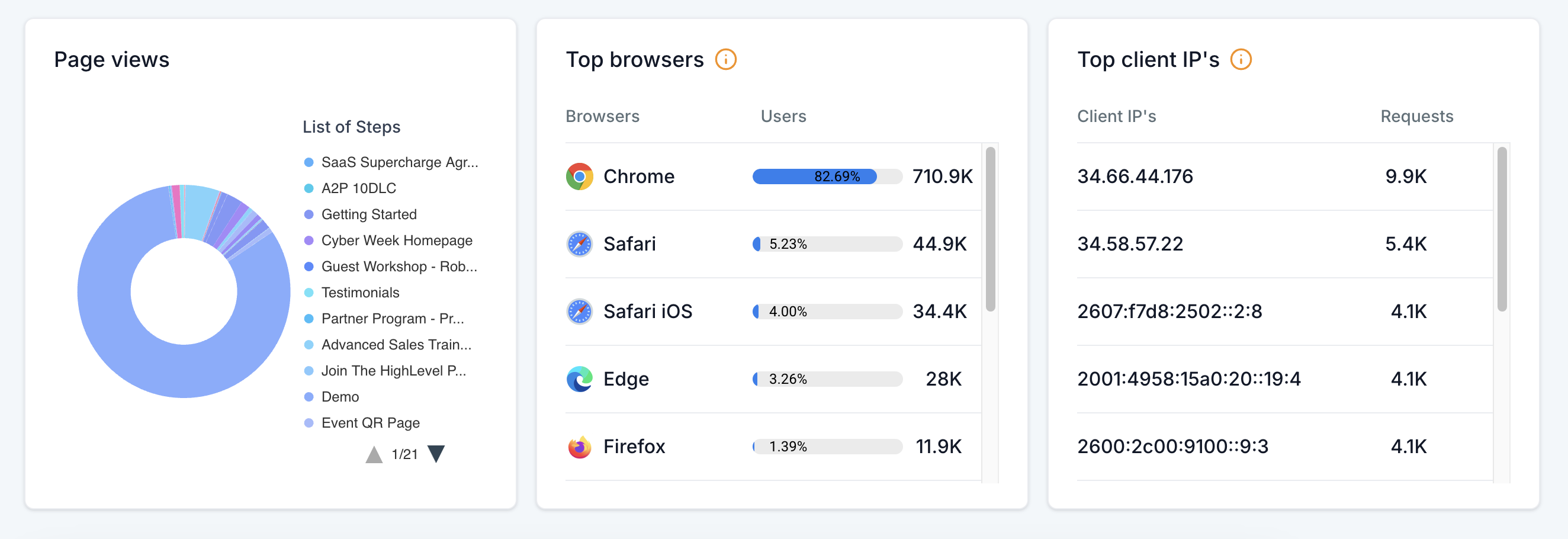
The feature adds two new metrics to the Page Views section of the analytics dashboard. One metric shows the top ten browsers used by visitors, with each browser’s percentage of total page views. The second metric lists the top ten client IP addresses that have accessed your funnels or websites.
These metrics become visible after you select a date range and the desired asset type, Funnels, Websites, or both. The data updates in real time for the chosen period, allowing you to compare recent activity with historical trends.
The analytics reside under Sites > Analytics in the HighLevel platform. The dropdown menu lets you switch between Funnels and Websites, while the date picker controls the time span for the report.
03How businesses use top browsers and client IPs analytics
- Ecommerce store. The owner opens the Sites > Analytics page, selects the store’s website, and reviews the Top Browsers list. If a significant share of traffic uses a less common browser, they adjust the site’s design to improve compatibility.
- Digital marketing agency. The agency’s strategist checks the Top Client IPs for each client’s funnel. When an IP appears repeatedly, they investigate whether the activity is legitimate or indicative of a bot, then advise the client on protection steps.
- SaaS startup. The product team views the Top Browsers metric to ensure the web app renders correctly in the most used browsers, then schedules testing for any browsers that show lower usage percentages.
04The numbers and rules that matter
- View the top 10 browsers your visitors use (e.g., Chrome, Firefox, Safari, Edge).
- View the top 10 IP addresses accessing your site.
05Before you start
- A HighLevel account with access to the Sites > Analytics area.
06How to set up and use top browsers and client IPs analytics in HighLevel
Access top browsers and client IP analytics
- Sign into HighLevel and open the Sites section.
- Select the Analytics tab.
- Choose Funnels, Websites, or both from the dropdown menu.
- Pick a date range such as last week, last month, or a custom period.
- Scroll down until the Top Browsers and Top Client IPs sections appear.
- Review the displayed data to inform site optimization and security decisions.
07What it looks like in HighLevel
08Settings that matter
- Page Views. The Page Views section displays the Top Browsers and Top Client IPs reports within the analytics dashboard.
09Things to know before you rely on it
- The report shows only the top ten browsers and the top ten client IP addresses.
- Feature is available within the Funnels & Websites Analytics Dashboard.
10How it connects to the rest of HighLevel
- Explore traffic source breakdowns for deeper insight. Traffic source analytics
- View geographic distribution of visitors on your funnels. Geographic site analytics
- Apply advanced filters to refine analytics views. Advanced Filters
Michael's take

I find it useful to select a custom date range. Such as the past month. And compare the browser distribution to the previous month. I then look for any IPs that show a noticeable increase in hits and consider blocking them or adding bot protection.