
Ask Workflow AI what happened, and it now tells you. The Workflow AI chat can trace a contact's path, follow one contact across every workflow, compare versions, compare workflows, and hand you a PDF report. No more jumping between Enrollment History, Execution Logs and Version History to piece the
Michael's take
My first take is that this feels like a solid quality of life upgrade. It pulls three separate places into a single chat, which is exactly what we’ve been asking for.
If you already use Workflow AI, you can now ask it to map a single contact’s steps, follow them across all your automations, and even pull a PDF report without leaving the chat window.
I’d start by asking for a contact path and then compare two workflow versions side by side to see if the answers match what I see in the logs. Also check that the PDF download respects the same permission rules as the rest of the subaccount.
In practice I could ask the bot for the journey of a lead who fell out of a funnel, see which workflow stopped them, and then pull a report to show the client exactly where the drop happened.
I believe tools should reduce the manual stitching we do every day, not add another layer of clicks. When a single question gives you the whole story, you spend more time fixing the business and less time hunting data.
If you’re already troubleshooting automations, this is worth trying.
Ask Workflow AI what happened, and it now tells you. The Workflow AI chat can trace a contact's path, follow one contact across every workflow, compare versions, compare workflows, and hand you a PDF report. No more jumping between Enrollment History, Execution Logs and Version History to piece the story together.
What changed
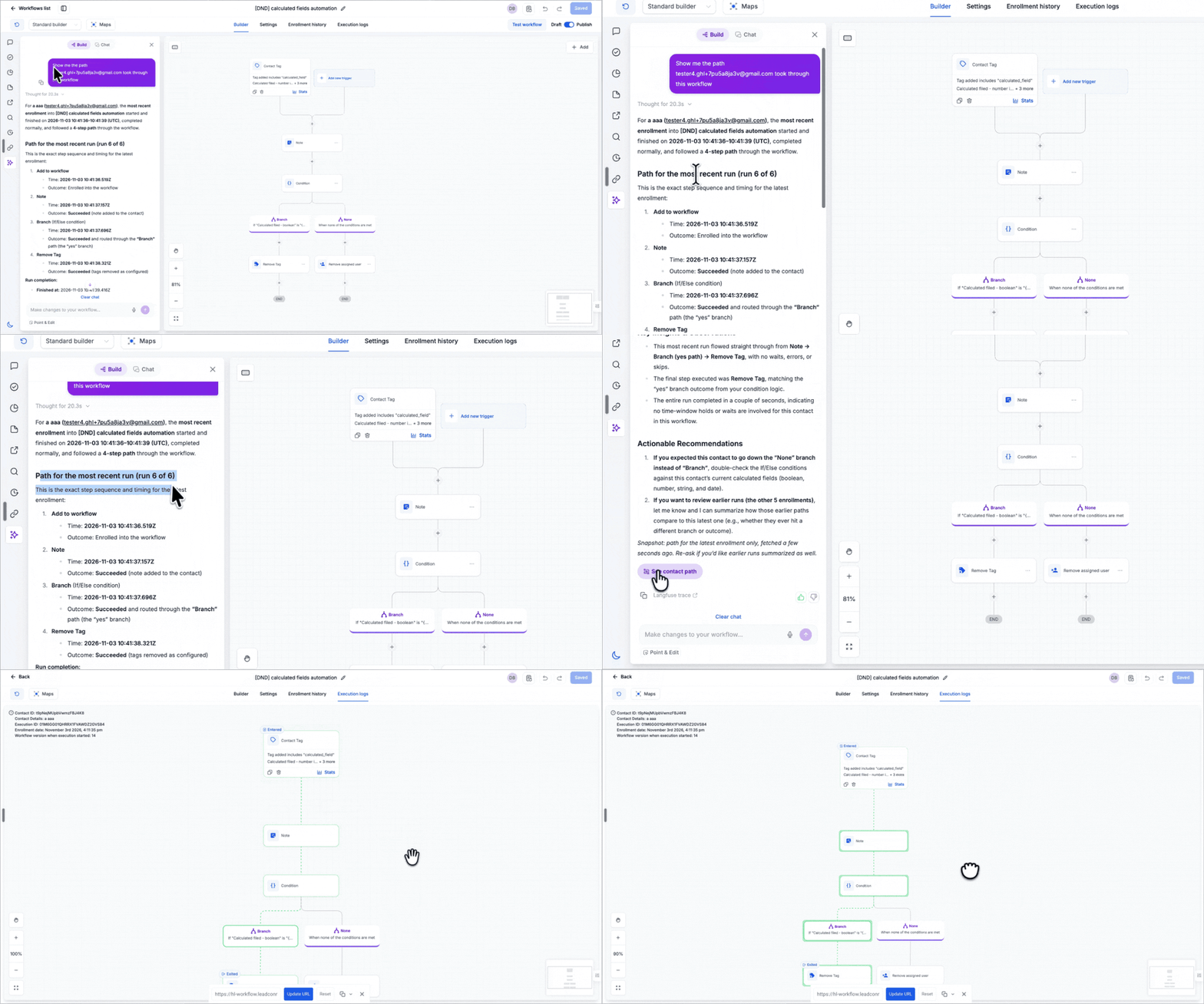
See Contact Path
- Ask about a named contact and get their latest run step by step, with the time and outcome of each step.
- Click "See contact path" to open the canvas with that path highlighted.
- Repeat enrollments are called out, so you know which run you are looking at.
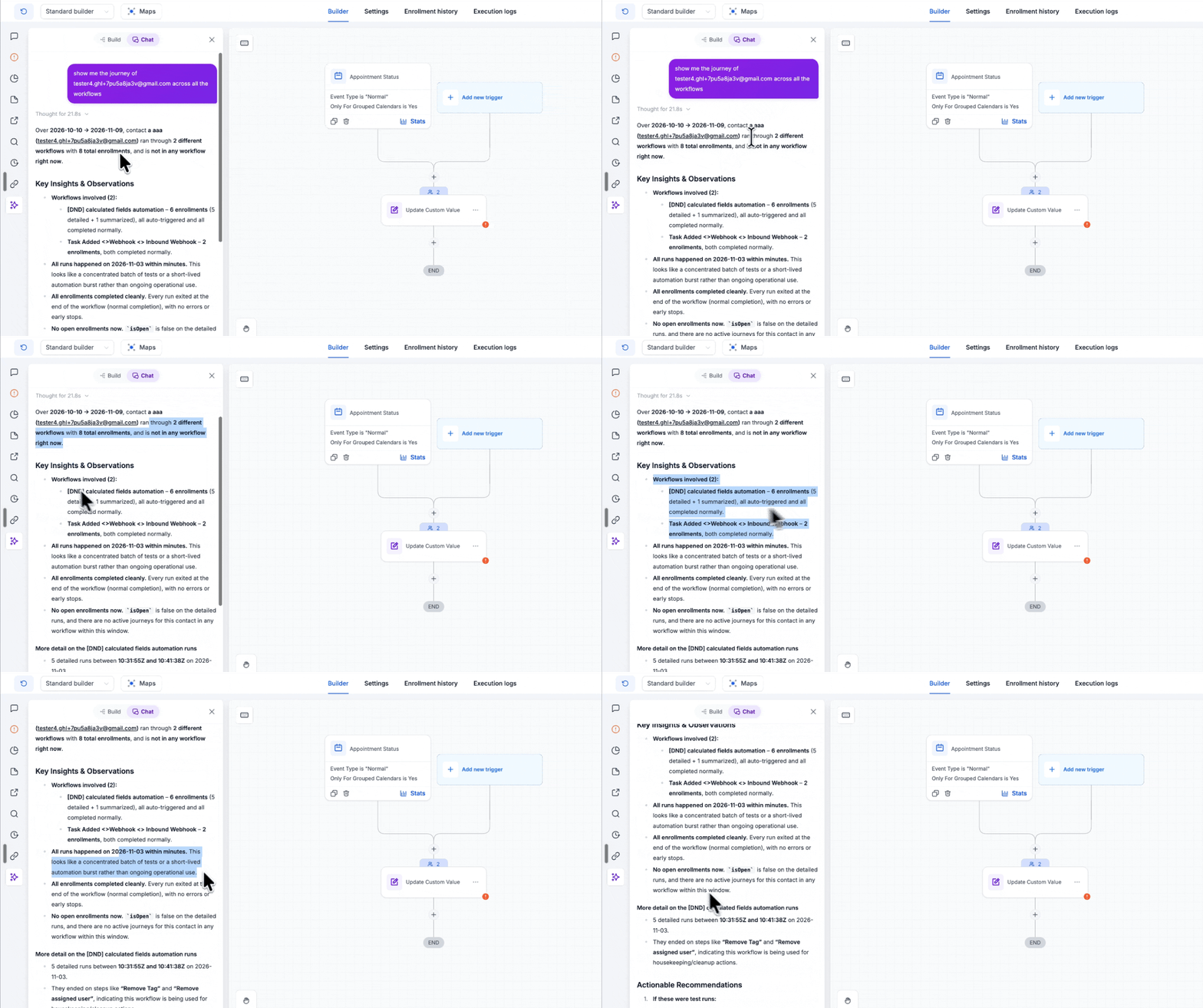
Cross Workflow Contact Journey
- Follow one contact across every workflow: Which workflows they entered, how many times, and how each run ended.
- See whether they are in any workflow right now.
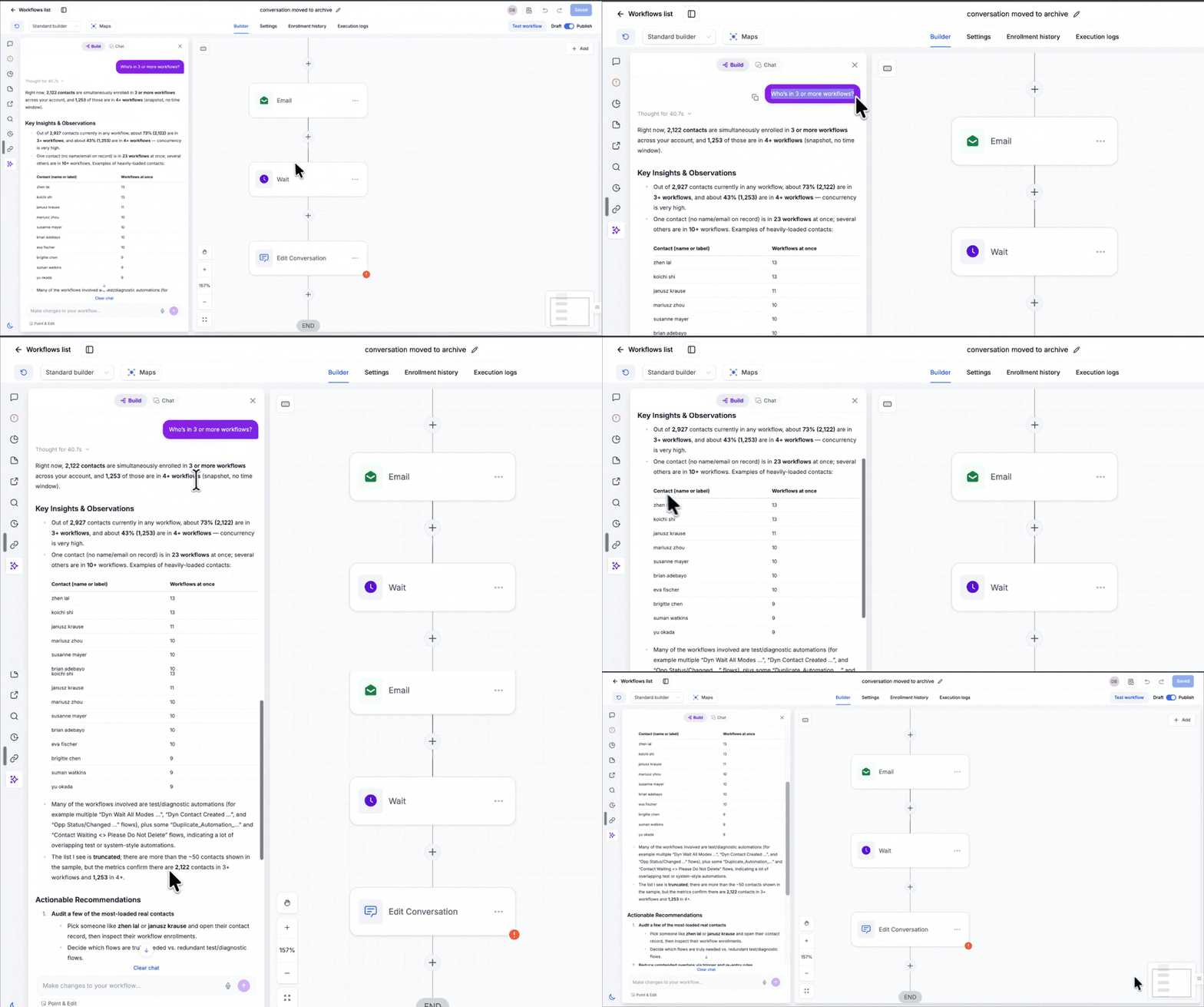
- Ask about the whole account too, like "Who's in 3 or more workflows?", and see the contacts carrying the most load.
Version History in Chat
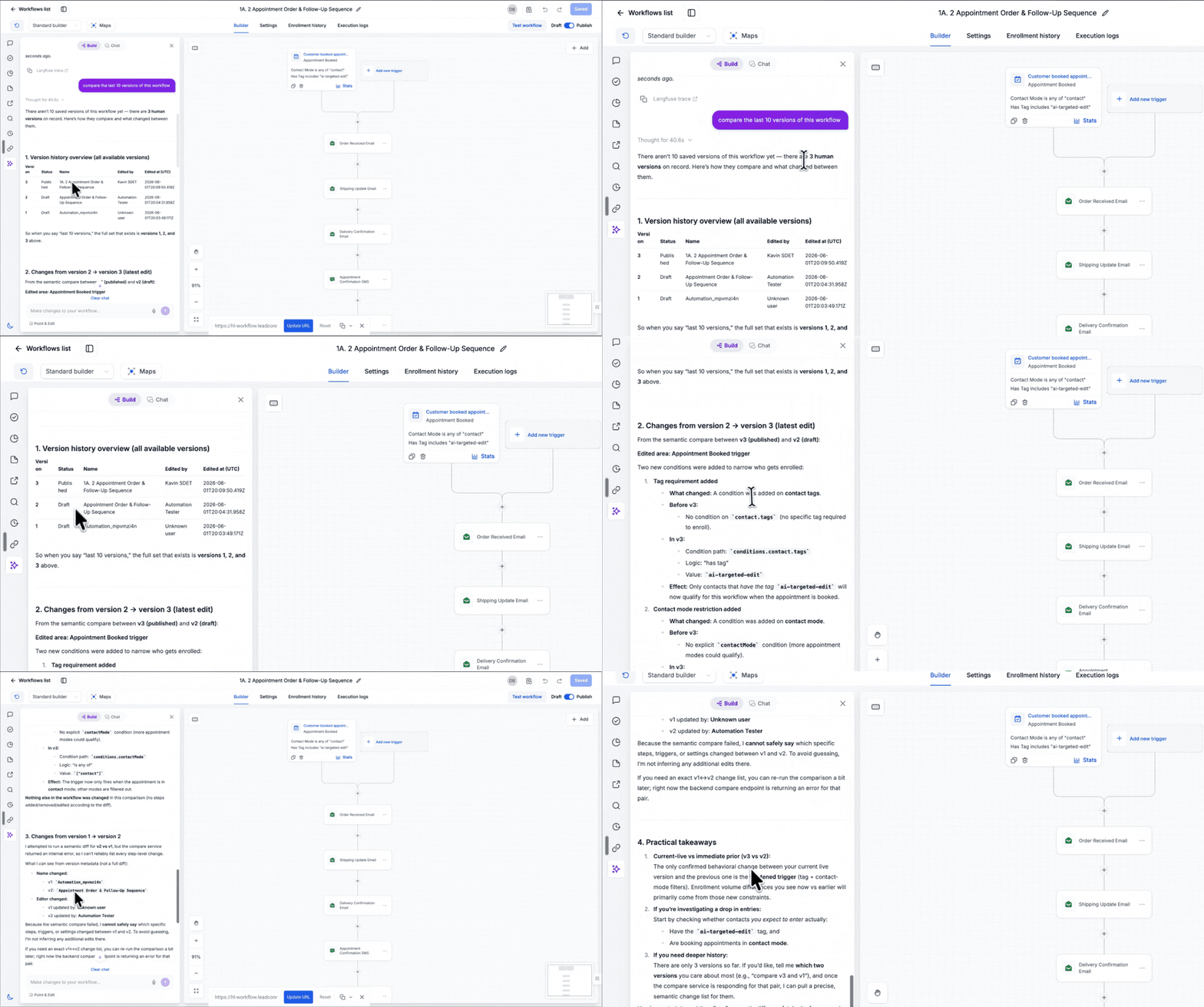
- See who edited the workflow and exactly what changed between versions: Steps added, removed, moved or renamed, and fields or settings changed.
- Ask whether an edit caused a problem. The answer comes with a confidence level: "Direct cause", "Lines up" or "Can't tell".
- Secret values stay hidden.
PDF Reports
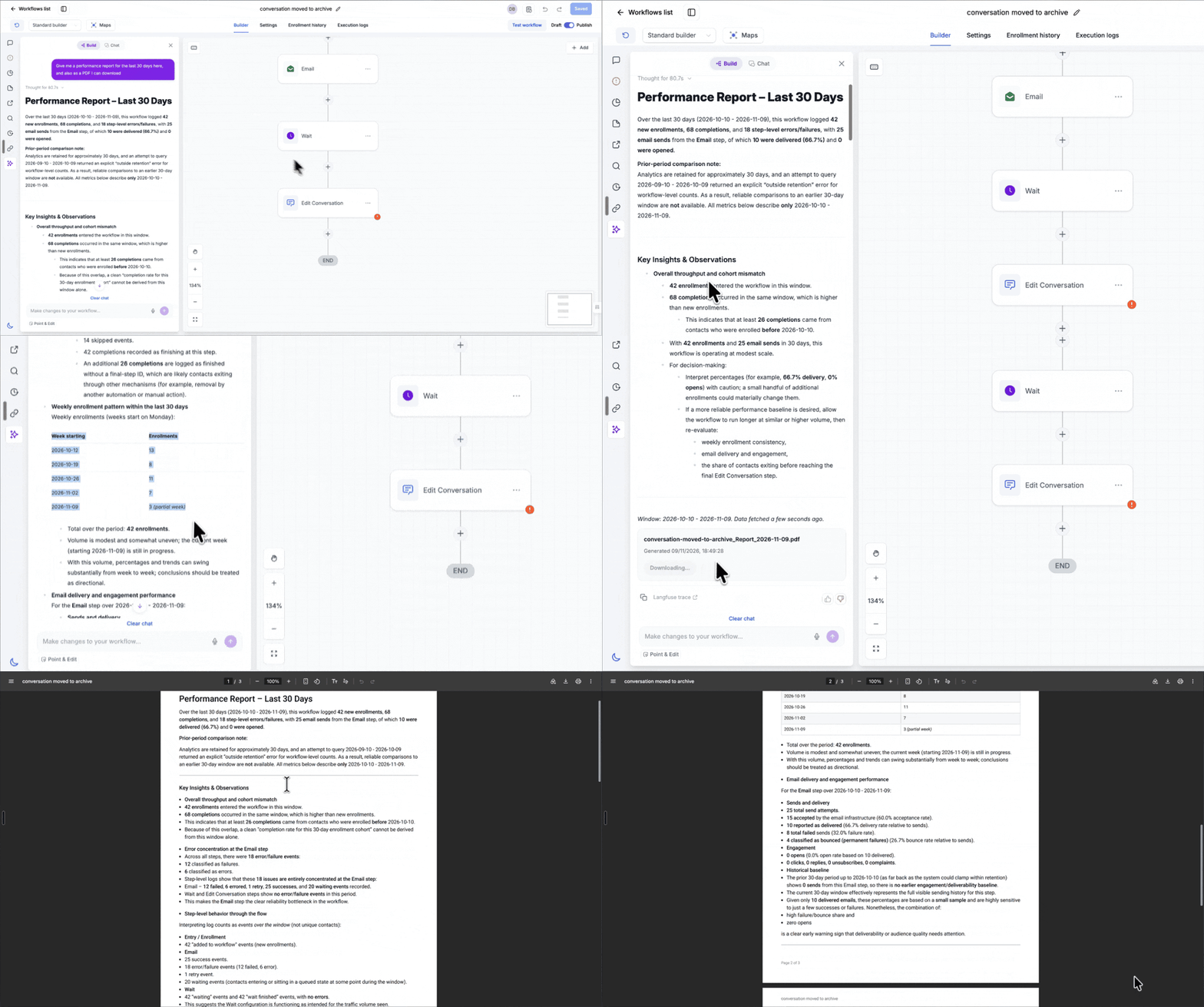
- Ask for a report and mention PDF, download or export.
- The full analysis shows in the chat, with a "Download PDF" card right under it.
- Reports are private to users with access to the subaccount and the workflow.
Compare and Summarize
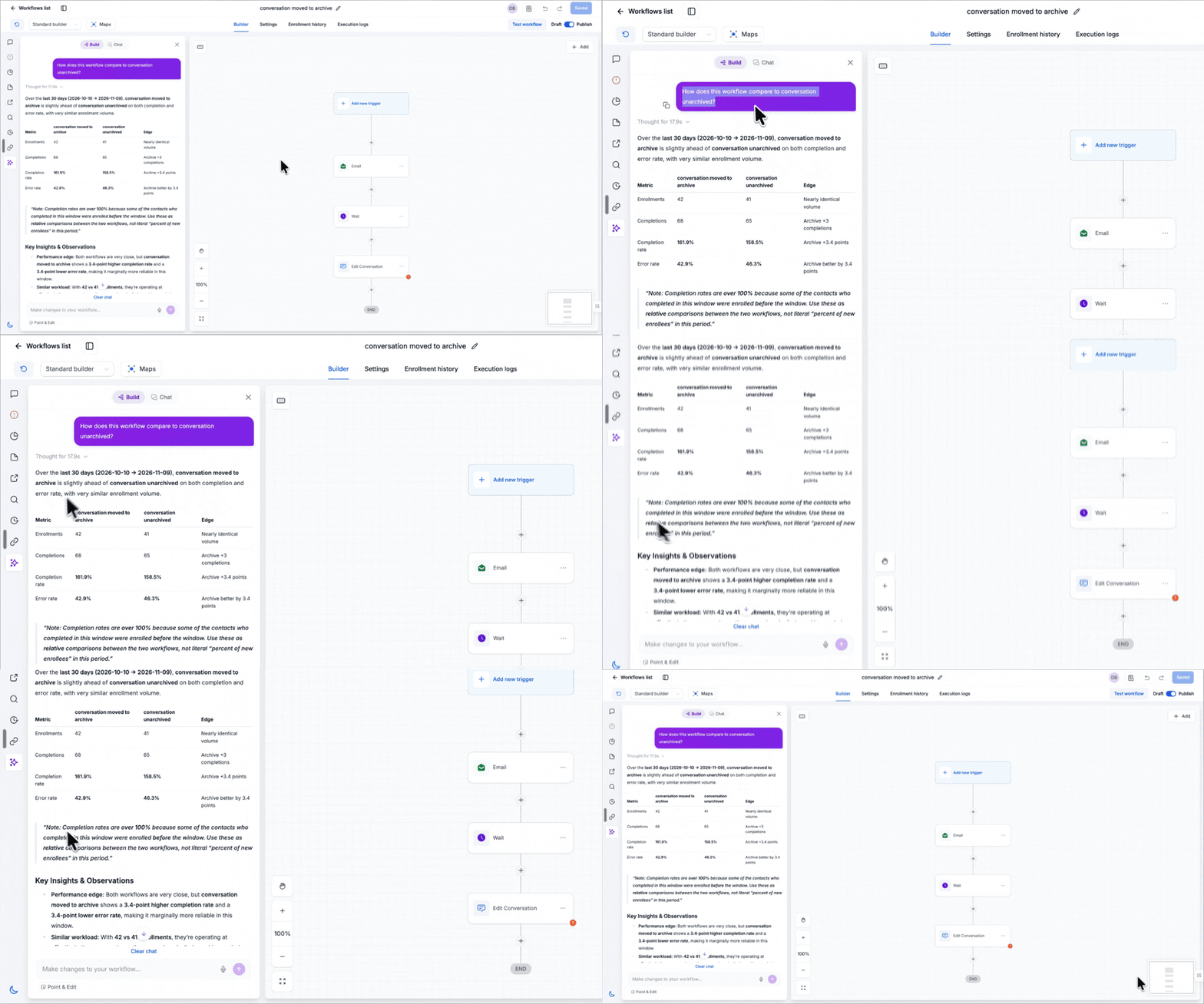
- Head to head: Compare two workflows on enrollments, completions, completion rate and error rate, with recommendations.
- Leaderboard: Rank your published or paused workflows by completion rate and see the underperformers against your account median.
How to turn it on
- Go to Automation > Workflows.
- Open a workflow.
- Click the Workflow AI icon in the left bar, then open the Chat tab.
- Ask your question in plain words. Try one of these:
- "Show me the path jane@acme.com took through this workflow"
- "Show me the journey of jane@acme.com across all the workflows"
- "Compare the last 10 versions of this workflow"
- "Give me a performance report for the last 30 days here, and also as a PDF I can download"
- "How does this workflow compare to Lead Follow Up?"
- For a PDF, click "Download PDF" on the card.
Why it matters for Founders
"What happened to this contact?" and "what changed?" are the two questions every workflow owner asks when something looks off. Until now, the answer lived in three different places and you did the joining by hand. Now it's one question in the chat.
- Faster debugging: Find out why one contact got stuck without reading raw logs.
- Clear accountability: See who changed what, and whether that change broke something.
- Client ready reporting: Share a PDF instead of a pile of screenshots.
- Account wide view: Spot the workflows that need attention before your clients do.
Questions Founders ask
What did HighLevel release in "Workflow AI Analytics: Query Every Workflow, Trace Every Contact"?
Ask Workflow AI what happened, and it now tells you. The Workflow AI chat can trace a contact's path, follow one contact across every workflow, compare versions, compare workflows, and hand you a PDF report. No more jumping between Enrollment History, Execution Logs and Version History to piece the
What should a Founder do with Workflow AI Analytics: Query Every Workflow, Trace Every Contact?
Open a workflow, click the Workflow AI chat, and ask for a contact path to see the new flow in action. Anyone who builds or manages workflows in HighLevel should take a look.
How do I turn on Workflow AI Analytics: Query Every Workflow, Trace Every Contact in HighLevel?
In HighLevel: Go to Automation > Workflows. Then Open a workflow. Then Click the Workflow AI icon in the left bar, then open the Chat tab. Then Ask your question in plain words. Try one of these:. Then "Show me the path jane@acme.com took through this workflow". Then "Show me the journey of jane@acme.com across all the workflows".
Why does Workflow AI Analytics: Query Every Workflow, Trace Every Contact matter?
"What happened to this contact?" and "what changed?" are the two questions every workflow owner asks when something looks off. Until now, the answer lived in three different places and you did the joining by hand. Now it's one question in the chat. Faster debugging: Find out why one contact got stuck without reading raw logs. Clear accountability: See who changed what, and whether that change broke something. Client
How do I get this feature with setup help?
Start a free HighLevel trial through Michael Reimer's link and the CRM Pros team helps with setup in your first 7 days, with an onboarding call, three live calls every week and the affiliate community included.
Get More InformationOpens in a new tab Published November 9, 2026. Screenshots belong to HighLevel.