
01Who this is for
- Marketing agencies can match client branding by choosing specific image placements and styling.
- Coaches and trainers can highlight program visuals using fixed images with focal point adjustments.
- Event organizers can give each survey question its own image to emphasize different agenda items.
02Image layouts, explained
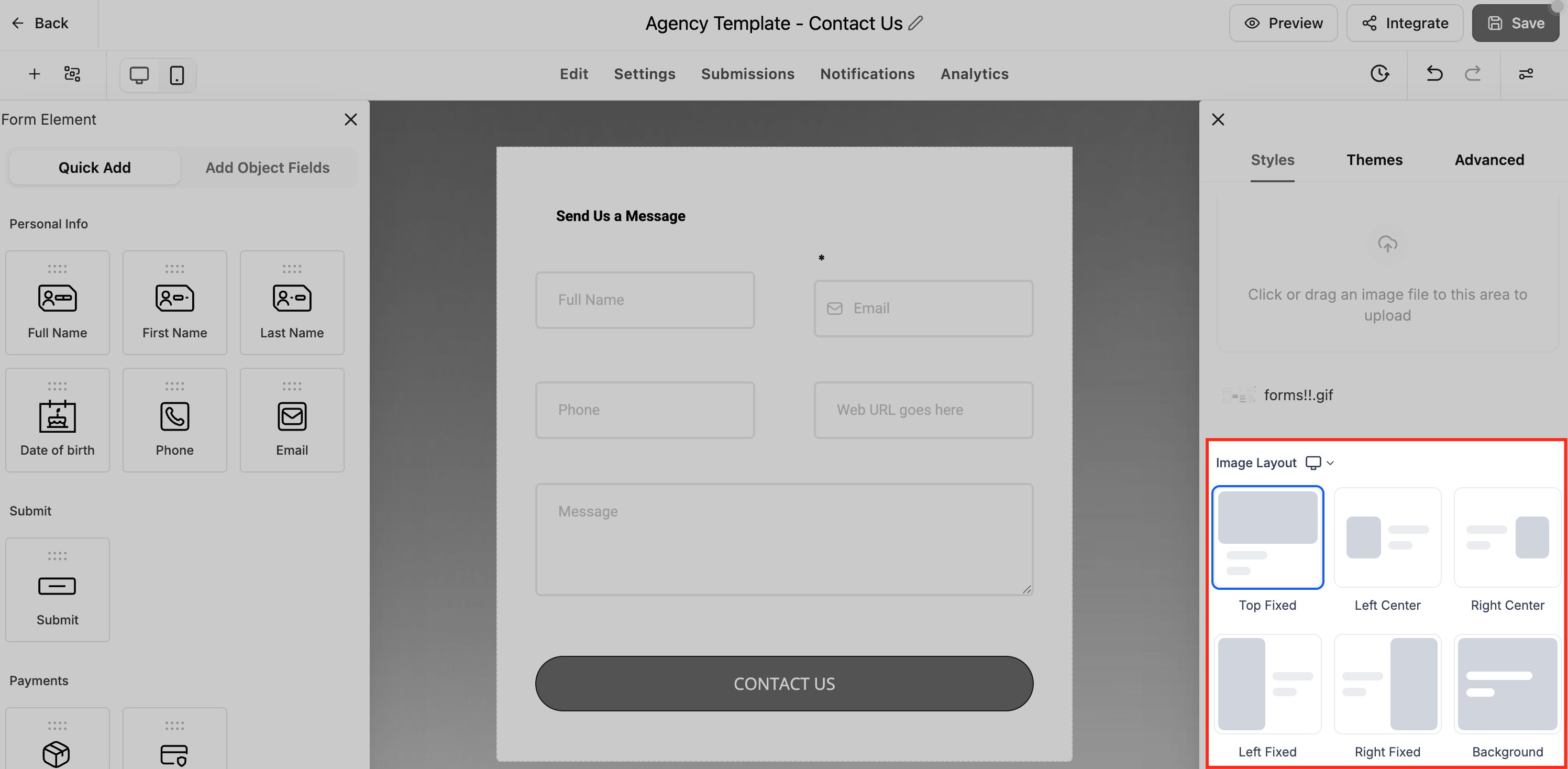
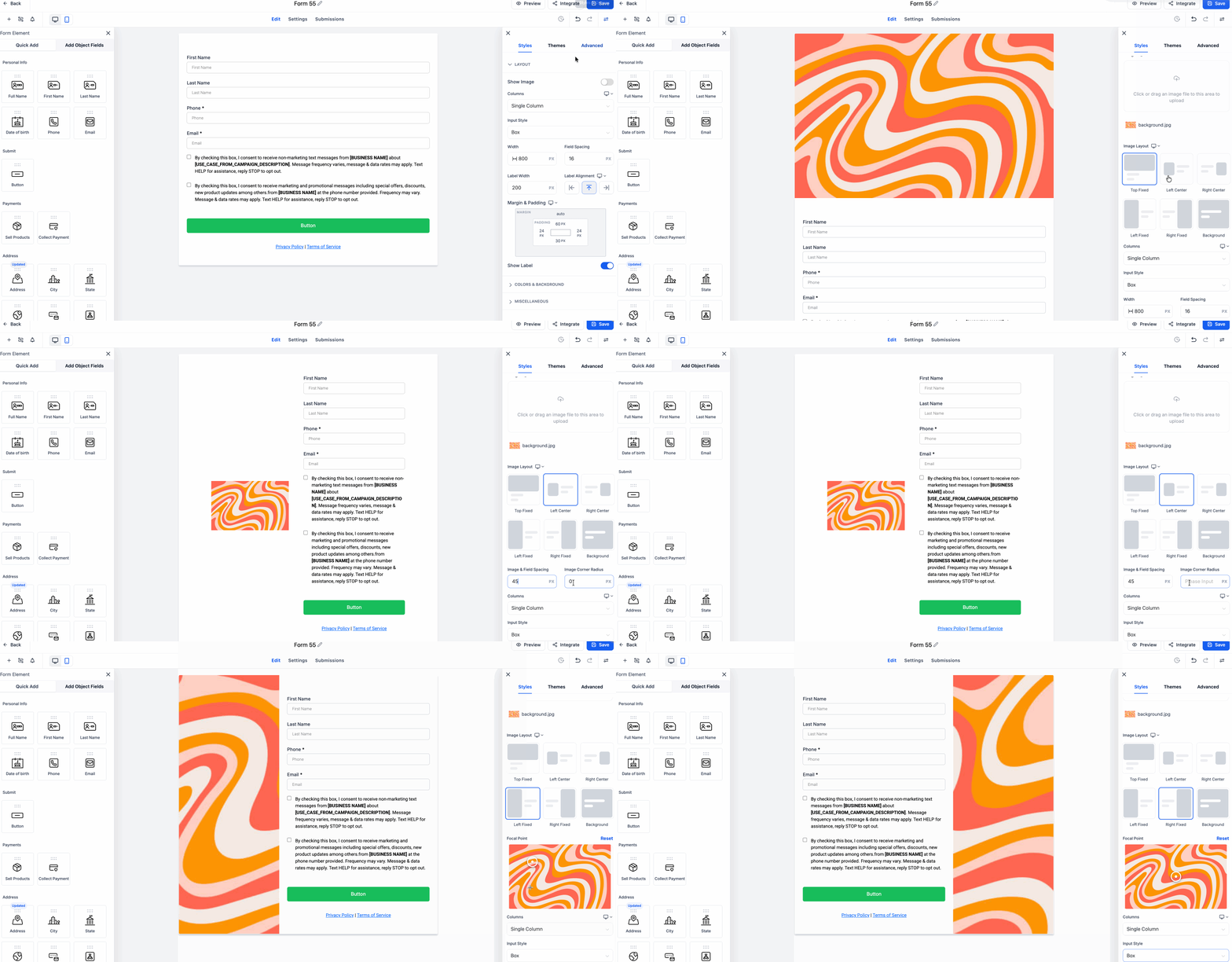
The feature adds five placement styles, Left Center, Right Center, Left Fixed, Right Fixed, and Background, to forms and surveys. Users select a style, upload an image, and apply layout specific options such as corner radius, field spacing, or focal point.
Corner radius and field spacing settings are only available for the Center layouts, while focal point selection is limited to the Fixed layouts.
For surveys, a slide can override the default layout. By switching a slide to Independent, a different image and layout can be assigned, letting each question carry its own visual treatment.
03How businesses use image layouts
- Fitness studio. The studio creates a class sign up form, enables Show Image, uploads a hero photo, picks the Left Fixed layout, sets the focal point on the trainer’s face, and saves. The image stays fixed while the sign up fields appear beside it.
- Online course provider. In a course feedback survey, the provider selects Right Center layout, adjusts Image Field Spacing for readability, rounds the image corners to match branding, and previews the result before publishing.
- Conference organizer. For a multi step registration survey, the organizer opens a specific slide, changes Image Layout Settings to Independent, uploads a new banner image, selects a Background layout, and saves so that slide displays a distinct visual.
04Before you start
- Slide level image layout overrides are only available for Surveys.
05How to set up and use image layouts in HighLevel
Configure image layouts in forms
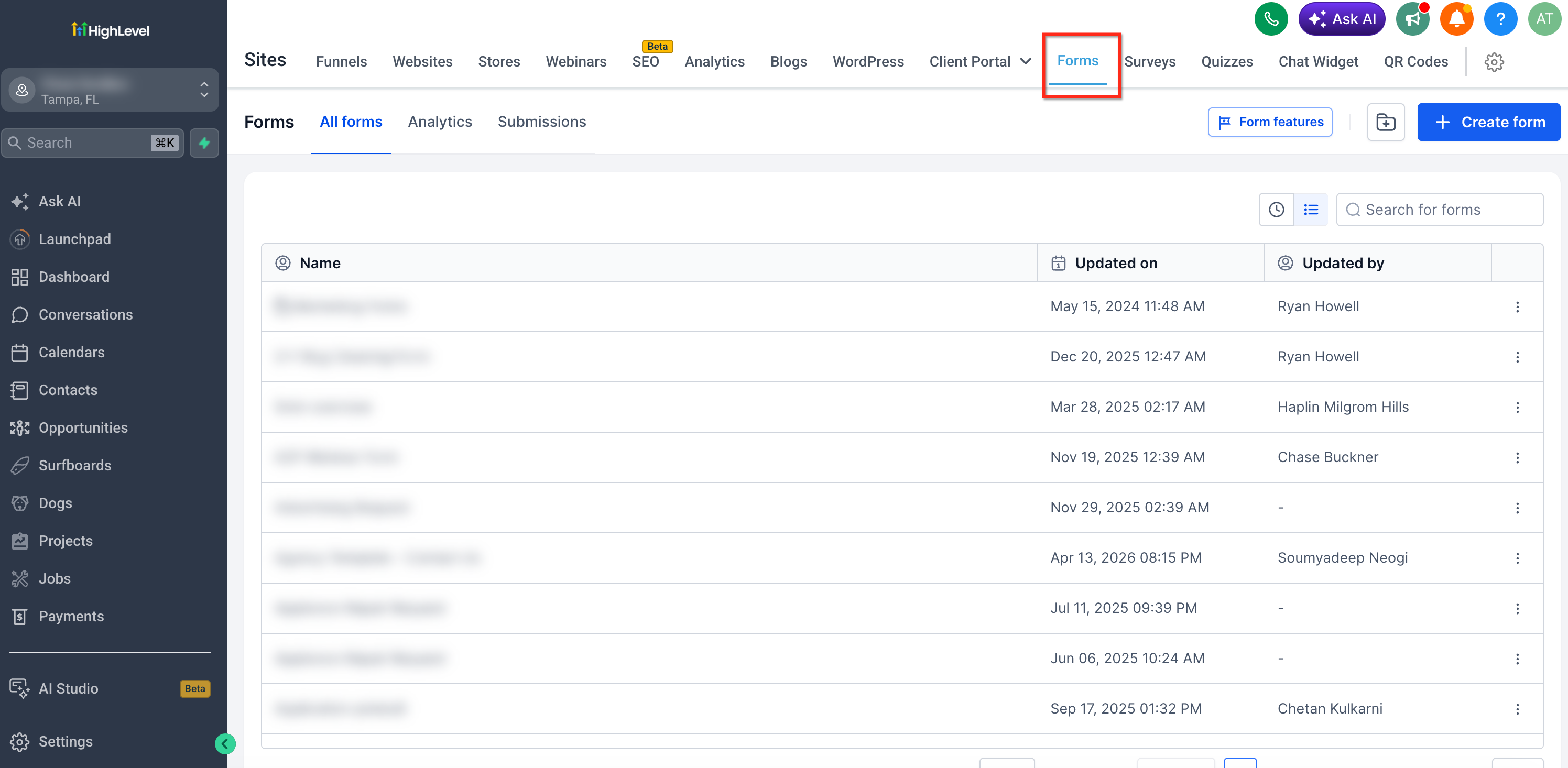
- Go to Sites > Forms.
- Start a new form or edit an existing one.
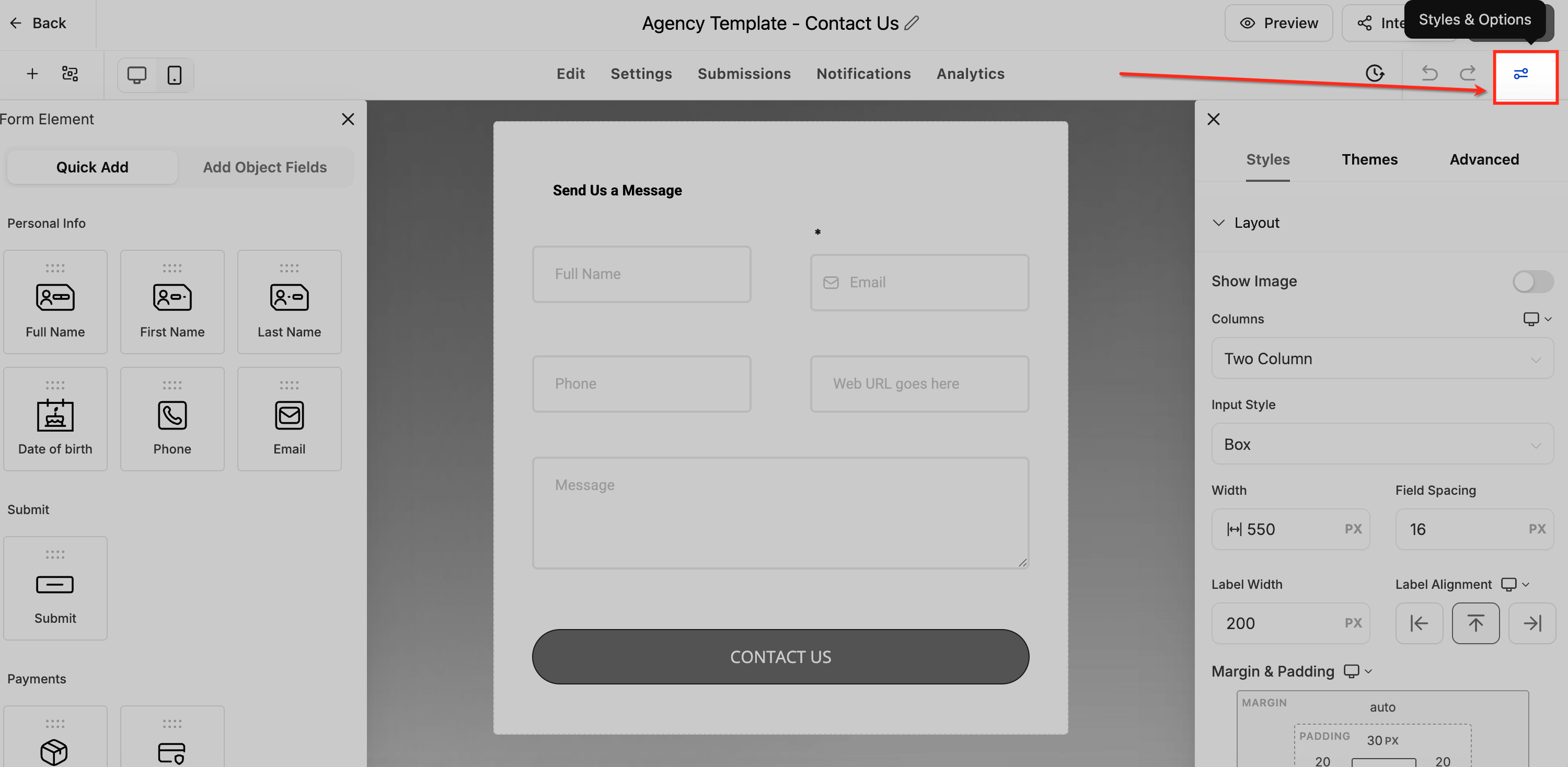
- Open the Styles and Options tab on the right.
- Expand the Layout section.
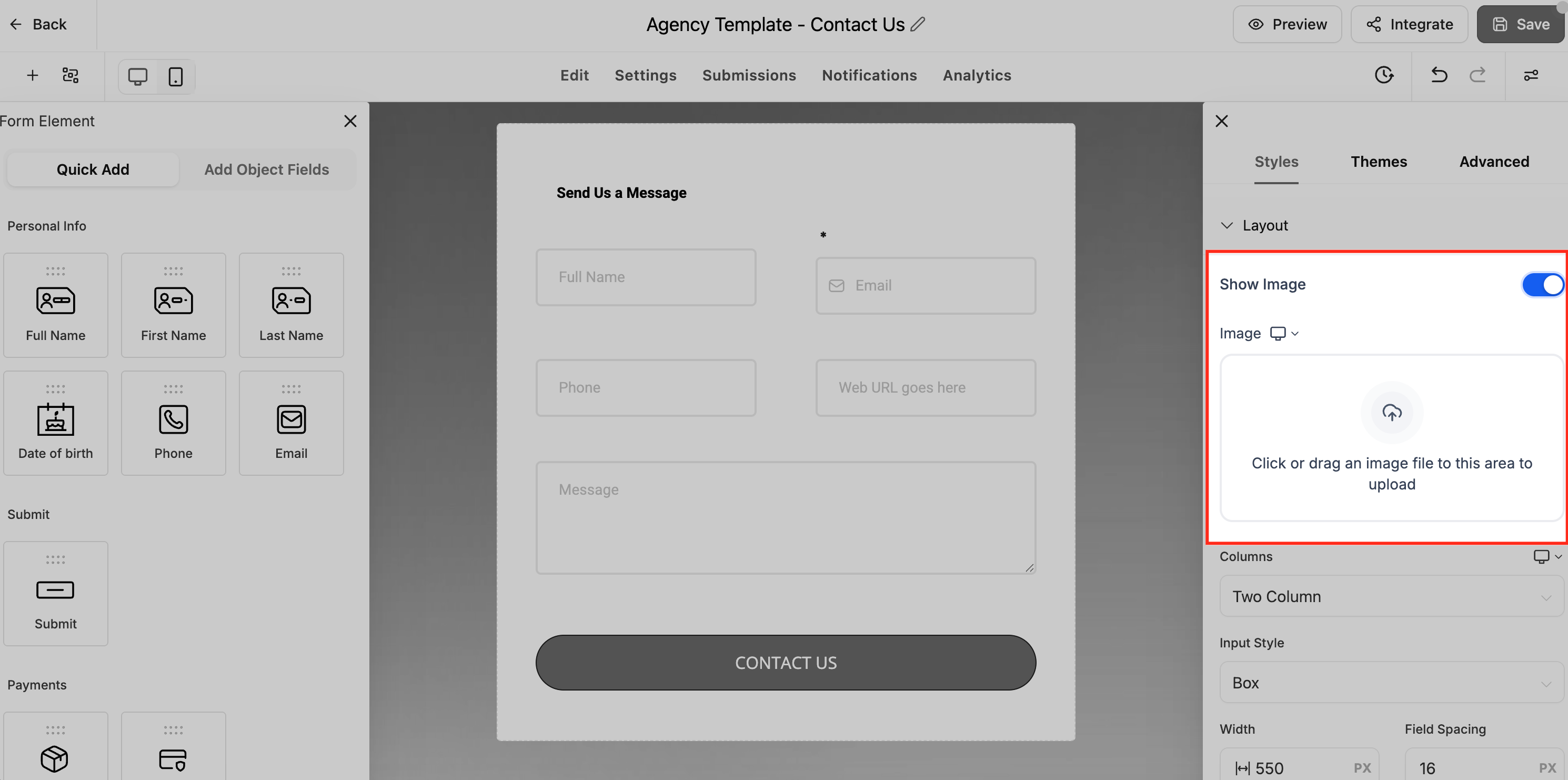
- Turn on the Show Image toggle.
- Upload or choose an image from the library.
- Pick an Image Layout from the list.
- Adjust any layout specific controls such as Corner Radius, Image Field Spacing, or Focal Point.
- Use the preview to check the appearance.
- Click Save to apply the changes.
Configure image layouts in surveys
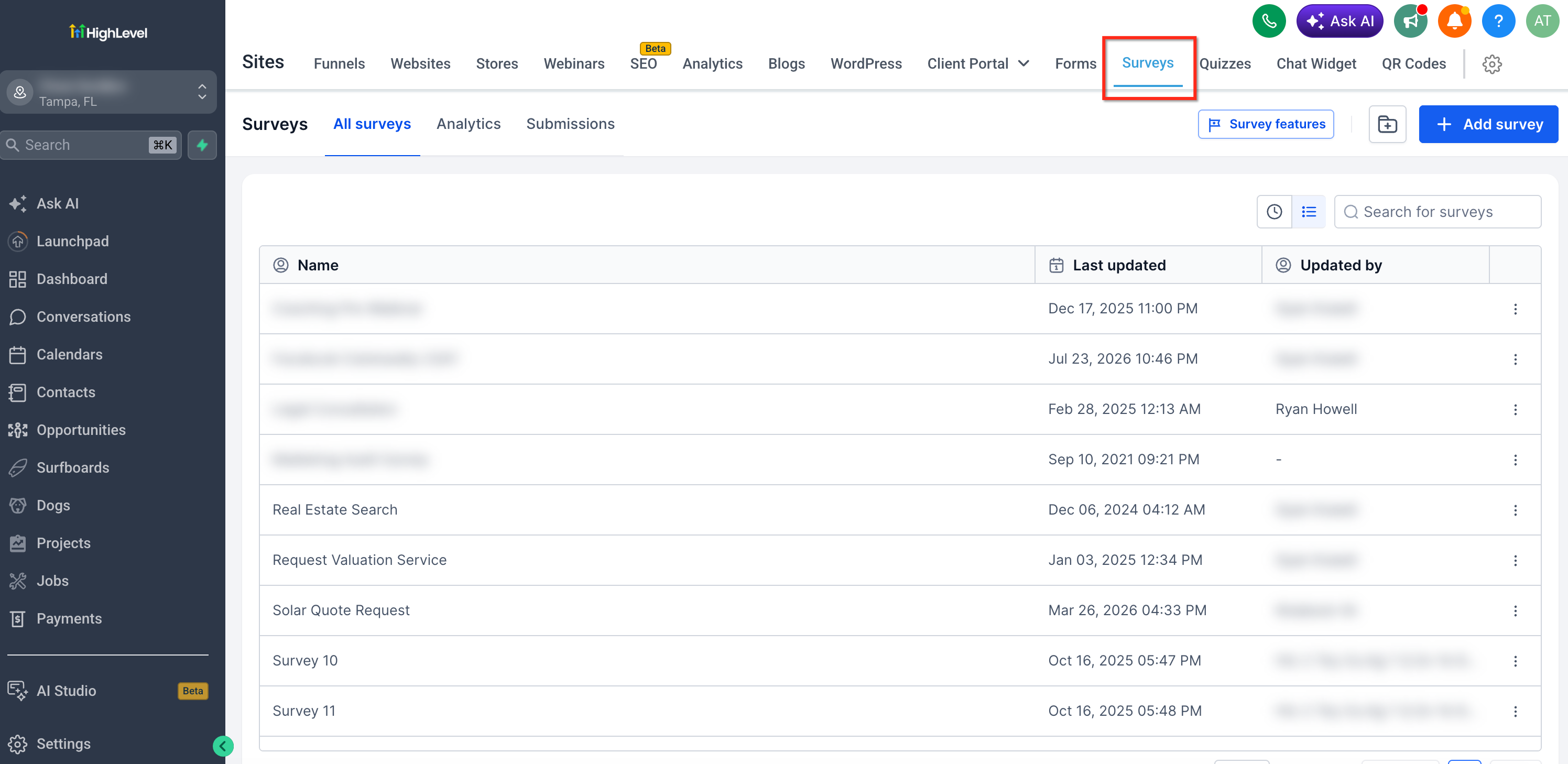
- Navigate to Sites > Surveys.
- Create a new survey or edit an existing one.
- Open the Styles tab.
- Enable the Show Image option.
- Upload or select an image.
- Choose the desired Image Layout.
- Set any supported options like Corner Radius, Image Field Spacing, or Focal Point.
- Save the survey.
Override image layout for an individual survey slide
- Open the survey builder.
- Select the slide that needs a different image.
- Click the Settings icon for that slide.
- Find the Image Layout Settings area.
- Switch the setting to Independent.
- Upload a different image if needed.
- Choose a new Image Layout for the slide.
- Save the slide changes.
06What it looks like in HighLevel
07Settings that matter
- Image Corner Radius. Rounds the corners of images in Left Center and Right Center layouts to match branding.
- Image, Field Spacing. Controls the distance between the image and form fields for Left Center and Right Center layouts.
- Focal Point. Selects the portion of a Fixed layout image that remains visible across screen sizes.
- Show Image. Enables or disables the display of an image for a form or survey.
- Image Layout. Determines the placement style of the image, such as Left Center, Right Fixed, Background, etc.
- Independent. When set on a survey slide, allows that slide to have its own image and layout separate from the survey default.
08Things to know before you rely on it
- Slide level image layout overrides are available only for Surveys.
- Image Corner Radius works only with Left Center and Right Center layouts.
- Image Field Spacing is limited to Left Center and Right Center layouts.
- Focal Point can be set only for Left Fixed and Right Fixed layouts.
09How it connects to the rest of HighLevel
- Export survey responses to a spreadsheet for analysis Export survey answers
- Add payment collection to a survey for product sales Payments in surveys
- Set up a root domain or subdomain for your forms and surveys Root domain setup
Michael's take

When you have a brand that relies on visual impact. Like a fitness coach or a product launch page. The ability to fine tune image placement can make a noticeable difference. A clean side layout with rounded corners or a fixed hero image that keeps the focal point in view helps maintain a cohesive look across your forms and surveys.