
01Who this is for
- Marketing managers who need real time survey data in a spreadsheet for quick analysis.
- Product teams that collect user feedback via surveys and want the answers stored in Google Sheets for centralized review.
02Exporting survey answers to Google sheets, explained
The feature lets a workflow capture the moment a contact completes a selected survey and then creates a new row in a Google Sheet. The workflow pulls values such as name, email, phone and any custom survey fields that are available in the automation data picker.
The process lives in the Automation > Workflows area. After adding a Survey Submitted trigger, you choose a Google Sheets action (Create Spreadsheet Row) and map each HighLevel value to a column header you prepared in the sheet. When the workflow runs, the row is added automatically.
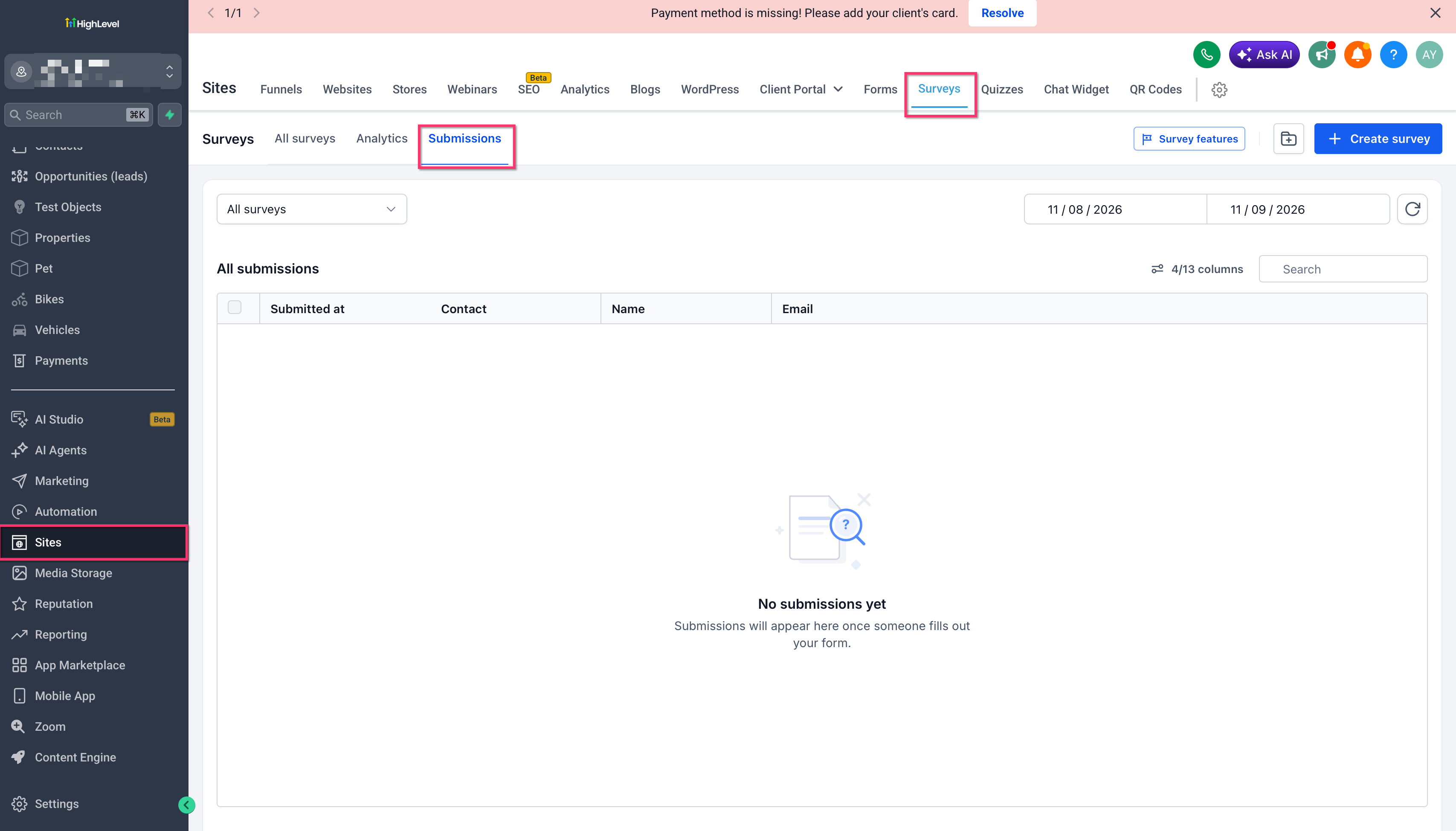
If you need data from surveys that were already submitted, HighLevel provides a native export button that emails a download link with the historical responses.
03How businesses use exporting survey answers to Google sheets
- Digital marketing agency. The agency creates a workflow that triggers on a client’s lead capture survey. Each new lead’s contact details and answers are appended to a Google Sheet shared with the client’s reporting team.
- E learning platform. After a student finishes a course feedback survey, the platform’s workflow adds the rating and comments to a Google Sheet used by curriculum designers to track satisfaction trends.
- Event management firm. When an attendee submits a post event survey, the firm’s workflow records the response data in a Google Sheet that the sales team reviews to tailor future outreach.
04Before you start
- A published HighLevel survey must exist.
- A Google account must be linked to the HighLevel subaccount.
- A Google Sheet with column headers for the desired data must be ready.
- Access to Automation > Workflows is required.
- Premium Triggers & Actions must be enabled for the Google Sheets action.
05How to set up and use exporting survey answers to Google sheets in HighLevel
Prepare your Google Sheet
- Open Google Sheets in a web browser.
- Create a new spreadsheet or open an existing one.
- Select the worksheet where survey rows will be placed.
- Add a header row with column names for the data you will store.
Create the Workflow
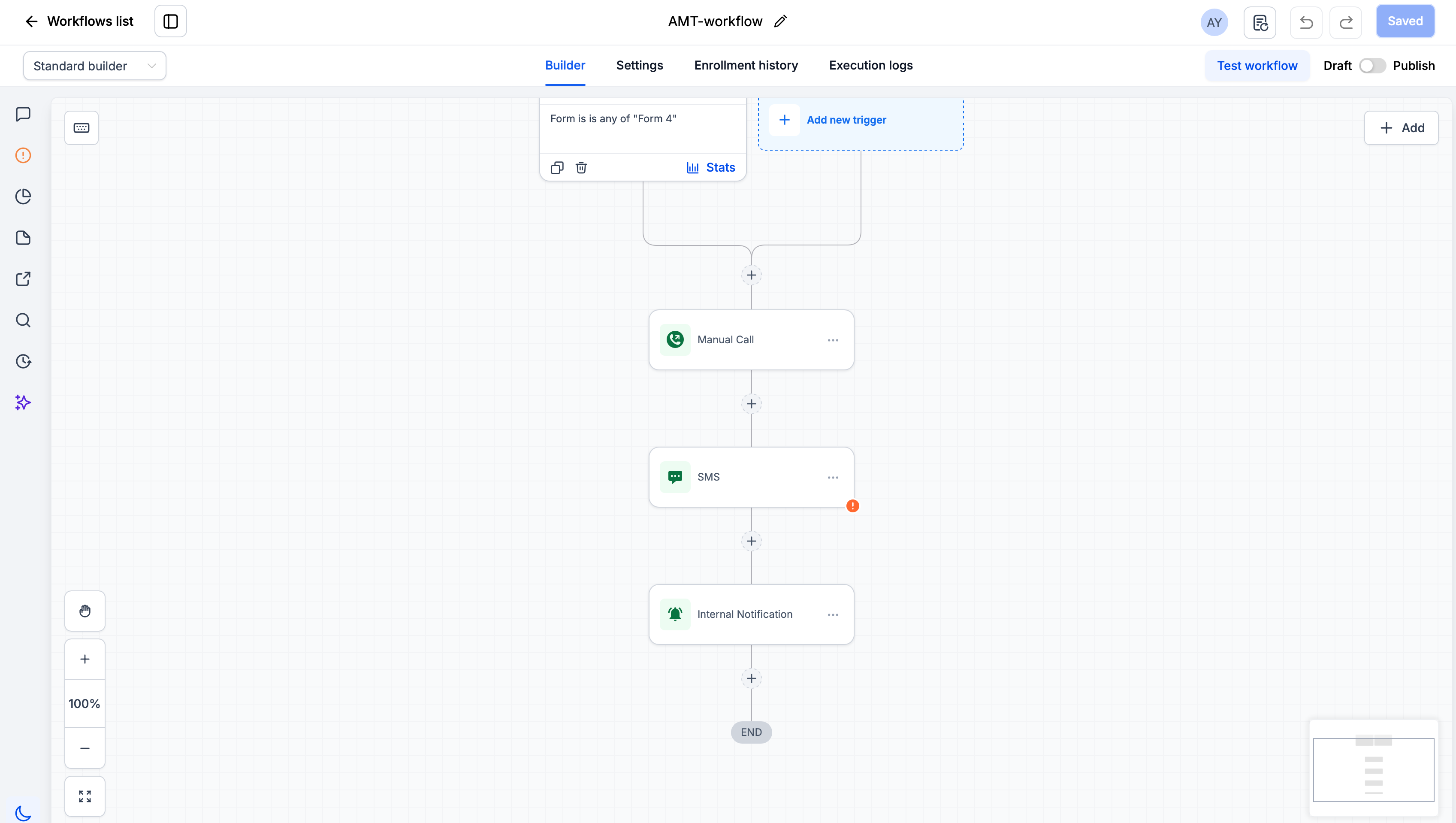
- Navigate to Automation > Workflows in your HighLevel subaccount.
- Start a new workflow or open an existing workflow to edit.
- Insert a new workflow trigger placeholder.
Add the Survey Submitted Trigger
- Choose “Survey Submitted” as the trigger type.
- Add a “Survey is” filter to limit the trigger.
- Select the specific survey whose submissions should be sent.
- Save the trigger configuration.
Add the Google Sheets Action
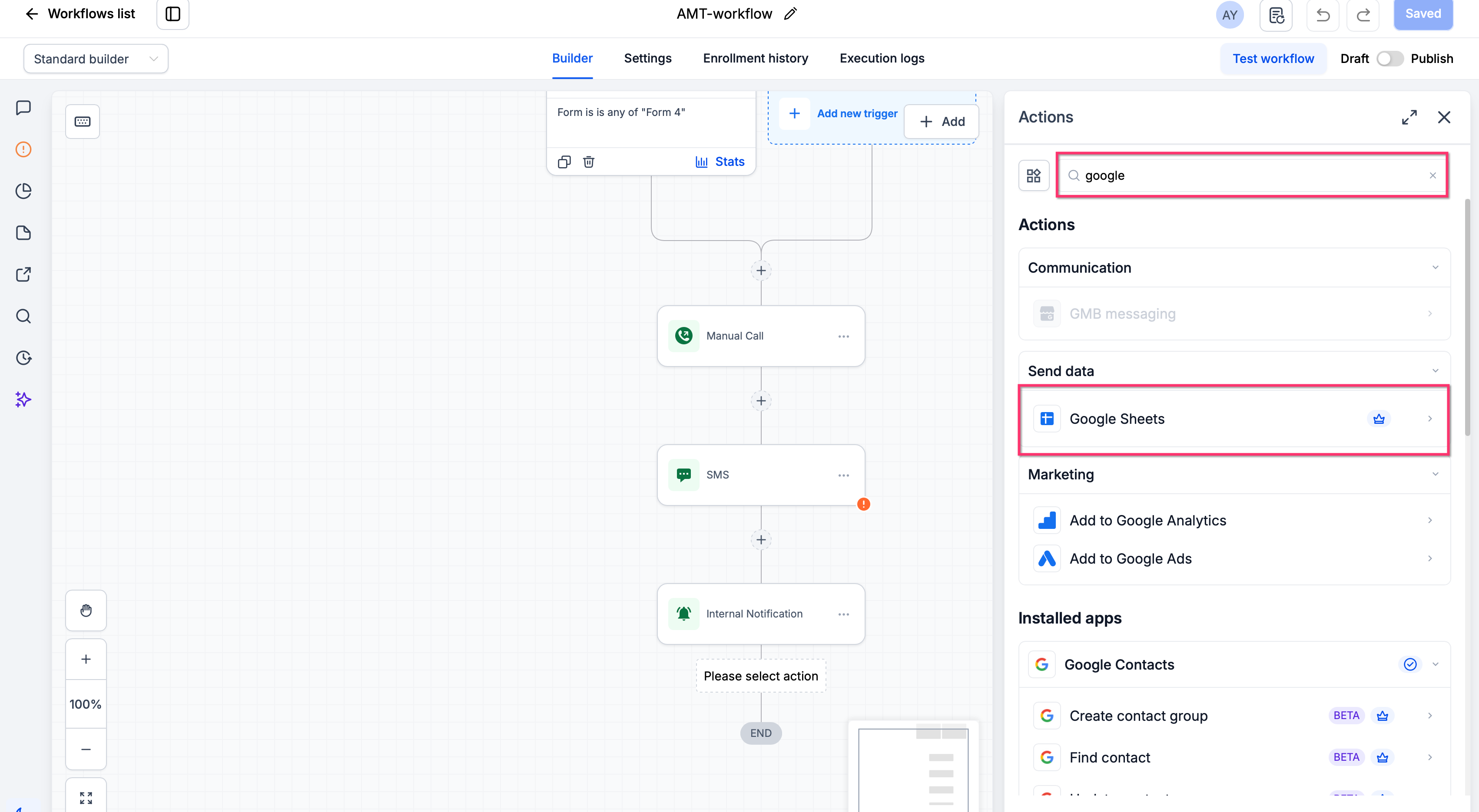
- Click “+ Add Action” after the trigger.
- Search for and select “Google Sheets”.
- Pick the “Create Spreadsheet Row” action.
- Select the connected Google account.
- Choose the destination spreadsheet.
- Select the worksheet where the row will be added.
Map Data to Google Sheets
- Open the field mapping area for the Google Sheets action.
- Select a HighLevel value (e.g., Contact Name) and assign it to the matching column.
- Repeat the selection for each column you need to fill.
- Save the mapping configuration.
Test and Publish the Workflow
- Save all changes to the workflow.
- Publish the workflow to make it active.
- Submit the selected survey using a test contact.
- Open the Google Sheet you configured.
- Verify that a new row appears with the submitted data.
- Check that each column contains the correct value.
Export Existing Survey Submissions
- Go to Sites in HighLevel.
- Open Surveys > Submissions.
- Use the survey filter to locate the required survey.
- Click the Export button.
- Retrieve the download link sent to your email and download the file.
06What it looks like in HighLevel
07Settings that matter
- Survey Submitted. Starts the workflow when a contact completes a survey.
- Survey is. Filters the trigger so it applies only to the chosen survey.
- Google Sheets. Enables workflow actions that interact with Google Sheets.
- Create Spreadsheet Row. Adds a new row to the selected worksheet with the mapped data.
- Premium Triggers & Actions. Controls whether premium actions like Google Sheets are available and any related usage charges.
08Things to know before you rely on it
- Google Sheets is a Premium Workflow Action; its availability and any usage fees depend on your agency’s current Premium Triggers & Actions configuration.
- Not every survey answer automatically becomes a contact field; only values exposed in the workflow data picker can be mapped.
09If something goes wrong
- The workflow does not run. Confirm the workflow is published, the Survey Submitted trigger is set correctly, and the Survey is filter points to the intended survey. Review the workflow execution history.
- No row appears in Google Sheets. Verify the selected Google account, spreadsheet, and worksheet are correct, and check the execution history for a successful Google Sheets action.
- Data appears in the wrong columns. Open the Google Sheets action and adjust the field mapping so each HighLevel value aligns with the intended column.
- A survey answer is missing. Inspect how the survey question is configured and ensure the answer value is available to the workflow before mapping it.
10How it connects to the rest of HighLevel
- How to find and export survey submissions in HighLevel Export survey submissions
- HighLevel pricing and plans for premium action details Pricing and plans
- The HighLevel Founder Plan overview Founder Plan
Michael's take

Most people try to set up a workflow before they have a sheet with proper headers, and then they wonder why rows are blank or mismatched.
If I were doing this for a client, I would run a single test submission through the new workflow, verify each column fills correctly, and watch the execution history for any errors before turning the workflow on for real respondents.