
01Who this is for
- Marketing managers, need a central place to review feedback and adjust campaigns.
- Customer service leads, rely on survey answers to update contact details and resolve issues.
- Sales teams, track multiple submissions from the same prospect to gauge interest over time.
02Survey submissions, explained
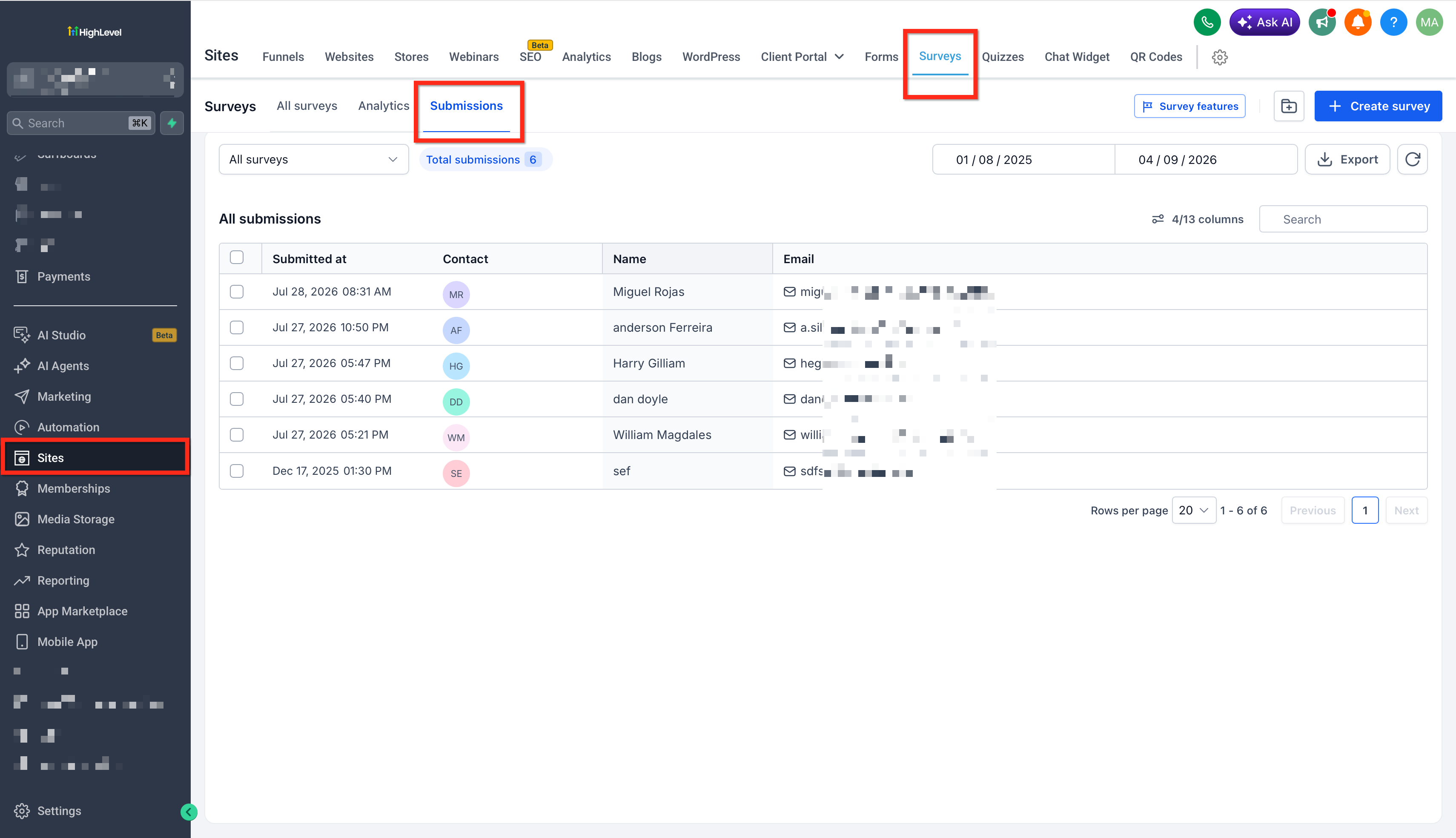
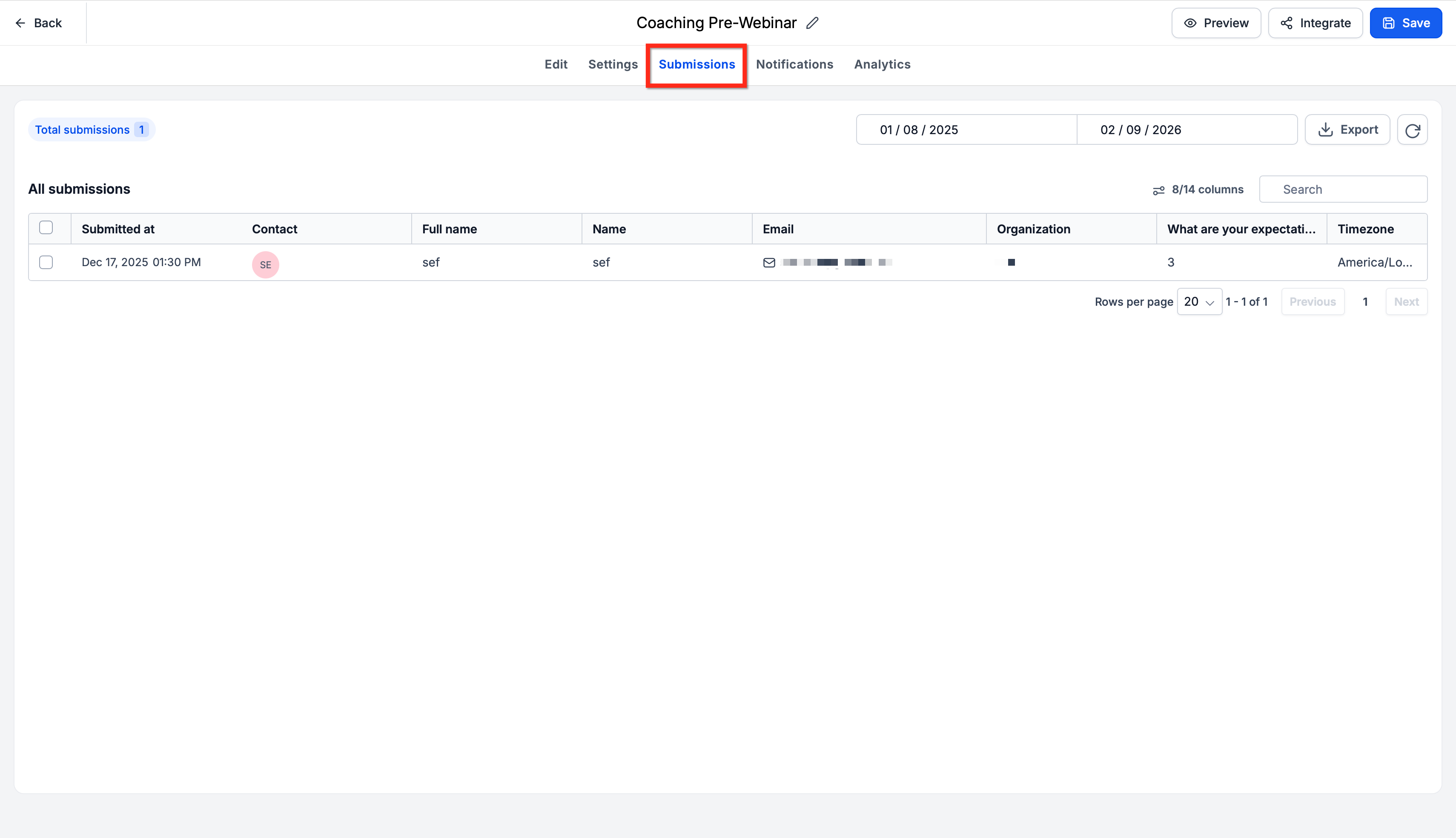
The Survey Submissions feature records every answer a contact provides when completing a survey. All submissions appear in the Submissions tab inside the Surveys section and are also linked to the contact’s profile when the survey includes fields that match contact properties.
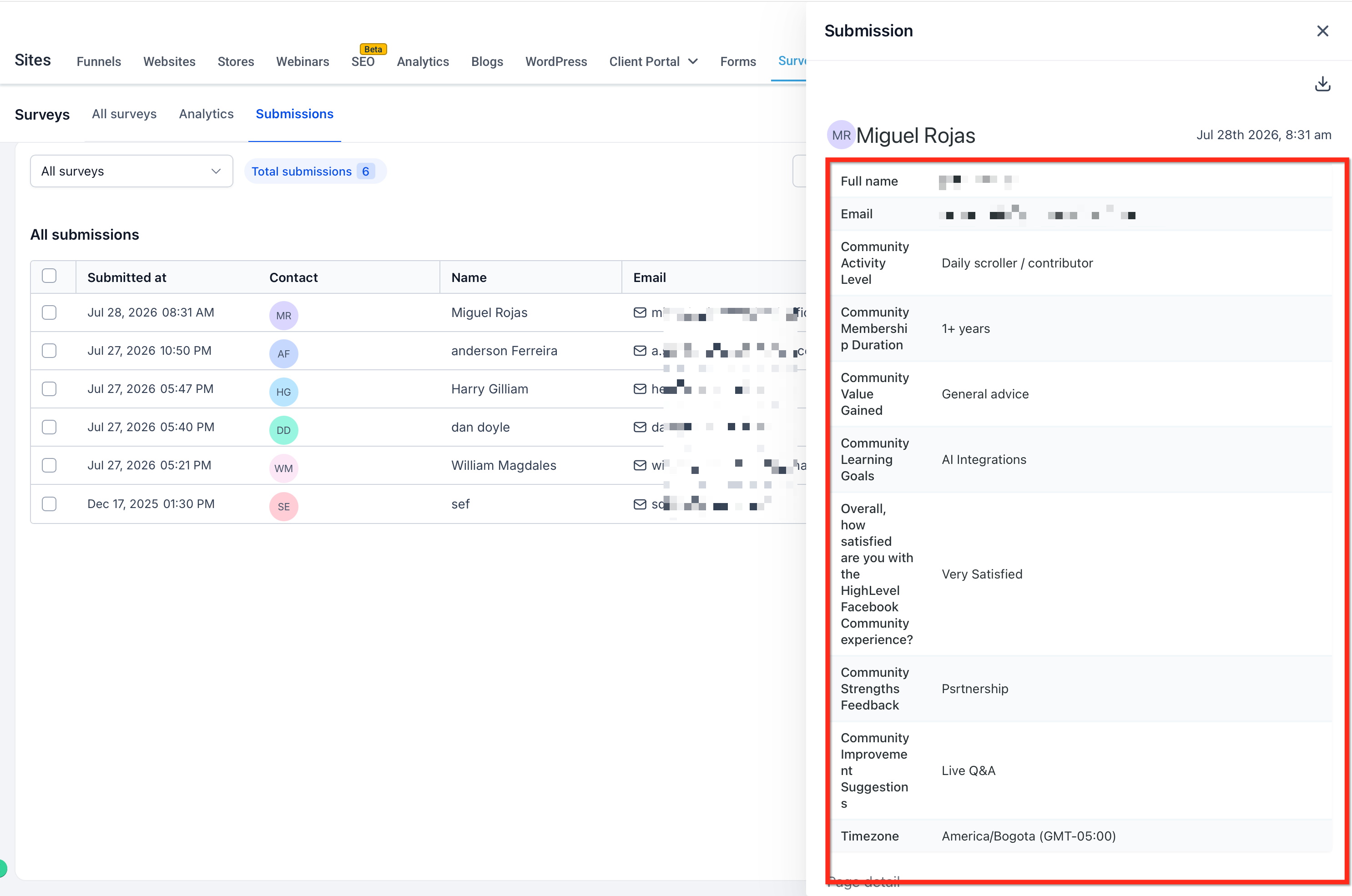
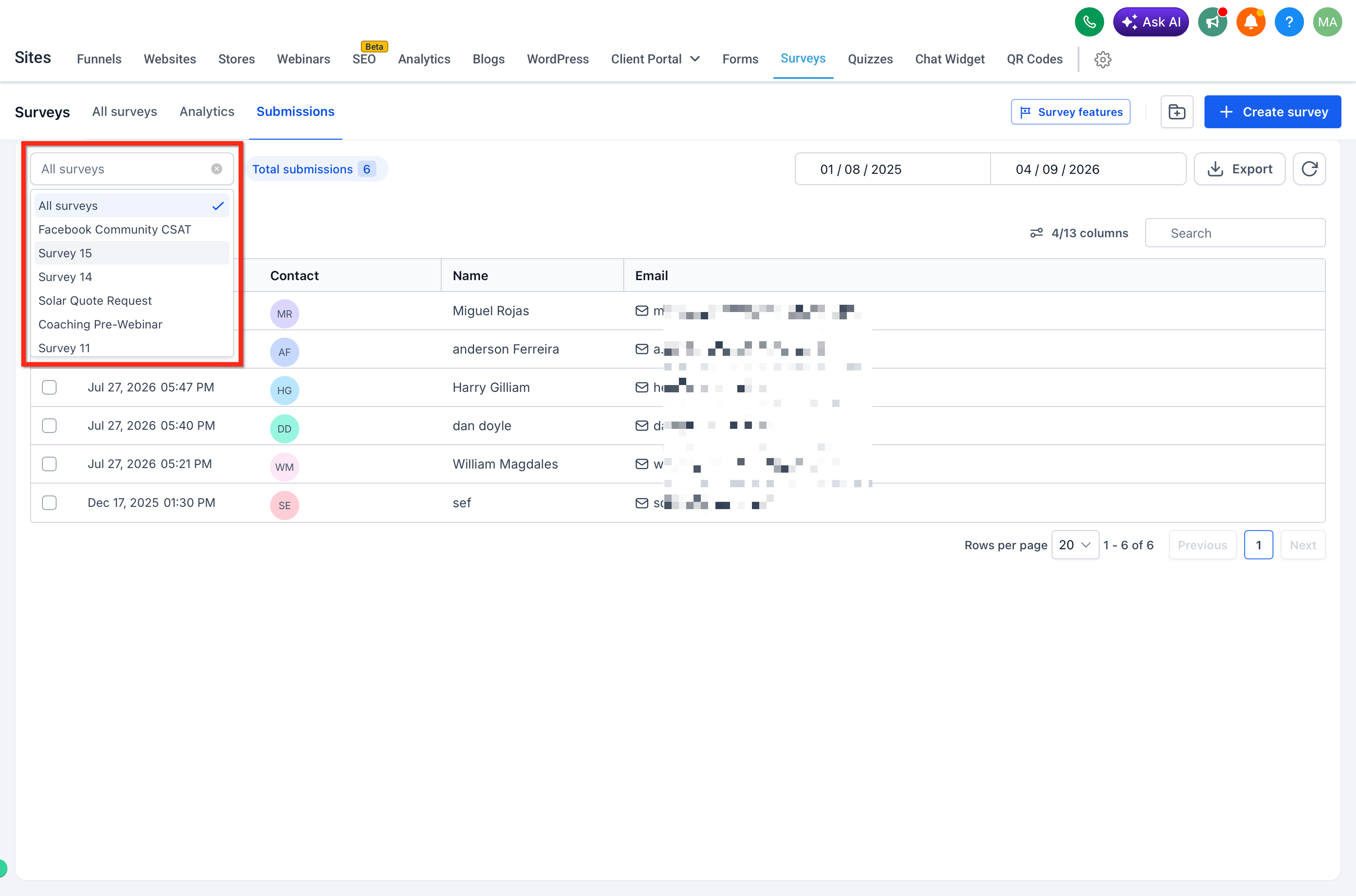
From this view you can see timestamps, contact information, and the full list of answered questions. A filter dropdown lets you narrow the list to a specific survey. Individual entries can be opened for detailed review, and a blue Export button at the top right lets you download the entire set of responses via an emailed link.
03How businesses use survey submissions
- Real estate agency. The agency opens the Submissions tab to read client feedback after property tours. They filter by the "Tour Satisfaction" survey to see only relevant responses. When needed, they export the data to analyze trends across multiple agents.
- Online course provider. The provider checks the Submissions view while editing a course feedback survey in the Builder. By clicking Submissions within the Builder, they can quickly review answers specific to that course. Exporting the responses lets them store results for accreditation records.
- Health clinic. Clinic staff look at individual contact records to see mapped fields such as email and phone updated from recent health questionnaires. They also view the "Appointment Check in" survey entries directly from the Submissions table and filter to see only recent check ins.
04How to set up and use survey submissions in HighLevel
Access submissions from the Surveys menu
- Select Sites from the main left navigation.
- Hover over Surveys and choose Submissions from the dropdown.
- Observe the Responses table showing each submission with contact details and timestamps.
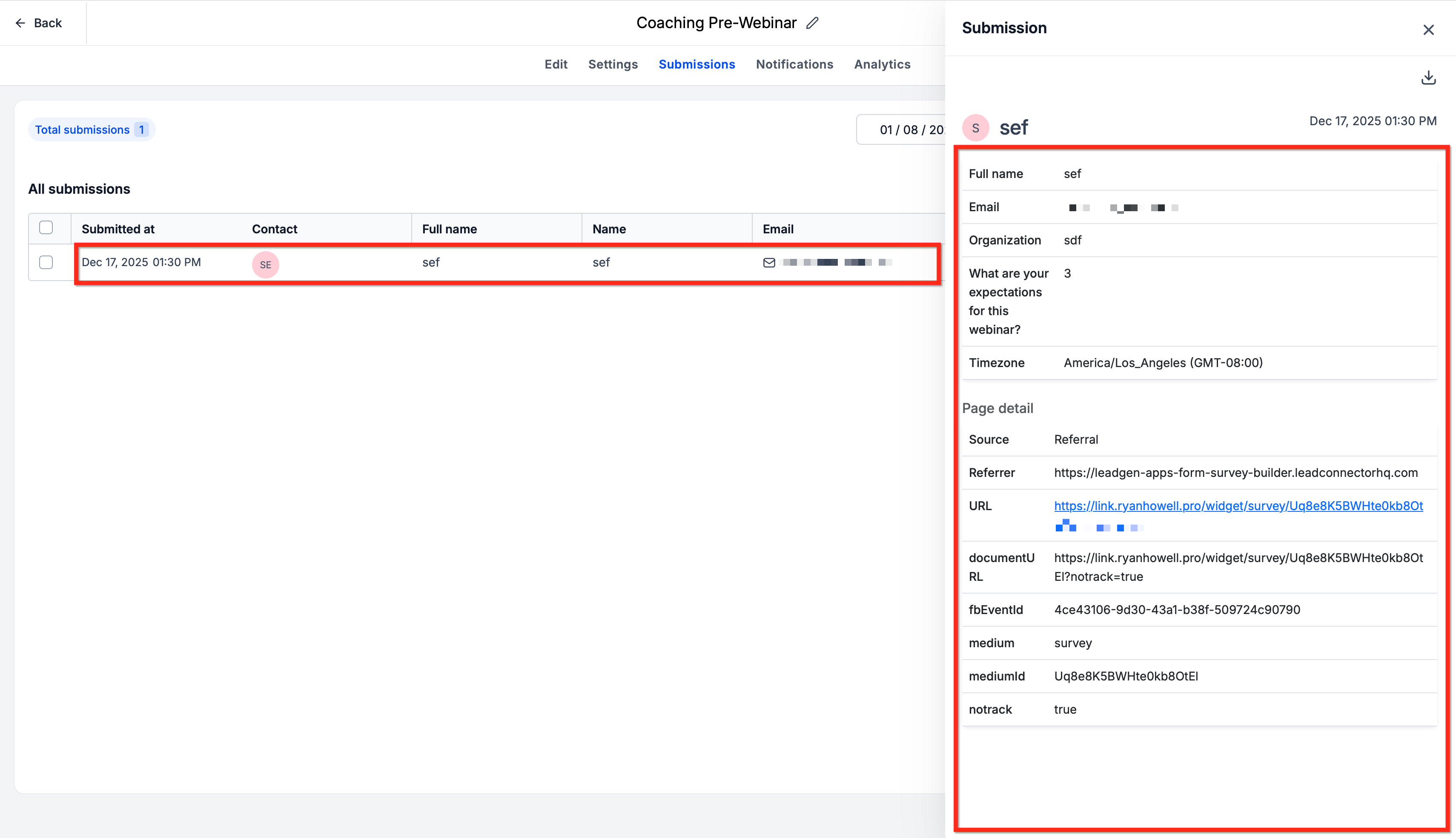
- Click any row to open the full submission data.
- Apply the survey filter dropdown in the top left to narrow results to a particular survey.
Access submissions from within the Survey Builder
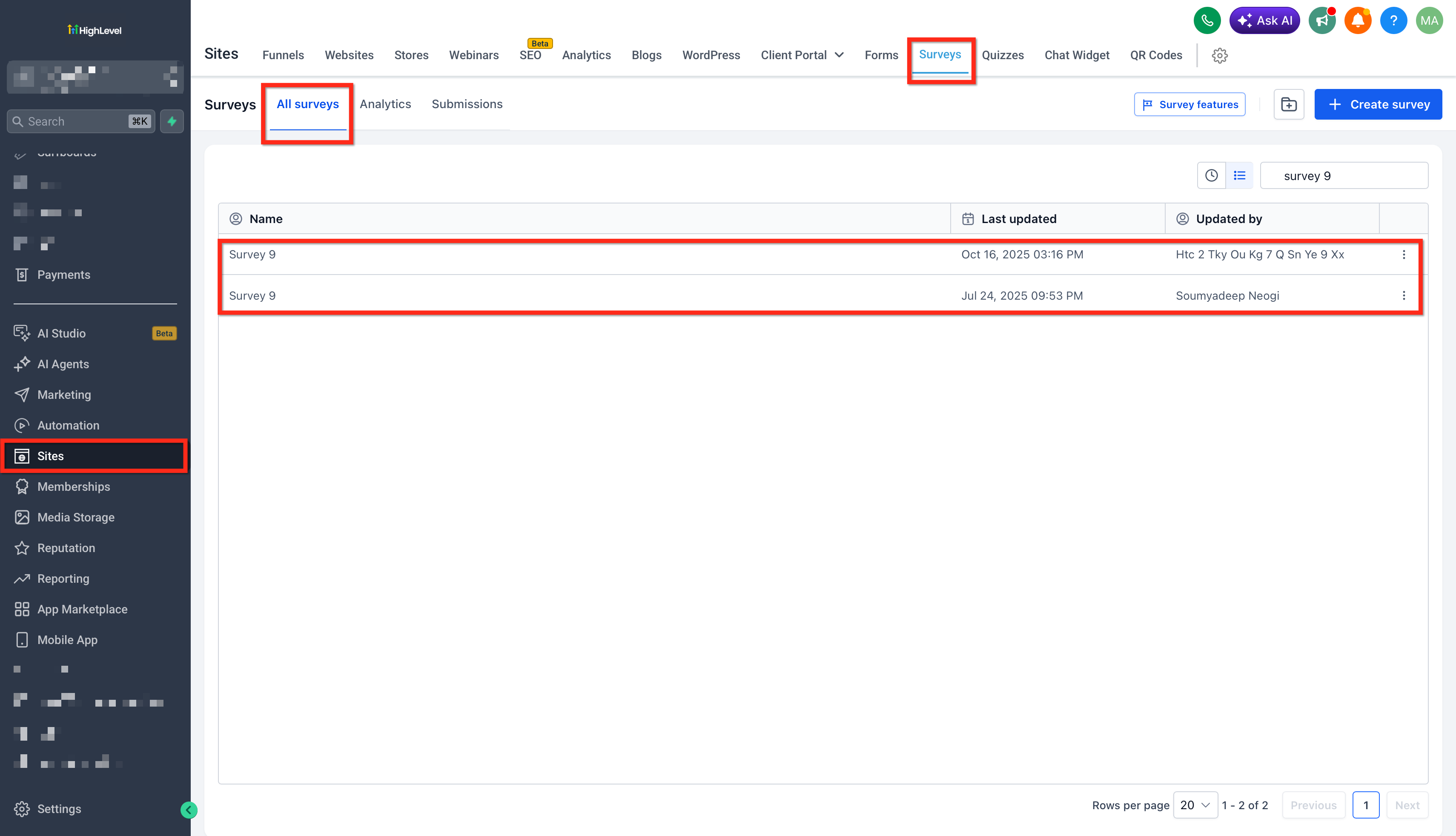
- Navigate to Sites > Surveys > Builder.
- Open the survey whose responses you want to inspect.
- Click the Submissions button inside the Builder interface.
- Review the list of submissions received for that survey.
- Select an individual submission to see all of the respondent’s answers.
Export survey submissions
- In the submissions view, click the blue Export button at the top right.
- Wait for a download link to be emailed to you.
- Follow the link in the email to download the exported file.
05What it looks like in HighLevel
06Things to know before you rely on it
- The Export button appears only in the submissions view and sends a download link via email.
- All submissions are tracked independently, even when the same contact submits the same survey multiple times.
07How it connects to the rest of HighLevel
- Send survey answers directly to Google Sheets for further analysis. Export to Google Sheets
- Explore all features available for Sites, including surveys and forms. All Sites features
- Learn how to connect a root domain or subdomain for your surveys and funnels. Root domain setup
Michael's take

In my experience, having a single view of all survey answers, the ability to tie responses back to contacts, and an export option makes data handling more convenient.
If your surveys are occasional or you already use another system for data collection, the feature may add little value. Exporting creates an extra step, and you’ll need to manage the emailed download link, so the payoff isn’t guaranteed in every scenario.