
01Who this is for
- Founders who run lead gen campaigns benefit because the focused layout can keep prospects moving through a qualification form.
- Marketing teams for local service businesses gain clearer survey design, reducing the chance of misplaced answers.
02One Question at a Time, explained
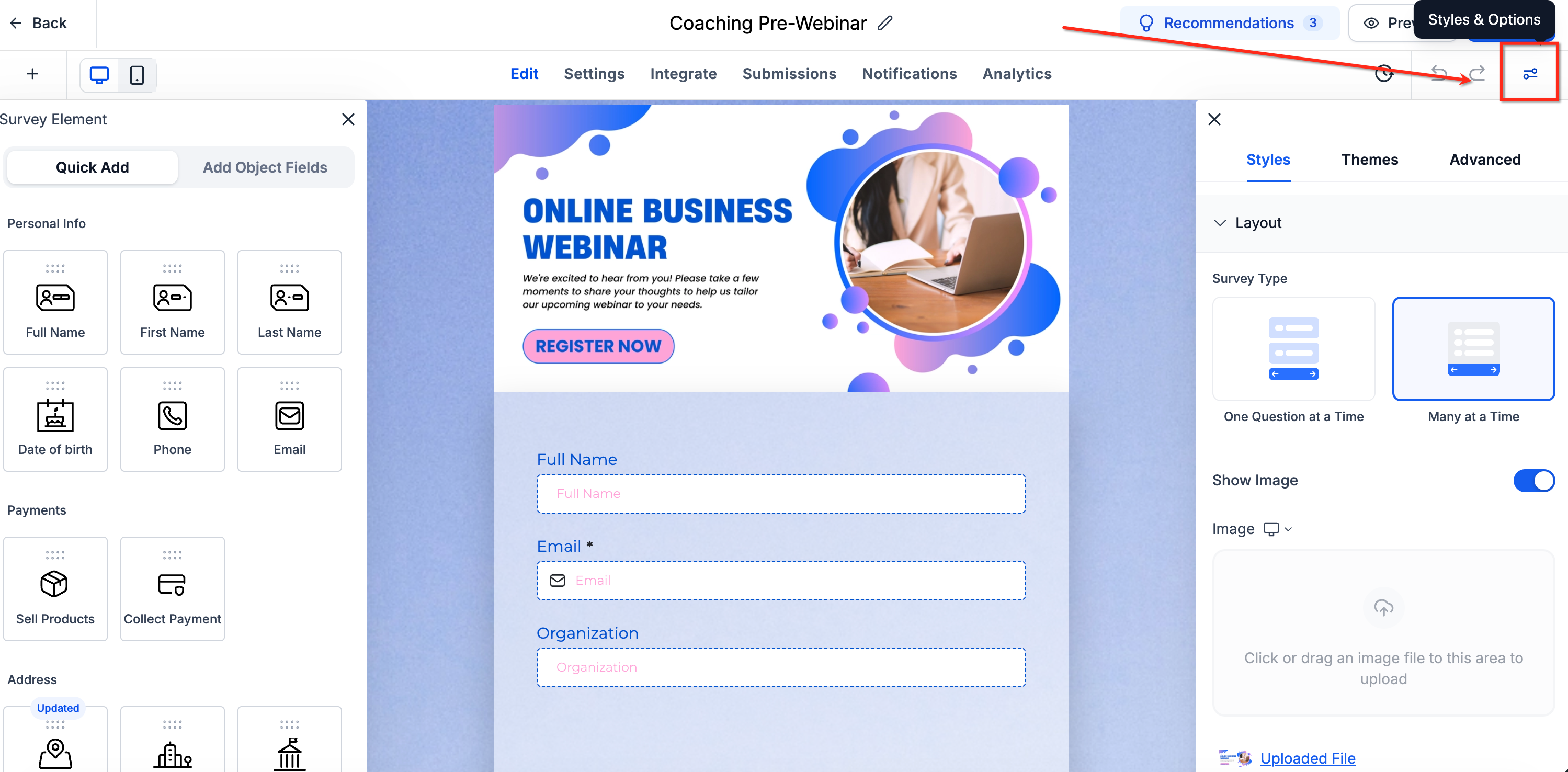
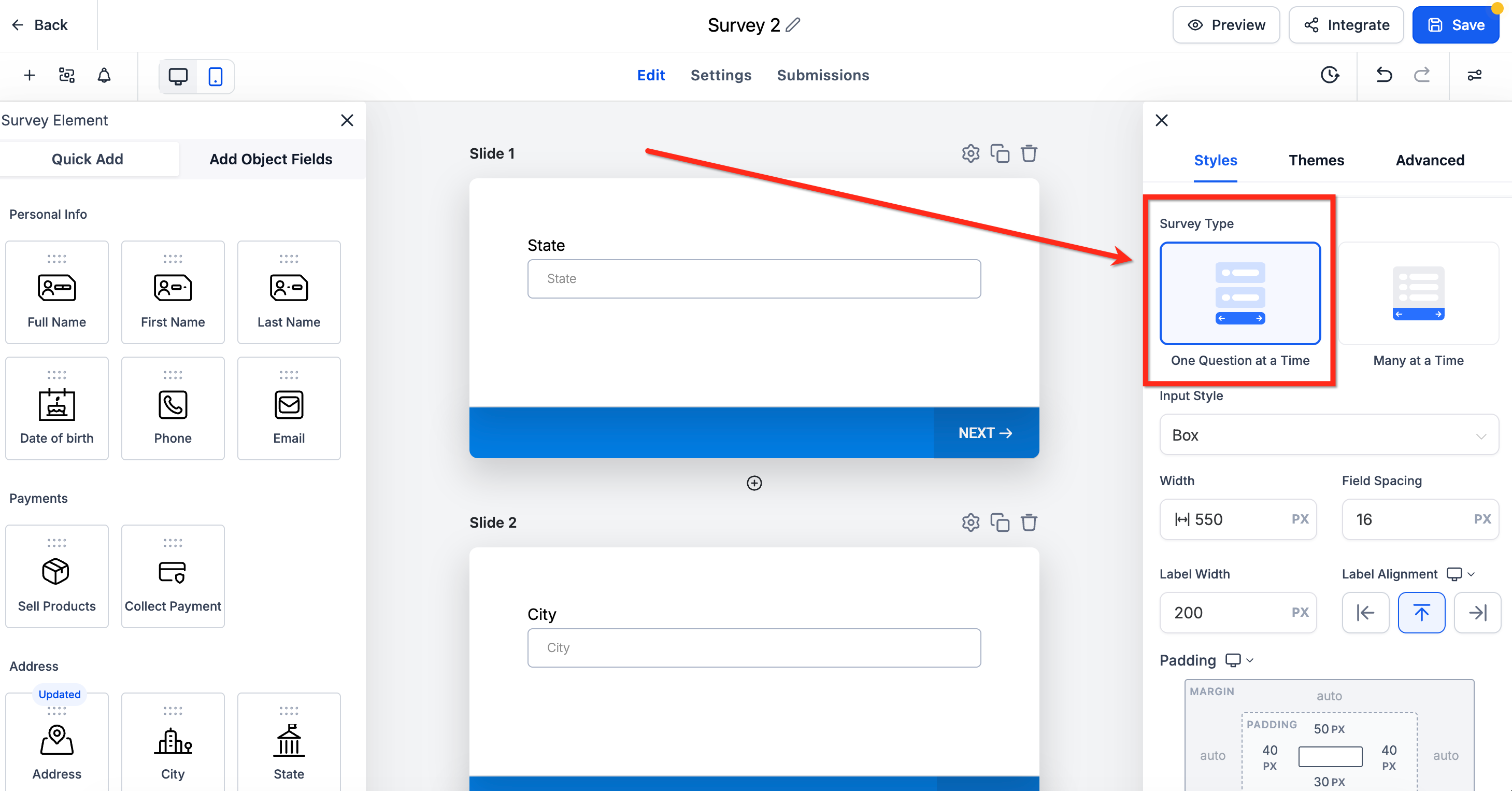
The One Question at a Time flag lives in the Survey Builder under Styles & Options. When turned on, every field is displayed on an individual slide both for the editor preview and for respondents. The setting does not add or delete any questions; it only rearranges how they appear.
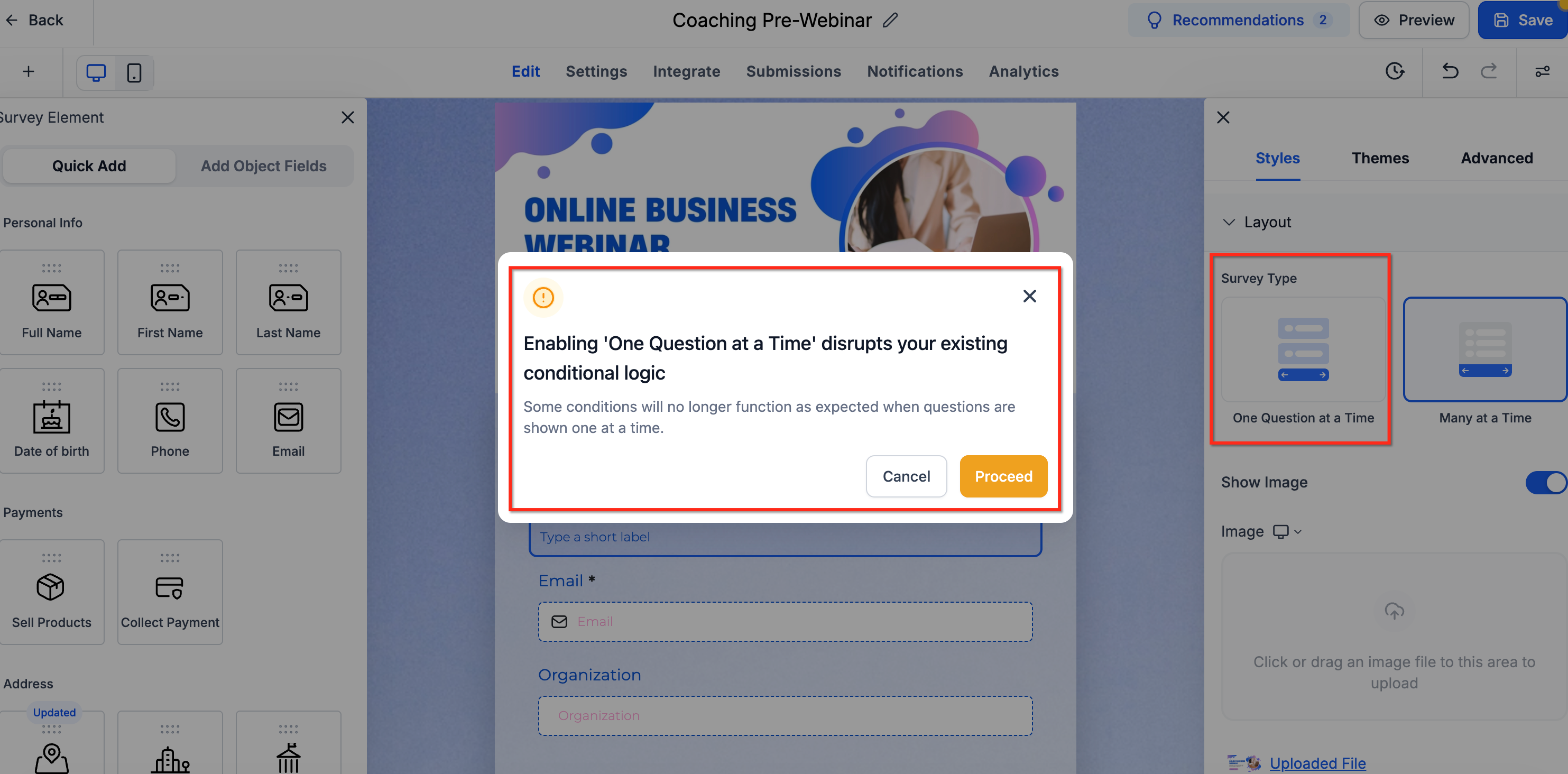
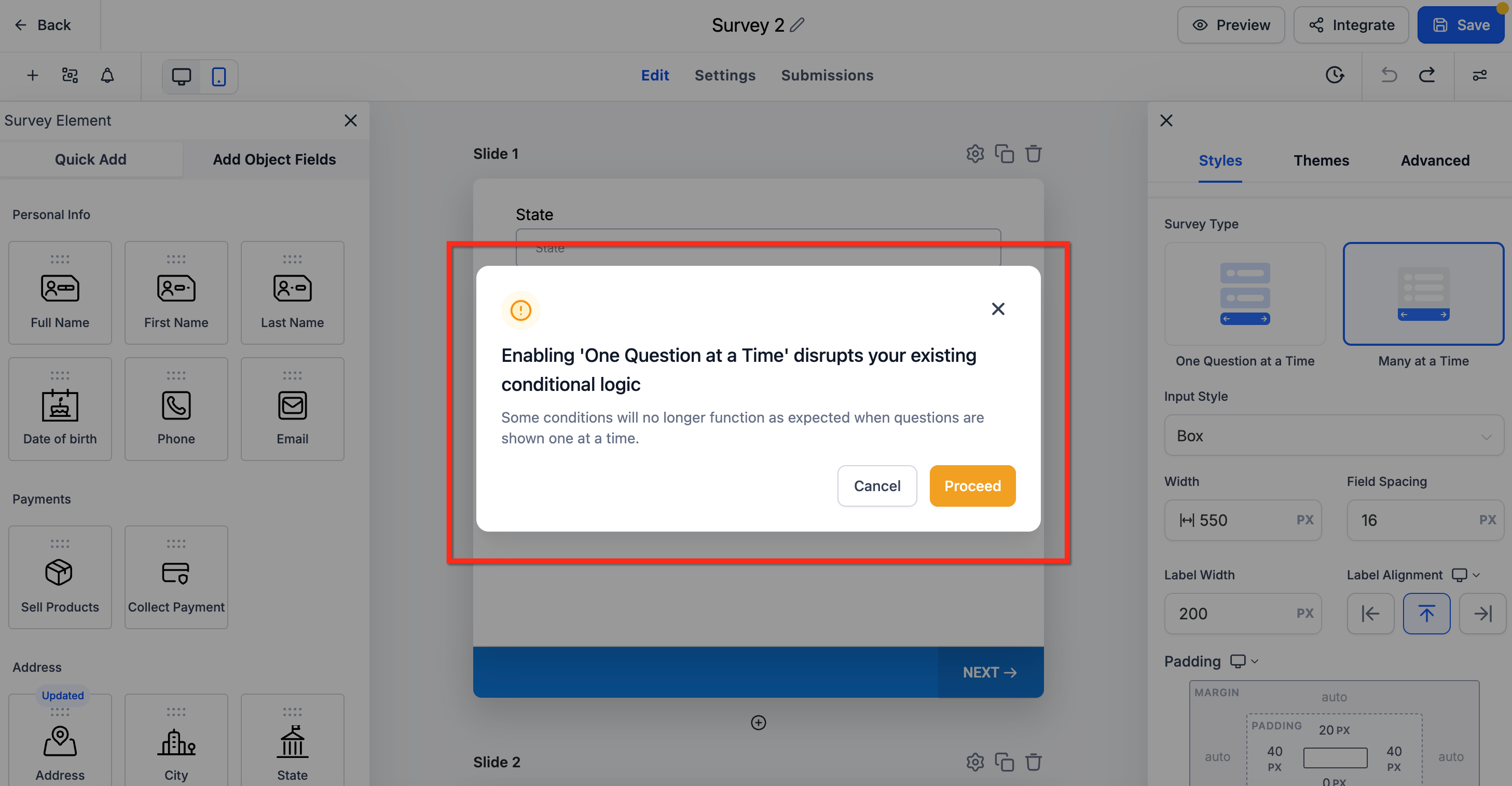
Activating the option also triggers a warning if existing conditional logic could be impacted. The warning lets you proceed or cancel, ensuring you are aware of any logic changes before the layout switches.
Bulk added fields are automatically split across separate slides, preserving the one question per slide view without extra effort.
03How businesses use One Question at a Time
- Real estate agency. The agency enables the option while building a property interest form. In the builder they turn on One Question at a Time, then preview the form to verify each question appears on its own slide before publishing.
- Dental practice. The practice creates a post visit feedback survey. By activating the setting, they ensure patients see one feedback prompt at a time, making the survey appear less overwhelming during the in office tablet experience.
- Online course creator. While designing a quiz for module comprehension, the creator switches on One Question at a Time. The preview shows each quiz item on a dedicated screen, matching the intended learner flow.
04How to set up and use One Question at a Time in HighLevel
Turn on One Question at a Time
- Open the desired survey inside the Survey Builder.
- Select the Styles & Options icon located at the top right.
- Find the Survey Type dropdown and pick the One Question at a Time choice.
- Toggle the One Question at a Time switch to the on position.
- If a conditional logic alert shows, read the message and click Proceed to apply or Cancel to leave the setting unchanged.
05What it looks like in HighLevel
06Settings that matter
- One Question at a Time. Controls whether each survey field is shown on a separate slide, affecting only the visual presentation of the form.
07Things to know before you rely on it
- Enabling the setting may affect existing conditional logic; a confirmation dialog appears before the change is applied.
- Fields added in bulk are automatically distributed across individual slides when the option is active.
- The toggle changes only the display format; it does not delete or modify any questions.
08How it connects to the rest of HighLevel
- Export survey responses after using One Question at a Time Export submissions
- Add a progress bar for smoother mobile navigation Mobile progress bar
- Collect payments within surveys that use this layout Survey payments
Michael's take

One Question at a Time feels like a small convenience that can tighten how a survey feels to a user. It doesn’t overhaul the whole form, but it gives a cleaner, step by step flow.