
01Who this is for
- Founders of SaaS startups who need a clear on mobile user flow to keep potential customers moving through registration quizzes.
- Marketing managers at agencies creating branded surveys for clients, because the bar lets them keep the look consistent with the client’s visual style.
- Small ecommerce owners who embed product recommendation quizzes on mobile sites and want to reduce drop off.
02Mobile progress bars for surveys & quizzes, explained
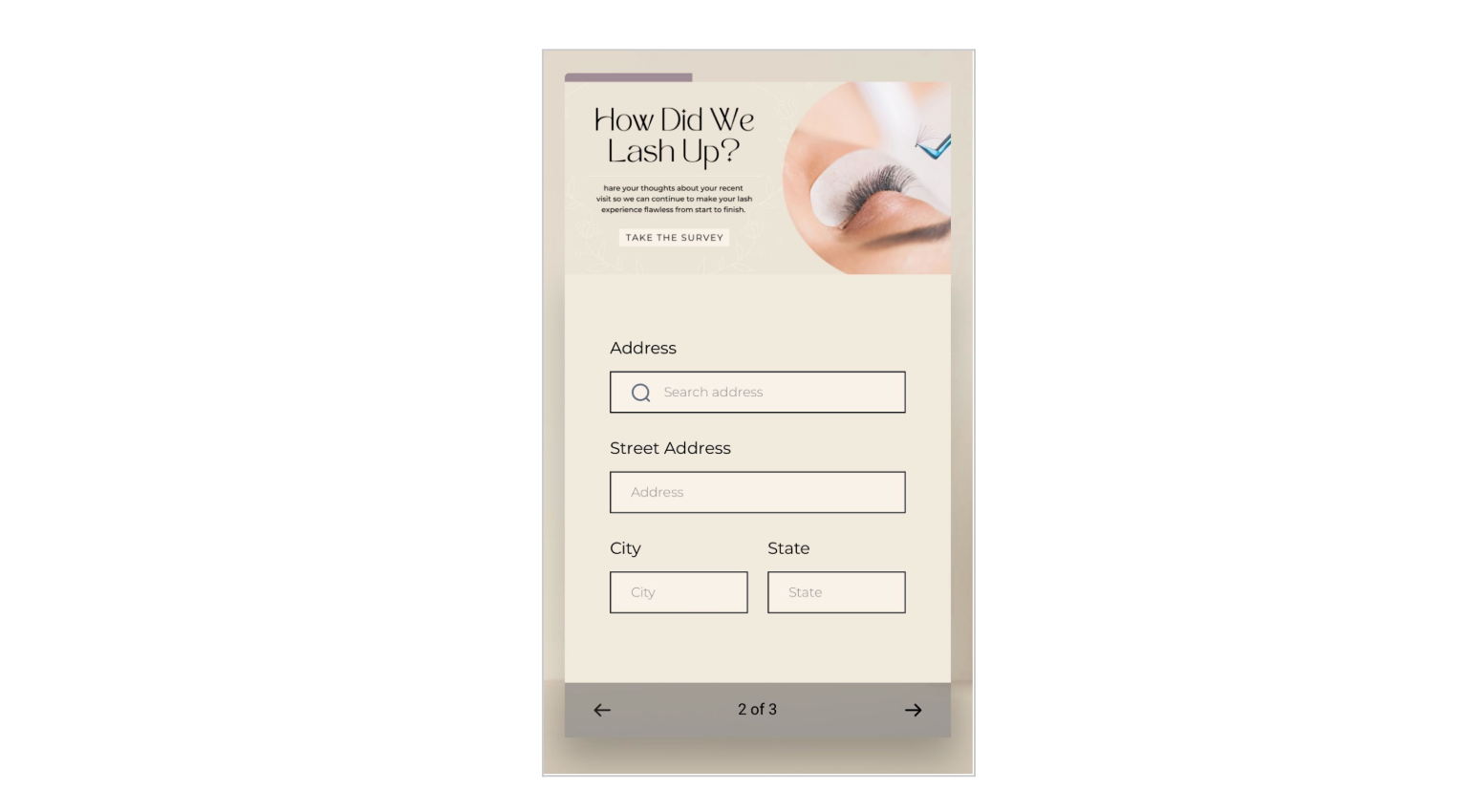
The mobile progress bar adds a dynamic line that fills as a respondent advances through each step of a survey or quiz viewed on a phone. On desktop devices the bar does not appear, keeping the layout tidy. It only shows when the form has more than one step, otherwise it remains hidden.
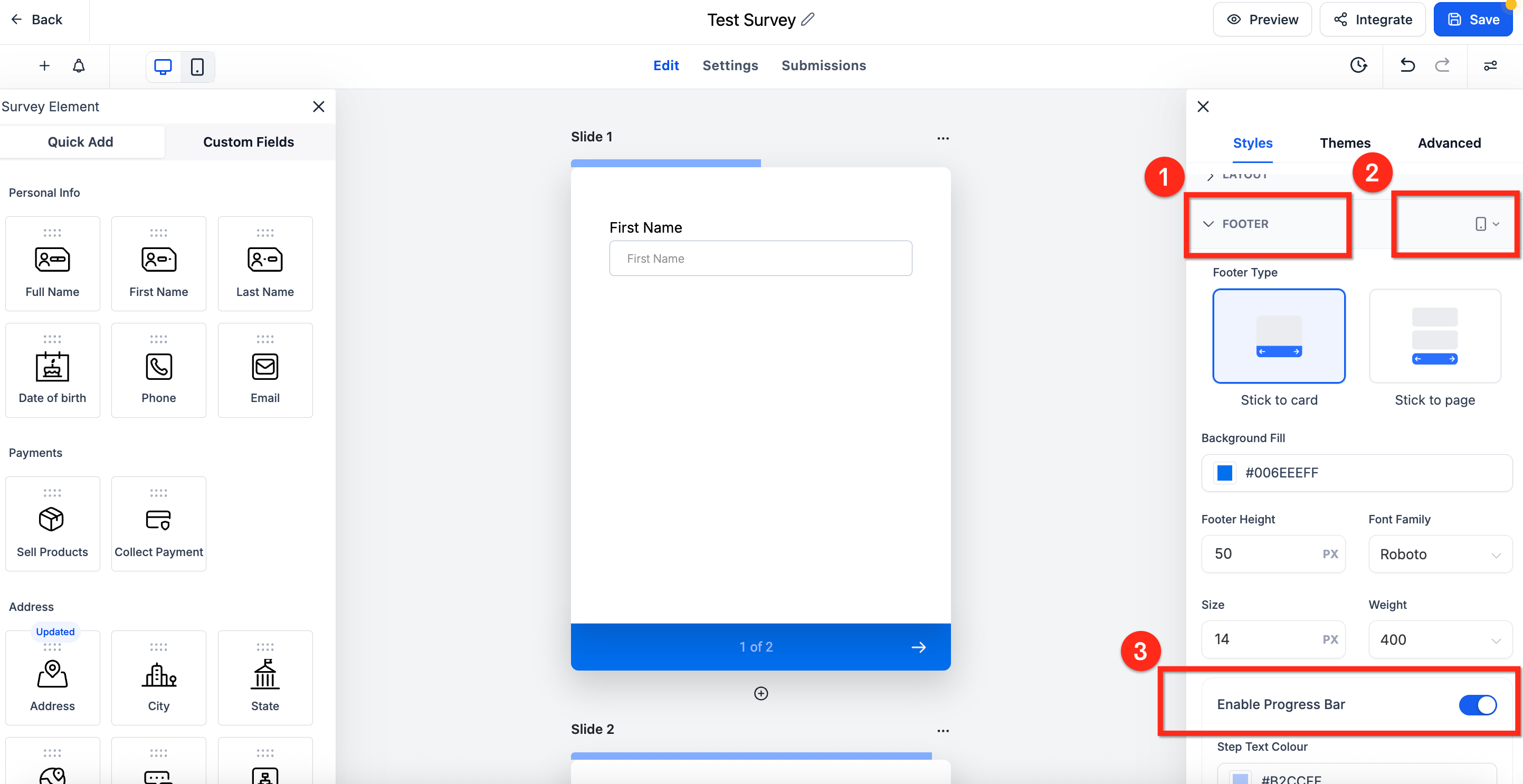
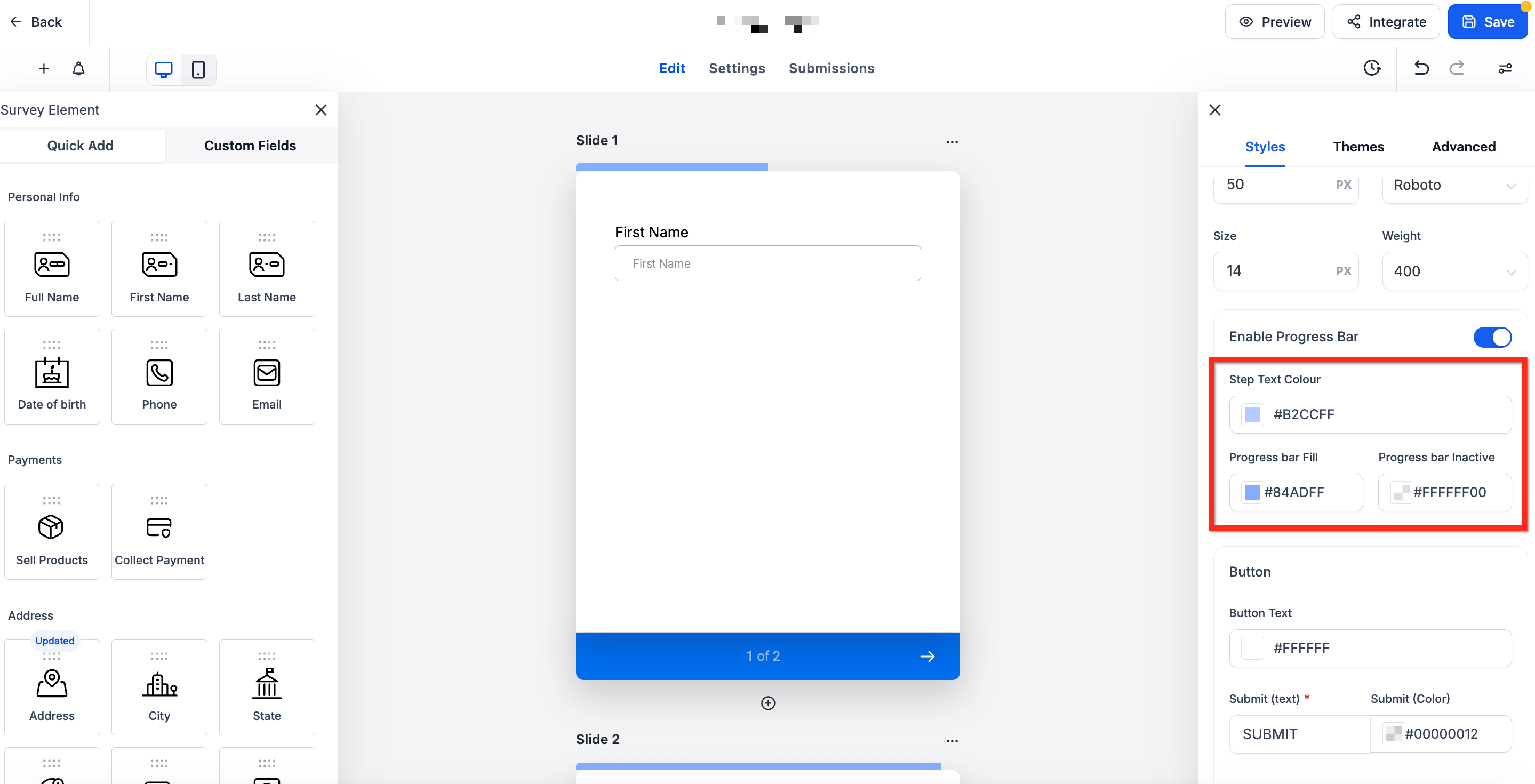
The feature lives inside the Survey or Quiz builder under the Styles & Options panel. Within the Footer Section you switch the device selector to Phone, turn on the Enable Progress Bar toggle, and then choose colors for the step label, the filled portion and the inactive portion. After setting the colors you save the form.
The bar works with both “Stick to card” and “Stick to page” footer types, so it integrates smoothly regardless of the chosen layout.
03How businesses use mobile progress bar for surveys & quizzes
- Digital marketing agency. The agency opens each client’s multi step survey, enables the mobile progress bar, sets the step text, fill and inactive colors to match the client’s brand palette, and saves. This gives respondents a clear view of progress on mobile devices.
- Online fitness trainer. The trainer creates a quiz to assess client fitness levels, activates the mobile progress bar in the quiz’s footer, chooses brand colors for the bar, and publishes. Mobile users now see how many questions remain, encouraging completion.
- Restaurant owner. The owner builds a multi step feedback survey for mobile diners, turns on the progress bar, customizes the colors to align with the restaurant’s logo, and saves. Diners can easily track their progress while completing the survey on a phone.
04Before you start
- A survey or quiz must already exist with at least two steps.
- You must be working inside a subaccount that has access to Sites.
05How to set up and use mobile progress bar for surveys & quizzes in HighLevel
Activate mobile progress bar
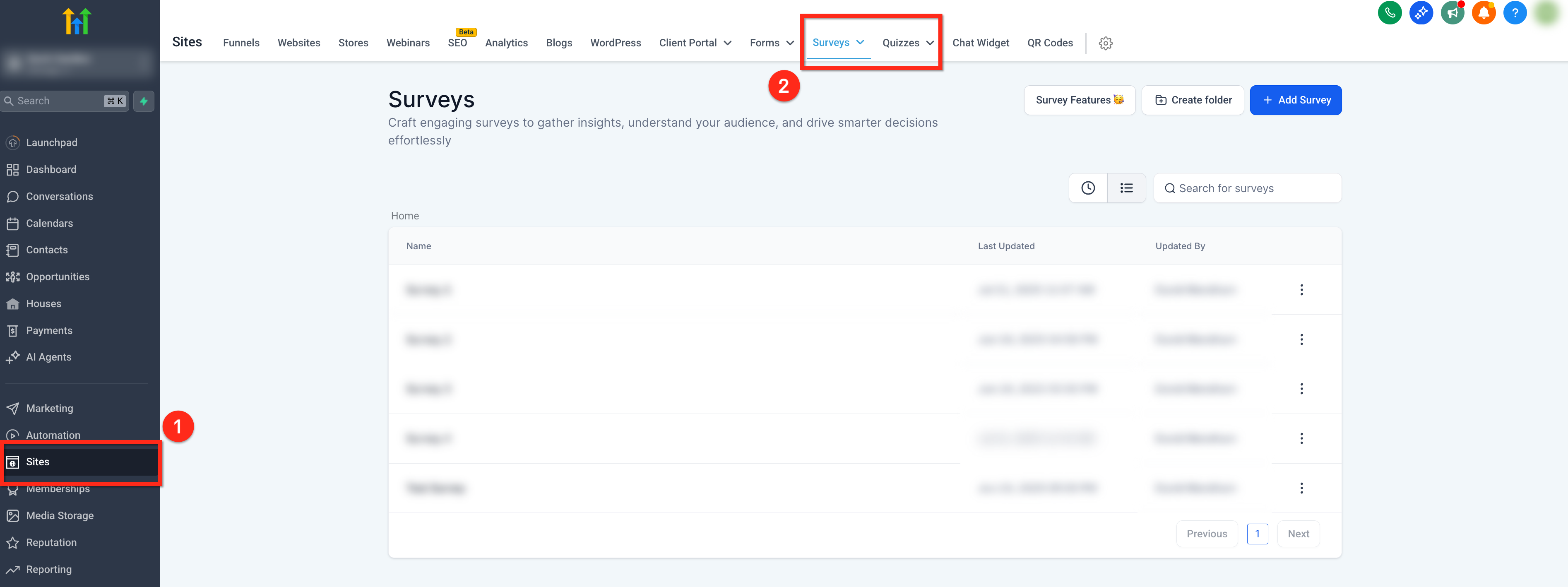
- Click Sites in the subaccount side navigation.
- Select Surveys or Quizzes from the top navigation ribbon.
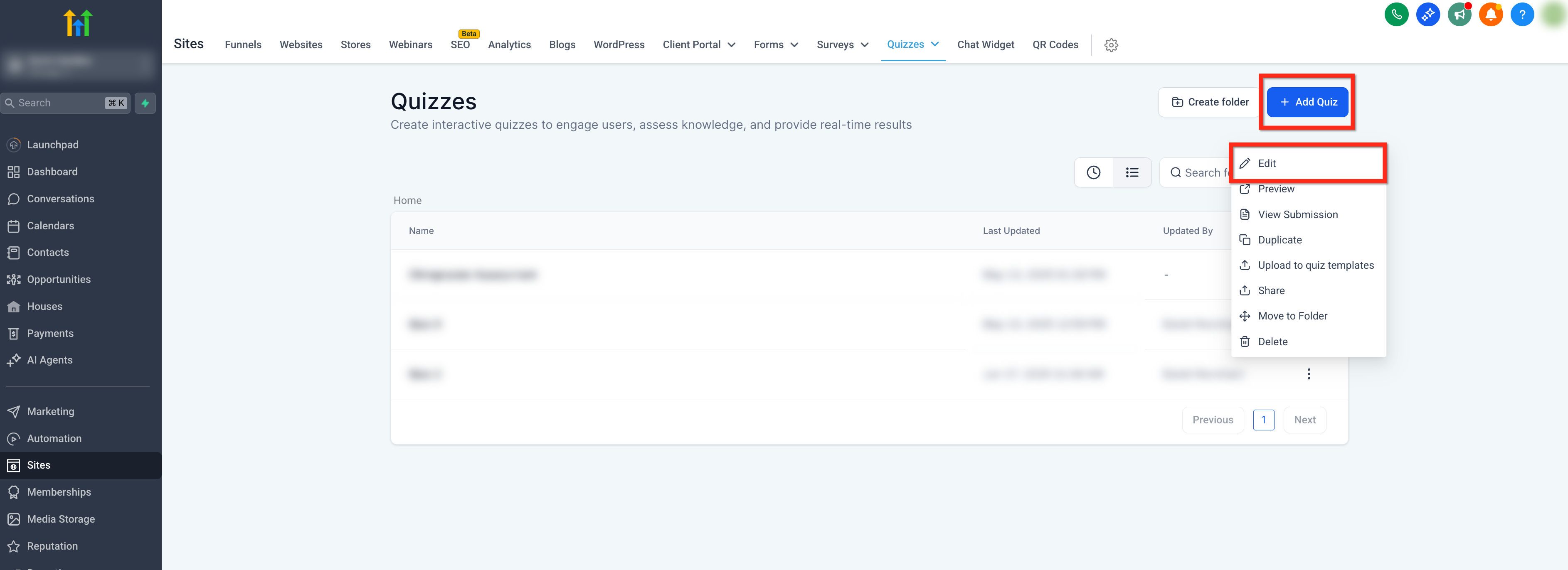
- Open the desired form by clicking its three dot menu and choosing Edit, or create a new one with the + Add button.
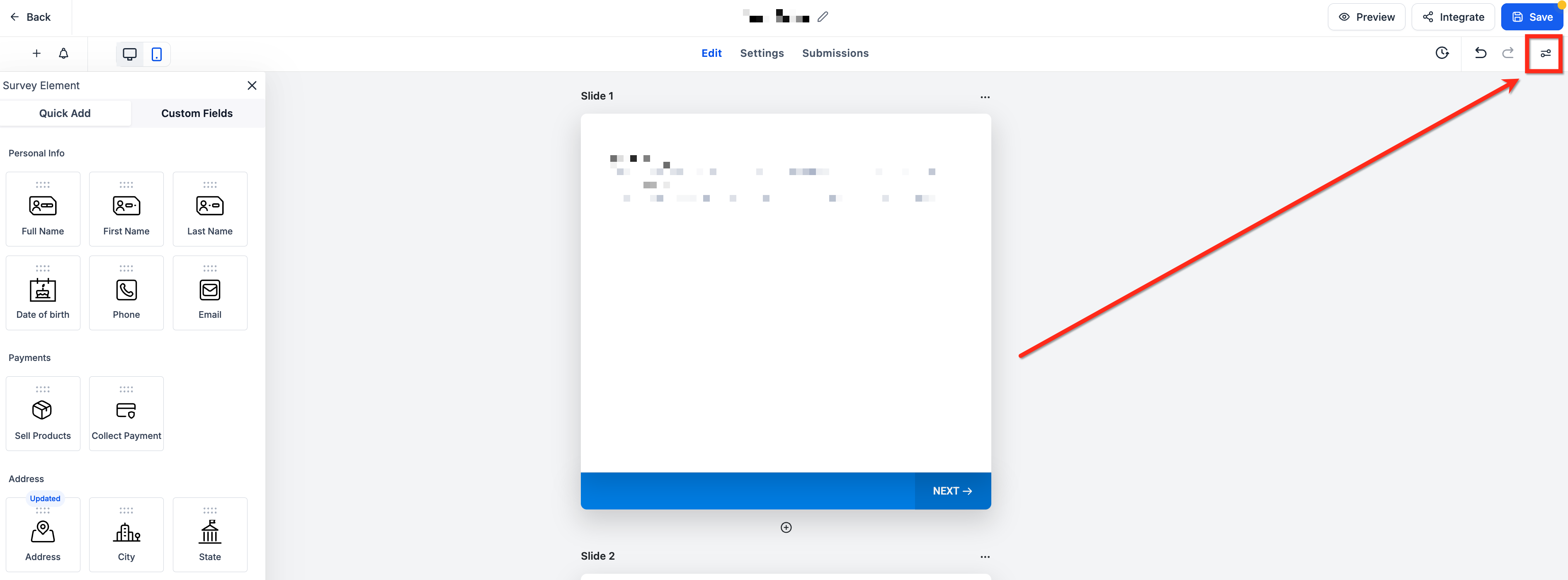
- Click Styles & Options at the top right of the builder.
- Scroll down, expand the Footer Section, and open it.
- Change the device selector to Phone.
- Toggle Enable Progress Bar on, set your brand colors, and click the blue Save button.
06What it looks like in HighLevel
07Settings that matter
- Enable Progress Bar. Turns the mobile only progress indicator on or off for the selected form.
- Step Text Color. Sets the color of the step label that shows the current step number.
- Progress Bar Fill. Defines the color of the filled portion of the progress bar.
- Progress Bar Inactive. Determines the color of the unfilled segment of the bar.
08Things to know before you rely on it
- The bar appears only on mobile devices; it is hidden on desktop.
- It is automatically hidden for single step surveys or quizzes.
- The Enable Progress Bar toggle is disabled while the device selector is set to Desktop.
- Each form must have the feature turned on individually; it is off by default.
09If something goes wrong
- Enable Progress Bar toggle is greyed out in the Footer settings.. Switch the builder’s device selector to Phone first; the toggle becomes selectable.
- Progress bar does not show on a desktop view.. The feature is mobile only; view the form on a phone to see the bar.
10How it connects to the rest of HighLevel
- Customize the look of your survey footers New footer in surveys
- Export survey submissions for analysis Export survey submissions
- Collect payments directly within surveys Payments in surveys
Michael's take

The visual cue reduces drop off, and the ability to match your brand colors keeps the experience polished without extra work.
If your surveys are single step or you only ever collect responses on desktop, the bar adds little value. Turning it on also means an extra setting to manage, so in those cases you might skip it.