
01Who this is for
- Coaches who charge for sessions can embed a payment step in their lead surveys to collect fees without leaving the form.
- Non profit organizations can use the Collect Payment element to receive donations directly within a survey experience.
- Ecommerce retailers can sell physical products or subscriptions via the Sell Products element, turning a survey into a mini checkout.
02Payments integration in surveys, explained
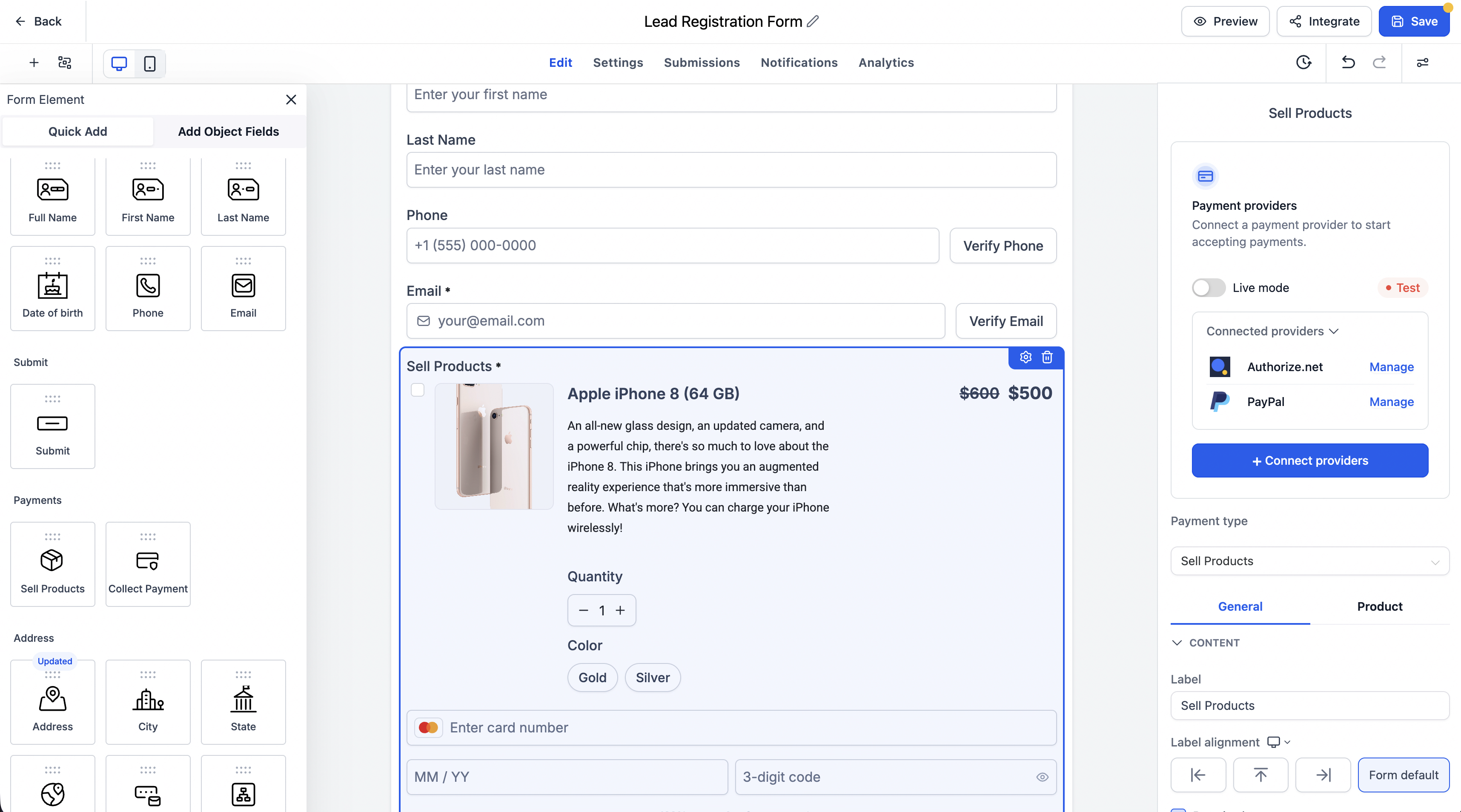
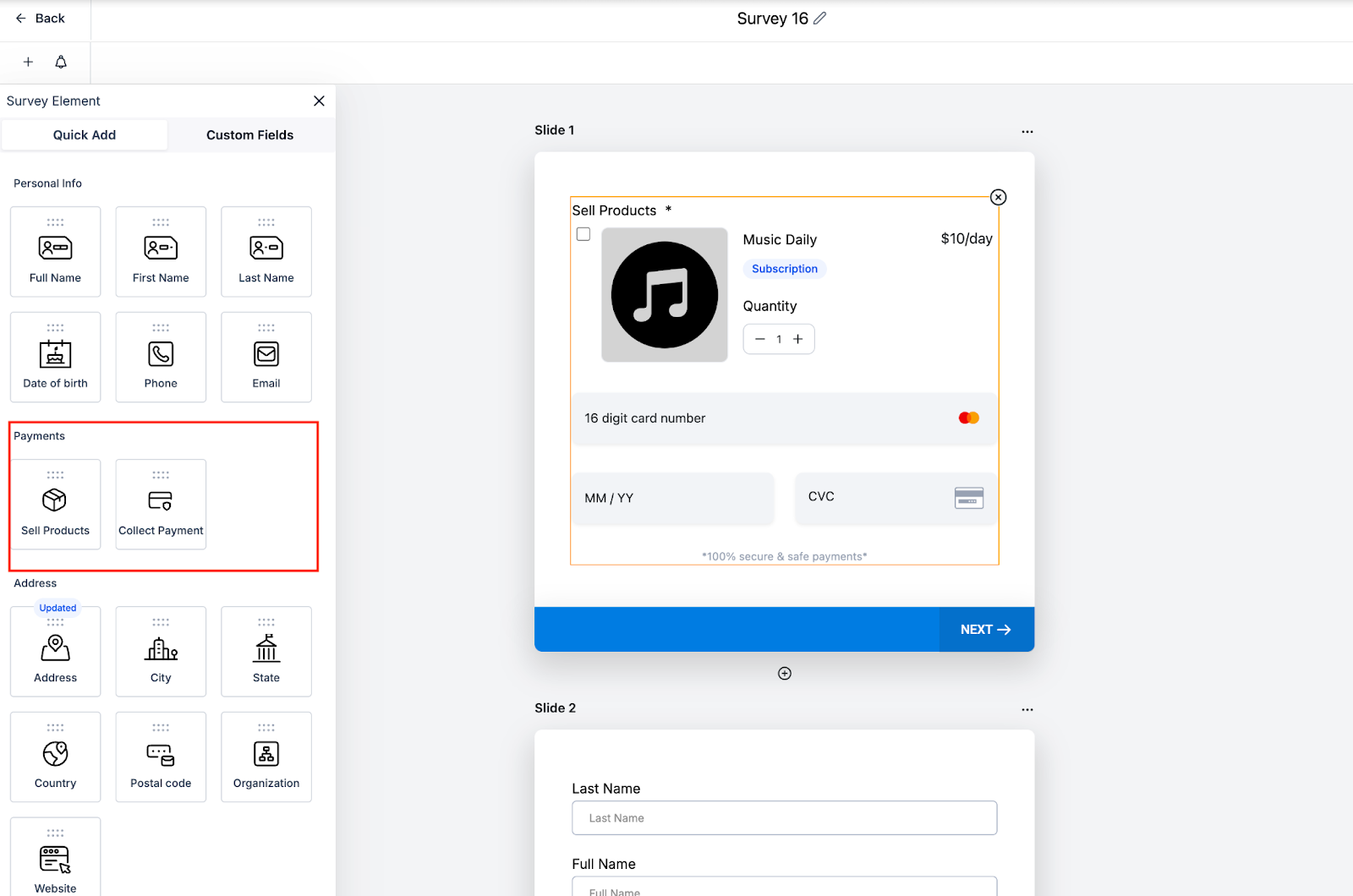
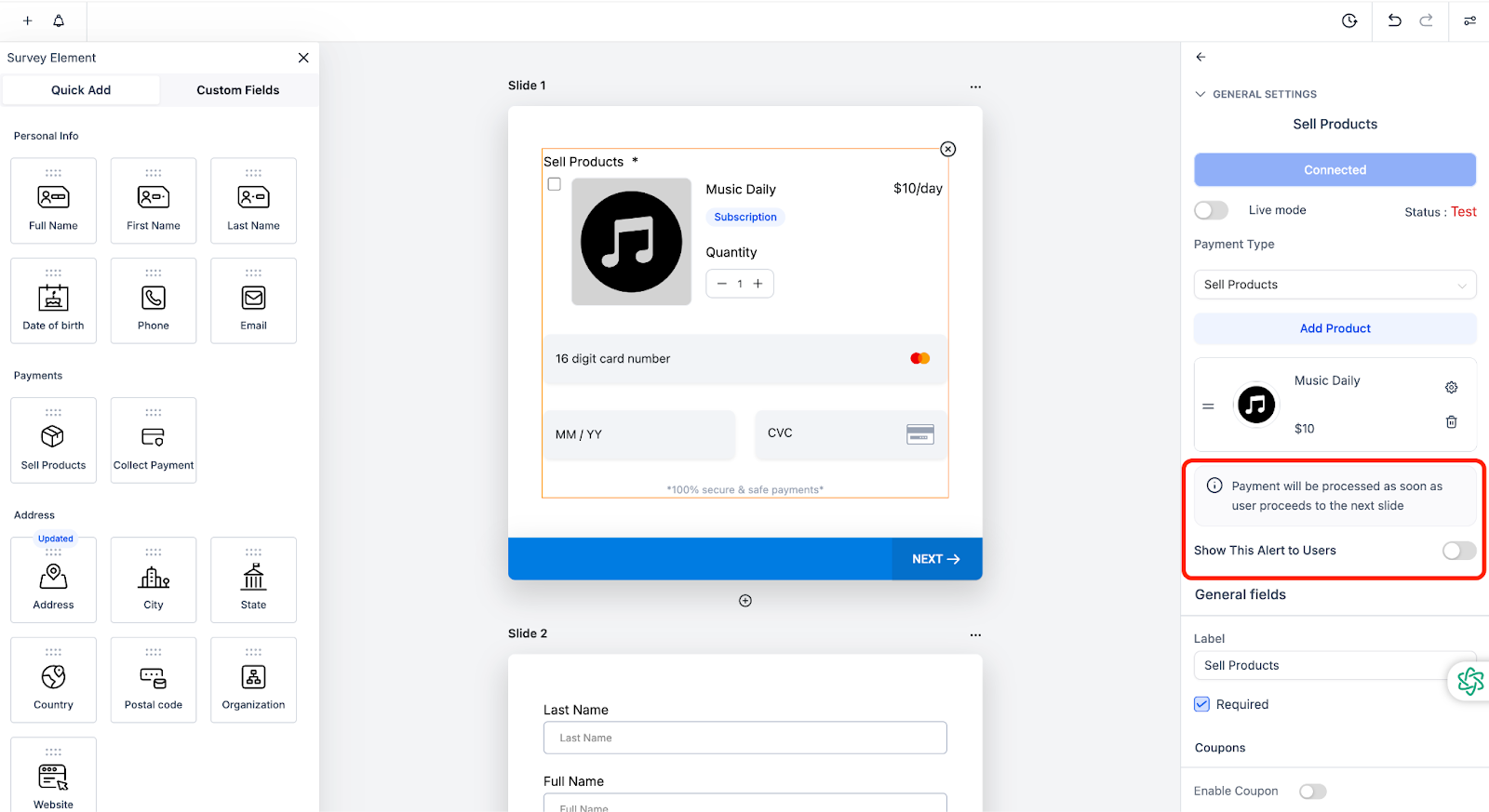
The feature introduces two new elements, Collect Payment and Sell Products, that you can drag into any survey built with the Survey Builder. After placing an element you open its configuration panel, link a payment provider, and define prices, variants, or subscription plans.
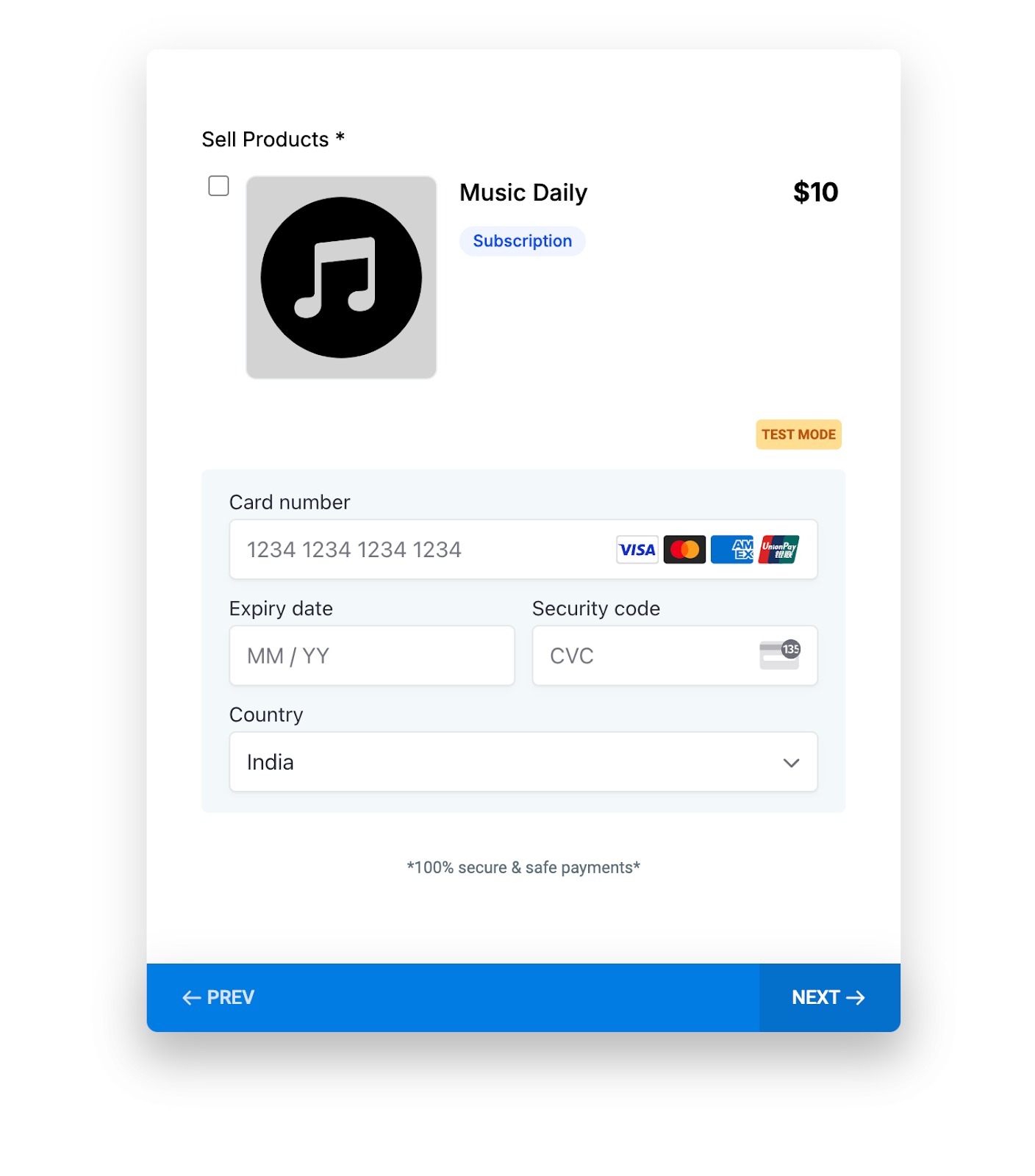
When a respondent reaches the payment step and clicks Next, the platform processes the transaction right away. An optional information box can warn users that payment occurs at this point, and a confirmation screen appears once the charge succeeds. Payments are encrypted and can be tested in Test Mode before switching to Live Mode.
03How businesses use payments integration in surveys
- Fitness studio. The studio adds a Sell Products element to a membership survey, sets class package prices and variants, and enables the optional payment alert. When a prospect selects a package and clicks Next, the payment is captured and a confirmation page confirms the sign up.
- Charity organization. A charity places a Collect Payment element in a donor survey, chooses a fixed or custom amount field, and turns on the payment alert. Donors enter their contribution, click Next, and the system processes the donation immediately, showing a thank you screen.
- Software as a service provider. The SaaS company uses the Sell Products element to sell monthly subscriptions. It configures subscription pricing in the element, enables the payment alert, and lets prospects enter payment details. Upon clicking Next, the subscription payment is processed and a confirmation appears.
04The numbers and rules that matter
- Payments are 100% secure and encrypted.
05Before you start
- A survey must be created in the Survey Builder.
- A payment provider should be connected via the Connect providers option if not already linked.
- Testing should be performed in Test Mode before publishing the survey in Live Mode.
06How to set up and use payments integration in surveys in HighLevel
Set up payments in a survey
- Open the desired survey in the Survey Builder.
- Drag the Collect Payment or Sell Products element onto the survey canvas.
- Select the element to launch its configuration panel.
- Click Connect providers to attach a payment provider if required.
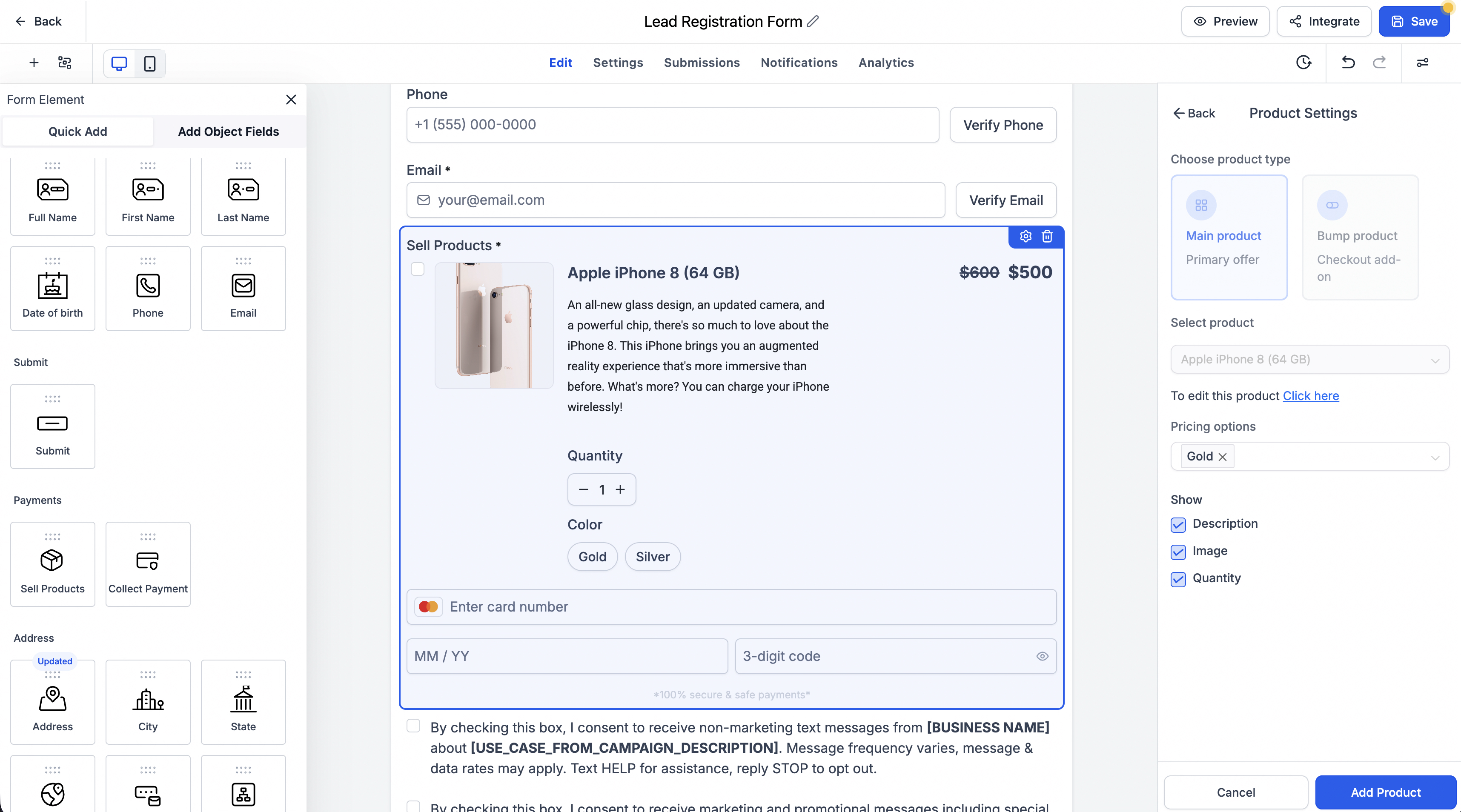
- Enter product details, set prices, and add any variants or subscription options.
- Turn on the optional payment alert if you want to display a warning message.
- Save the survey and use the preview function to confirm the payment step works.
Process a payment
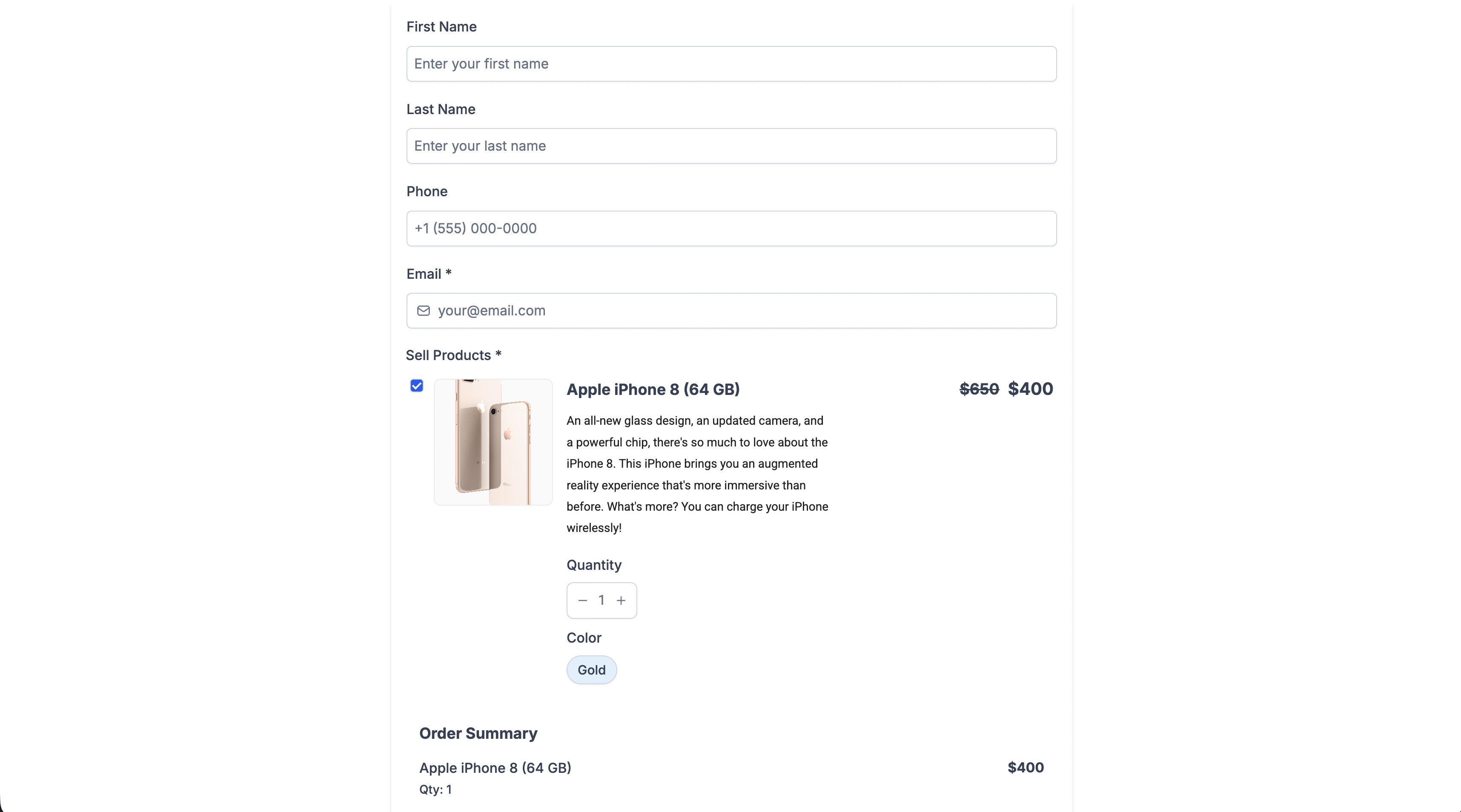
- The respondent fills in payment information on the payment element.
- They click the Next button to continue.
- The platform processes the payment right away as the step advances.
- A confirmation screen is shown to indicate a successful transaction.
07What it looks like in HighLevel
08Settings that matter
- Collect Payment. Enables a fixed or custom amount field for direct payment collection inside a survey.
- Sell Products. Allows addition of product listings with pricing, quantity options, and subscription plans to a survey.
- Connect providers. Links a chosen payment processor to the survey so that transactions can be handled.
09Things to know before you rely on it
- Payments are encrypted and processed immediately when the respondent moves to the next step.
- Partial contact records are retained when a payment element is used.
- Price level and variant selection work only for products that support those configurations.
- Existing surveys with payment settings continue to function without modification.
- Test Mode must be used to validate the setup before switching to Live Mode.
10How it connects to the rest of HighLevel
- Add order bumps to surveys for additional upsell options Order bumps
- Customize the footer of a survey to match your branding Survey footer
- Enable one question at a time mode to improve survey flow One question at a time
Michael's take

Michael ReimerFounder of CRM Pros, HighLevel Commander and Certified Admin
I would enable the alert, customize the wording to match the brand voice, and run a quick Test Mode pass before publishing.
Get More InformationOpens on HighLevelPublished November 2, 2026 · Updated November 17, 2026