
01Who this is for
- Marketing managers can align the survey footer with brand guidelines, keeping a consistent visual experience.
- Small business owners can fine tune button colors and placement to guide respondents through the questionnaire.
02New footers in surveys, explained
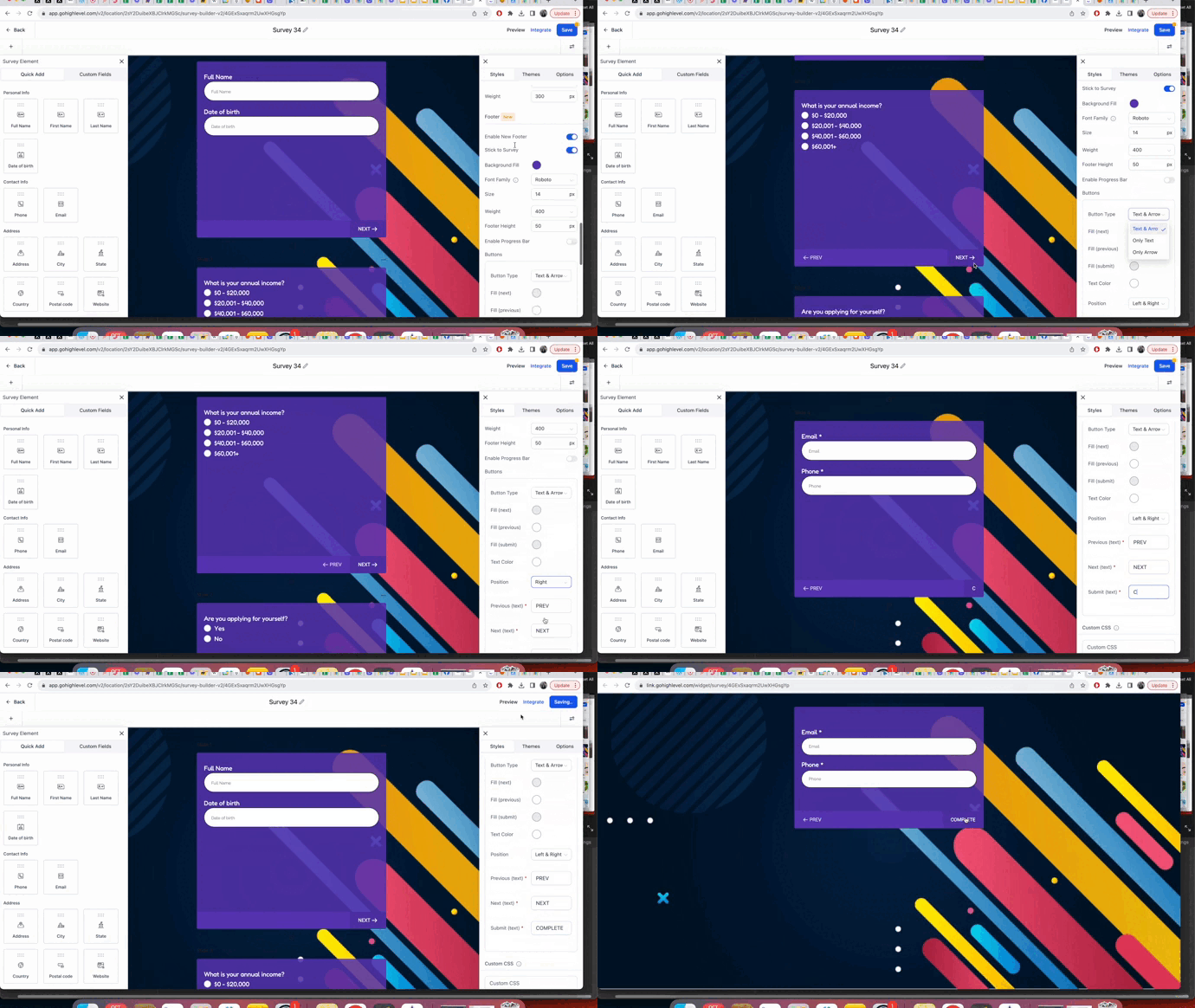
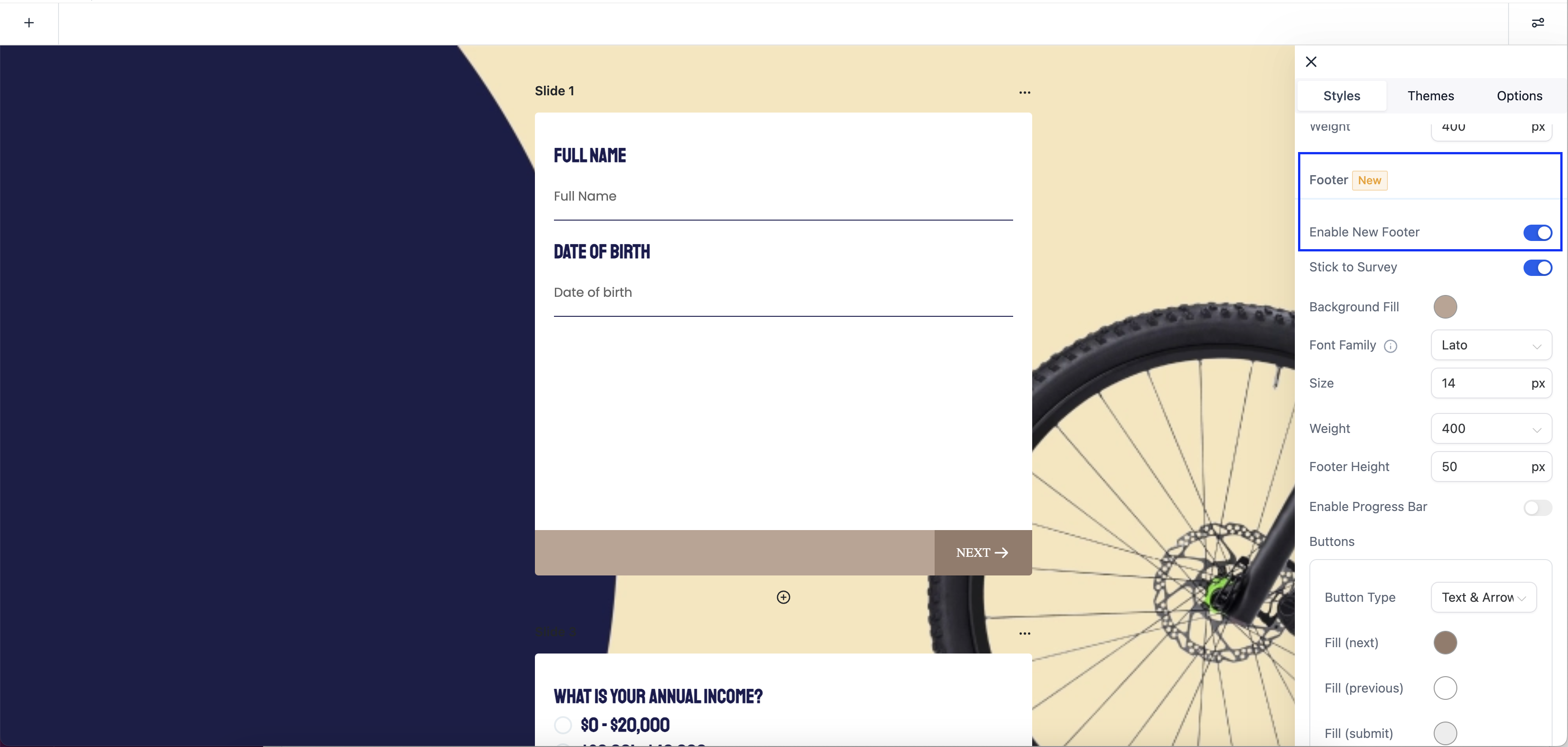
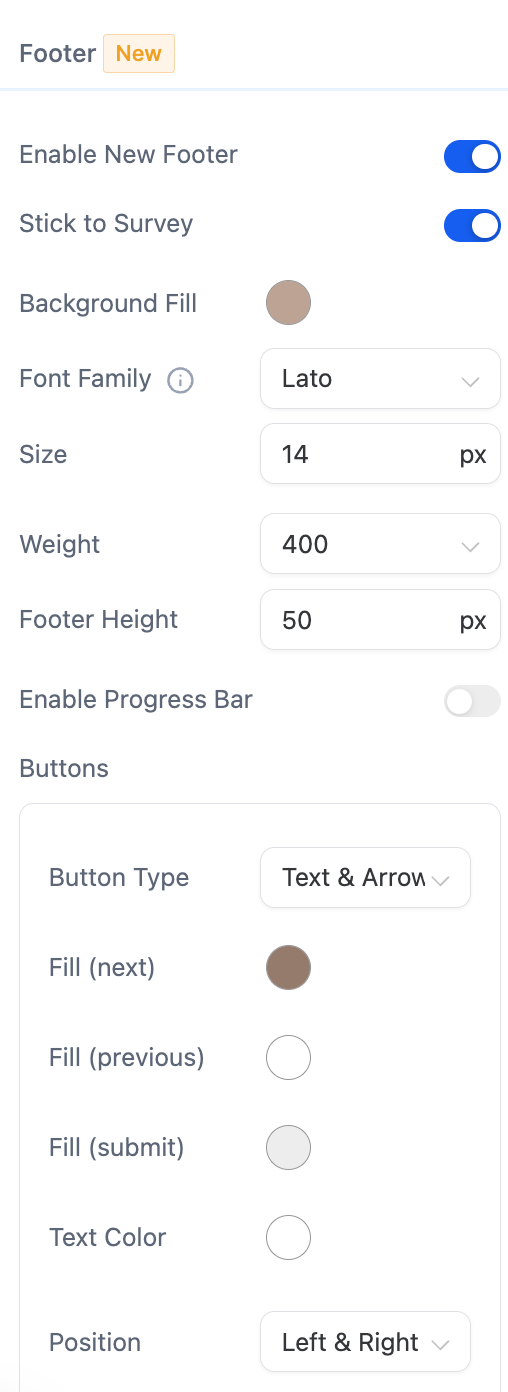
The new footer feature adds a customizable bar at the bottom (or other position) of every survey slide. You can pick a theme, set a background image or colour, change the font and its size, adjust the height, style the progress bar, select button colours and decide where the footer appears. An optional setting lets the footer remain fixed to each slide as respondents move through the survey.
All controls reside in the Survey Builder under the Style tab. When you create a fresh survey, the new footer options are already turned on. For a survey that was built earlier, the older footer stays in place until you switch on the new footer toggle in the same Style area.
03How businesses use new footer
- Fitness center. Open the membership sign up survey in HighLevel, go to the Style tab, enable the new footer and choose a theme that matches the gym colours. Adjust the button colour so the "Next" button stands out and set the footer to stick to each slide for a smooth flow.
- Real estate agency. In a property interest survey, activate the new footer, select a background image of a house, set a readable font size, and position the footer at the bottom. Enable the progress bar to show respondents how many steps remain.
- Online course platform. For a course feedback survey, turn on the new footer, customize its height to keep it unobtrusive, pick a button colour that matches the brand, and enable the stick to survey option so the navigation stays visible on each question.
04Before you start
- Log in to your HighLevel account.
- Open an existing survey or create a new one in the Survey Builder.
05How to set up and use new footer in HighLevel
Enable new footer in Survey Builder
- Log in to HighLevel and open the Survey Builder.
- Open the survey you want to edit or start a new survey.
- Select the Style tab to reach the footer customization area.
- Toggle on the option to enable the new footer.
- Note that for existing surveys the old footer remains until you switch on the new footer toggle.
06What it looks like in HighLevel
07Settings that matter
- Themes. Controls the overall colour scheme, font style and visual design of the footer.
- Background. Sets a colour, image or pattern for the footer background.
- Font. Adjusts the text style and size used inside the footer.
- Height. Changes how tall or short the footer appears.
- Progress Bar. Defines the colour, style and placement of the progress indicator within the footer.
- Button Color. Specifies the colour of navigation buttons such as "Next" or "Submit" in the footer.
- Position. Determines where the footer is placed, for example at the bottom of the survey slide.
- Stick to Survey. When enabled, keeps the footer fixed to each slide as respondents move through the survey.
08Things to know before you rely on it
- Newly created surveys have the new footer options turned on automatically.
- Surveys created before the feature rollout keep the old footer until you manually toggle the new footer setting.
09How it connects to the rest of HighLevel
- Export survey submissions Export submissions
- Payments integration in surveys Survey payments
- Order bumps in surveys Survey order bumps
Michael's take

The new footer is a nice way to keep your surveys looking on brand.
If you don’t care about visual consistency or need a fast, plain survey, you can skip it.