
01Who this is for
- Agency administrators who need to decide whether users see feedback surveys, guides, updates or beta features.
- Marketing teams that want control over NPS surveys to gather user sentiment.
02Optimize experience features, explained
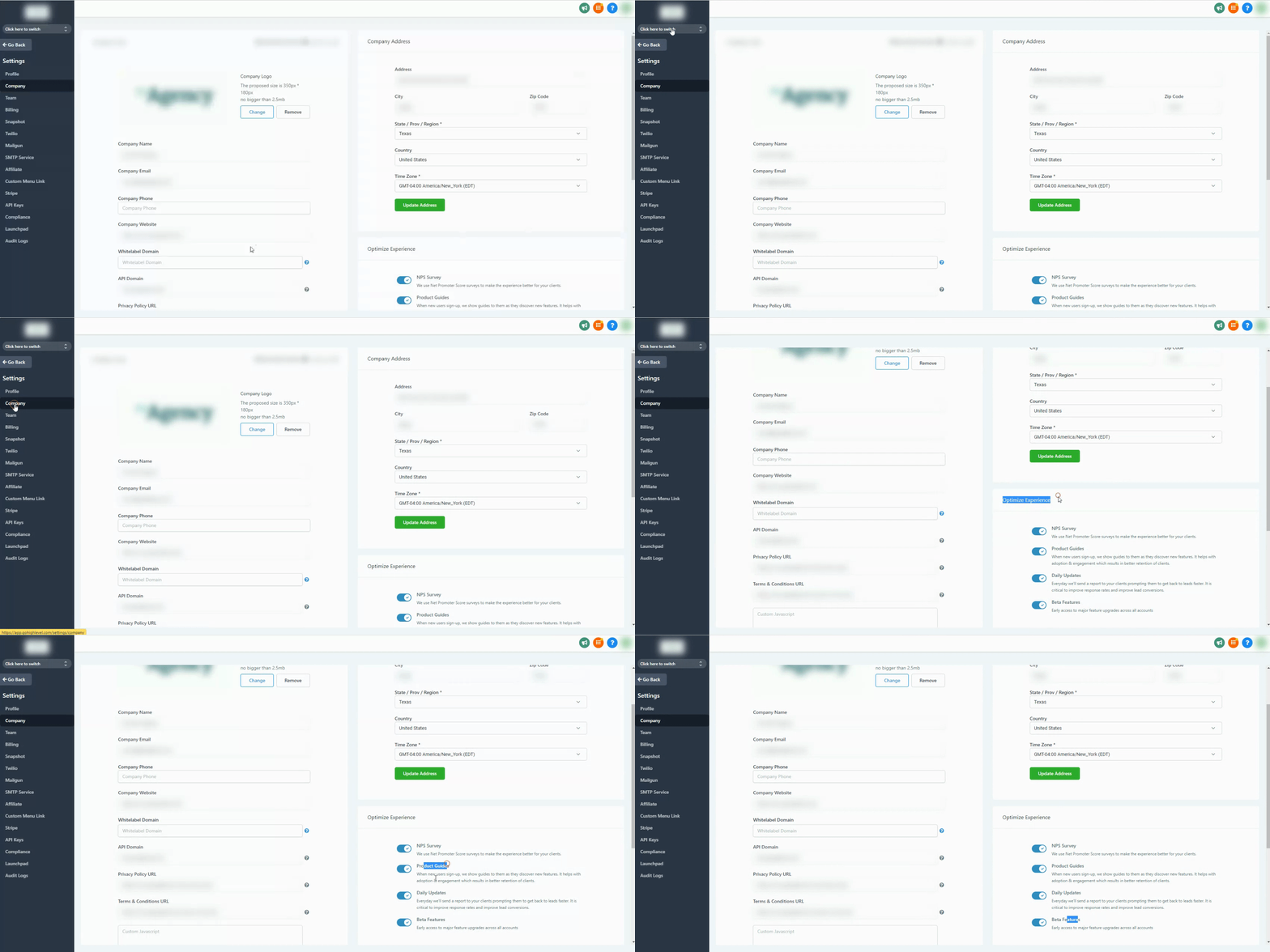
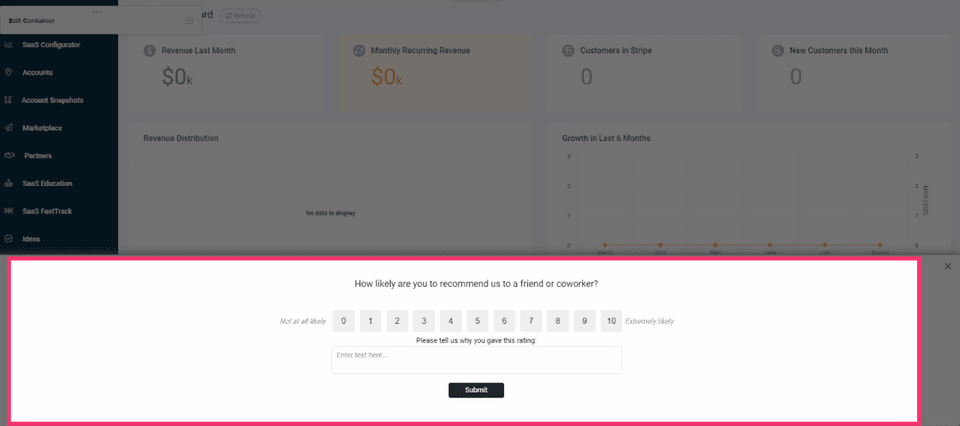
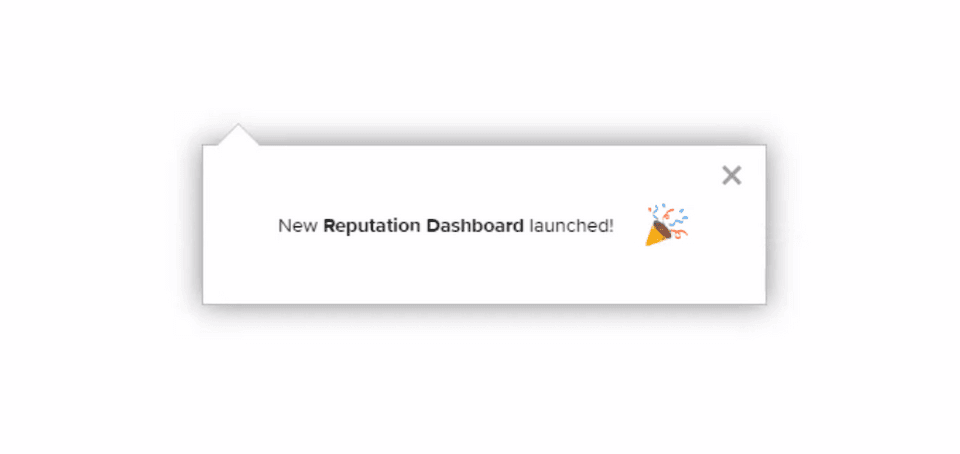
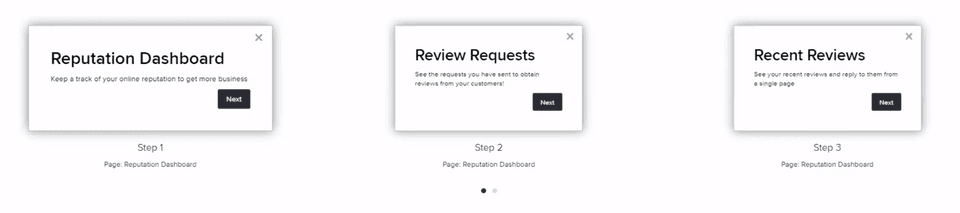
The Optimize Experience section lives under Agency Settings > Company. It contains four toggles: NPS Surveys, Product Guides, Daily Updates and Beta Features. Each toggle controls a white labeled element that appears to end users. NPS Surveys launch occasional pop up questionnaires, product guides display pop up instructions when new functionality is added, daily updates send white labeled email notifications, and beta features give early access to major upgrades.
When a toggle is on, the corresponding feature operates automatically for all users of the agency. When it is off, the feature does not appear or send any messages. The default state for each toggle is enabled, so you must turn it off if you prefer not to use it.
03How businesses use optimize experience features
- Digital marketing agency. The agency can keep the NPS Survey toggle on to collect client feedback on new tools. They enable the Product Guides toggle so new feature pop ups walk clients through set up steps. They may turn off Daily Updates if they prefer to handle review notifications elsewhere.
- SaaS startup. The startup enables Product Guides so users receive pop up tutorials whenever a new module is released. They keep Beta Features on to let their team test upcoming upgrades before public rollout. They can disable Daily Updates if they use a different channel for alerts.
- Local service business. The business switches on Daily Updates to receive email snapshots about new reviews. They may turn off NPS Surveys if they do not need feedback collection. They can also disable Beta Features until they are ready to try experimental changes.
04How to set up and use optimize experience features in HighLevel
Enable or disable Optimize Experience features
- Open Agency Settings and select the Company option.
- Scroll down until the Optimize Experience section is visible.
- Toggle each feature on or off according to your preference.
05What it looks like in HighLevel

06Settings that matter
- NPS Surveys. Controls whether white labeled pop up surveys appear to collect user feedback on new features.
- Product Guides. Determines if pop up guides showing step by step instructions are shown when new features are added.
- Daily Updates. Manages the sending of white labeled email notifications that inform users about items such as new reviews.
- Beta Features. Provides early access to major feature upgrades across all accounts before they are released to everyone.
07Things to know before you rely on it
- All four options are enabled by default; you must switch them off to stop them from running.
- NPS Surveys are always white labeled and never display the HighLevel brand.
- Daily Updates are currently email messages and will evolve into a daily snapshot report.
08How it connects to the rest of HighLevel
- Explore all Settings options in HighLevel All Settings
- Manage agency branding, domains and AI tools Agency company settings
- Control user roles and access in HighLevel User access
Michael's take

Watch out for the fact that these tools are on by default. If you’re not ready for users to see pop ups or extra emails, you’ll want to turn them off right away. The default setting can surprise new agencies that expect a quiet rollout.
When you do want the extra engagement, these tools are a quick way to get feedback, teach new features, and keep users informed about daily activity. They’re ready to use with just a few clicks in agency settings.