
01Who this is for
- Marketing agencies that manage many client sites benefit from a single dashboard to renew and adjust DNS records.
- Ecommerce businesses gain direct control over their storefront domain without juggling separate registrar logins.
- SaaS Founders keep their brand domain and related email configuration inside HighLevel for streamlined billing.
02Domain transfer in, explained
Domain transfer in lets you relocate ownership of a domain from a third party registrar to the HighLevel platform. The feature checks that the domain follows ICANN age and lock rules, pulls in DNS records, and then moves the registration to HighLevel’s registrar partner. Once the transfer finishes, the domain appears in the internal Domains list and can be linked to any HighLevel product.
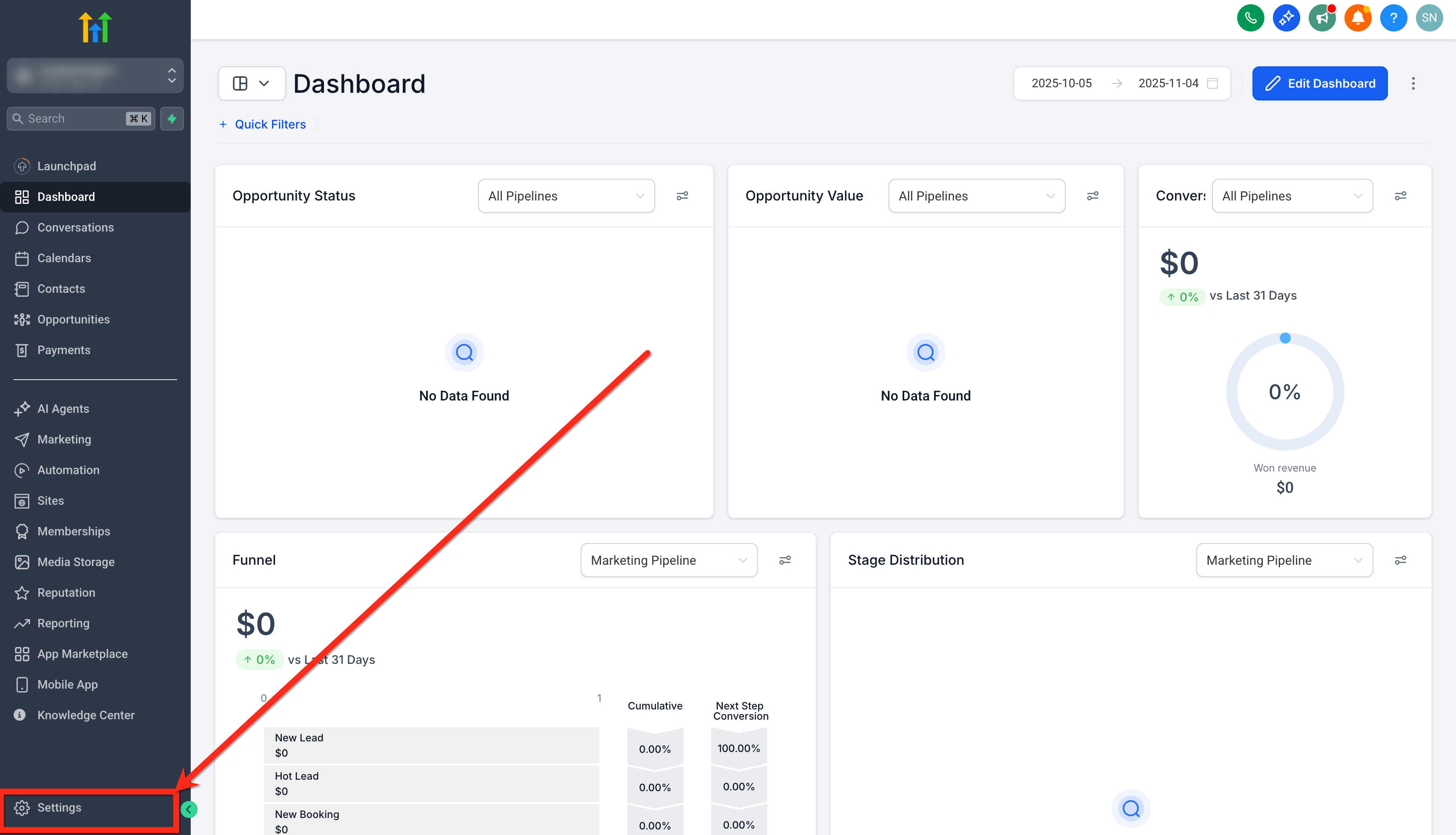
The workflow lives under Settings > Domains & URL Redirects > Domains for each subaccount. Before starting, you must enable the domain purchase toggle at the agency level and optionally for each subaccount. The system guides you through five steps: starting the transfer, eligibility verification, DNS review, finalizing with registrar actions, and approving the pending request.
03How businesses use domain transfer in
- Marketing agency. The agency enables domain purchase in the agency view, then activates it for client subaccounts. Each client’s domain is transferred in, DNS records are reviewed, and the domain is linked to client funnels and email within HighLevel.
- Ecommerce store. The store owner opens Settings in its subaccount, initiates a Transfer In, confirms eligibility, uploads the existing DNS zone file, and finalizes the transfer. After approval, the store reconnects its checkout site and email sending domain.
- SaaS startup. The startup turns on domain purchase for its subaccount, starts a transfer for its brand domain, scans DNS records automatically, and after completing the transfer, maps the domain to its client portal and enables auto renew.
04The numbers and rules that matter
- Domain must be older than 60 days (ICANN rule).
- Supported TLDs include most common.com,.net,.org, etc.; certain country code TLDs may not be supported.
- Transfers may autoapprove after 5 to 7 days if not manually approved.
- Domain cannot be transferred if the registrar is unsupported, the domain was previously purchased internally, the TLD is unsupported, it was purchased or transferred in the last 60 days, or it has an EPP status such as pendingDelete, redemptionPeriod, serverHold.
- The transfer would result in the term of the domain exceeding the maximum allowed term.
05Before you start
- Domain age must exceed 60 days.
- Domain is unlocked at the current registrar.
- WHOIS privacy and DNSSEC are turned off.
- An EPP/authorization code is available.
- The WHOIS contact email is correct.
- The HighLevel wallet holds enough funds.
06How to set up and use domain transfer in in HighLevel
Enable domain purchase (Agency View)
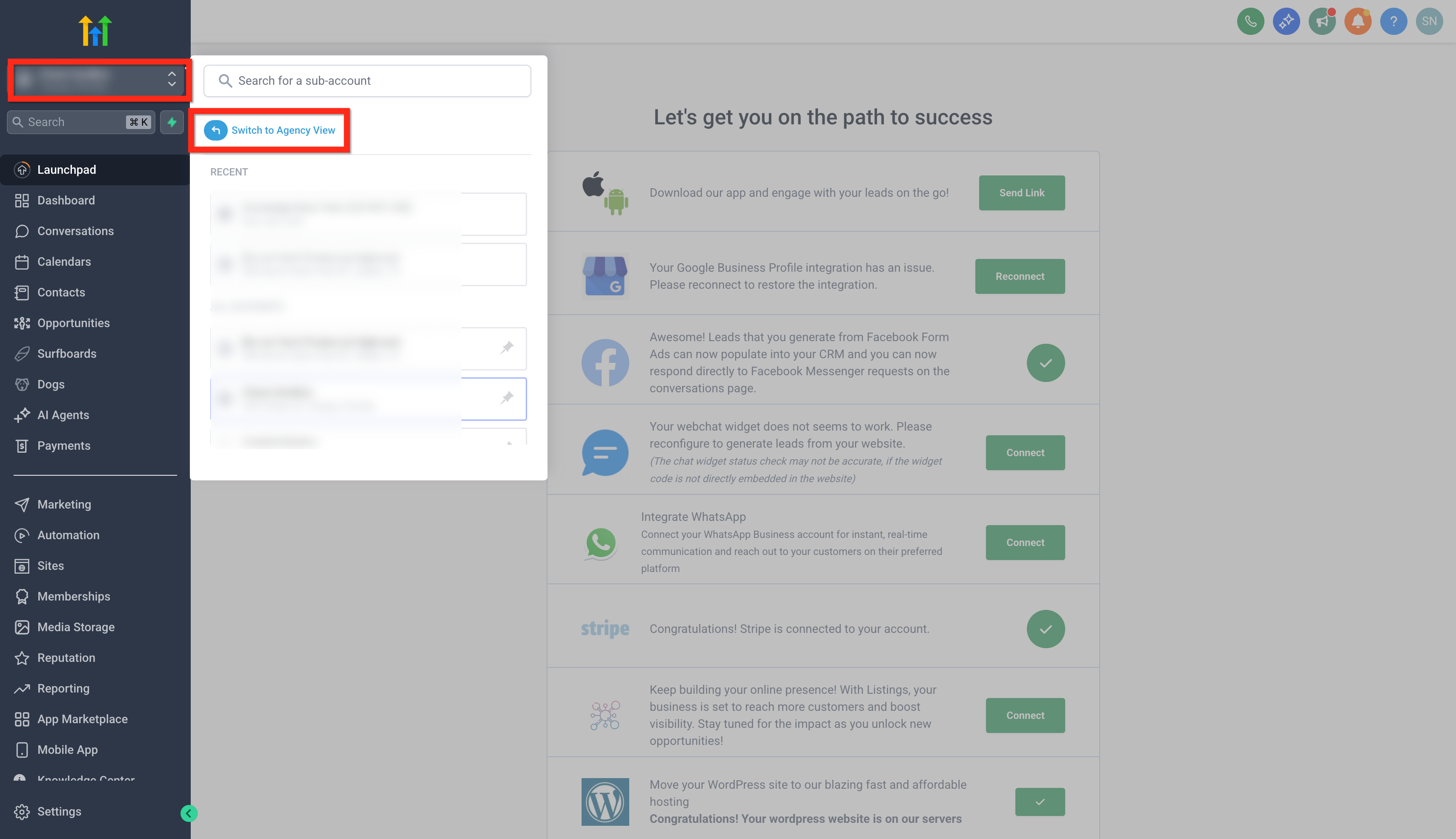
- Open the location dropdown in the top left corner and select Agency.
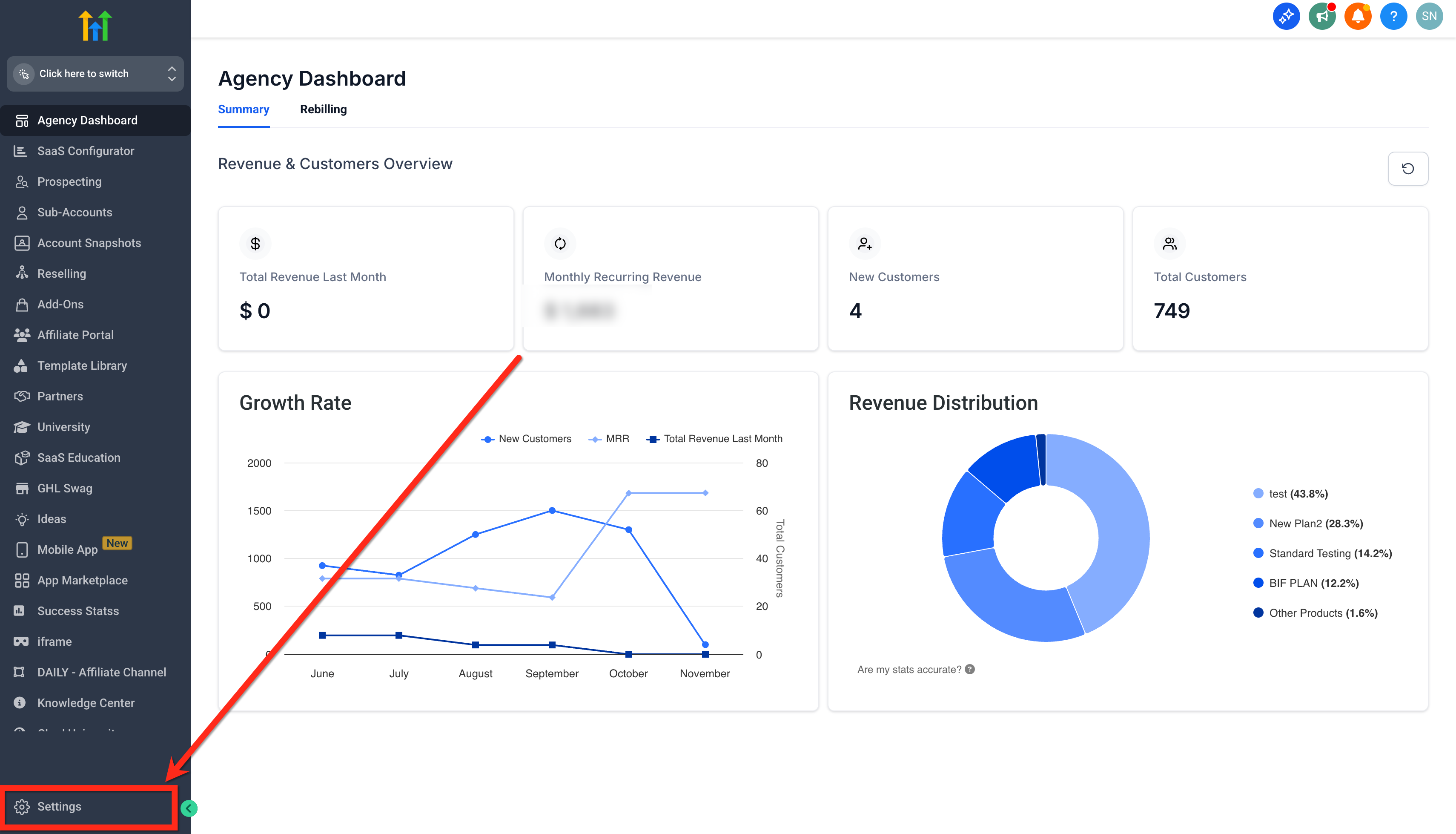
- Click Settings from the main navigation.
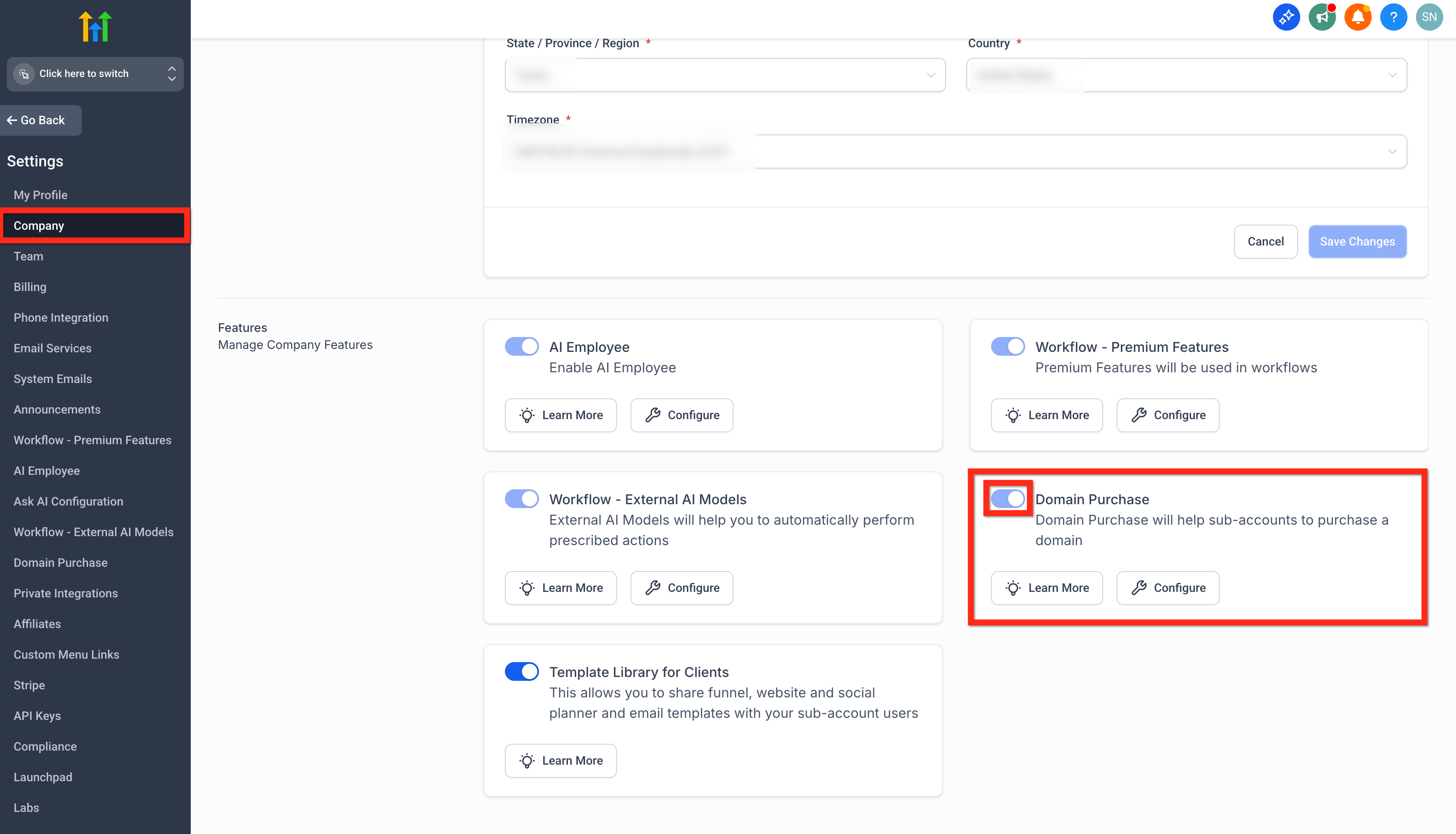
- Scroll within Company to the Domain Purchase section.
- Switch the toggle to ON.
Enable domain purchase for subaccounts
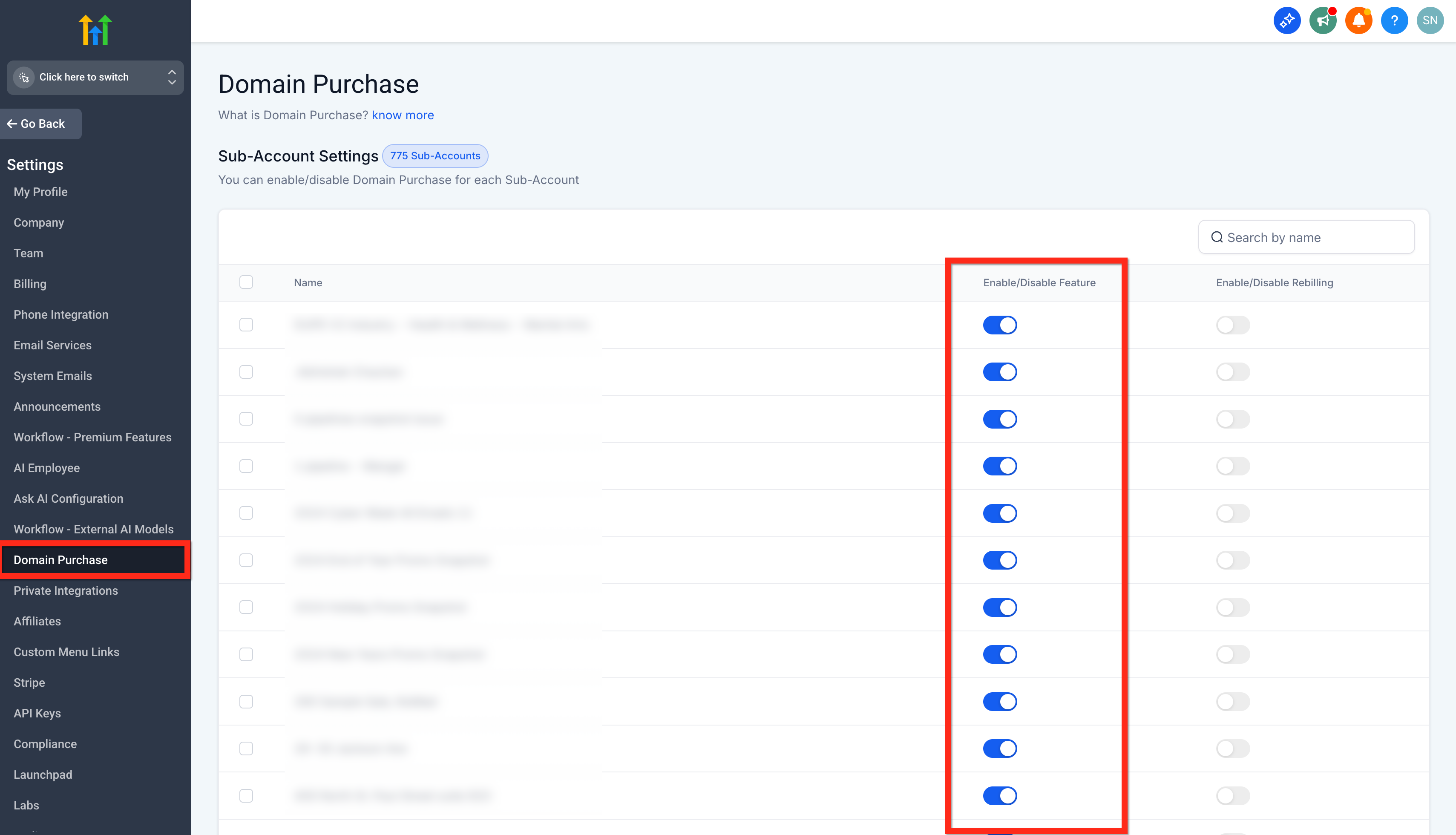
- Go to Agency Settings.
- Select the Domain Purchase option.
- Turn the toggle on for each subaccount that will use Transfer In.
Start the transfer
- Enter Settings of the target subaccount.
- Choose Domains & URL Redirects then Domains.
- If the domain shows as external, click Transfer In.
- To add a new domain, click Transfer In Domain or Purchase/Transfer Domain.
- Enter the domain name and press Continue.
Eligibility check
- The platform runs an automated check against ICANN rules.
- Review the displayed registrar, expiration dates and fee information.
- If a blocker exists, the Continue button stays disabled and an error explains the issue.
Review and save DNS records
- Choose to upload a DNS zone file or let the system auto scan existing records.
- Examine each DNS entry in the table view.
- Add, edit, or delete records as needed.
- Check the confirmation box and click Continue.
Finalize transfer
- Log into the current registrar and disable DNSSEC and WHOIS privacy.
- Unlock the domain and request the EPP/authorization code.
- Return to HighLevel and submit the transfer request.
- Confirm payment to charge the wallet and complete the transfer.
Approve in progress transfer
- Open the approval email sent to the WHOIS contact address.
- Follow the link to the registrar’s dashboard and confirm the transfer.
- Alternatively, approve directly from the registrar’s interface.
After the transfer
- Verify that DNS records point to the intended HighLevel sites, funnels or email.
- Reconnect any email, website, funnel or client portal domains as needed.
- Turn on auto renew for the domain.
07What it looks like in HighLevel
08Settings that matter
- Domain Purchase. Controls whether the platform allows buying new domains or transferring existing ones across the agency and its subaccounts.
09Things to know before you rely on it
- Domain transfer in may not appear for every account; contact support to enable it.
- The domain must be older than 60 days and not have been transferred in the previous 60 days.
- Unsupported registrars, TLDs, or domains with restricted EPP status block the transfer.
- DNSSEC must be disabled before eligibility is confirmed; changes can take up to 48 hours to propagate.
- A one year extension is added at transfer, but some TLDs have different rules.
10If something goes wrong
- Auth code rejected. Verify the code with the current registrar and request a new one if needed.
- Transfer email not received. Check that the WHOIS contact email is correct and review spam or junk folders.
- Domain locked. Ensure the registrar lock is fully turned off before proceeding.
- Transfer taking longer than 7 days. Check the status in the current registrar’s panel; some registrars delay releases.
11How it connects to the rest of HighLevel
- How to enable and rebill domain purchases Enable domain purchases
- Step by step guide to buying a domain in HighLevel Purchase domain guide
- Transferring a domain out of HighLevel to Cloudflare Transfer out guide
- HighLevel pricing and plans Pricing page
- Start a 30 day HighLevel trial Trial signup
Michael's take

Wondering whether moving your domain into HighLevel is worth the effort? If you already run funnels, sites and email campaigns in HighLevel, having the domain sit in the same system cuts down the number of logins you need and lets you see renewal dates alongside your other bills.
I’d start by pulling a copy of the current DNS zone file, then run the transfer. That way you have a safety net if anything looks off after the move.