
01Who this is for
- Agency owners can keep client domains in one place, avoiding separate registrar logins.
- Ecommerce Founders can add MX or TXT records for email and verification without leaving HighLevel.
- Content marketers can quickly point a new domain to a blog or landing page built on the platform.
02Purchased domain configuration, explained
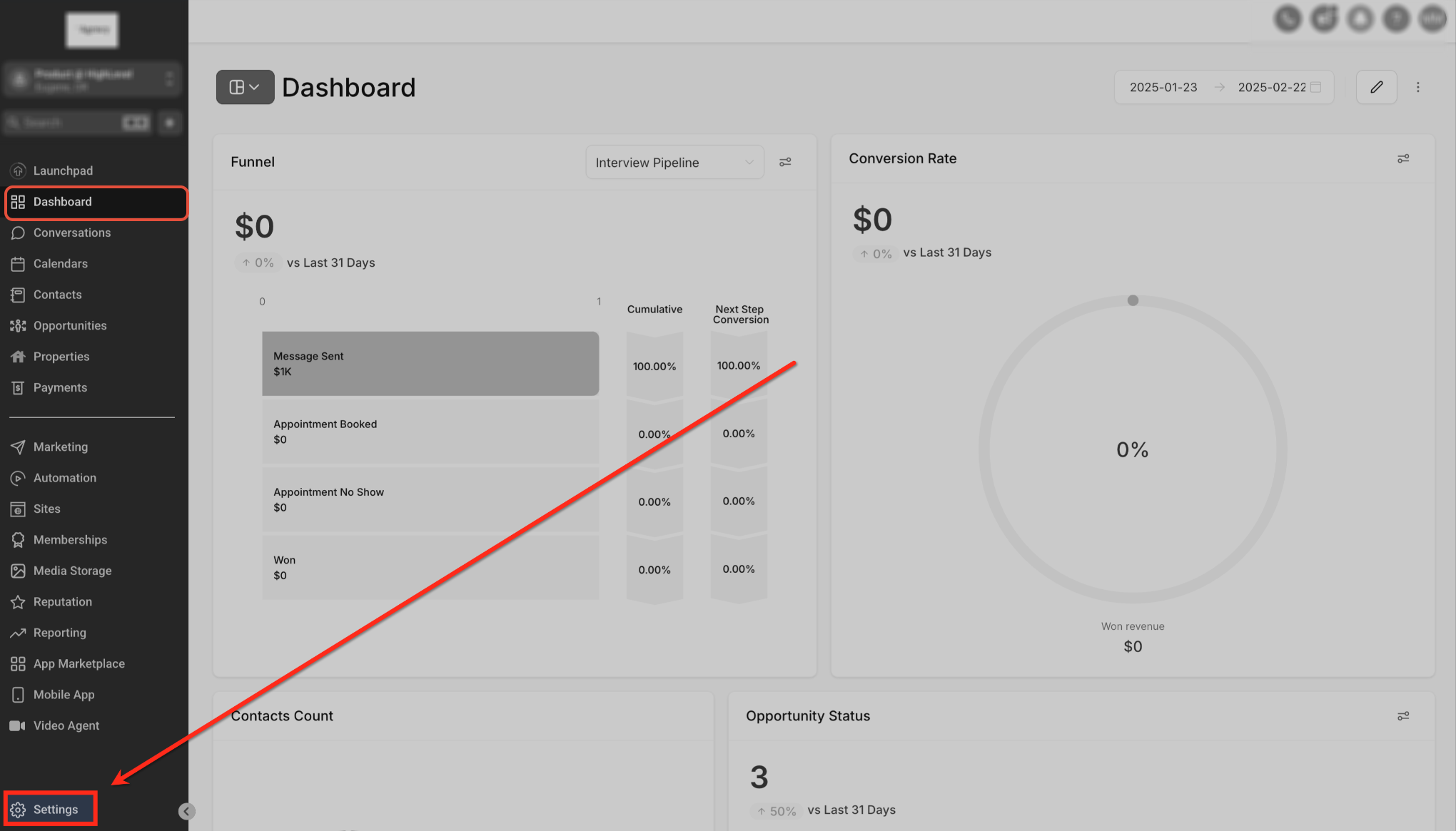
The feature appears under Settings > Domains > Purchased Domains. After a domain shows an Active status, a Configure button opens a page where you can either add DNS entries or run a guided flow to attach the domain to a HighLevel asset. Supported record types include A, CNAME, AAAA, MX, and TXT.
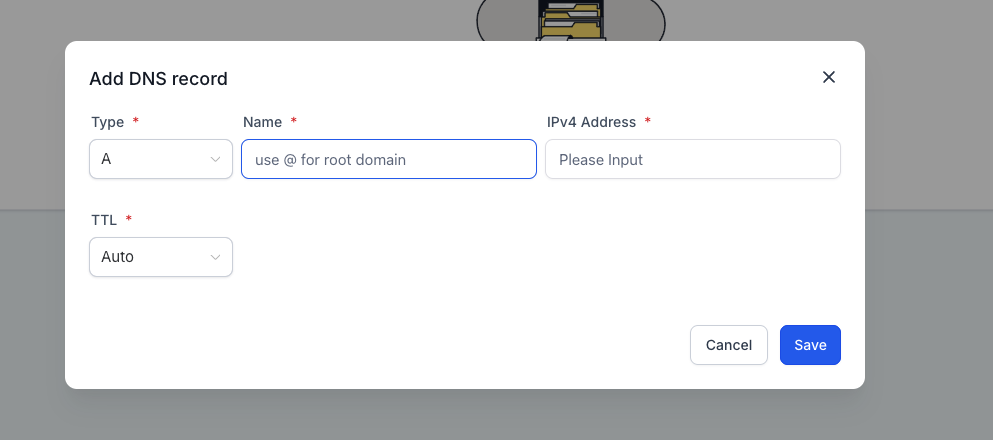
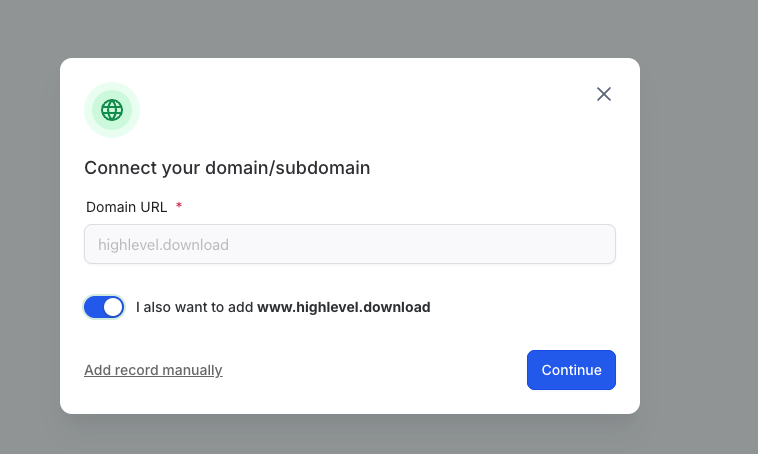
Adding a record requires choosing the type, supplying a host name, the target value, and a TTL, then saving. Connecting a domain launches a wizard that confirms the domain, optionally adds the www variant, and asks which asset, Funnel, Website, Store, or Blog, to link. After the wizard finishes, DNS changes propagate and the domain becomes usable.
All actions stay inside the subaccount that purchased the domain, so you never need to log into an external registrar for routine updates.
03How businesses use purchased domain configuration
- Marketing agency. An agency opens Settings > Domains, selects the client’s purchased domain, and adds a TXT record to verify Google Search Console. The record is saved directly in HighLevel, keeping the client’s workflow inside one dashboard.
- Online boutique. The store owner goes to the domain’s configuration page, clicks Connect this domain, chooses Store, picks the specific storefront asset, and follows the prompts. HighLevel adds the required A records so the boutique appears at the new domain.
- Blog publisher. A blogger selects the purchased domain, adds a CNAME record that points a subdomain (blog.example.com) to the platform’s blog service, then uses the Connect flow to link the subdomain to the blog asset.
04The numbers and rules that matter
- Supported DNS record types: A, CNAME, AAAA, MX, TXT.
- Domain registration usually takes about 1 minute.
05Before you start
- The domain must have been purchased through HighLevel.
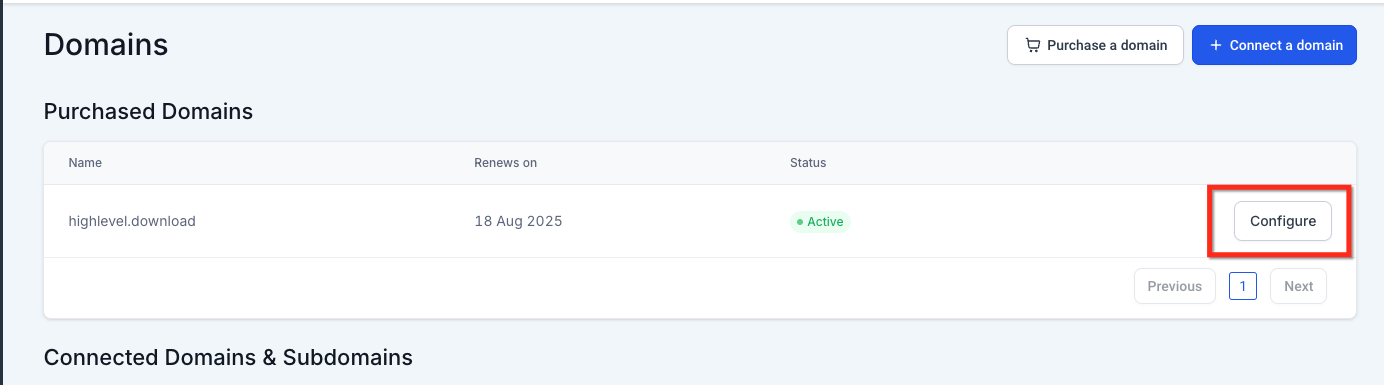
- The domain status must be Active before the Configure option appears.
06How to set up and use purchased domain configuration in HighLevel
Manage a purchased domain
- In the subaccount, select Settings.
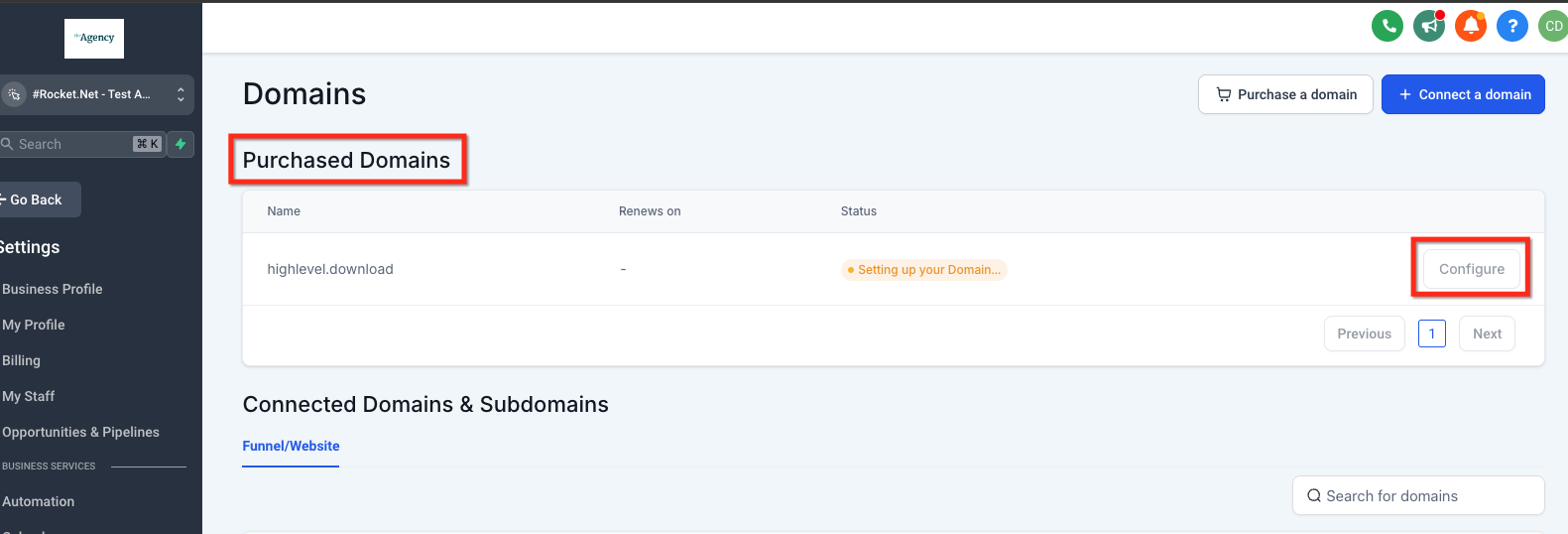
- Open Domains and find the domain listed under Purchased Domains.
- When the domain status reads Active, click the Configure button.
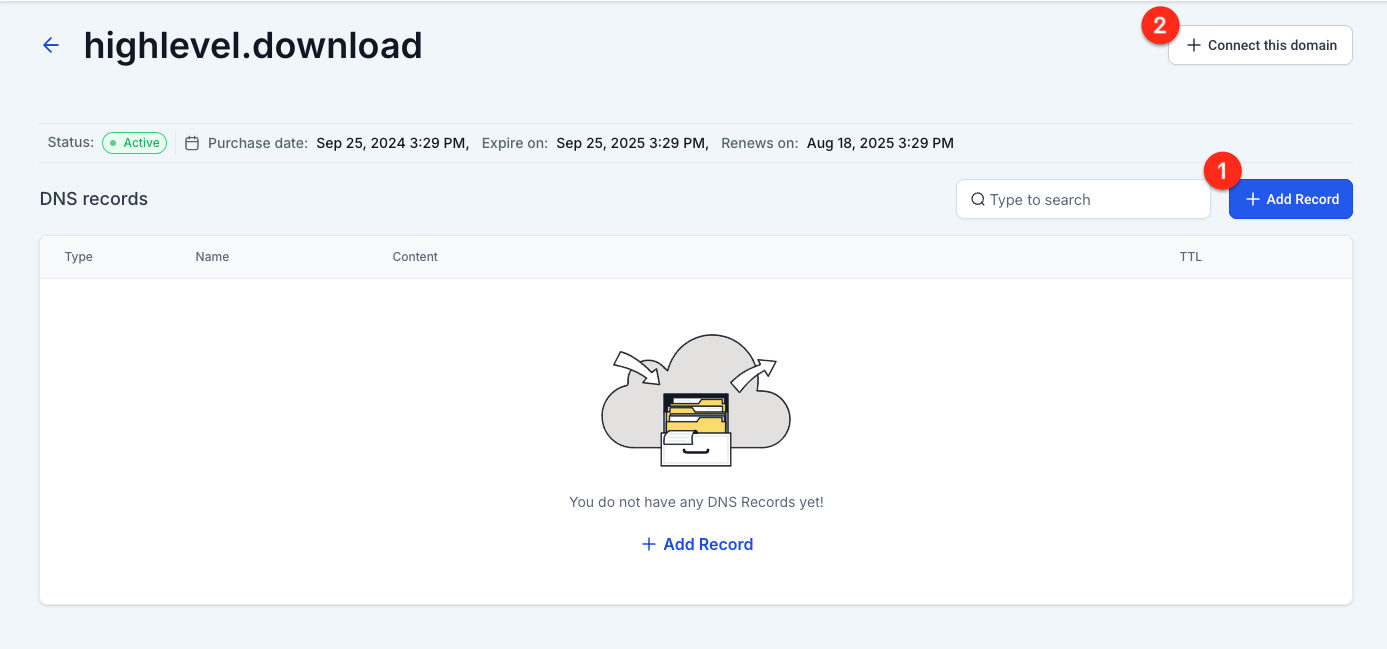
- On the configuration screen, choose either Add Record or Connect this domain.
Add a DNS record
- From the domain configuration page, click Add Record.
- Pick the DNS record type you need.
- Enter the hostname or name field.
- Provide the destination or content value.
- Select the desired TTL.
- Press Save to store the record.
Connect a purchased domain
- From the domain configuration page, click Connect this domain.
- Confirm the domain you wish to attach and indicate if the www version should be included.
- Click Continue and follow the prompts that add the required DNS entries.
- Select the asset type: Funnel, Website, Store, or Blog.
- Choose the specific asset from the dropdown list.
- Review any extra options, then click Proceed to finish.
- After the flow ends, return to the domain page and verify the DNS records.
- Be aware that DNS changes may take time to propagate; the domain may not work immediately.
07What it looks like in HighLevel
08Settings that matter
- Add Record. Opens a form to create a new DNS entry for the selected domain.
- Connect this domain. Starts the guided wizard that binds the domain to a HighLevel Funnel, Website, Store, or Blog.
- TTL value. Sets how long the DNS record is cached before it refreshes.
- Type. Defines the DNS record format such as A, CNAME, AAAA, MX, or TXT.
09Things to know before you rely on it
- Only domains bought through HighLevel can use this configuration area.
- The Configure button appears only after the domain status changes to Active.
- Changing existing DNS records may disrupt websites, email, or other services.
- A root domain should be linked to one site type at a time; use subdomains for additional sites.
10If something goes wrong
- Configure button unavailable. Wait until the domain status updates to Active, then the button will appear.
- Domain remains in setup longer than expected. Contact HighLevel Support and provide the domain name, a screenshot of the status, the renewal date, purchase time, and any error messages.
11How it connects to the rest of HighLevel
- Enable domain purchases and rebilling in HighLevel Enable domain purchases
- Step by step guide to buying a domain in HighLevel Buy a domain
- HighLevel pricing and plans Pricing
Michael's take

You bought your domain to give your brand a professional address, but you don’t want to juggle another login. The first thing I’d get right is the domain’s status. Make sure it’s showing Active before you try anything else. That way the Configure button is there and you can safely add records or point the domain to your site.
Once the domain is active, I’d run through the guided Connect flow to hook it up to my funnel or website. The steps are clear and keep everything inside HighLevel, which saves a lot of back and forth with third party registrars.