
01Who this is for
- Founders who want a branded URL for their public website to match their company name.
- Agency owners who need to white label client portals and subaccounts with custom domains.
- Ecommerce managers who require a domain for a HighLevel store or checkout page.
02Domains, explained
The domain connection feature lets you point a root domain or subdomain to any HighLevel product, such as a funnel, website, store, webinar, blog, email sending or client portal. After the DNS records are in place, HighLevel validates them, provisions SSL and makes the custom URL live.
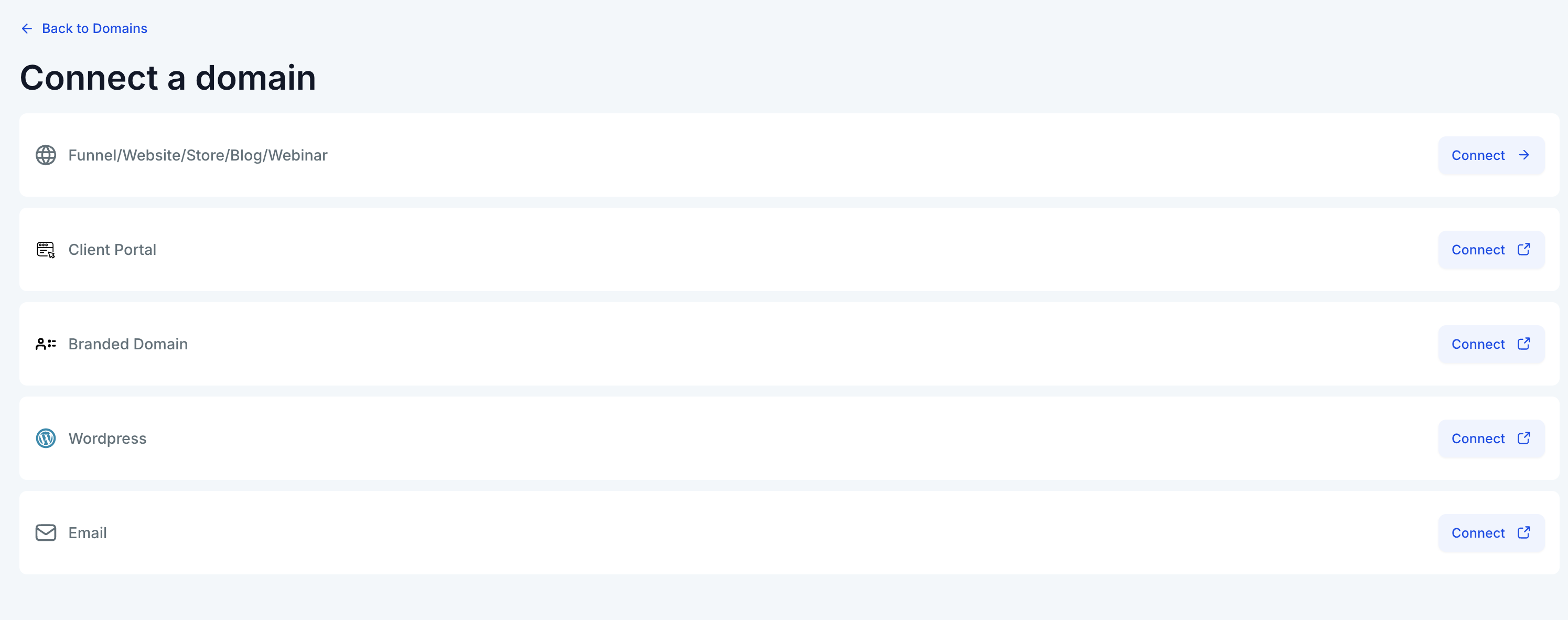
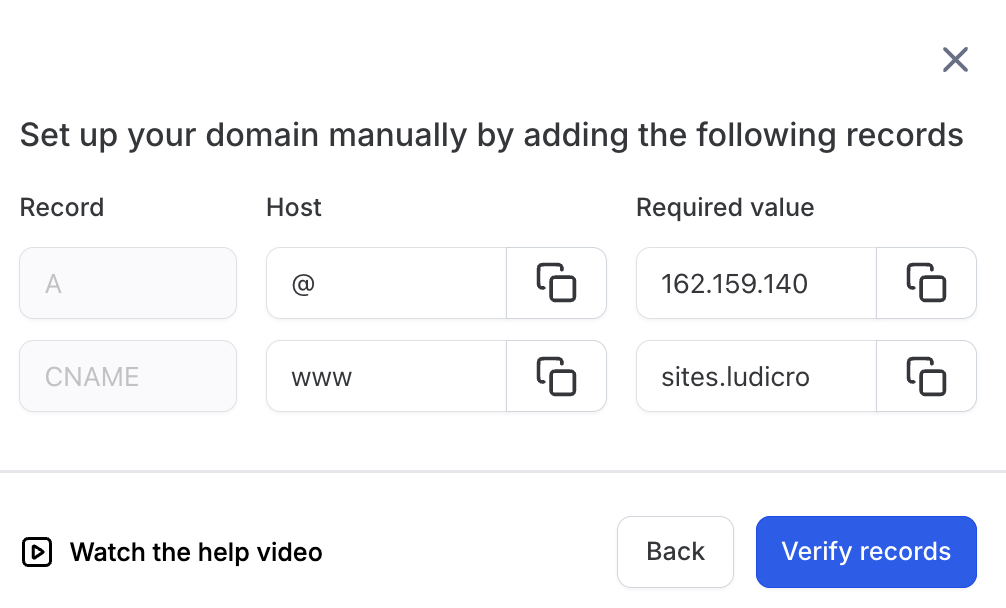
The settings live under Sites > Settings > Domains. From there you can add new domains, view existing connections and delete them. The interface offers an automatic connection for supported registrars and a manual option that displays the exact DNS records you must create at your registrar.
03How businesses use domains
- Ecommerce store. In HighLevel, open Sites > Settings > Domains, click Connect a Domain, pick Store as the product, enter your domain and follow the automatic or manual steps. Once the records are verified, the store loads at your custom URL.
- Webinar host. Select Webinar when connecting a domain, provide the desired subdomain, and complete the DNS setup. HighLevel then serves the webinar landing page under that address.
- Agency white labeling. Choose the option to point a domain to a subaccount or SaaS feature, enter the branding domain, and configure the DNS records. HighLevel replaces the default .hlpages.co link with your own brand.
04The numbers and rules that matter
- Supported automatic providers: GoDaddy, Google Domains, Cloudflare.
- Propagation can take from a few minutes up to 24 hours.
05How to set up and use domains in HighLevel
Automatic domain connection (7 steps)
- Open Sites > Settings > Domains.
- Click the “Connect a Domain” button.
- Select the product you want to attach, such as a funnel or website.
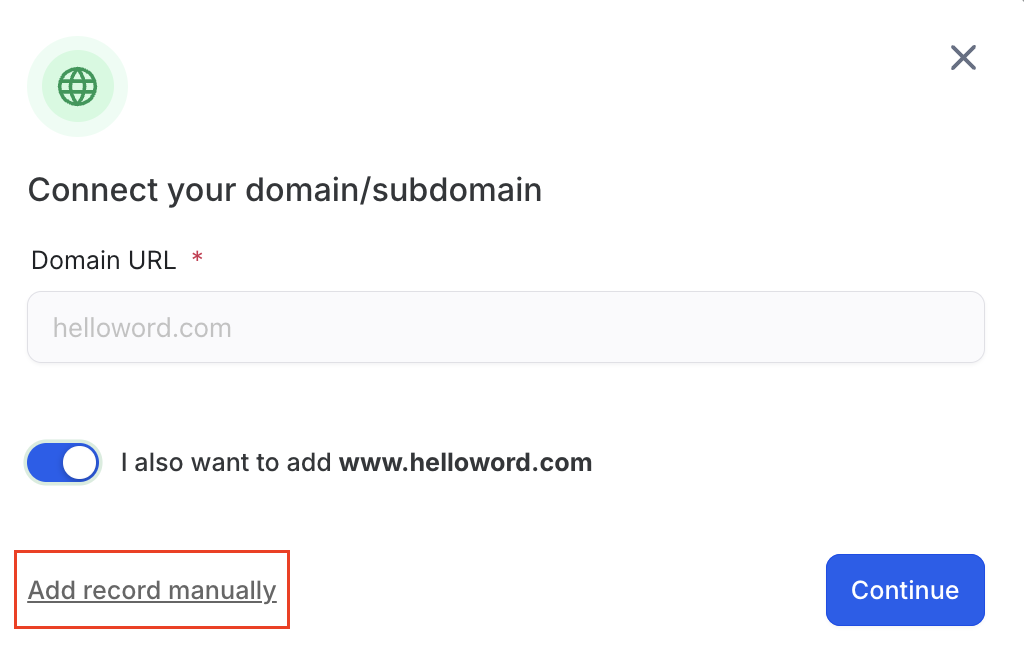
- Enter the root domain or subdomain; an option appears for the www version.
- If the registrar is Google Domains, GoDaddy or Cloudflare, press the “Authorize” button to allow Domain Connect to edit DNS.
- Follow the provider’s prompts; the required records are added automatically.
- Close the provider tab and return to the Domain Connect screen in HighLevel.
Manual domain connection (9 steps)
- Open Sites > Settings > Domains.
- Click “Connect a Domain”.
- Choose the product you wish to link, such as a funnel or blog.
- Enter the domain name as requested.
- Select the option to add records manually.
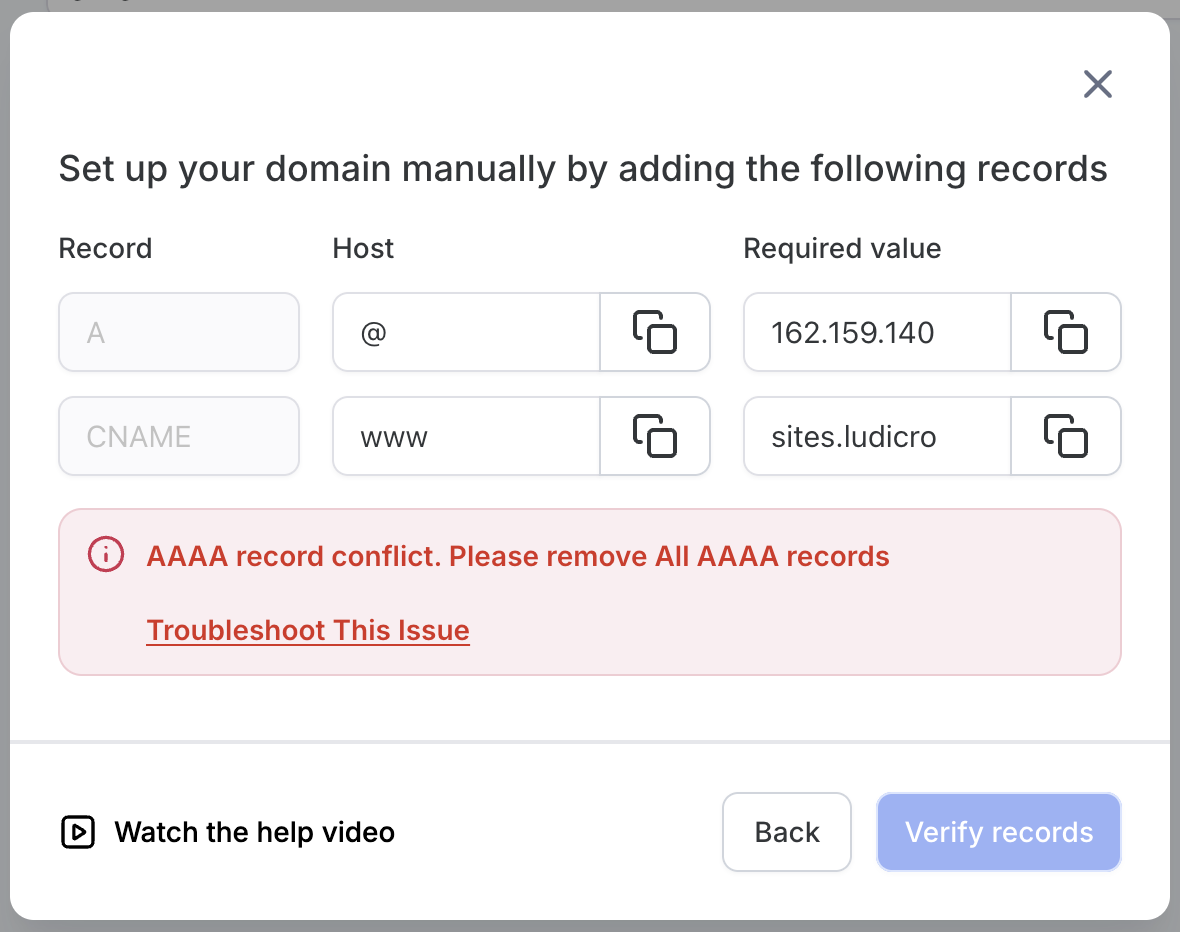
- Copy the list of DNS records (A, CNAME, TXT) shown by HighLevel.
- Log into your domain registrar and open its DNS management page.
- Add each record exactly as shown, then save the changes.
- Wait up to 24 hours for DNS propagation before the domain becomes active.
Additional warnings
- If using Cloudflare, set the A and CNAME records to “DNS Only” (gray cloud).
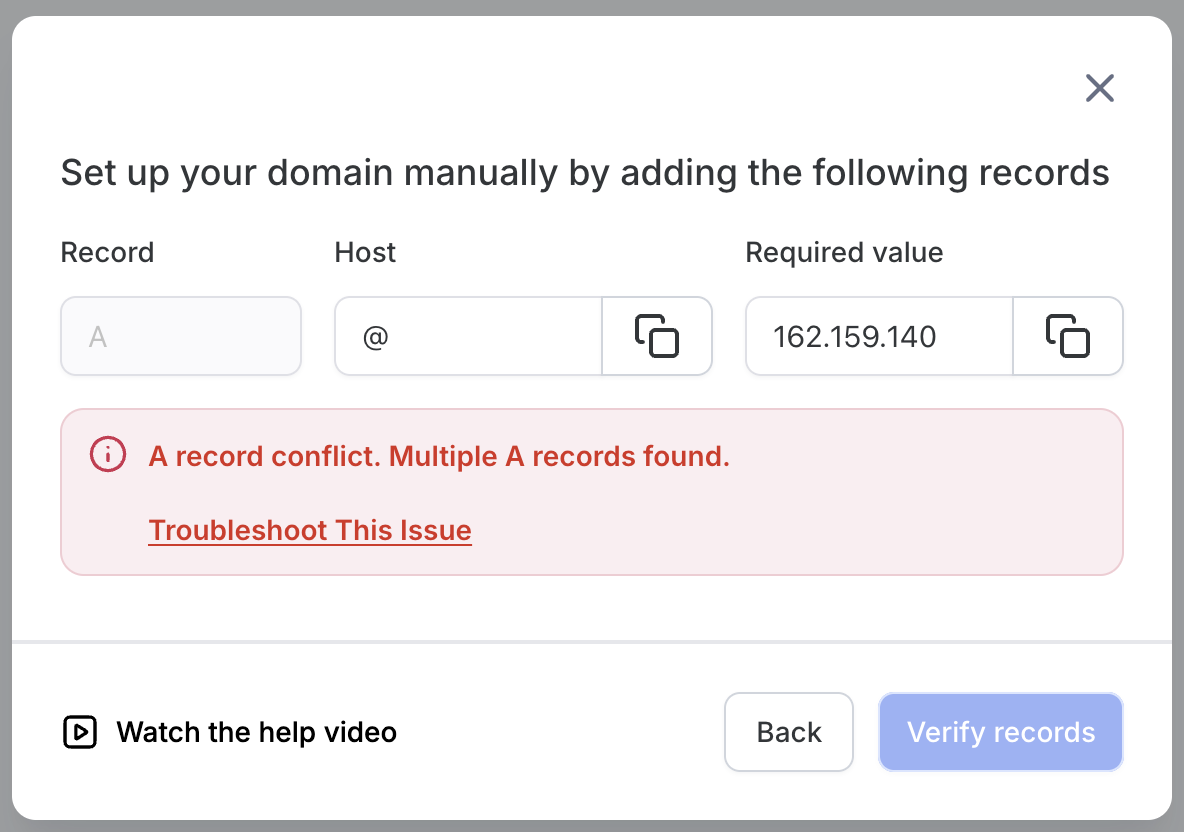
- If a domain remains in “Pending” for more than 24 hours, double check the DNS values or contact support.
06What it looks like in HighLevel
07Settings that matter
- Domains. Controls which root domains or subdomains are linked to HighLevel products and stores the DNS records required for validation and SSL.
08Things to know before you rely on it
- Automatic connection works only with GoDaddy, Google Domains or Cloudflare.
- DNS propagation may take from a few minutes up to 24 hours.
- When using Cloudflare, the A and CNAME records must be set to DNS Only (gray cloud).
- SSL certificates are generated automatically after the domain is verified.
- If a domain is already connected elsewhere, the connection will fail.
09How it connects to the rest of HighLevel
- View all domain related settings in HighLevel All Settings features
- Learn how API domain links are generated for branding Branding system generated links
- Check HighLevel pricing and plan options HighLevel pricing and plans
Michael's take

Connecting a domain is worth the effort only if you need a truly branded experience across your funnels, emails and Client Portal.
Skip it if you are fine using the default.hlpages.co URLs or don’t need email authentication.