
01Who this is for
- Agency Founders who have lost access to the primary login email and need a controlled way to restore ownership.
- Operations managers responsible for maintaining uninterrupted platform access during credential issues.
- Support teams that must follow a documented process to hand over ownership without creating security gaps.
02Agency owner email change fallback process, explained
The fallback process creates a new Agency level Admin using the desired login email, then moves the Agency Owner role to that account. It is used only when the existing Owner cannot finish the standard email change workflow with any verified authentication method.
All steps are performed inside the platform. The current Owner initiates the transfer, the replacement user must be set as User Type Agency and Role Admin, and the transfer rewrites the ownership flag so the new user becomes the sole Agency Owner. The previous Owner remains in the agency as an Admin after the hand off.
The feature lives in the agency’s Settings > Team area and utilizes the Transfer Owner control, which appears when an eligible Admin is selected.
03How businesses use the agency owner email change fallback process
- Digital marketing agency. When the lead Founder cannot receive verification codes, the agency adds a new Admin with the correct email, tests the account, and transfers ownership to maintain agency dashboards and client pipelines.
- Consulting firm. If the principal consultant’s login email is obsolete, they create a replacement Admin, validate the new credentials, and move the Owner role so billing and reporting stay accurate.
- SaaS reseller. When the reseller’s primary contact loses email access, they set up a new Admin with the updated address, confirm sign in works, then hand over the Owner role to keep the reseller portal functional.
04Before you start
- Confirm you can sign in to the current Agency Owner account.
- Confirm the preferred replacement email address is correct and accessible.
- Use an available verified authentication method when HighLevel requests identity verification.
- Prepare the replacement user as an Agency level Admin.
- Contact HighLevel Support before continuing if you cannot access the current Agency Owner account or complete required verification.
05How to set up and use the agency owner email change fallback process in HighLevel
Sign in to the current Agency Owner account
- Navigate to the HighLevel login page.
- Enter the current Agency Owner login email.
- Enter the current password.
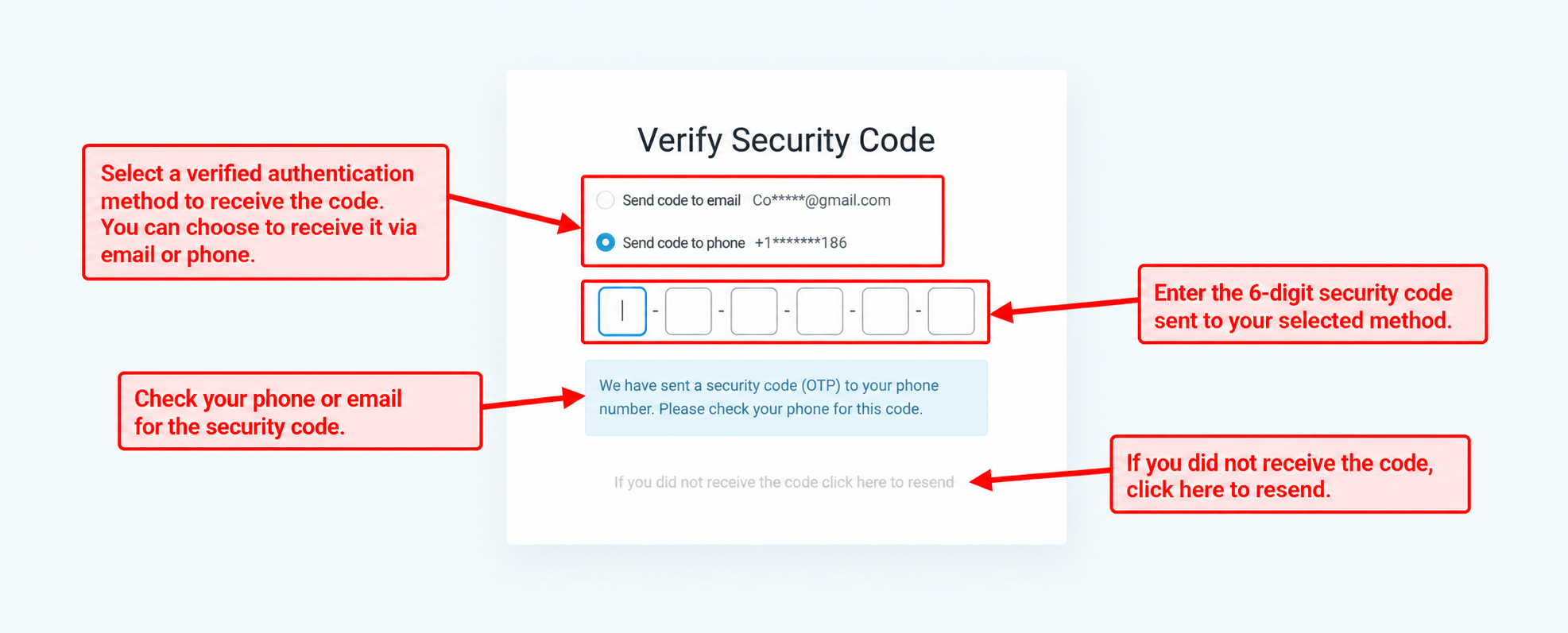
- Complete verification using an available verified authentication method.
- Open Agency View.
Create the replacement Agency Admin
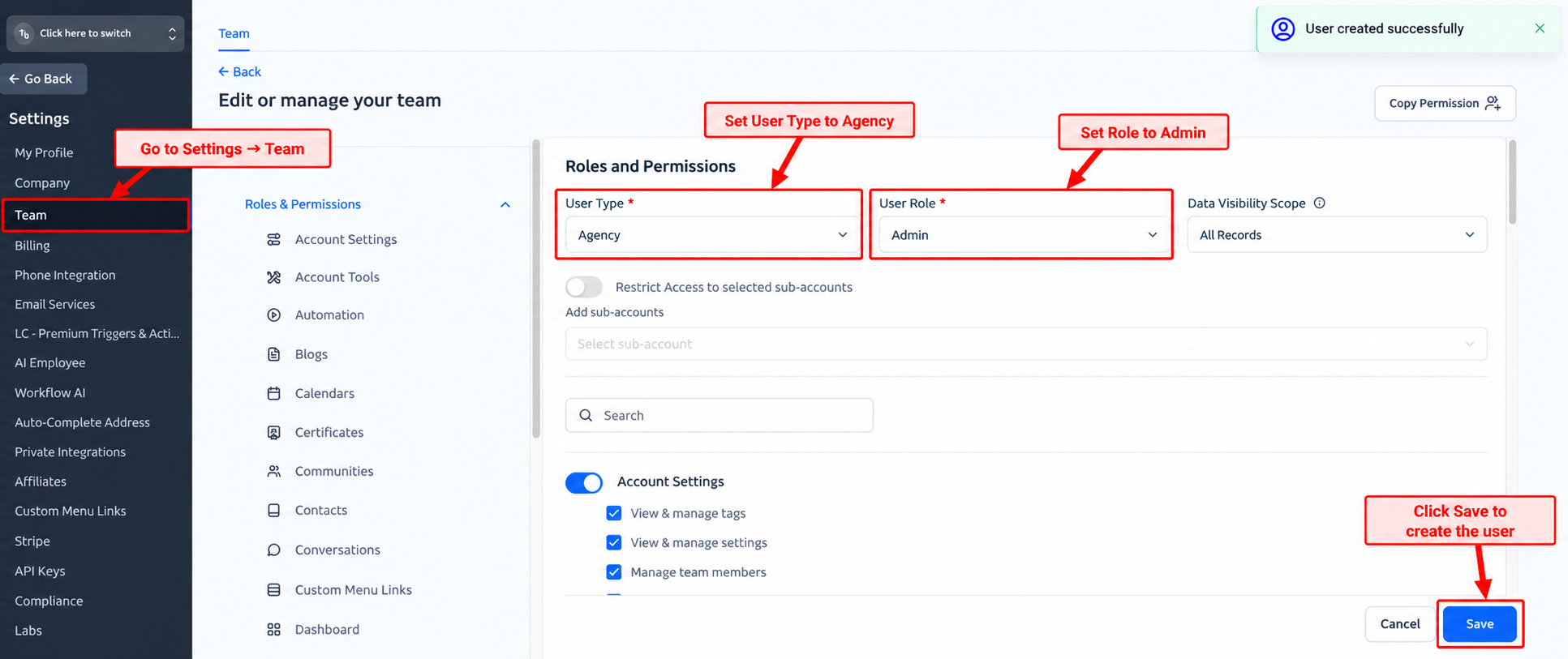
- From Agency View go to Settings > Team.
- Click + Add User.
- Enter the Agency Owner’s name.
- Enter the correct or preferred login email.
- Complete the other required user information.
- Set User Type to Agency.
- Set the user’s Role to Admin.
- Save the new user.
Validate the replacement user
- Log out of the current Agency Owner profile.
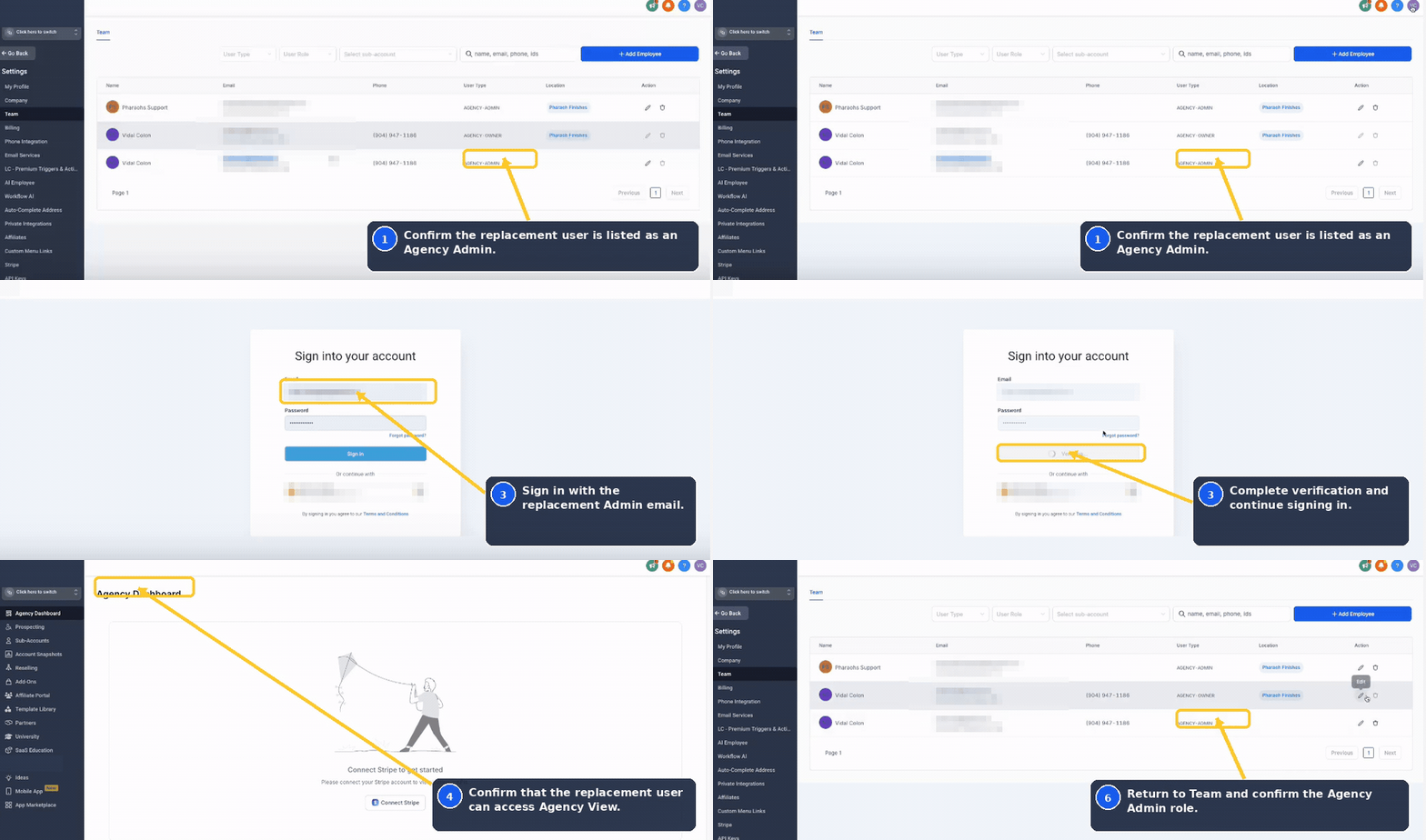
- Sign in using the newly created Agency Admin’s email and password.
- Complete any required authentication or verification.
- Confirm that the replacement user can successfully access HighLevel.
- Log out of the replacement profile.
Transfer agency ownership
- Sign back in using the current Agency Owner profile.
- Complete the required verification.
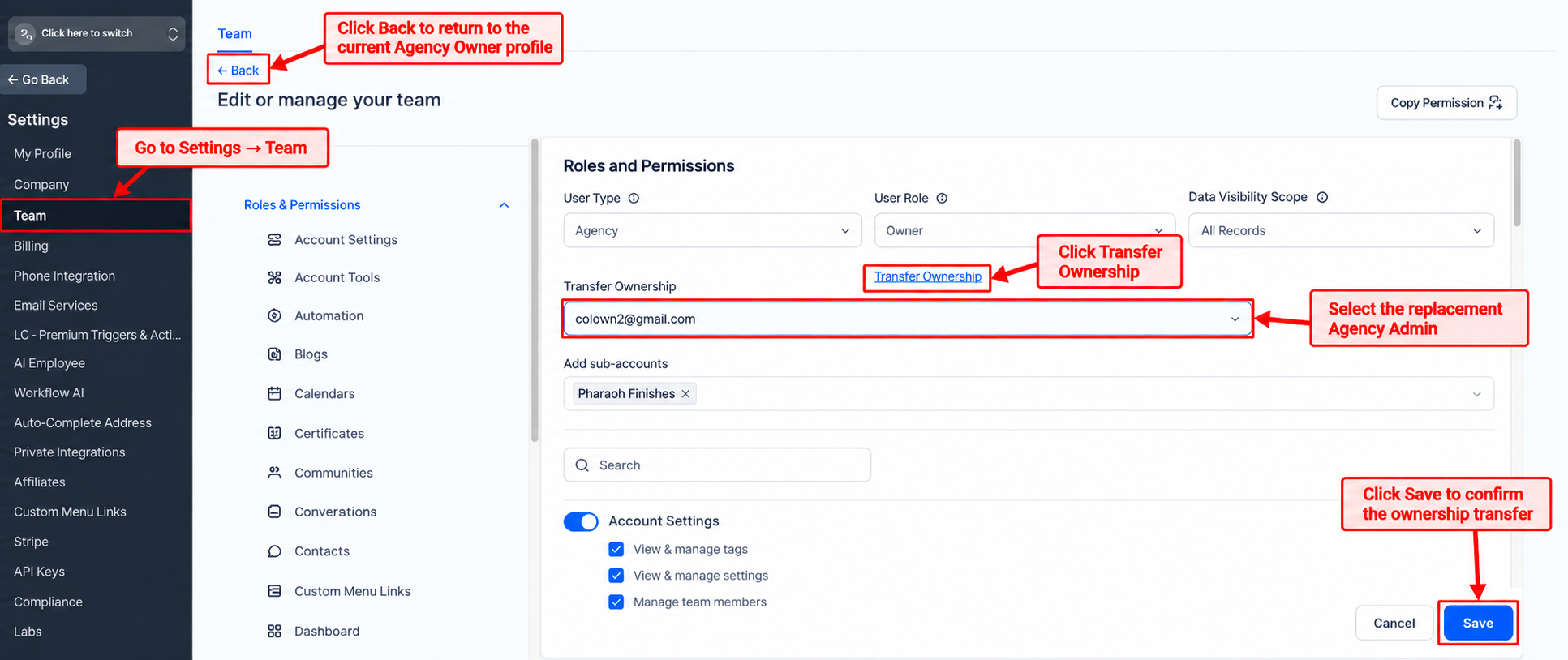
- Go to Agency View > Settings > Team.
- Edit the current Agency Owner.
- Open User Roles.
- Select Transfer Owner.
- Choose the replacement Agency Admin.
- Confirm the ownership transfer.
Verify the new Agency Owner
- Log out of the previous Agency Owner profile.
- Sign in using the new Agency Owner email and credentials.
- Open Agency View.
- Go to Settings > Team.
- Confirm the replacement user is identified as the Agency Owner.
06What it looks like in HighLevel
07Settings that matter
- User Type. Determines the account scope; it must be set to Agency for the replacement user to be eligible for ownership transfer.
- Role. Assigns permissions; the replacement user must have the Admin role to appear in the Transfer Owner list.
- Transfer Owner. The control that reassigns the Agency Owner role to another eligible Admin.
08Things to know before you rely on it
- An agency can have only one Agency Owner at any time.
- The fallback method is for cases where the standard email change workflow cannot be completed with any verified method.
- Do not create a replacement user solely because the current email cannot receive verification messages.
- The replacement user must be configured as User Type Agency and Role Admin to be selectable for ownership transfer.
09If something goes wrong
- Cannot sign in to the current Agency Owner account.. Contact HighLevel Support before attempting the fallback workflow.
- Verification messages cannot be received or completed.. Contact HighLevel Support if no available verification method works.
- Transfer Owner control is unavailable or the replacement user does not appear.. Contact HighLevel Support to resolve the issue.
10How it connects to the rest of HighLevel
- Understanding the Agency Owner role and its permissions Agency Owner role guide
- Manage user access, roles, and email security across the agency User access settings
- Configure agency user roles and permissions, including Admin settings Agency role management
Michael's take

Running into a dead end verification can feel risky because the whole agency hinges on a single login. Skipping the standard email change and creating a new admin introduces extra steps, and if you don’t verify the new credentials first you could lock yourself out.
When the fallback works, you regain control with a reachable email and keep the agency running without interruption.