
01Who this is for
- Digital agency owners who run Meta ad campaigns can automate lead follow up, keeping response times fast.
- Ecommerce merchants using WhatsApp ads can right away engage shoppers and reduce messaging costs.
- Service based businesses with Facebook Pages can capture inbound clicks and route contacts into nurturing workflows.
02WhatsApp workflow triggers, explained
The trigger monitors incoming WhatsApp messages that originate from Meta Click to WhatsApp ads or a Facebook Page’s WhatsApp button. When such a message arrives, HighLevel opens a conversation and fires any workflow attached to the trigger. It can capture Ad ID and Campaign name into custom fields, and filters let you restrict activations by Ad ID, Post ID, URL, headline or source type. A free entry point session opens if you answer within 24 hours, giving you 72 hours of cost free messaging.
03How businesses use WhatsApp workflow trigger
- Real estate agency. The agency adds the Click to WhatsApp Ads trigger, filters by the specific property ad ID, and attaches a workflow that sends a property brochure and assigns the lead to a sales pipeline. Responding within 24 hours opens a free conversation, allowing unlimited follow up messages.
- Online clothing retailer. The retailer sets the trigger on its seasonal promotion ad, filters by the campaign URL, and builds a workflow that tags the contact, adds them to a promotional list, and sends a discount code. The free entry point lets the retailer message the shopper without extra fees.
- Local home service company. The company configures the trigger for its Facebook Page CTA, applies a headline filter for “Emergency Plumbing”, and creates a workflow that assigns the lead to an on call technician and sends an appointment confirmation. The 72 hour free window covers the entire scheduling conversation.
04The numbers and rules that matter
- Free entry point conversation lasts 72 hours.
- Open if you respond within 24 hours of the customer's initial message.
- If you respond after 24 hours you must use a paid template message.
05How to set up and use WhatsApp workflow trigger in HighLevel
Set up WhatsApp workflow trigger
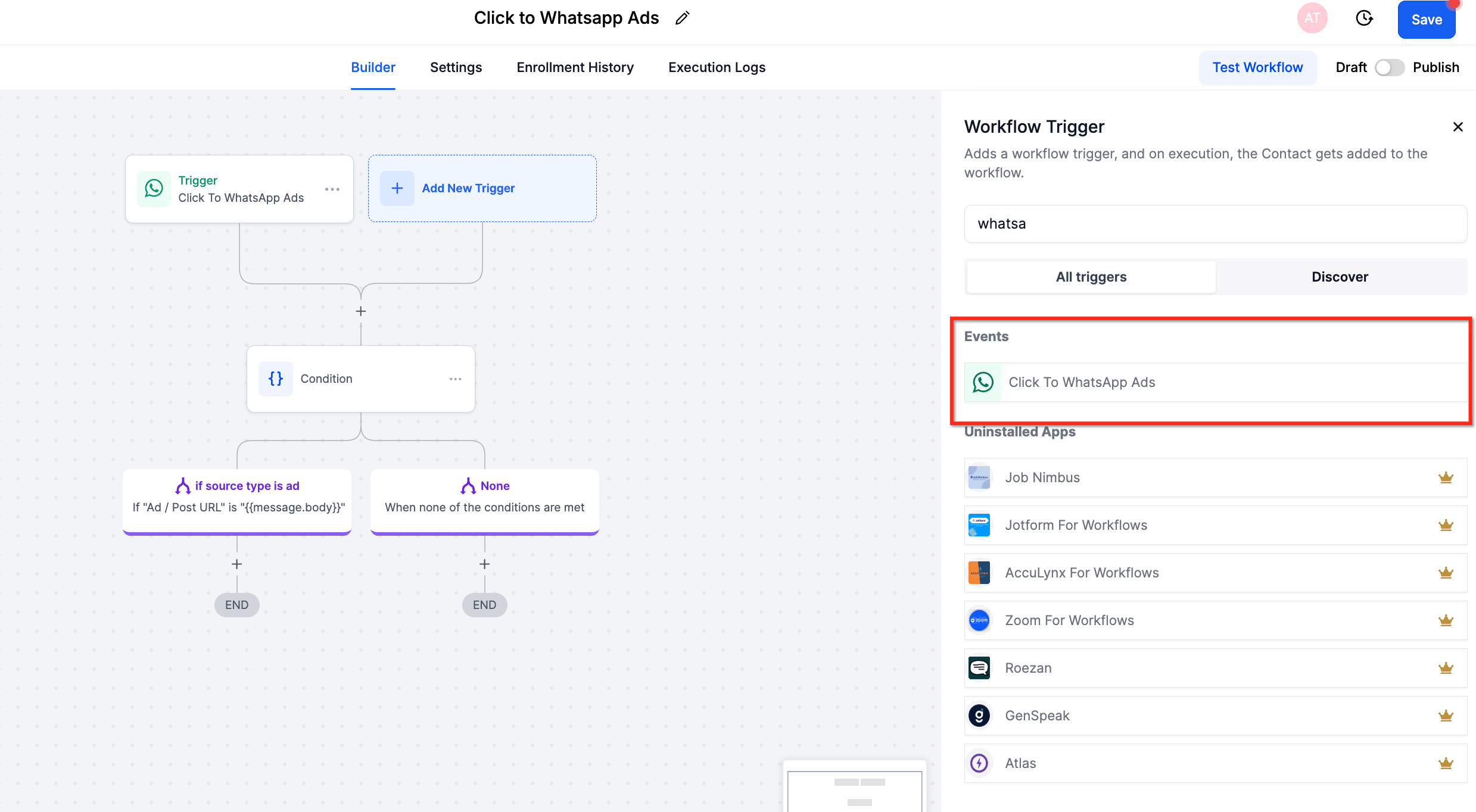
- Open Automation, choose Add New Trigger, then select Click to WhatsApp Ads.
- Click Add New Trigger to create the trigger entry.
- Choose the Click to WhatsApp Ads option from the list.
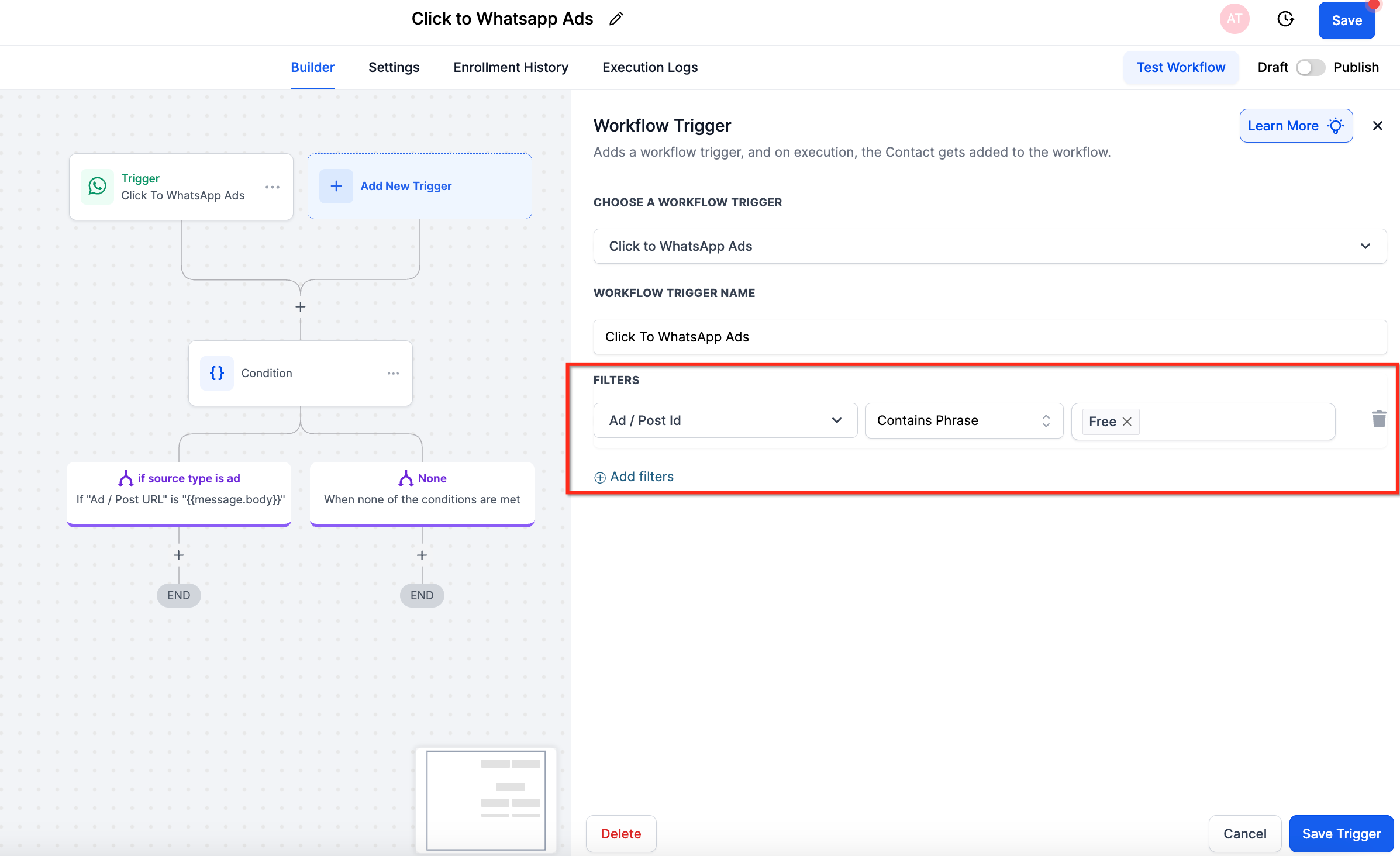
- Add any required filters such as Ad / Post ID, Ad / Post URL, Headline, or Source Type.
- Add the desired workflow actions, for example Send WhatsApp Message, Assign to Pipeline Stage, Add Tag, or Webhook.
- Save the workflow to activate the trigger.
06What it looks like in HighLevel
07Settings that matter
- Click to WhatsApp Ads. Specifies that the trigger fires when a prospect contacts you via a Meta Click to WhatsApp ad or a Facebook Page WhatsApp CTA.
- Ad / Post ID. Limits the trigger to messages that come from a specific advertisement or post identifier.
- Ad / Post URL. Filters activations to messages that originate from a particular ad or post web address.
- Headline. Allows activation only when the ad’s headline matches the defined text.
- Source, Type. Restricts the trigger based on the Meta surface that generated the click, such as feed or story.
08Things to know before you rely on it
- A free entry point conversation only opens if you reply within 24 hours of the incoming message.
- The free session lasts for 72 hours from the moment your reply is delivered.
- Only Android or iOS devices can initiate the trigger; other platforms are not supported.
- Non template messages are free only while the free entry point session is active and a customer service window is open.
09How it connects to the rest of HighLevel
- Full guide to WhatsApp automation workflows WhatsApp workflow integration
- How to create and manage WhatsApp templates WhatsApp templates
- Increase your WhatsApp message limit to 2,000 Message limits
Michael's take

Every time a prospect taps a Click to WhatsApp ad, the lead is hot and ready to talk. The WhatsApp workflow trigger makes sure you meet them with an instant reply, opening a free conversation that saves on messaging fees. The first thing you should lock down is the 24 hour response window so the free entry point session fires as intended.
From there, map the right filters to each campaign so you only fire the workflows you need. I’d test a single ad with the trigger, watch the conversation open, and confirm the free messaging period before rolling it out to all promotions.