
01Who this is for
- Customer support teams can answer tickets with a spoken explanation, creating a more personal response.
- Ecommerce businesses can confirm purchases by sending a quick audio receipt to buyers.
- Appointment based services can remind clients of bookings using a brief voice reminder.
02WhatsApp voice notes, explained
The voice note tool records an audio clip and attaches it to a WhatsApp chat that already exists in the platform. Users must grant the browser permission to use the microphone before recording. Once recorded, the clip can be sent with a single click.
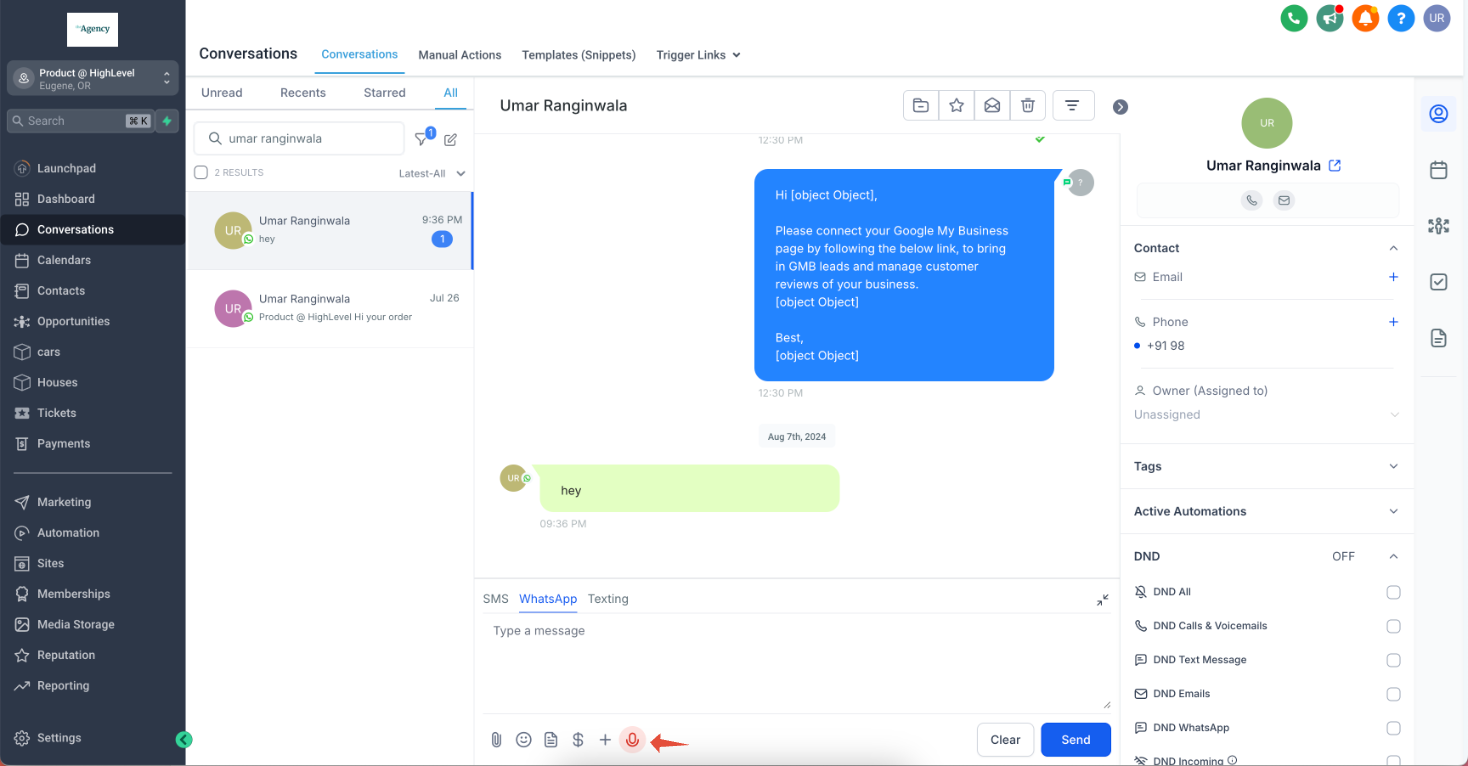
The function is located under the WhatsApp section of the Conversations hub. It appears only when a service conversation with the end customer is open, ensuring relevance. The maximum length for any recording is ten minutes, after which the note cannot be sent.
03How businesses use WhatsApp voice notes
- Dental practice. A dentist records a short explanation of a treatment plan and sends it through the open WhatsApp chat. The note is attached directly from the conversation view, letting the patient hear the details without typing.
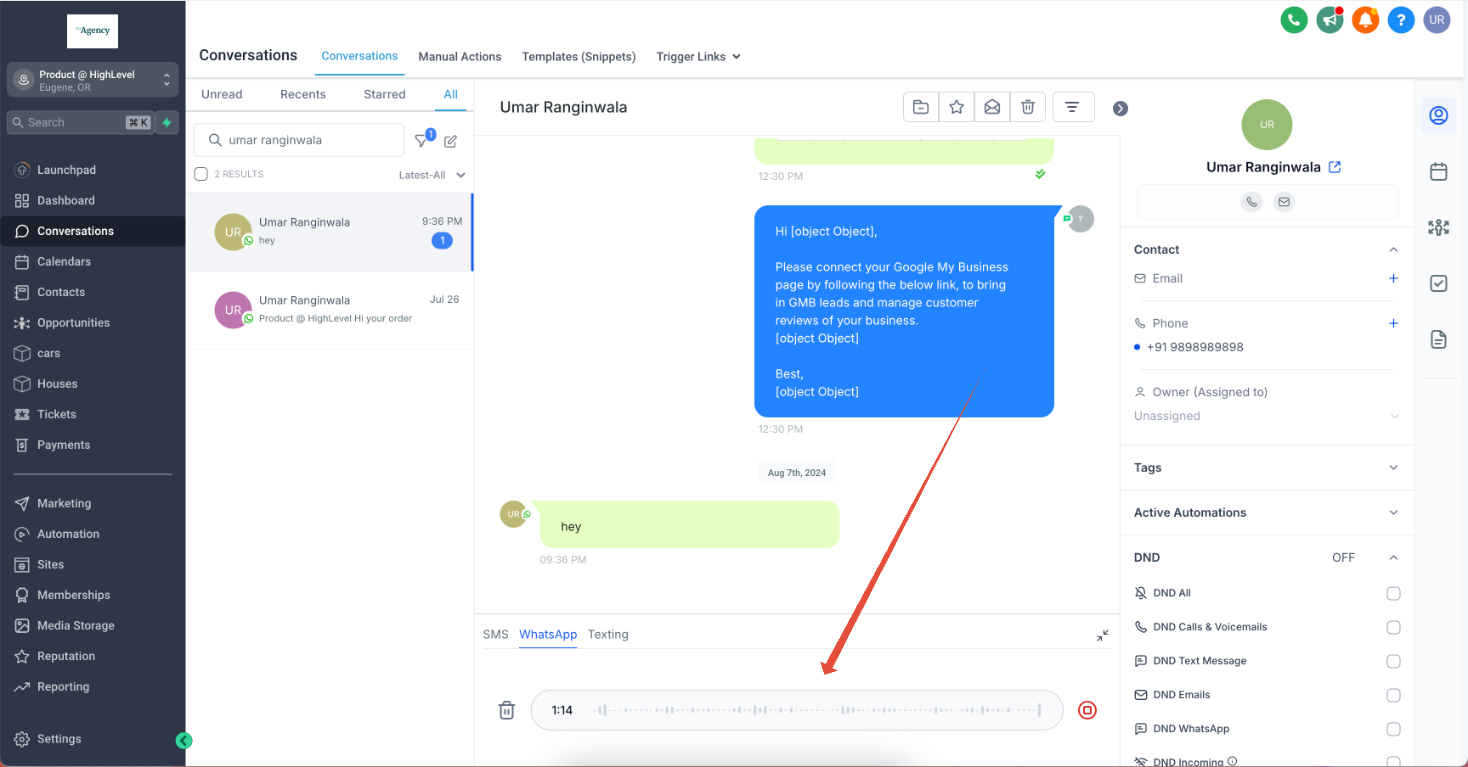
- Online store. The sales team records a personalized order confirmation and delivers it to the buyer via the existing WhatsApp conversation. The voice note is created by clicking the voice note option and pressing record.
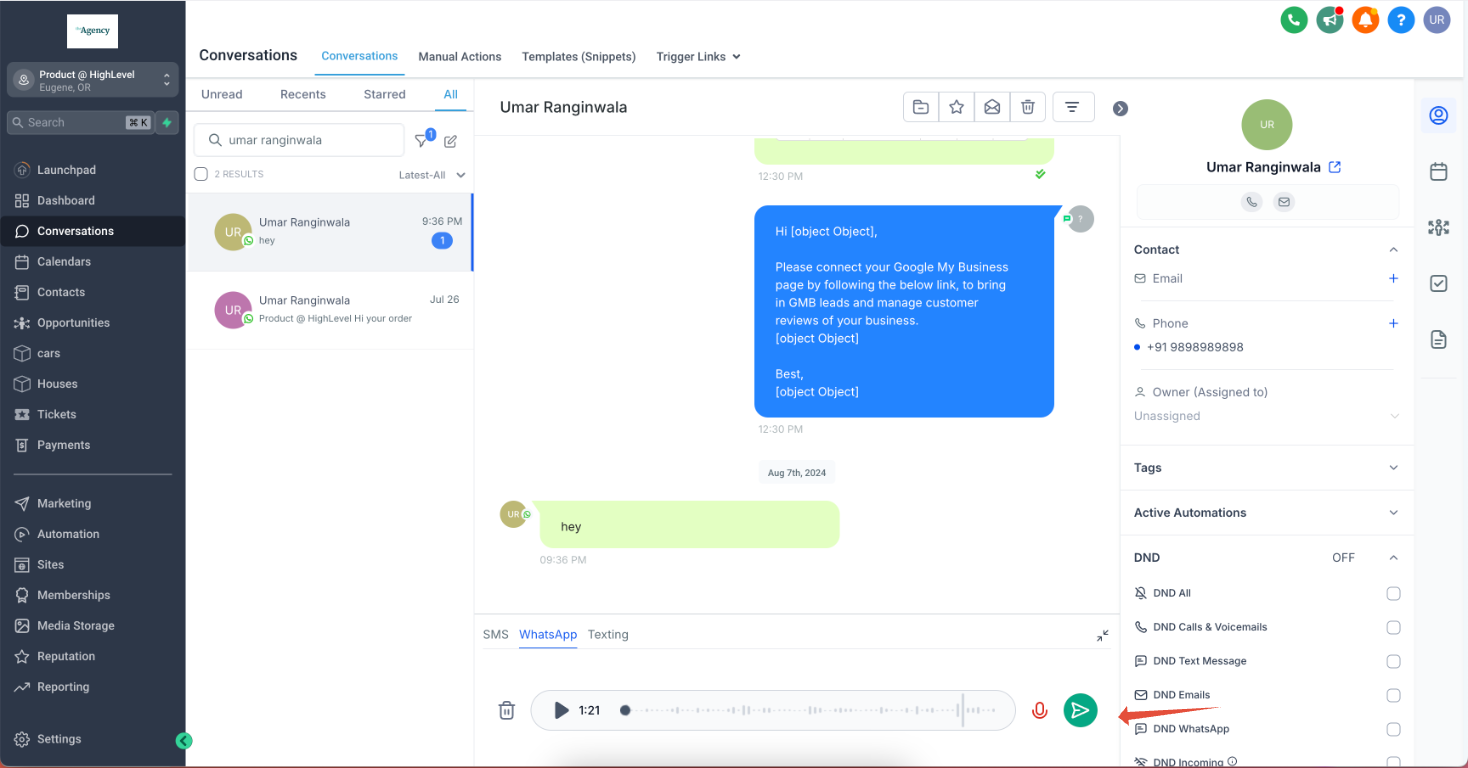
- Fitness studio. A trainer records a reminder about an upcoming class and sends it to the member through the active WhatsApp thread. The note is captured in the platform and dispatched with the send button.
04The numbers and rules that matter
- Maximum duration for a voice note is 10 minutes.
05Before you start
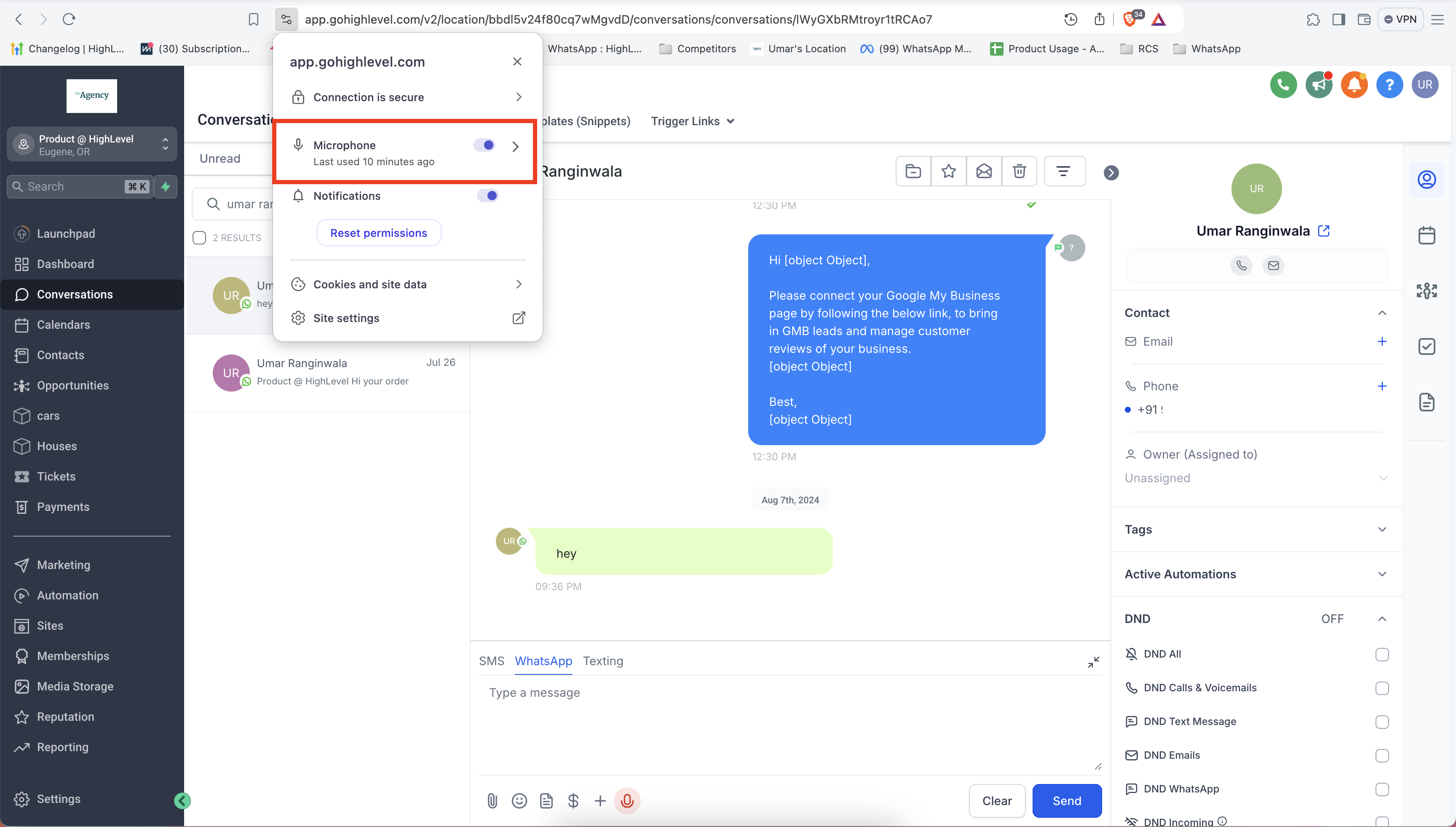
- The browser must be allowed to use the microphone when prompted.
- An active service conversation with the customer must already exist in HighLevel.
06How to set up and use WhatsApp voice notes in HighLevel
Send a WhatsApp voice note
- When prompted, grant the browser permission to access your microphone.
- Navigate to Conversations > WhatsApp > Voice Note.
- Press the record button and speak the message you want to send.
- Click the send icon to deliver the recorded voice note.
07What it looks like in HighLevel
08Things to know before you rely on it
- A voice note cannot be longer than ten minutes.
- Voice notes can only be sent within an open service conversation; they cannot start a new chat.
- Microphone permission is required before recording can begin.
09How it connects to the rest of HighLevel
- Integrate voice notes into automated WhatsApp workflows. WhatsApp workflow integration
- Create and manage WhatsApp templates that can accompany voice notes. WhatsApp templates
- Increase the overall message limit for WhatsApp to support higher volume sending. WhatsApp messaging limits
Michael's take

In my experience, using voice notes can feel more personal for high touch interactions.
If your workflow is already text heavy and you rarely need to explain complex issues, the extra step of recording and managing voice files may not add enough value. In those cases, sticking with plain messages keeps things simple and avoids unnecessary recording overhead.