
01Who this is for
- Agency staff handling several client WhatsApp lines, avoids accidental sends from the wrong business number.
- Support teams with multiple locations, ensures each reply uses the location specific WhatsApp identity.
- Sales groups that message contacts with several phone numbers, keeps each thread tied to the right WhatsApp account.
02WhatsApp to and from Number Selection, explained
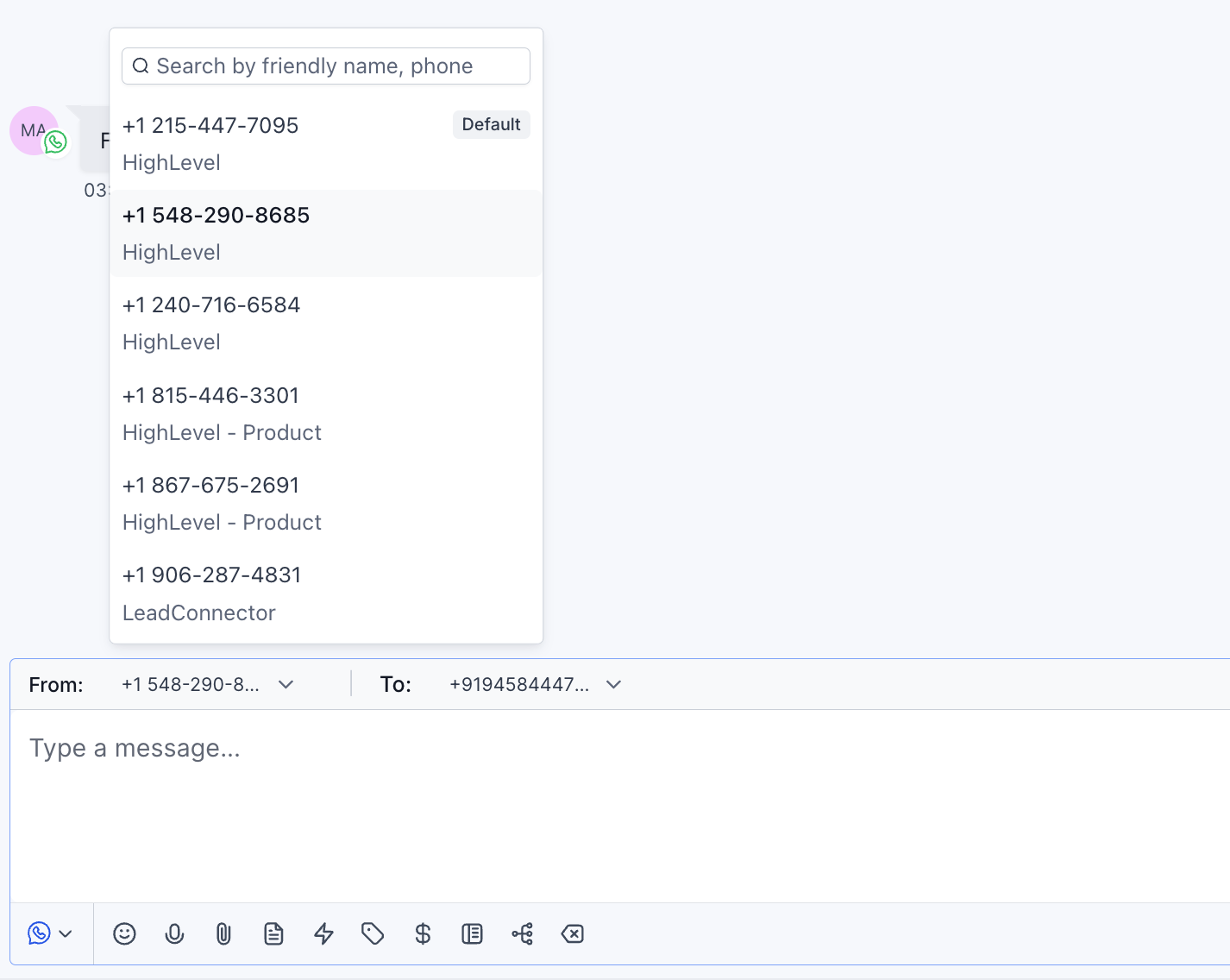
The feature lives in the Conversations tab of HighLevel. When an agent begins a new WhatsApp chat, the platform automatically selects the business (From) number that matches the contact’s active 24 hour session.
During an ongoing session the chosen From number is locked, preventing manual changes that could break compliance or routing. If an agent deliberately switches the From number and compliance rules apply, HighLevel moves the message to approved template messaging.
Each contact phone number maintains its own WhatsApp conversation state, so contacts with multiple numbers receive messages from the correct business line even when the number is changed.
03How businesses use WhatsApp To and From Number Selection
- Digital marketing agency. When an agency sends a broadcast to a client’s customers, the platform pre selects the client’s designated WhatsApp number, removing the risk of using another agency number. If the agent changes the number, the system switches to template messaging to stay compliant.
- Multi location retail chain. Store staff initiate chats with shoppers; HighLevel automatically uses the store’s specific WhatsApp line. The From number stays locked for the 24 hour window, ensuring replies come from the correct location without manual selection.
- Service provider with multiple contact numbers. A technician contacts a client who has two phone numbers on file. HighLevel keeps separate conversation states, so each number receives messages from the appropriate WhatsApp account, and the correct From number appears in the composer each time.
04How to set up and use WhatsApp To and From Number Selection in HighLevel
Start a new WhatsApp conversation
- Open the Conversations tab.
- Create a new message directed to the desired contact.
- Check the WhatsApp From number that appears in the message composer.
- If the From number is locked, you cannot change it for the duration of the active 24 hour session.
- Press send to deliver the message.
05What it looks like in HighLevel
06Things to know before you rely on it
- When a conversation is active, the From number is locked to the number tied to the current 24 hour session.
- If an agent manually changes the From number and compliance rules apply, the platform forces the message into template mode.
07How it connects to the rest of HighLevel
- Full guide to setting up WhatsApp for agencies WhatsApp reselling guide
- Link a LeadConnector number with a WhatsApp Business account LeadConnector integration
- Create and manage WhatsApp templates for compliance WhatsApp template guide
Michael's take

When a team handles several WhatsApp numbers, messages can easily go out from the wrong business identity, causing confusion for customers and extra work for agents. The automatic preselection of the correct From number removes that guesswork and keeps every conversation tied to the right brand.
The first setting I would double check is the default From number that appears in the composer when you open a new chat. Make sure it matches the number you intend to use for that location or service line before you start sending.