
01Who this is for
- Agency owners can plan client outreach ahead of time, reducing manual sending effort.
- Customer support teams can ensure timely replies during the 24 hour service window.
- Small business marketers can align promotional WhatsApp messages with campaign dates.
02WhatsApp schedule send, explained
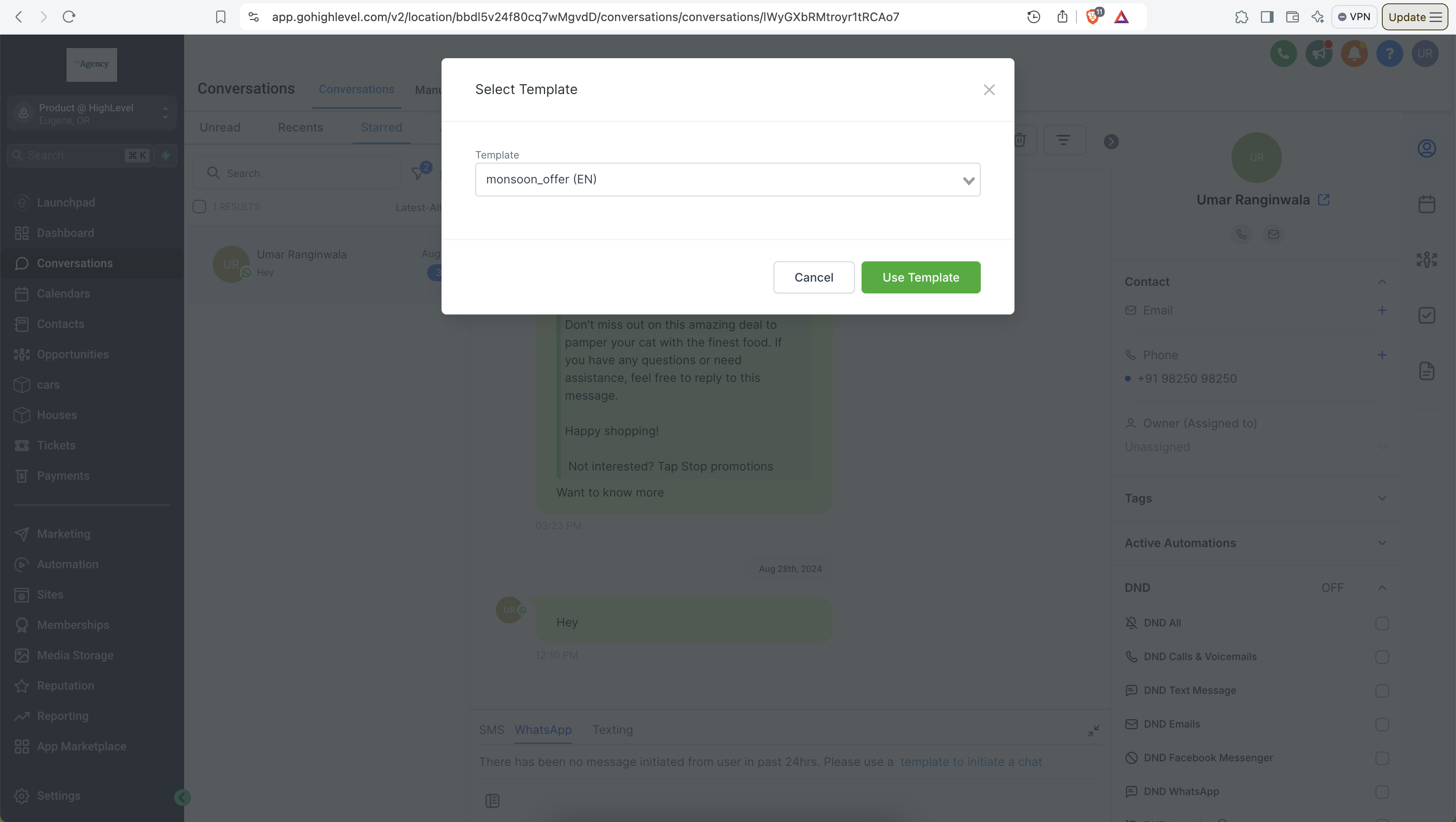
WhatsApp Schedule Send is a tool inside the Conversations area that lets you pick a future moment for a message to be delivered. You can schedule a pre approved template or type a free form message and set a send time.
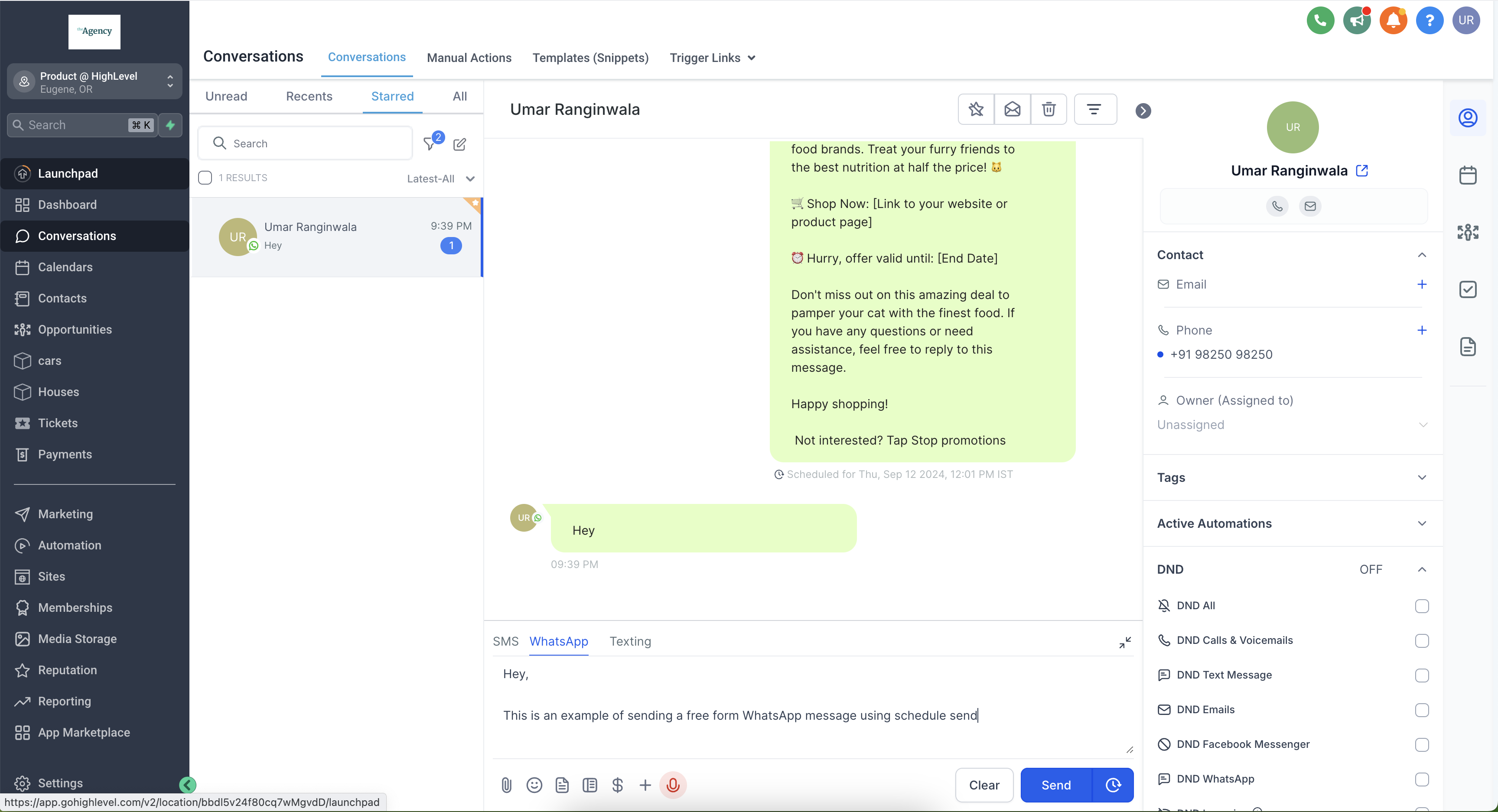
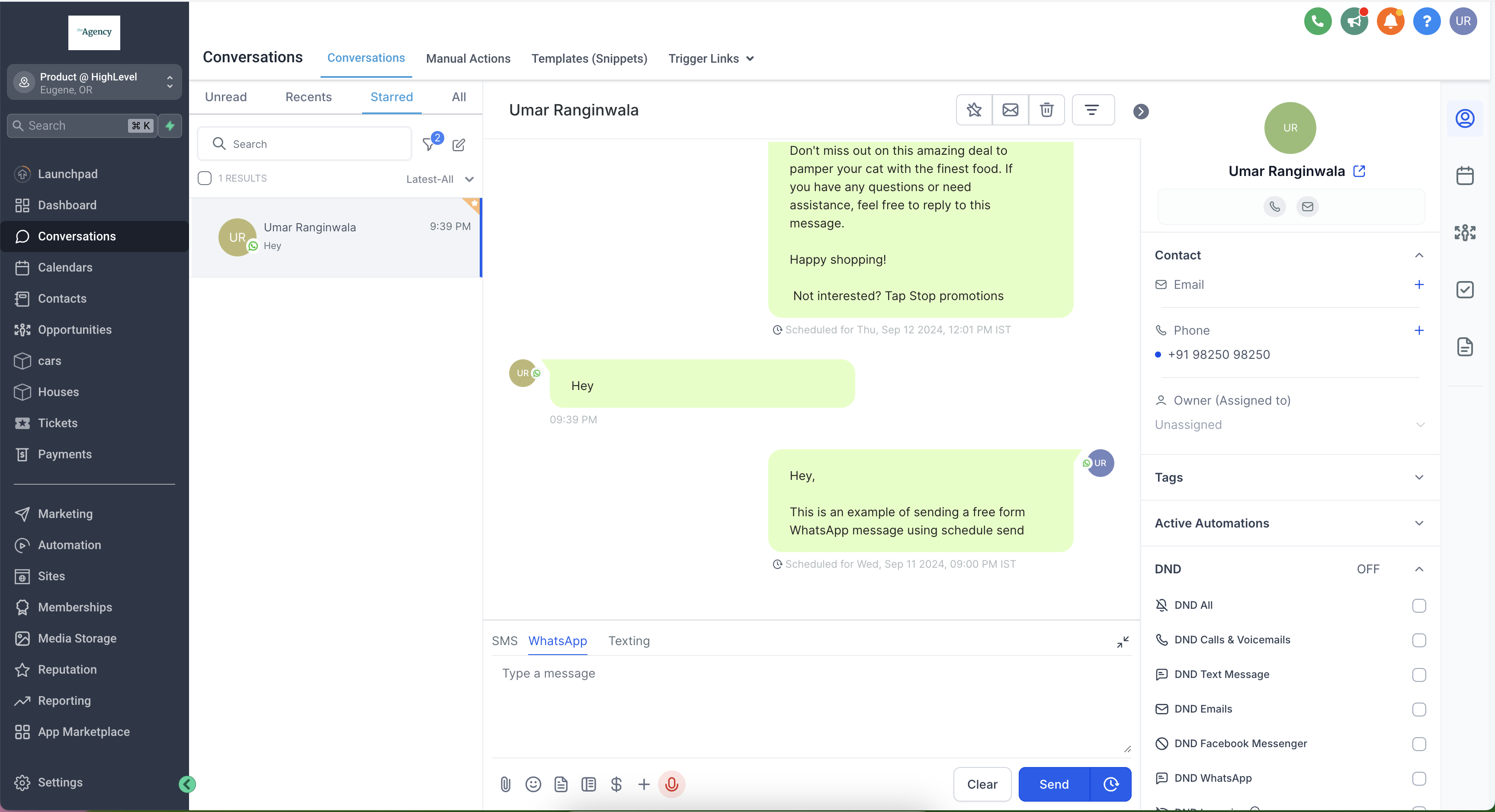
When you schedule a template, you choose any future date and time. For free form messages, the platform only allows scheduling while a Customer Service Window is open, and the time must be within 24 hours of the last inbound message. After you confirm, the chat shows a note with the scheduled timestamp.
The feature does not let you edit a scheduled entry. To change it, you must delete the scheduled message and create a new one.
03How businesses use WhatsApp schedule send
- Digital marketing agency. The agency creates WhatsApp templates for client promotions, then uses the schedule send option to line up messages with launch dates. This ensures the promotion reaches customers at the exact planned time without manual sending.
- Ecommerce support team. When a shopper initiates a chat, the support team works within the 24 hour Customer Service Window. They can type a custom reply and schedule it to be sent later in the window, keeping the conversation timely while managing workload.
- Local service provider. The provider drafts a free form reminder for appointments and schedules it to go out a few hours before the booking, as long as it stays within the active Customer Service Window that began with the client’s last message.
04The numbers and rules that matter
- Free form messages can be scheduled up to 24 hours from the last inbound message.
05Before you start
- A conversation with the contact must be open in the platform.
- For free form scheduling, an active Customer Service Window must exist.
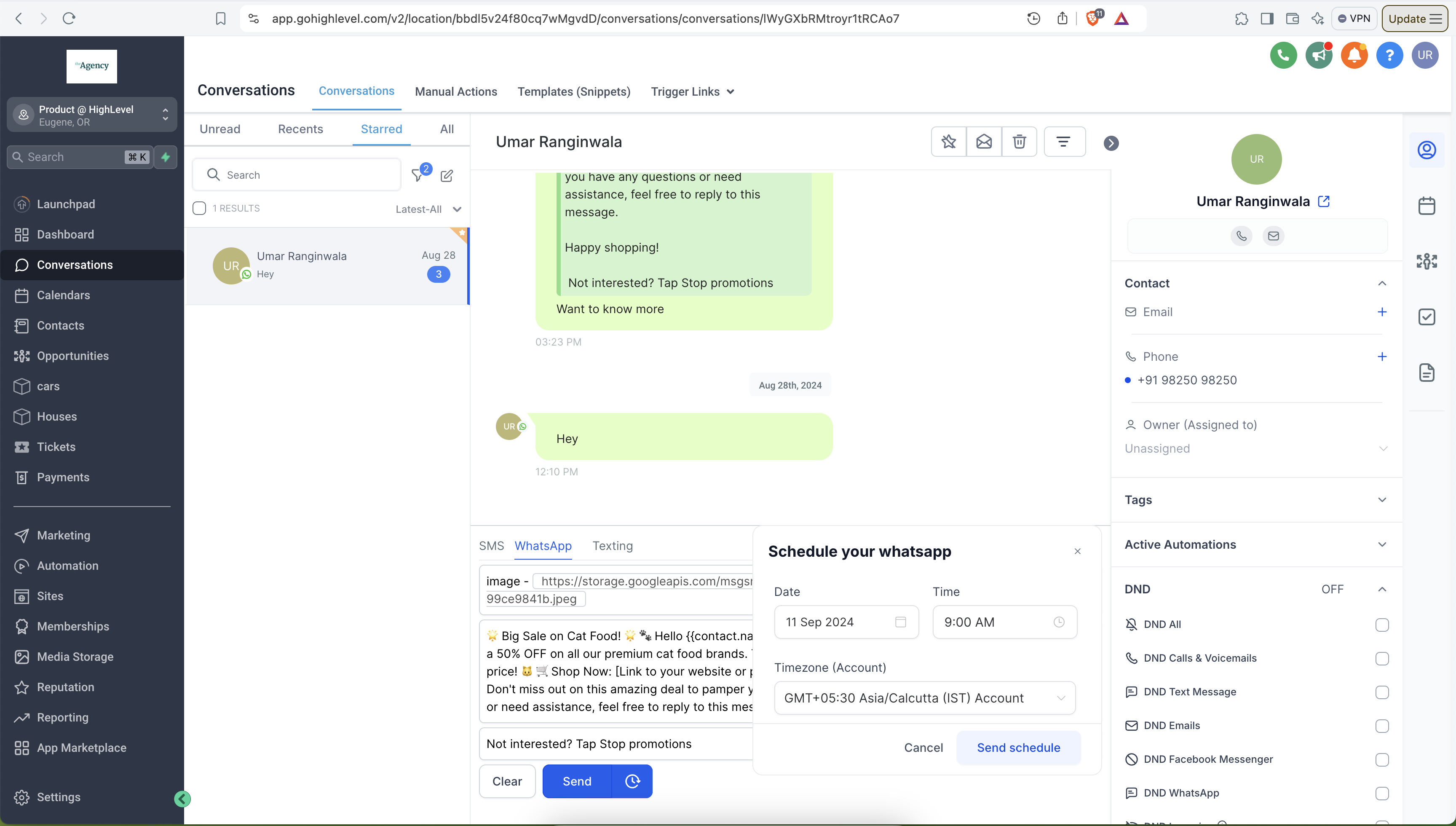
- When scheduling a template, the chosen date and time must be in the future.
06How to set up and use WhatsApp schedule send in HighLevel
Schedule send WhatsApp templates
- Open Conversations, select the contact, choose WhatsApp, and pick the desired template.
- Click the button located next to Send.
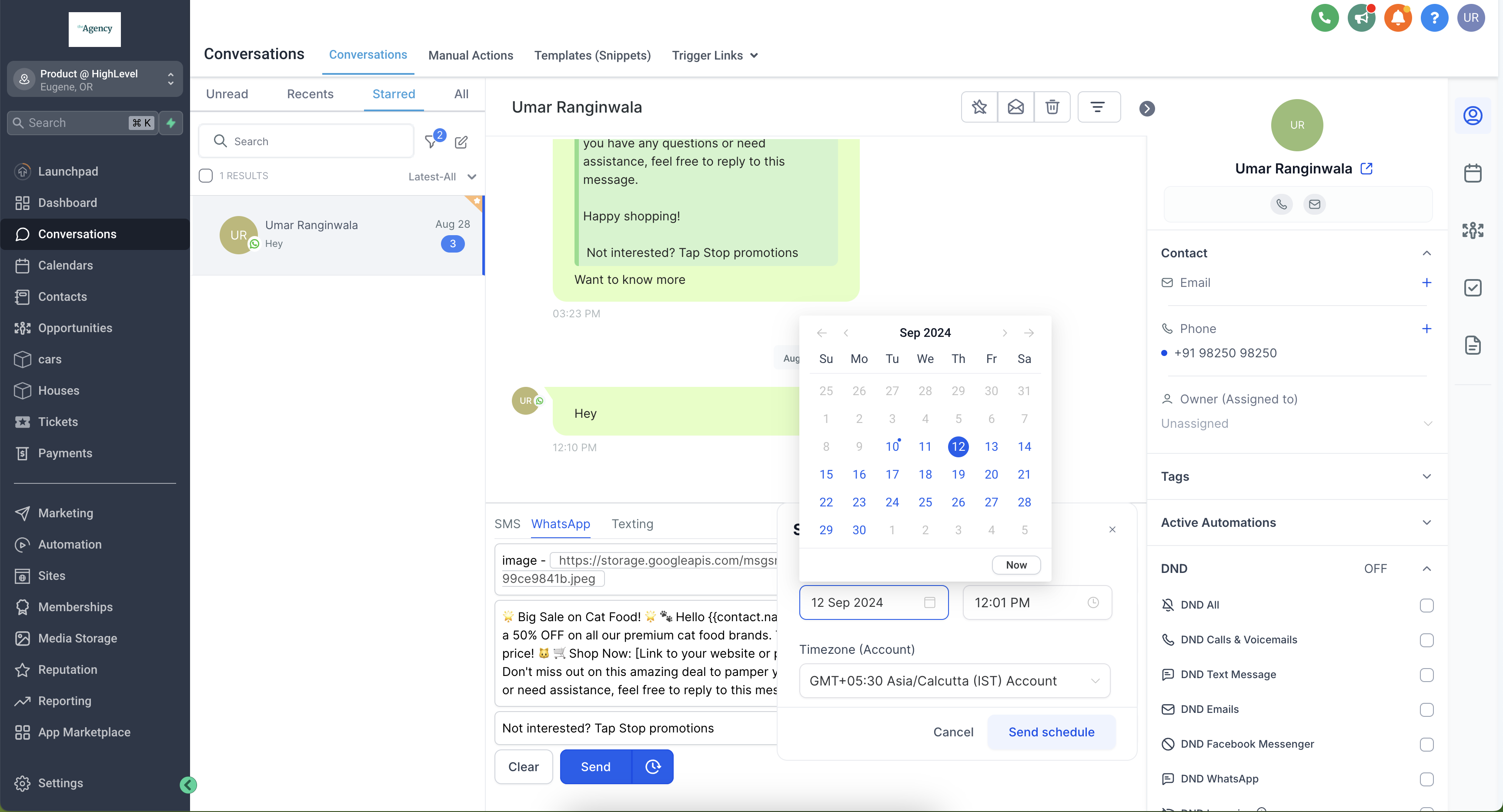
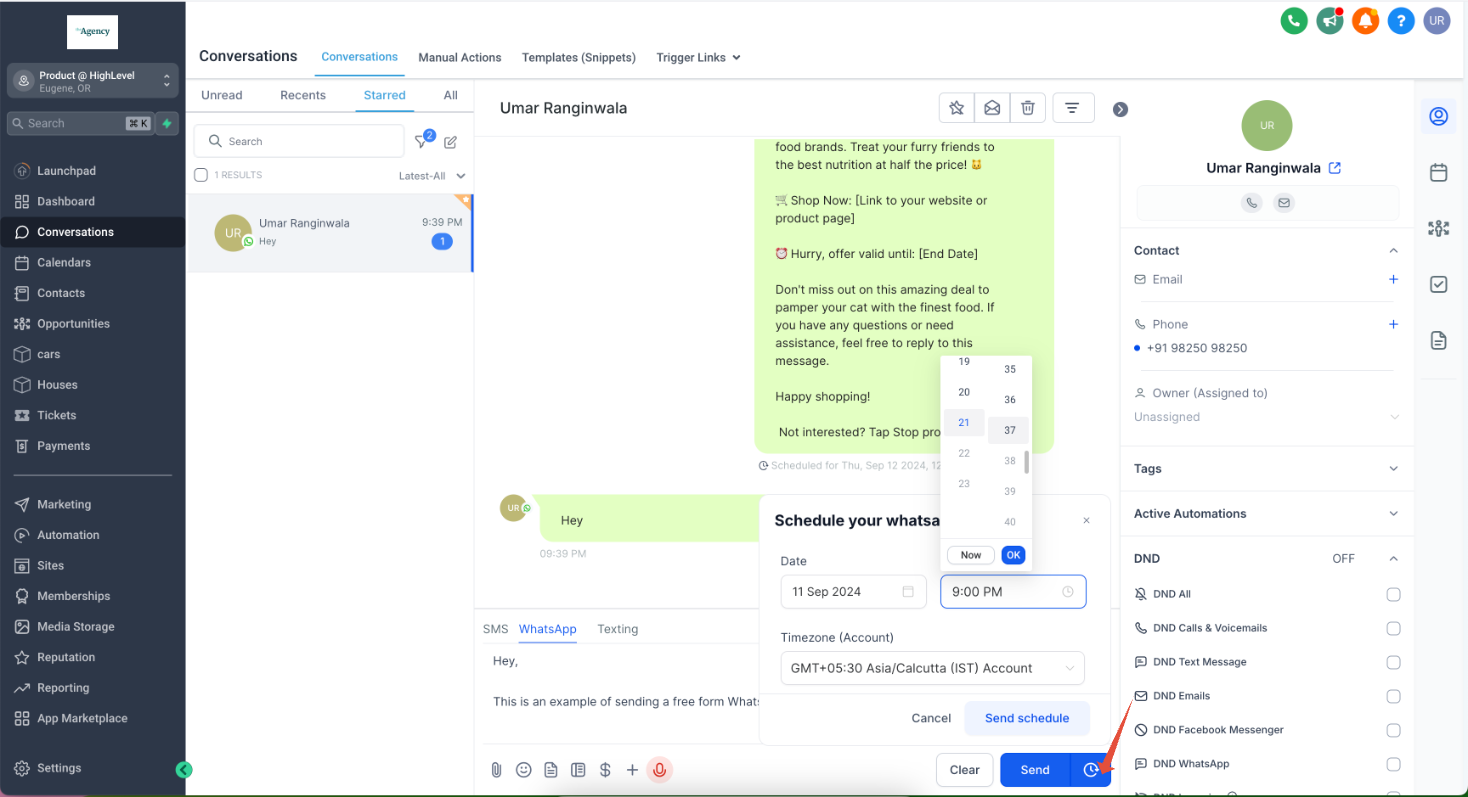
- Select a future date and time, then click Send Schedule.
Schedule send free form WhatsApp messages
- Make sure a Customer Service Window is open, go to Conversations, select the contact, choose WhatsApp, and type the message.
- Click the button next to Send and choose a date and time that is within 24 hours of the last inbound message.
- Click Schedule Send.
07What it looks like in HighLevel
08Things to know before you rely on it
- The date and time for a template must be set in the future.
- Free form messages can only be scheduled while a Customer Service Window is active.
- The scheduling window for free form messages is limited to 24 hours from the last inbound message.
- Scheduled messages cannot be edited; they must be deleted and recreated for any change.
09If something goes wrong
- Unable to schedule a free form message outside the 24 hour window. Use a WhatsApp template instead of a free form message.
- Need to change a scheduled message. Delete the scheduled message and create a new one with the correct details.
10How it connects to the rest of HighLevel
- Create WhatsApp templates to use with scheduled sends. Create templates
- Set up automation workflows that can trigger scheduled WhatsApp messages. Automation workflows
- Raise your WhatsApp message limit to send more scheduled messages. Increase limits
Michael's take

WhatsApp schedule send lets you queue messages so they land when the conversation is active, without constant monitoring.
The first setting I would lock in is the Customer Service Window, making sure the 24 hour window is clearly defined so free form messages can be queued confidently.