
01Who this is for
- Support teams, they can answer customer questions with a voice call without leaving the chat window.
- Sales representatives, they can quickly move a high intent lead from messaging to a call to close deals faster.
- Agency owners, they can manage call permissions and routing for multiple client subaccounts from a single dashboard.
02WhatsApp calling, explained
WhatsApp Calling adds voice call capability to existing WhatsApp chats inside the HighLevel platform. Calls can be inbound, when a customer dials your WhatsApp business profile, or outbound, when your team initiates a call after receiving permission. The feature appears in the WhatsApp settings area and in the Conversations view where call buttons are displayed.
All call activity is recorded alongside messages, with options to add dispositions and trigger automations. Availability, routing, and callback preferences are controlled through settings that let you define primary and backup users, business hours, and temporary unavailable periods. The functionality works on the Web browser and the LeadConnector Mobile app, letting agents answer calls on either device.
03How businesses use WhatsApp calling
- Dental practice. The office assigns the receptionist as the primary user in Ring WhatsApp Calls To and adds the dentist as a backup. When a patient messages about an appointment, the staff sends a permission template. Once granted, the dentist can click the call button to discuss treatment details without switching apps.
- Real estate agency. Agents enable Allow Voice Calls for the agency’s WhatsApp number and turn on Display Call Button on the profile. After a lead approves a call request, the agent starts a call from the Conversations view to walk the prospect through a property tour, then logs a disposition such as "Show scheduled".
- Online education platform. Support staff set Available Callers to match tutoring hours and enable Allow People to Request Callback for Missed Calls. When a student asks for help, the team sends a permission template. With permission, a tutor initiates a call directly from the chat to resolve the issue in real time.
04The numbers and rules that matter
- WhatsApp Business Account messaging limit must be 2,000 conversations or higher.
- LeadConnector Mobile App version 4.18 or later is required for mobile calling.
- Business initiated calls are not supported in United States, Canada, Turkey, Egypt, Vietnam, Nigeria.
- Permission requests per contact per day: Maximum 1 every 24 hours.
- Permission requests within a 7 day period: Maximum 2 requests.
- Connected calls per business phone number: Maximum 100 every 24 hours.
- Temporary permission duration: 7 calendar days (168 hours).
- Limits reset when any connected call is made between the business and user.
05Before you start
- A WhatsApp phone number must be connected and show a Connected status.
- The WhatsApp Business Account messaging limit must be at least 2,000 conversations.
- The number cannot be using WhatsApp Coexistence.
- Users need access permission for the connected WhatsApp number.
- LeadConnector Mobile App version 4.18 or later must be installed for mobile calling.
06How to set up and use WhatsApp calling in HighLevel
Enable WhatsApp Calling for your subaccount
- Open the activation link provided for WhatsApp Calling.
- Fill out the beta access form with the required details.
- Submit the completed form.
- Wait up to 24 hours for the feature to be activated on your subaccount.
Set up WhatsApp Calling for a number
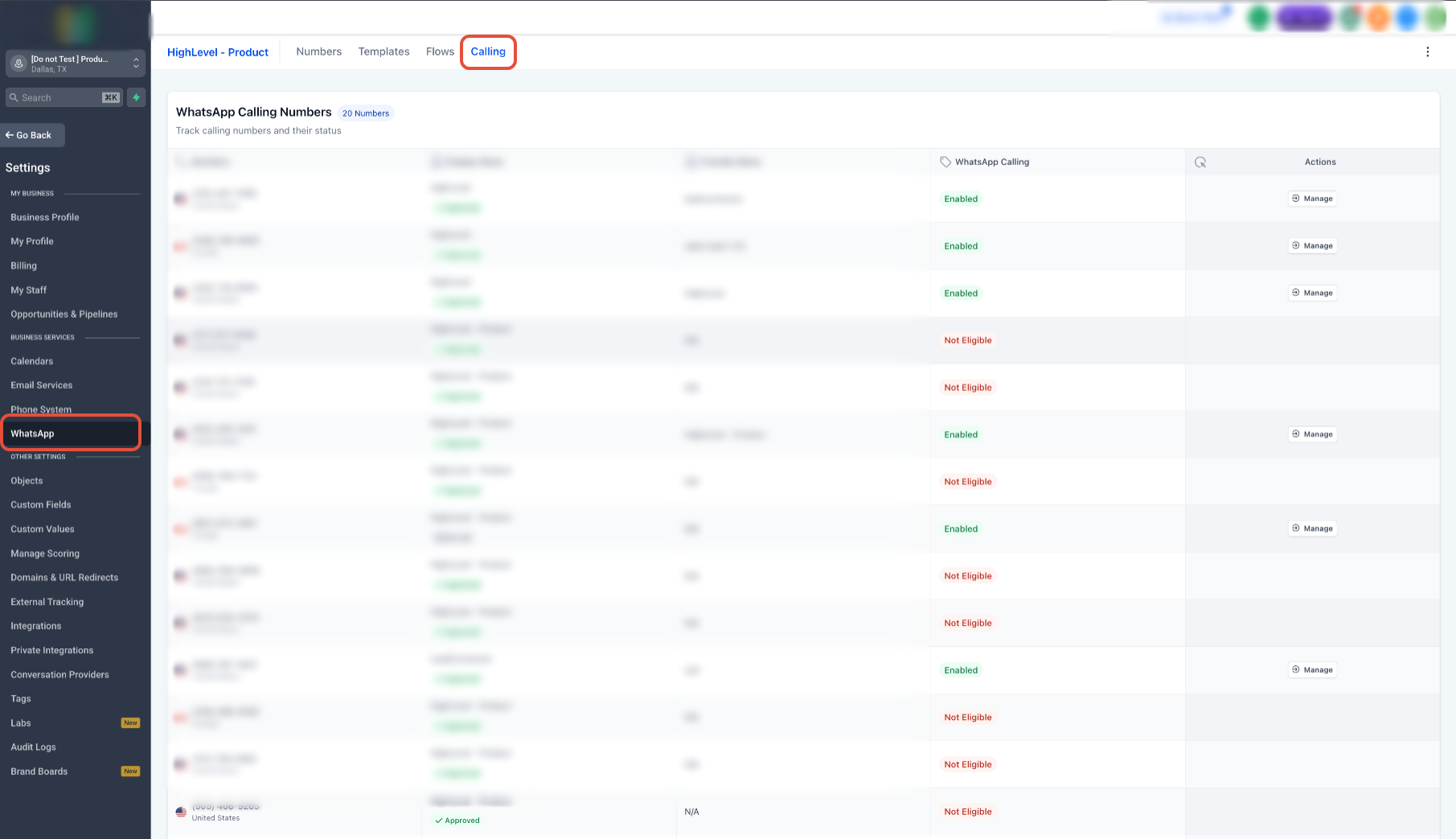
- Open WhatsApp within HighLevel and go to Settings.
- Select the Calling option from the menu.
- Locate the list of connected phone numbers and identify the one to configure.
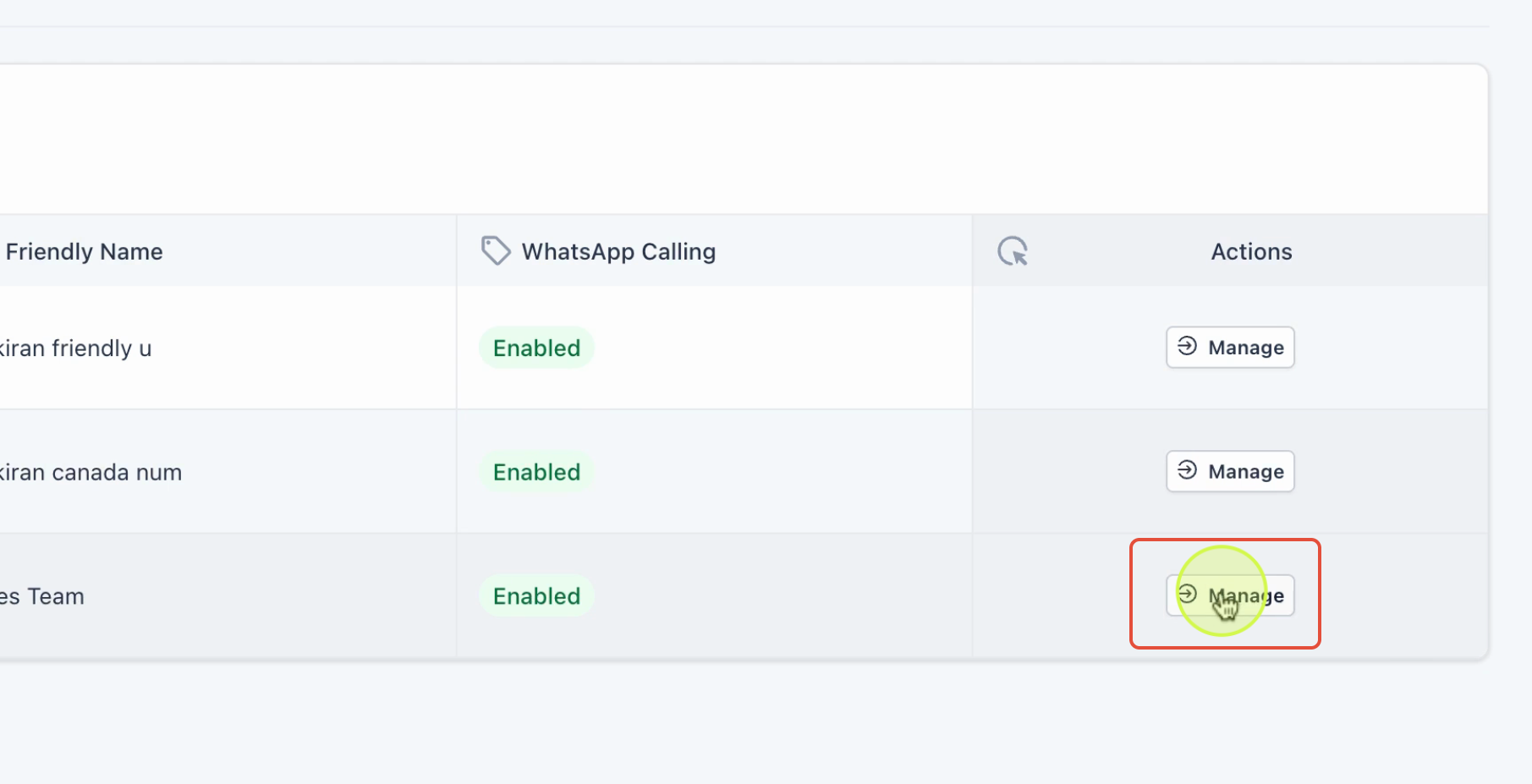
- Click Manage next to the chosen number.
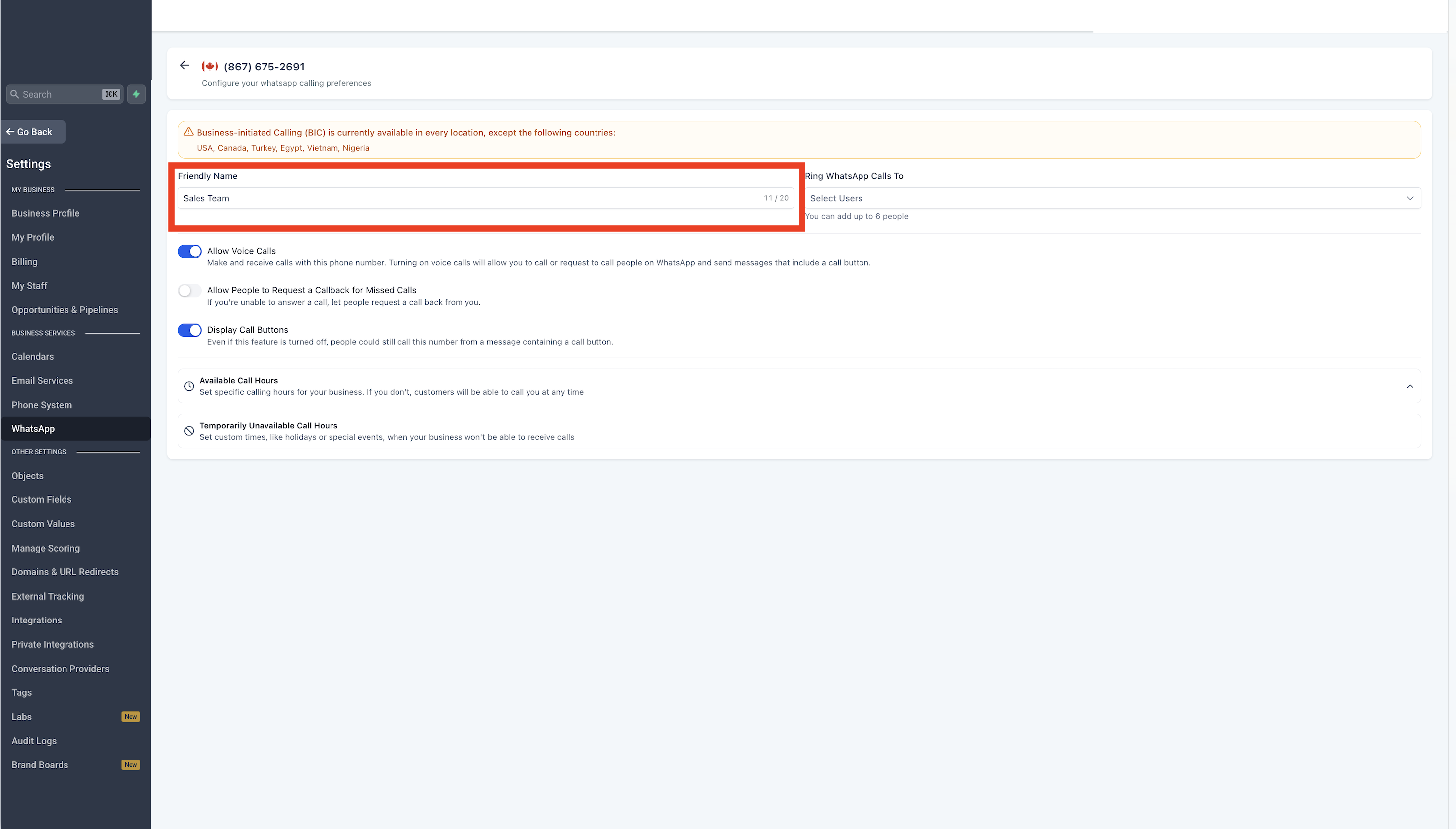
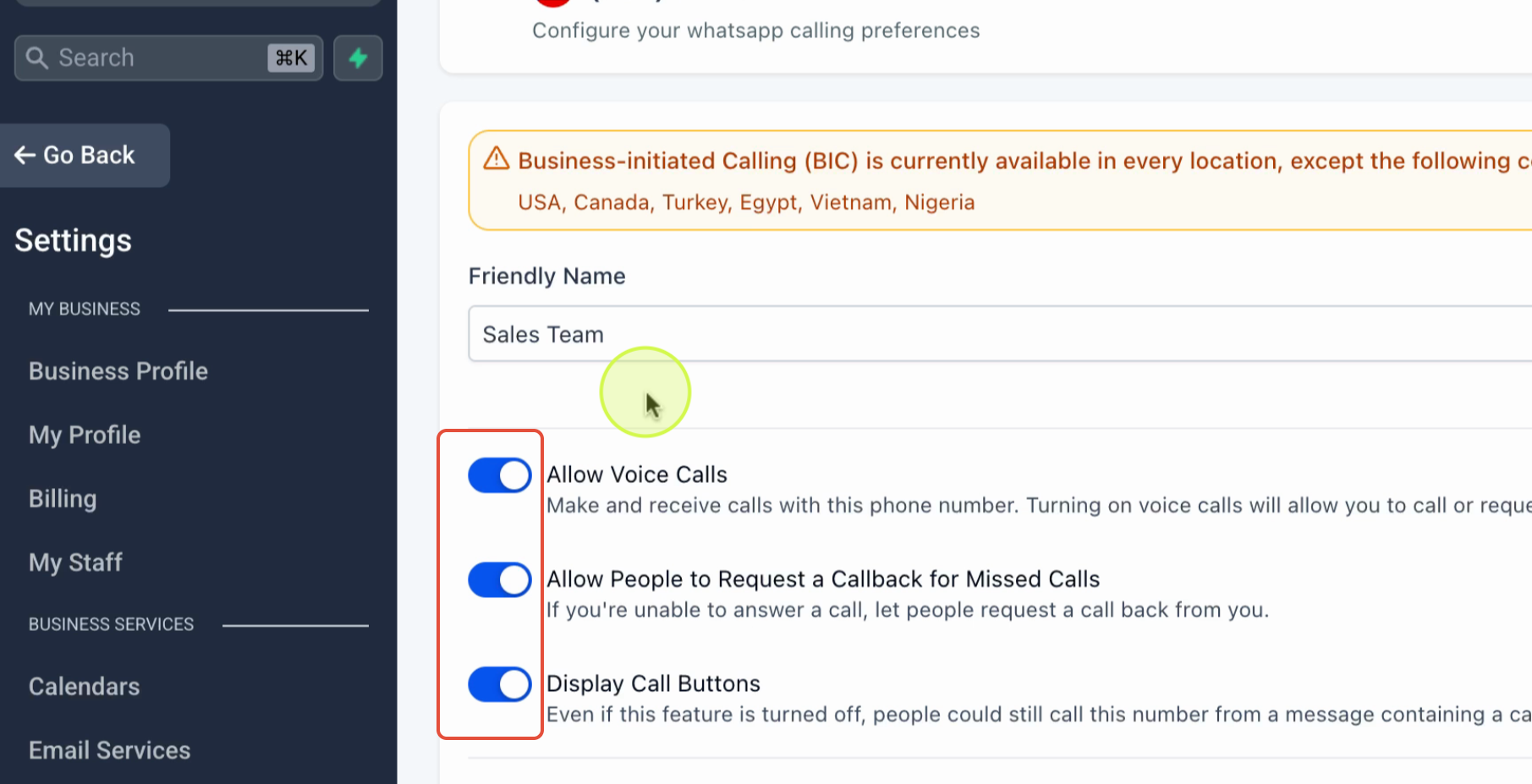
- Enter a friendly name such as "Sales Team" for easy reference.
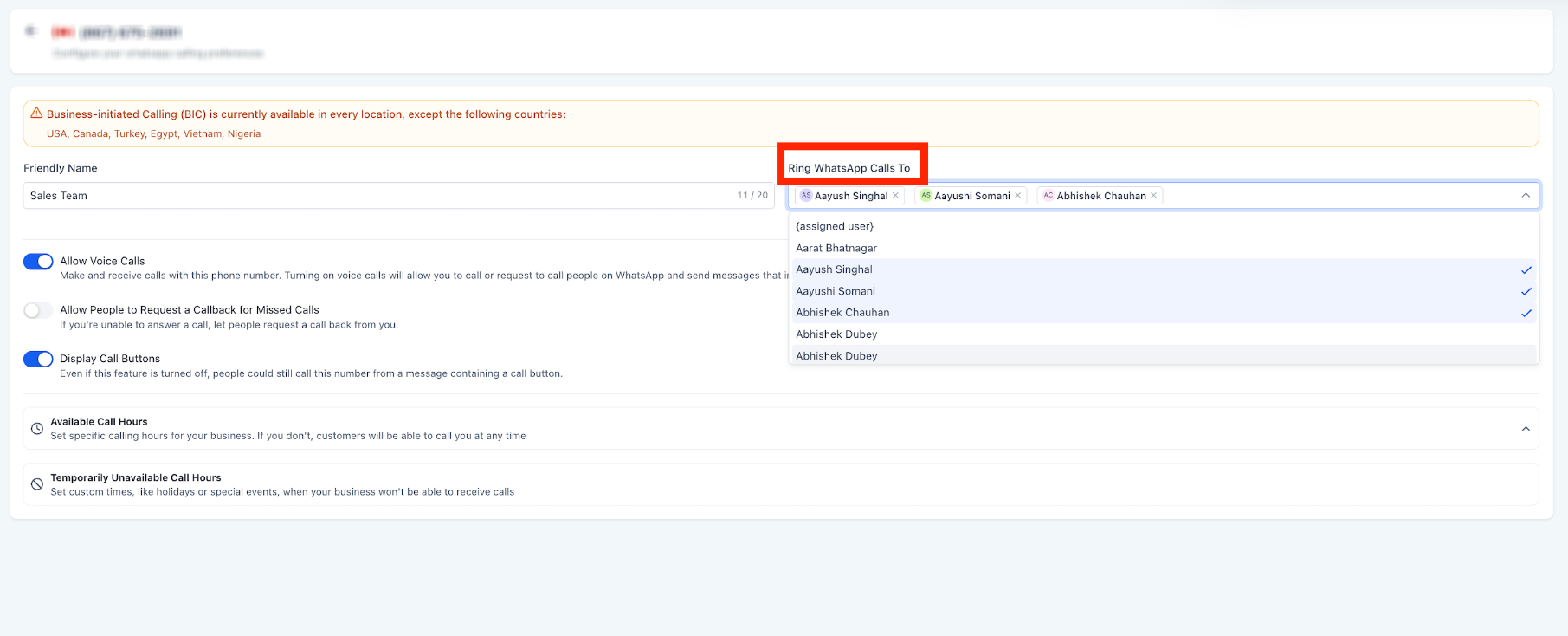
- In Ring WhatsApp Calls To, add the primary user who should receive calls first.
- Add additional users as backup receivers in the same section.
- Turn on Allow Voice Calls to activate calling for this number.
- Enable Allow People to Request Callback for Missed Calls so customers can request a return call.
- Toggle Display Call Button so the call option appears on your WhatsApp business profile.
Set up WhatsApp call permissions
- Navigate to Settings > WhatsApp Templates.
- Create a new template that will request call permission from customers.
- Add a Call to Action Button and select WhatsApp Call Permissions.
- Send the template to the customer; they tap the button to grant permission.
- Choose the permission duration of 1, 7, 15, or 30 days as needed.
Make and receive WhatsApp calls
- Open Conversations, select a contact, and set WhatsApp as the messaging channel.
- Send a permission request template to the customer.
- After the customer approves, their status will show that call permission is active.
- Click the call button to start a call, and use the on screen options to end the call and add a disposition.
- For inbound calls, customers tap the call button on your business profile and the call rings to the assigned users.
Configure staff user calling settings
- Go to Settings > My Staff.
- Find the staff member you want to edit and click Edit.
- Open the Calling & Voicemail tab.
- Set the Default Channel for WhatsApp Calls to either Mobile App or Web App.
07What it looks like in HighLevel
08Settings that matter
- Allow Voice Calls. Activates WhatsApp Calling for the selected phone number.
- Allow People to Request Callback for Missed Calls. Enables customers to request a return call if an inbound call is missed.
- Display Call Button. Shows a call icon on the WhatsApp business profile so customers can initiate calls.
- Ring WhatsApp Calls To. Defines which users receive inbound WhatsApp calls and in what order.
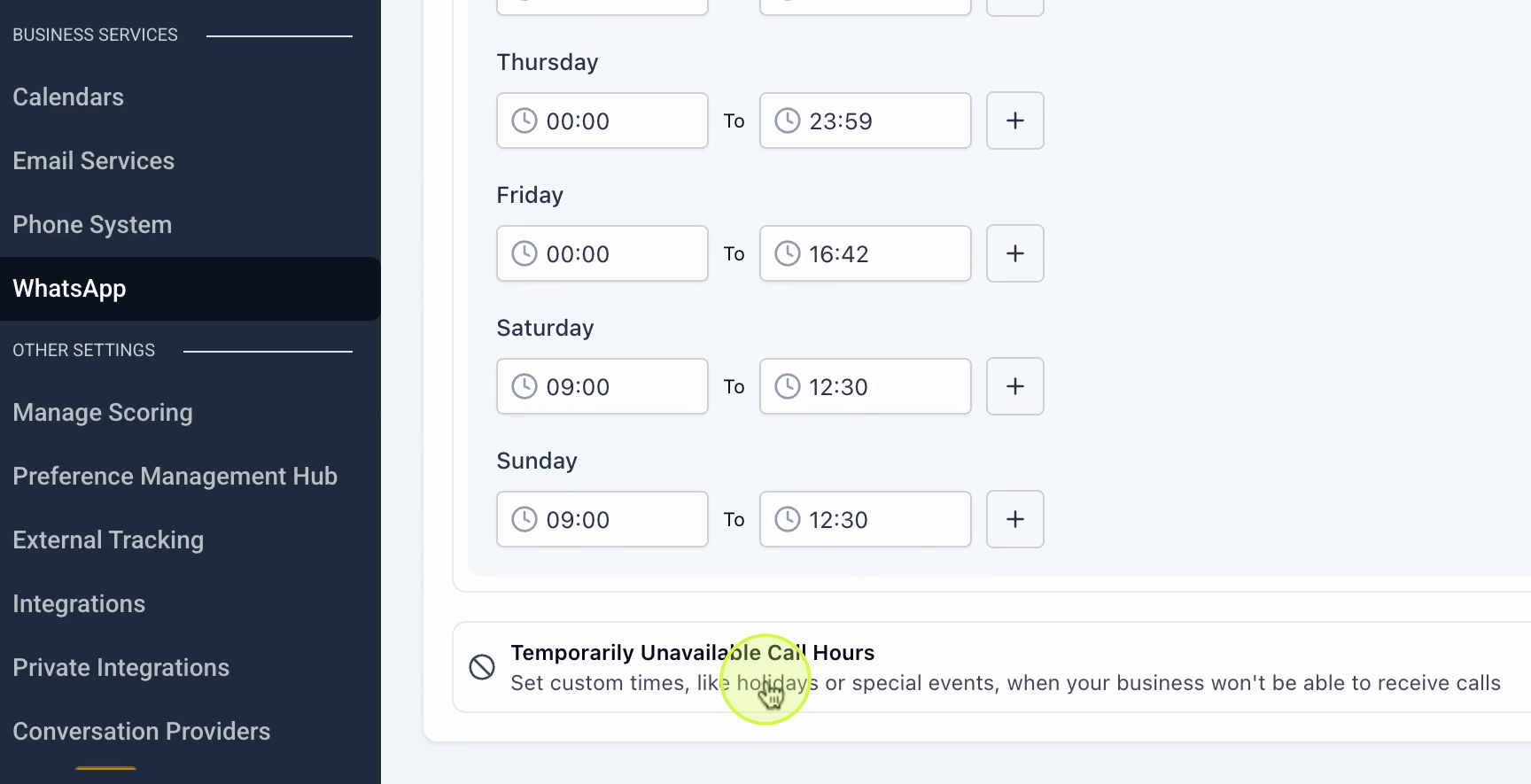
- Available Callers. Specifies users who are on call during regular business hours.
- Temporarily Unavailable Callers. Lists users who should not receive calls for a set period.
- Default Channel for WhatsApp Calls. Determines whether a staff member answers calls on the Web interface or the Mobile app.
09Things to know before you rely on it
- WhatsApp Calling is currently in beta and must be requested via a separate access form.
- The feature does not work with numbers using WhatsApp Coexistence.
- A messaging limit of at least 2,000 conversations per 24 hour period is required.
- Permission requests are limited to one per contact every 24 hours and a maximum of two within a 7 day window.
- A maximum of 100 connected calls can be placed from a business phone number each 24 hours.
- Temporary call permission expires after 7 calendar days; permanent permission does not expire unless revoked by the user.
- Business initiated calls are not supported in the United States, Canada, Turkey, Egypt, Vietnam, and Nigeria.
- If a customer does not answer four consecutive outbound calls, WhatsApp automatically revokes call permission.
10How it connects to the rest of HighLevel
- Full guide for agencies on setting up WhatsApp reselling WhatsApp reselling guide
- Instructions for adding WhatsApp to a subaccount and migrating numbers Subaccount setup
- Details on WhatsApp pricing, billing, and rebilling for agencies Pricing guide
- How to increase the WhatsApp message limit to 2,000 conversations Increase message limit
- Start a 30 day trial of HighLevel to test WhatsApp Calling 30 day trial
Michael's take

Wondering if adding voice calls inside your WhatsApp chats is worth the effort? It’s a simple way to keep every conversation. Text and voice. In one thread, so your support and sales reps never lose context. When a chat stalls, they can click a button and hop onto a call without juggling apps, and the call outcome gets logged automatically.
If I were setting this up, I’d start by making sure the WhatsApp number meets the prerequisites and that I’ve asked customers for permission with a clear template. Once the permission flow is solid, I’d enable the feature, route inbound calls to my primary support rep, and use dispositions to trigger follow up automations.