
01Who this is for
- Marketing agencies that manage WhatsApp Business Platform accounts for multiple clients, because the badge improves brand trust.
- Enterprises with a public presence that need the display name to appear globally, allowing them to scale messaging campaigns.
- Brands that rely on WhatsApp for customer support and want their number to be right away recognizable to users.
02Official business accounts, explained
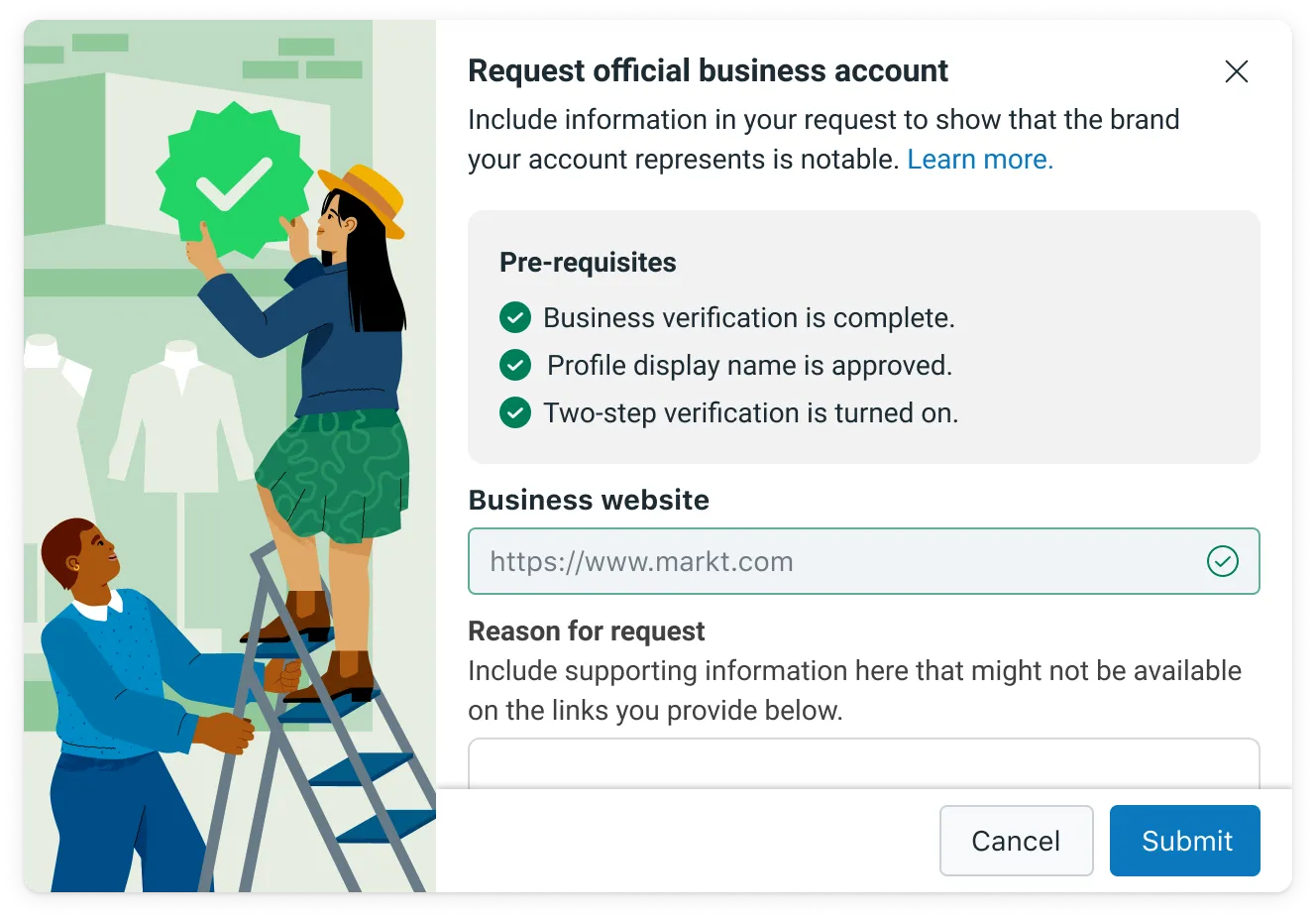
The feature lets you apply for a verified status on WhatsApp that displays a blue checkmark beside the phone number and in chat headers. Meta reviews the request and, if approved, flags the account as an Official Business Account.
The request lives inside WhatsApp Manager accessed from Business Manager. You must first enable two step verification for the chosen number, finish Business Verification and secure an approved display name, then submit the application with up to five supporting links and details about your brand.
03How businesses use official business accounts
- Digital marketing agency. The agency opens WhatsApp Manager, selects a client’s phone number, turns on two step verification, ensures the client’s Business Verification and display name are approved, and then submits an Official Business Account request with media links that show the client’s coverage.
- National retailer. The retailer enables two step verification for its primary customer service number, completes Business Verification, provides the brand’s display name, and submits a request with links to news articles, allowing the retailer’s number to show the blue badge to shoppers.
- Fintech startup. The startup activates two step verification on its authentication number, verifies the business, and includes links to reputable finance publications in the request so Meta can assess its notability before granting the badge.
04The numbers and rules that matter
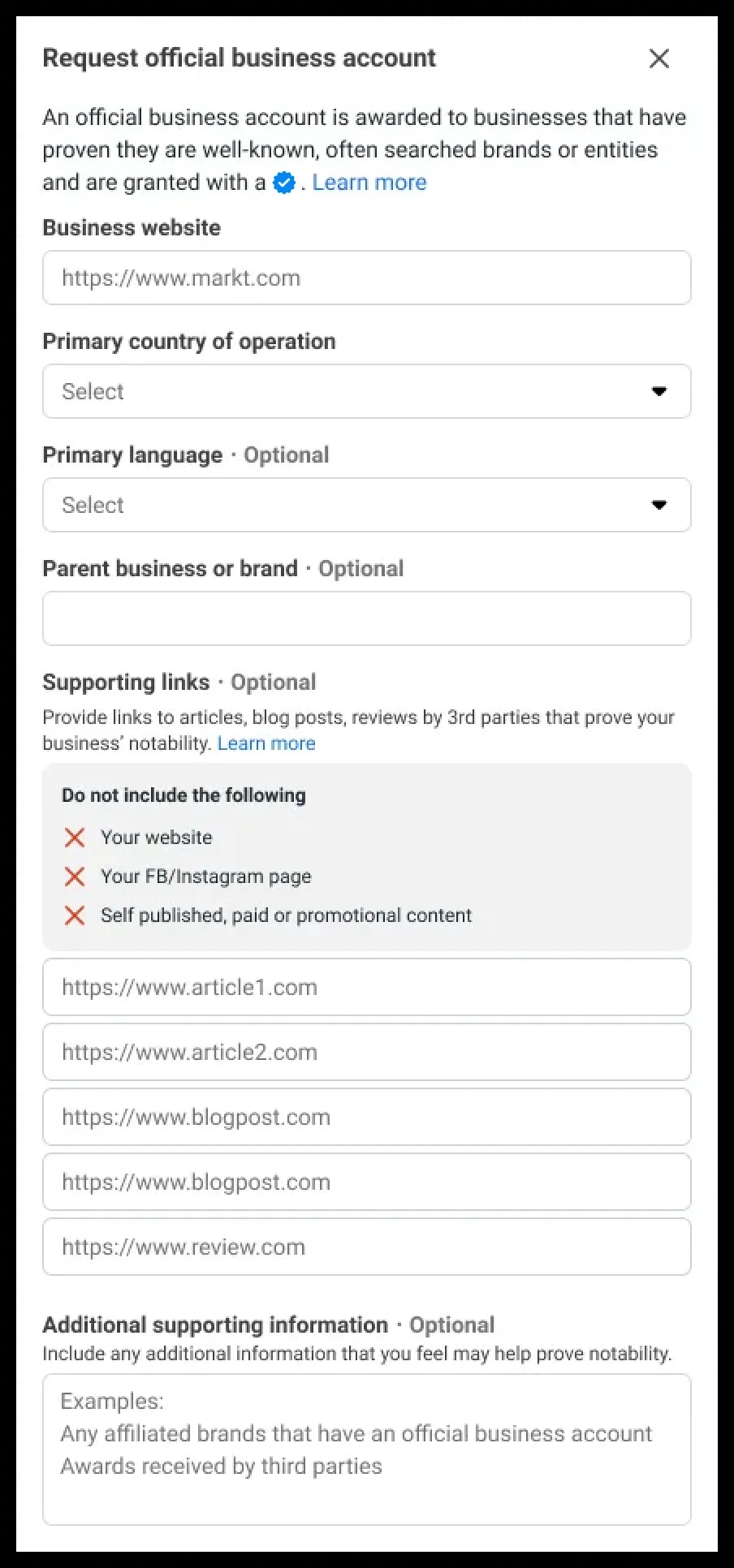
- Attach up to five supporting links, ideally from well known publications such as India Today, The Economic Times, The Wall Street Journal, Reuters, Wikipedia, or Business Insider.
- A denied request can be resubmitted after 30 days.
05Before you start
- Two step verification must be turned on for the phone number.
- Business Verification must be completed.
- The display name must be approved.
06How to set up and use official business accounts in HighLevel
Request Official Business Account
- Open WhatsApp Manager from Business Manager and pick the desired phone number in the Overview section.
- Turn on two step verification for that number.
- Confirm that Business Verification and display name approval are already finished.
- Click Submit Request, fill out the form, attach up to five supporting links, and add information such as operating countries, parent brand and primary language.
- Wait for Meta to review the request; if denied, wait 30 days before submitting a new request.
07What it looks like in HighLevel
08Settings that matter
- Two step verification. Adds an extra security layer for the phone number and is required before submitting an Official Business Account request.
- Display name. The name shown on the WhatsApp profile; it must be approved before an Official Business Account request and is tied to the badge.
- Business Verification. Confirms the authenticity of the business; it must be complete before an Official Business Account request.
09Things to know before you rely on it
- A maximum of five supporting links can be attached to a request.
- Official Business Account status is not granted to employee accounts, test accounts or WhatsApp Business App accounts.
- The badge applies only to the specific phone number and display name used in the request; other numbers need separate requests.
- Notability is judged by organic news coverage, not by paid placements or directory listings.
- Denied requests cannot be appealed and require a 30 day wait before a new submission.
10How it connects to the rest of HighLevel
- Guide for setting up WhatsApp subaccounts in HighLevel WhatsApp subaccount setup
- How to create and manage WhatsApp templates in HighLevel WhatsApp templates
- Increase your HighLevel WhatsApp message limit to 2,000 Message limits
Michael's take

Most people think simply verifying a phone number gets the blue tick, but the checkmark is tied to brand notability and a completed Business Verification.
If I were handling a new brand, I’d first focus on earning real media mentions from well known publications, then enable two step verification and finish Business Verification before submitting the OBA request. I’d also keep the display name stable to avoid a reassessment.