
01Who this is for
- Customer support teams gain faster conversation flow because voice notes play right away and can be read as text when needed.
- Sales representatives can convey tone and nuance with audio while still offering a readable transcript for prospects who prefer text.
- Marketing agencies managing client messaging can reduce attachment failures by using the native format for campaign follow ups.
02Native WhatsApp voice notes with transcriptions, explained
Native WhatsApp voice notes are audio messages that HighLevel sends in WhatsApp’s native OGG/Opus container. When the note arrives it auto downloads and plays inline, eliminating extra steps for the recipient. If the recipient has enabled the transcript feature in their WhatsApp app, a text transcription is shown alongside the audio.
To create a voice note, open a WhatsApp conversation in the Conversations UI, click the microphone icon on the web or press and hold the mic on mobile, record, and use the provided controls to pause, resume, re record, or delete. When satisfied, press Send and HighLevel converts the file to the correct format before delivery.
The platform limits each voice note to a maximum duration of ten minutes. Voice notes are stored by WhatsApp/Meta for a limited period, so very old recordings may become unavailable in HighLevel’s view. Transcripts are generated and displayed only by the recipient’s WhatsApp app; HighLevel does not store them.
03How businesses use Native WhatsApp voice notes with transcriptions
- Real estate agency. Agents record property walkthrough commentary directly in a client WhatsApp thread and send it as a native voice note. Clients can listen right away or tap the transcript option if they prefer reading, keeping communication smooth during the buying process.
- Dental practice. Staff send post appointment care instructions as brief voice notes. Patients who enable transcripts can read the instructions, ensuring clarity for those in noisy environments or with hearing challenges.
- Online coaching service. Coaches deliver quick motivational audio clips within a client’s WhatsApp chat. The native format guarantees immediate playback, and the optional transcript allows clients to reference the content later without replaying the audio.
04The numbers and rules that matter
- Maximum duration: Up to 10 minutes per voice note.
- Templates are not required when replying within the 24 hour session window.
05How to set up and use Native WhatsApp voice notes with transcriptions in HighLevel
Send a native WhatsApp voice note from the Conversations UI
- Open the appropriate WhatsApp thread inside Conversations.
- Click the microphone icon on the web version or press and hold the mic on mobile to start recording.
- Use the pause, resume, re record, or delete controls to edit the recording as needed.
- Click Send; HighLevel converts and delivers the audio as a native WhatsApp voice note.
06What it looks like in HighLevel
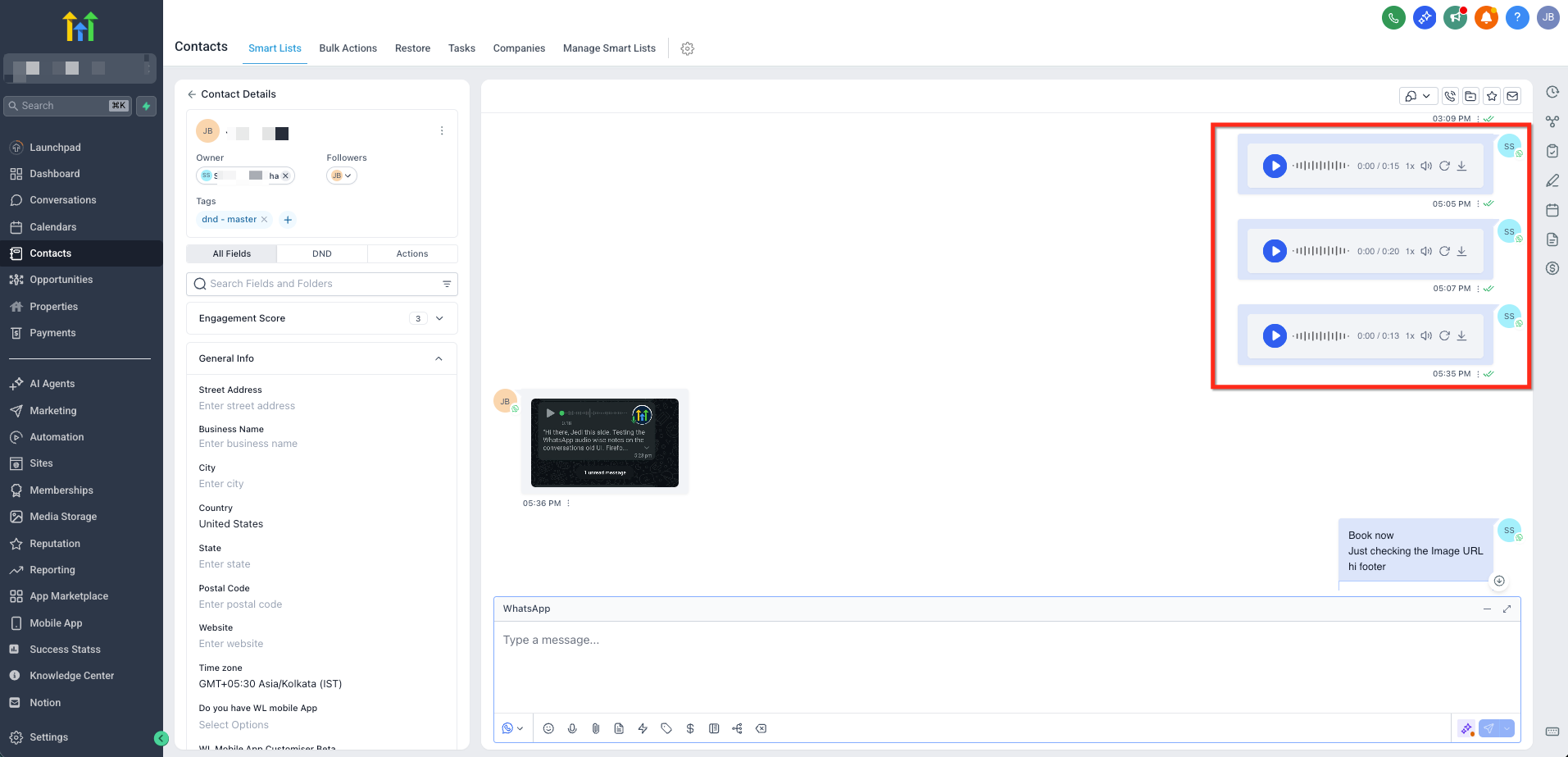
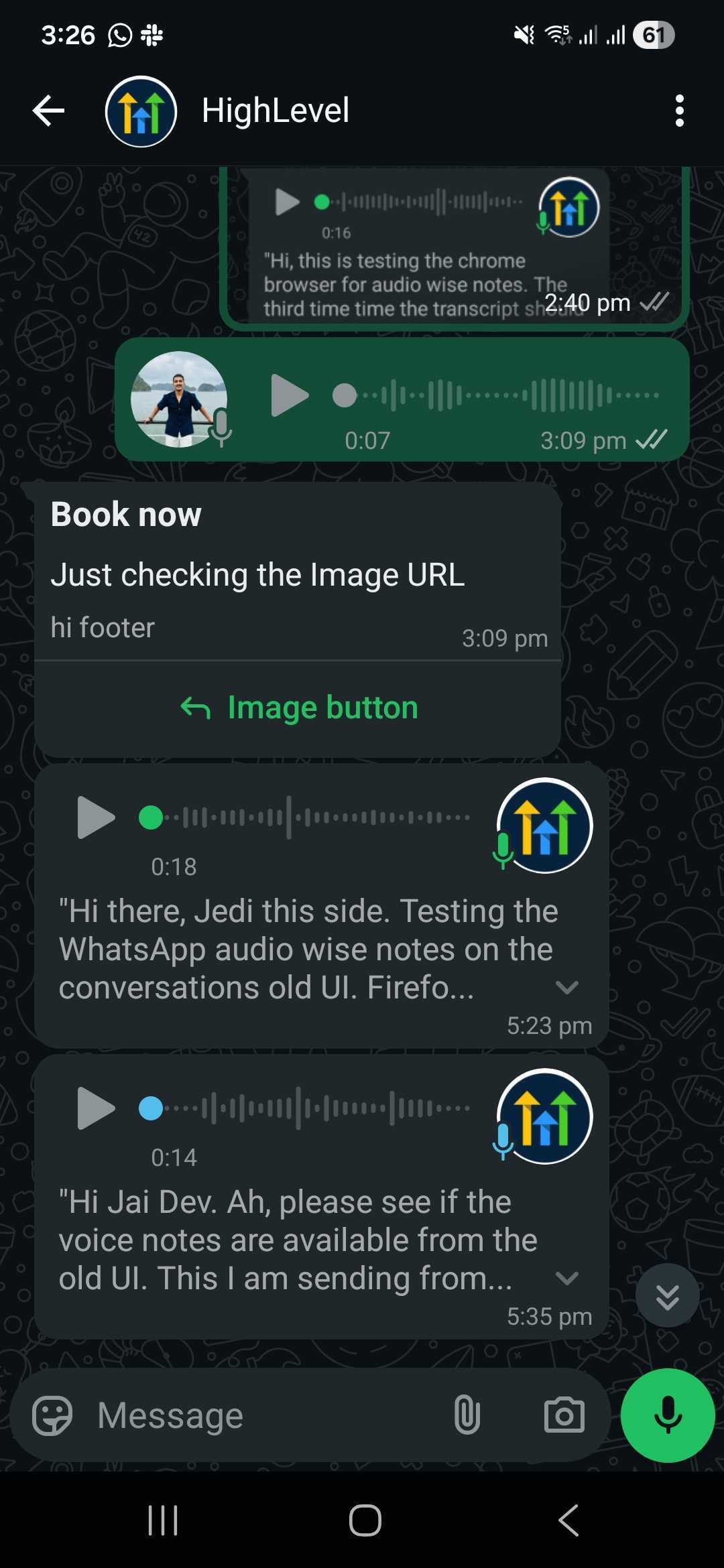
07Settings that matter
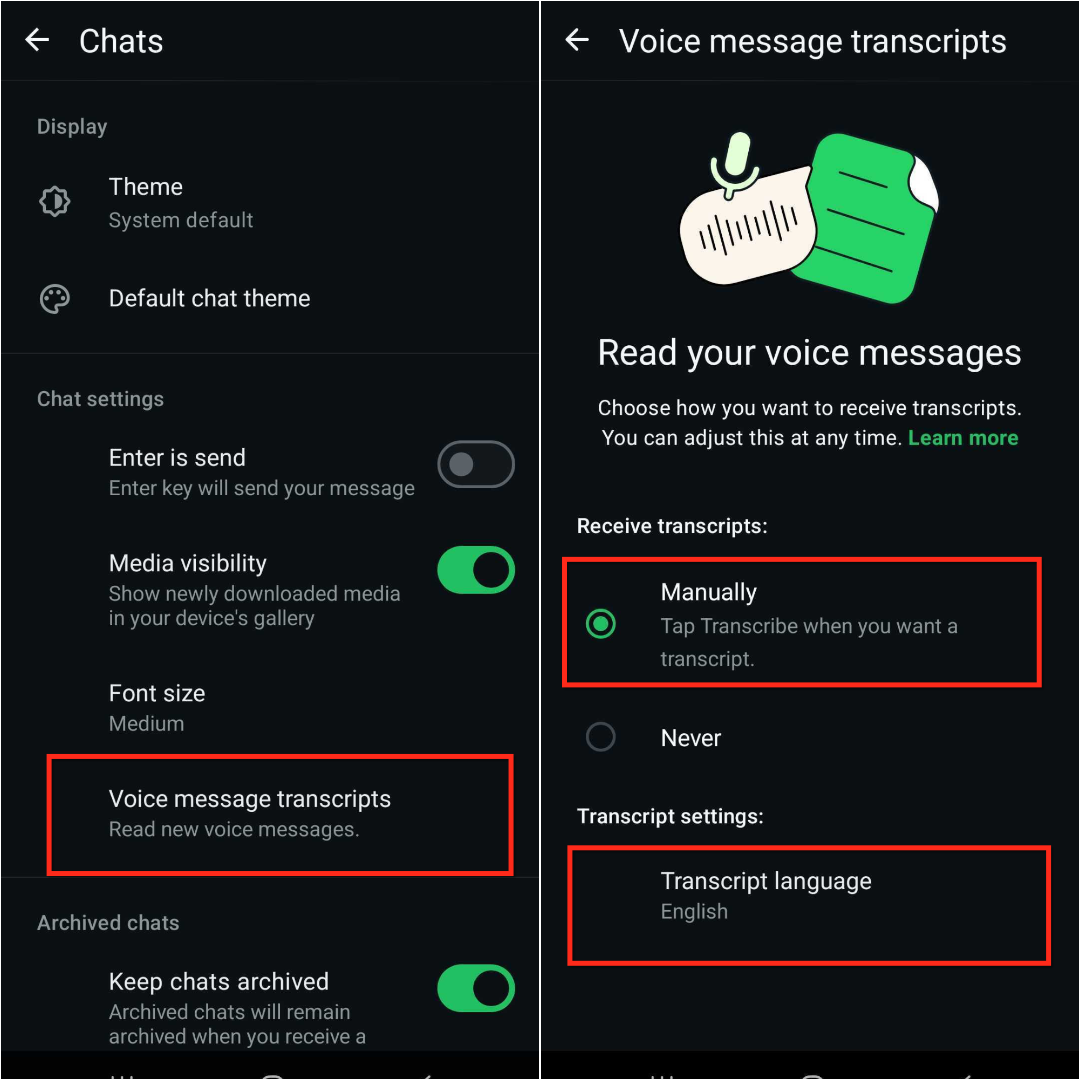
- Voice message transcripts. Controls whether a WhatsApp user can view a text transcription of supported voice notes; the setting is managed in the recipient’s WhatsApp app, not within HighLevel.
08Things to know before you rely on it
- Voice notes are sent in the OGG/Opus format, which HighLevel converts automatically.
- Each voice note can be up to ten minutes long.
- WhatsApp hosts media for a limited time; very old voice notes may appear unavailable in HighLevel.
- Transcripts appear only if the recipient enables the WhatsApp transcript setting; HighLevel does not store or generate them.
09How it connects to the rest of HighLevel
- Set up a WhatsApp subaccount before sending voice notes. WhatsApp subaccount setup
- Automate voice note delivery using WhatsApp workflow actions. Workflow integration
- Increase your overall WhatsApp message limit if needed. Message limit guide
Michael's take

Great for teams that already rely on WhatsApp for sales or support.
Skip it if you never use WhatsApp in your customer communication.