
01Who this is for
- Marketing managers who need precise click attribution for WhatsApp campaigns, because the platform logs which CTA each contact taps.
- Automation specialists looking to branch WhatsApp flows right away, as Trigger Links can fire workflow actions the moment a link is clicked.
02Trigger Links in WhatsApp templates, explained
Trigger Links are tracked call to action elements that you place inside WhatsApp V2 templates. When a recipient taps the link, whether it appears as a button or inside the message body, HighLevel records the event. That record can be used as a workflow trigger, allowing you to branch, tag, or update contact fields based on the exact CTA chosen.
The feature exists inside the WhatsApp template editor and the Trigger Links library. You first create a Trigger Link URL, then attach it to a template as either a button (recommended) or an inline variable. After the template is approved by Meta, any click on the link is automatically captured by HighLevel.
Once clicks are captured, you build a workflow that uses the "Trigger Link Clicked" trigger. The workflow can send follow up messages, set tags, or perform any other automation supported by the platform. All tracking data appears in Workflow History and Template Analytics.
03How businesses use trigger links in WhatsApp templates
- Ecommerce store. The store creates a Trigger Link that points to a seasonal sale landing page. It embeds the link as a button in a promotional WhatsApp template. When a shopper taps the button, HighLevel records the click and a workflow tags the contact as "interested in sale" and sends a limited time discount code.
- Service based consulting firm. The firm adds an inline Trigger Link to a WhatsApp template that schedules a discovery call. The link is mapped to a calendar booking page. Clicking the link triggers a workflow that adds the contact to a follow up sequence and updates a custom field with the booking URL.
- Event organizer. The organizer builds a button Trigger Link labeled "Get Tickets" in an event reminder template. Each click registers in HighLevel, allowing a workflow to segment users who showed interest and automatically send a ticket purchase reminder.
04The numbers and rules that matter
- Works with: WhatsApp V2 sending action inside Workflows.
- Limit: Total buttons per message must not exceed 2 (Trigger Link buttons + normal buttons).
- Approved or approvable WhatsApp V2 templates (category, sample content, and variables filled correctly).
05Before you start
- Active WhatsApp connection and completed Meta onboarding
- Subaccount permission to create templates and edit workflows
- At least one Trigger Link created in Marketing > Trigger Links > Links
- WhatsApp V2 template approved or approvable by Meta
06How to set up and use trigger links in WhatsApp templates in HighLevel
Create a Trigger Link
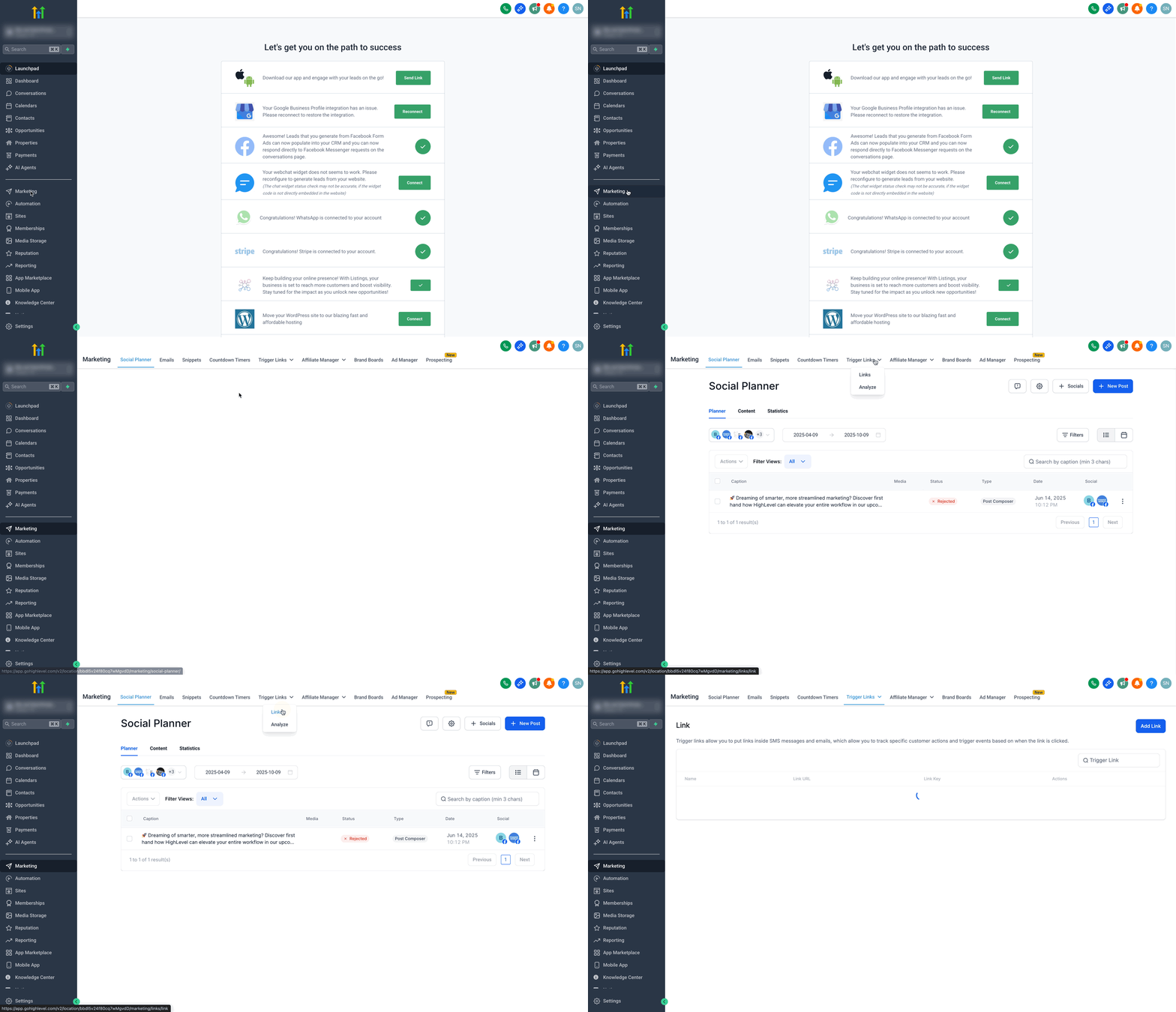
- Navigate to Marketing > Trigger Links > Links.
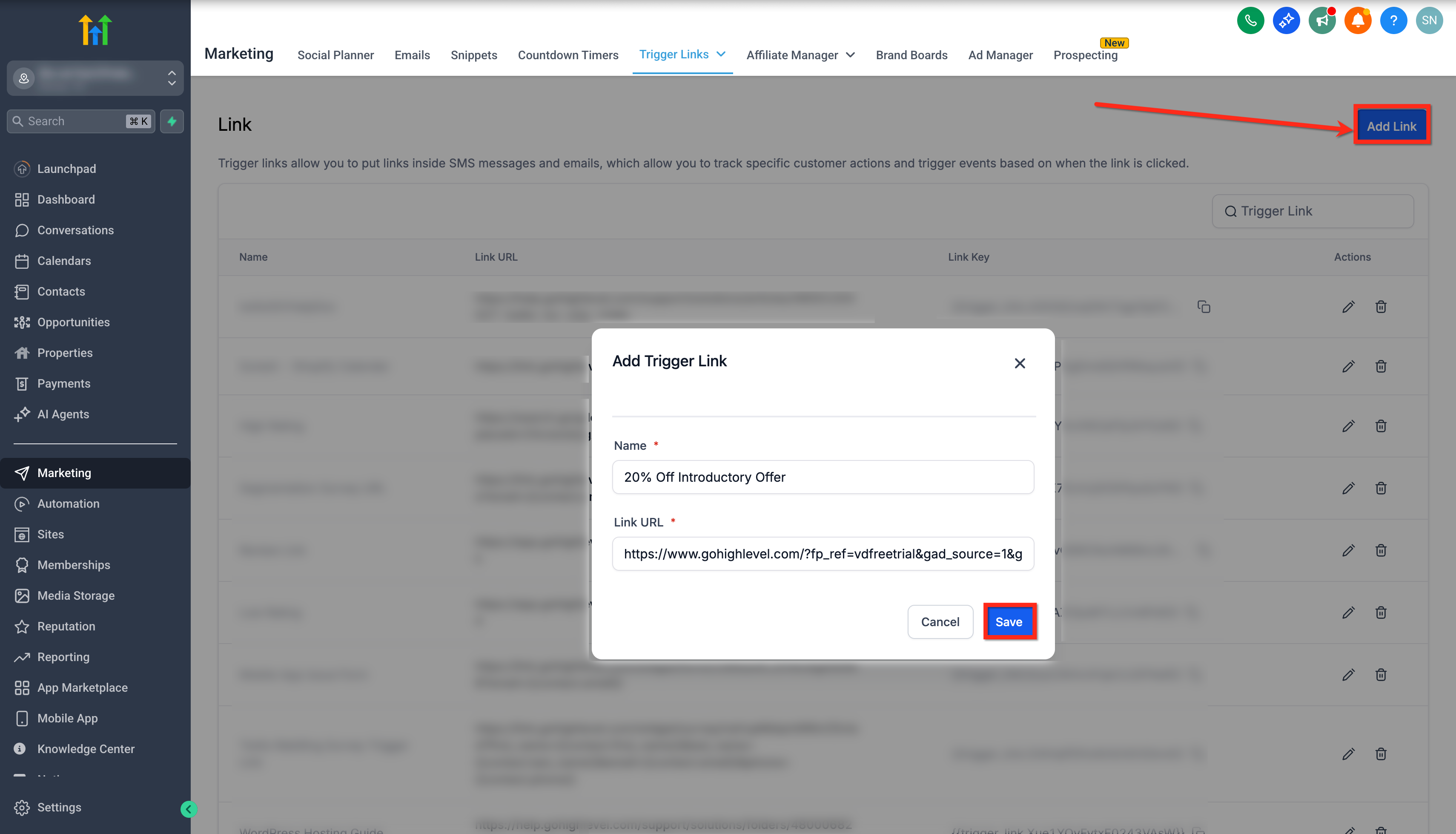
- Click Add Link, give it a descriptive name, and paste the destination URL.
- Save the new Trigger Link.
Create a WhatsApp Template
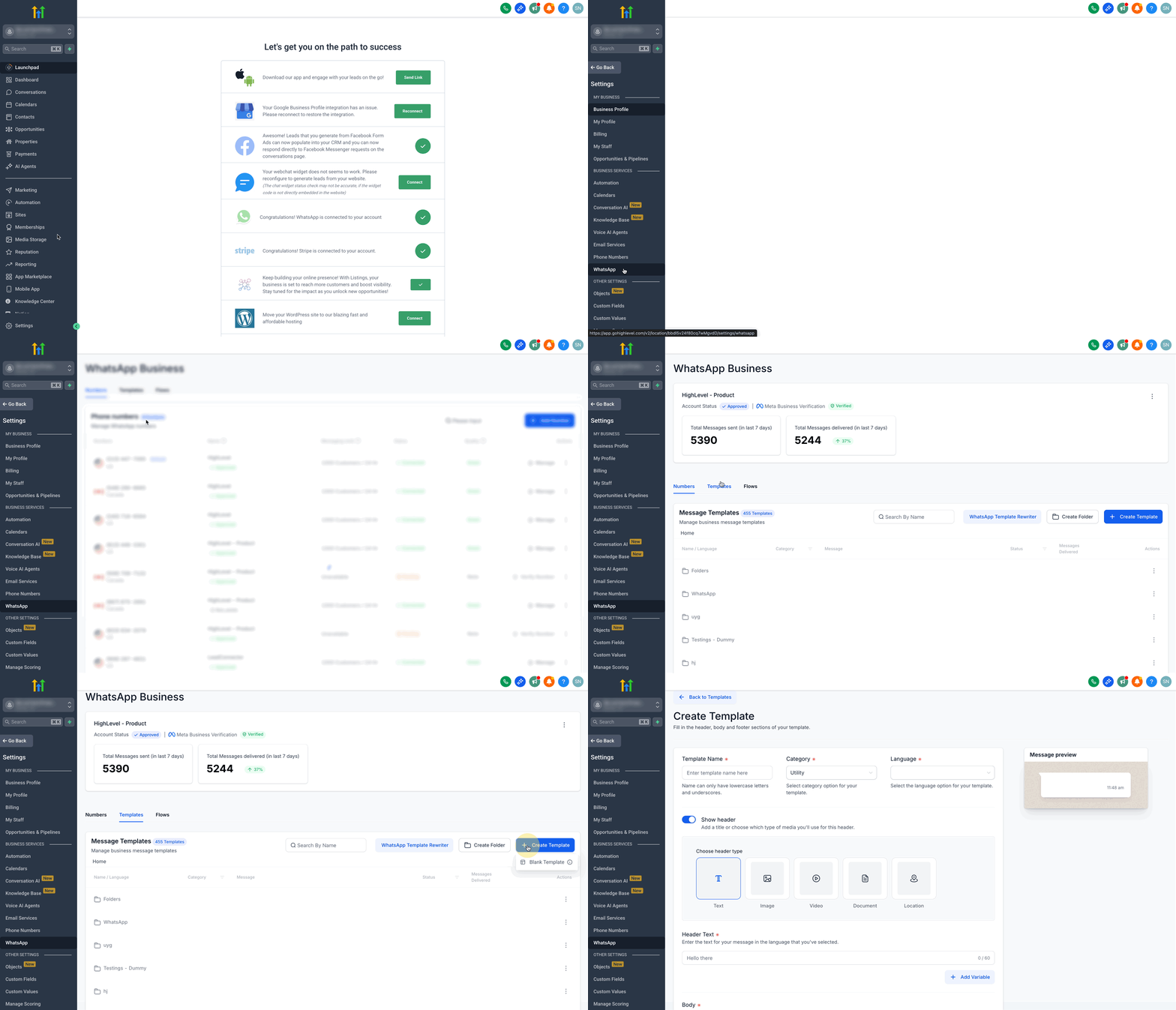
- Open Settings > WhatsApp > Templates and start a new template.
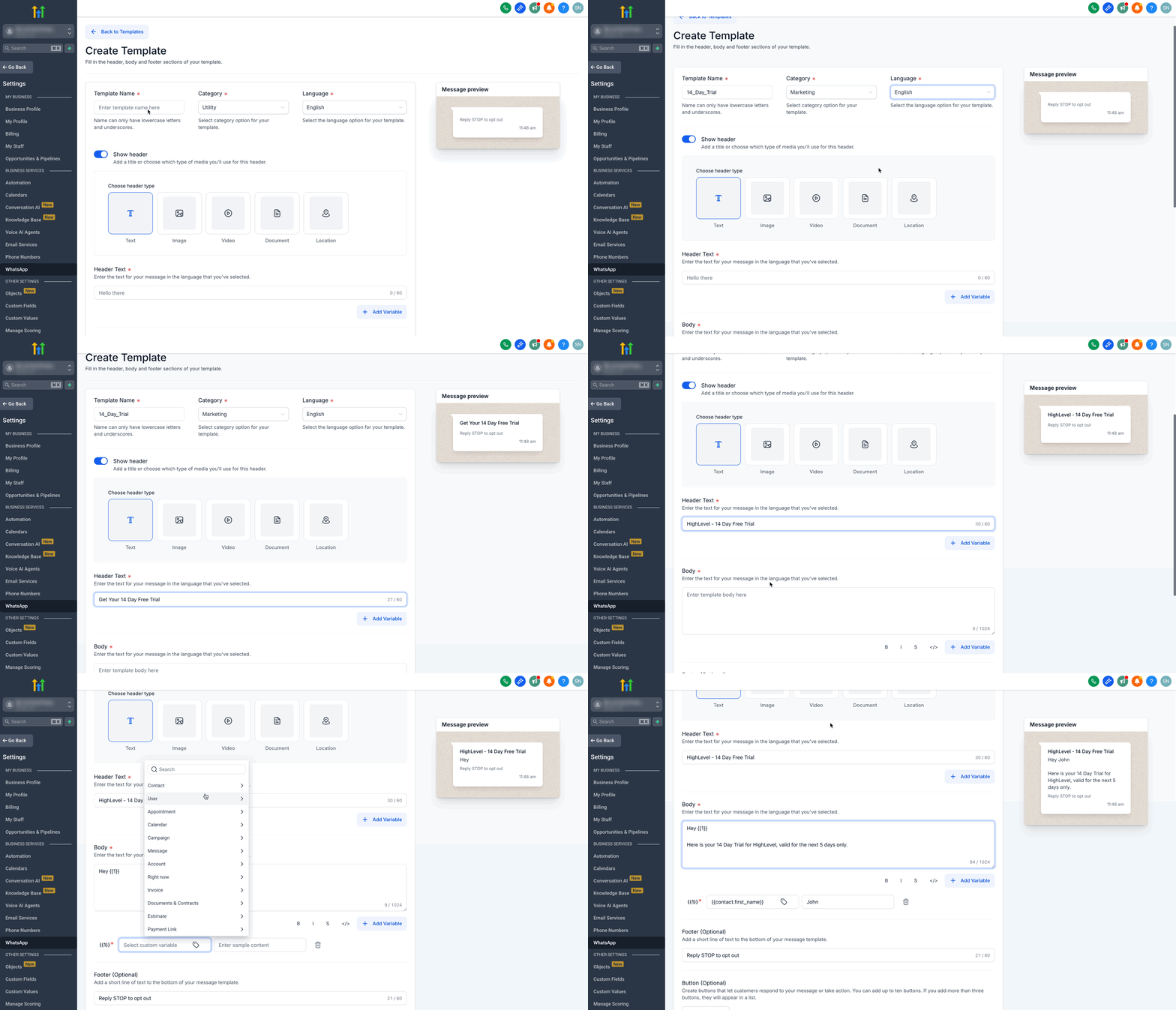
- Enter the template name, select a category such as Marketing, and pick the language.
- Optionally add a header image and/or footer text, then write the body copy with variables and sample content for approval.
- Save the template to submit it to Meta for approval.
Add a Triggered CTA
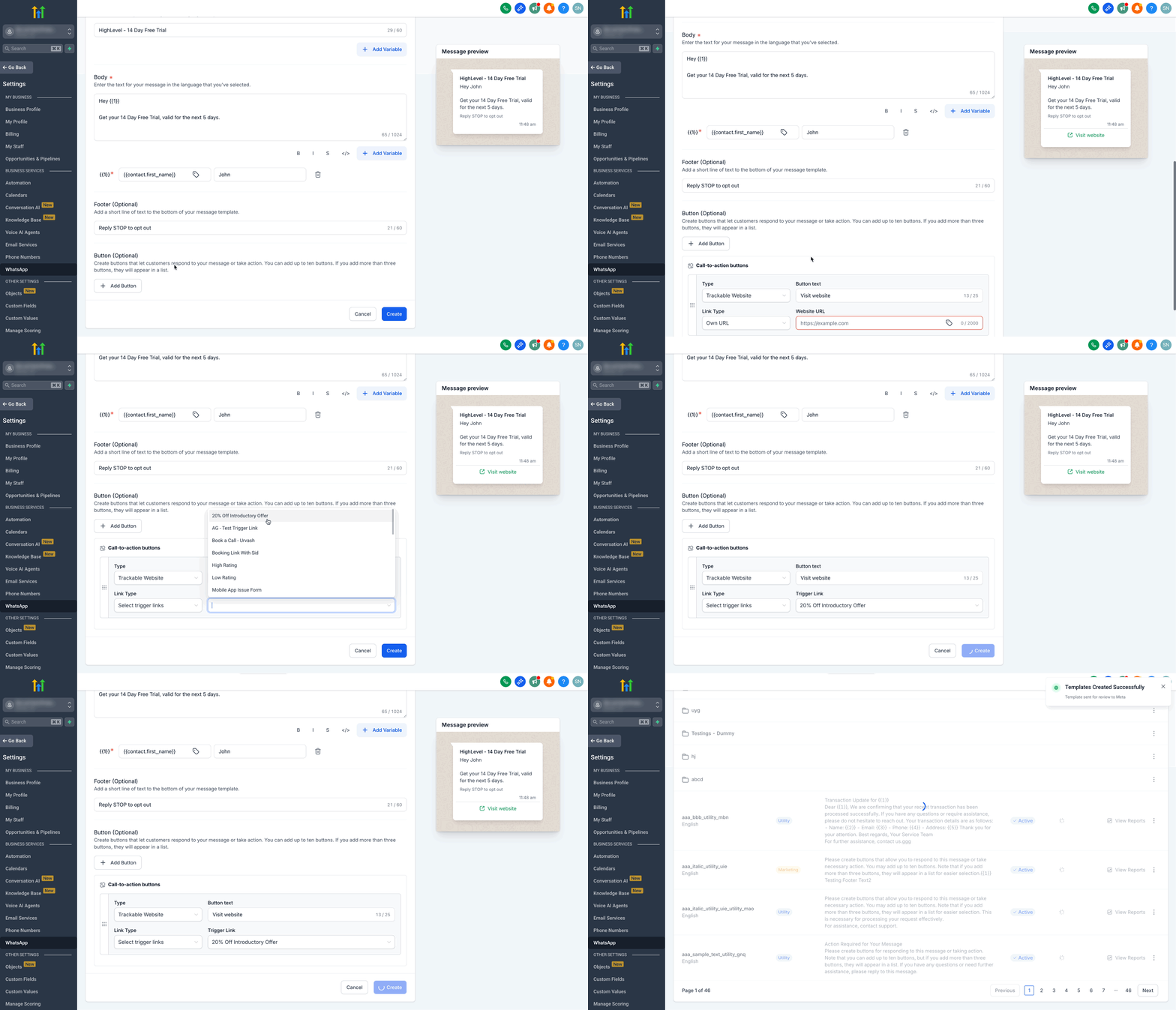
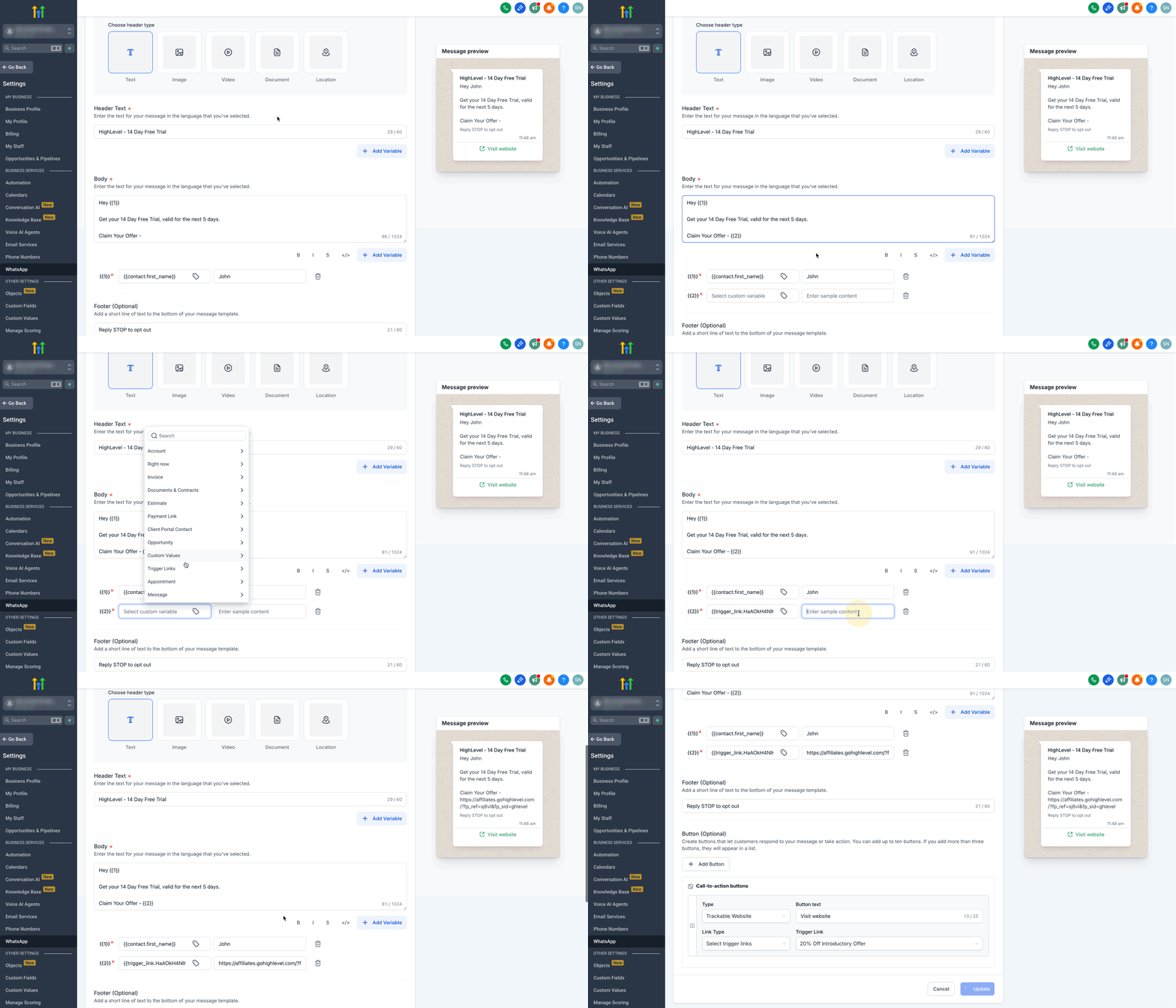
- In the template editor, add a Button and set its Type to Trigger Link, or place a variable in the body text.
- Select or map the Trigger Link you created earlier to the button or variable.
- Ensure the total number of buttons in the message does not exceed two.
- Click Create (or Save) to add the CTA to the template.
Submit and Approve
- After adding the CTA, click Create/Save to submit the template to Meta for approval.
- When Meta approves the template, it will appear as Active and can be sent.
Track clicks via a Workflow
- Go to Automation > Workflows and create a new workflow.
- Add a new trigger and choose Trigger Link Clicked.
- Add filters, select Trigger Link from the dropdown, and pick the specific link used in the template.
- Save the trigger configuration.
- Publish the workflow and monitor click data in Workflow History and Template Analytics.
07What it looks like in HighLevel
08Settings that matter
- Button → Type: Trigger Link. Defines a button as a tracked link so that a click is recorded in HighLevel and can start workflow actions.
- Add variable mapped to a Trigger Link. Allows an inline link to be placed inside the message body; the variable renders the URL and registers clicks like a button.
09Things to know before you rely on it
- A message can contain a maximum of two buttons, counting both Trigger Link buttons and regular buttons.
- Trigger Links work only with WhatsApp V2 sending actions inside HighLevel workflows.
- Template approval by Meta is required before any tracked CTA becomes active.
10How it connects to the rest of HighLevel
- Link a LeadConnector number to a WhatsApp Business account for sending templates. LeadConnector number for WhatsApp
- Set up automation workflows that send WhatsApp messages and react to Trigger Link clicks. WhatsApp workflow integration
- Review pricing and plan options needed for a WhatsApp connection. HighLevel pricing
Michael's take

When I have a steady flow of WhatsApp prospects and need to see which offer drives the next action, Trigger Links give me the click data I need to route leads, set tags, and launch targeted follow ups without adding another tool.
If my messages are purely informational or I’m not ready to build branch logic, I may skip Trigger Links because the extra template approval steps and button limits add complexity for a simple broadcast.