
01Who this is for
- Customer support agents who need to share product photos or documents during the open service window.
- Marketing agencies reselling WhatsApp who want to include media in follow up automations.
- Sales professionals in service oriented businesses who must send spec sheets or videos while the customer is engaged.
02WhatsApp media, explained
The WhatsApp Media action adds a step to a HighLevel automation that sends a file, image, video, audio, or document, to a WhatsApp contact. The file is chosen from your computer and can include a caption where supported.
The step only runs when the 24 hour customer service window is open. During that window media messages are free and unlimited. Supported file types and size limits are defined by the WhatsApp API.
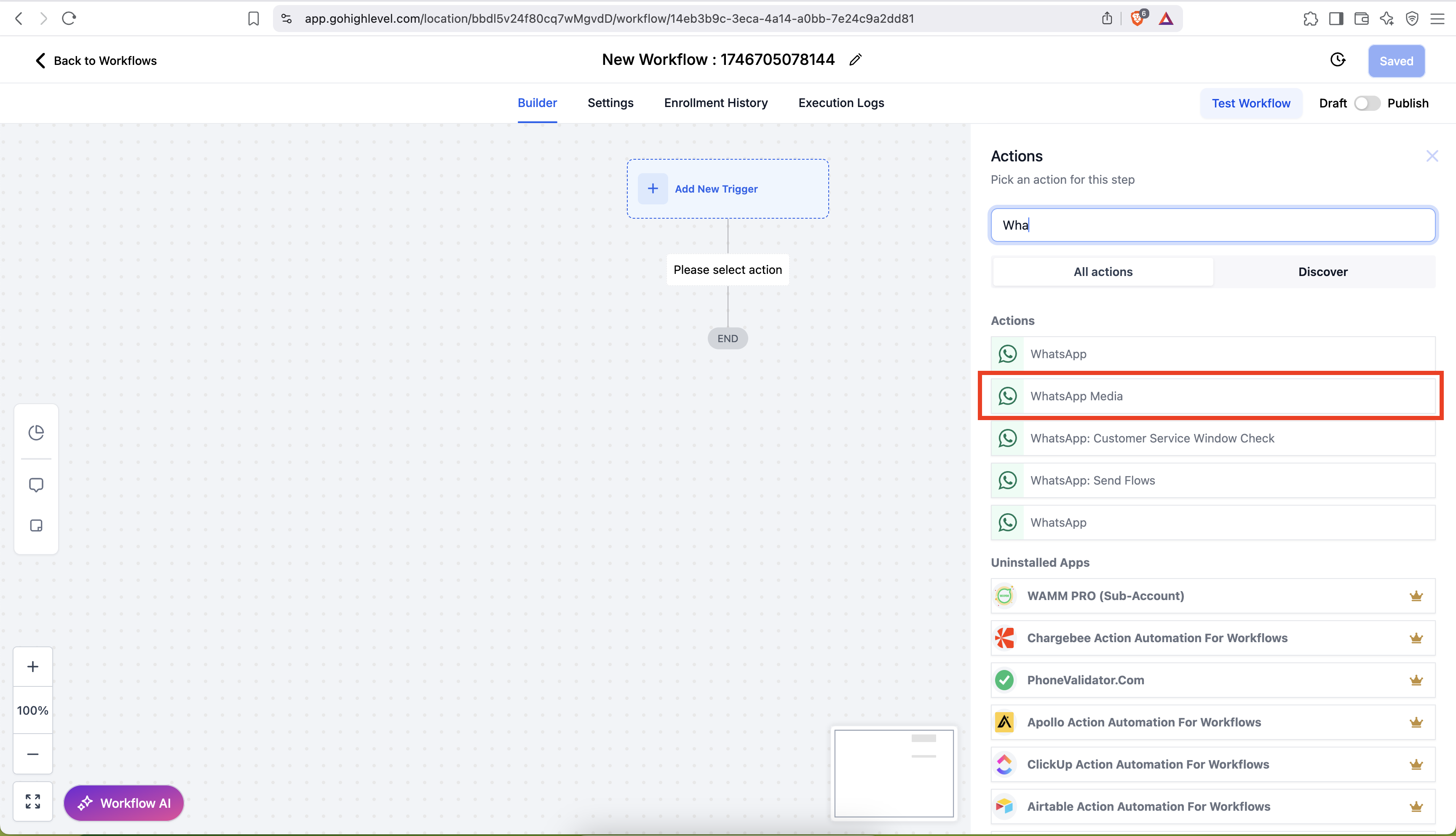
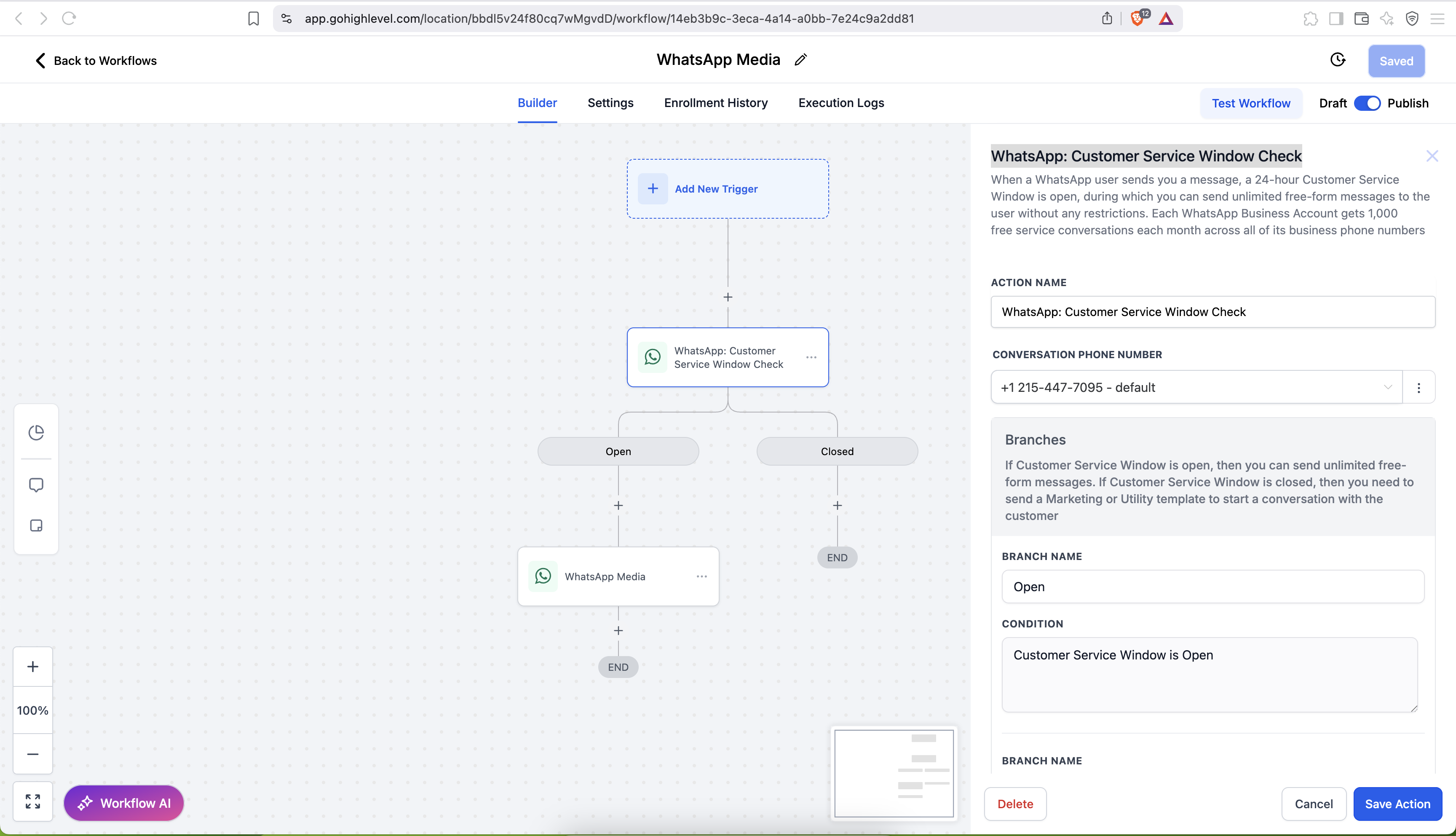
The action is found in the Automation area. You start by searching for the WhatsApp Media step, then add a Customer Service Window Check before configuring the From number, media type, file, and optional caption.
03How businesses use WhatsApp media
- Real estate agency. A real estate team adds the WhatsApp Media step to a workflow that follows a new lead’s inquiry. When the lead replies, the automation sends a property photo or brochure within the 24 hour window, using a caption to highlight key details.
- Healthcare clinic. A clinic creates a post appointment workflow that includes the WhatsApp Media action. After a patient checks in via WhatsApp, the automation delivers a PDF of after care instructions, ensuring the file is sent while the service window remains open.
- E learning platform. An e learning provider uses the action in a course enrollment workflow. When a student confirms enrollment on WhatsApp, the platform sends a welcome video and a document with login details, all within the active service window.
04The numbers and rules that matter
- Media can be sent only when the 24 hour customer service window is open.
- All media sent during an open window incur no additional cost and you may send an unlimited number of media messages.
- Images: JPEG or PNG, up to 5 MB.
- Videos: MP4 or 3GP, up to 16 MB (H.264 video + AAC audio).
- Audio: AAC, AMR, MP3, M4A, or OGG (OPUS), up to 16 MB.
- Documents: TXT, PDF, DOC/X, PPT/X, XLS/X, up to 100 MB.
- Captions are supported for images, videos, and documents; not supported for audio.
- Inbound media is available for 7 days; outbound media is available for 30 days.
05Before you start
- The customer must have sent an inbound WhatsApp message within the last 24 hours so the service window is open.
06How to set up and use WhatsApp media in HighLevel
Send media via workflow
- Navigate to Automation > Search WhatsApp Media.
- Add the WhatsApp: Customer Service Window Check step.
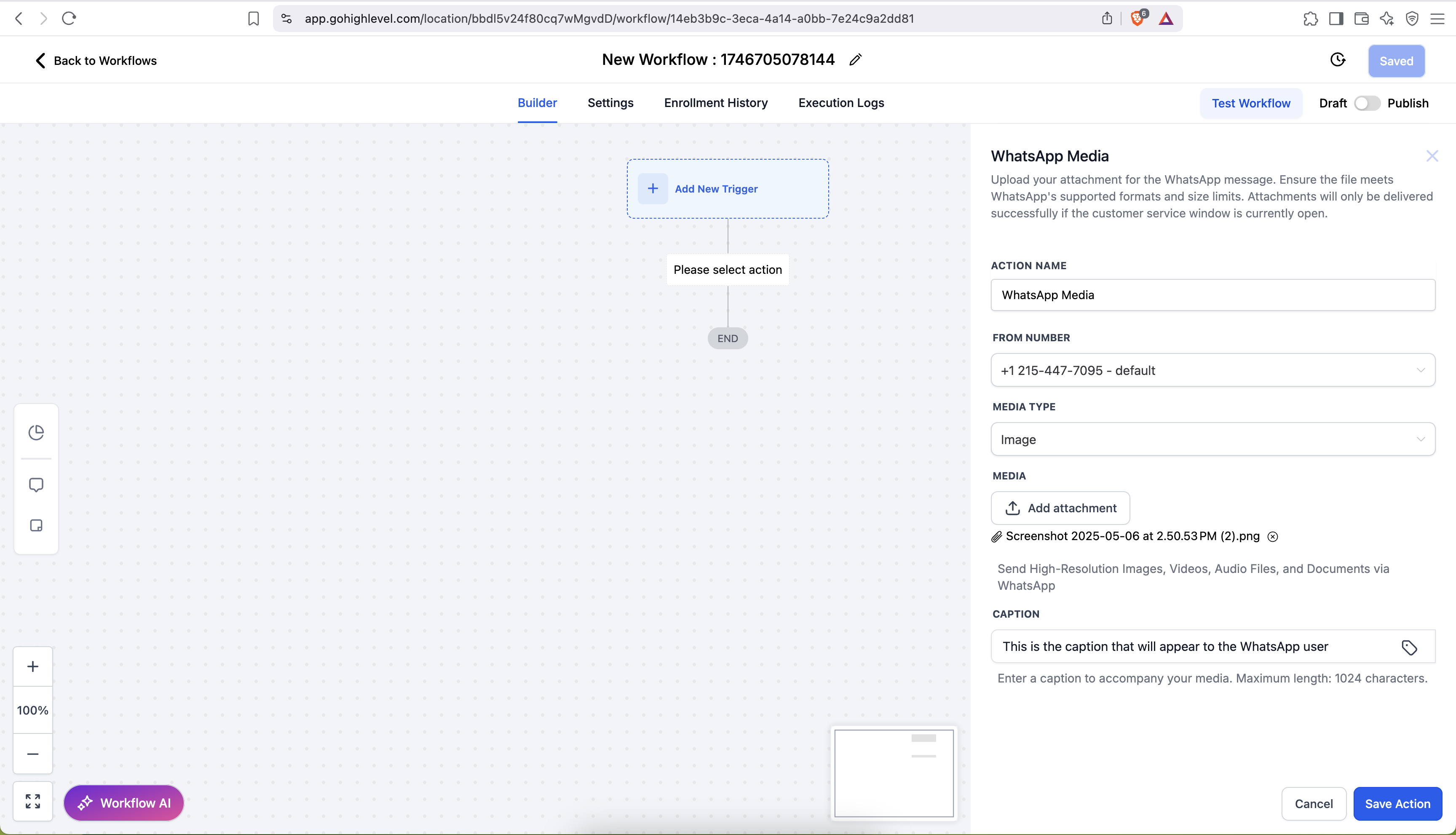
- Select the From number, choose a Media Type, upload the file, and (if supported) add a caption.
- If the file exceeds the allowed size, the action will return an error.
07What it looks like in HighLevel
08Settings that matter
- From number. Specifies which WhatsApp number will be used to deliver the media message.
- Media Type. Determines whether the file is an image, video, audio, or document.
- Caption. Adds optional text below images, videos, or documents; the field is ignored for audio files.
09Things to know before you rely on it
- Media can be sent only while the 24 hour customer service window is open.
- Images: JPEG or PNG up to 5 MB; Videos: MP4 or 3GP up to 16 MB (H.264 + AAC); Audio: AAC, AMR, MP3, M4A, OGG (OPUS) up to 16 MB; Documents: TXT, PDF, DOC/X, PPT/X, XLS/X up to 100 MB.
- Captions are supported for images, videos, and documents but not for audio files.
- Outbound media remain downloadable for 30 days; inbound media for 7 days.
- All media messages sent inside the open window are free and unlimited.
10How it connects to the rest of HighLevel
- Set up other WhatsApp automation steps to complement media sending. WhatsApp workflow integration
- Create and manage WhatsApp templates needed to reopen the service window after it closes. WhatsApp templates
- Learn how to increase the overall WhatsApp message limit if you need higher volumes. WhatsApp message limits
Michael's take

Sending media in a WhatsApp workflow feels risky if you’re not watching the 24 hour service window. Miss the window and the message simply won’t go through, and you’ll need to send a template first to get it back open.
When the window is active, the ability to drop images, short videos or PDFs straight from a workflow is a real time saver. It lets you keep the conversation flowing without manually attaching files every time.