
01Who this is for
- Founders who want to capture lead details without leaving the chat, keeping the conversation smooth.
- Agencies managing client onboarding that need to collect required data inside WhatsApp.
- Small business owners who use WhatsApp for customer support and want to gather feedback or registrations on the spot.
02WhatsApp flows, explained
WhatsApp Flows turn a HighLevel form into an interactive chat experience. When a contact receives a template message, a button opens a guided form that shows only the fields supported by the integration. The customer answers and submits the form without opening an external page. All completed entries are stored with the normal form submissions and tied to the contact record.
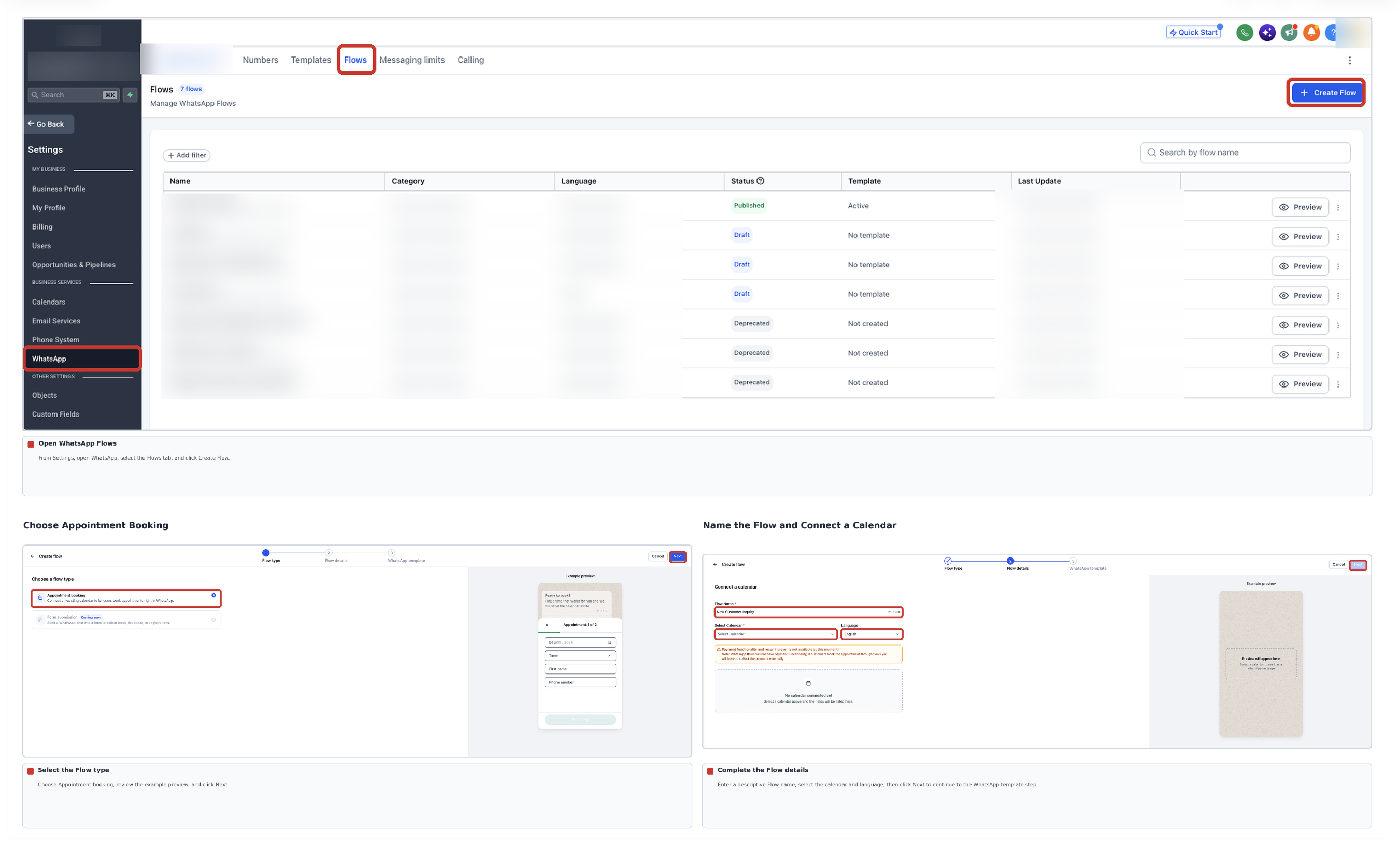
The feature lives under Settings > WhatsApp > Flows in each subaccount. From there you can create a new Flow, select an existing form or build a new one, preview how the supported fields appear, configure the WhatsApp message template (header, body, footer, button text) and publish the Flow. After Meta approves the template, you can deliver it through Conversations, automation workflows, or Bulk Actions.
03How businesses use WhatsApp flows
- Real estate agency. The agency selects a property inquiry form, previews the WhatsApp view, publishes the Flow and then sends the approved template through a workflow that triggers after a new lead is added. Prospects fill out the form directly in the chat, and the details appear in the agency’s HighLevel contact record.
- Dental practice. The practice creates a patient intake form, builds a WhatsApp Flow, and sends the template manually to each patient via Conversations. Patients tap the button, complete the intake questions inside WhatsApp, and the submission is stored under Sites > Forms > Submissions.
- Online course provider. The provider selects a registration form, publishes a Flow and uses Bulk Actions to send the template to a list of prospects. Recipients complete the registration inside WhatsApp, and the enrollment data is captured as a regular form submission linked to each contact.
04Before you start
- Confirm the WhatsApp account is connected in the relevant HighLevel subaccount.
- Ensure the user has access to the required WhatsApp and Forms settings.
- Review the information you want to collect before selecting a form.
- Obtain permission to contact recipients before sending business initiated WhatsApp messages.
05How to set up and use WhatsApp flows in HighLevel
Create and send a WhatsApp Flow
- In Settings > WhatsApp > Flows, click Create Flow and give the Flow a descriptive name.
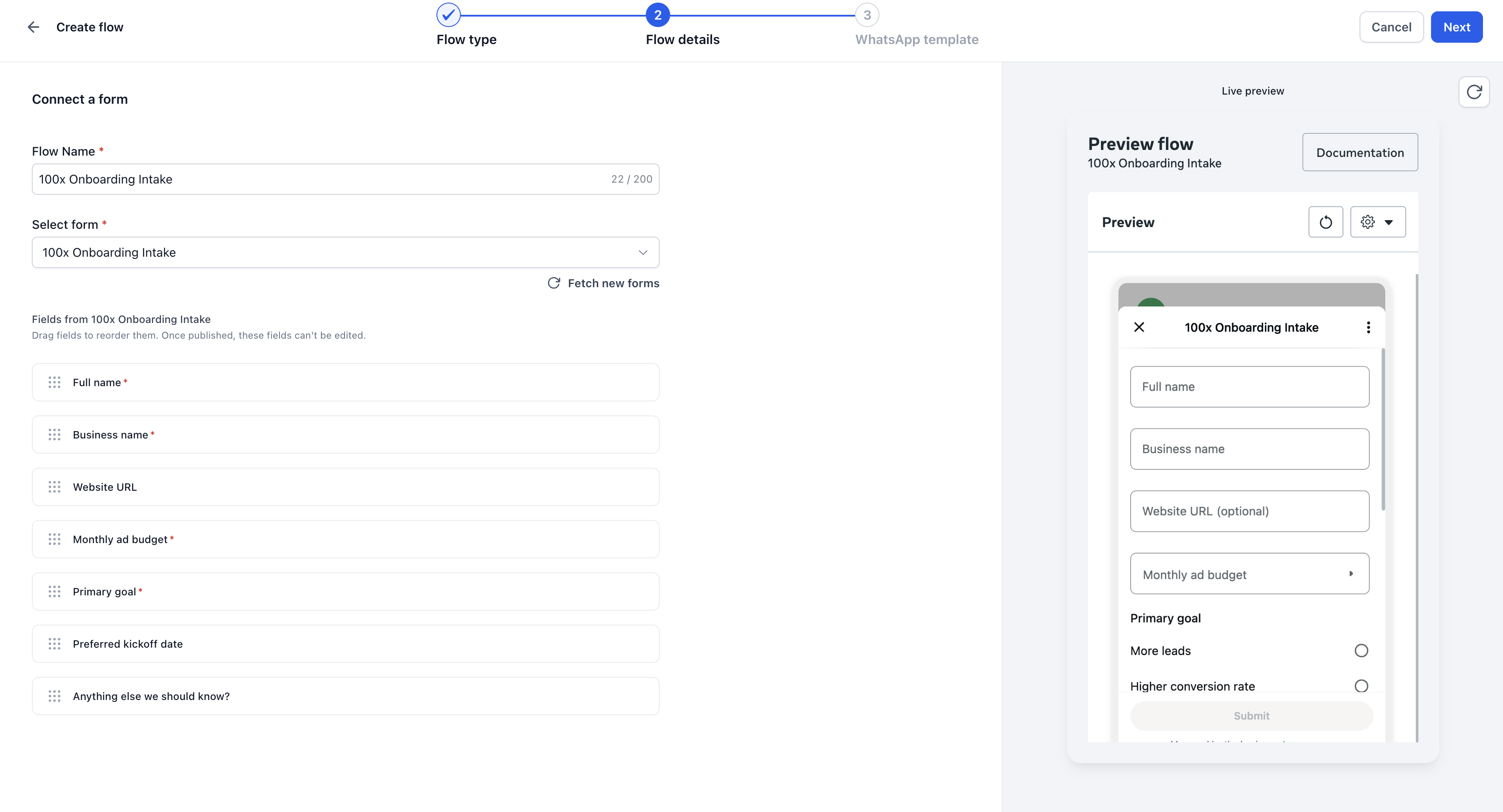
- Choose Form submission and either select an existing HighLevel form or create a new one from the Flow screen.
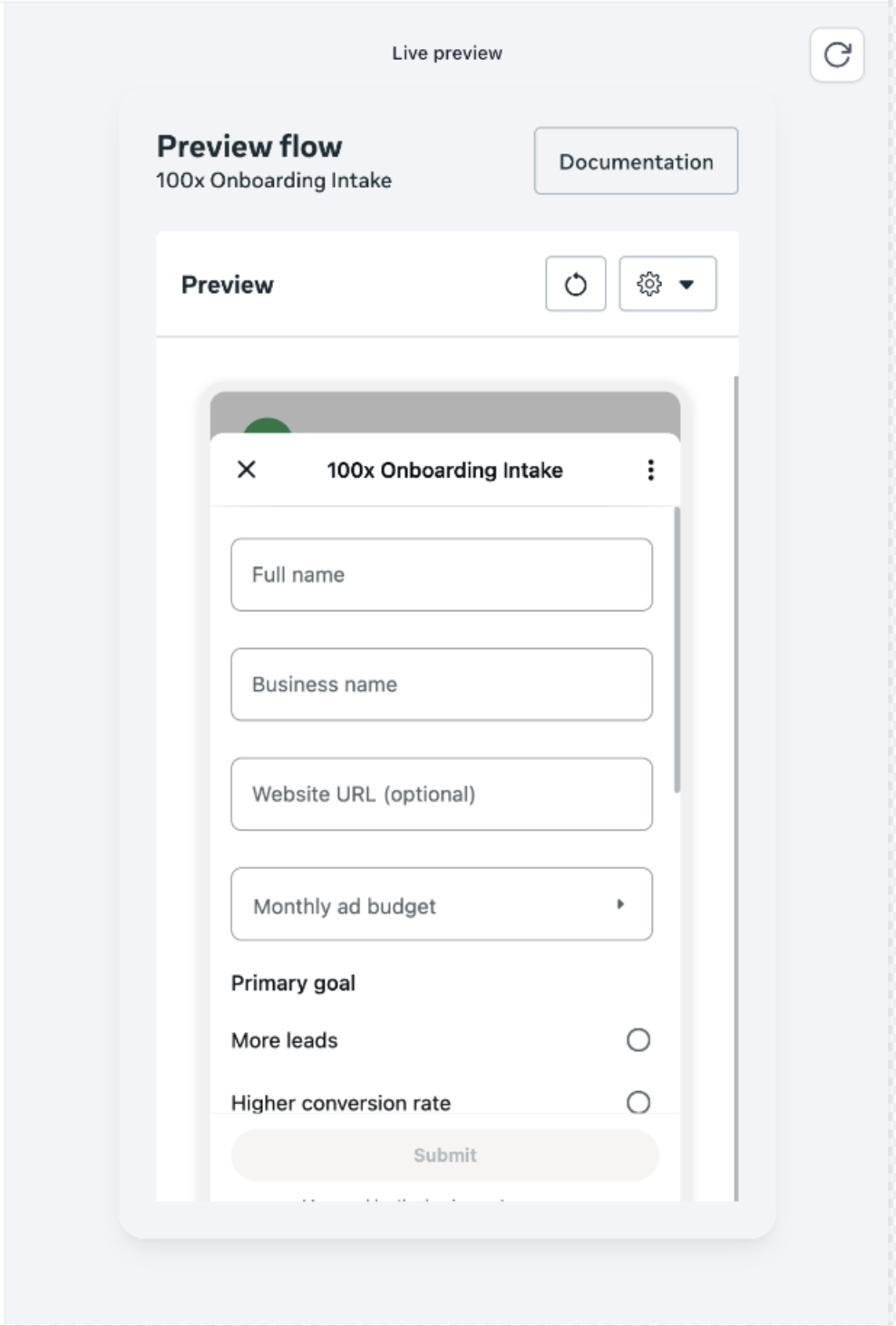
- Open the WhatsApp preview and verify that only supported fields appear; unsupported fields are excluded.
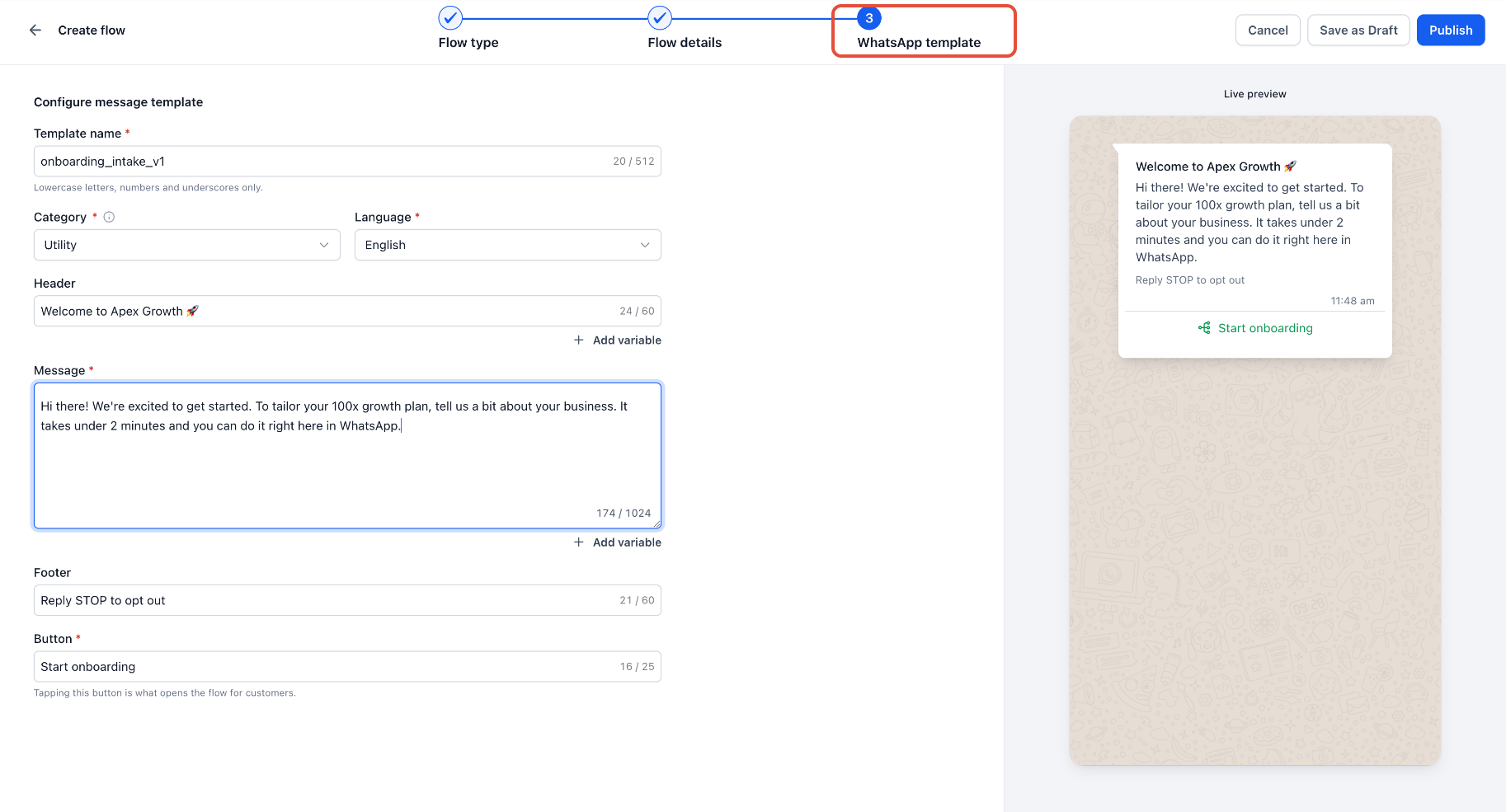
- Enter the template content, including Header, Body, Footer (if used) and the button text that opens the form.
- Select Publish to make the Flow available. Publishing does not send the Flow; the associated WhatsApp template must be approved by Meta before it can be used.
- Recommended: send the Flow to an internal test contact first, complete the form, and confirm the submission appears under Sites > Forms > Submissions.
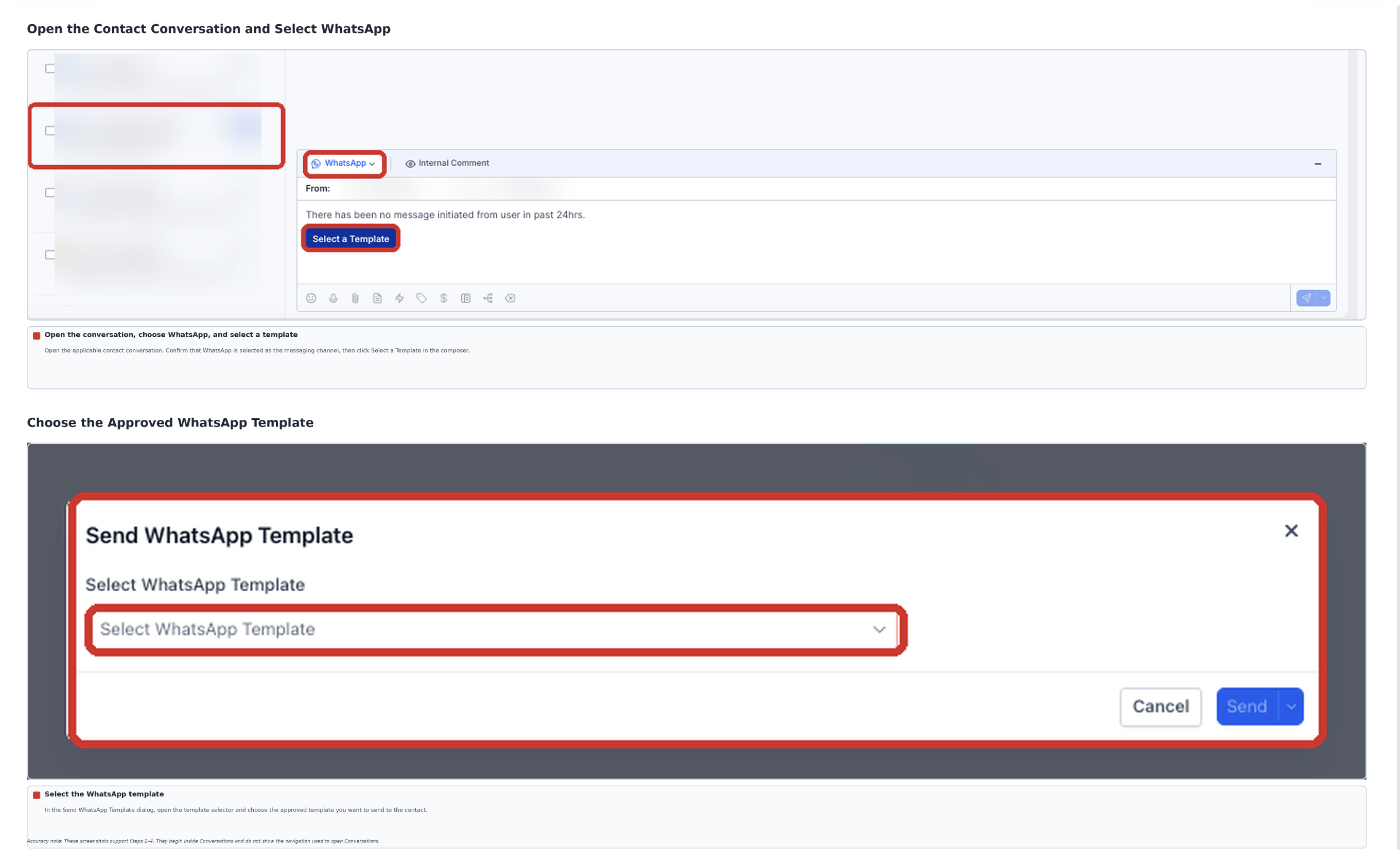
- Open Conversations, pick the contact, choose WhatsApp Template, select the approved template linked to the Flow and click Send.
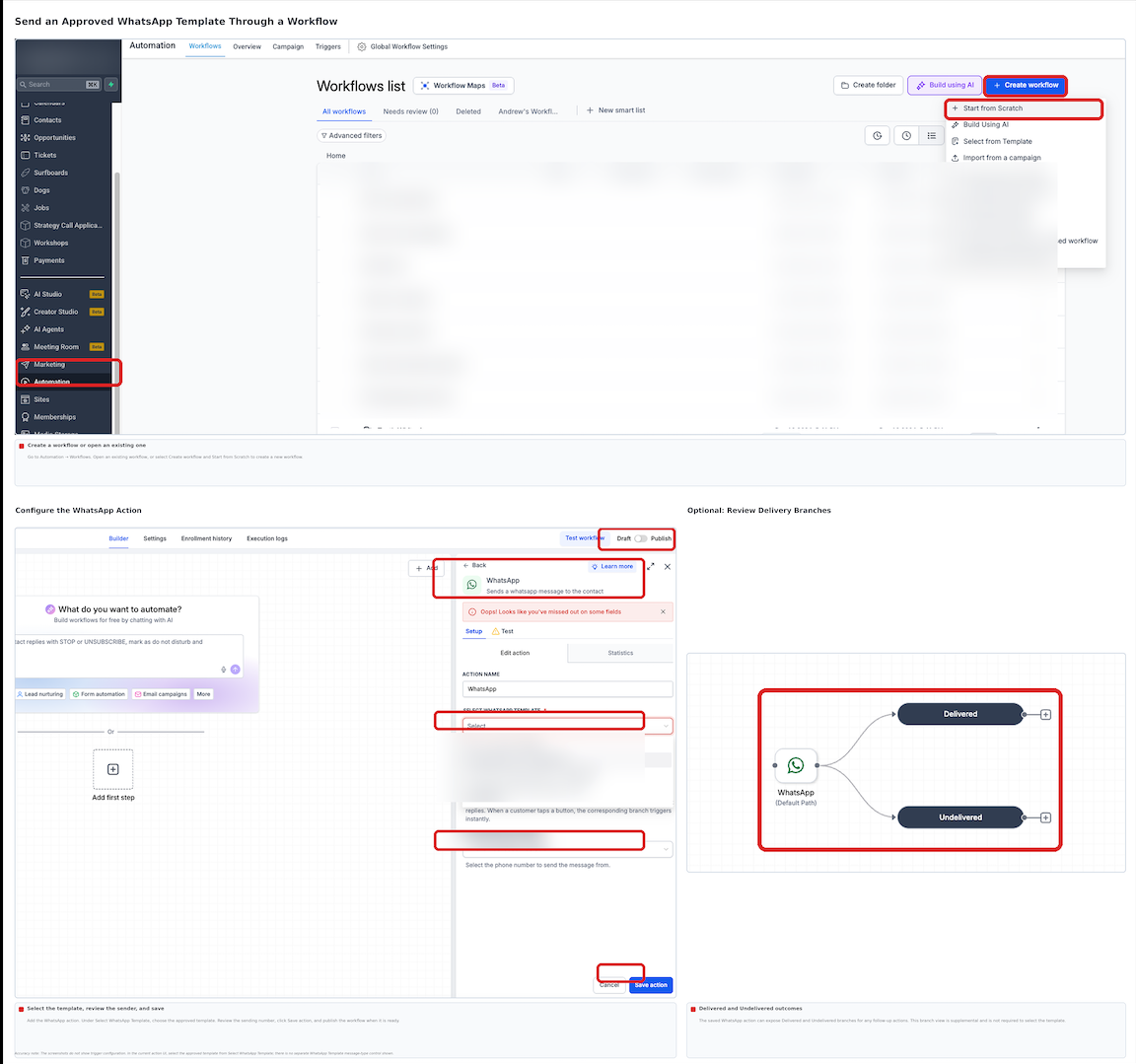
- Alternatively, send the approved template through a workflow or Bulk Actions as described in the article.
06What it looks like in HighLevel
07Settings that matter
- Header. The top part of the WhatsApp message template displayed before the body.
- Body. The main text of the WhatsApp template that includes the call to action.
- Footer. Optional text that appears at the bottom of the WhatsApp template.
- Button text. The label of the button users tap to open the in app form.
08Things to know before you rely on it
- Only form fields supported by the WhatsApp integration appear in the Flow; unsupported fields are omitted.
- Publishing a Flow does not send it; an approved WhatsApp template is required before delivery.
- Changes made to the original HighLevel form do not automatically update an already published Flow.
- Business initiated messages require prior permission to contact the recipient.
09If something goes wrong
- Some form fields are missing from the preview. Review the WhatsApp preview; unsupported fields are excluded from the Flow experience.
- The Flow cannot be published. Review the configuration and resolve any validation errors shown in the Flow builder.
- The WhatsApp template cannot be sent. Confirm that the template has completed the applicable Meta approval process.
- Changes to the original form are not appearing. Changes to the original form do not automatically update an already published Flow. Review the Flow configuration before using it again.
- A submission cannot be found. Confirm that the customer completed the final submission step, then check Sites > Forms > Submissions in the correct subaccount.
10How it connects to the rest of HighLevel
- Set up WhatsApp automation workflows to send templates automatically. WhatsApp workflow integration
- Link a LeadConnector number to use a WhatsApp Business account. LeadConnector number for WhatsApp
- Review pricing and plan options for WhatsApp capabilities. HighLevel pricing
Michael's take

WhatsApp flows feel like a modest convenience rather than a massive shift. They let you keep a short questionnaire inside the chat you’re already using, which can smooth the hand off from conversation to data capture. If you run a service that needs a quick address or preference check before a call, this is a tidy way to get that info without launching a separate landing page.
I’d start by building a simple lead capture form, publish the flow, and send it to an internal test contact. Watching the submission land in the Forms dashboard confirms everything is wired correctly before you start messaging real prospects.