
01Who this is for
- Founders of service businesses who need a straightforward way to ask customers for reviews after a sale.
- Marketing managers in agencies that want to automate review collection for multiple client accounts.
- Customer support teams that prefer a manual button to trigger a review request during a support call.
02Review requests, explained
Review requests are messages sent to contacts asking them to leave a Google Business Profile review. They can be delivered by SMS or email and are logged inside the platform.
The platform provides three entry points. Quick Actions are a shortcut at the top left of the UI for one click manual sending. Workflow actions let you add a “Send Review Request” step to an automated flow, choosing the channel. The Reputation tab contains a Requests list where you can manually create and track individual requests.
Each request receives a status: Queued, Sent, Delivered, or Failed. Delivery confirmation for SMS comes from Twilio; email delivery is not confirmed by Mailgun. Failed status may indicate an invalid phone number or mismatched SMTP credentials.
03How businesses use review requests
- Dental practice. After a patient’s appointment, the practice adds a “Send Review Request” step to its post visit workflow, selects SMS, and saves the flow. The system then automatically sends the request from the dentist’s assigned user.
- Real estate agency. When a property sale closes, an agent clicks the Quick Actions menu, chooses “Send Review Request,” and the request is sent from the agent’s logged in account without leaving the contact record.
- SaaS subscription service. The team opens the Reputation tab, navigates to Requests, and manually triggers a review request for a newly onboarded customer, keeping a record of each request in the tab.
04Before you start
- Integrate the Google Business Profile (GMB) first, or use a third party review link.
- Enable the Review requests toggle in the subaccount settings.
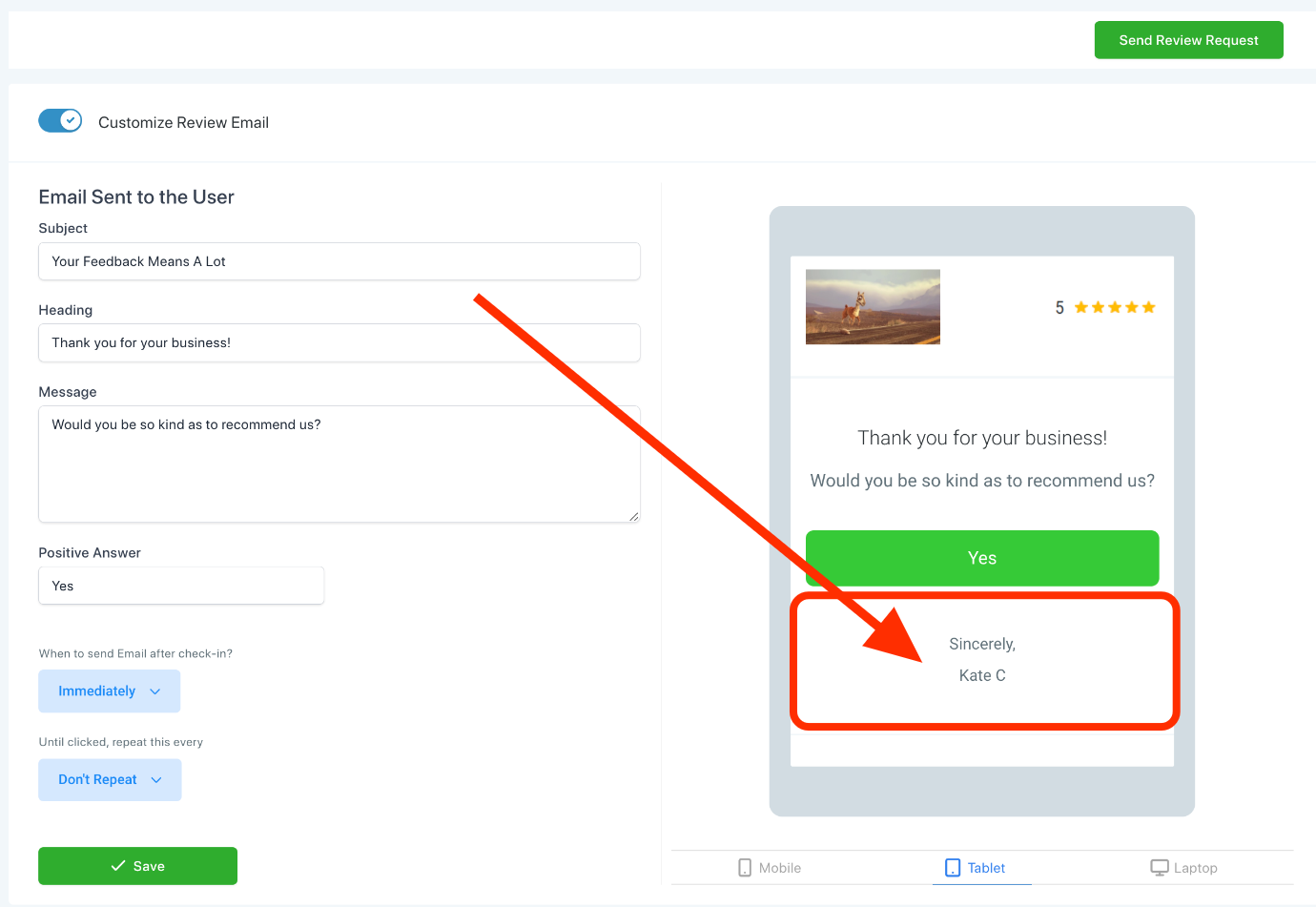
- Optionally customize outbound SMS or email review messages.
- Make sure the Google Business Profile is fully connected to the correct location.
05How to set up and use review requests in HighLevel
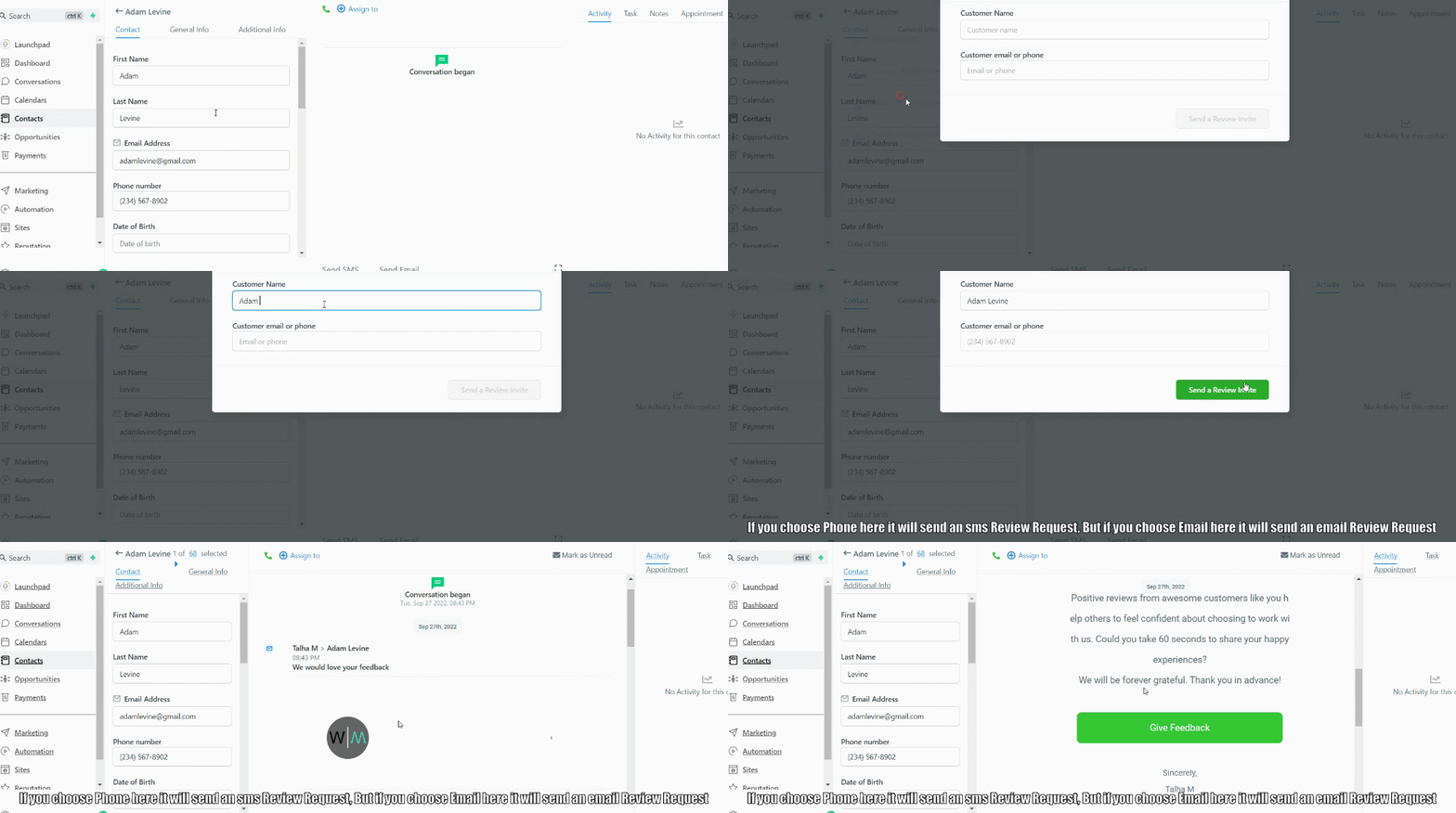
Send a review request using Quick Actions
- Open the Quick Actions menu located above the sidebar.
- Select the “Send Review Request” option.
- Confirm the request; it will be sent from the signed in user.
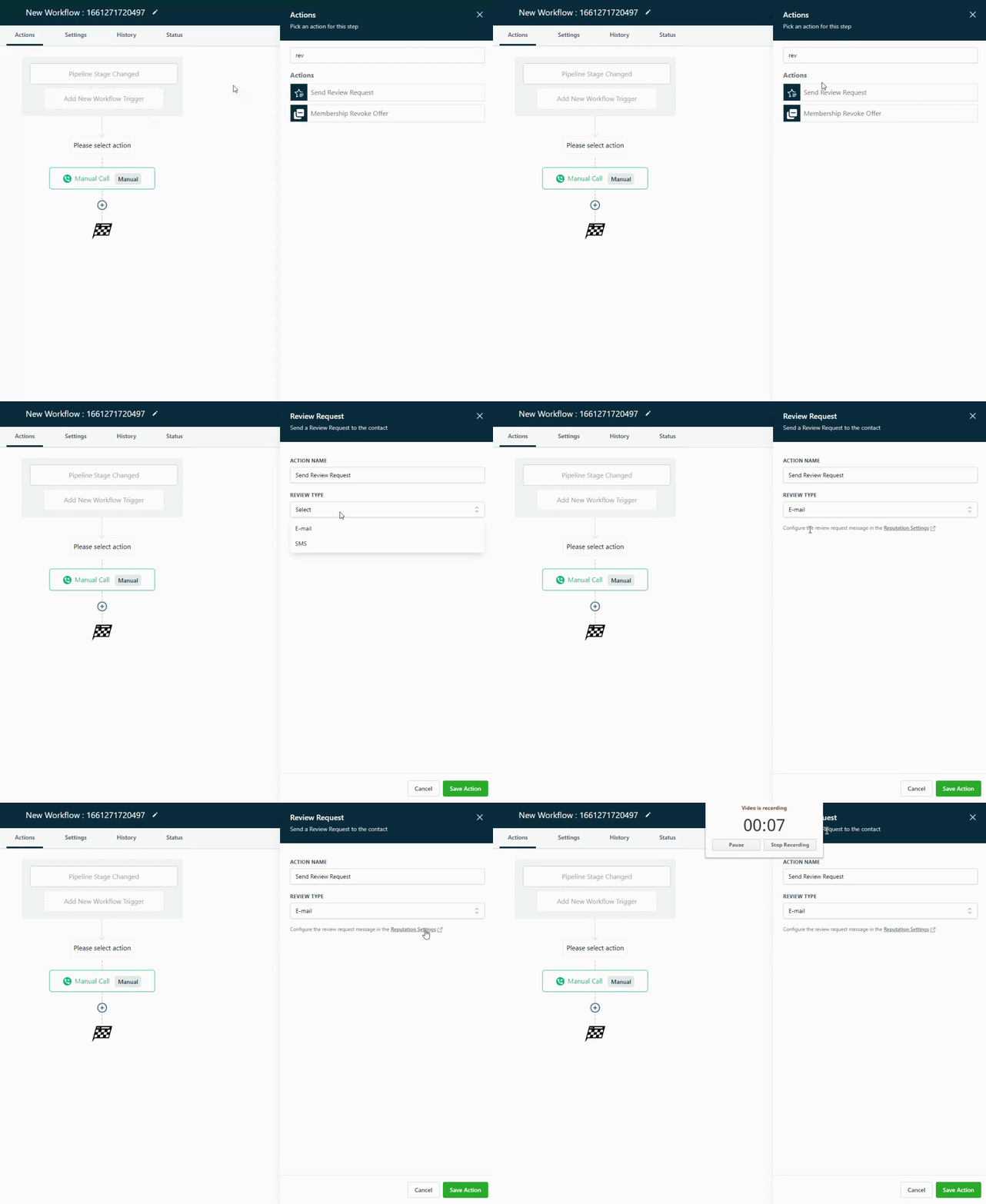
Automate a review request with a workflow
- Edit or create a workflow and add the “Send Review Request” action.
- Choose the delivery channel, either Email or SMS.
- Save the workflow so the request is sent automatically.
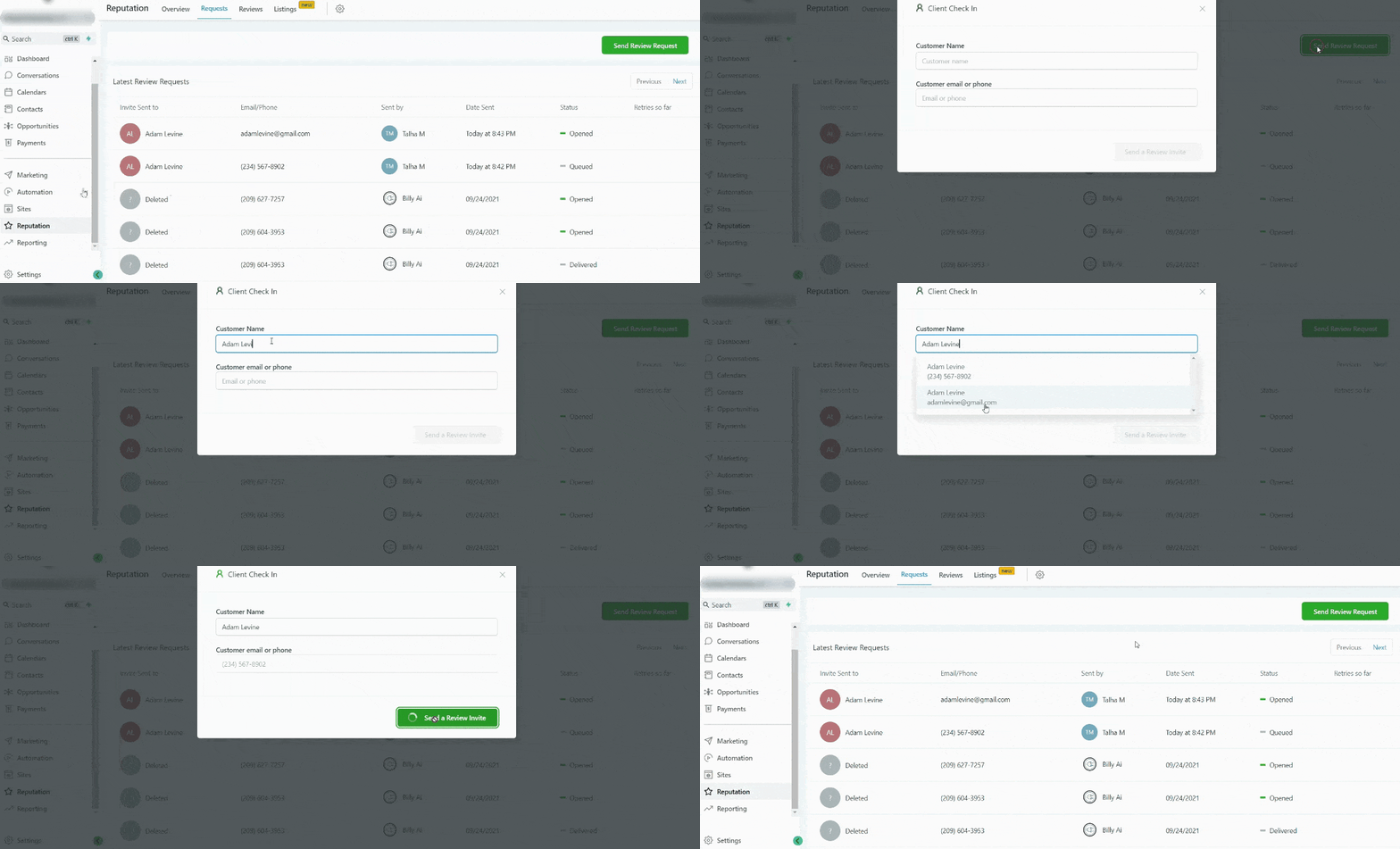
Manually send a review request from the Reputation tab
- Navigate to the Reputation tab in the left sidebar.
- Open the Requests sub section.
- Use the interface to send an individual review request manually.
06What it looks like in HighLevel
07Settings that matter
- Review requests. Toggle that enables the ability to create and send review request messages within the account.
- Outbound (SMS/Email) review messaging. Customization options for the content of review request messages sent via SMS or email.
08Things to know before you rely on it
- Queued status indicates the system will try to send the request immediately, but it may wait if other requests are ahead or if a delay is configured.
- Delivered status is only provided for SMS when Twilio confirms delivery; email delivery is not confirmed by Mailgun.
- Failed status can occur due to an invalid phone number or mismatched SMTP user credentials.
09How it connects to the rest of HighLevel
- Customize the review request SMS and email messages Custom review messages
- Set up workflow triggers for new Google and Facebook reviews Review triggers
- View the reputation overview dashboard for request stats Reputation dashboard
Michael's take

Getting reviews is a direct line to more sales, better SEO and stronger trust. A small business that can automate that ask sees real upside.
Never send a request from the wrong user or from an invalid number.