
01Who this is for
- Founders who need to protect their brand’s online image by removing false reviews.
- Reputation managers responsible for monitoring and responding to customer feedback.
- Marketing agencies that handle multiple Google Business Profile listings for clients.
02Google review disputes, explained
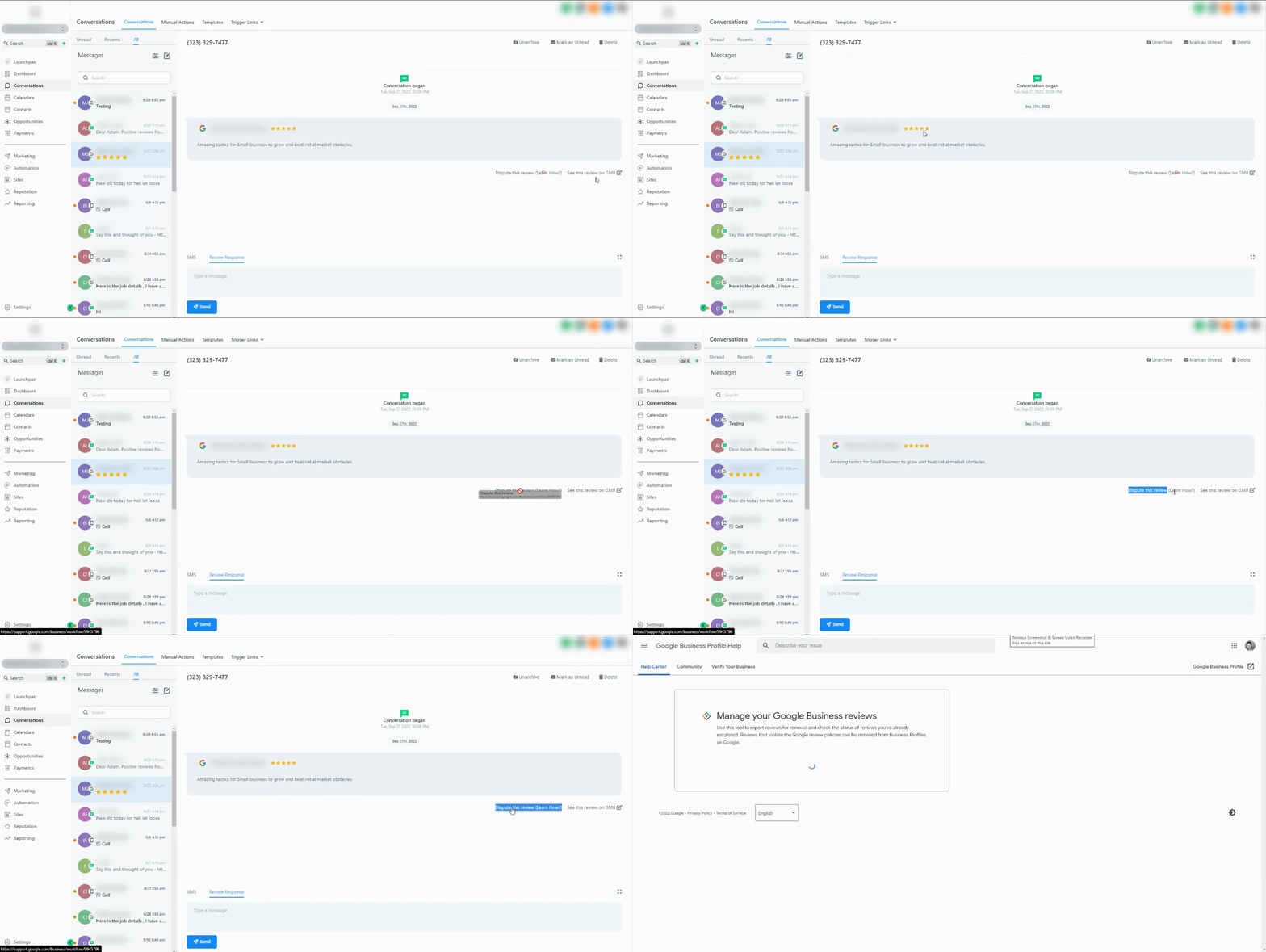
The dispute tool is located inside the Conversations section of HighLevel. It allows users to flag a review as inappropriate, submit a takedown request to Google, and later view the status of that request. The workflow works only for reviews that originated from the system; external reviews require a separate process.
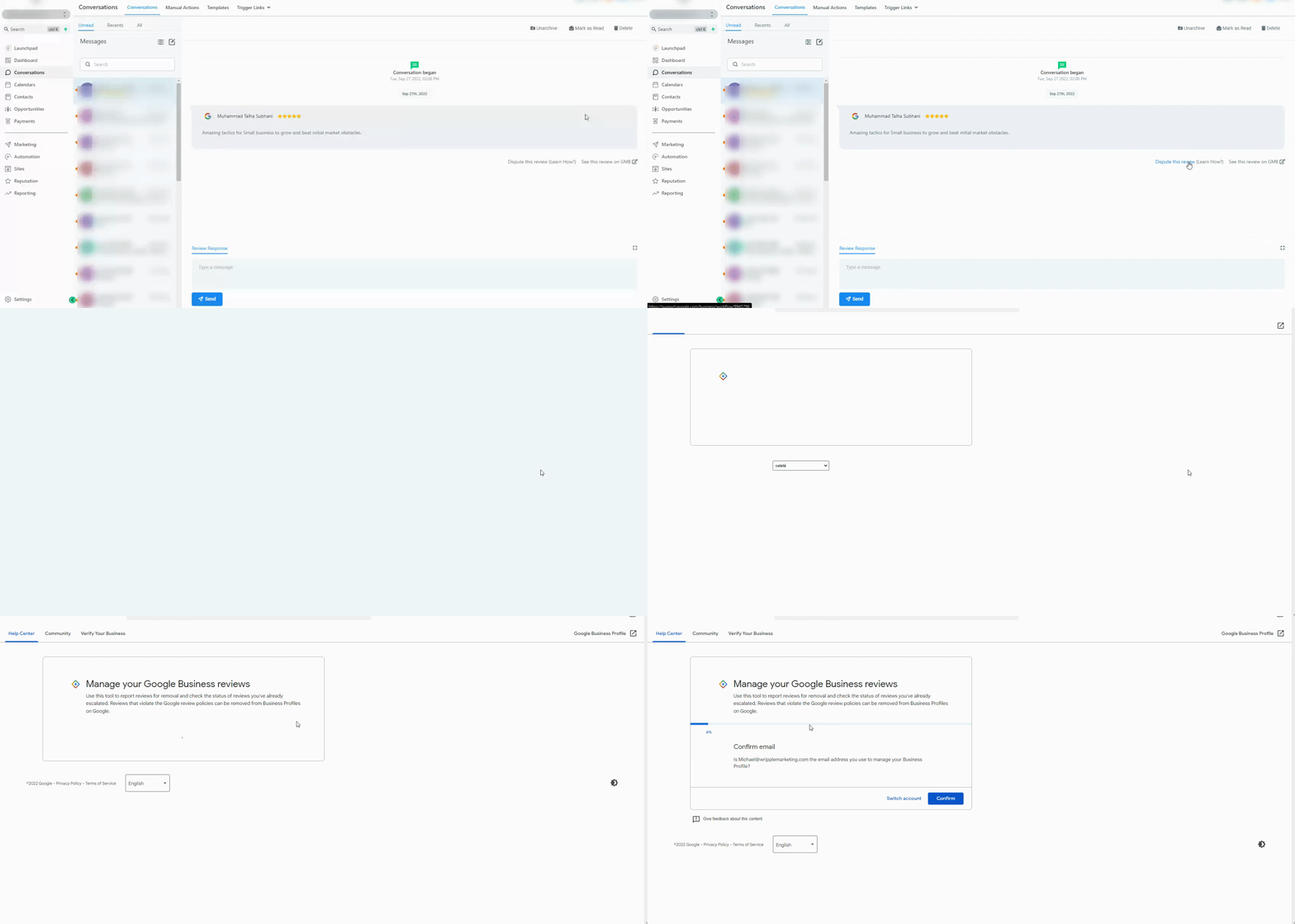
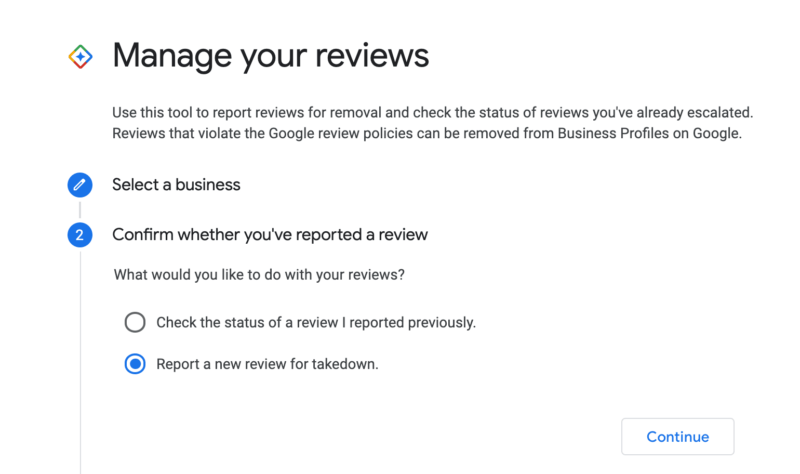
When you launch the dispute, HighLevel prompts you to confirm the Google email and business account tied to the review. After confirmation, you can either request removal of a new review or check the progress of an earlier report. Status information includes the current handling state and an option to appeal if Google declines the takedown.
03How businesses use the Google review dispute
- Dental practice. The office locates a negative review in the Conversations tab, clicks Dispute this review, confirms its Google account, and submits a takedown request for the review that cites false claims about treatment quality.
- Real estate agency. An agent reviews the list of reported reviews, selects a previously disputed comment about a property, and checks whether Google has removed it or provided a status update, allowing the agency to decide on further action.
- Restaurant. The manager uses the dispute feature to flag a review that includes offensive language, confirms the correct Google Business Profile, and submits the removal request, then later monitors the review’s status within Conversations.
04The numbers and rules that matter
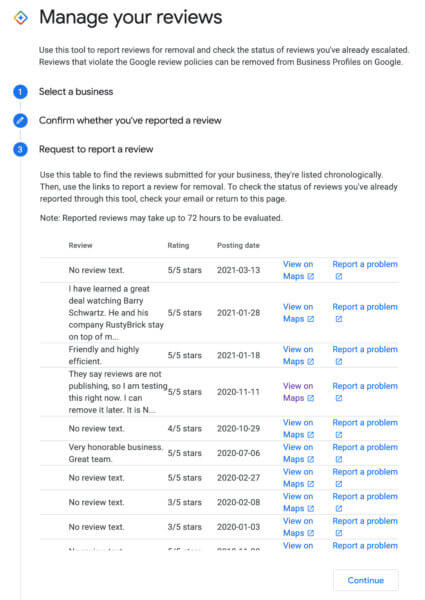
- There is a limit to the number of reviews Google will show you here.
05Before you start
- The review must have been generated by the HighLevel system.
- You need to know the Google email and business account linked to the review.
06How to set up and use the Google review dispute in HighLevel
Report a Google review
- Open the Conversations tab inside HighLevel.
- Search for the contact linked to the review you want to dispute.
- Click the Dispute this review button.
- Confirm the Google email and business account associated with that review.
- Select the option to report a new review.
- Review the recent Google reviews list and choose the one to view on Google Maps or to request removal.
- Submit the takedown request for the selected review.
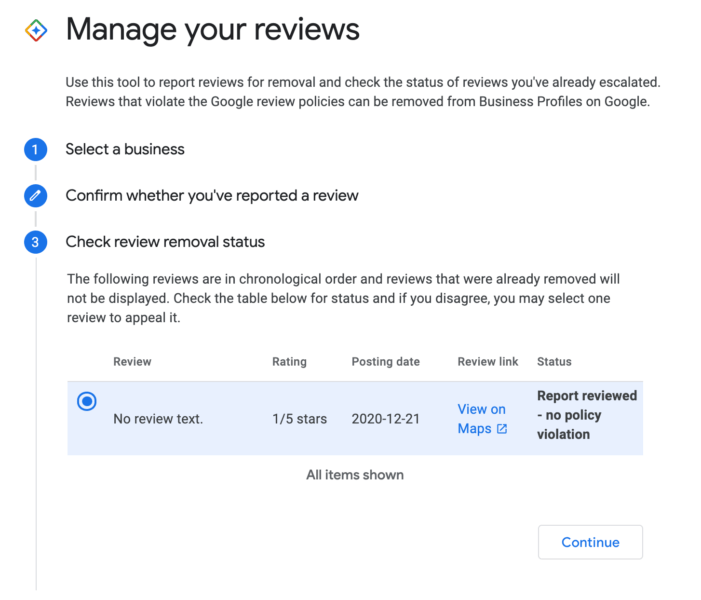
Check status of a reported review
- In Conversations, click the link to view reported review status.
- The screen shows all reviews you have previously reported together with their current status.
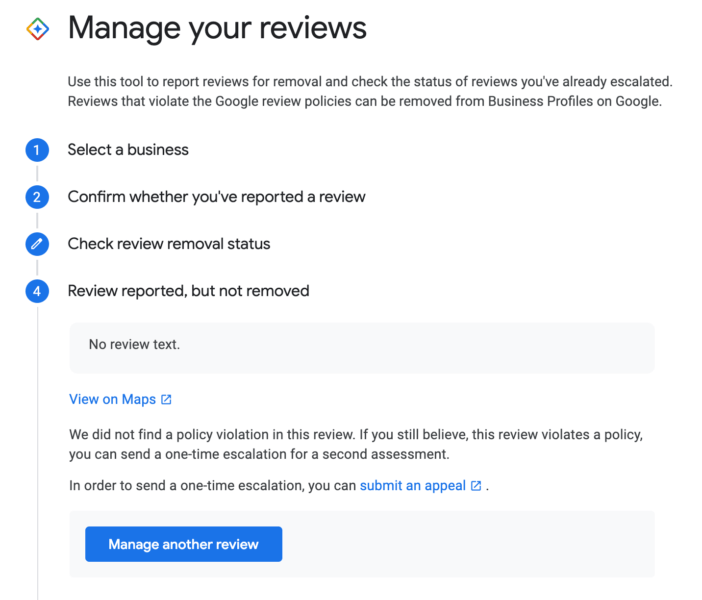
- Select a specific review to see a detailed summary.
- If the takedown was denied, use the provided option to submit an appeal.
07What it looks like in HighLevel
08Things to know before you rely on it
- The feature shows only a limited number of reviews; it works best for accounts with few Google Business Profile listings.
- Accounts managing many listings may see a message that the process is not available.
09How it connects to the rest of HighLevel
- Sending review requests in HighLevel: manual and workflow options Review request options
- Reputation Management: Customizing & Displaying the Review Widget Review widget guide
- HighLevel pricing and plans Pricing page
Michael's take

In HighLevel you can pull the review into the Conversations tab, flag it, and let Google decide if it violates their rules.
If I were managing a few locations, I’d use the built in status view to keep an eye on any takedown requests, so I know whether Google removed the review or if I need to appeal, all without jumping between platforms.