
01Who this is for
- Marketing managers can showcase client testimonials directly on their site to build trust.
- Small business owners gain a simple way to display Google and Facebook reviews without extra software.
- Agency owners can embed review widgets for client funnels, keeping reputation visible across platforms.
02Review widget, explained
The review widget aggregates your Facebook and Google reviews and renders them as a single block that can be placed on any page. Within HighLevel you can adjust its look and then obtain a code snippet for external use. The widget appears under the Reputation tab, where you can see all collected reviews.
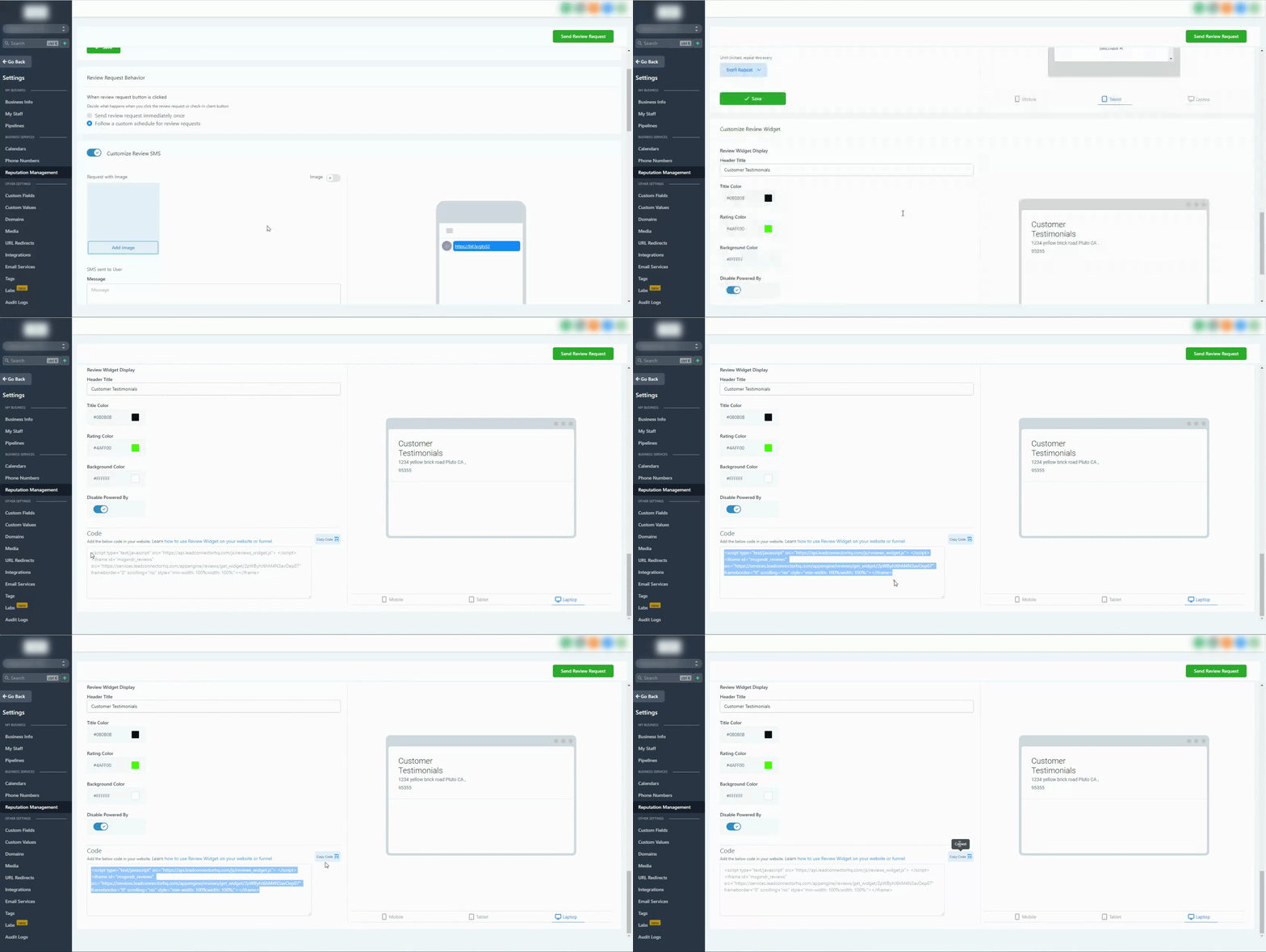
To use the widget on a funnel or website, add the Review Widget Element inside the page builder. For any third party platform, copy the HTML code from the Subaccounts settings and paste it into the target site’s code.
The widget lives in the Reputation Management area of Subaccounts settings. From there you can copy the code, and the same element can be dragged into funnels for native display.
03How businesses use review widget
- Dental clinic. A dental clinic can add the Review Widget Element to its appointment booking page to display patient Google and Facebook reviews, helping new visitors see feedback directly on the site.
- Restaurant. A restaurant can copy the widget code from Subaccounts settings and paste it into its online menu page hosted on a third party site, showing recent diner reviews without building a new page in HighLevel.
- Digital marketing agency. A digital marketing agency can embed the widget code into client landing pages built on external platforms, ensuring each client’s reputation is visible wherever the page lives.
04The numbers and rules that matter
- The review widget can be used on 3rd party platforms by embedding the code provided.
05How to set up and use review widget in HighLevel
Embed review widget on third party platform
- Navigate to Subaccounts settings and select Reputation Management.
- Scroll down and click the Copy Code button to capture the widget snippet.
- Paste the copied code into the HTML of the third party platform where the widget should appear.
06What it looks like in HighLevel
07Settings that matter
- Copy Code. Copies the widget's HTML snippet so it can be placed on external sites.
- Review Widget Element. Drag and drop element that displays Facebook and Google reviews within funnels or websites.
08How it connects to the rest of HighLevel
- Customize the review request messages sent via SMS or email review request customization
- Send review requests manually or through workflows sending review requests
- View your overall reputation metrics in the dashboard reputation dashboard
Michael's take

I’d verify that both Facebook and Google reviews appear as expected and that the widget lives under the Reputation tab for easy management.