
01Who this is for
- Marketing managers who need consistent brand voice across review solicitations can use templates to keep messages uniform.
- Customer experience teams can automate follow ups, reducing manual outreach after each check in.
- Small business owners who want to drive reviews to Google or a custom page can control the destination link.
02Review request messages, explained
The feature lives under the Reputation section in the platform’s Settings area. It supports both SMS and email channels, allowing a business to enable each channel separately, set timing rules, and assign specific templates for the first send and each retry.
When activated, the system watches for a trigger such as a manual "Send Review Request" or a workflow based Review Request action. After the defined delay, it sends the live template. If the recipient does not click the embedded review link, the system repeats the message according to the retry cadence until the maximum number of attempts is reached.
A Review Link determines where the recipient lands after clicking. The link can be a balanced URL that distributes traffic across connected platforms, or a custom URL that points to a single review form. The link token {{reputation.review_link}} is inserted automatically into each template.
03How businesses use review request messages
- Dental practice. The practice enables SMS review requests, sets the first text to send immediately after a patient’s appointment, and configures two daily retries. A custom template with the practice’s logo and the {{reputation.review_link}} token is saved and assigned as the live message.
- Restaurant. The restaurant turns on email review requests, selects a one hour delay after the dining experience, and adds a template that includes multiple review buttons. It uses the Review Balancing option so customers are routed to the restaurant’s Google listing or other platforms automatically.
- SaaS startup. The startup creates a custom review link that points to its own feedback portal. It enables both SMS and email channels, sets a custom interval of three days between retries, and defines a maximum of three attempts per contact.
04The numbers and rules that matter
- Maximum retries defines how many follow ups are sent if the link isn’t clicked.
05Before you start
- Connect a Google Business Profile if you intend to use Review Balancing.
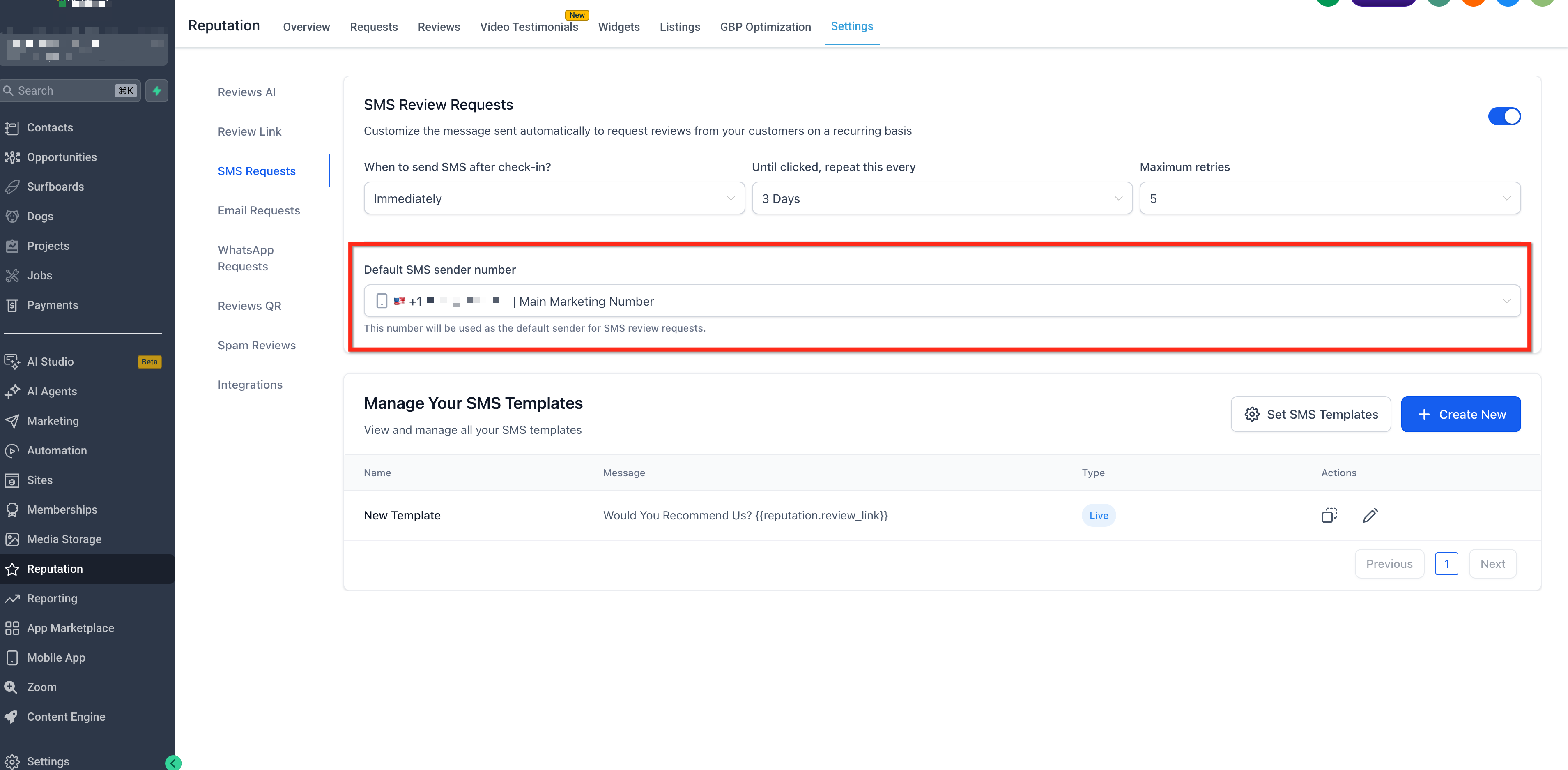
- Ensure a valid phone number and email address are available to set as default senders.
06How to set up and use review request messages in HighLevel
Set up review request messaging
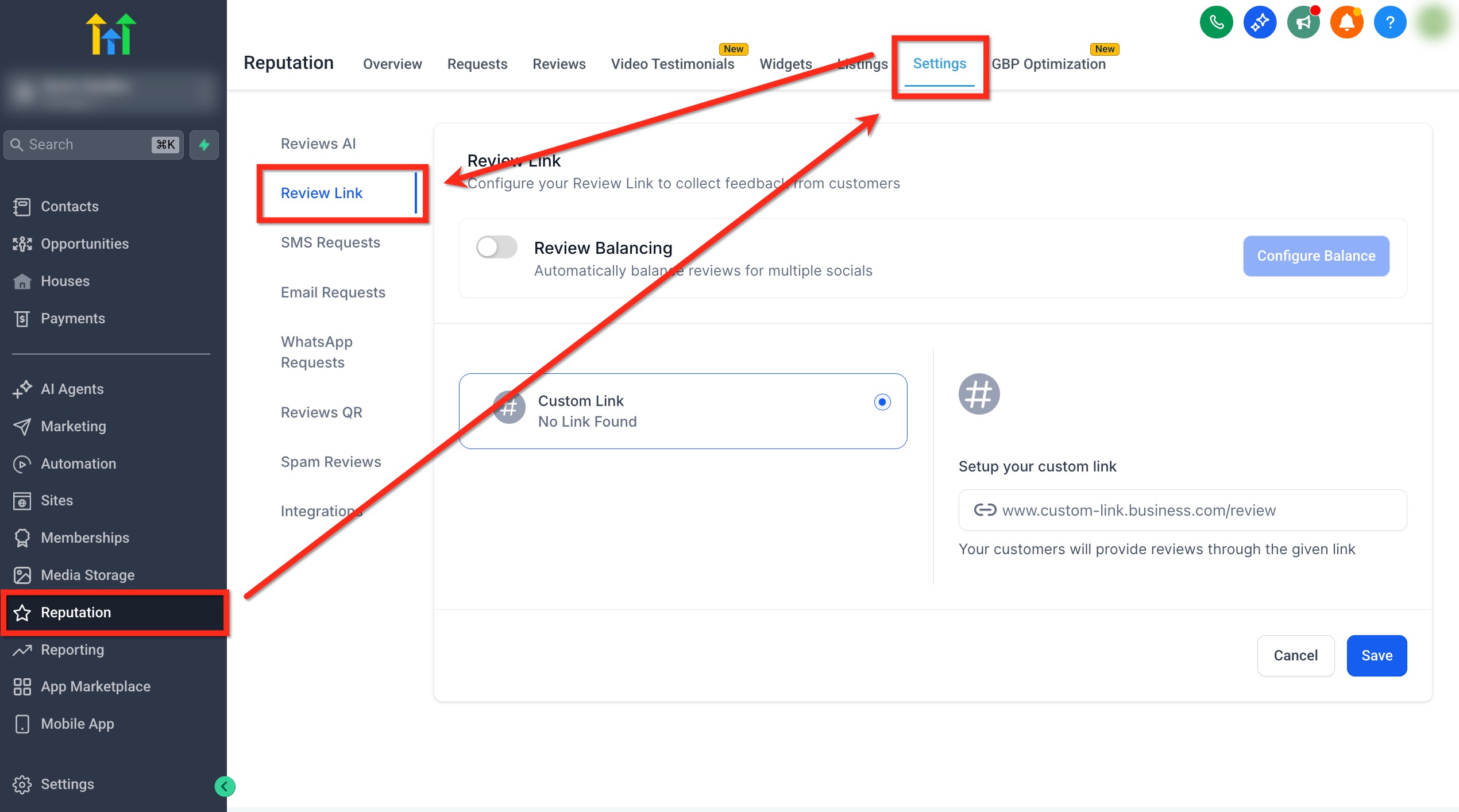
- Open Reputation, select Settings, and either turn on Review Balancing or choose the Custom Link option, then paste the desired URL.
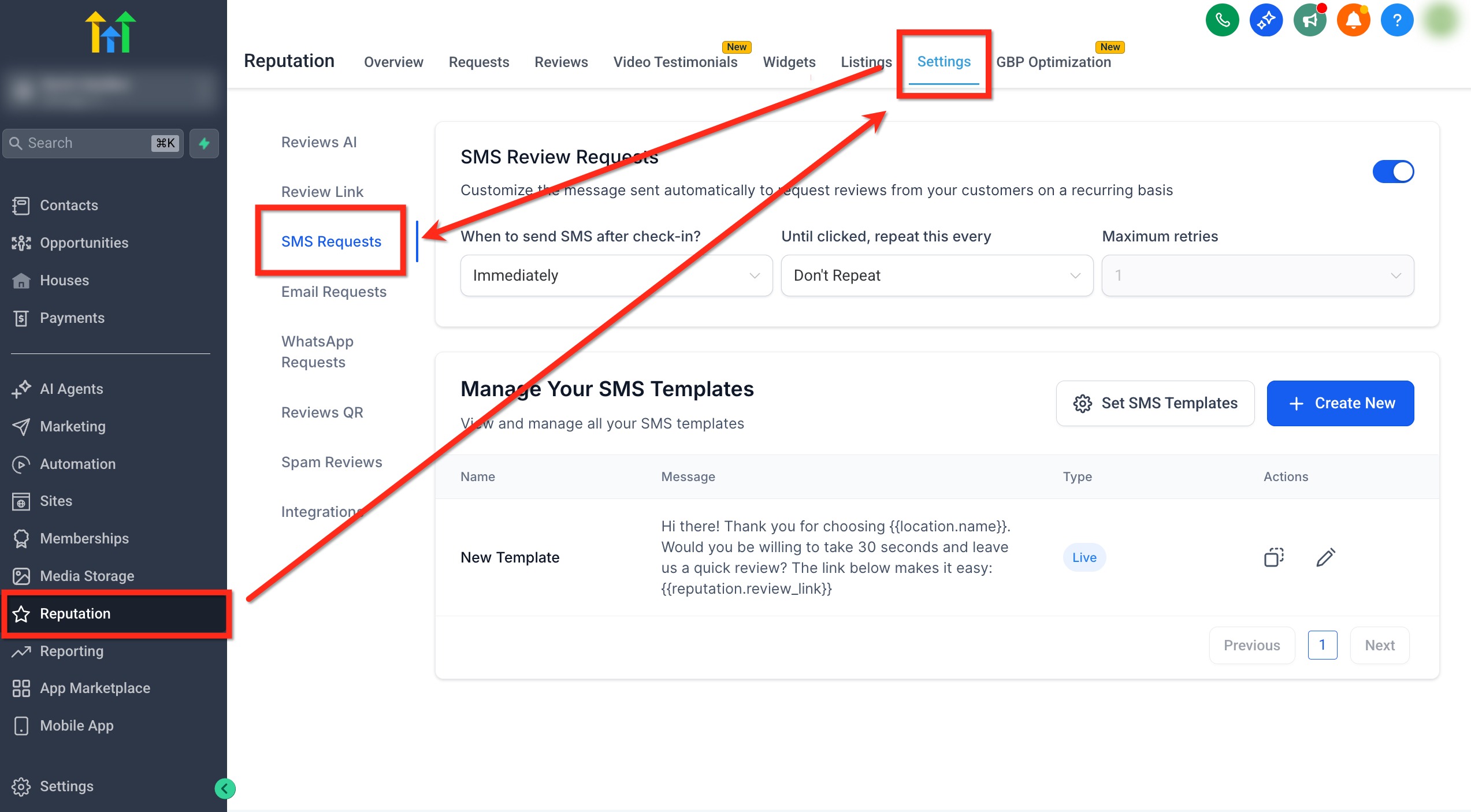
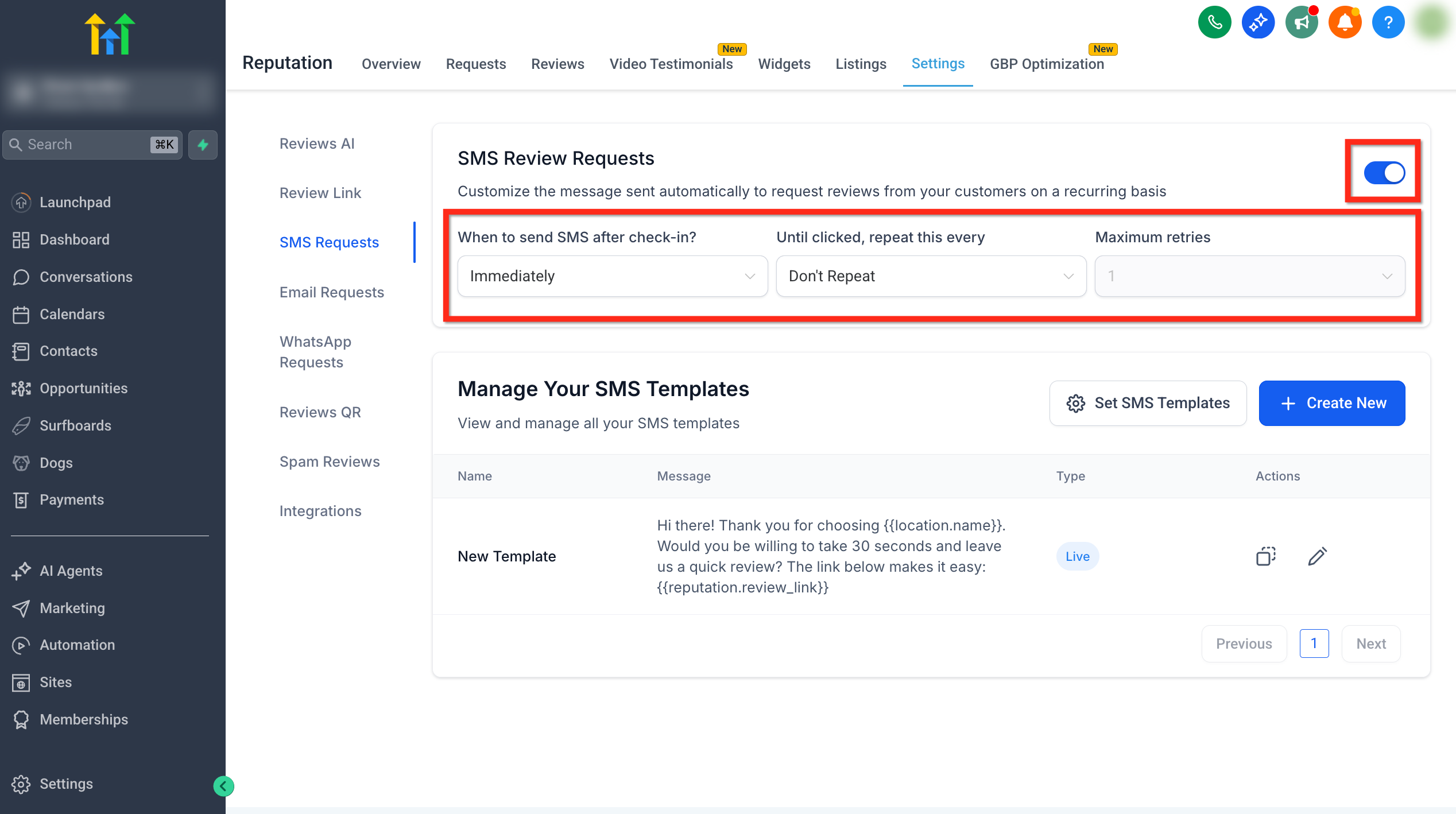
- Navigate to Reputation > Settings > SMS Requests and toggle the feature on, set the initial send time after check in, define the repeat interval, and specify the maximum number of retries.
- Click Create New in the SMS Requests area to add a new SMS template or edit an existing one.
- After selecting Create New, decide whether to start from scratch or pull a template from the Pre Built library.
- From the SMS Template Library, pick a pre built option such as Request a Review and click Edit Template to open it.
- Enter a template name, optionally enable Request with Image, write the message using the {{reputation.review_link}} token, preview the phone view, and click Save.
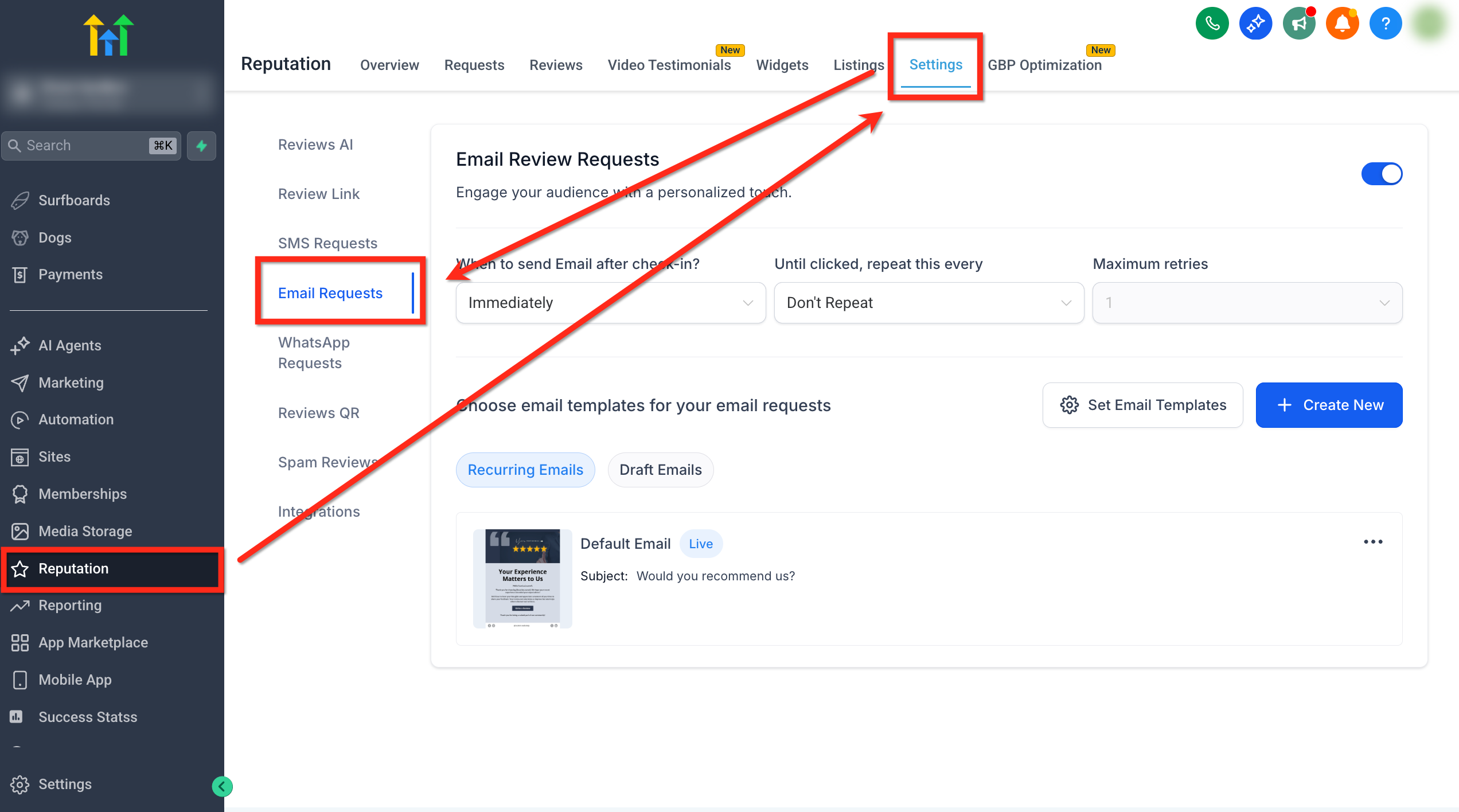
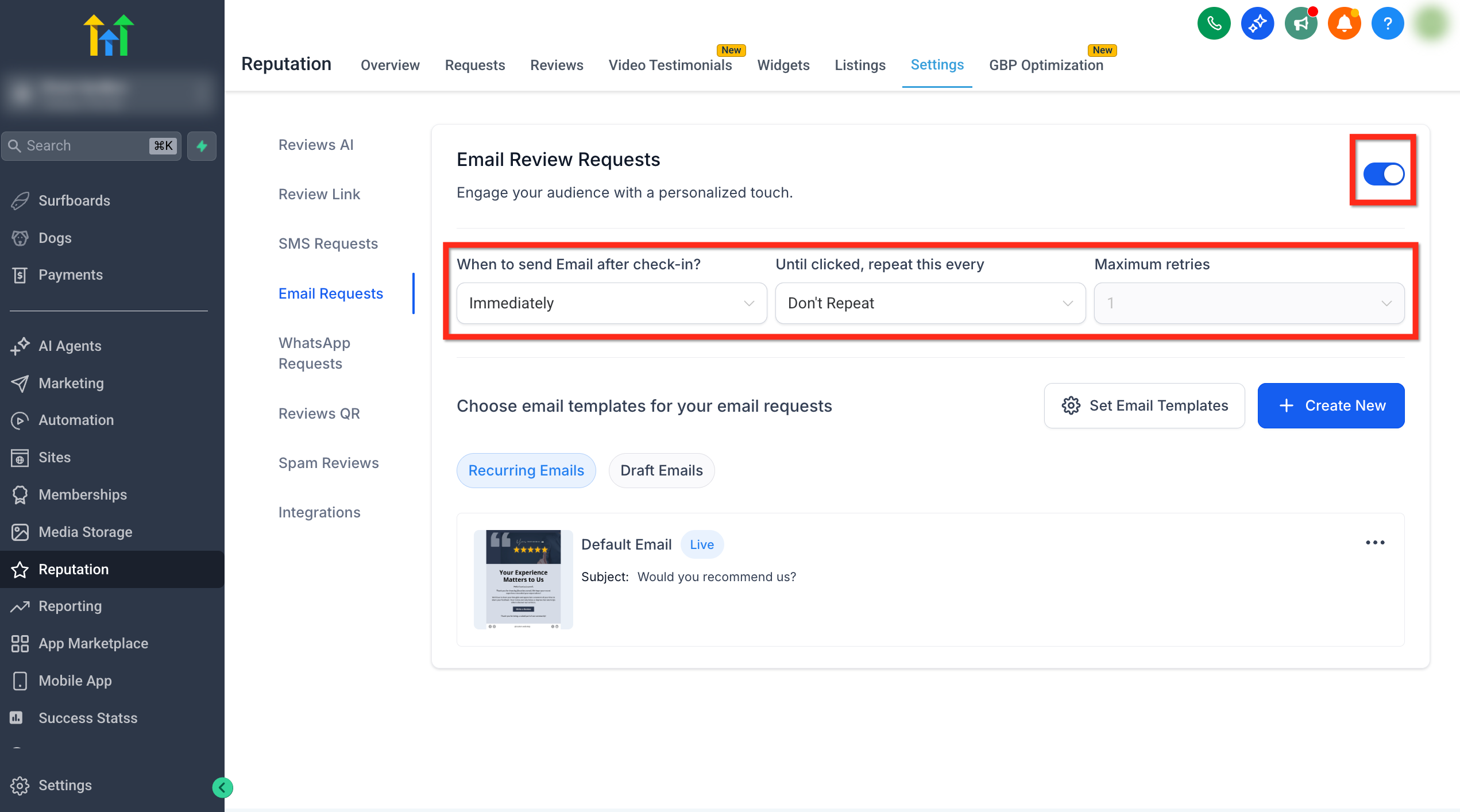
- Open Reputation > Settings > Email Requests and toggle the feature on, set the first email delay after check in, choose the repeat interval, and set the maximum retries.
- Click Set Email Templates, select the Live template for the first send, assign templates to each Retry slot from the dropdowns, adjust subjects if needed, and click Save.
- Use the Create New dropdown to either build a new email template from scratch or import one from the Template Library, then edit the design as required.
- In the email builder, drag text, images, and the Review Link element into the layout, configure the CTA button if desired, and click Save.
- Confirm that any Custom Link you entered opens directly to a review form; otherwise the request may not work as intended.
07What it looks like in HighLevel
08Settings that matter
- Review Link. Specifies the URL inserted into all review request messages; can be set to balance traffic across platforms or use a custom destination.
- Review Balancing. When enabled, automatically distributes review traffic to each connected review platform.
- Get Reviews on Google. Routes review traffic to the linked Google Business Profile when Review Balancing is active.
- Custom Link. Overrides balancing by sending every reviewer to the single URL you provide.
- Enable SMS Review Requests. Turns on automated SMS messages for review solicitation.
- When to send after check, in (SMS). Defines the delay before the first SMS is sent once the trigger occurs.
- Until clicked, repeat this every (SMS). Sets the interval between retry messages until the review link is clicked.
- Maximum retries (SMS). Limits how many follow up SMS messages are sent if the link is not clicked.
- Default sender number. Chooses the phone number used for outgoing SMS review requests.
- Enable Email Review Requests. Activates automated email messages for review solicitation.
- When to send after check, in (Email). Specifies the delay before the first email is sent after the trigger.
- Until clicked, repeat this every (Email). Determines the interval between email retries until the review link is clicked.
09Things to know before you rely on it
- Retry intervals accept a custom number followed by Days.
- Enabling Request with Image may cause messages to be sent as MMS, which can incur different carrier fees.
- Custom Links must open directly to a review form; otherwise the request may not work as intended.
10How it connects to the rest of HighLevel
- Send review requests manually or in bulk from the Reputation module. Send review requests
- Set up triggers that automatically fire review requests using workflows. Workflow triggers
- View pricing and plan options for accessing the Reputation features. Pricing
Michael's take

Review request messages let small businesses encourage satisfied customers to leave public endorsements while reducing manual follow up.
Avoid sending too many reminders; it can annoy customers and hurt your brand.