
01Who this is for
- Agency owners who manage multiple client accounts can view each location’s reputation metrics in one place.
- Small business Founders can monitor their own Google and Facebook review performance without leaving the platform.
- Marketing managers can watch sentiment trends to inform communication strategies.
02Reputation overview dashboard, explained
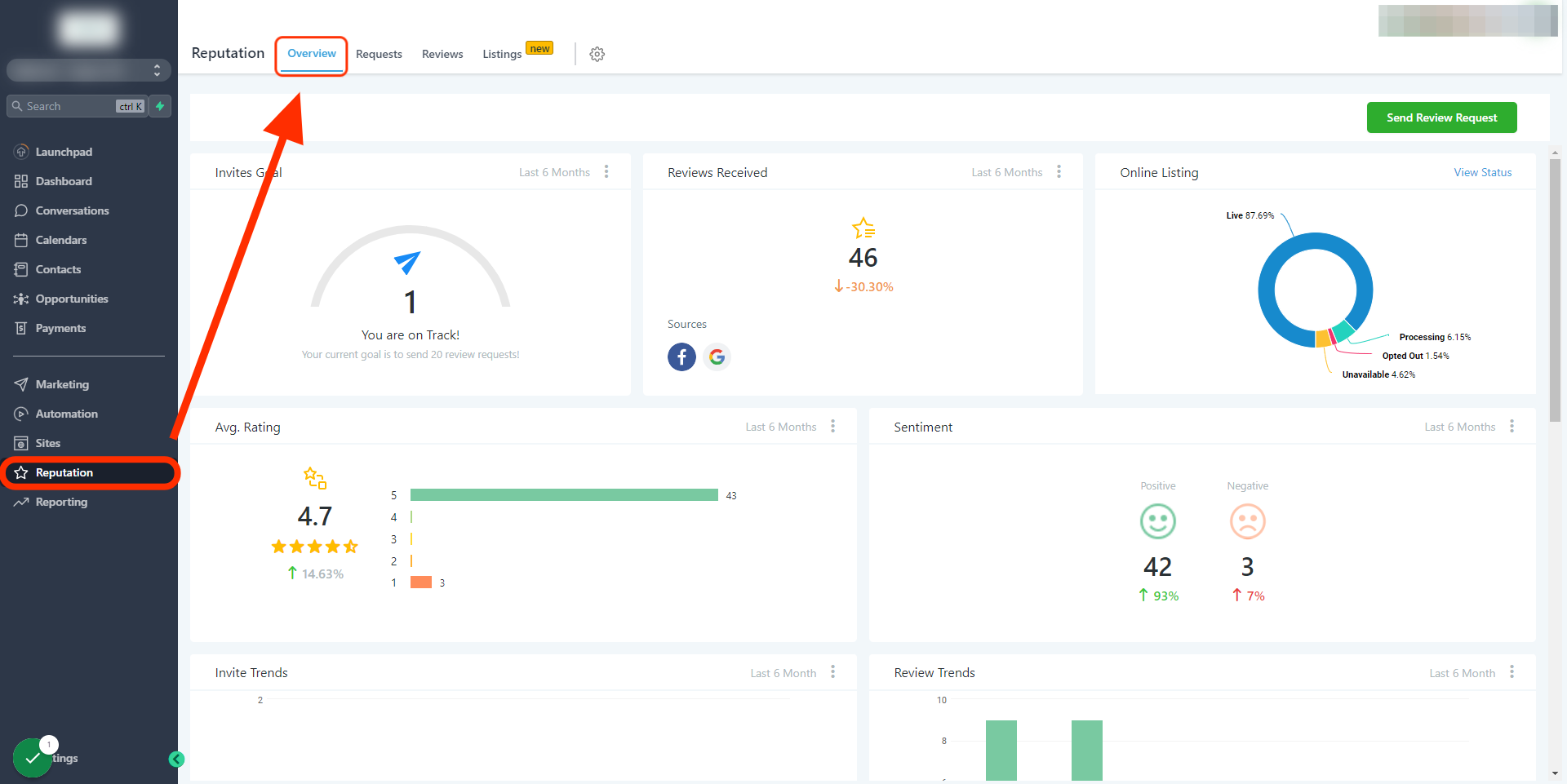
The Reputation Overview dashboard aggregates key reputation data for a subaccount. It shows invite goals, the count of received reviews, online listing status, average rating, sentiment classification, trends for invites and reviews, the most recent review requests, and the latest Google and Facebook reviews.
The dashboard lives under Reputation > Overview in a subaccount. Each tile can be filtered by a custom time range using the three dot menu. Data sources are pulled automatically from integrated Google and Facebook accounts, and from Yext when enabled.
03How businesses use the reputation overview dashboard
- Dental clinic. The clinic opens the Reputation Overview to see how many patient reviews arrived in the past month, checks the average rating and sentiment, and monitors the trend of review invitations sent via SMS. This helps the office team keep track of patient feedback.
- Real estate agency. Agents view the Online Listings tile to confirm that their property listings are active through Yext. They also glance at the latest review requests to verify that prospective clients have received follow up messages.
- Restaurant. The manager checks the Sentiment tile to see whether recent diner comments are positive, neutral, or negative, and looks at the Review Trends graph to understand month over month changes in customer feedback.
04The numbers and rules that matter
- Sentiment classification: 4 to 5 stars = Positive, 3 stars = Neutral, 1 to 2 stars = Negative; written reviews are classified by a large language model.
05Before you start
- Integrate Google and Facebook channels in subaccount Settings > Integrations to populate the Reviews Received tile.
- Enable Yext and subscribe the location if you need the Online Listings section.
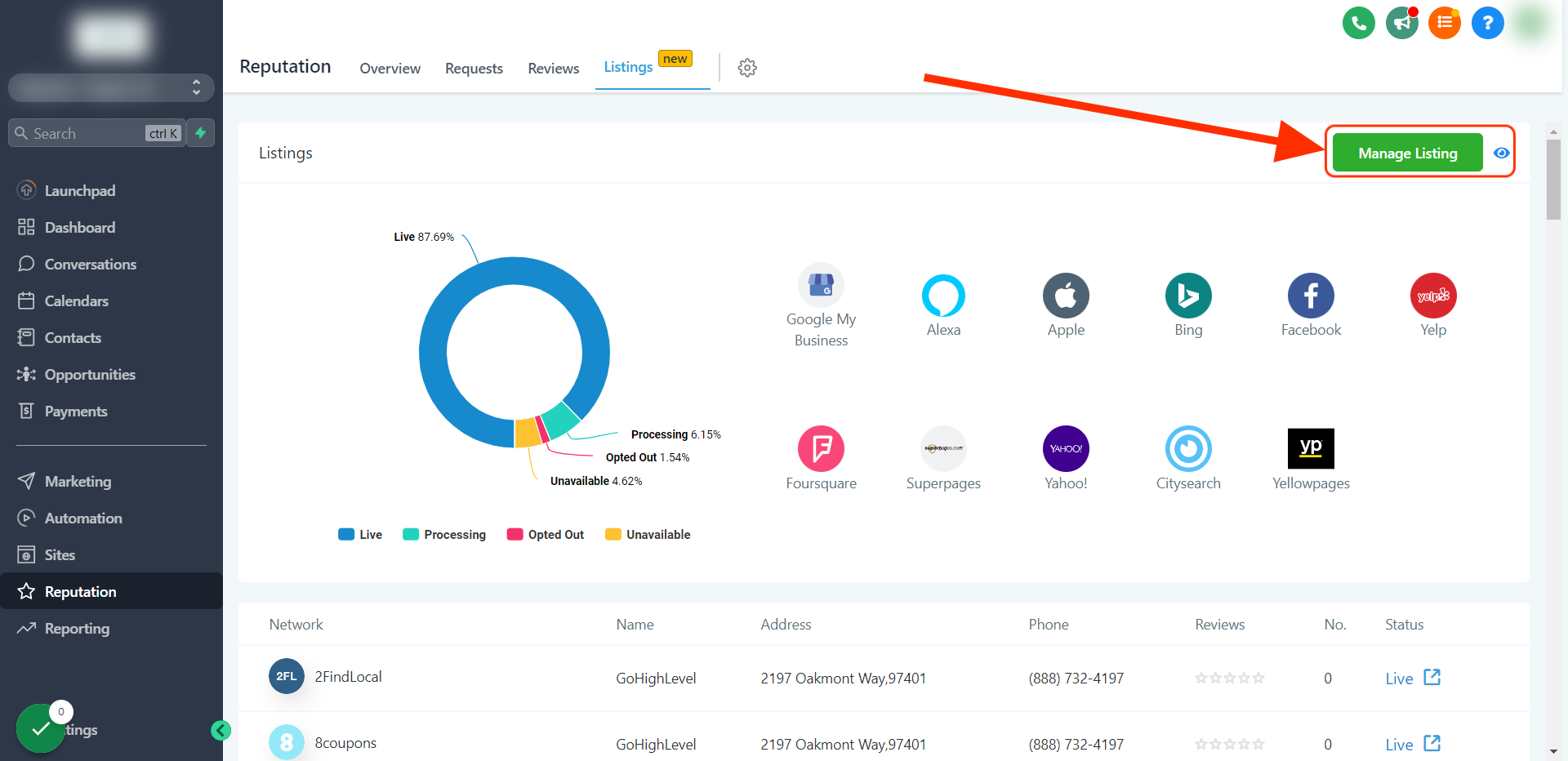
- Only Agency users can see and use the Manage Listings button.
06How to set up and use the reputation overview dashboard in HighLevel
Navigate and use the Reputation Overview dashboard
- Open the subaccount and select Reputation > Overview.
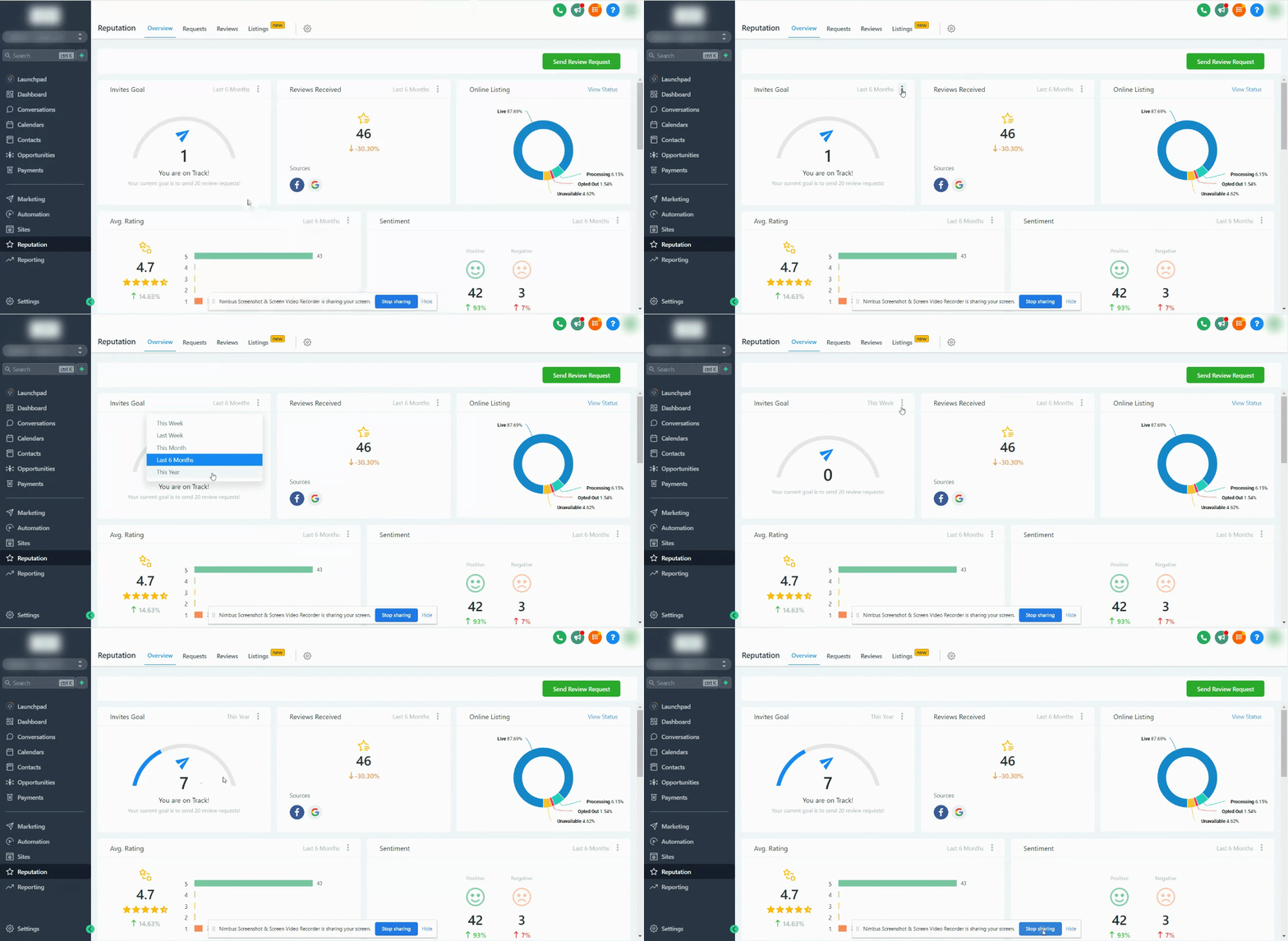
- Click the three dot icon in any section to choose a date range.
- Review the Invite Goals tile, which rises automatically as each goal is met.
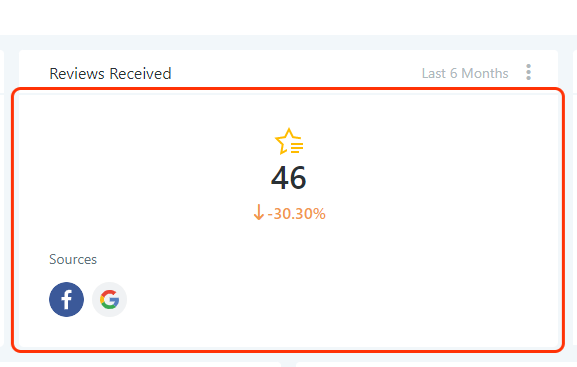
- Check the Reviews Received tile; it pulls reviews from Google and Facebook based on the selected filter.
- Confirm that Google and Facebook integrations are active under Settings > Integrations.
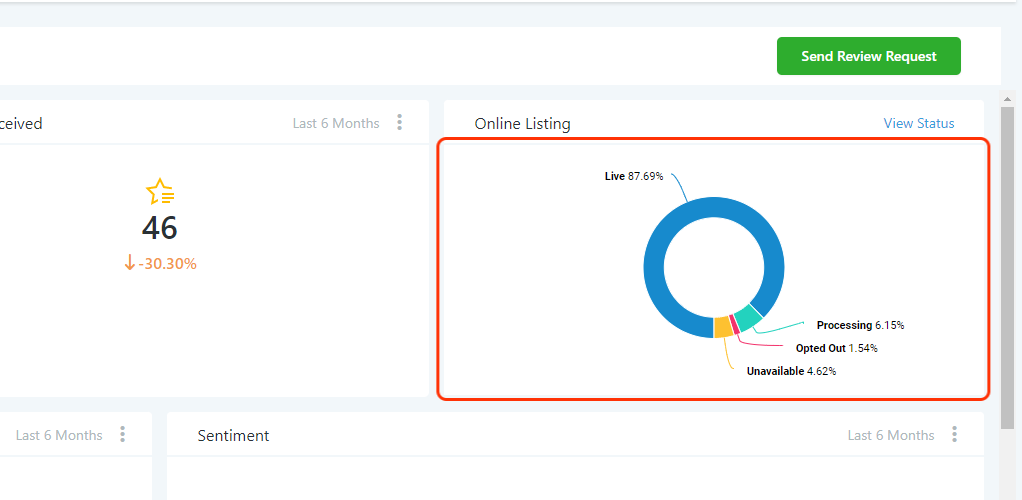
- If Yext is active and the location is subscribed, view the Online Listings tile and click the “View Status” link in its top right corner.
- Agency users may click the “manage listings” button to edit listings for the subaccount.
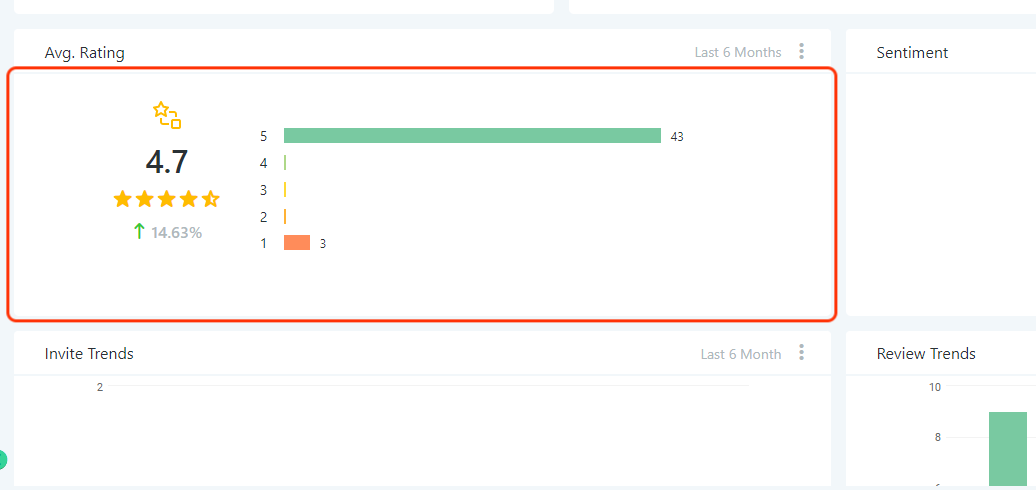
- Look at the Avg Rating tile, which divides total star points by the number of reviews in the filtered period.
- Read the Sentiment tile; the platform classifies comments with a language model and infers sentiment from star ratings when no comment exists.
- Observe the Invite Trends tile to see total outbound requests sent via SMS or email.
- Examine the Review Trends bar graph for month over month review counts.
- Open the Latest Review Requests tile to see who was invited, the channel used, and the invitation date.
- Open the Latest Review tile to view the most recent Google and Facebook reviews and the reviewer’s contact information.
07What it looks like in HighLevel
08Settings that matter
- Invite Goals. These are preset incremental targets that increase automatically as each goal is reached; they cannot be edited.
09Things to know before you rely on it
- Invite Goals are fixed and not editable by users.
- The Online Listings tile appears only when Yext is enabled and the location has a subscription.
- The Manage Listings button is visible exclusively to Agency users.
- Sentiment analysis uses a large language model for written comments and derives sentiment from star ratings when comments are missing.
10How it connects to the rest of HighLevel
- Learn how to send review requests manually or via workflows. Send review requests
- Find out how to dispute a Google review and check its status. Dispute Google review
- Customize and embed the HighLevel review widget on your site. Review widget
Michael's take

Michael ReimerFounder of CRM Pros, HighLevel Commander and Certified Admin
The dashboard only shows data from channels you’ve integrated and from Yext only when it’s enabled and the location is subscribed.
Get More InformationOpens on HighLevelPublished November 2, 2026 · Updated November 16, 2026