
01Who this is for
- Marketing managers who need social proof on landing pages to increase visitor confidence.
- Small business owners who want to showcase aggregate reviews without manual updates.
- Web developers integrating review content into client sites that are not hosted on HighLevel.
02Review widgets, explained
Review widgets collect and show customer feedback from connected platforms such as Google and Facebook. They combine reviews into one visual block that can be filtered by rating, source, and number of reviews. The widget updates in real time as new reviews arrive, so the content remains fresh.
The builder lives under Reputation > Widgets in the subaccount dashboard. Inside the builder you can pick a layout, set content details, choose a visual theme, and enable or disable specific display elements. After saving, the widget can be placed on a HighLevel site with the Reviews element or embedded elsewhere using a copy and paste code snippet.
Templates provide ready made designs that apply a professional look right away. Even after a widget is embedded you can return to the builder, adjust any setting, and the changes propagate automatically to every place the widget appears.
03How businesses use review widgets
- Dental practice. The practice creates a widget that pulls five star Google reviews, sets the summary type to a short AI sentiment overview, and embeds the code on its public website. This gives prospective patients immediate proof of satisfaction.
- Auto repair shop. The shop selects a carousel layout, filters for reviews with four stars or higher, and adds a "Write a Review" button that links to its Google Business Profile. The widget is added to the shop’s HighLevel funnel page via drag and drop.
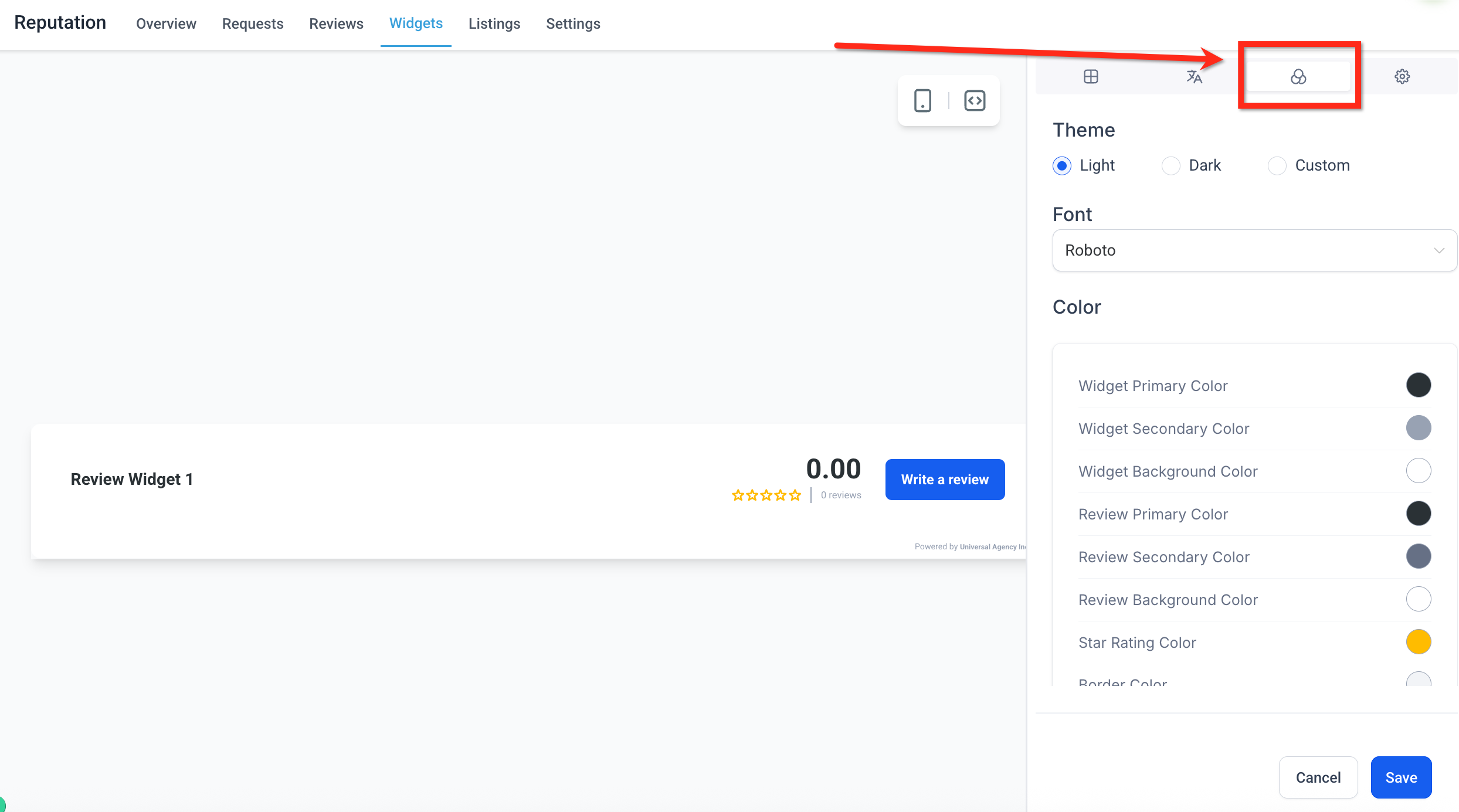
- Ecommerce brand. The brand uses a custom theme, matches its brand fonts and colors, and copies the embed code into a custom HTML block on its Shopify store. New Facebook reviews appear automatically in the widget.
04Before you start
- Access to the Reputation section of a subaccount dashboard.
05How to set up and use review widgets in HighLevel
Create and embed a review widget
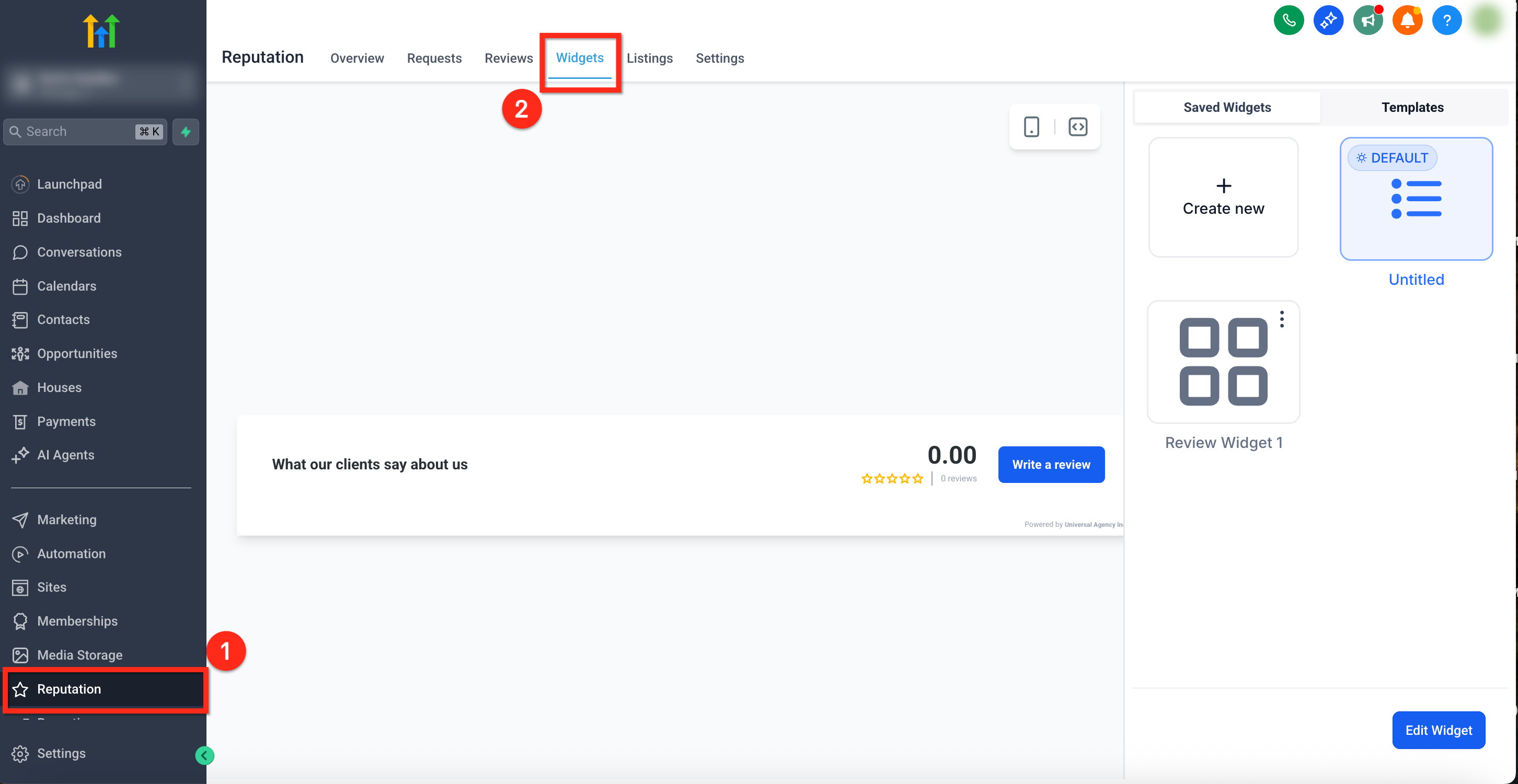
- Open the subaccount dashboard, select Reputation from the left menu, and click the Widgets tab.
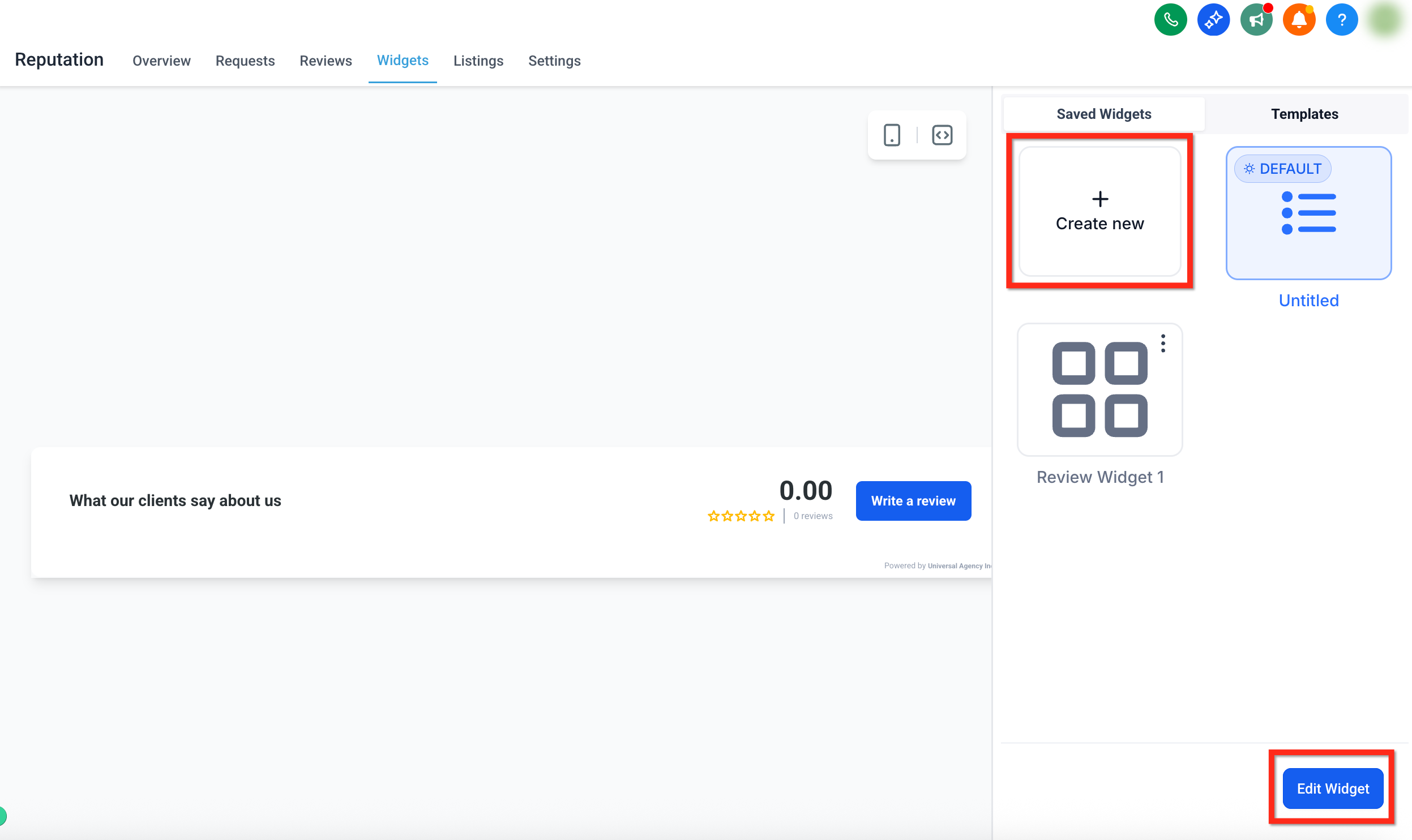
- Press the + Create Widget button to start a new widget or open an existing one and choose Edit Widget.
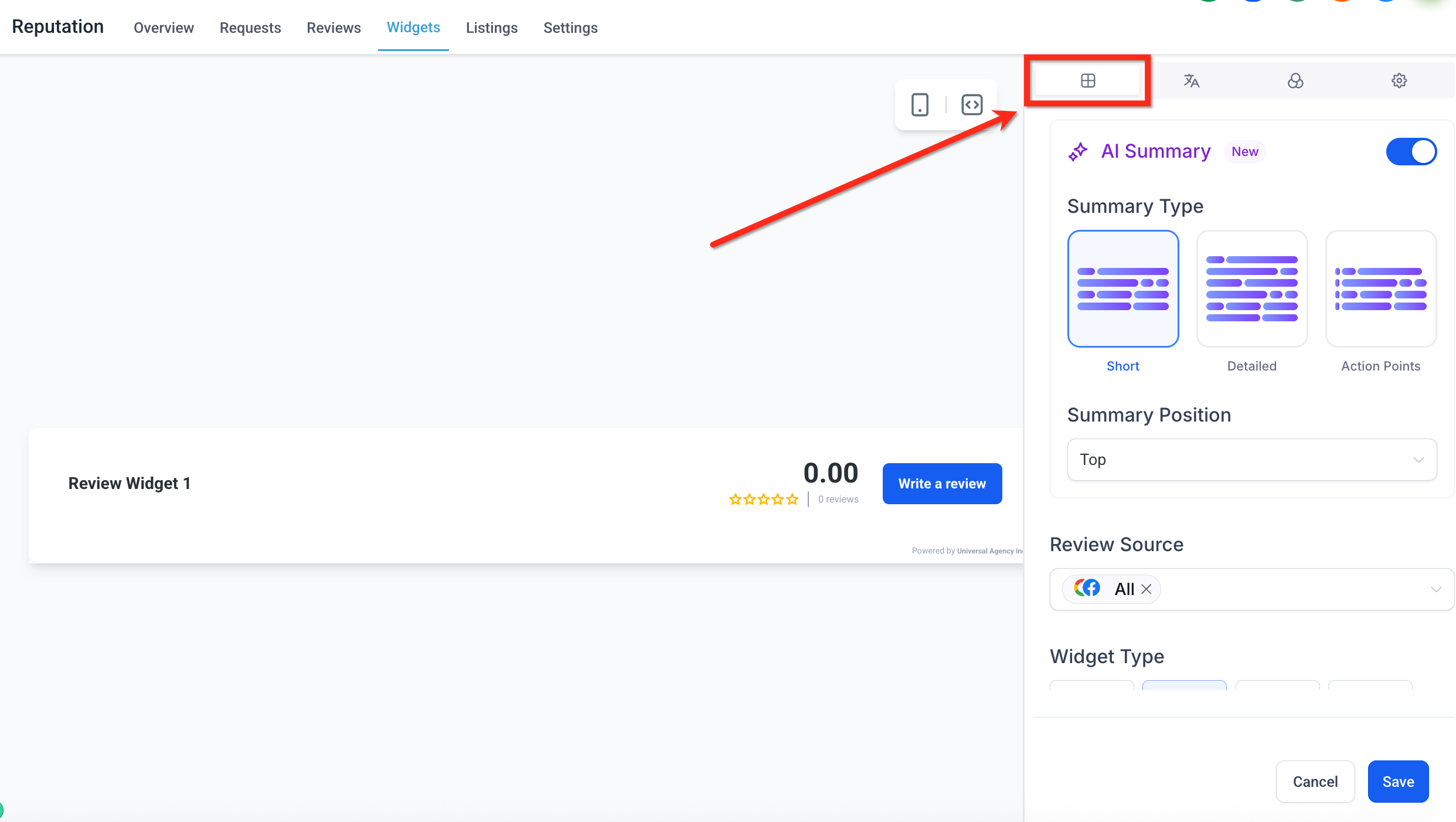
- Choose a layout, set review sources, filters, and summary options in the Layout tab.
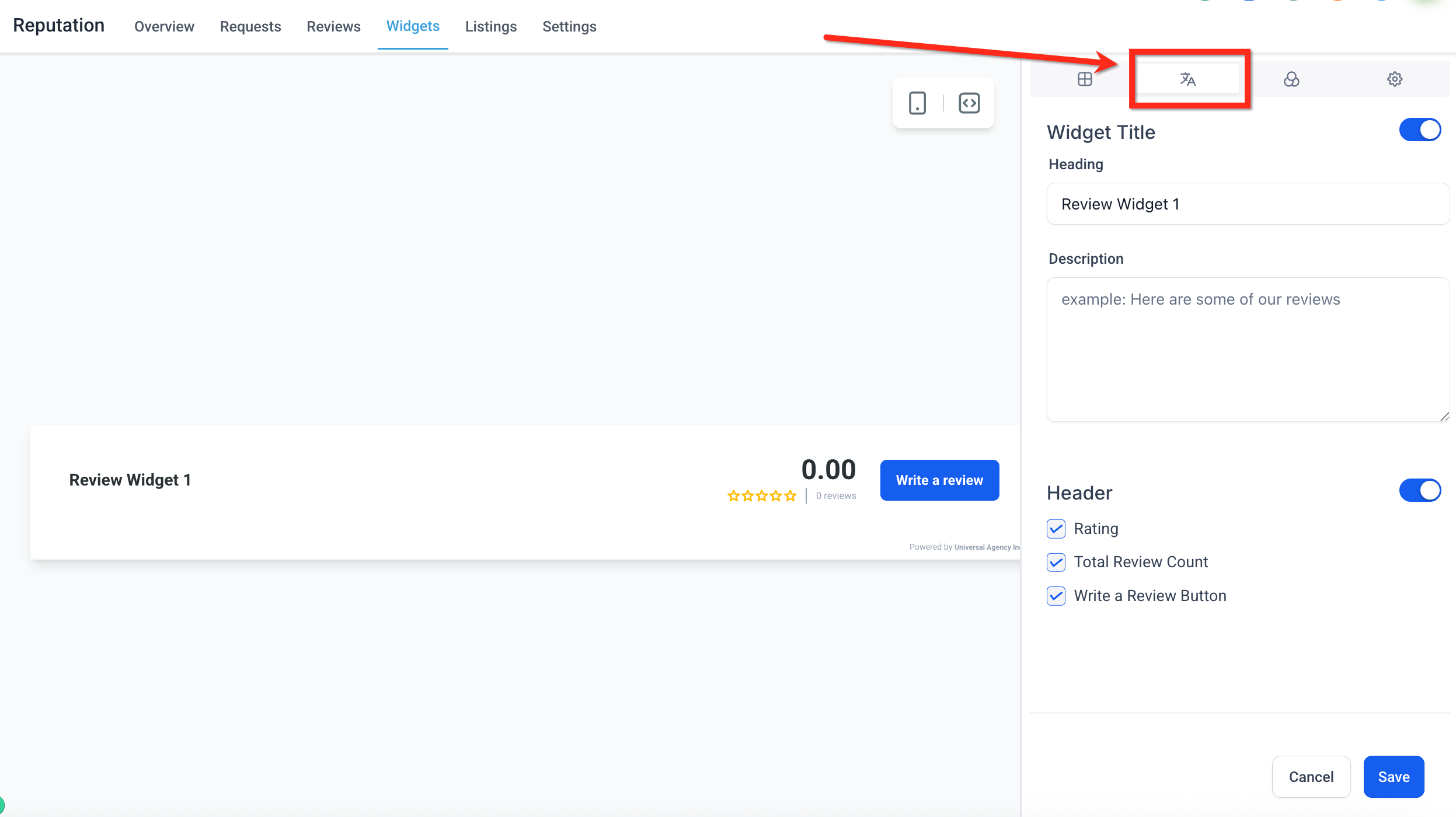
- Enter a heading, description, and toggle header elements in the Content tab.
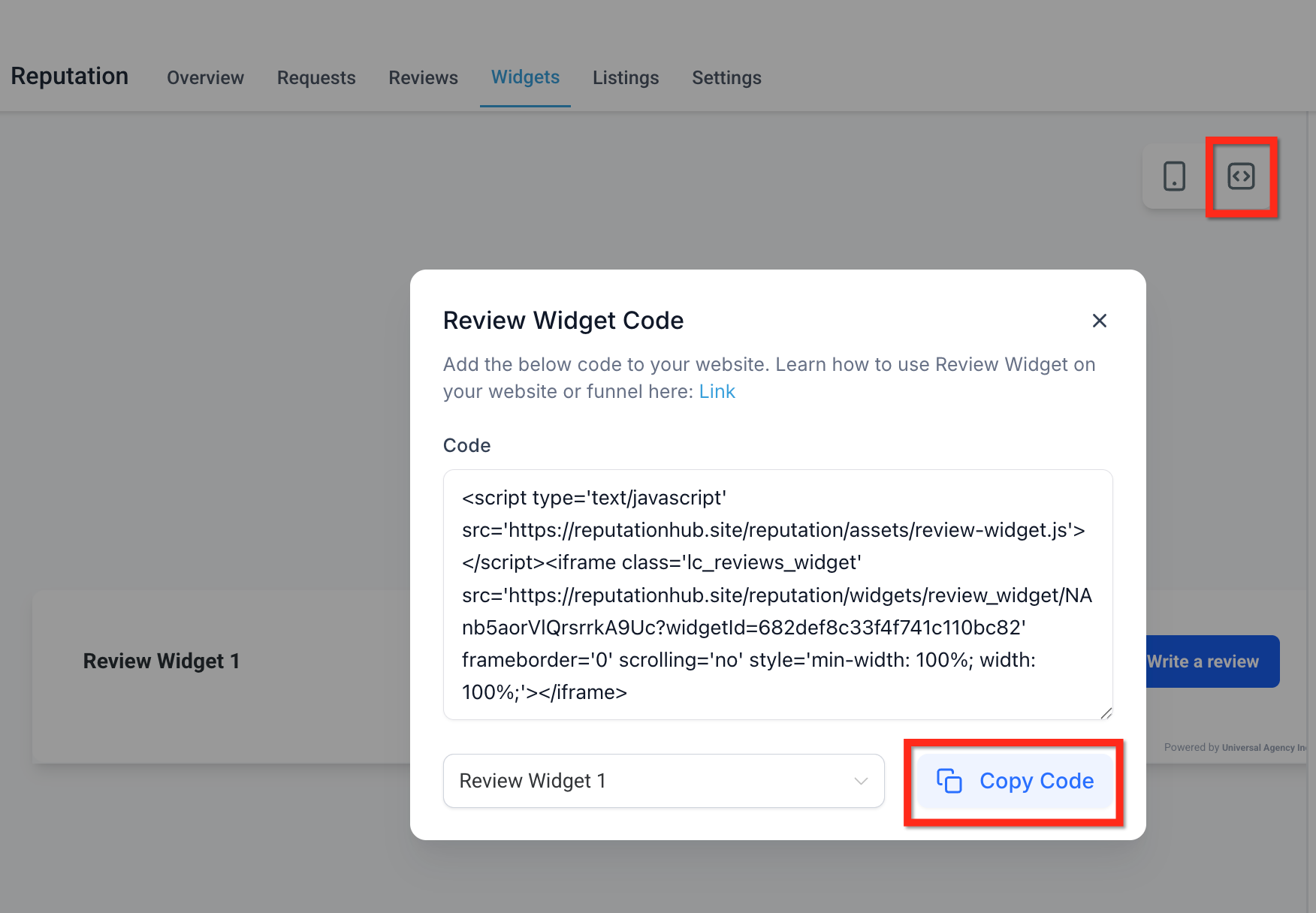
- Save the widget, then either drag the Reviews element onto a HighLevel page or copy the generated embed code and paste it into a custom HTML block on any website.
06What it looks like in HighLevel
07Settings that matter
- Summary Type. Selects the AI generated sentiment overview style and enables or disables it.
- Summary Position. Determines whether the AI summary appears at the top of the widget or inline with the reviews.
- Review Source. Chooses which platforms (Google, Facebook) supply reviews for the widget.
- Widget Type. Sets the display format such as List, Grid, Masonry, Carousel, Slider, Flash, or Legacy.
- Max Number of Reviews. Limits the total count of reviews shown in the widget.
- Minimum Ratings. Filters out reviews below a chosen star rating threshold.
- Powered by. Shows or hides the attribution line at the bottom of the widget.
- Title (Toggle). Turns the custom widget title on or off.
- Heading. Provides the main text displayed above the reviews.
- Description. Adds supporting text below the heading for context.
- Header (Toggle). Controls visibility of the header section that includes rating, count, and write a review button.
- Rating. Displays the average star rating of all pulled reviews.
08Things to know before you rely on it
- Customizations available depend on the selected Widget Type.
- Multiple widgets can be placed on one site only via the Embed Code option, not with the default Review block.
- The "Powered by" message can be hidden, but cannot be removed entirely if the widget uses a pre built template that enforces it.
09How it connects to the rest of HighLevel
- Send review requests manually or with workflows Review request options
- Customize the SMS and email messages used for review requests Review request messages
- Detailed steps for customizing and embedding a review widget Widget guide
Michael's take

Most people think the Review block in the page builder is enough for every use case, then they end up with only one widget on the whole site. The block always displays the default widget, so trying to add a second style simply won’t work.
I would skip the block and use the embed code for each widget I need. That lets me place different layouts on different pages, keep the design consistent, and still get automatic updates from Google and Facebook.