
01Who this is for
- Marketing managers, they can see which ads or campaigns generate phone calls.
- Sales teams, they receive calls routed to their preferred device with caller ID options.
02Number pools, explained
Number pools are a collection of at least four tracking phone numbers. The platform swaps the displayed number on your website depending on the visitor’s source, such as a paid ad or organic traffic. The swap happens in real time and the call is logged with source details in the call report.
Number pools are created in the Phone System settings of a subaccount. After adding a pool, you choose the pool size, forwarding number, swapping number, and optional caller ID behavior. You then select the numbers to use, set whisper messages, enable recording, and activate the pool. Calls can be routed to up to six users through their chosen channel.
03How businesses use number pools
- Real estate brokerage. The brokerage creates a pool that shows a unique number on listings advertised on Facebook. When a lead calls, the call report shows the Facebook source, allowing the team to attribute the lead to the ad spend.
- Dental practice. The practice sets up a pool for Google Ads campaigns. Calls are forwarded to the office phone while the receptionist sees the tracking number as caller ID, keeping the original caller’s number hidden if desired.
- Online coaching agency. The agency configures a pool that routes inbound calls to both the web app and the mobile app of two coaches. Each coach selects their preferred Ring All channel so they can answer calls from any device.
04The numbers and rules that matter
- Minimum of 4 tracking numbers per pool.
- Up to six team members can receive pool calls.
05Before you start
- You must be in the subaccount where you want to create the pool.
- You need an external phone number (not a Twilio or LC number) for forwarding.
06How to set up and use number pools in HighLevel
Set up a number pool for call tracking
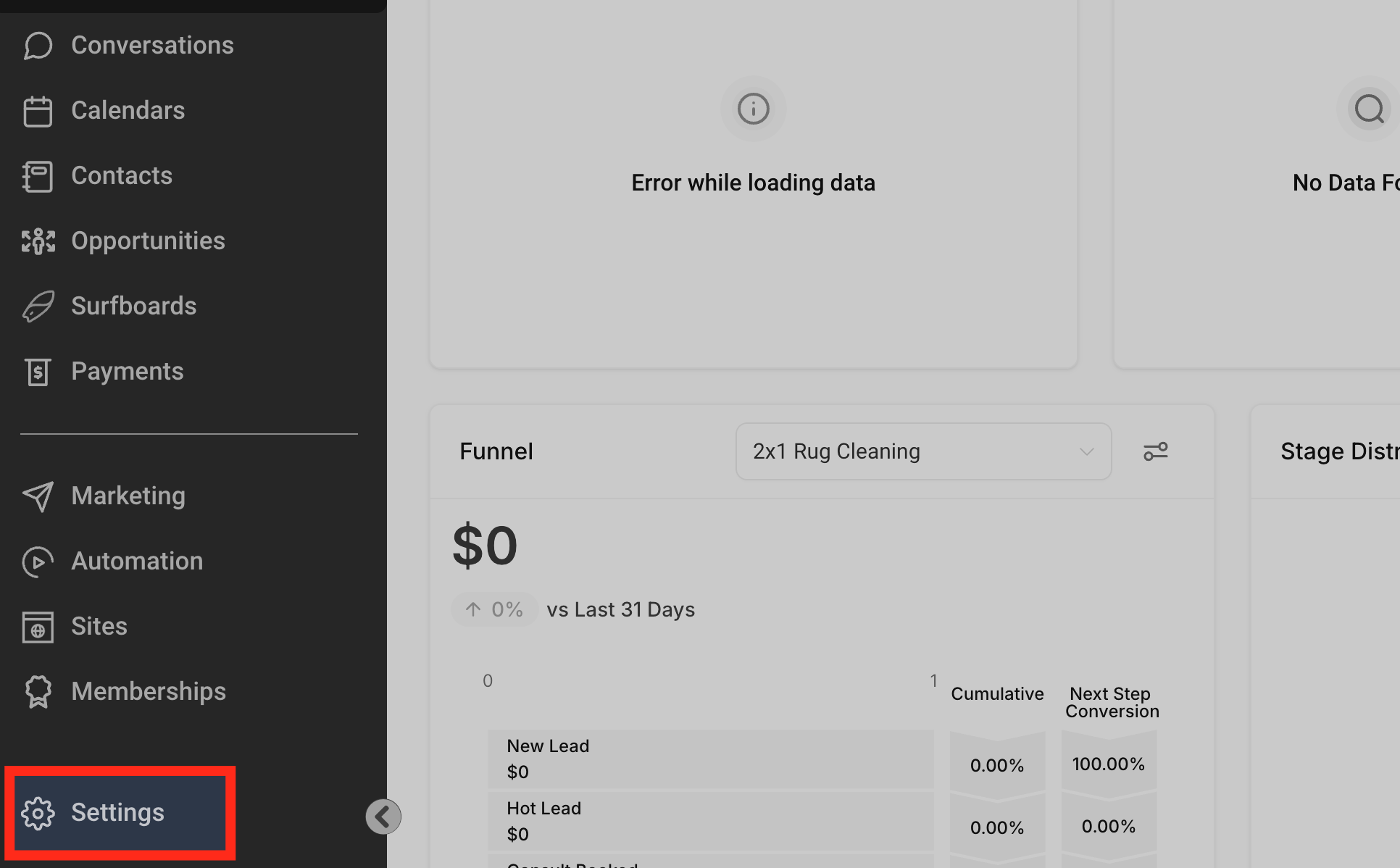
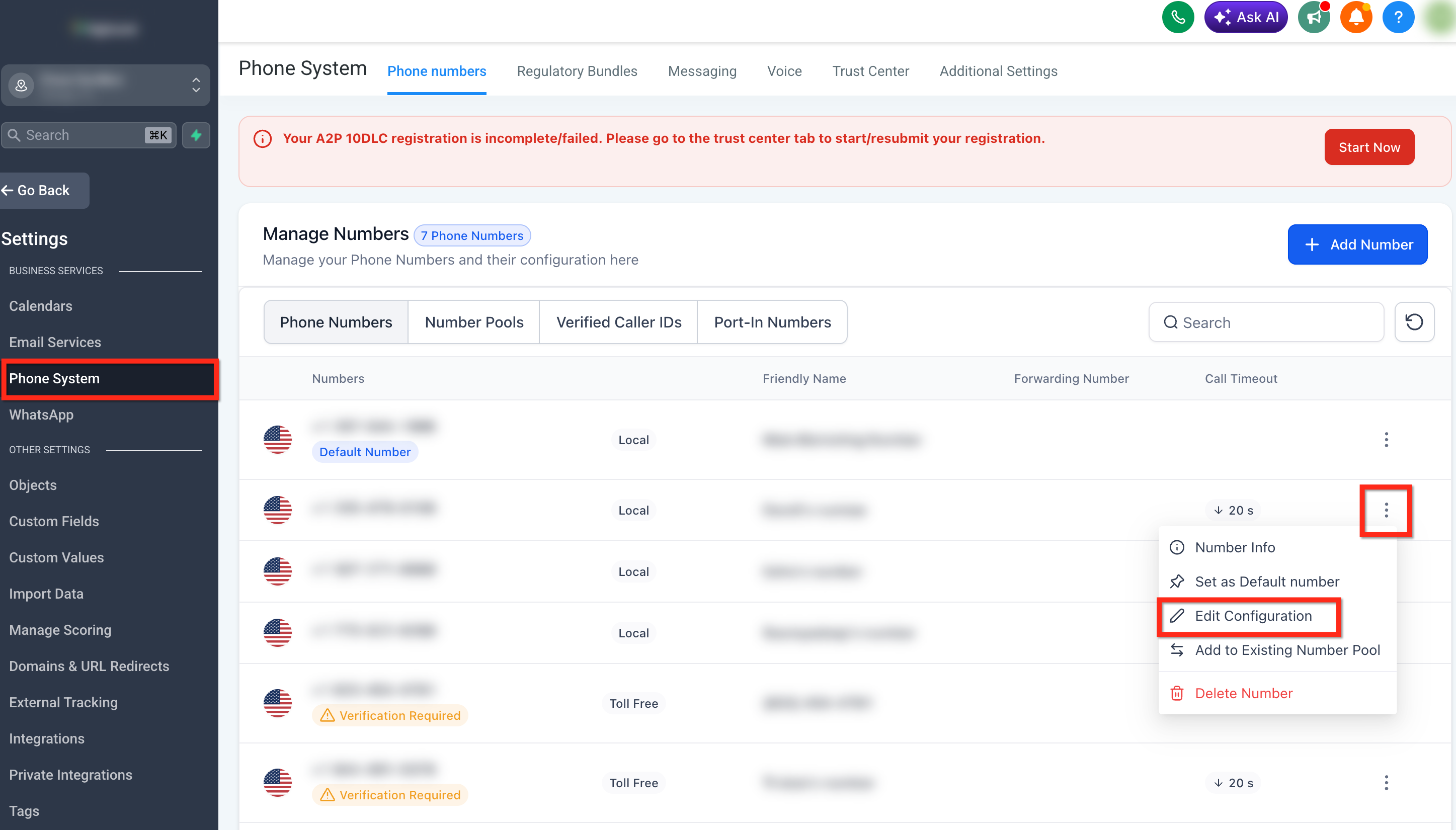
- Open Settings from the subaccount view, select Phone System, and open the Phone numbers tab.
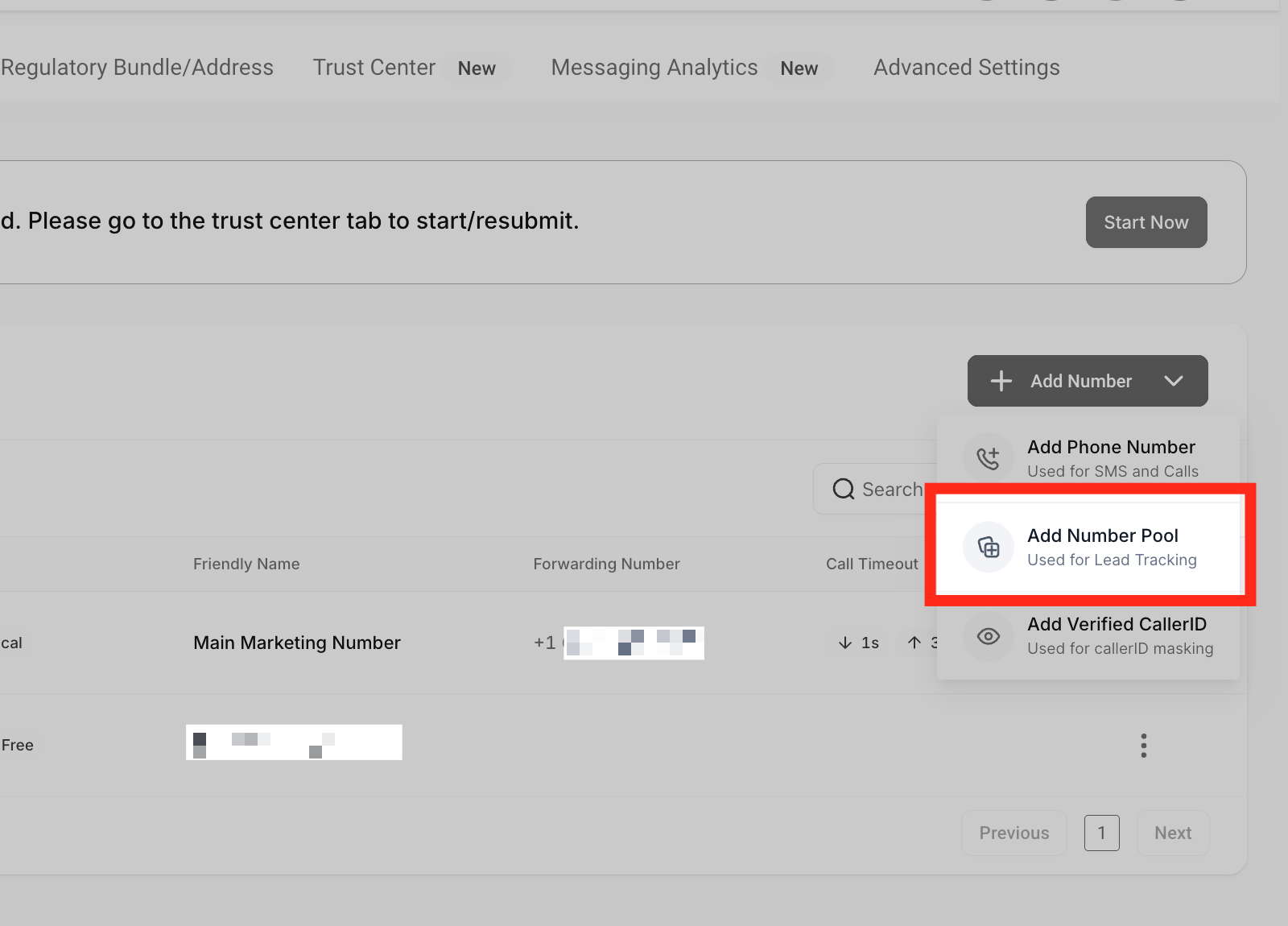
- Click Add Number Pool from the + Add Number dropdown on the right side of the page.
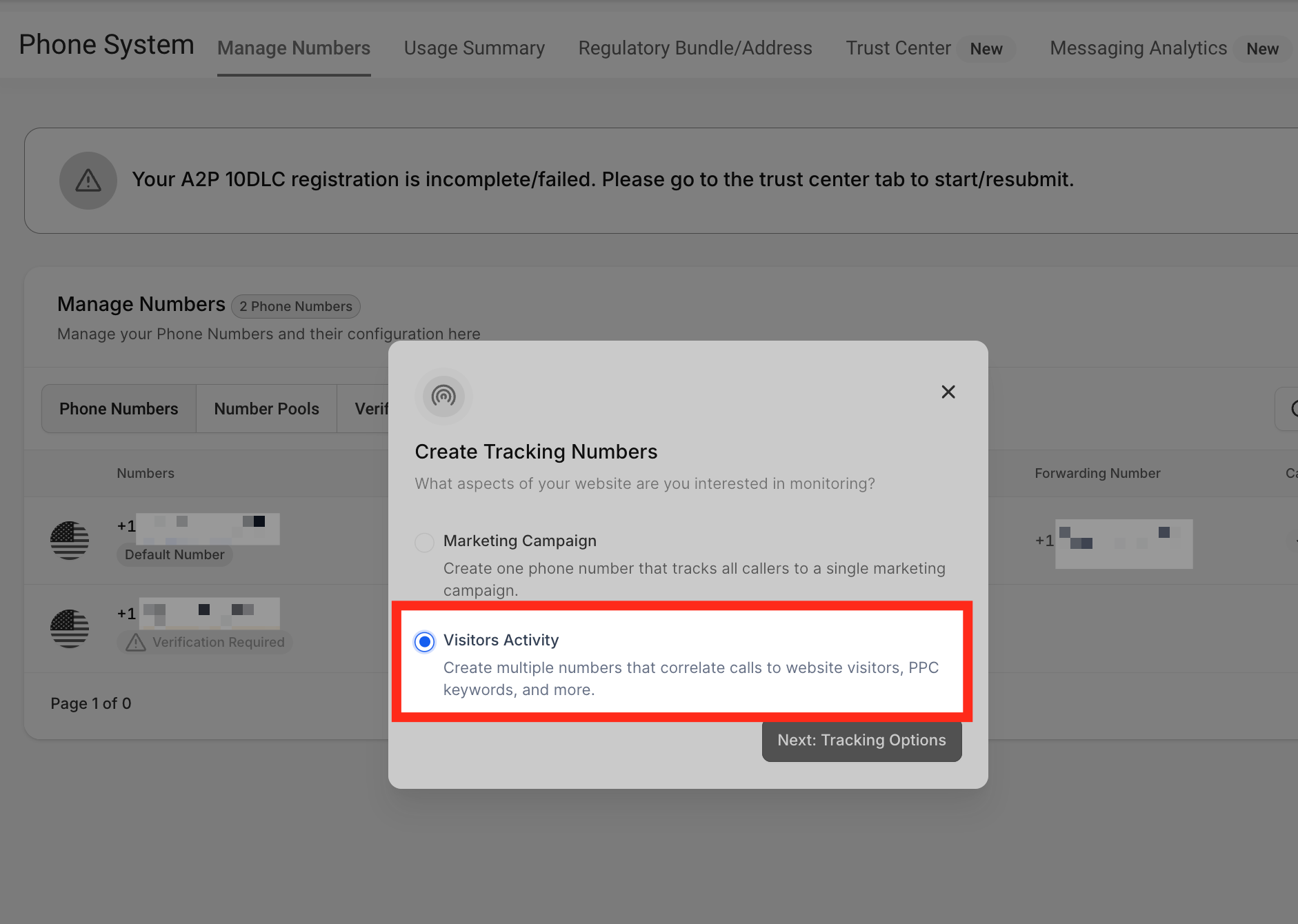
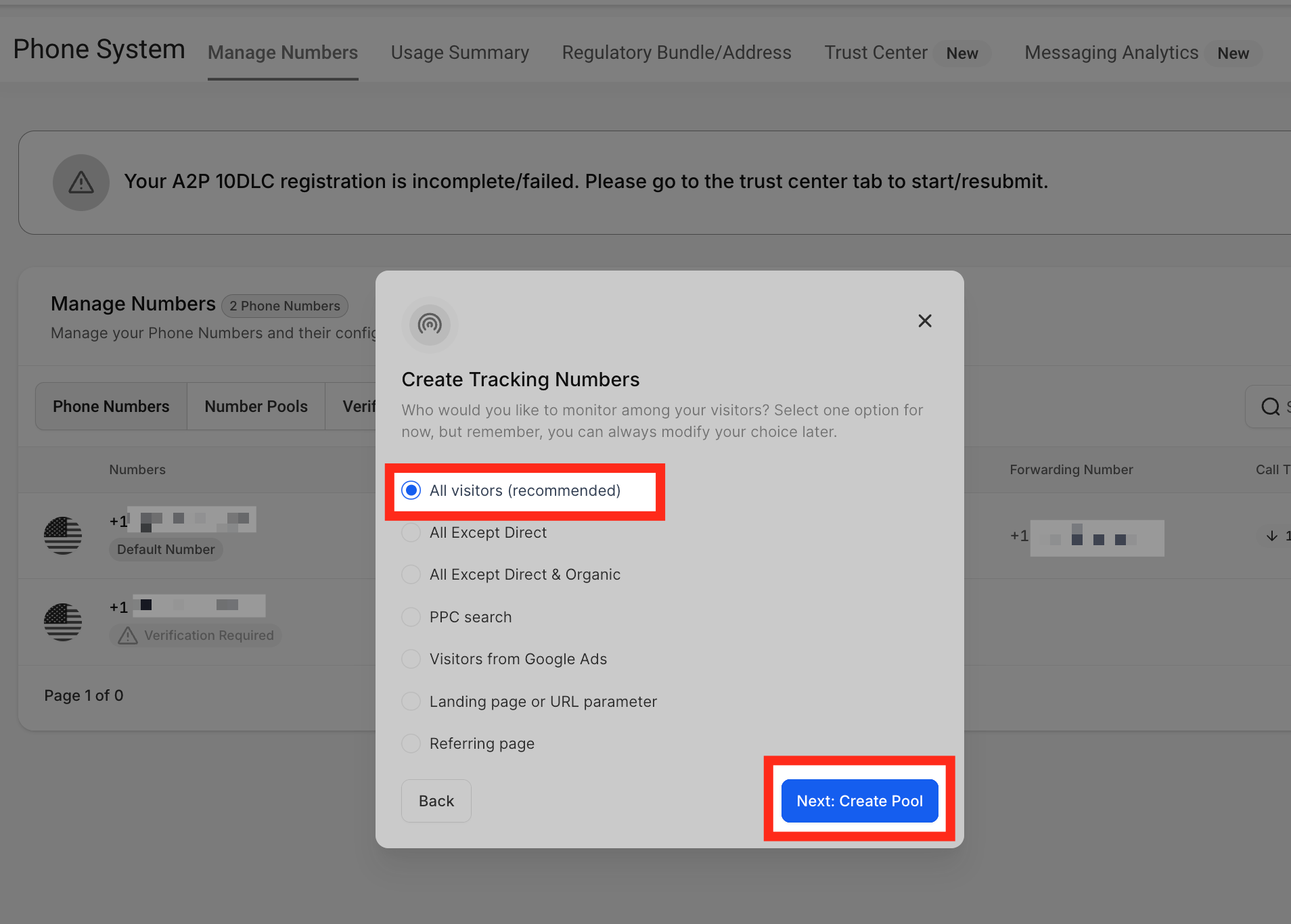
- Select Visitors Activity, choose the visitor group to track (All visitors is recommended), and click Next: Create Pool.
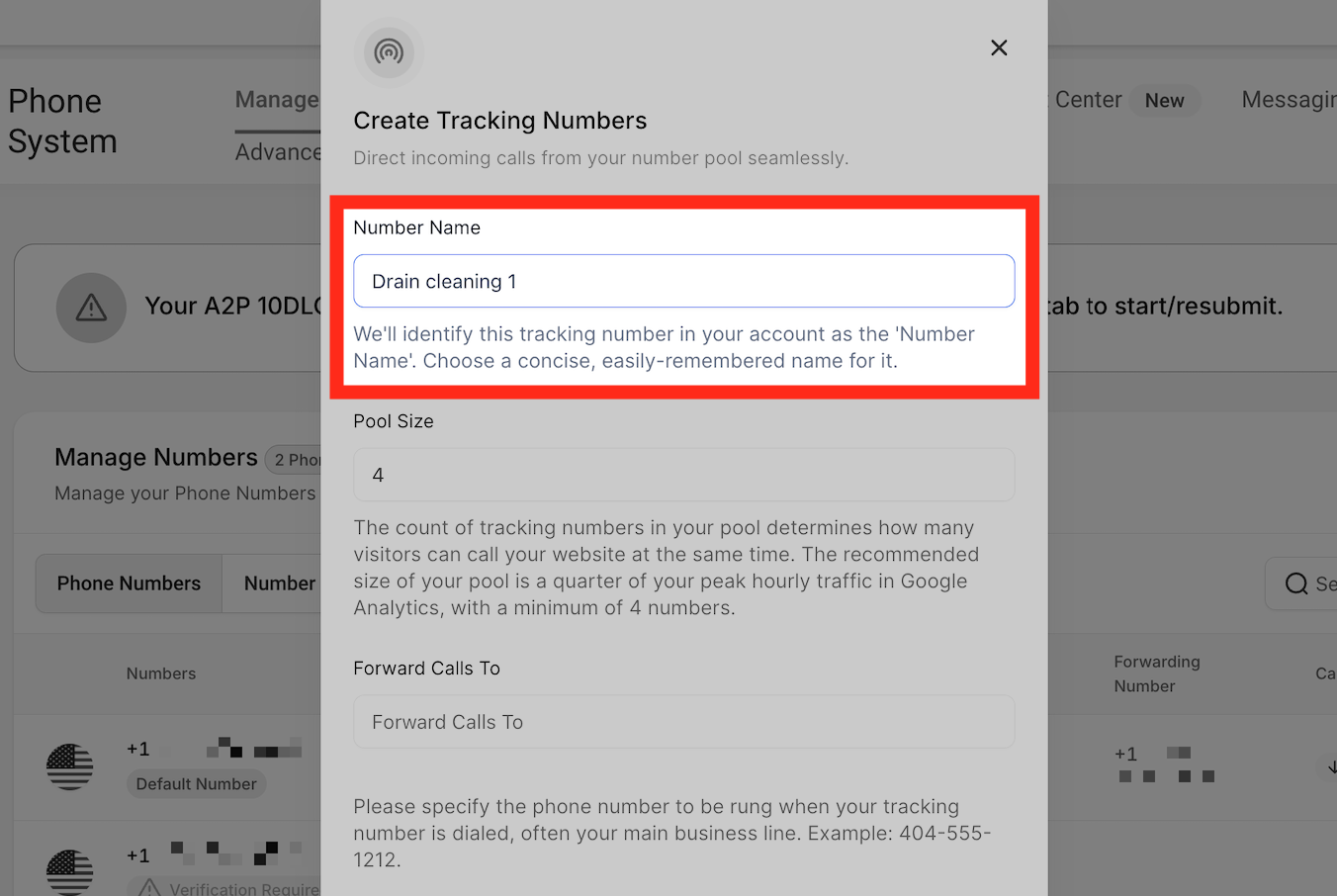
- Enter a name for the pool and set the pool size; a minimum of four tracking numbers is required.
- Enter the external forwarding number, set the swapping number (same as forwarding or different), and choose whether to pass the tracking number or the original caller number as caller ID, then click Next: Choose Numbers.
- Choose tracking numbers by selecting local, toll free, or any area code numbers, then click Next: Number Features.
- Configure a whisper message for internal use and enable call recording with a custom recording message.
- Click Activate Number to make the pool live.
Ring number pool calls to multiple users
- Open Settings, select Users or My Staff, locate a team member, and click Edit.
- Open Call & voicemail (or expand Call & Voicemail Settings) and set the Default Channel for Ring All to Web App, Mobile App, My Phone Number, or Deskphone (SIP), then click Save.
- Repeat the above steps for each additional team member who should receive calls.
- Open Settings, select Phone System, and open the Phone numbers tab.
- Under Manage Numbers, select Number Pools, find the pool, click its three dot menu, and choose Edit Configuration.
- Enable Ring Incoming Call to selected Users, open the user selector, choose up to six team members, and click Save.
Integrate the tracking snippet on your website
- Go to Number Pools, open the desired pool, click the three dot menu, select Number Pool Info, and copy the Normal Snippet Code.
- In the Sites section, open Funnels or Websites, select the funnel or site, go to the Settings tab, and paste the copied snippet at the bottom of the Body Tracking code field, then click Save.
- If you want the number to swap on a single page only, click the Tracking Code icon, choose Footer Tracking, paste the code in the editor, and click Save.
- To change the swapping number later, hover over the pool, click the three dot menu, select Update Tracking Number, copy the new swapping number, and replace it in the funnel or website. To edit the swapping number, click Edit Configuration, uncheck Swapping numbers same as forwarding number, enter the new number, and click Add.
- Confirm attribution by opening Reporting, selecting Call report, and reviewing the Source summary, Source type column, and Keyword column for each call.
Test number swapping
- Add the tracking script to the page body as instructed.
- Open an incognito browser window and navigate directly to the landing page URL.
- If the Tracking Option All Except Direct is selected, open another webpage that links to the landing page and click the link instead of entering the URL directly.
Set up keyword tracking
- Add the parameter ?keyword={keyword} to the ad URL in Google Ads, for example landingpage/?keyword={keyword}.
Swap numbers in a button
- Create an anchor tag with href="tel:YOUR_NUMBER" and the desired button text, ensuring the number format matches the swapping number used on the page.
Configure a Group ID for selective swapping
- Edit the number pool, click Add/Edit Group Id, give the group a name, and click Update.
- Copy the Group snippet from the information icon and paste it into the website footer.
07What it looks like in HighLevel
08Settings that matter
- Visitors Activity. Selects which visitor group the pool tracks, such as all visitors or only PPC search visitors.
- Forwarding Number. The external number where calls received on a tracking number are forwarded.
- Swapping Number. The phone number that the platform displays on your website; can be the same as the forwarding number or different.
- Pass Call Number as Caller ID. Controls whether the recipient sees the tracking number or the original caller’s number on the incoming call.
- Ring Incoming Call to selected Users. Enables routing of pool calls to chosen team members.
- Default Channel for Ring All. Sets each team member’s preferred device (Web App, Mobile App, personal number, or SIP deskphone) for incoming calls.
- Whisper Message. A short audio cue heard by the receiver only, used to identify the call source.
- Call Recording. Enables recording of inbound calls and lets you set the pre recorded disclosure message.
- Group ID. Groups number pools so that only one number swaps on pages that use the same group identifier.
09Things to know before you rely on it
- A number pool must contain at least four tracking numbers.
- You cannot use a Twilio or LC phone number as the forwarding number because it creates a loop.
- A pool can route calls to a maximum of six users at the same time.
- Number swapping does not normalize local and international/E.164 formats; the displayed number and tel: link must use identical formatting.
- Automatic updates apply only to new calls; historical calls keep their original source information.
- When multiple ad tracking codes are present, the first match wins in the order Google > Facebook > TikTok > LinkedIn.
10If something goes wrong
- Displayed number swaps but the tel: link does not work. Make sure the phone number in the href attribute uses exactly the same format as the visible swapping number.
- Calls loop back to the same number pool. Use an external forwarding number that is not a Twilio or LC number to avoid routing loops.
11How it connects to the rest of HighLevel
- Set up workflow triggers based on call details after tracking numbers are active Call details workflow trigger
- Ensure accurate call status by enabling Call Connect for number pool calls Using Call Connect
- Review pricing for each tracking number in a pool Phone System Pricing & Billing Guide
- Start a trial to test number pool features before committing 30 day trial
Michael's take

If I were setting this up, I’d start with the minimum four number pool, point the forwarding number to a safe external line, and run a quick incognito test to confirm the swap. Once the numbers are swapping correctly, I’d enable Ring Incoming Call to the agents who answer the most sales calls and watch the source column in the call report.