
01Who this is for
- Customer support teams that work remotely, allowing each agent to answer calls from their own device.
- Small businesses with multiple locations, so staff can handle calls without a shared desk phone.
02Inbound calls on mobile app, explained
The feature forwards calls that hit a HighLevel phone number to the Lead Connector mobile app. It works after a number is bought in a subaccount and linked to a staff profile. The platform sends the call to the app whenever the staff member’s settings have “Mobile app” enabled.
Settings for the feature live in the web app under each staff member’s profile. The “Call and Voicemail Settings” tab contains the inbound number selector and the “Forward Calls to > Mobile app” option. Once saved, the call is delivered to the mobile device, even if the app is in the background.
The mobile app must have the required permissions, and Android devices need battery optimisation turned off. Up to ten devices logged into the same user account can ring simultaneously; answering on any one stops the call on the others.
03How businesses use inbound calls on mobile app
- Real estate agency. Agents assign a dedicated business number to their profile and enable mobile forwarding. When a client calls, the ring goes straight to the agent’s phone, letting them respond while showing up at property showings.
- Dental practice. Front desk staff set the practice’s main number as the inbound number and turn on mobile forwarding. Calls from patients reach the receptionist’s mobile, ensuring appointments are booked even when the office is closed.
- Online boutique. Customer service reps assign their own numbers and enable the feature. Orders or support queries call the assigned line and reach the rep on their phone, supporting remote work and quick responses.
04The numbers and rules that matter
- You can receive incoming calls simultaneously on up to 10 devices logged into the same user account.
05Before you start
- Purchase a phone number inside the relevant subaccount.
- Assign that number to the staff member who will receive calls.
06How to set up and use inbound calls on mobile app in HighLevel
Enable inbound calling on the mobile app
- Open Settings from the main menu in the web app.
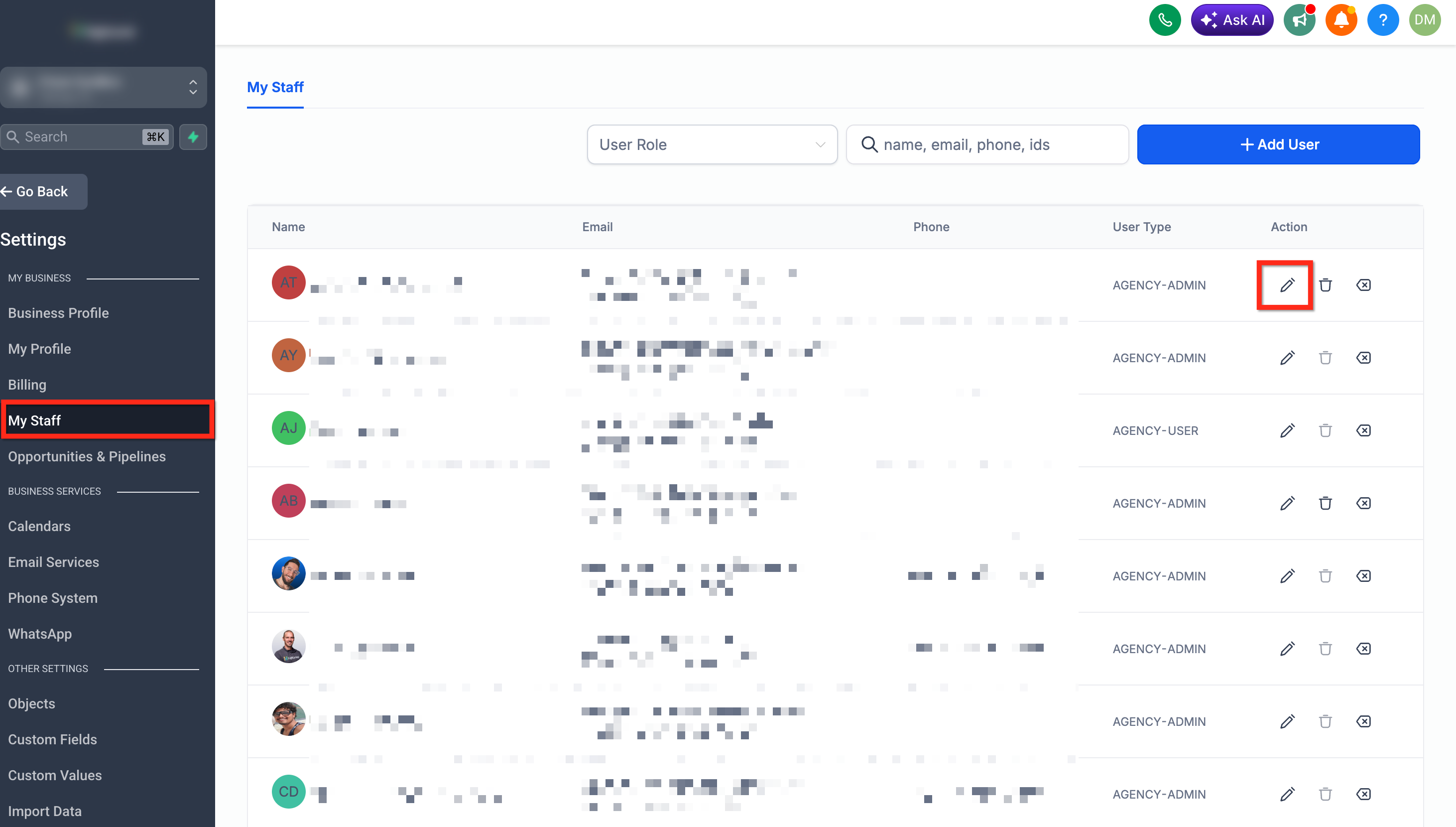
- Select My Staff.
- Find the staff member, click the Edit button next to their name.
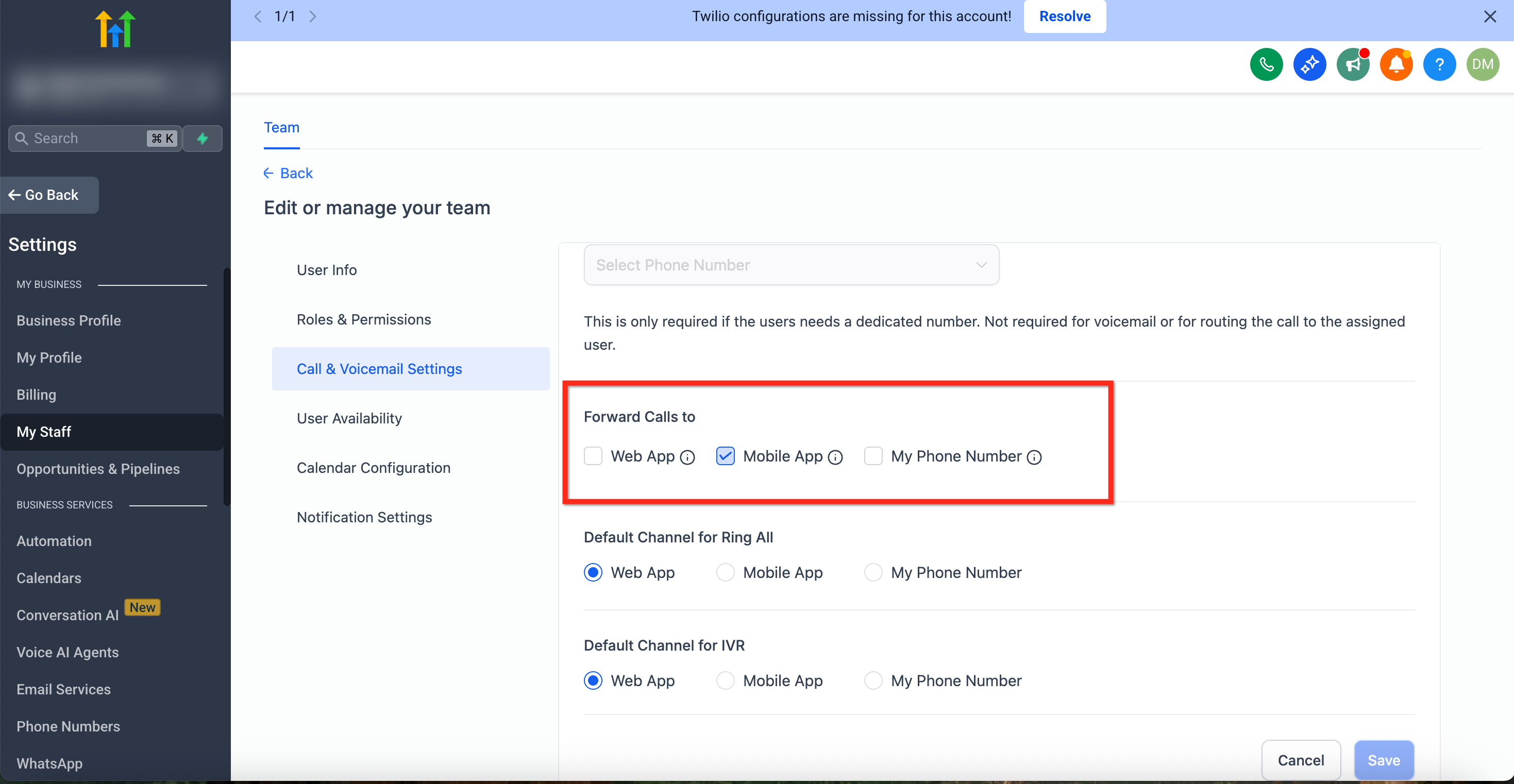
- Open the Call and Voicemail Settings tab.
- Choose an Inbound Number from the dropdown list, or leave it blank to use default routing.
- In the Forward Calls to section, check the box labelled Mobile app.
- Press the blue Save button at the bottom right to store the changes.
07What it looks like in HighLevel
08Settings that matter
- Forward Calls to > Mobile app. Controls whether incoming calls to the assigned number are sent to the staff member’s Lead Connector mobile app.
- Inbound Number. Selects which HighLevel phone number routes calls to this staff member; can be a personal direct line or the general distribution number.
09Things to know before you rely on it
- A maximum of 10 devices logged into the same user account can ring at once; answering on one disconnects the others.
- Only the last subaccount that the user switches to will deliver calls; changing to a subaccount without inbound calling disables call delivery.
- Android devices must have battery optimisation turned off for the app, otherwise calls may not arrive.
- The feature works only when the “Mobile app” box is checked and saved in staff settings.
10If something goes wrong
- Calls do not appear on the mobile app. Confirm the “Mobile app” box is checked and saved in the staff member’s settings, then verify the app has all required permissions and background notification access.
- Android phone stops receiving calls after a while. Disable battery optimisation for the HighLevel app in the device’s power management settings.
11How it connects to the rest of HighLevel
- Set up automated follow up texts for missed calls Missed Call Text Back
- Review pricing and billing details for the phone system Phone System pricing
- Learn how to place outbound calls using the web app softphone Outbound dialer
Michael's take

Jumping straight into mobile call forwarding can feel risky if you haven’t confirmed the number assignment and permission settings. Skipping those checks often leads to silent phones and missed opportunities.
When everything lines up, the benefit is clear: You stay reachable without a desk phone. I’d set the box for mobile app forwarding, then let the team test a couple of calls to verify the flow before relying on it for daily client interactions.