
01Who this is for
- Sales teams, can automatically create callback tasks when an inbound call is missed, ensuring leads are pursued promptly.
- Support departments, receive internal alerts for voicemails so agents can respond without manually checking call logs.
02Call details workflow triggers, explained
The Call Details trigger lives inside the Workflow Builder. When a call is recorded, HighLevel compares the call’s direction, status, associated number pool, phone number and any custom disposition against the filters you defined. If every filter matches, the contact is enrolled in the workflow and the configured actions run.
Filters narrow enrollment to the exact scenarios you need. You can pick incoming or outgoing direction, select one or more system call status values, limit to a specific tracking number pool, choose a custom post call disposition, or restrict to particular phone numbers. The trigger runs each time a qualifying call occurs, provided the workflow is published and enrollment rules allow entry.
03How businesses use call details workflow trigger
- Real estate agency. The agency adds a Call Details trigger that watches incoming calls with a status of voicemail. When a voicemail is logged, the workflow sends an internal notification to the listing agent and creates a follow up task in the system.
- Dental practice. The practice configures a trigger for calls on the Main Office phone number that end with the custom disposition Requested Callback. The workflow then generates a reminder task for the front desk staff to call the patient back.
- Online marketing firm. The firm uses the In Number Pool filter to target calls that belong to a specific paid search tracking pool. When such a call is marked busy or no answer, the workflow applies campaign specific tags and notifies the media buying team.
04The numbers and rules that matter
- Call Status options include busy, voicemail, no answer, completed.
05How to set up and use call details workflow trigger in HighLevel
Set up the Call Details workflow trigger
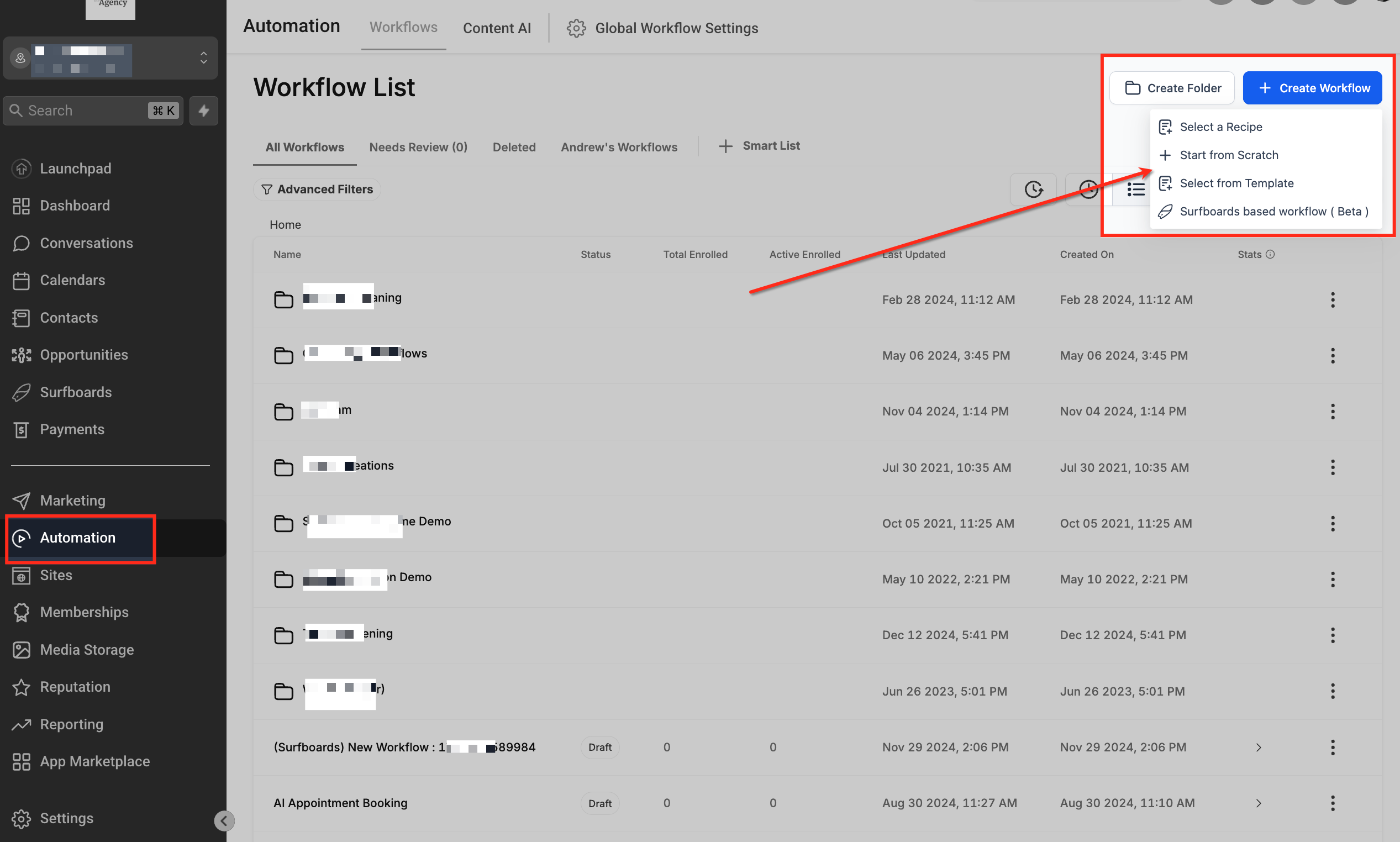
- Open Automation > Workflows and either select an existing workflow or create a new one from scratch.
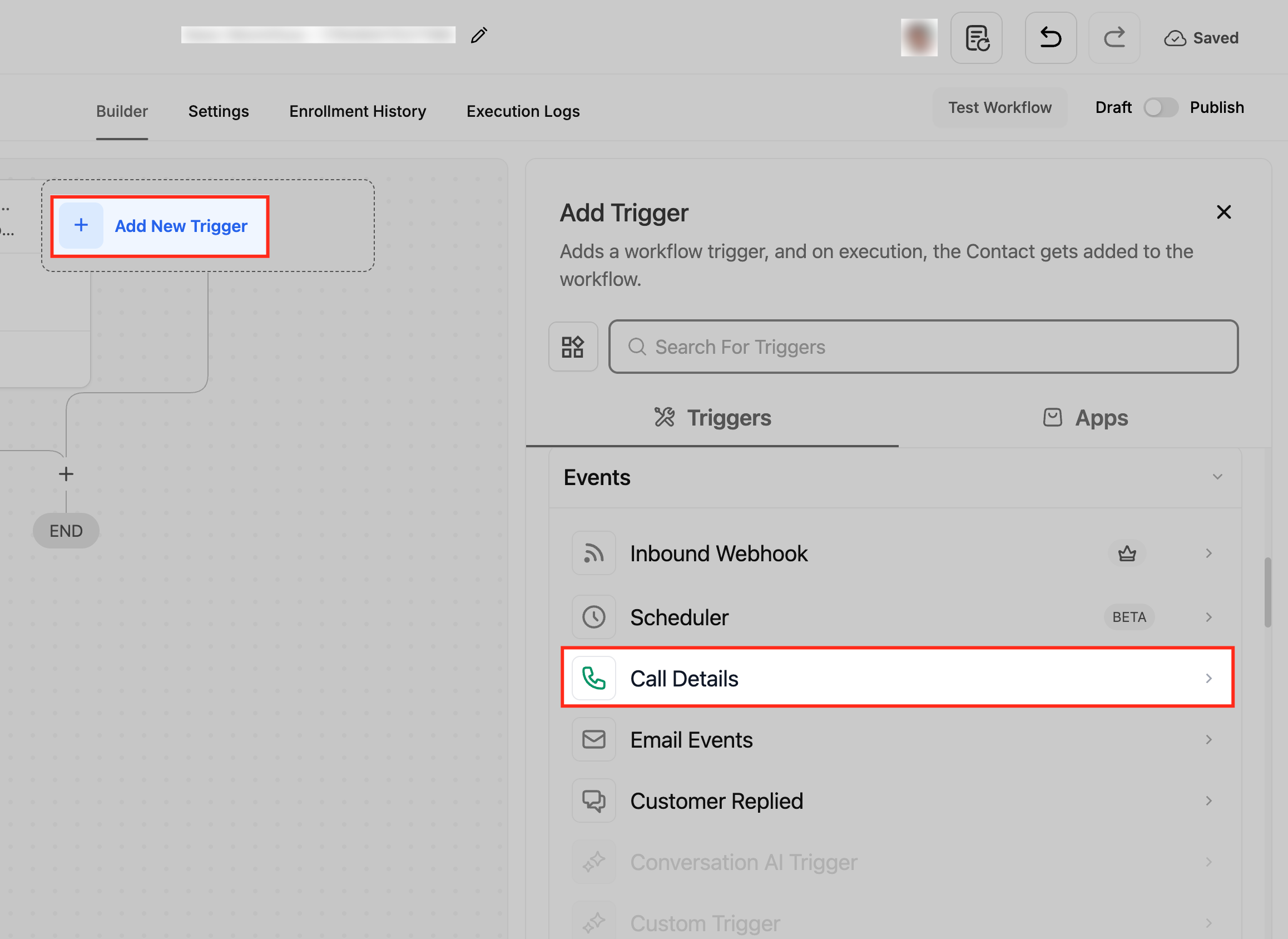
- In the Workflow Builder, click Add New Trigger.
- Choose Call Details from the Events trigger category.
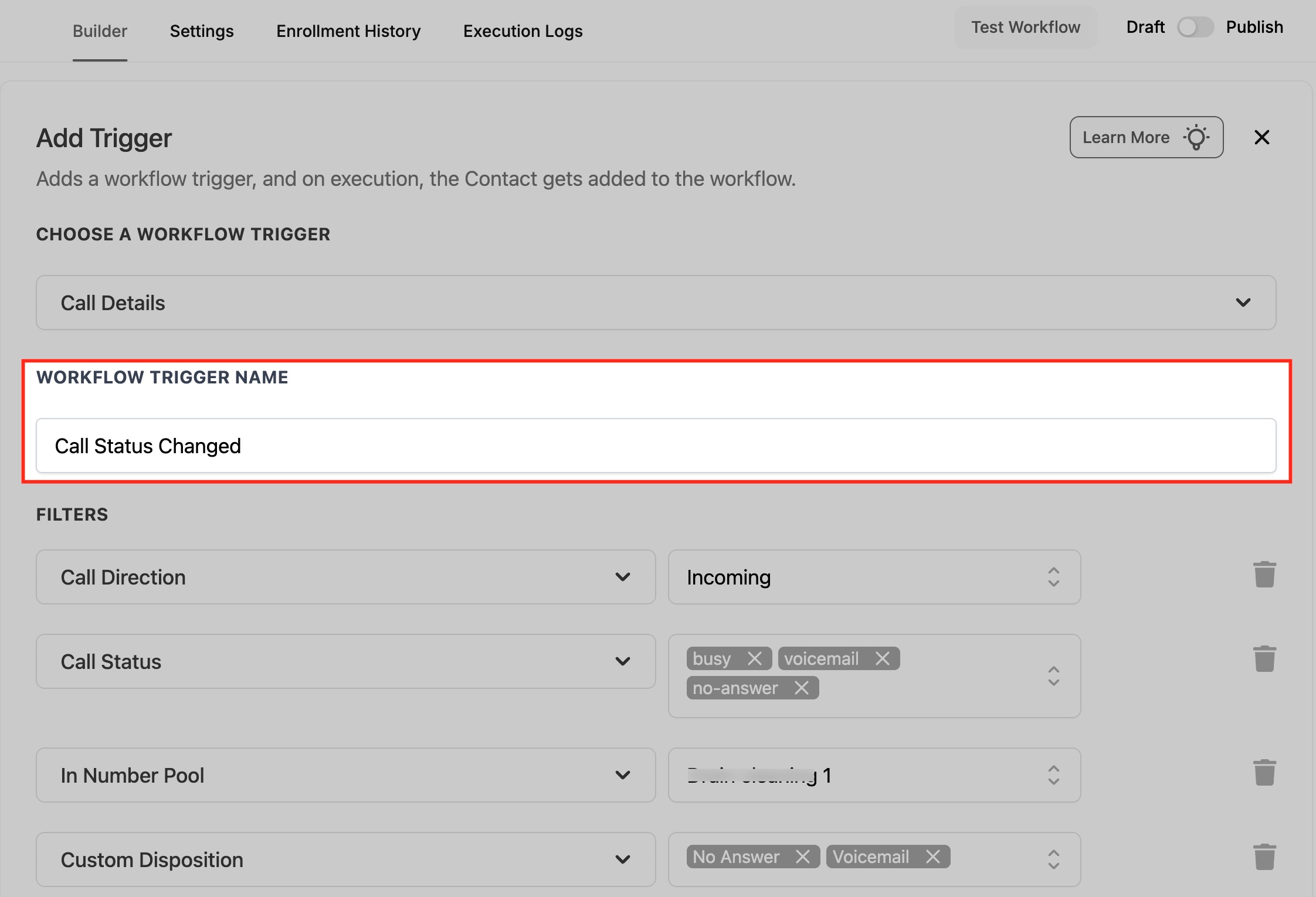
- Enter a clear name for the trigger to identify its purpose.
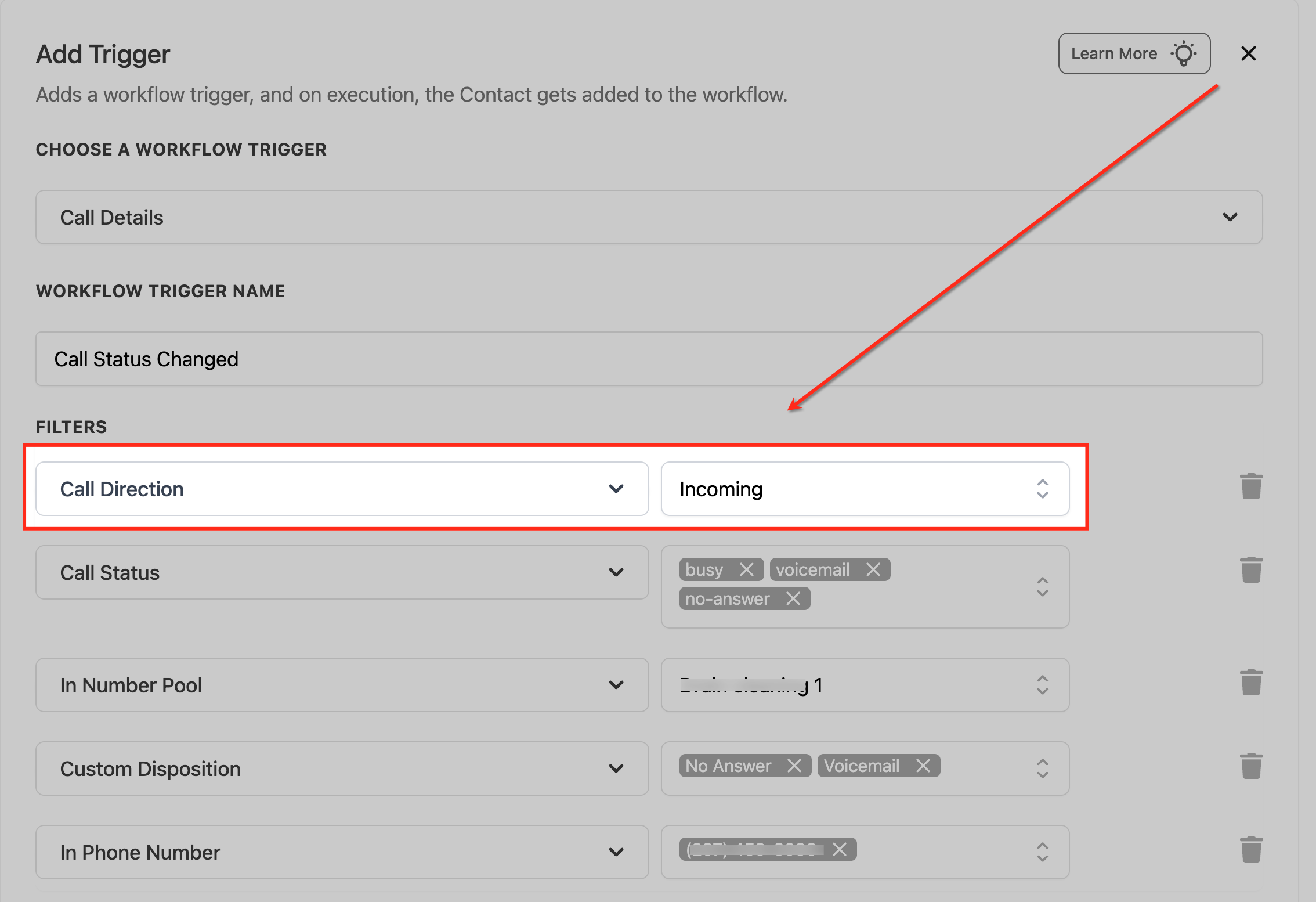
- Add the Call Direction filter and select Incoming or Outgoing as needed.
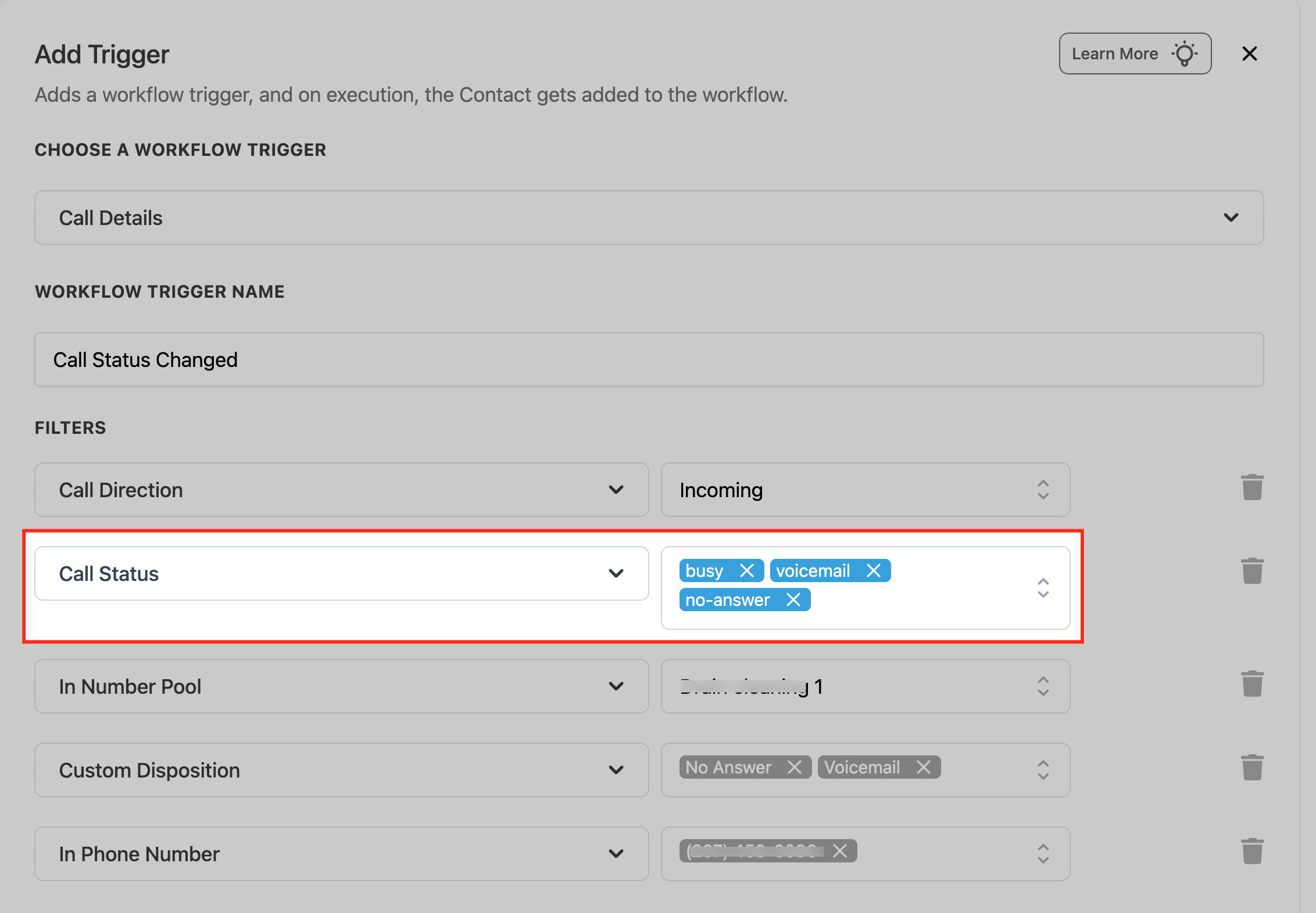
- Add the Call Status filter and pick the system outcomes that should qualify.
- If required, add the In Number Pool filter and choose a specific tracking pool.
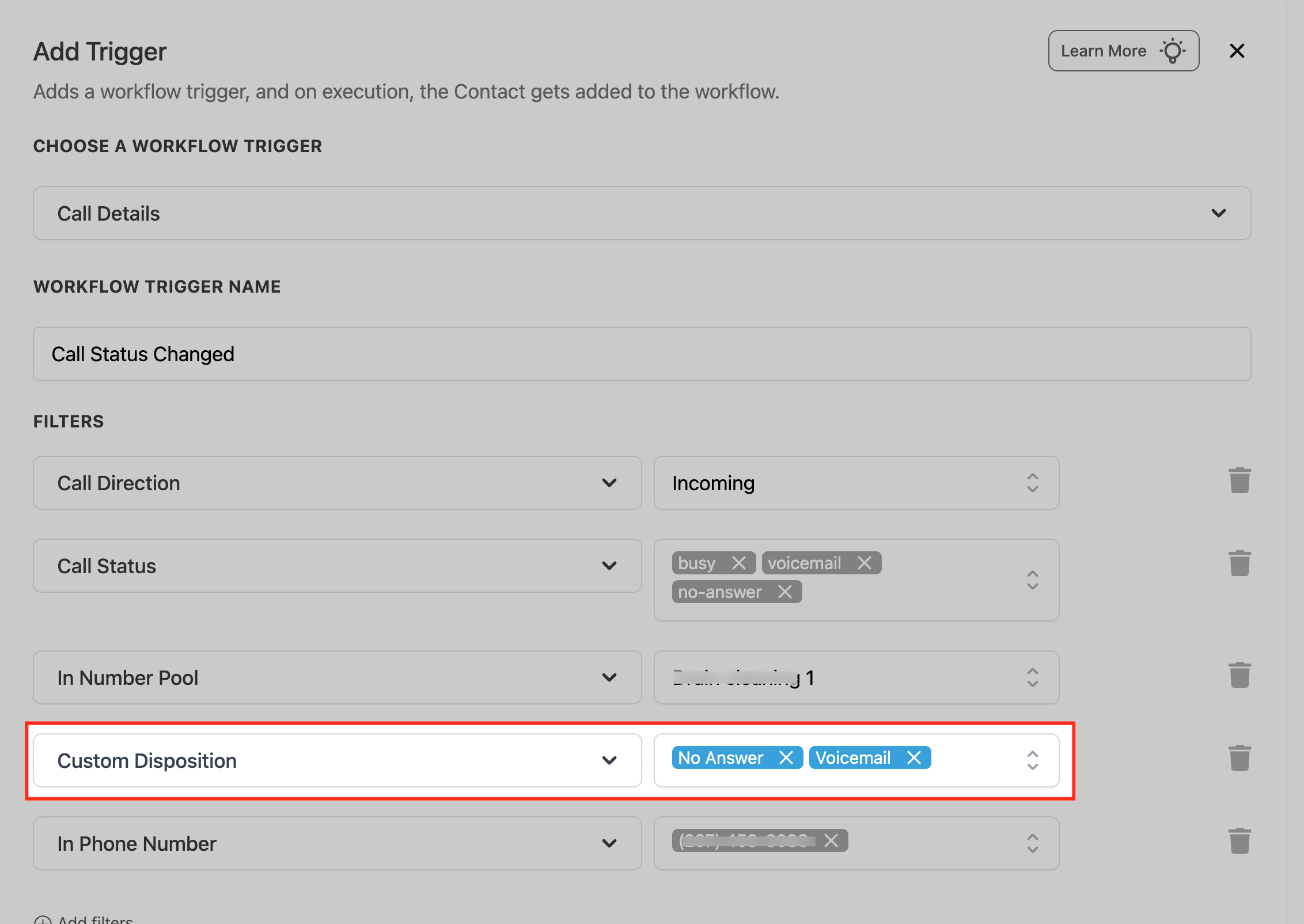
- If required, add the Custom Disposition filter and select the desired disposition values.
- If needed, add the In Phone Number filter and select the phone numbers that apply, then save, test, and publish the workflow.
06What it looks like in HighLevel
07Settings that matter
- Call Direction. Limits the trigger to incoming or outgoing calls.
- Call Status. Matches one or more system recorded call outcomes such as busy, voicemail or no answer.
- In Number Pool. Restricts enrollment to calls linked to a selected call tracking number pool.
- Custom Disposition. Filters on a post call classification that agents assign after the call.
- In Phone Number. Limits the trigger to calls that involve specific phone numbers in the account.
- Workflow Trigger Name. Provides a descriptive label for the trigger; it does not affect execution.
08Things to know before you rely on it
- Custom Dispositions are separate from system Call Status values; use the appropriate filter for the intended outcome.
- A contact cannot re enter the same workflow while it is still active unless Allow Re entry is enabled.
- Draft workflows do not process live calls; the workflow must be published for the trigger to fire.
09If something goes wrong
- Workflow does not fire for a qualifying call. Confirm the workflow is published and that Allow Re entry settings permit additional entries.
- Call does not meet trigger conditions. Compare the actual call record with each filter, direction, status, number pool, phone number, and disposition, and adjust filters as needed.
- Custom Disposition filter is not triggering. Verify the expected disposition was recorded for the call and that the disposition still exists in the account.
- Contact already active in the workflow. Ensure the contact has completed or been removed from the workflow, or enable Allow Re entry if repeat enrollment is desired.
10How it connects to the rest of HighLevel
- Set up and manage Number Pools for call tracking Number pool setup
- Use Call Connect to improve call status accuracy Call Connect guide
- Explore all Phone System features Phone System overview
Michael's take

Automation that acts on calls can feel risky if the filters aren’t exact. You could end up spamming your team or missing a real lead. The key is to be precise about direction, status, pool or disposition so the workflow only fires when you truly need it.
When it works, the Call Details trigger turns a missed call into a structured follow up without anyone watching the call log. I would let it automatically create a callback task or internal alert the first time a busy or no answer inbound call hits the system.