
01Who this is for
- Sales representatives can call contacts directly from the contact record, avoiding app switching.
- Customer support agents can make callback or follow up calls while viewing tickets.
- Marketing teams can place individual outreach calls from the browser during campaigns.
02Outbound calls with dialer, explained
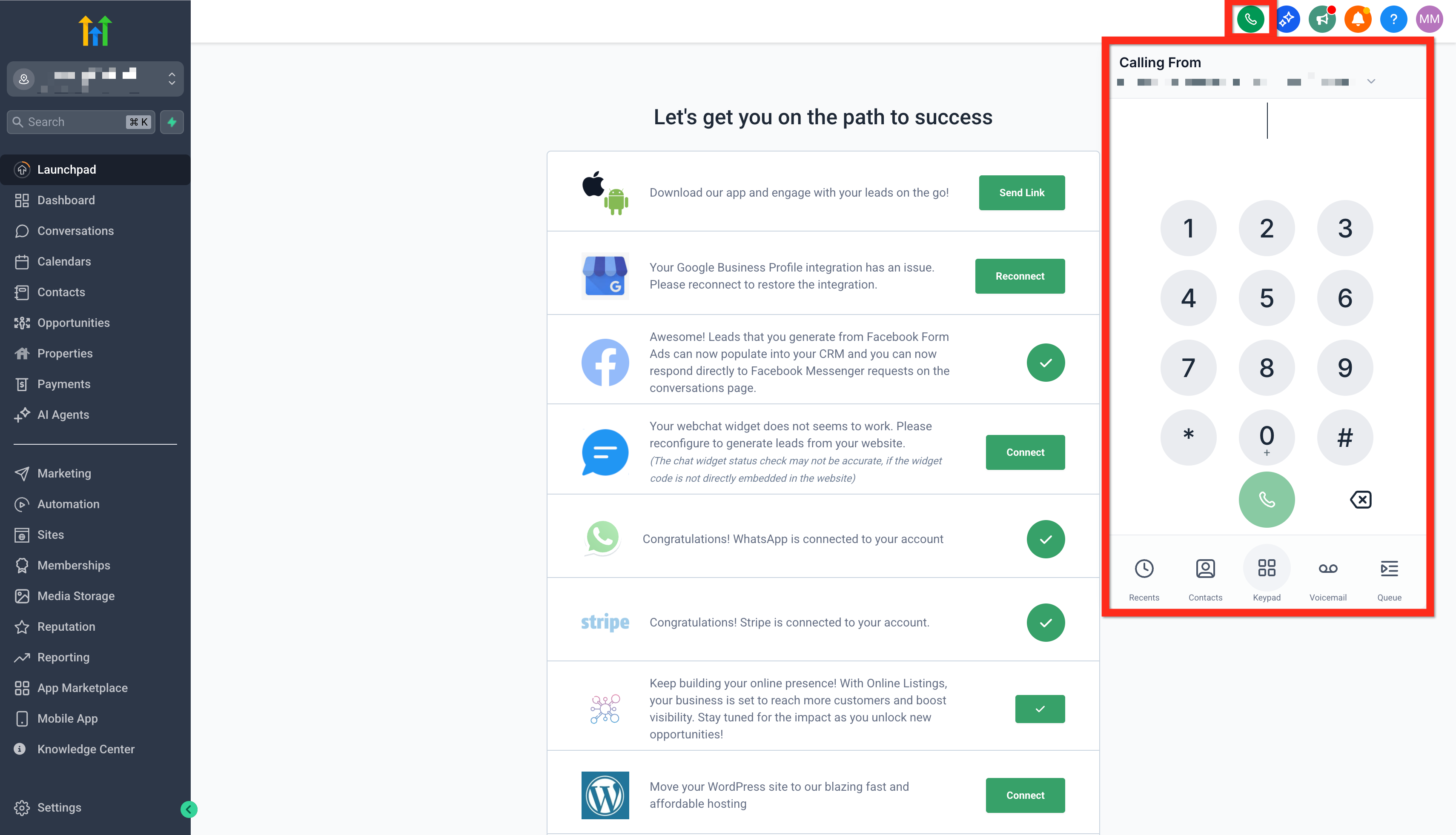
The Web Dialer is a browser based calling tool that lives under the green phone icon in the top navigation. It works on supported desktop and mobile browsers and allows you to enter a number, search contacts, or reuse recent calls.
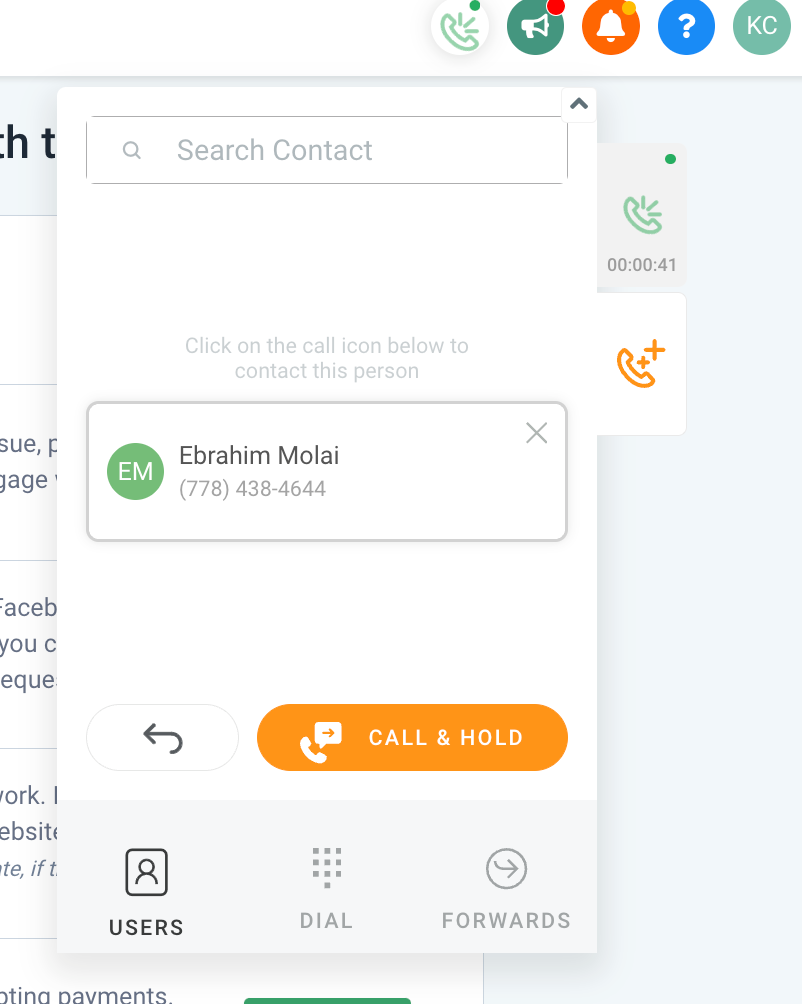
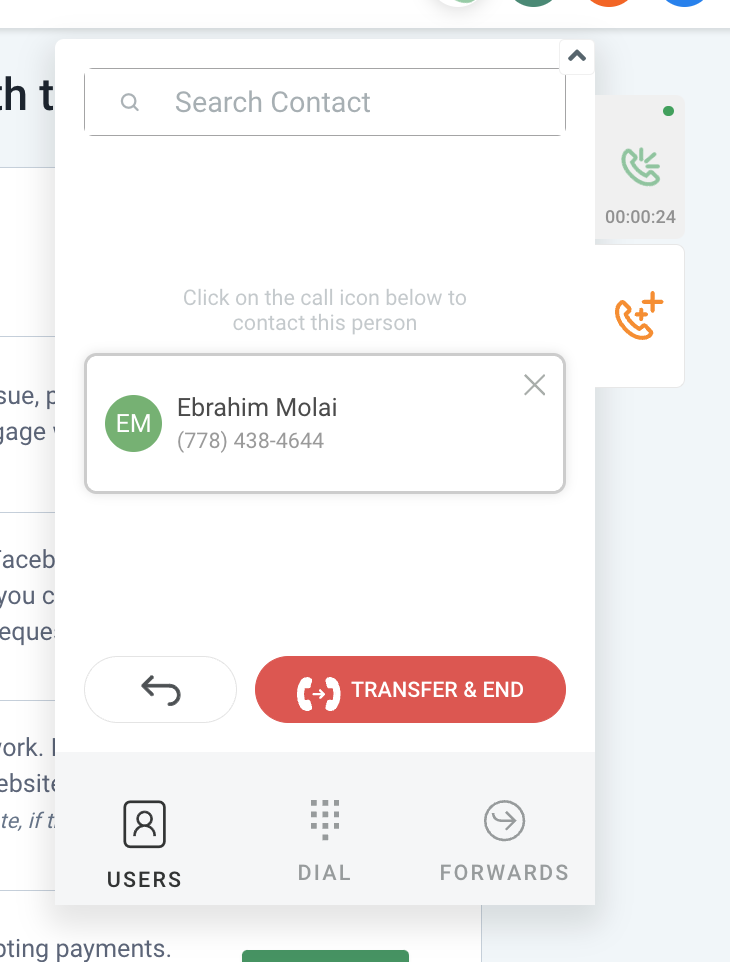
When a call connects, the dialer shows controls for mute, hold, keypad, call scripts, and transfers. The caller ID shown to the recipient comes from the selected Calling From number, which is governed by user role and number assignment.
03How businesses use outbound calls with dialer
- Real estate agency. Agents open the Web Dialer, select the agency’s business number as the Calling From ID, and dial prospective buyers. They use the keypad to navigate any IVR prompts and can transfer the call to a colleague if needed.
- Dental practice. Reception staff launch the dialer, choose the practice’s assigned number, and place reminder calls to patients. They can put the call on hold while checking the appointment schedule and then resume.
- Consulting firm. Consultants use the dialer to reach leads, selecting a personal or firm number based on their permissions. They record the conversation through the number’s recording settings and add notes after the call.
04The numbers and rules that matter
- Outgoing Call Timeout must be set to at least 20 seconds.
05Before you start
- Confirm an outbound phone number is assigned or an eligible Calling From number is available.
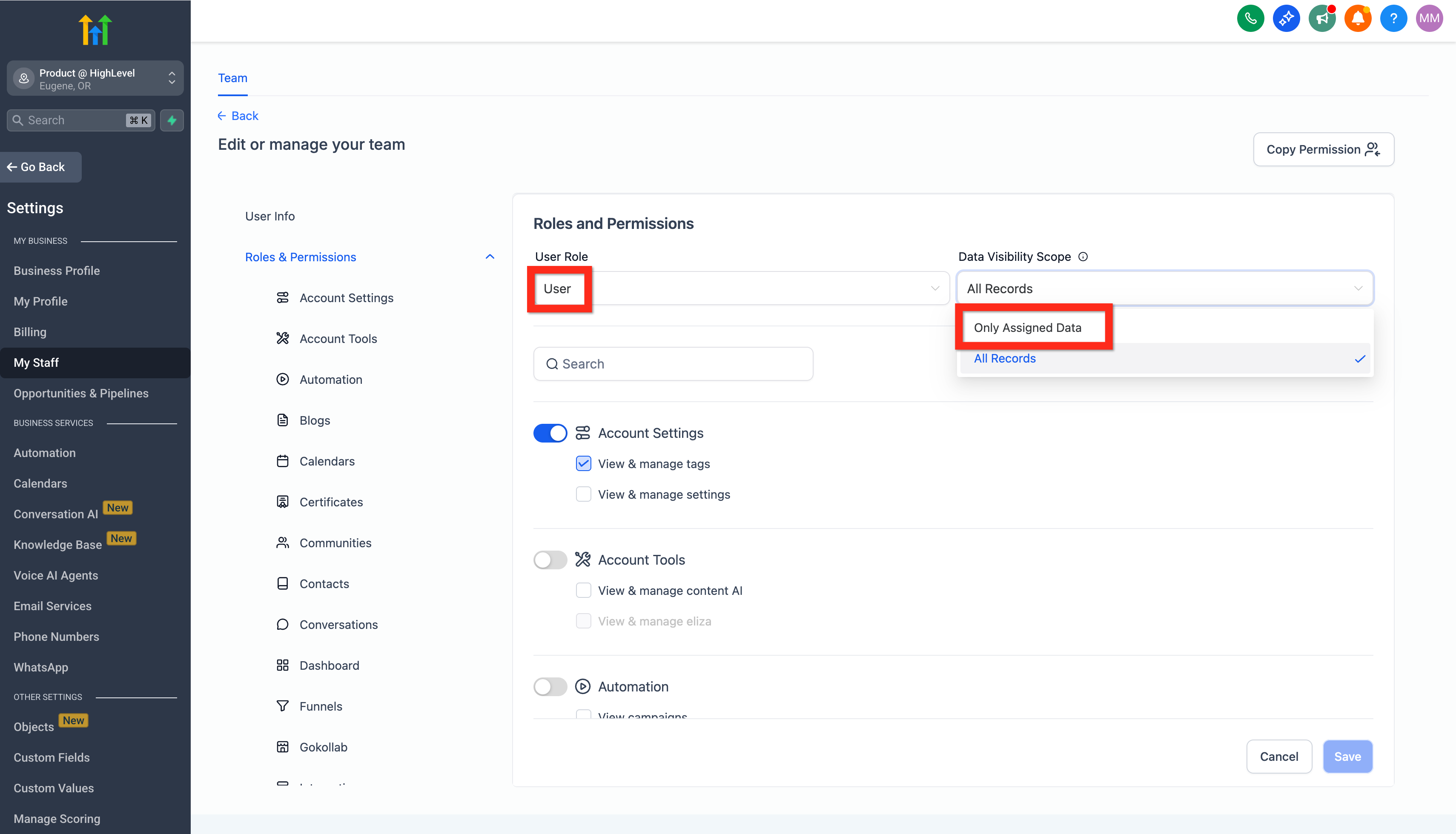
- Verify the user’s role and data visibility allow the desired Calling From selection.
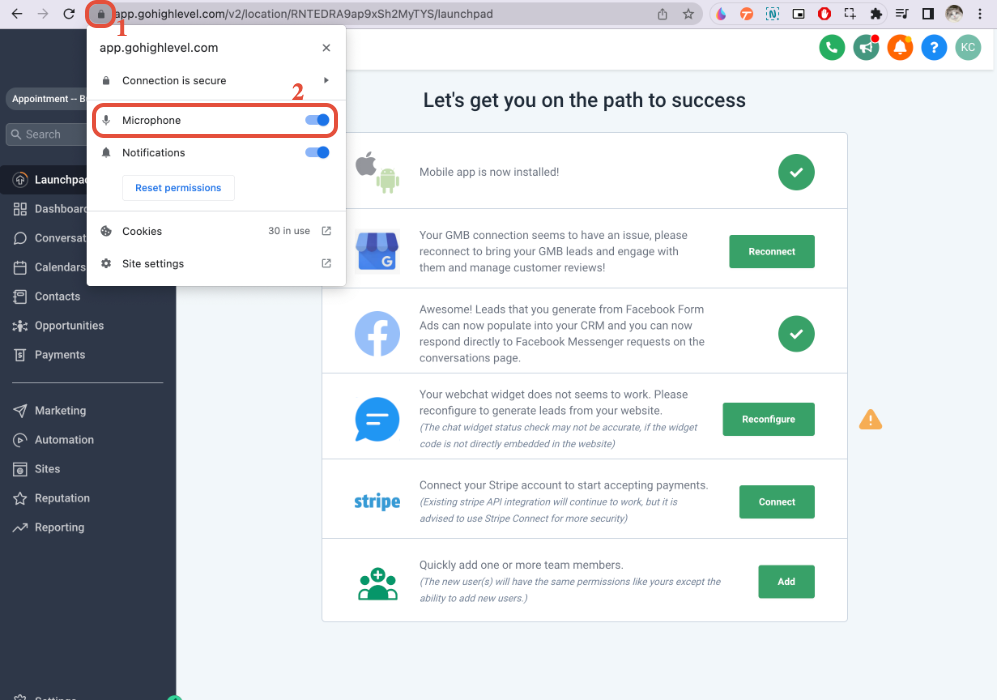
- Allow the browser to use the microphone.
- Select and test the intended microphone, speaker, or headset.
- Ensure a stable internet connection and avoid VPNs that may affect audio.
- Set the Outgoing Call Timeout to at least 20 seconds.
- Review call recording and consent settings for compliance.
06How to set up and use outbound calls with dialer in HighLevel
Make outbound call
- Click the green phone icon in the top navigation to open the Web Dialer.
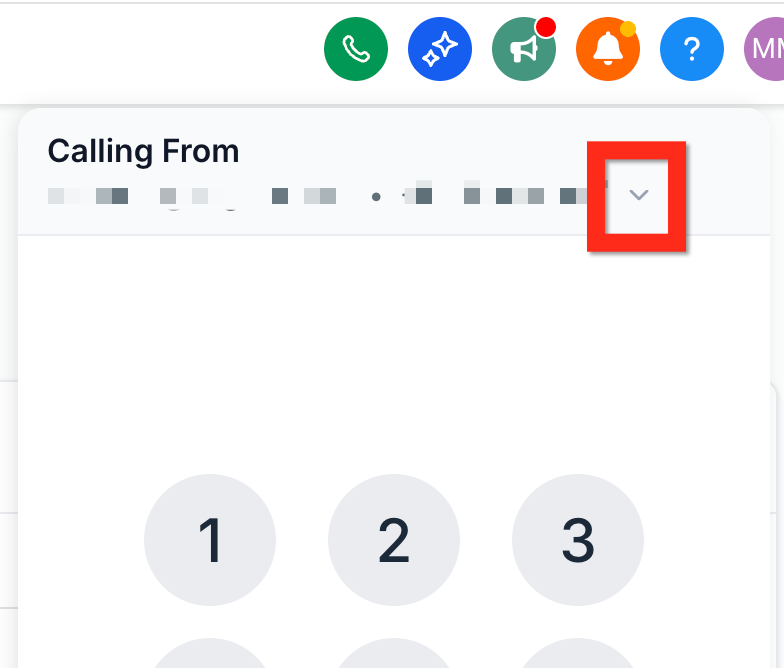
- Check the Calling From number displayed and change it if your role permits.
- Choose to dial manually with the keypad, search a contact, or pick a recent number.
- Enter or select the destination phone number you want to call.
- Press the call button to start the outbound call.
Set up the Web Dialer for outbound calls
- Allow the browser to access the microphone via the site information menu or browser settings.
- Open the audio device settings in the dialer and select the microphone and speaker, testing them beforehand.
- Temporarily disable VPNs, privacy extensions, or use an incognito window to ensure they do not block audio or connection requests.
- Navigate to Settings > Phone System > Phone Numbers, edit the relevant number, enable Outgoing Call Timeout, and set the value to 20 seconds or more.
- Place a test call to a known device, confirming ringing, caller ID, audio quality, keypad function, hold and transfer capabilities.
07What it looks like in HighLevel
08Settings that matter
- Outgoing Call Timeout. Defines the minimum time the system will wait for the destination carrier to answer before ending the call.
- Calling From. Selects which HighLevel phone number appears as the outbound caller ID, based on user role, data visibility and number assignment.
- Call Recording Announcement. Controls the playback of the legal notice that informs participants the call is being recorded.
09Things to know before you rely on it
- The Outgoing Call Timeout must be set to 20 seconds or more; shorter values may cause the call to end before the recipient’s device rings.
- Calling From choices are limited by the user’s role, data visibility scope, and number assignments; users with only assigned data cannot select a different number.
- CNAM, SHAKEN/STIR and Voice Integrity improve number reputation but do not guarantee display of the business name or removal of spam labels.
10If something goes wrong
- The Dialer does not open or the call button is unavailable. Refresh the page, confirm the user has access to the subaccount, and verify an eligible phone number is assigned for outbound calls.
- The other person cannot hear me. Ensure the browser microphone permission is enabled, the correct microphone is selected, the microphone is not muted, and no other application is monopolizing the device.
- I cannot hear the other person. Select the proper speaker or headset, check device volume, and test an alternative output device if needed.
- The call ends before the recipient rings. Verify the destination number is valid, set the Outgoing Call Timeout to at least 20 seconds, and test without VPNs or privacy extensions.
- The wrong Calling From number is used. Review the user’s assigned number, role, data visibility scope, and the Calling From dropdown selection.
- Call audio is delayed, choppy, or unstable. Use a stable network, reduce competing bandwidth usage, avoid VPNs, and prefer a reliable wired headset or connection.
- The recipient sees a spam label or no business name. Check SHAKEN/STIR, CNAM and Voice Integrity settings; note that these features do not guarantee removal of spam labels.
- A call transfer does not complete. Confirm the destination user or phone number is valid; for warm transfers, wait for the consultation call before patching, and for blind transfers use Transfer & End only after confirming the target.
11How it connects to the rest of HighLevel
- Set up number pools for call tracking to manage outbound caller IDs. Number pool setup
- Learn how to avoid spam labeling on outbound calls. Spam label guide
- Request and manage voice geo permissions for compliance. Voice geo permissions
Michael's take

When you need fast, on the fly outreach and want every call attached to the contact record, the Web Dialer can save time. It removes the friction of switching between a desk phone and HighLevel, and the built in transfer and script features keep teams efficient.
If your team relies on structured call queues or heavy automation, the Power Dialer may be a better fit. The Web Dialer adds limited value when audio hardware or network constraints keep calls unstable, because the underlying issues still need to be fixed.