
01Who this is for
- Support agents, need reliable audio to assist callers without interruptions.
- Remote sales teams, require clear two way conversation for closing deals.
- IT administrators, must ensure the network and devices support HighLevel calling.
02Bad call quality, explained
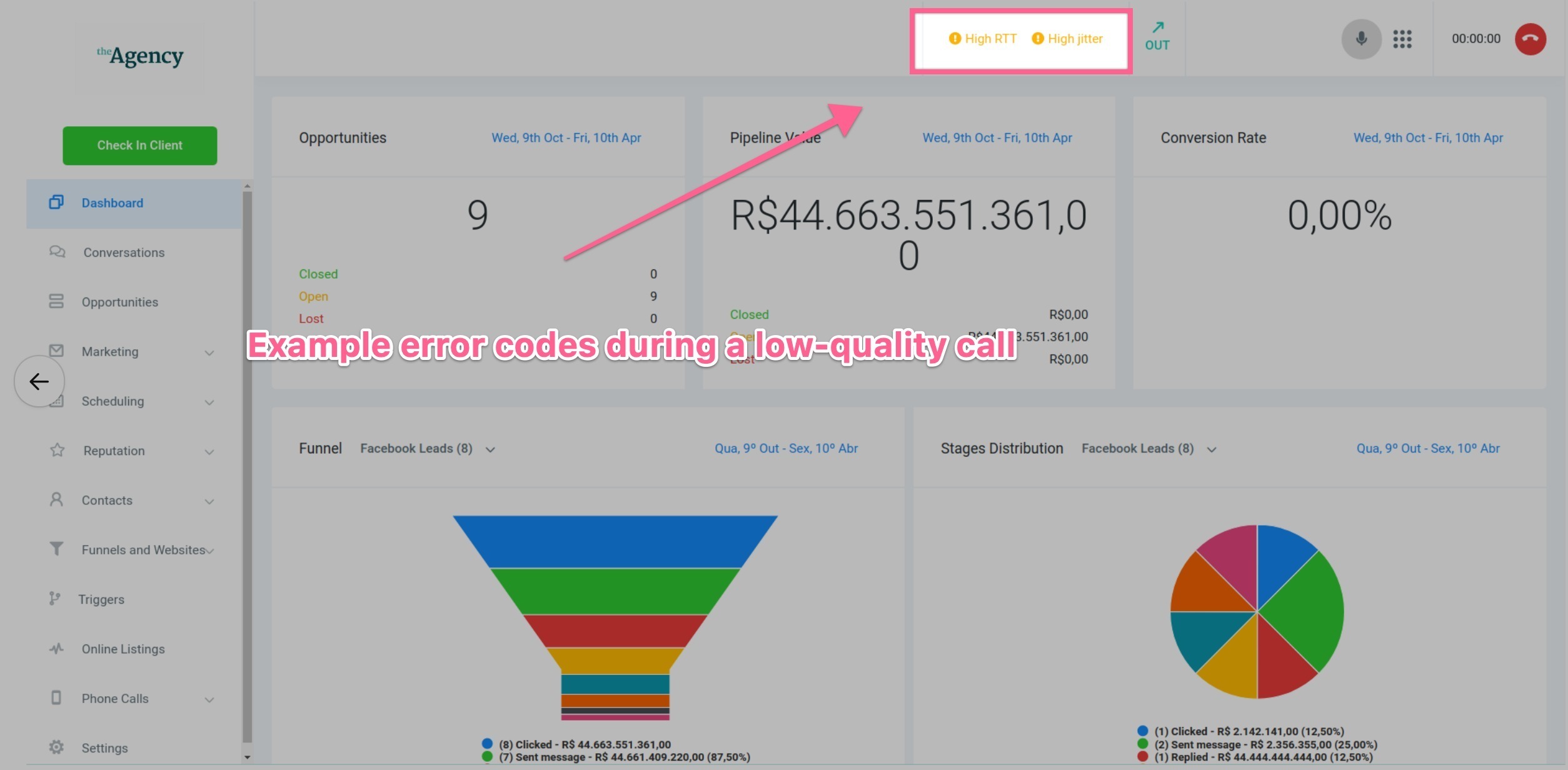
The troubleshooting guide helps you locate the source of audio degradation during a connected call. It walks you from confirming whether the problem is isolated to a single user or device, through testing different network connections, and checking hardware settings. The guide also shows how to interpret real time warnings displayed in the Web or Mobile app, such as high rtt, high jitter, high packet loss, or low mos.
HighLevel displays these warnings during or after a call, giving you insight into latency, jitter, packet loss, and overall call quality score. By following the steps, you can verify network health, adjust microphone or headset selections, restart the application and network equipment, and, if needed, involve HighLevel Support with detailed call information.
All steps are performed within the HighLevel platform, using the Web app, mobile app, or the device’s operating system, and do not require external software.
03How businesses use bad call quality
- Real estate agency. An agent experiences echo during virtual tours. They open HighLevel, verify the selected microphone and headset, test a different headset, and restart the web app to eliminate the echo before rescheduling tours.
- Health care clinic. A clinic staff member notices one way audio during telehealth calls. They check microphone permissions, switch from Wi Fi to a wired Ethernet connection, and confirm no high jitter warnings appear before continuing patient consultations.
- Digital marketing firm. A remote marketer reports choppy audio while on a conference call. The team closes background downloads, restarts the router, reviews any high packet loss warnings, and only escalates to HighLevel Support if the issue persists.
04How to set up and use bad call quality in HighLevel
Confirm the Issue Scope
- Determine whether the problem affects a single user, device, network, or all users in the location.
Check the Current Network
- Compare call quality on Wi Fi versus a wired Ethernet connection to see if the network type influences audio stability.
Close Bandwidth Heavy Applications
- Pause streaming, backups, large downloads, VPN traffic, or any other applications that consume significant bandwidth.
Check the Microphone and Headset
- Verify the correct microphone and speaker are selected in device settings or the HighLevel calling interface, and test with an alternate headset if possible.
Update and Restart the Calling Environment
- Refresh the HighLevel Web App, restart the browser or mobile app, and ensure the application is running the latest version.
Restart Network Equipment if Necessary
- Power cycle the router or modem by unplugging it for about 30 seconds, then reconnect and allow the connection to re establish before testing again.
Review Call Quality Warnings
- Look for high rtt, high jitter, high packet loss, or low mos warnings displayed during or after the call.
Test the Connection
- Measure latency, jitter, packet loss, and overall connection stability using a network quality tool, not just upload/download speed.
Review Network and Firewall Configuration if the Problem Persists
- Temporarily disable VPNs, security software, or browser extensions, and ask IT to verify that firewall rules meet HighLevel’s voice network requirements.
Escalate to HighLevel Support
- If audio issues remain, submit a support ticket with location ID, user details, example call data, network used, warnings shown, and reproducibility information.
05What it looks like in HighLevel
06If something goes wrong
- Robotic or choppy audio during a call. Close any bandwidth heavy applications and test the call on a wired connection to reduce jitter and packet loss.
- One way audio where the other party cannot hear you. Verify microphone permissions, select the correct input device, and ensure no firewall rules block outbound audio.
07How it connects to the rest of HighLevel
- Outbound Calls with Dialer (Softphone) guide Softphone dialing
- How to forward inbound calls to the mobile app Inbound call forwarding
- HighLevel phone system pricing and billing overview Pricing guide
Michael's take

Dealing with bad call quality can be frustrating, and fixing it helps maintain a professional brand image.