
01Who this is for
- Founders who need a single dashboard for email, calling, and texting to keep outreach organized.
- Marketing teams that run large SMS campaigns and require personalization without external tools.
- Customer support groups that want to forward calls to the appropriate agent while keeping records in HighLevel.
02Email, phone, and SMS, explained
HighLevel provides built in settings for email, phone, and SMS so you can send authenticated emails, place and receive calls, and dispatch text messages without leaving the platform. Email setup involves adding a dedicated subdomain and configuring header information, which improves inbox placement. Phone setup lets you purchase a number, use it for calls and texts, and forward inbound calls to any destination you choose. Bulk SMS lets you select many contacts, craft a single message or use a template, and deliver it right away, on a schedule, or in drip batches. All of these options are accessed through the Settings menu and the Contacts tab, where you can also track delivery results.
The email configuration lives under Settings > Email Services, while phone numbers are managed in Settings > Phone System and Settings > Phone Numbers. Bulk messaging tools are found in the Contacts area, using the top menu SMS icon and the Bulk Actions dashboard to monitor performance.
03How businesses use email, phone, and SMS
- Dental practice. The practice verifies its email domain to send appointment confirmations that land in patients' inboxes. It purchases a local phone number, forwards calls to the front desk during business hours, and uses bulk SMS to remind patients of upcoming cleanings.
- Ecommerce store. The store adds a dedicated email subdomain for order receipts, buys a toll free number for customer inquiries, and creates a scheduled bulk SMS campaign to announce flash sales to all subscribed contacts.
- Real estate agency. Agents set up a shared phone number, enable call forwarding to individual agents' mobiles, and send bulk SMS alerts about new property listings to leads filtered by location in Smart Lists.
04How to set up and use email, phone, and SMS in HighLevel
Set up email for verified sending
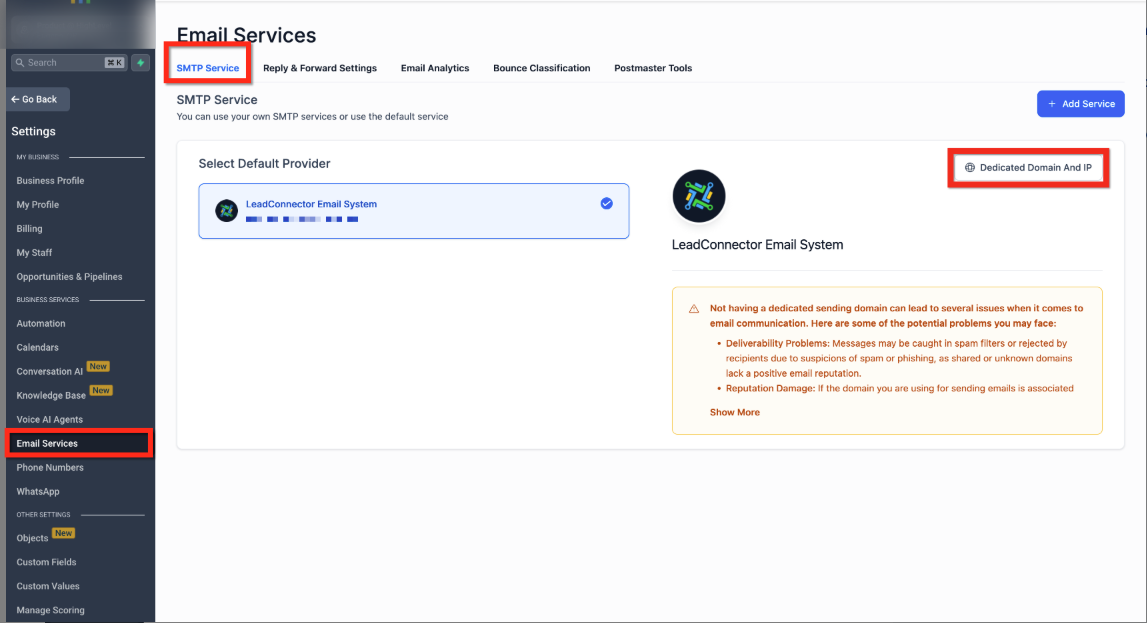
- Open Settings and select Email Services.
- Click the Dedicated Domain and IP option.
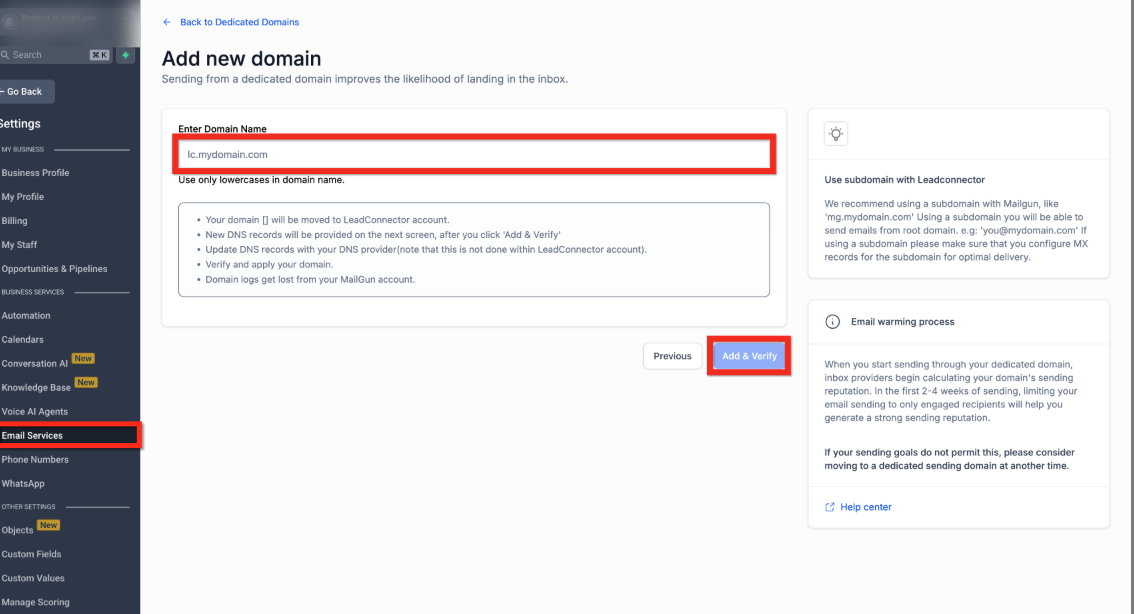
- Press Add Domain.
- Enter your subdomain (e.g., lc.mydomain.com) and choose Add & Verify.
- Add the DNS records shown at your registrar.
- After the updates, click Verify Records.
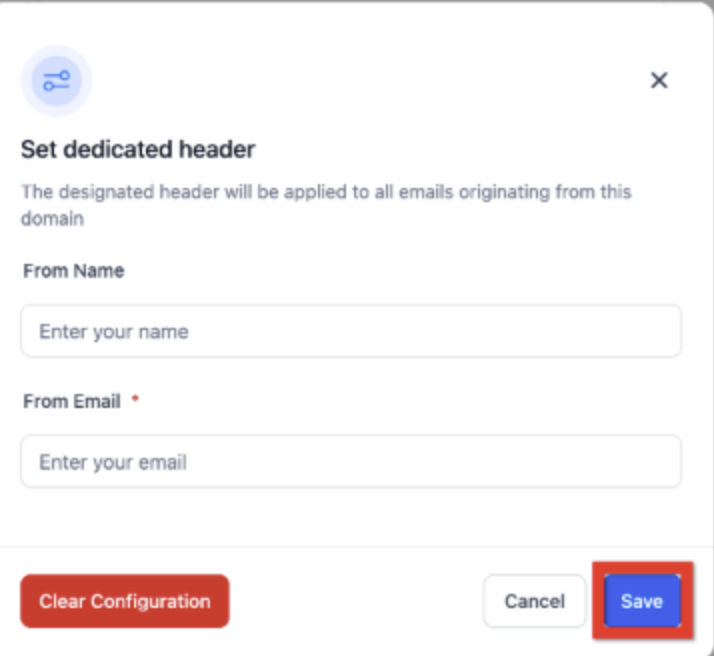
- Open the three dot menu and pick Set Headers.
- Provide the From Name and From Email, then save.
Add a phone number for calls and texts
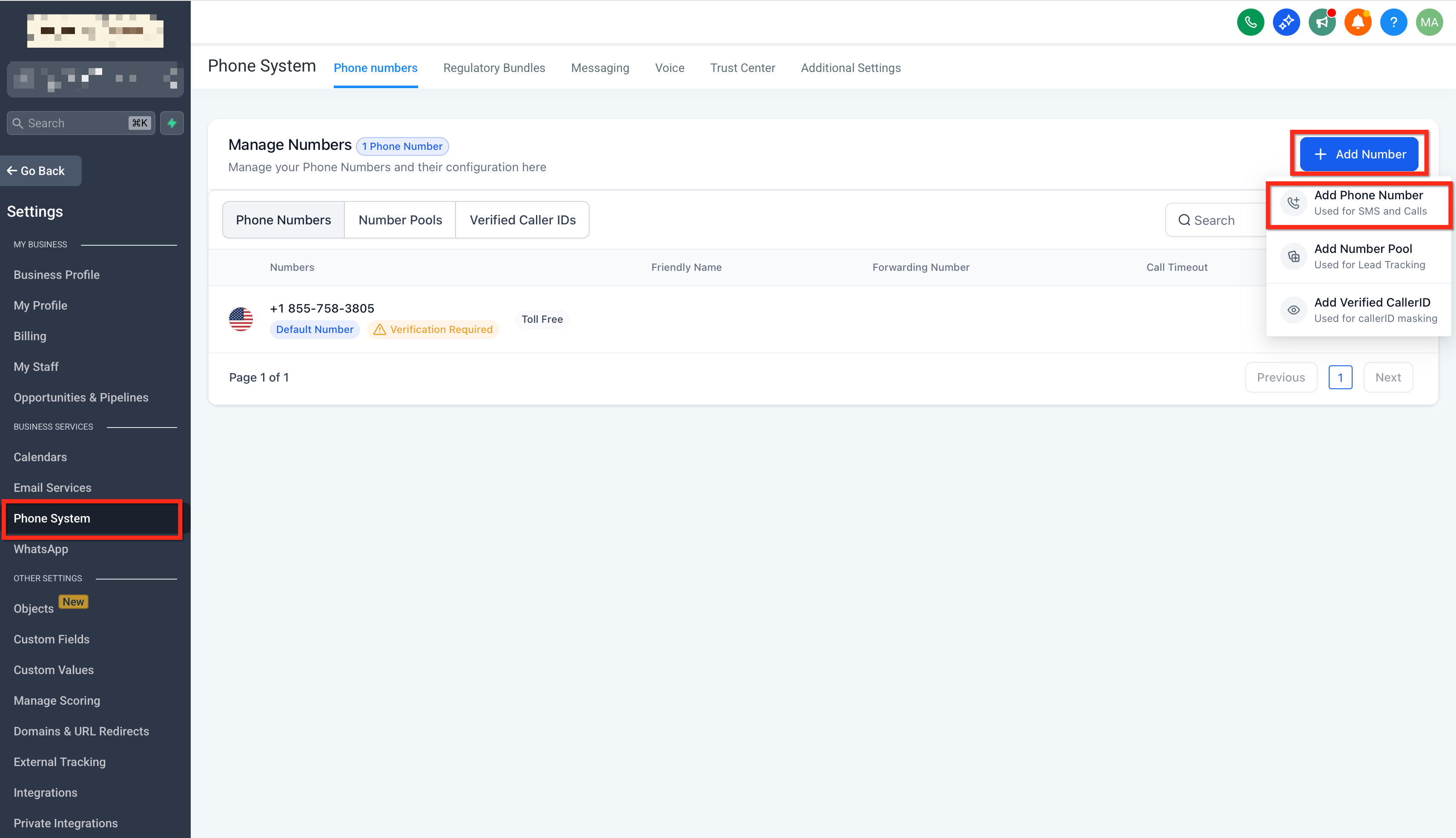
- Go to Settings and open Phone System.
- Click Add Number and then Add Phone Number.
- Filter the list by country or area code.
- Select the number you prefer.
- Click Proceed to Buy to complete the purchase.
Forward incoming calls to another number
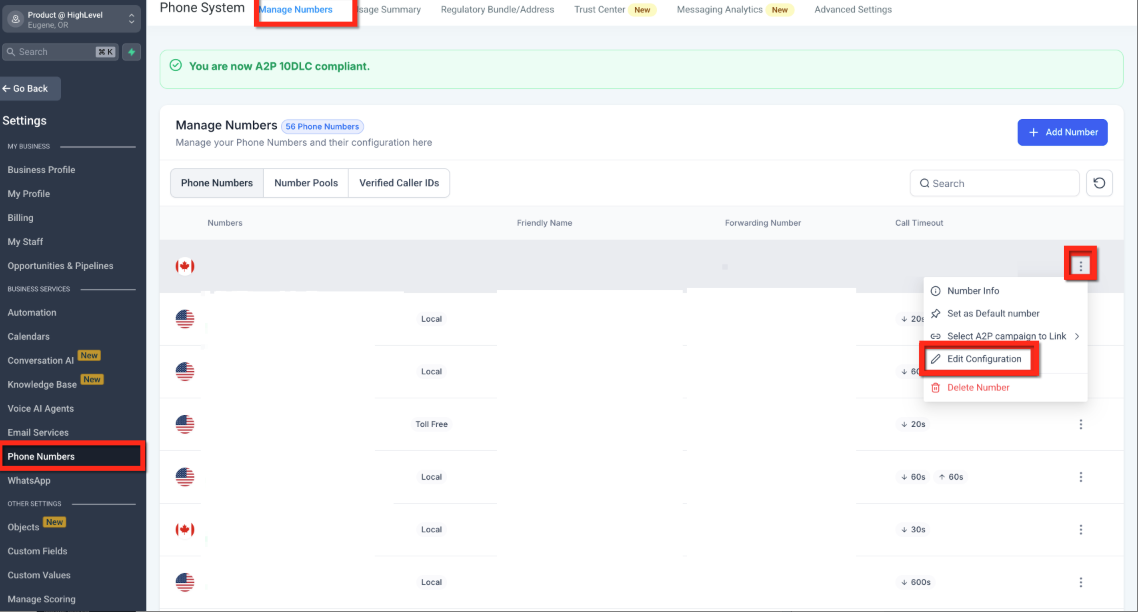
- Navigate to Settings and choose Phone Numbers.
- Open the three dot menu for the desired number and select Edit Configuration.
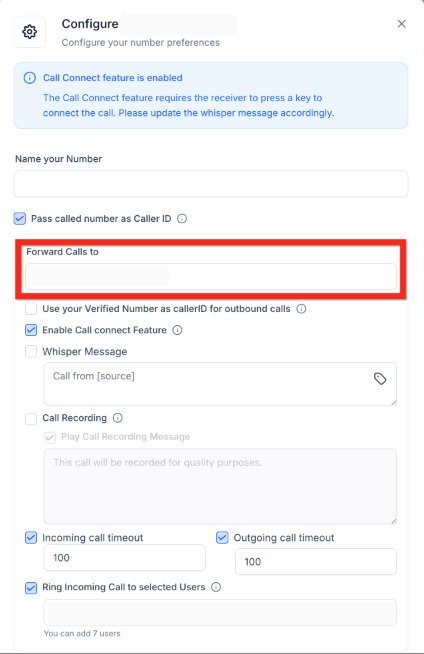
- Type the destination phone number for forwarding.
- Save the configuration.
Reach an individual contact from their record
- Open the Contacts section.
- Click the contact you want to reach.
- Select SMS, Email, or Phone from the composer tabs and send the message.
Send a message to multiple contacts at once
- Go to Contacts and then Smart Lists.
- Apply filters to define the target audience.
- Check the boxes next to the contacts you want to include.
- Use the top toolbar to start a bulk Email or SMS action.
Create and send a bulk SMS campaign
- In Contacts, tick the boxes for the contacts you wish to message.
- Click the SMS icon on the top bar to open the Bulk SMS window.
- Choose a sending number from the From Phone Number dropdown.
- Write a new message or select a saved template from SMS Templates.
- Pick a delivery method: Send All at Once, schedule a time, or configure Drip Mode.
- If using Drip Mode, set the start date, batch size, interval, weekdays, time window, and end time.
- Click Send SMS to queue the campaign.
- Open Bulk Actions under Contacts to view delivery status and statistics.
05What it looks like in HighLevel
06Settings that matter
- Dedicated Domain and IP. Enables you to add a subdomain that will be used for authenticated email sending.
- Set Headers. Lets you define the From Name and From Email that appear on outgoing messages.
- From Name. Specifies the display name shown to recipients of your emails.
- From Email. Sets the email address used as the sender for verified emails.
- Add Number. Starts the process of purchasing a new phone number within the platform.
- Add Phone Number. Completes the selection and acquisition of a specific phone number.
- Phone Numbers. Provides access to the list of owned numbers and their forwarding settings.
- From Phone Number. Chooses which owned number will be used as the sender for a bulk SMS.
- SMS Templates. Allows you to select a pre saved message body for bulk SMS sends.
- Drip Mode fields. Controls batch size, timing, weekdays, and time windows for paced SMS delivery.
07Things to know before you rely on it
- A verified email domain is required before messages can be sent as authenticated email.
- Sent SMS messages cannot be canceled; you must contact Support for any needed changes to scheduled or drip sends.
- Unsubscribed or Do Not Disturb contacts are automatically excluded from bulk SMS campaigns.
- Messaging volume limits may need to be increased by requesting support after demonstrating consistent, compliant sending activity.
- Drip Mode respects the account's local time zone when scheduling batches.
08If something goes wrong
- No "From" phone number selected for a bulk SMS. Select a number in the From Phone Number dropdown or let the system use the last number used for each contact or the account default.
- Need to stop a scheduled bulk SMS. Contact Support immediately, as sent messages cannot be canceled through the interface.
09How it connects to the rest of HighLevel
- Learn how to import contacts for bulk messaging Import contacts guide
- Start an email campaign after verifying your domain Email campaign guide
- Review pricing for phone numbers and messaging limits Phone system pricing
- Understand SMS compliance rules for opt out handling SMS compliance
Michael's take

Running a business means you need all your communications in one place so you don’t miss a lead or a client call. The first thing I would lock down is the email domain verification because it protects your sender reputation and keeps messages out of spam folders.
After that I’d move straight to buying a phone number and setting up call forwarding so every inbound call lands where my team can answer it. The bulk SMS workflow is handy for promotions, but I’d test a small batch first to confirm delivery before scaling up.