
01Who this is for
- Founders who need a quick way to capture leads without hiring developers.
- Marketing agencies that build multiple client funnels and require easy editing.
- Coaches or consultants who want to route visitors to a booking calendar or sales page.
02Funnels, explained
The funnel builder lives under the Sites section of HighLevel. It lets you create a new funnel, pick a starting point, blank, AI assisted, or a pre designed template, and then modify each step in a visual editor. Forms can be attached directly from the Form Builder, and the final funnel can be pointed to any custom domain you own.
When a domain is linked, the system guides you through DNS record creation and verification. Once verified, the funnel URL uses your domain, giving a professional appearance and improving trust. All changes are saved with a single click, keeping the published version up to date.
03How businesses use funnels
- Coaching business. A coach creates a funnel from a template, customizes the page to match their brand, adds a contact form to collect inquiries, and points the funnel to their custom domain. This provides a dedicated landing page for prospective clients.
- Real estate agency. The agency builds a blank funnel to showcase property listings, inserts a form for visitor details, and edits the pages as new listings appear. The funnel is attached to the agency's domain for consistent branding.
- SaaS startup. The startup selects an AI generated funnel, refines the copy in the editor, adds a sign up form, and connects a subdomain to host the product preview. The funnel captures trial sign ups directly into HighLevel.
04Before you start
- You must have access to a HighLevel subaccount.
- A custom domain should be ready to connect, or you must plan to connect one.
- Define the primary goal of the funnel, such as lead capture or appointment booking.
05How to set up and use funnels in HighLevel
Create a new funnel
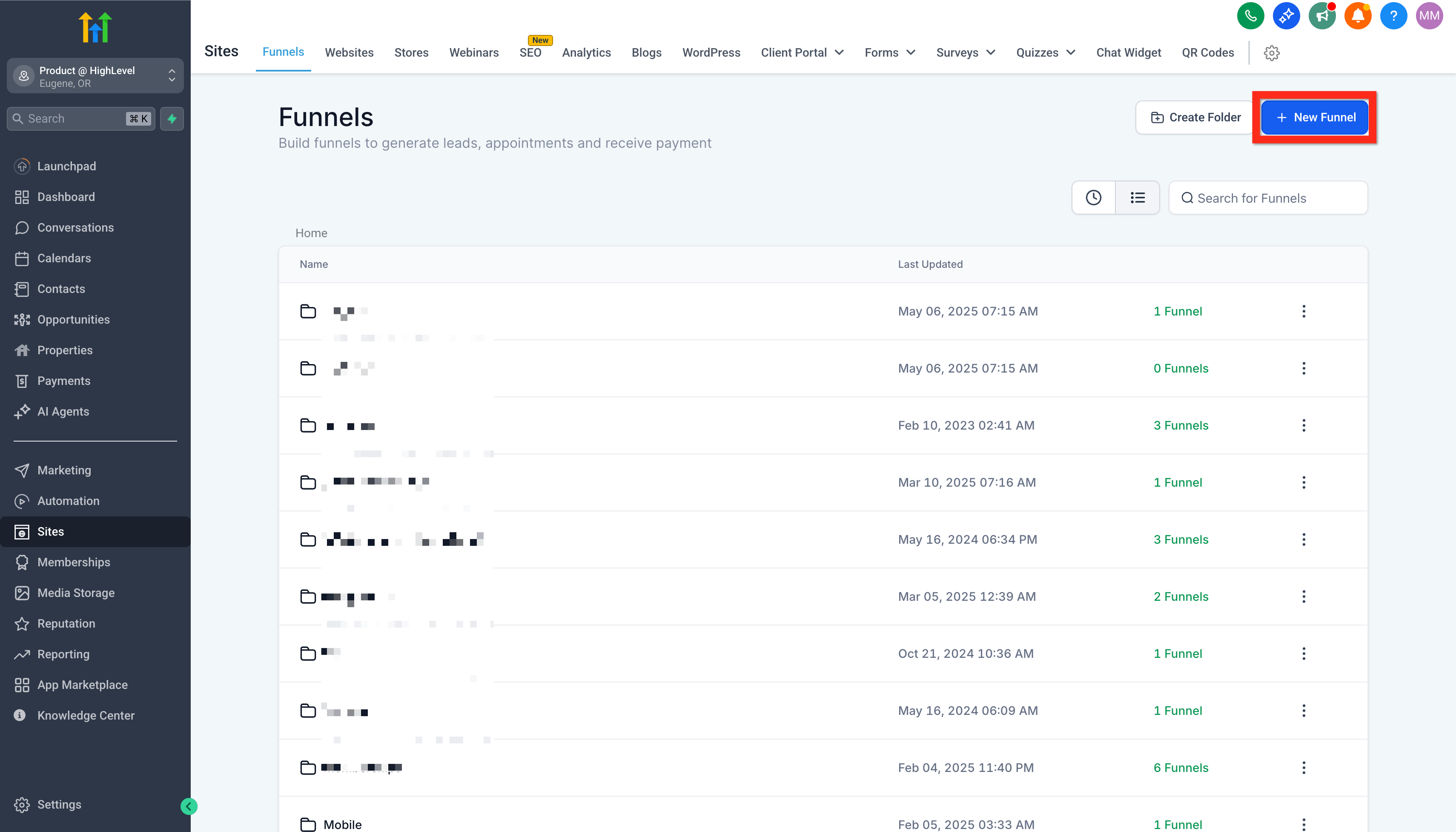
- Open Sites > Funnels in the platform.
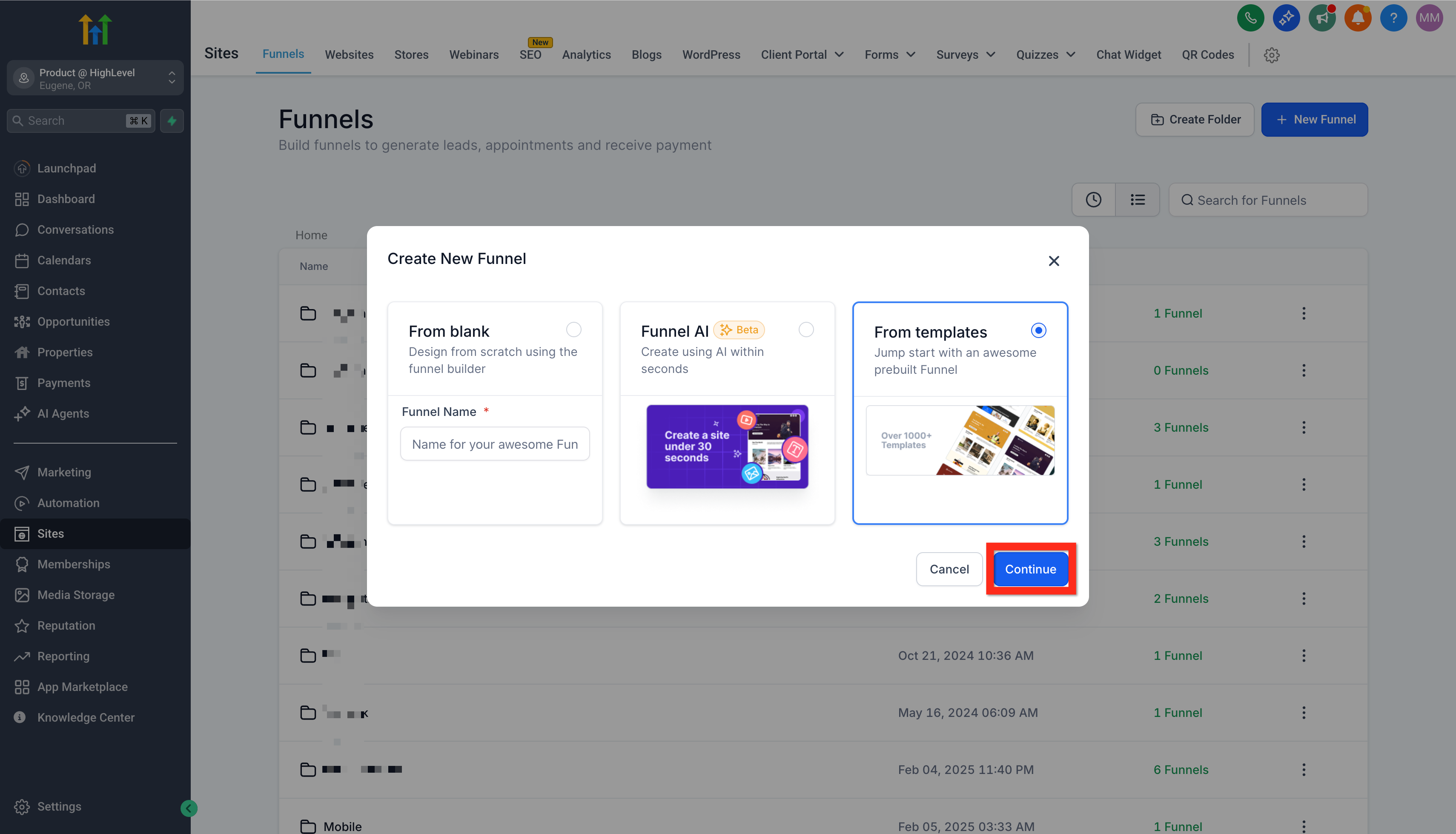
- Select New Funnel and choose one of the offered start options.
- Pick either Blank, Funnel AI, or From Templates to begin building.
Create a funnel from a template
- Open Sites > Funnels.
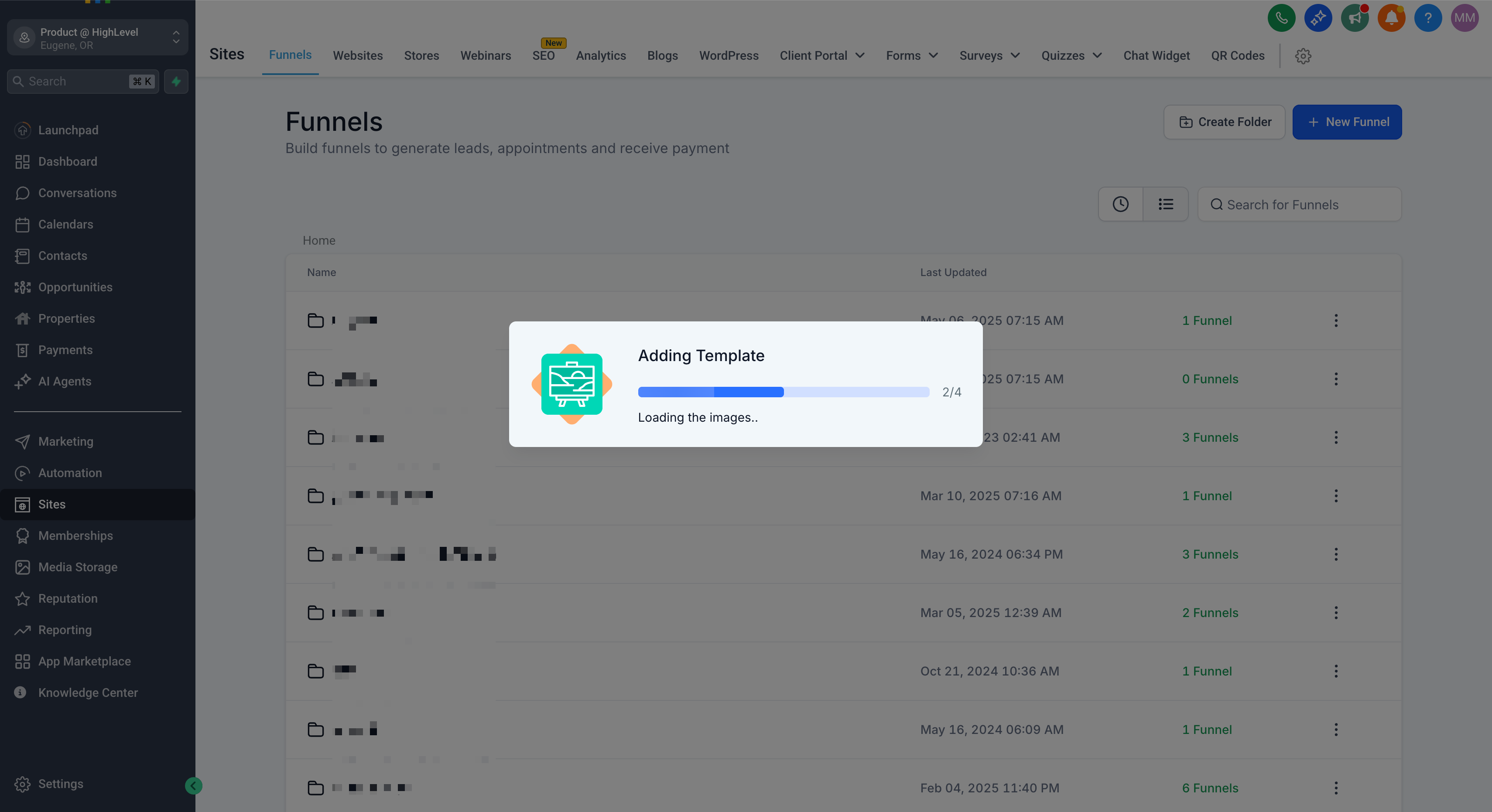
- Click New Funnel, then choose From Template and press Continue.
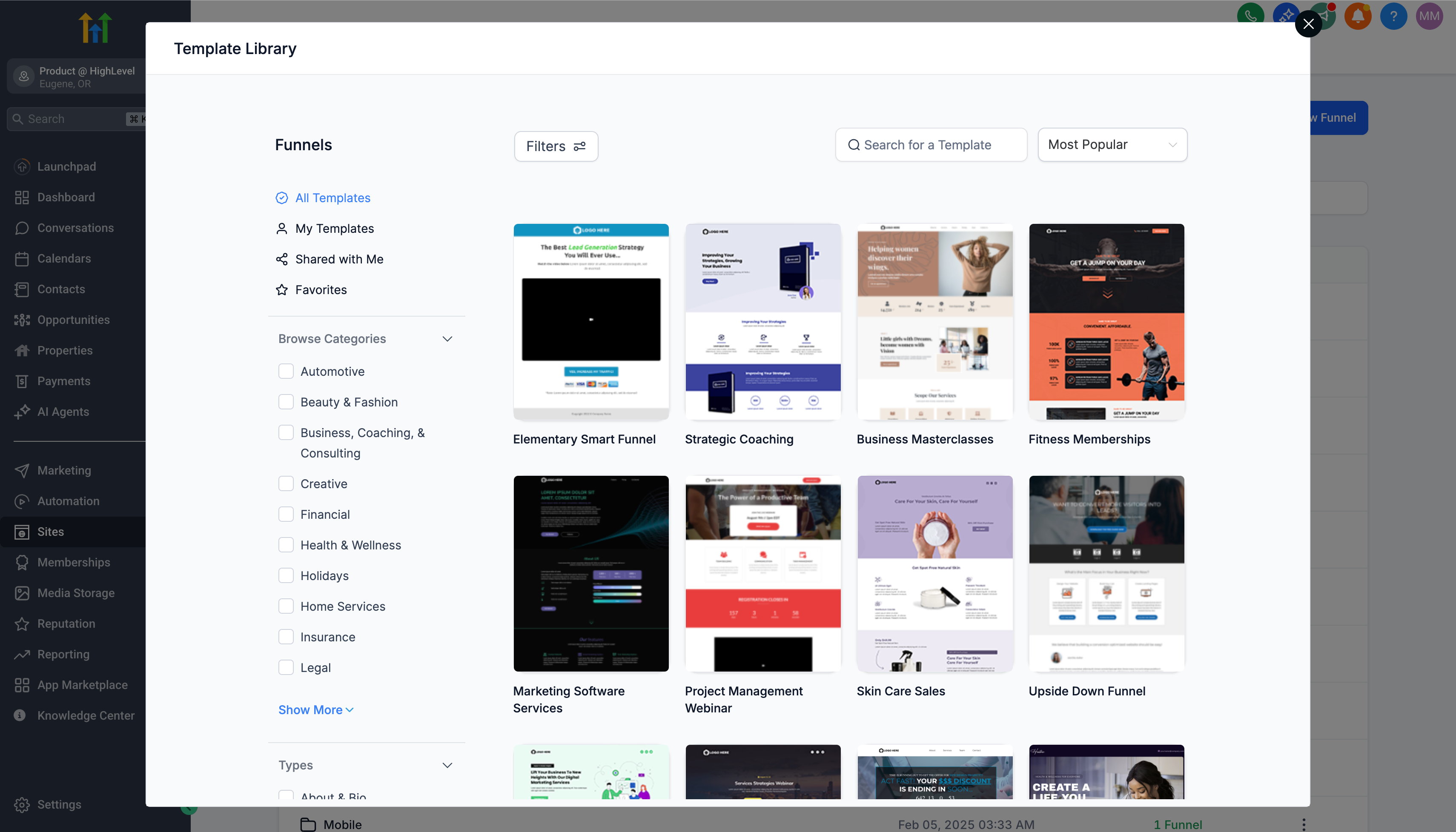
- Launch the Template Library.
- Search, filter, or sort the library to find a suitable design.
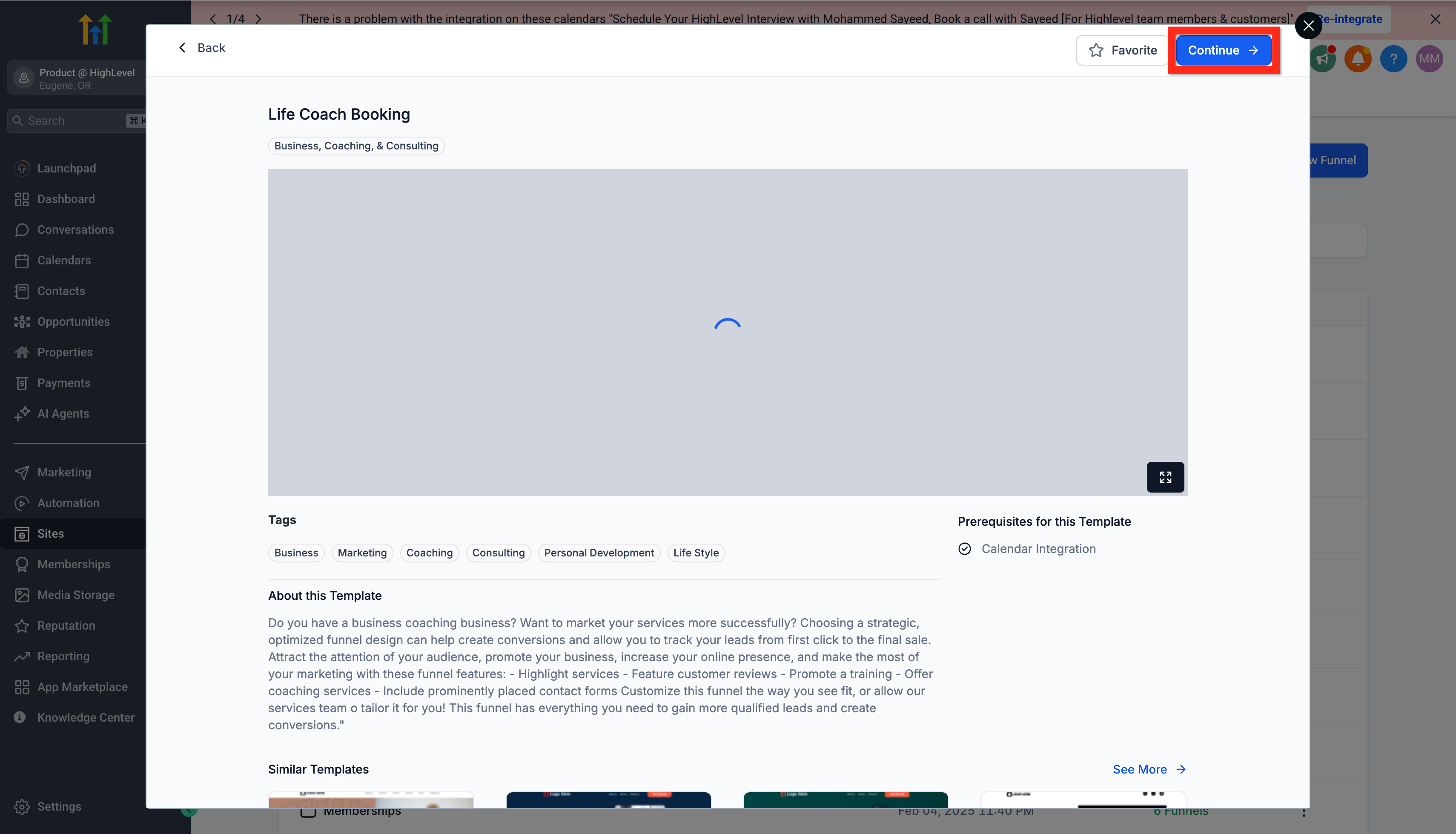
- Preview the selected template to confirm suitability.
- Press Continue to load the template into the editor.
- Adjust the layout and content within the Funnel Editor.
- Save the completed funnel.
Create a form for a funnel
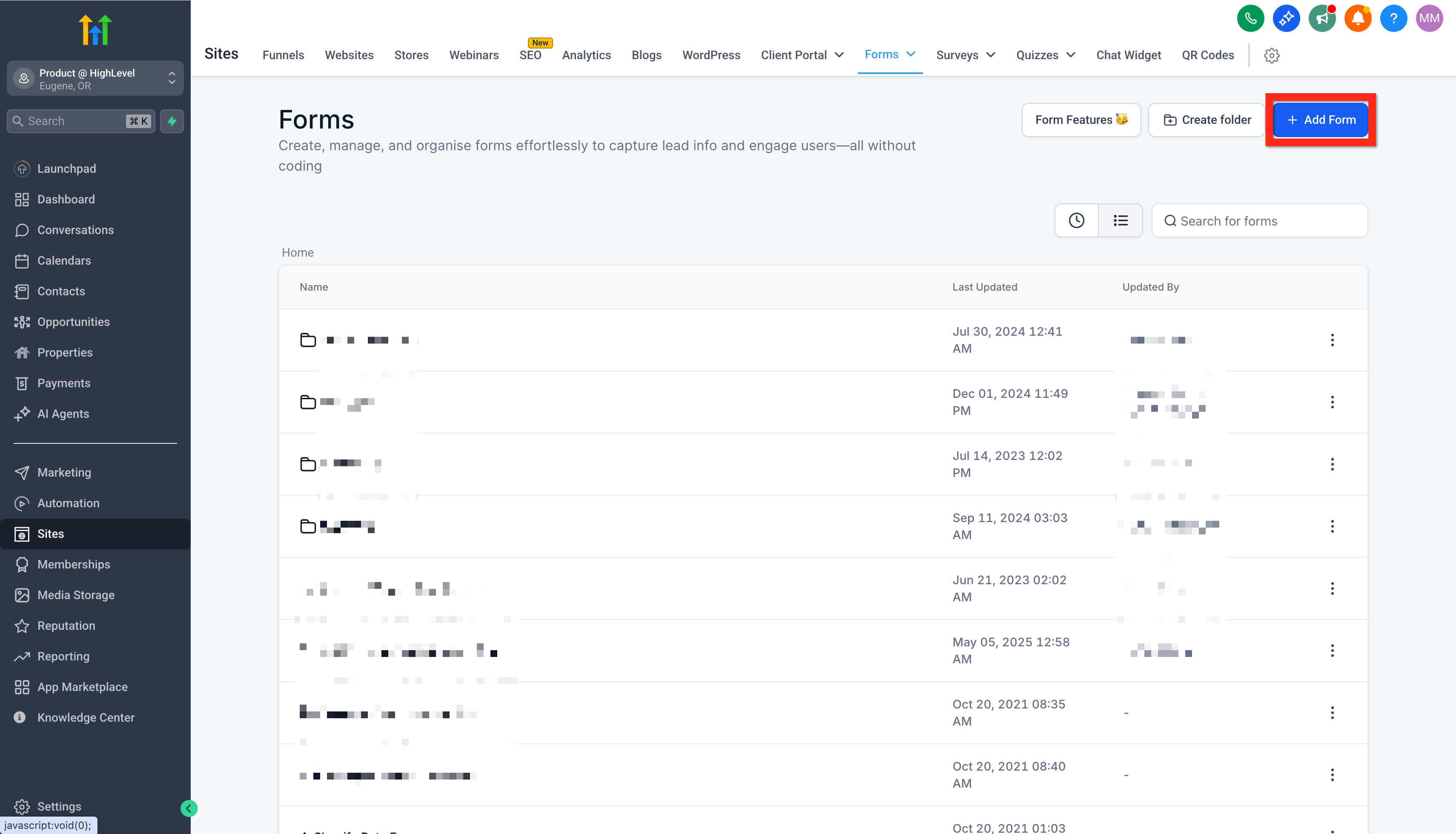
- Open the Form Builder, either via the Funnel Editor’s Form Picker or directly.
- Click Add Form to start a new form.
- Edit fields and branding using the Form Editor.
- Save the form.
Edit an existing funnel
- Navigate to Sites > Funnels.
- Select the funnel you want to modify from the list.
- Make changes inside the Funnel Editor.
- Save the updated funnel.
Add a custom domain to a funnel
- Go to Settings > Domains.
- Click Connect a Domain.
- Enter the domain name and select Continue.
- Follow the on screen guidance to create the required DNS records.
- Click Verify Records once DNS changes propagate.
- Associate the verified domain with the chosen funnel.
- Press Proceed to Finish the connection.
06What it looks like in HighLevel
07Things to know before you rely on it
- Domain connection requires you to configure DNS records with your registrar; the exact steps vary by provider.
- Templates provide a pre designed layout but can be fully customized after import.
08If something goes wrong
- Funnel does not load. Check that the custom domain is correctly set up, verify DNS propagation, and ensure the funnel is assigned to the domain.
- Form does not capture leads. Confirm a form is placed on the page, submit a test entry, and review any attached workflow or automation.
09How it connects to the rest of HighLevel
- How to set up a root domain or subdomain for your funnels Domain setup guide
- HighLevel guide to creating and managing contact forms Form creation guide
- HighLevel pricing and plans for access to Funnels Pricing page
Michael's take

I would begin with securing a domain, connect it in Settings > Domains, and verify the DNS before anything else.
Once the domain is confirmed, I would pick a template that matches the brand, add a simple form, and publish.