
01Who this is for
- Anyone can create an email campaign by selecting a template and editing it to match their needs.
- Teams can test the email before sending to ensure the message appears correctly to recipients.
02Email campaigns, explained
The email campaign feature lives under the Marketing section. Templates provide a starting design that can be edited, saved, and later turned into live campaigns. A built in editor lets you modify text, images, and layout, and you can send a test email for review.
When the template is ready, you create a campaign directly from it. The campaign wizard lets you choose to send immediately or schedule for later, select recipients, and enable tracking. An optional Email AI assistant can generate or improve copy while you edit.
All actions are performed within the Email Builder, and the system automatically falls back to English for starter templates when a translation isn’t available.
03How businesses use email campaigns
- Real estate agency. The agency picks a property focused template, replaces placeholders with listing details, and sends a test email to the team. After approval, they schedule the campaign to reach potential buyers on a chosen date.
- Fitness studio. The studio edits a class schedule template, adds its branding, and uses Email AI to craft persuasive copy. They then create a campaign, select current members as recipients, and enable click tracking before sending.
- SaaS startup. The startup selects a product launch template, customizes feature sections, and runs a test email to internal stakeholders. Using the docked edit panel, they fine tune content with AI, then launch the campaign to its subscriber list.
04The numbers and rules that matter
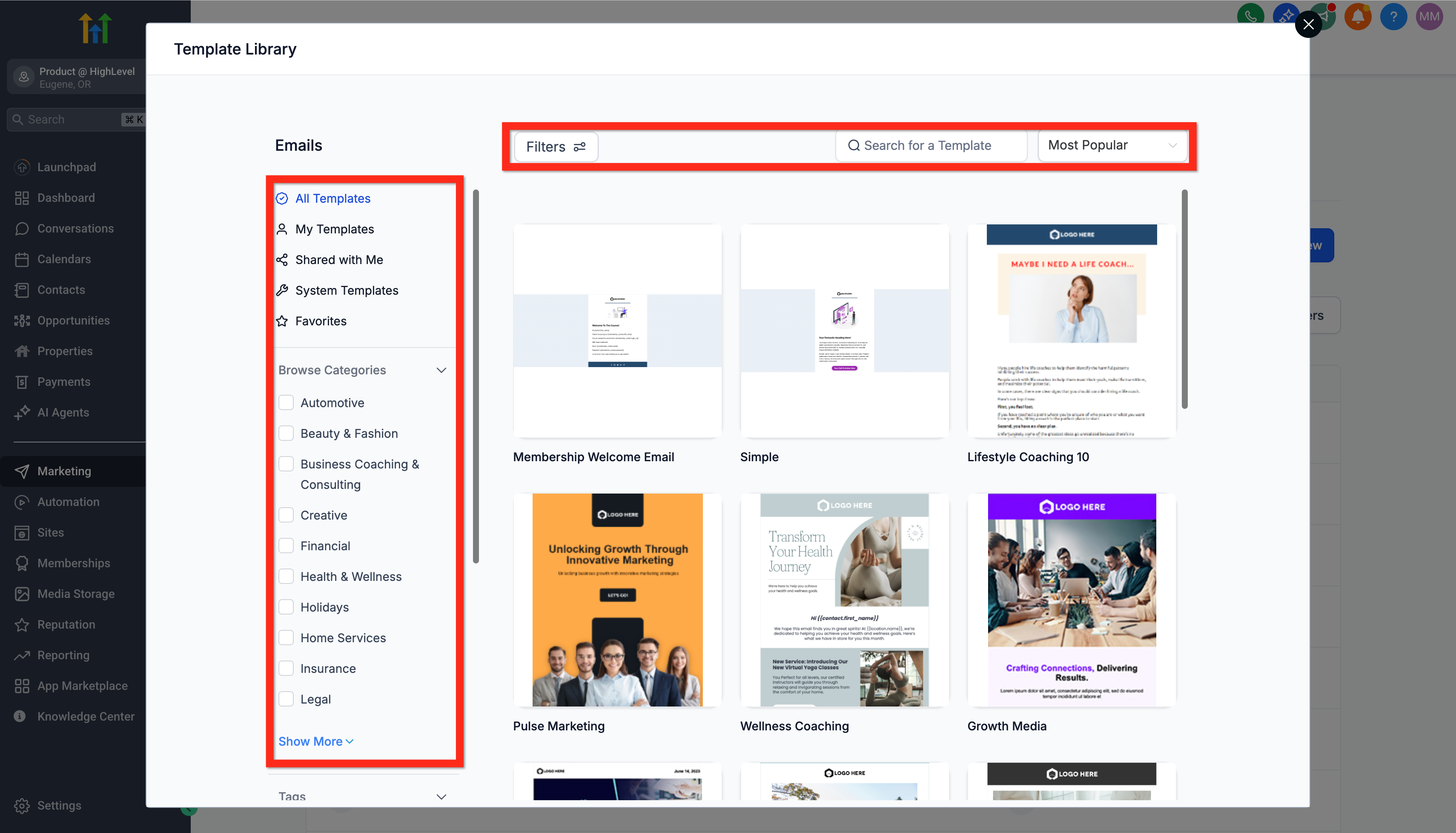
- Template Library search includes suggestions, recent searches, color based discovery, and highlighted keyword matches.
05How to set up and use email campaigns in HighLevel
Start from an email template
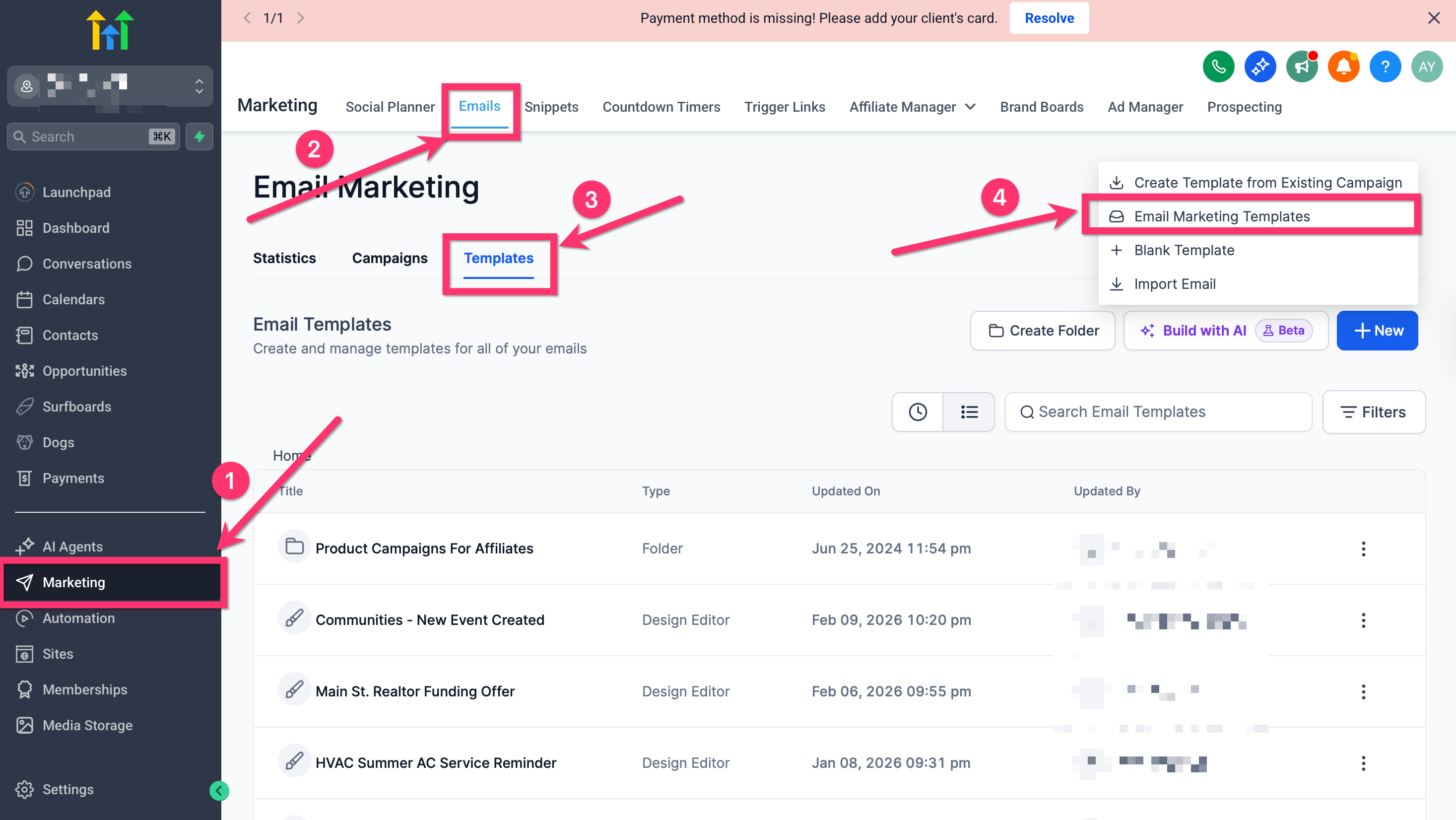
- Navigate to Marketing > Emails.
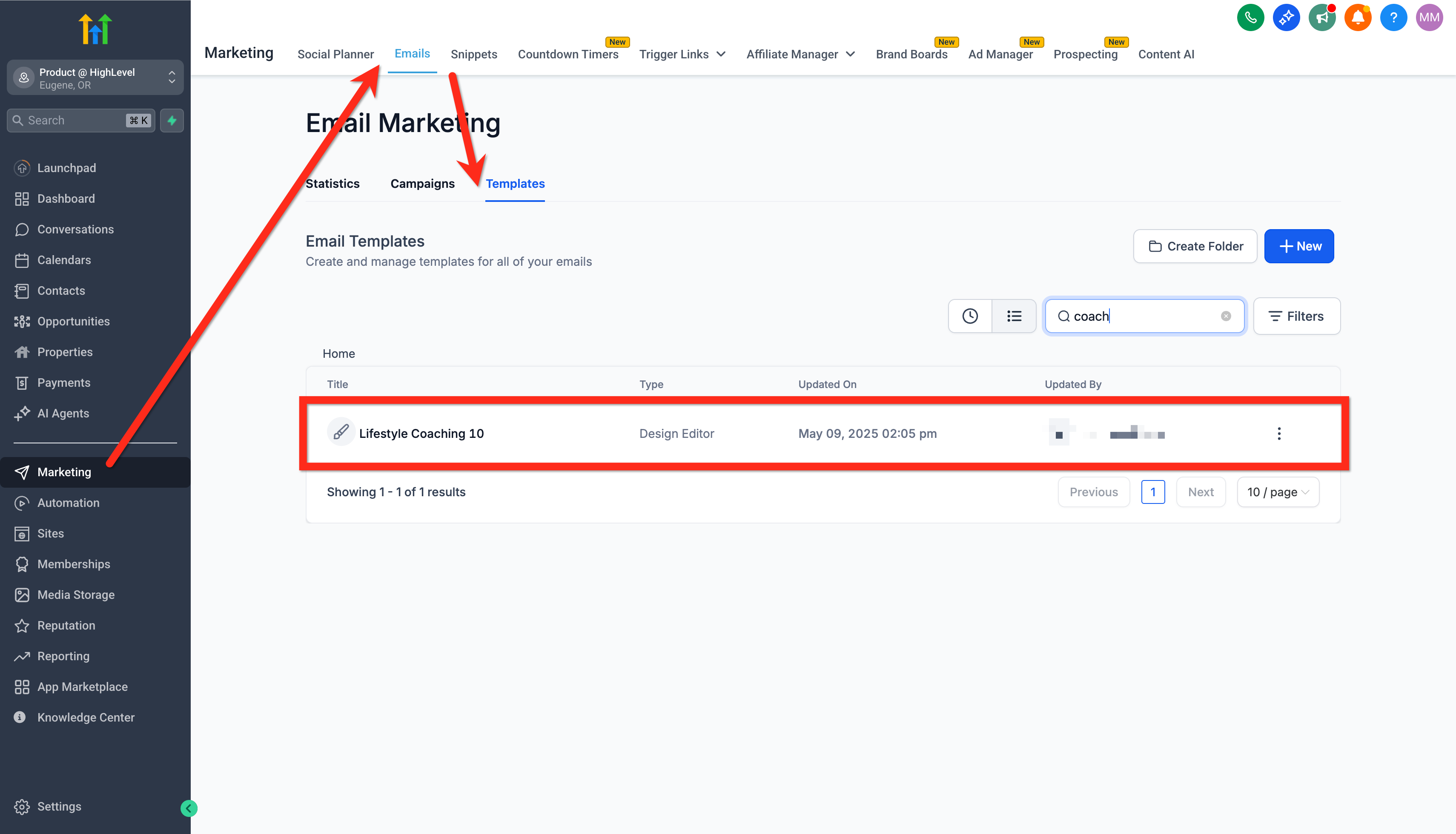
- Click the Templates tab.
- Click New.
- Select Email Marketing Templates.
- Browse or search the Template Library to find a design.
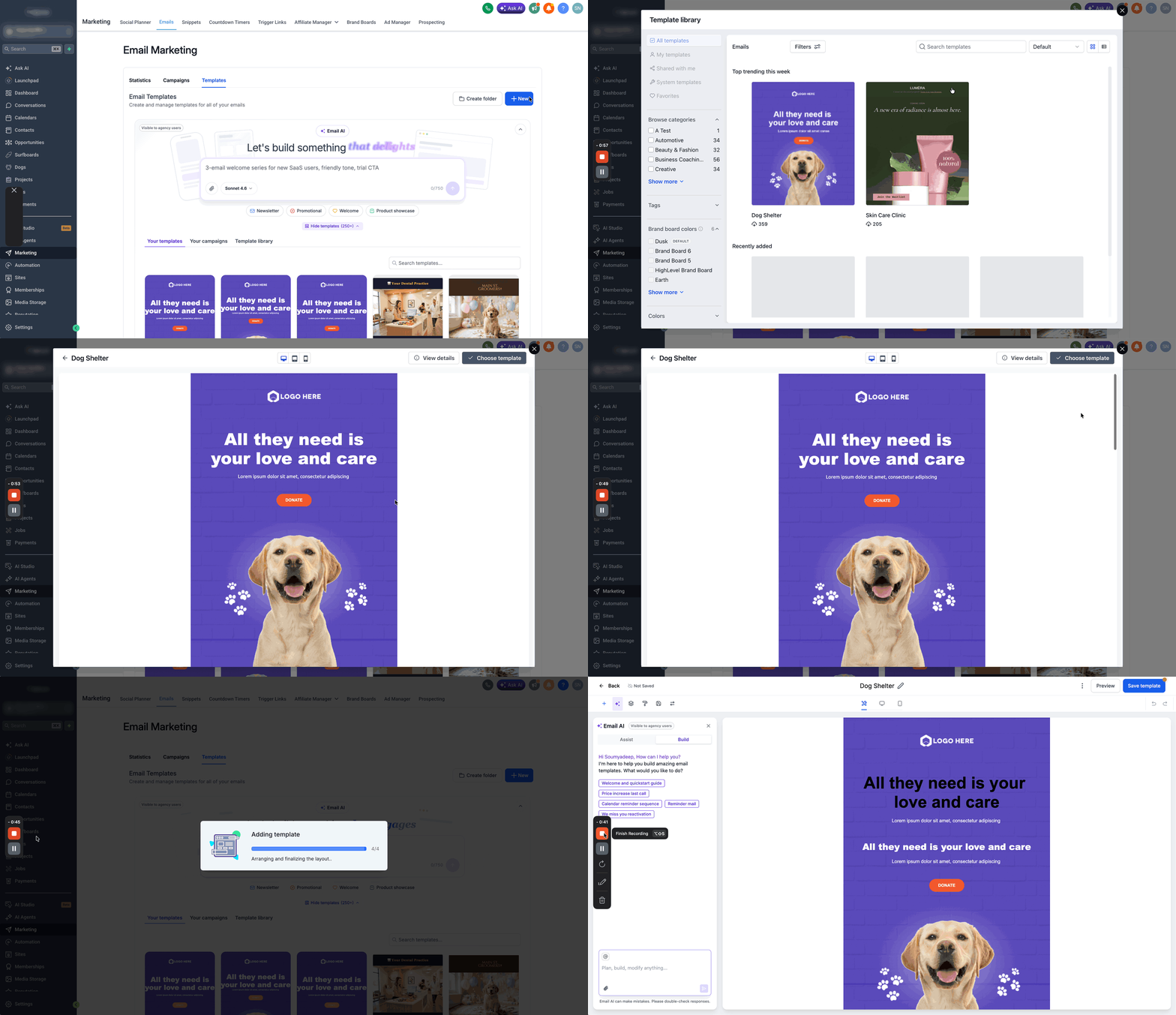
- Preview the chosen template.
- Click Choose template to open it in the Email Editor.
Edit email template
- Navigate to Marketing > Emails > Templates.
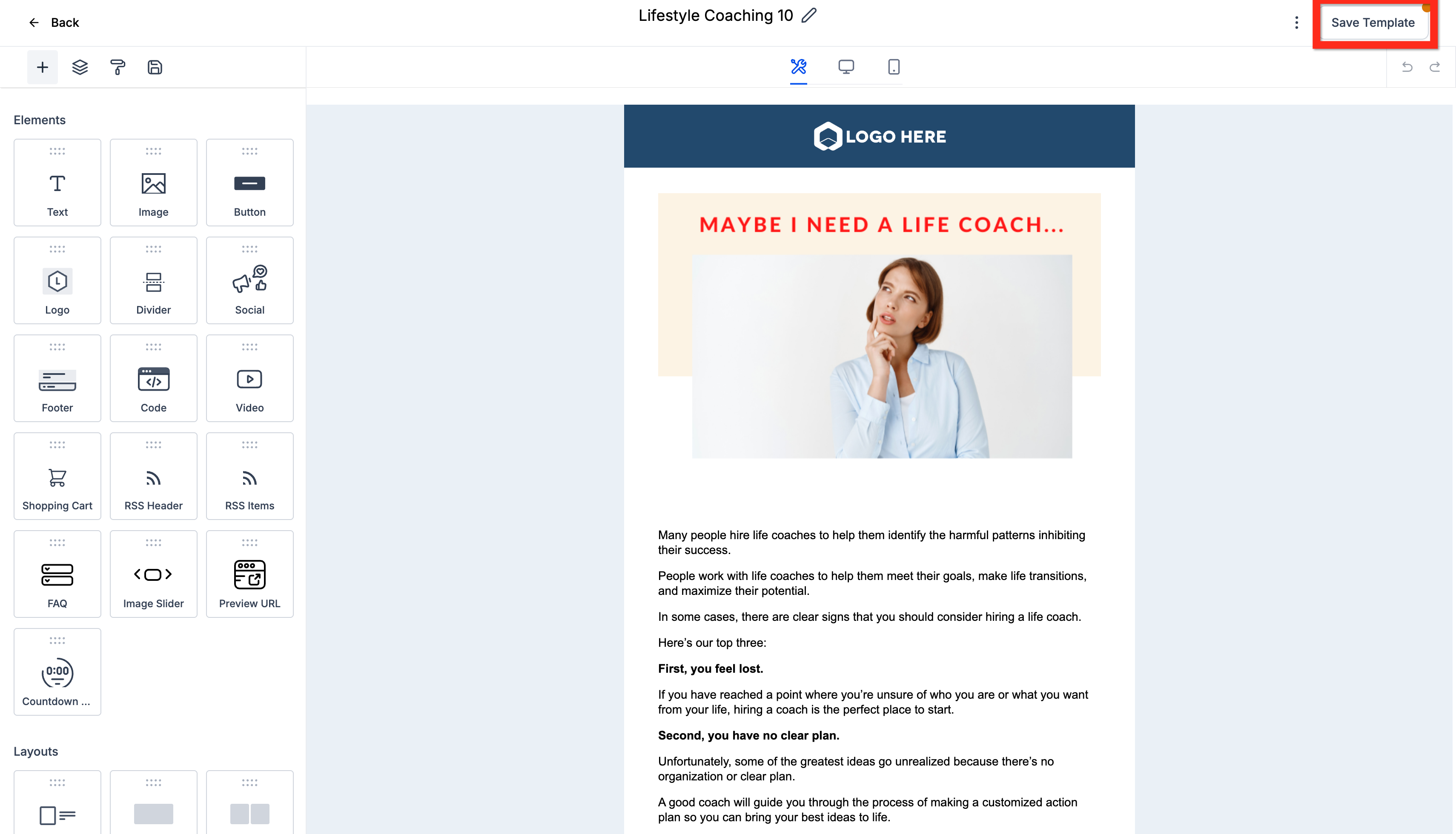
- Open your chosen template in the Email Editor.
- Adjust elements such as text, images, and layout.
- Click Save Template.
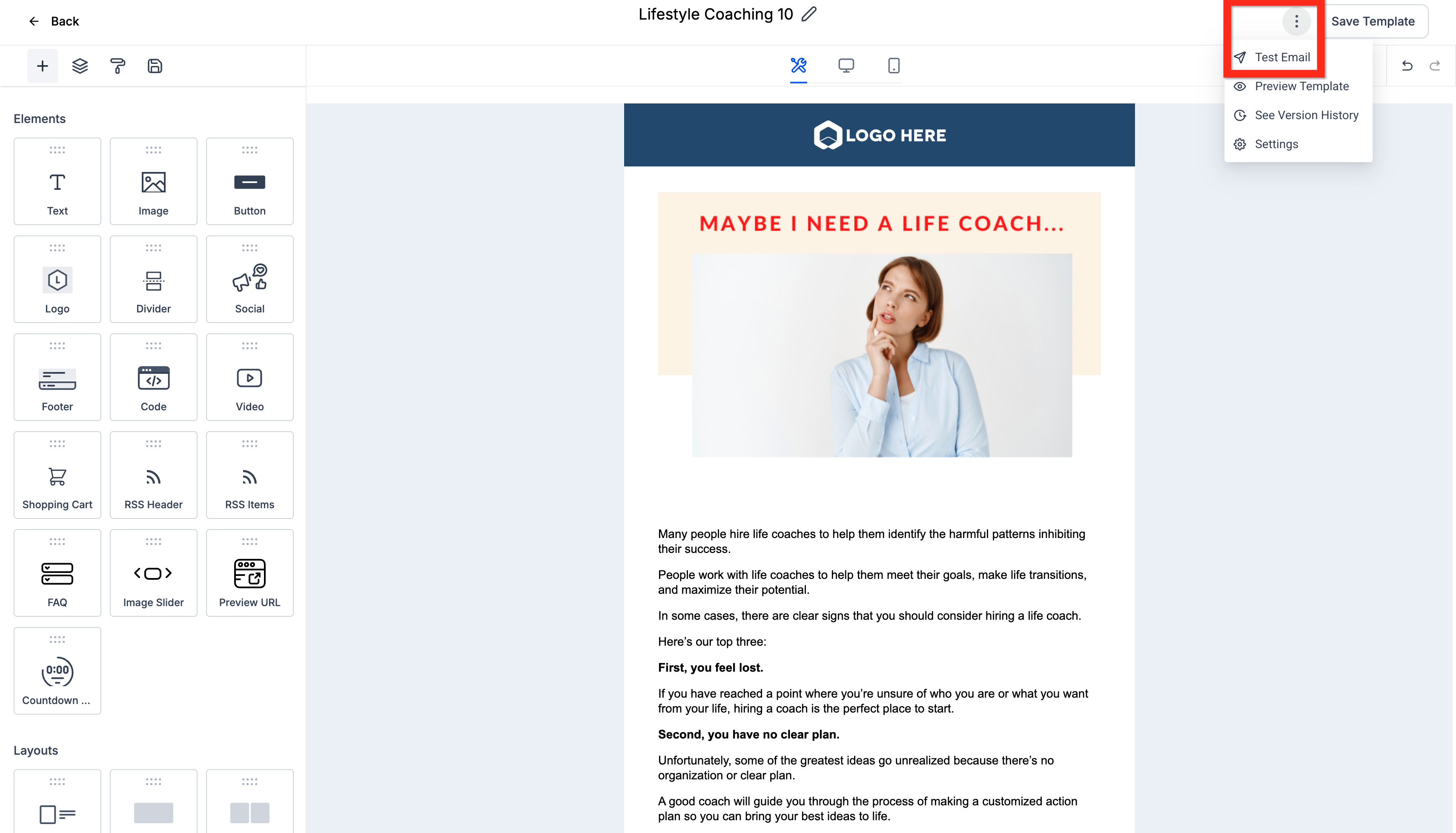
- Open the three dot action menu and select Test Email.
- Enter sender information and recipient addresses.
- Click Send Test Email.
- Click Back to return to the Email Campaign Dashboard.
Dock the edit panel & work with Email AI
- Open your campaign or template in the Email Builder.
- Enable Email AI if you want assisted drafting.
- Use the panel switch to move the edit panel to the right side.
- Continue editing, previewing, and publishing as usual.
Create email campaign from template
- Go to Marketing > Emails > Campaigns.
- Click New and then select Select Template.
- Or, from the Templates tab, click the three dot menu next to a template and choose Create Campaign.
- With the template open, click Send or Schedule.
- Configure email options such as recipient lists and tracking.
- Click Review and Send.
- Watch the status change from Sending to Sent.
06What it looks like in HighLevel
07Settings that matter
- Email AI. Controls whether the AI assistant helps draft or refine email copy while you edit.
08Things to know before you rely on it
- System provided starter templates appear in the language chosen by the user; if a translation is missing, English is used automatically.
- Localization applies only to system starter content; existing or imported email designs are not automatically translated.
09How it connects to the rest of HighLevel
- Learn how to send or schedule a regular email campaign Send or schedule email campaign
- Set up email, phone, and SMS channels in HighLevel Configure communication channels
- Browse the template library to find designs Template library overview
Read the full details on HighLevel →Published November 2, 2026 · Updated November 16, 2026