
01Who this is for
- Sales managers benefit by visualizing the flow of deals and assigning stages that match their process.
- Small business owners gain control over tracking individual prospects without needing separate tools.
02Pipelines and opportunities, explained
Pipelines sit under the Opportunities section of the platform. A pipeline defines the overall sales path, and each pipeline contains stages such as New Lead or Closed. Contacts are linked to opportunities, which travel through the selected pipeline and stage.
When you create an opportunity you choose the pipeline, stage, value, and status. Opportunities can be added one by one, uploaded in bulk, or generated automatically by workflows. All records remain inside HighLevel and are viewable from the Opportunities dashboard.
03How businesses use pipelines and opportunities
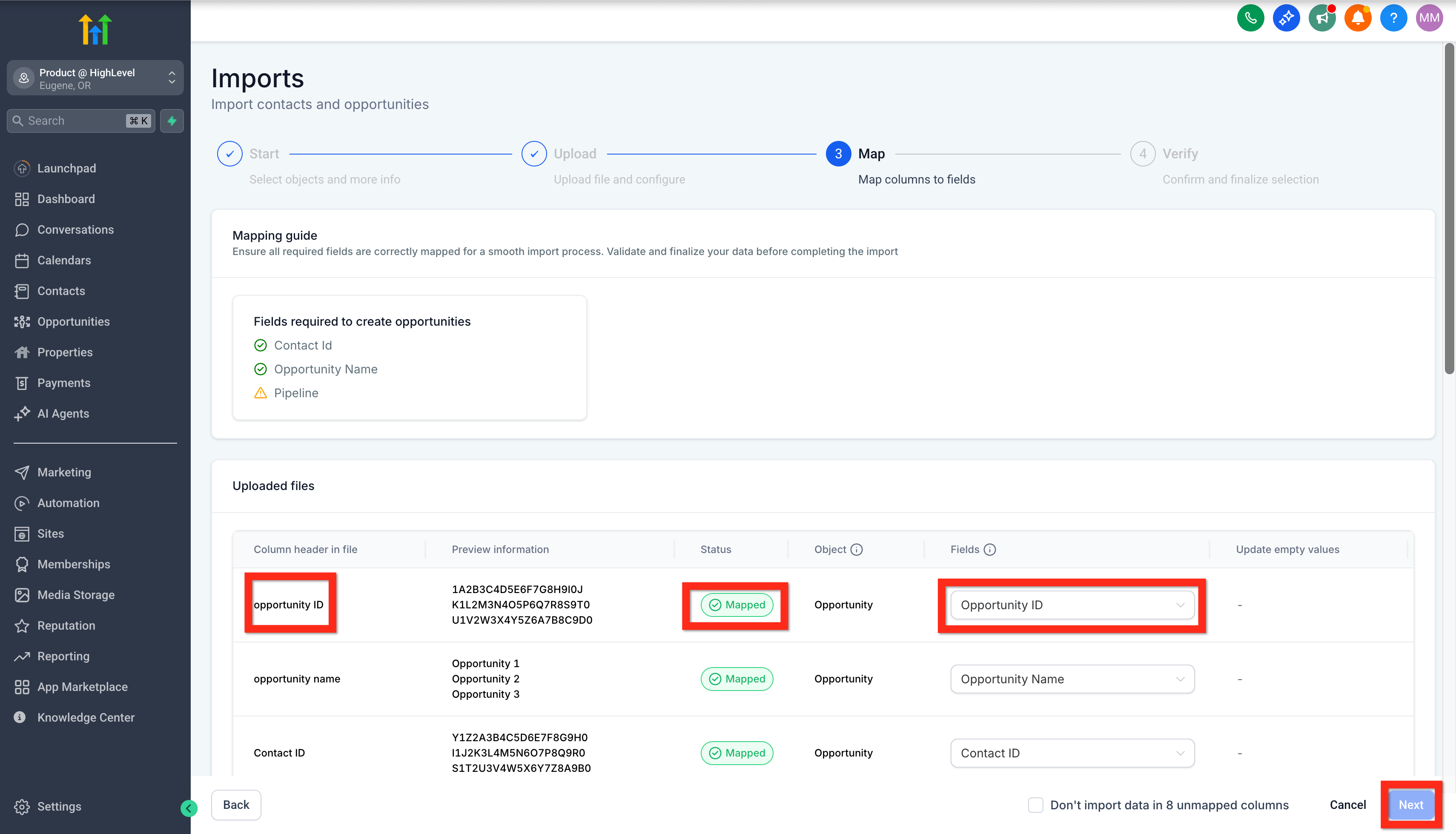
- Real estate brokerage. Upload a CSV of recent leads to turn each contact into an opportunity. Map the columns to opportunity fields so they land in the appropriate pipeline stages. The team can then follow each property prospect through customized steps.
- SaaS startup. Set a workflow that triggers on a form submission from the website. The workflow creates or updates an opportunity, assigns it to the Sales pipeline, and places it in the New Lead stage automatically.
- Marketing agency. Manually add a new opportunity when a prospect calls. Select an existing contact, choose the Consulting pipeline, set the expected contract value, and save the record for the account manager to track.
04Before you start
- Define the sales process you want to track.
- List the stages a lead typically moves through.
- Decide whether you will add opportunities manually, import them, or use workflow automation.
- Identify which team members will manage opportunities.
05How to set up and use pipelines and opportunities in HighLevel
Create sales pipeline
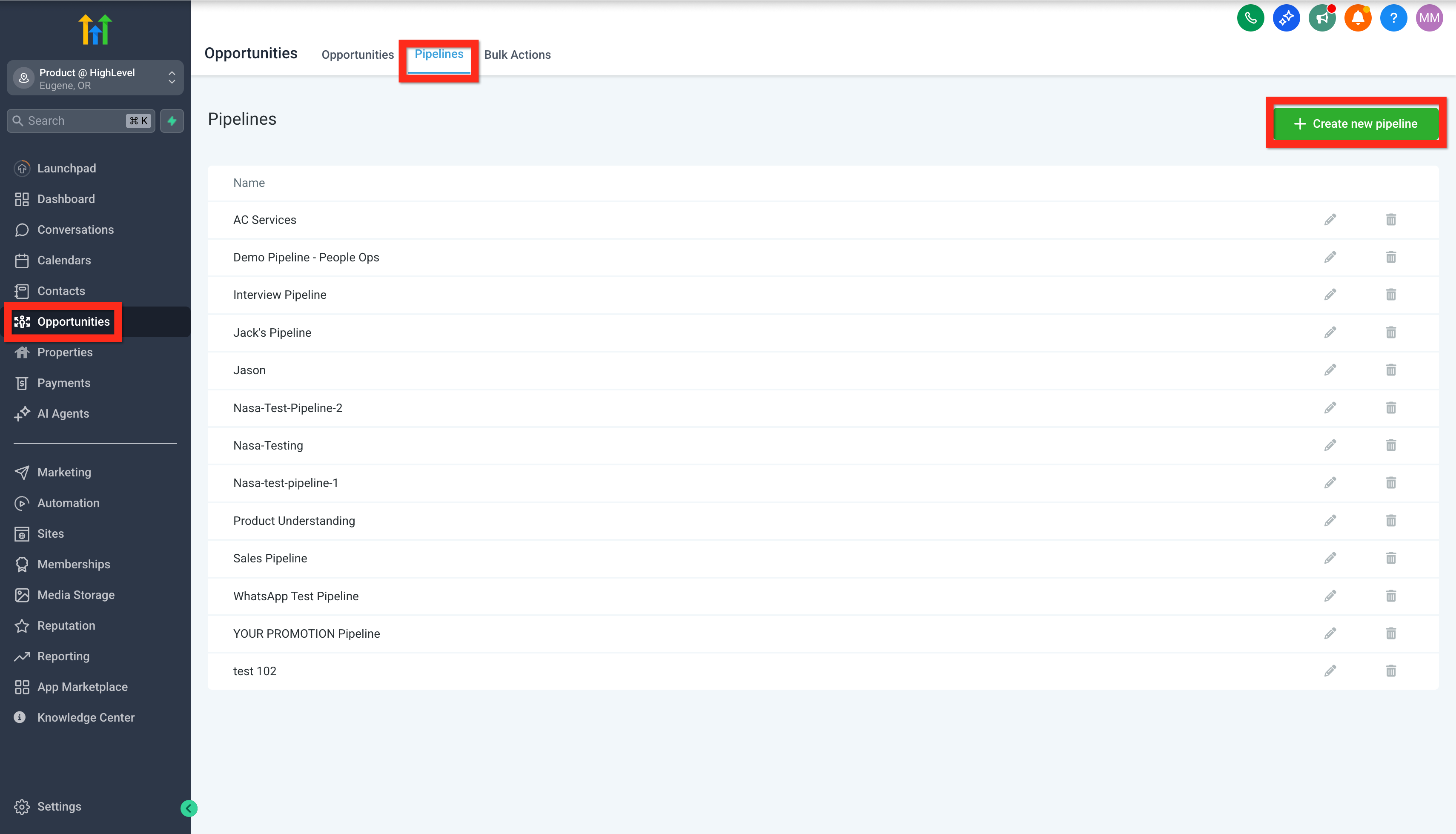
- Navigate to Opportunities.
- Click Pipelines.
- Select Create New Pipeline.
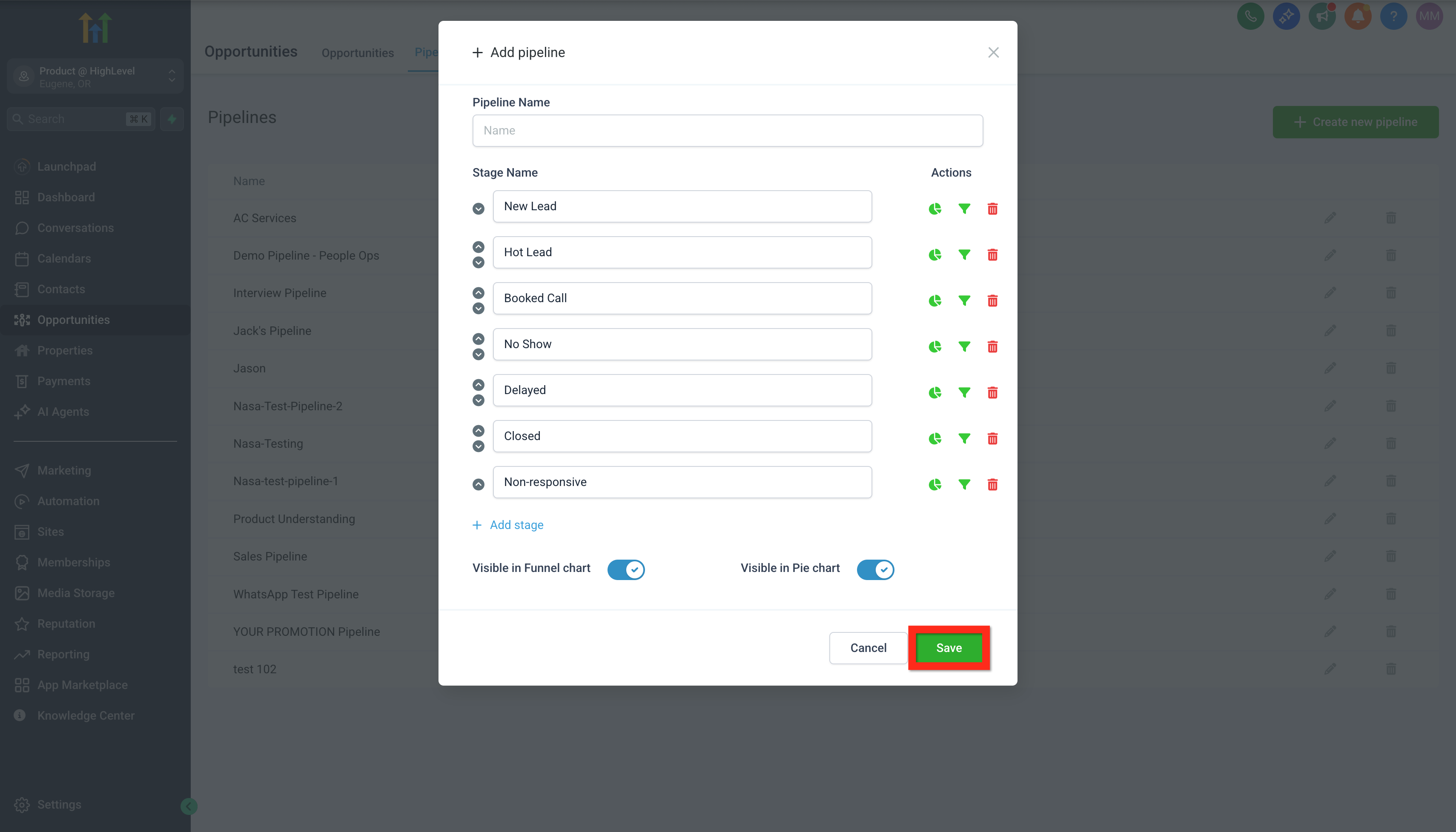
- Enter a name and define stages, then click Save.
Import contacts as opportunities
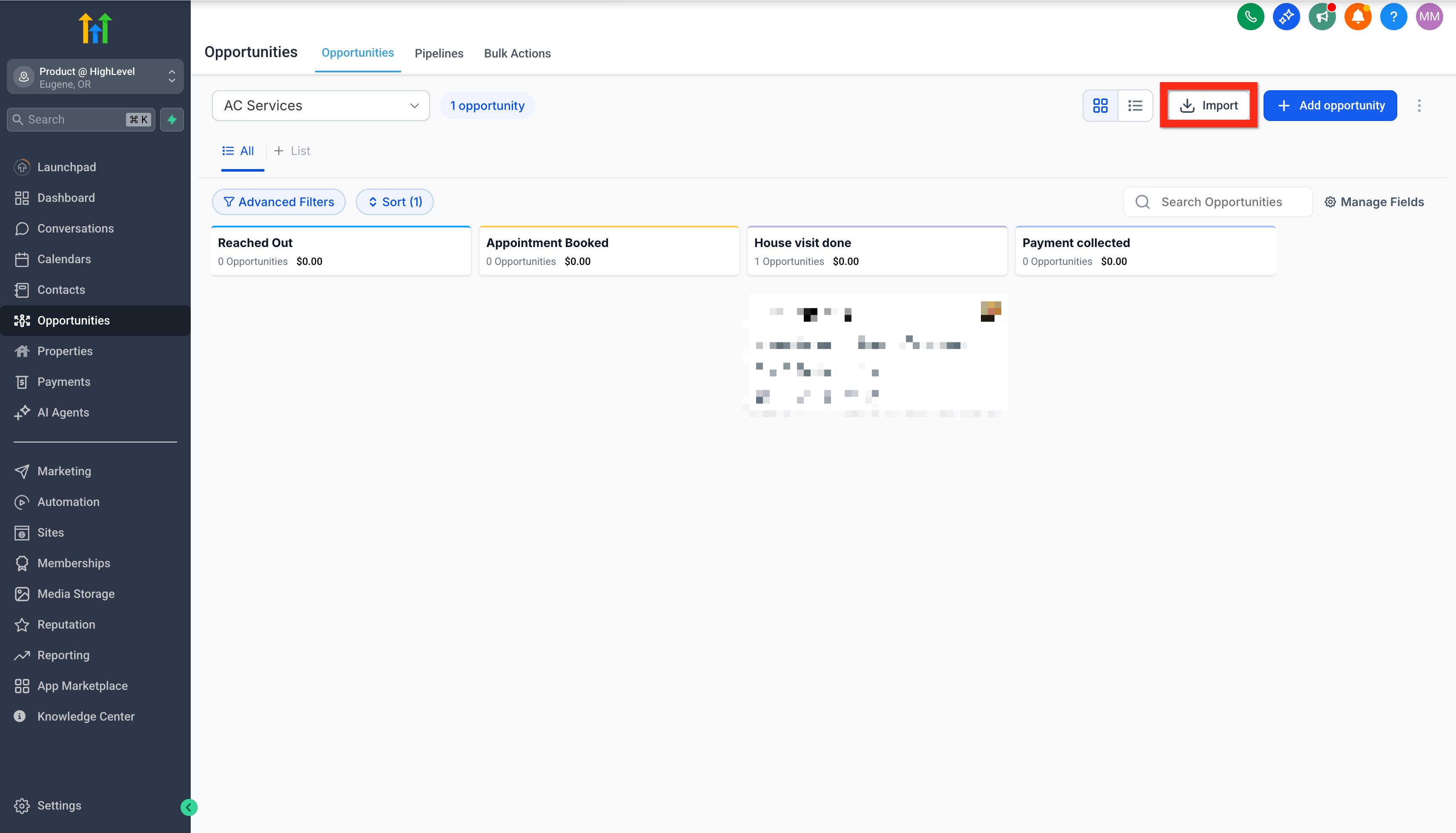
- Navigate to Opportunities.
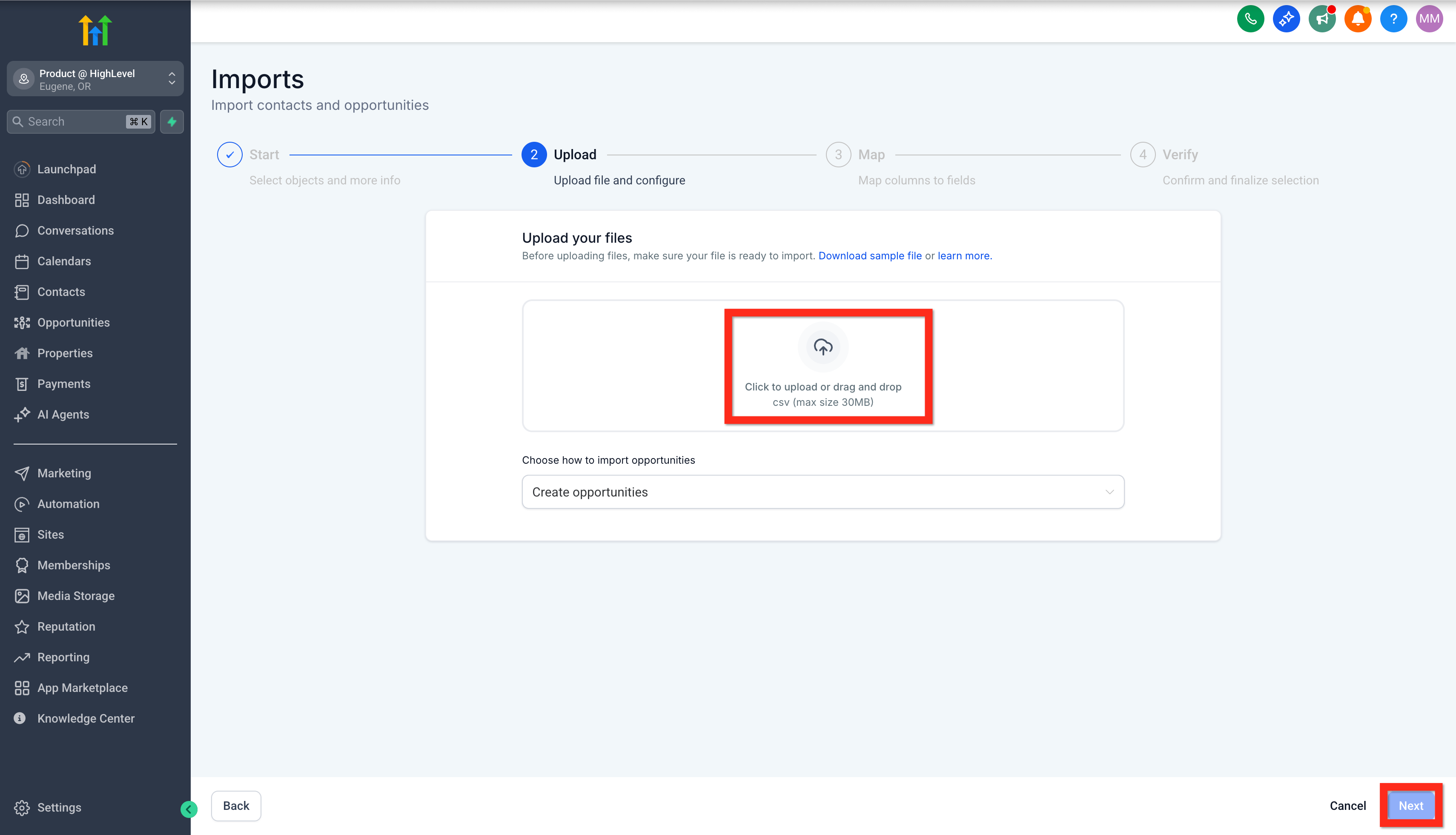
- Click Import.
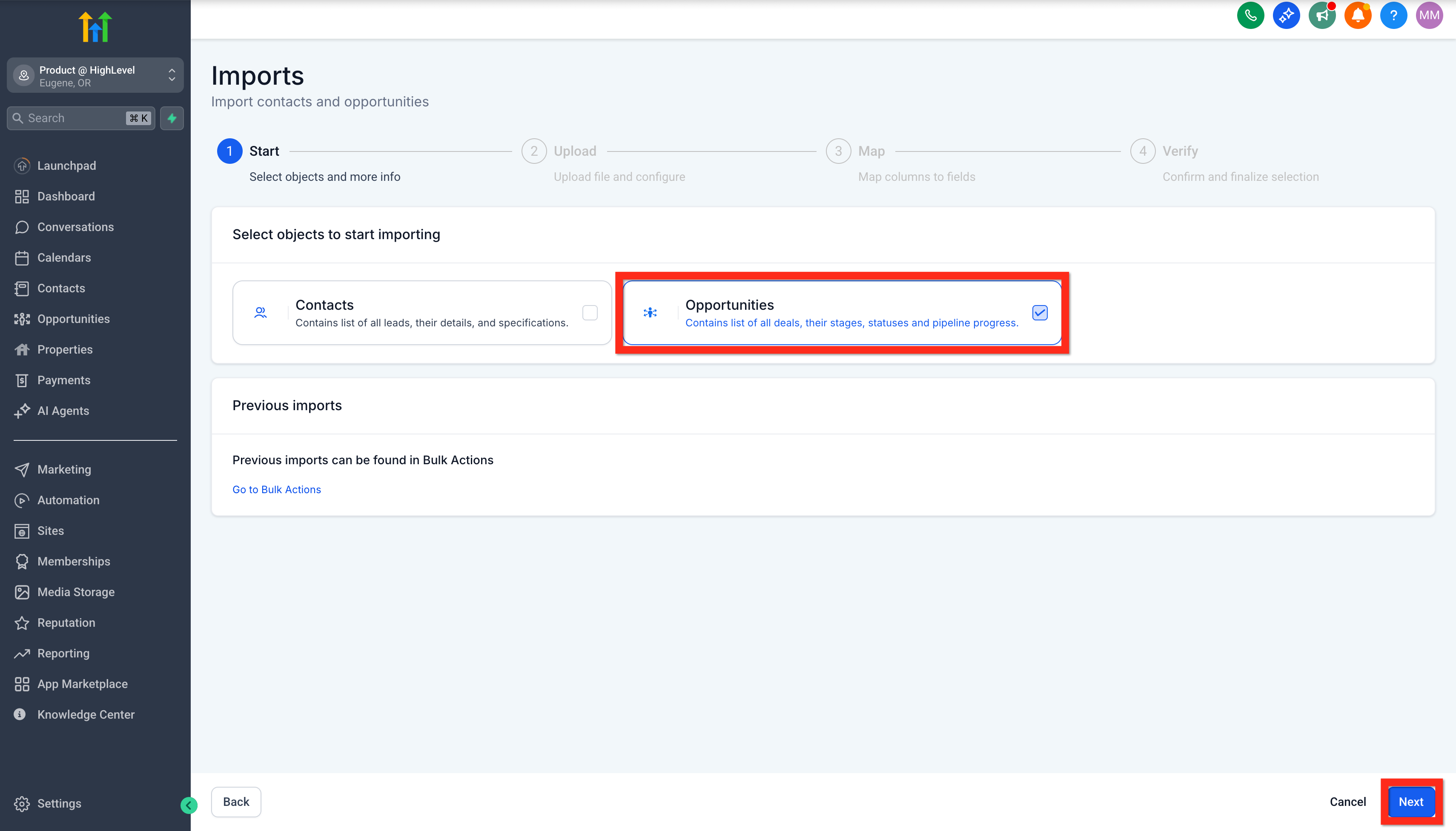
- Choose Opportunities as the import type.
- Press Next.
- Upload your CSV file.
- Press Next.
- Map each file column to the corresponding opportunity field.
- Press Next.
- Review the data and click Start Bulk Import.
Create opportunity manually
- Navigate to Opportunities.
- Click Add opportunity.
- Select an existing contact or enter new contact details.
- Fill in opportunity information such as pipeline, stage, and value.
- Click Create to save the opportunity.
Create opportunity by automation
- Open Automation and select Workflows from the left menu.
- Click + Create Workflow and choose Start from Scratch.
- Click + Add New Trigger and pick Form Submitted.
- Select the specific form that captures lead information.
- Save the trigger.
- Click the + button below the trigger to add an action.
- Choose Opportunity then select Create/Update Opportunity.
- Pick the pipeline and stage where new leads should appear.
- Set the status (e.g., Open), optionally enter a value, and enable Allow Opportunity to Move if needed.
- Save the action.
- Toggle the Draft > Publish button at the top right to publish the workflow.
- Confirm publishing so future form submissions add opportunities automatically.
06What it looks like in HighLevel
07Settings that matter
- Allow Opportunity to Move. Controls whether an existing opportunity updates when the same contact re enters the workflow.
- Status. Sets the initial opportunity status, such as Open or another predefined status.
- Value. Records the monetary amount associated with the opportunity if it is known at creation.
08If something goes wrong
- Opportunity not appearing in the expected pipeline. Confirm the correct pipeline and stage were selected when the opportunity was created. For workflow created records, review the Create/Update Opportunity action configuration.
- Workflow did not create an opportunity. Verify the workflow is published, the trigger conditions are met, the Create/Update Opportunity action is properly configured, and the intended pipeline and stage are chosen.
- Opportunity did not move to another stage. If a workflow should update an existing opportunity, check the Create/Update Opportunity settings and ensure Allow Opportunity to Move is enabled.
09How it connects to the rest of HighLevel
- Step by step guide for creating pipelines and stages Create pipelines guide
- Import contacts and opportunities via CSV CSV import guide
- HighLevel pricing and plans Pricing page
Michael's take

Pipelines and opportunities are a small convenience that can become a shift for any team that struggles to see where each prospect lives in the sales flow. With a visual pipeline, you stop guessing and start moving deals forward with clarity.
A boutique marketing agency, for example, can map its client acquisition steps. From initial inquiry to contract signed. And let new form leads drop straight into the ‘Booked Call’ stage. That way the account managers can know which leads need a follow up and which are already in the closing phase.