
01Who this is for
- Solo Founders benefit because the calendar gives them a dedicated scheduling assistant without needing additional staff.
- Service based small businesses gain control over appointment rules and reminders, reducing missed meetings.
- Coaches or consultants can share a branded booking page that matches their website, improving client experience.
02Booking calendars, explained
The personal booking calendar stores your scheduling preferences such as available hours, buffer times, meeting duration and reminder settings. It lives under Calendar > Calendar Settings in HighLevel. Once created, the calendar generates a unique link and embed code that you can distribute to clients.
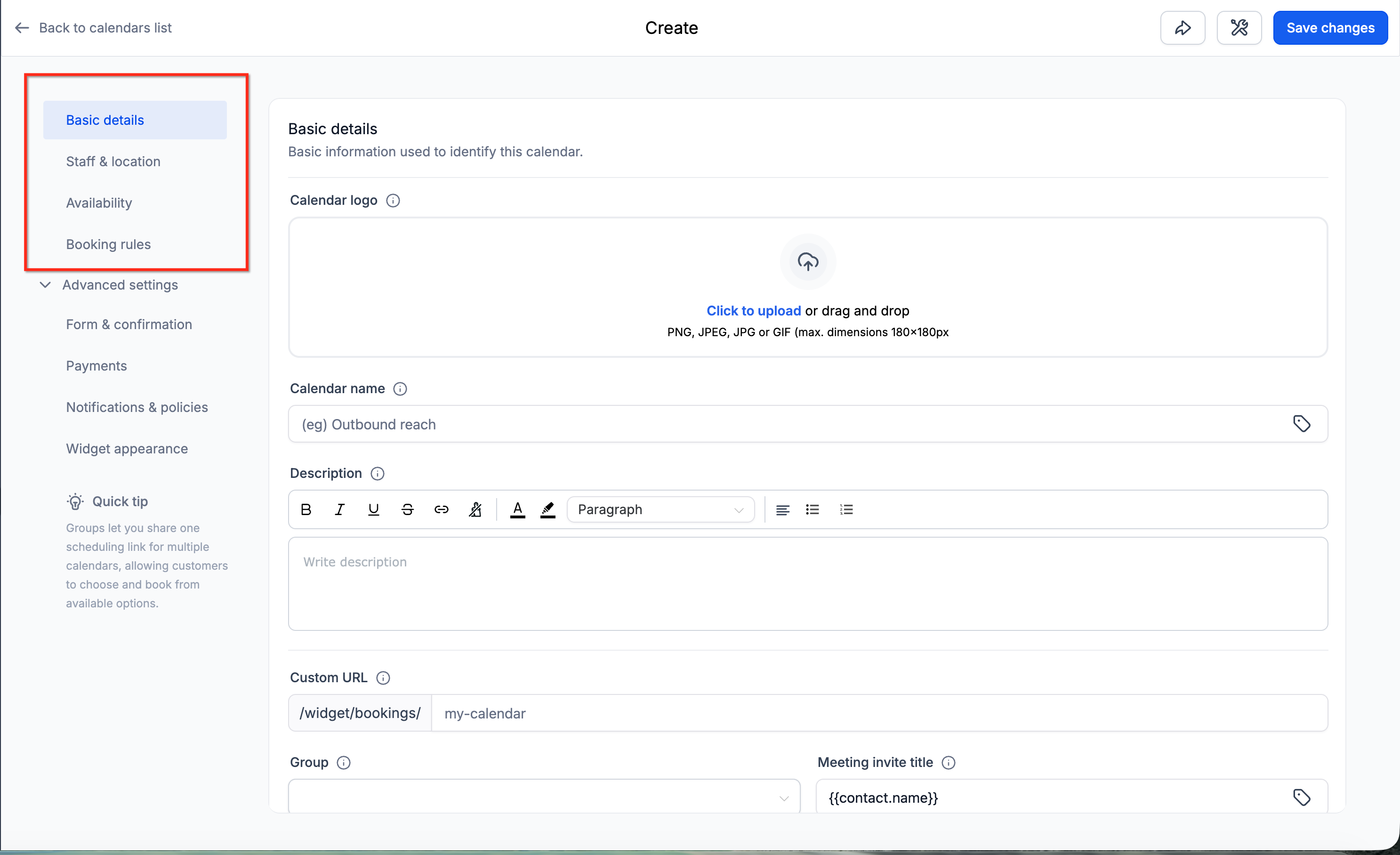
All configuration options are grouped into sections: Basic details, Staff & location, Availability, Booking rules and Advanced settings. Advanced settings also hold form and confirmation options for custom post submission behavior. The calendar can be linked to your Google or Outlook calendar and to a video conferencing tool, keeping your schedule synchronized across platforms.
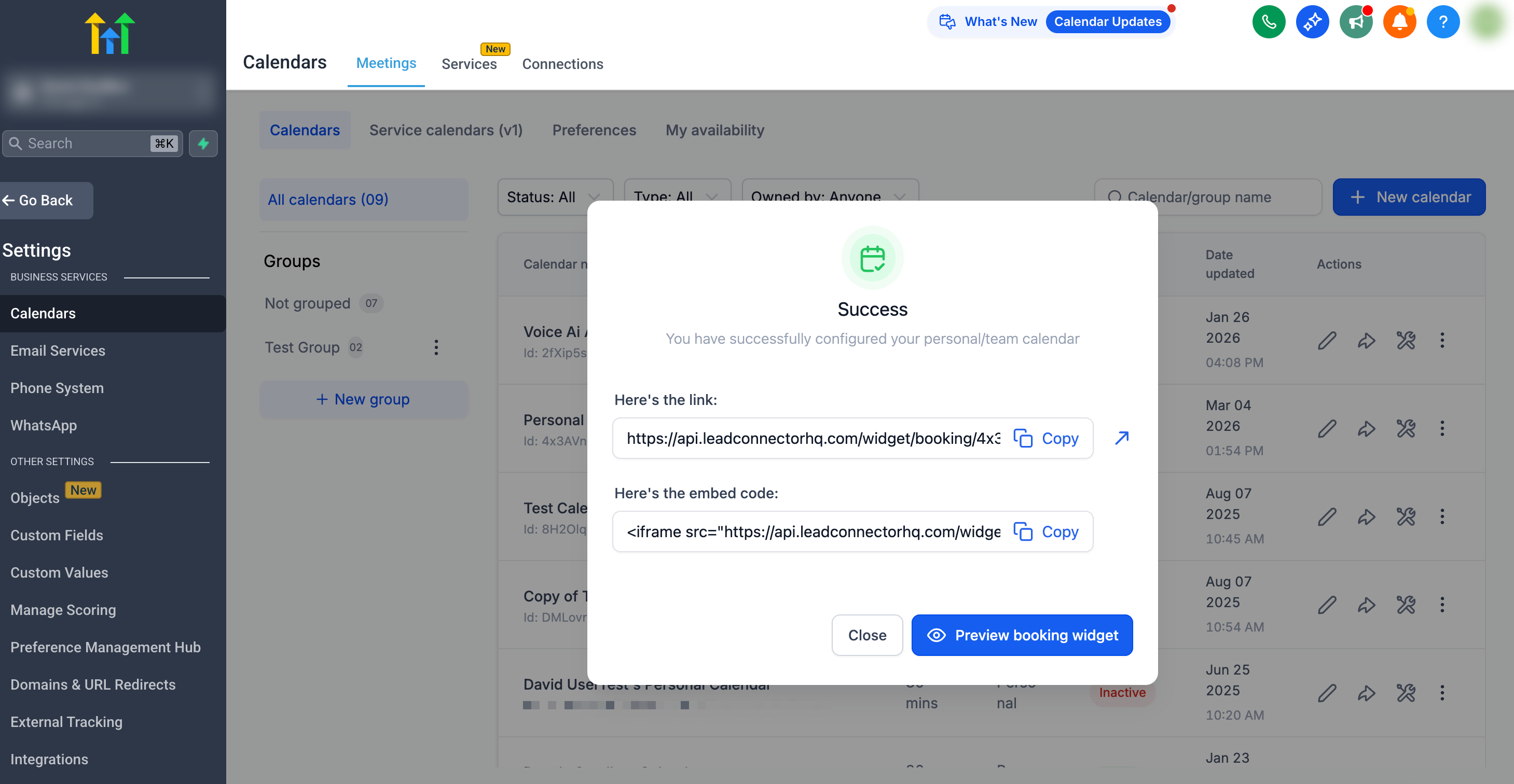
Automation workflows can be attached to the calendar to send confirmation emails and reminder messages. The Share button in the calendar header provides quick actions to copy the link, create a one time link, obtain embed code or preview the public view.
03How businesses use booking calendars
- Consulting practice. Create a personal booking calendar, set your consulting hours and meeting length, then share the generated link on your website. Clients book directly, and the system sends confirmation and reminder emails automatically.
- Fitness trainer. Add yourself as a team member, connect your personal calendar to avoid double booking, and link a Zoom meeting ID in the reminder workflow. Share a one time link for special class sessions.
- Legal boutique. Configure a personal booking calendar with a custom intake form, enable the custom form rules for post submission redirects, and embed the calendar HTML on your client portal for smooth appointment scheduling.
04The numbers and rules that matter
- Secure up to 20 appointments in your very first week.
- Cut no shows down by at least 25 percent.
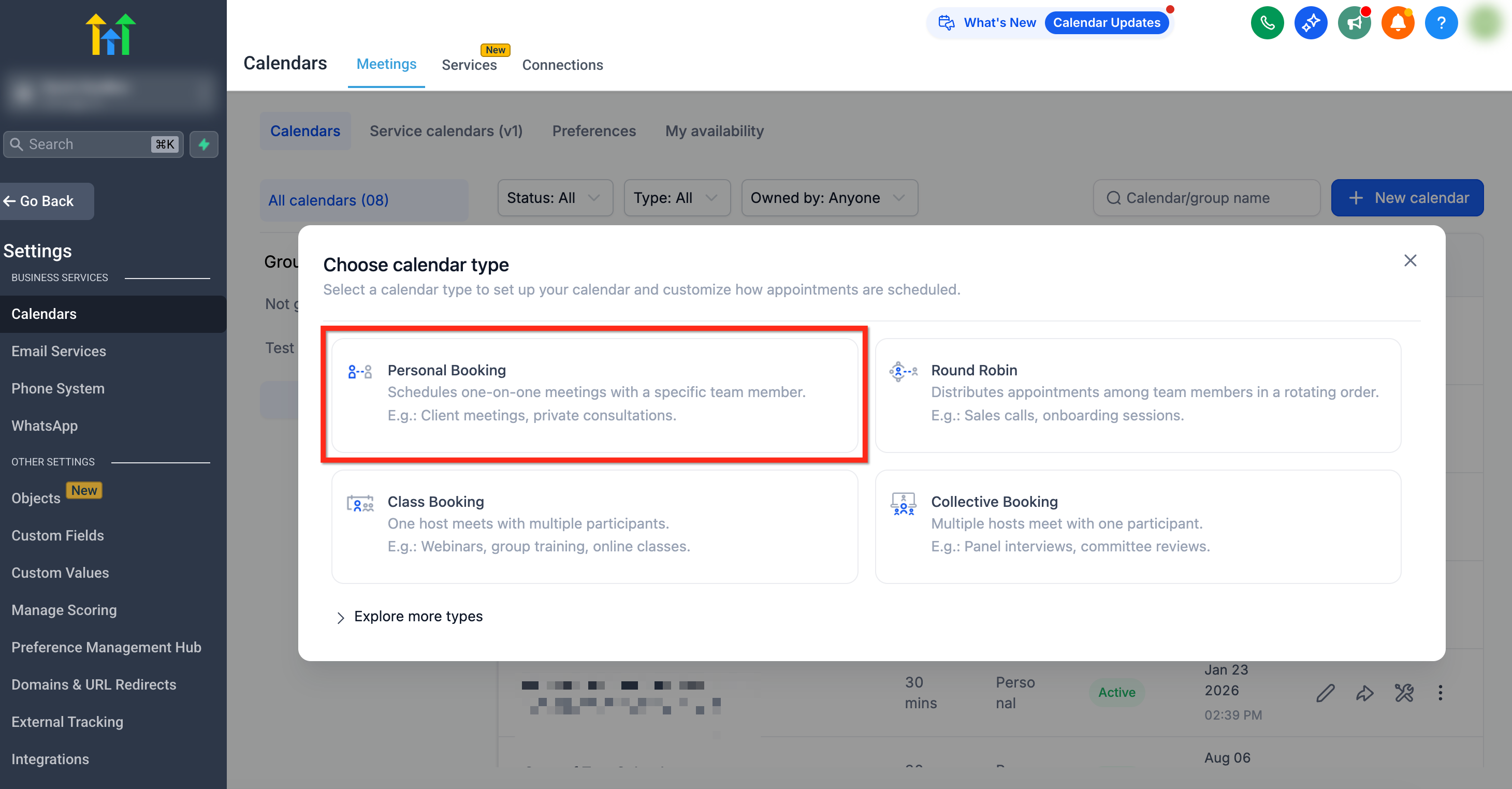
- Select Personal Booking for 1 on 1 meetings.
05How to set up and use booking calendars in HighLevel
Set up personal booking calendar
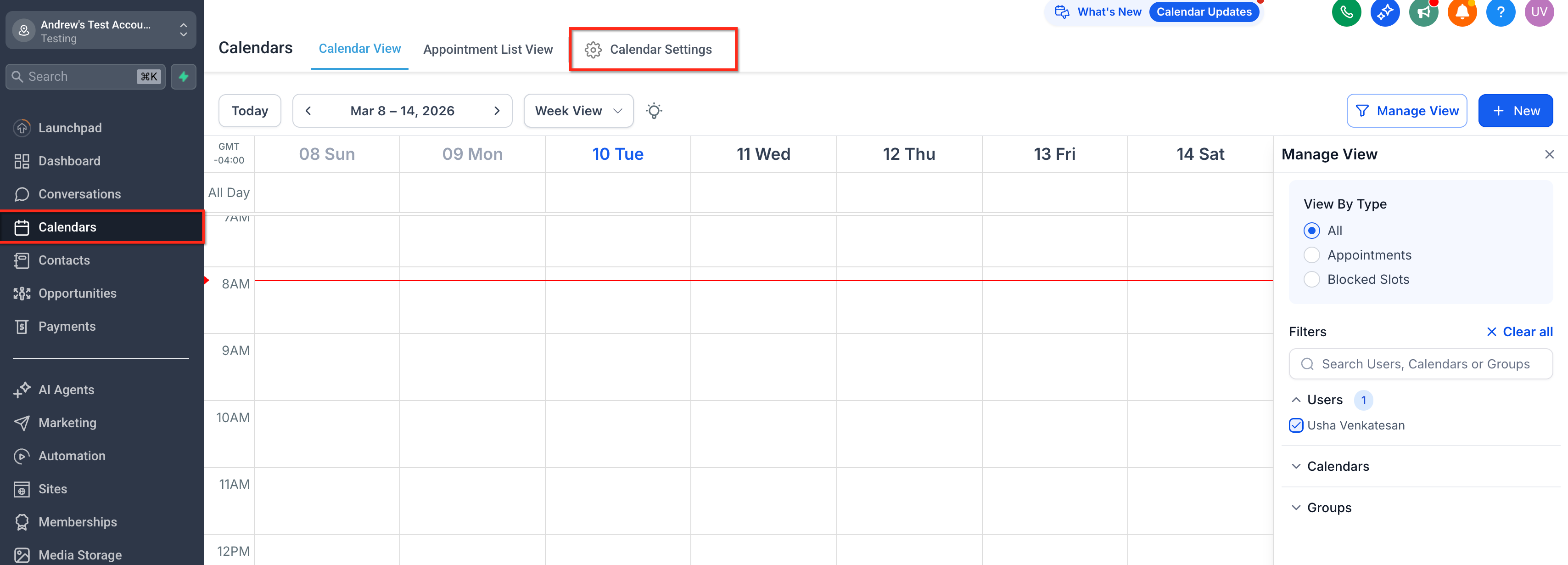
- Navigate to Calendar > Calendar Settings.
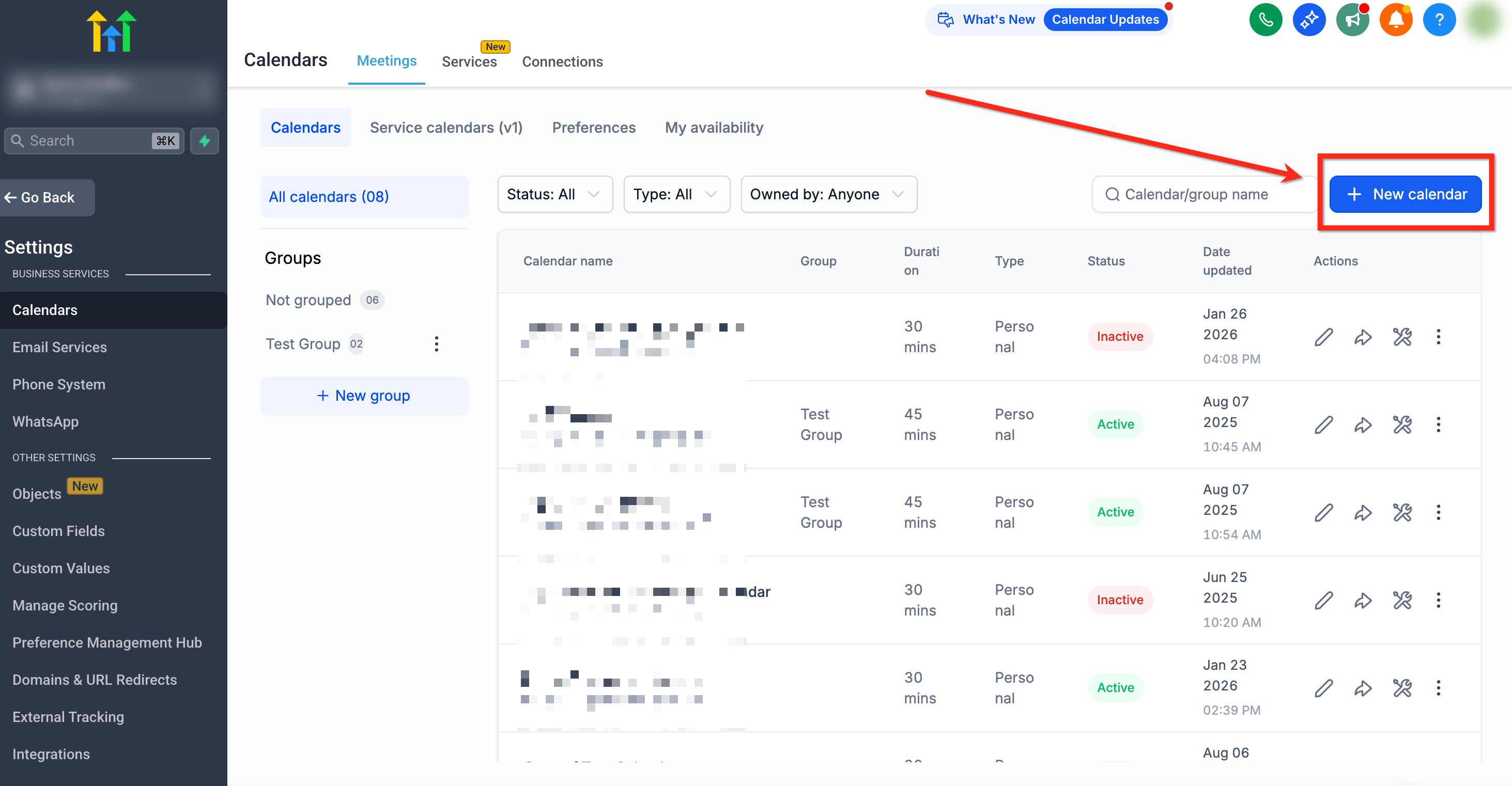
- Click the + New Calendar button.
- Choose Personal Booking as the calendar type.
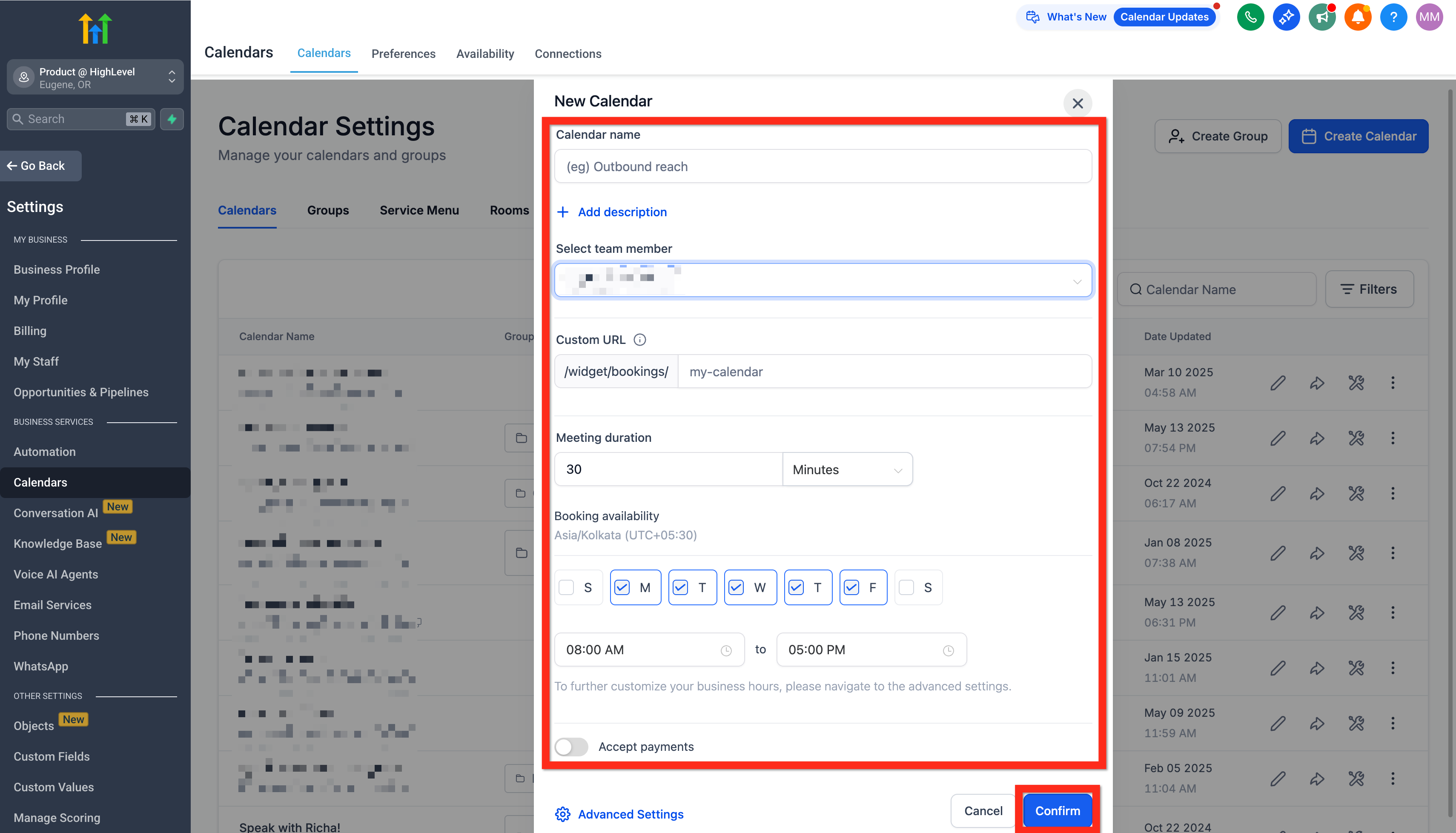
- Enter a name, select yourself as the host, review the custom URL, set appointment duration and available hours, then click Confirm.
- Copy the provided calendar link or embed code.
- Share the copied link to start receiving appointments.
- Optionally adjust the calendar appearance or custom form settings under Advanced settings.
- If required fields are missing when you click Save changes, HighLevel automatically scrolls to the incomplete field, highlights it, and opens the correct tab.
Add yourself as a team member
- Open Settings > My Staff.
- Click Add User.
- Enter your details and save.
Setup automated reminders
- Go to Automation.
- Click Create Workflow and select Recipe.
- Pick the Appointment Confirmation + Reminder recipe.
- Edit the Confirmation Email action.
- Update the meeting link and click Save Action.
- Review all actions in the workflow.
- Click Publish to activate the workflow.
- Click Save to finish.
Integrate personal calendar
- Navigate to Calendars > Calendar Settings.
- In the Connections tab, click Add New and link your personal calendar.
- In the Video Conferencing tab, click Add New and select your preferred conferencing tool.
Share from the calendar header
- Open Settings > Calendars > [Your Calendar] and click Share in the top right header.
- Choose to copy the booking link, create a one time link, or get the embed code.
- Select Preview to view how the calendar appears to visitors.
06What it looks like in HighLevel
07Settings that matter
- Calendar Settings. Controls the overall configuration of a calendar, including its type and integration options.
- Basic details. Holds the calendar name, host selection, custom URL and default appointment length.
- Staff & location. Assigns staff members and physical locations to the calendar.
- Availability. Sets the days and hours when appointments can be booked.
- Booking rules. Defines buffer times, advance notice requirements and other booking constraints.
- Advanced settings. Contains options for custom forms, confirmation pages and other advanced behaviours.
- Form & confirmation. Manages the post submission experience for custom booking forms.
- Confirmation page. Specifies the page shown after a client completes a booking form.
- Use custom form rules. Enables custom redirect or message behavior after a form is submitted.
- Connections. Allows linking of an external personal calendar for two way sync.
- Video Conferencing. Connects a video meeting provider such as Zoom or Google Meet to the calendar.
08If something goes wrong
- Missing required fields when saving changes. HighLevel automatically scrolls to the incomplete field and highlights it, opening the correct tab if needed.
- Need to check calendar configuration for issues. Use the Troubleshoot Calendar button to run diagnostics that identify configuration or availability problems.
09How it connects to the rest of HighLevel
- Learn how to integrate Google Calendar with HighLevel for two way sync. Google Calendar integration
- Find instructions for embedding a HighLevel calendar on your website using HTML. Embed calendar HTML
- Review pricing and plan options to access calendar features. HighLevel pricing
Michael's take

Wondering if a booking calendar is worth the effort for your solo practice? It’s basically a virtual receptionist that lets clients pick a time that fits your schedule, then adds the appointment to both HighLevel and your personal calendar so nothing gets double booked.
If I were setting this up, I’d start by creating the personal booking calendar, then hook up the automated reminder recipe. That way you get the appointment and a reminder out of the box, and you can test the flow before you share the link with clients.