
01Who this is for
- Founders of SaaS businesses that sell subscriptions and need consistent checkout experiences.
- Ecommerce owners who accept multiple payment methods and must verify method eligibility.
- Agency managers who set up client payment pages and need to troubleshoot missing options.
02Missing payment methods, explained
The payment element displayed by HighLevel is rendered by Stripe. Stripe evaluates each payer and transaction, then shows only the methods that meet its internal rules. HighLevel can turn a method on or off globally, but cannot override Stripe’s eligibility decisions.
If a method is missing, the cause is typically related to default currency, presentment currency, payer location, transaction amount limits, or regional restrictions. HighLevel shows a generic message if the method has not been enabled on its side, but the final display is still controlled by Stripe.
03How businesses use missing payment methods in Stripe checkout element
- Ecommerce store. The owner opens the Stripe dashboard, navigates to the payment methods panel, and reviews the eligibility criteria for the missing option. If the store’s currency or order total falls outside the allowed range, the owner can adjust product pricing or currency to meet Stripe’s limits.
- Online course platform. The platform manager checks the payment method details in Stripe to see whether the student’s country is supported. When a method like Klarna is unavailable for a specific region, the manager can inform students of alternative methods or modify the checkout currency.
- Appointment booking service. The service administrator uses the Stripe dashboard to view the transaction amount thresholds for each method. If a payment option is hidden because the appointment fee is too low, the admin can raise the fee or select a different method that meets the minimum amount.
04The numbers and rules that matter
- Transaction amount limits for that method.
05How to set up and use missing payment methods in Stripe checkout element in HighLevel
Check method requirements inside Stripe dashboard
- Open the Stripe Dashboard in a web browser.
- Select the Settings icon located at the top right.
- In the Product settings section, choose Payments.
- Open the Payment methods tab.
- Find the specific payment method that the customer cannot see.
- Click the View details button to see eligibility information.
06What it looks like in HighLevel
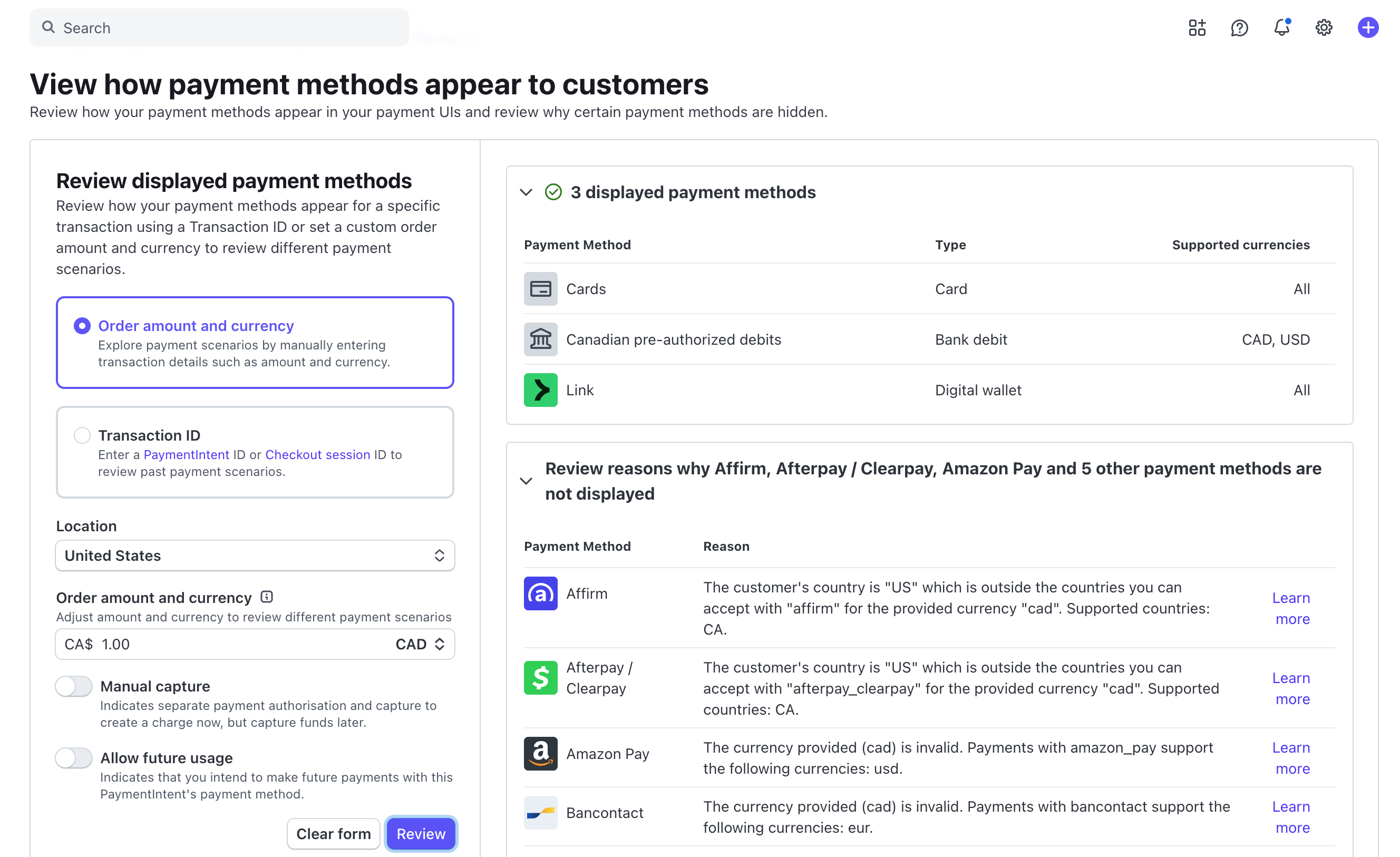
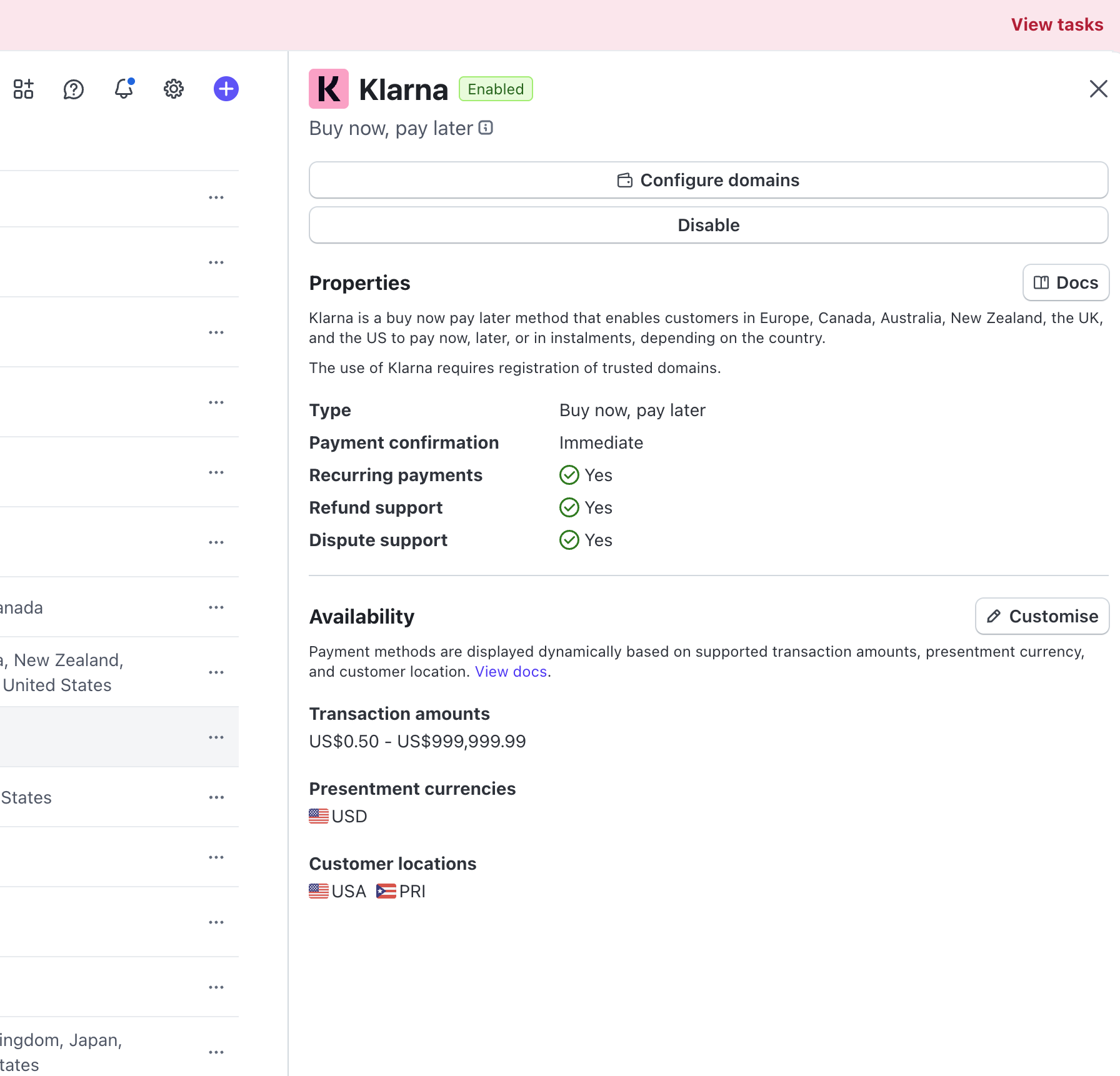
07Things to know before you rely on it
- Stripe selects which methods appear based on currency, amount, location, and regional rules.
- HighLevel can only enable a method globally; it cannot force Stripe to display it.
- If Stripe hides a method, the checkout element will not show it regardless of HighLevel settings.
08How it connects to the rest of HighLevel
- Supported payment providers by region Supported providers
- All Payments features overview Payments overview
- How to add PayPal buttons to payment elements Add PayPal
Michael's take

‘Why am I not seeing Klarna or Afterpay for some of my customers?’ That’s a classic question. Stripe tailors the list of options to each shopper based on things like the checkout currency, how much they’re spending, and where they’re located. If any of those pieces don’t line up with the method’s rules, Stripe simply leaves it off the page.
What you can control from the HighLevel side is whether a method is turned on for your whole account. Once it’s enabled, you still need to confirm the Stripe criteria are met for the transaction you’re processing. I’d start by opening the Stripe dashboard, checking the method’s details, and making sure your product currency and price fit within the allowed ranges.