
01Who this is for
- Founders of online stores, they can offer a trusted checkout option that many shoppers already use.
- Marketing managers for service businesses, adding PayPal to forms and surveys expands payment flexibility for leads.
- Finance teams handling invoices, PayPal buttons let clients settle invoices quickly without leaving the platform.
02PayPal buttons, explained
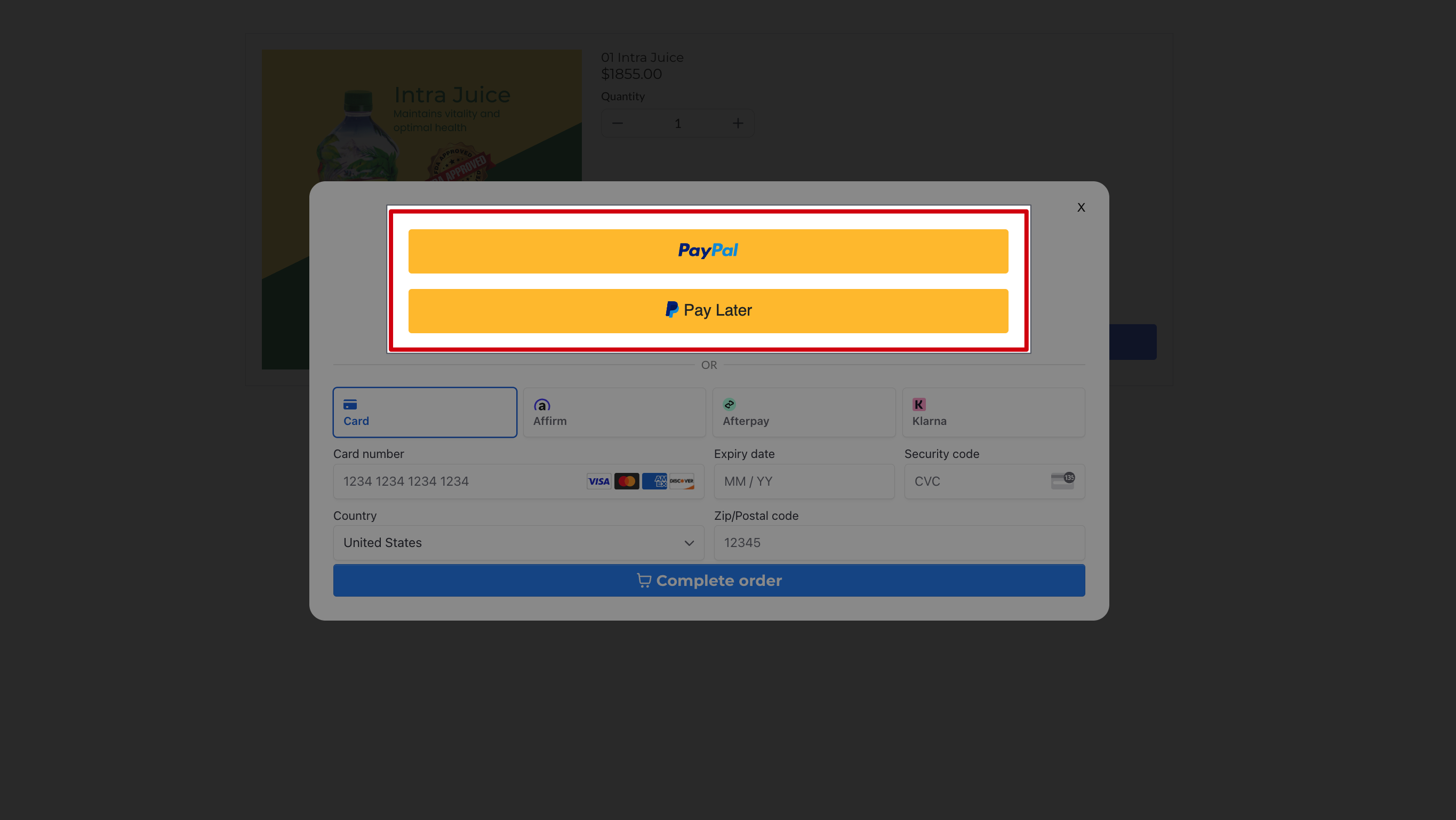
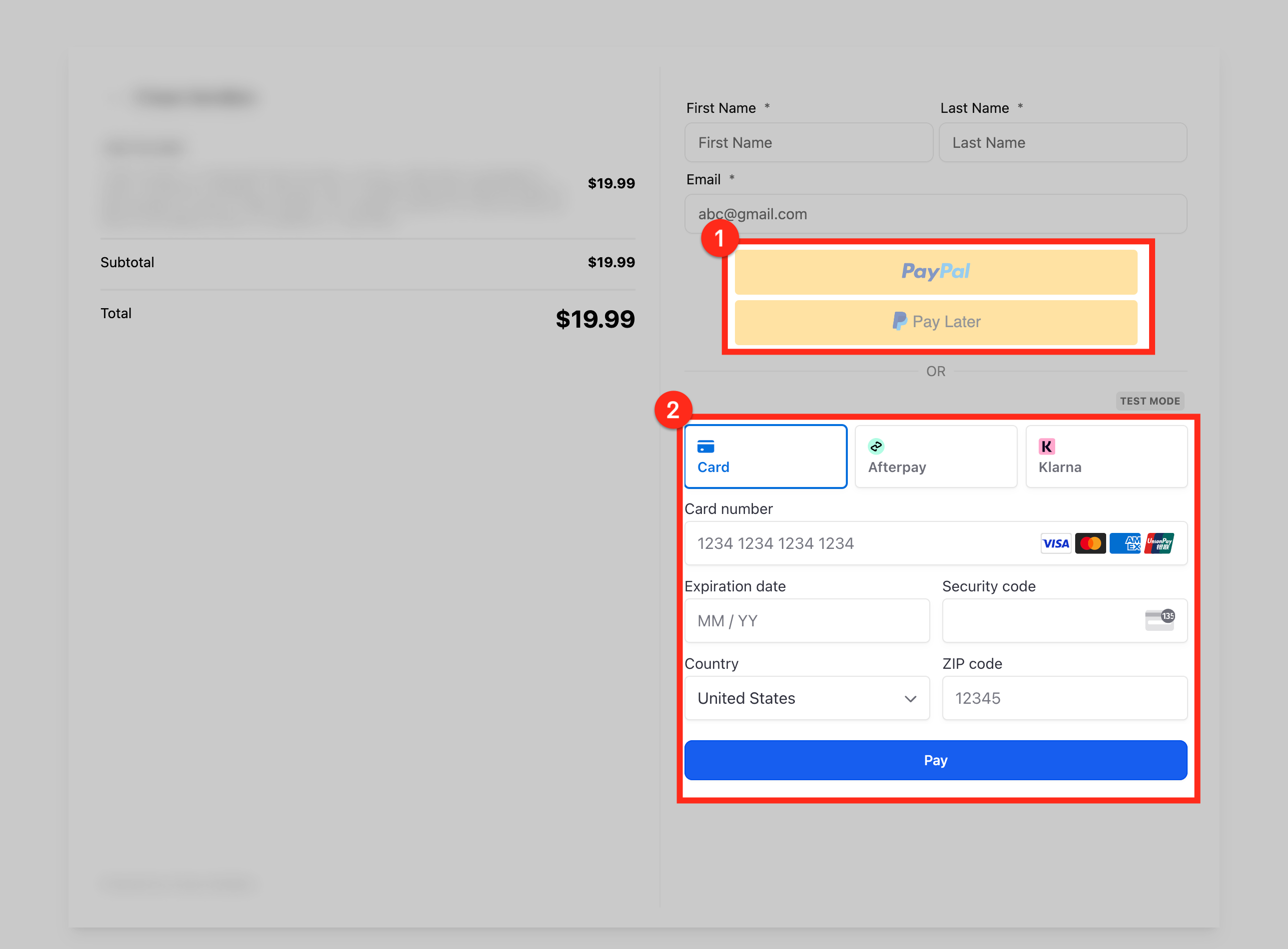
The PayPal Payment Element adds PayPal and PayLater buttons to any HighLevel payment workflow. Customers see the PayPal option alongside any other providers you have connected, and they can select their preferred method at checkout. The element works in forms, surveys, 1 step and 2 step order forms, invoices, payment links and ecommerce stores.
The feature lives under the Payments section of the dashboard. After linking a PayPal account, the element automatically displays PayPal buttons wherever the Payment Element or Collect Payment element is used. No code changes are required; the integration is handled entirely within HighLevel.
03How businesses use PayPal buttons in payment elements
- Ecommerce retailer. Add the 1 Step Order Form element to a product page, then preview the page to verify PayPal buttons appear. Shoppers can complete purchases using PayPal or PayLater without leaving the store.
- Service based consulting firm. Insert the Collect Payment element into a lead capture form, update it to the latest version, and preview the form. Prospects can pay a deposit with PayPal directly in the form.
- Freelance designer. Create an invoice in HighLevel, enable the PayPal button on the invoice payment page, and preview the invoice link. Clients can settle the invoice using PayPal.
04The numbers and rules that matter
- Supported on forms, surveys, websites, funnels, invoices, payment links, and ecommerce stores.
- If an order form was added before Nov 1st, 2024, delete it and add back it for PayPal compatibility.
05Before you start
- A PayPal developer account with a created app that provides a Client ID and Secret Key.
06How to set up and use PayPal buttons in payment elements in HighLevel
Connect your PayPal account to HighLevel
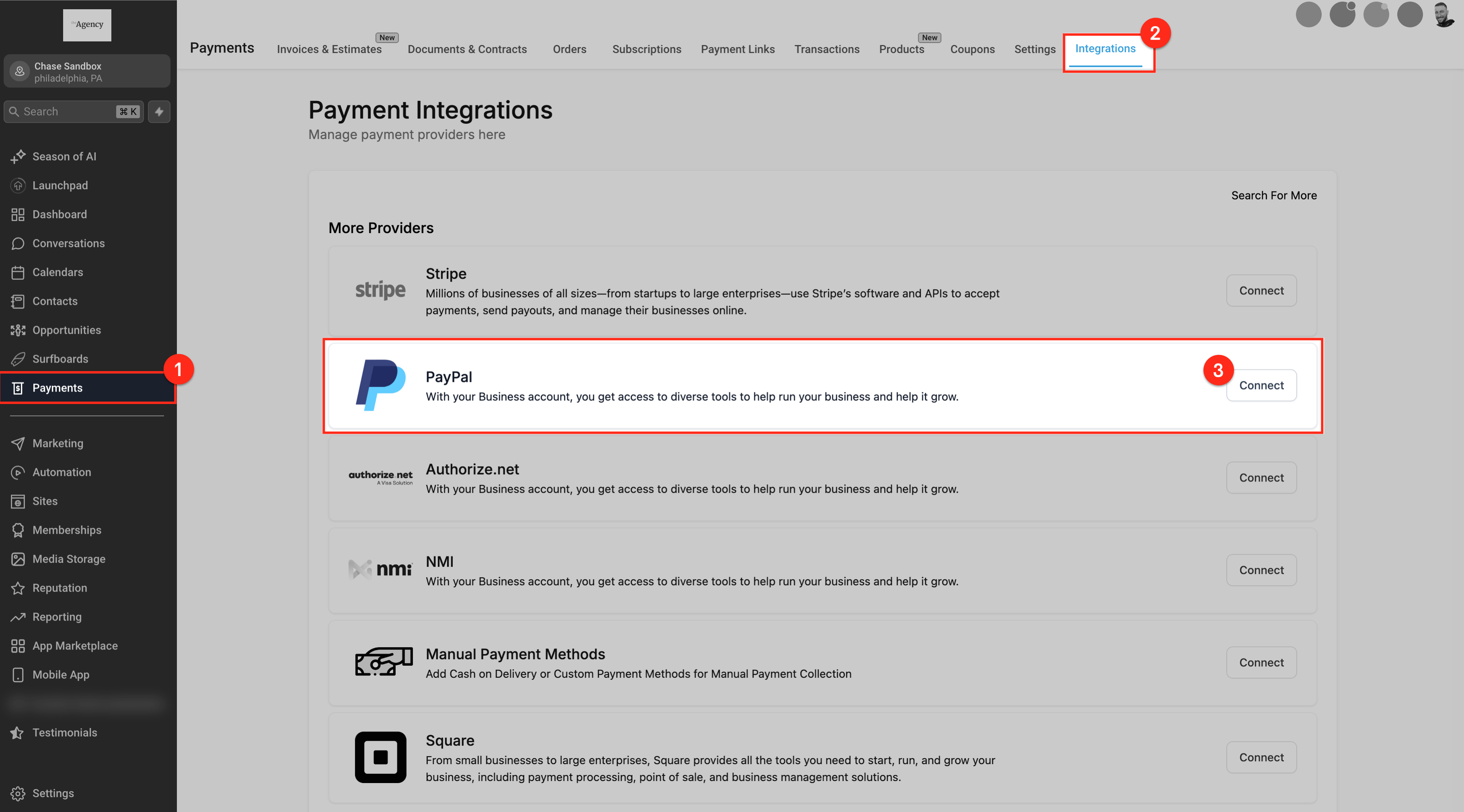
- Navigate to Payments > Integrations in the HighLevel dashboard.
- Select PayPal from the list of available integrations.
- Enter the Client ID and Secret Key obtained from your PayPal developer app.
- Click Save to store the integration settings.
Add or update the Payment Element for PayPal support
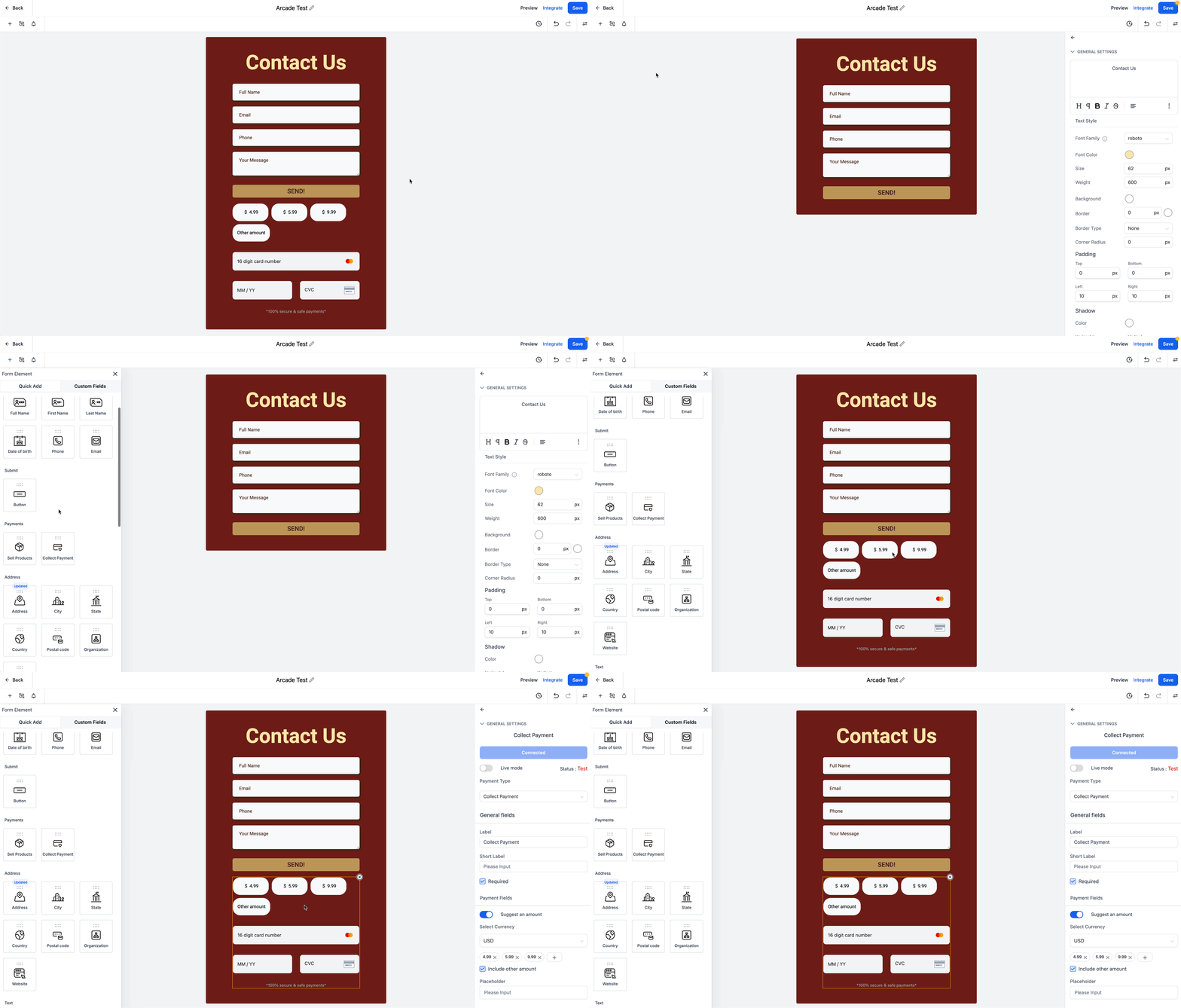
- Place the payment element in the desired form, survey, website or funnel to enable PayPal buttons.
- If the element already exists, upgrade it to the newest version that includes PayPal.
- For forms or surveys, add the “Collect Payment” element; for funnels or websites, use the 1 Step or 2 Step Order Form element.
- If an order form was added before November 1 2024, delete it and re add it to ensure compatibility.
Preview the Payment Element to see PayPal buttons
- Open preview mode for the form, survey, website or funnel containing the element.
- Check the previewed page to confirm PayPal buttons are displayed.
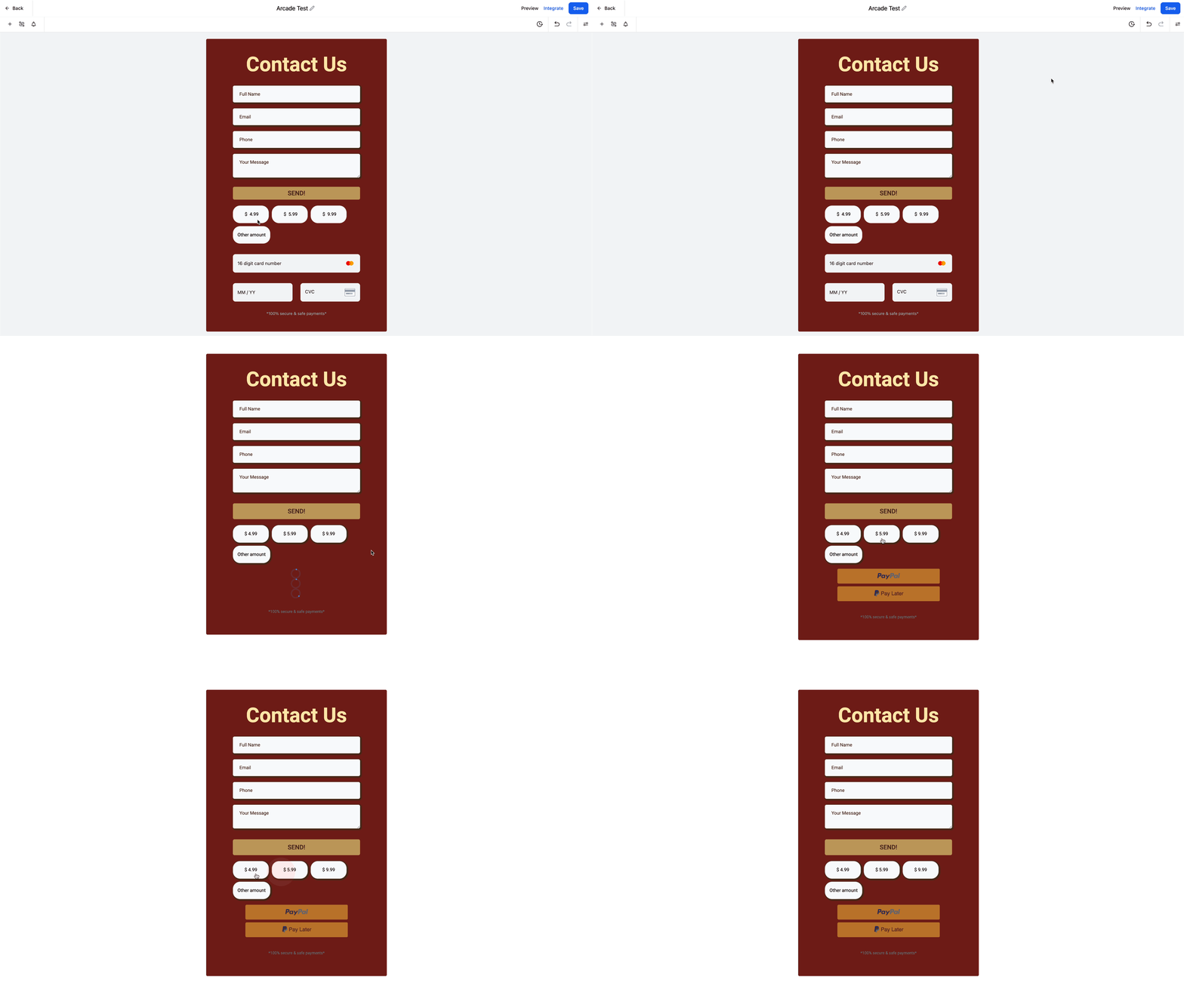
- Remember that PayPal buttons will not appear while editing in the builder.
07What it looks like in HighLevel
08Settings that matter
- Client ID. Identifies your PayPal app and allows HighLevel to route payments through your PayPal account.
- Secret Key. Authenticates the connection between HighLevel and your PayPal developer app.
09Things to know before you rely on it
- If an order form was added before November 1 2024, delete it and re add it to ensure PayPal compatibility.
- PayLater availability depends on PayPal’s own terms and the customer’s eligibility; it is not configurable in HighLevel.
- PayPal buttons are not visible while editing a form, survey, website or funnel in the builder; they appear only in preview mode or live pages.
10How it connects to the rest of HighLevel
- Supported payment providers by region Supported providers
- All Payments features overview Payments features
- HighLevel pricing and plans Pricing
Michael's take

Adding PayPal buttons feels like a small convenience that can turn a modest checkout into a more trusted experience.
The built in PayPal and PayLater options let you tap into a brand customers already trust without significant changes to your payment flow.
If you run a service based business that sends invoices or a small ecommerce shop, just connect your PayPal credentials, drop the Collect Payment element in a form, and you’re ready. I’d double check that any order form created before November 2024 is refreshed so the PayPal button shows up correctly.