
01Who this is for
- Founders who track leads can view all contact activity without leaving the app, keeping outreach fast.
- Sales teams can bulk tag groups of prospects to keep the database organized for targeted campaigns.
- Support staff can see a contact’s recent interactions and notes in one place, speeding up response preparation.
02Unified contacts workspace, explained
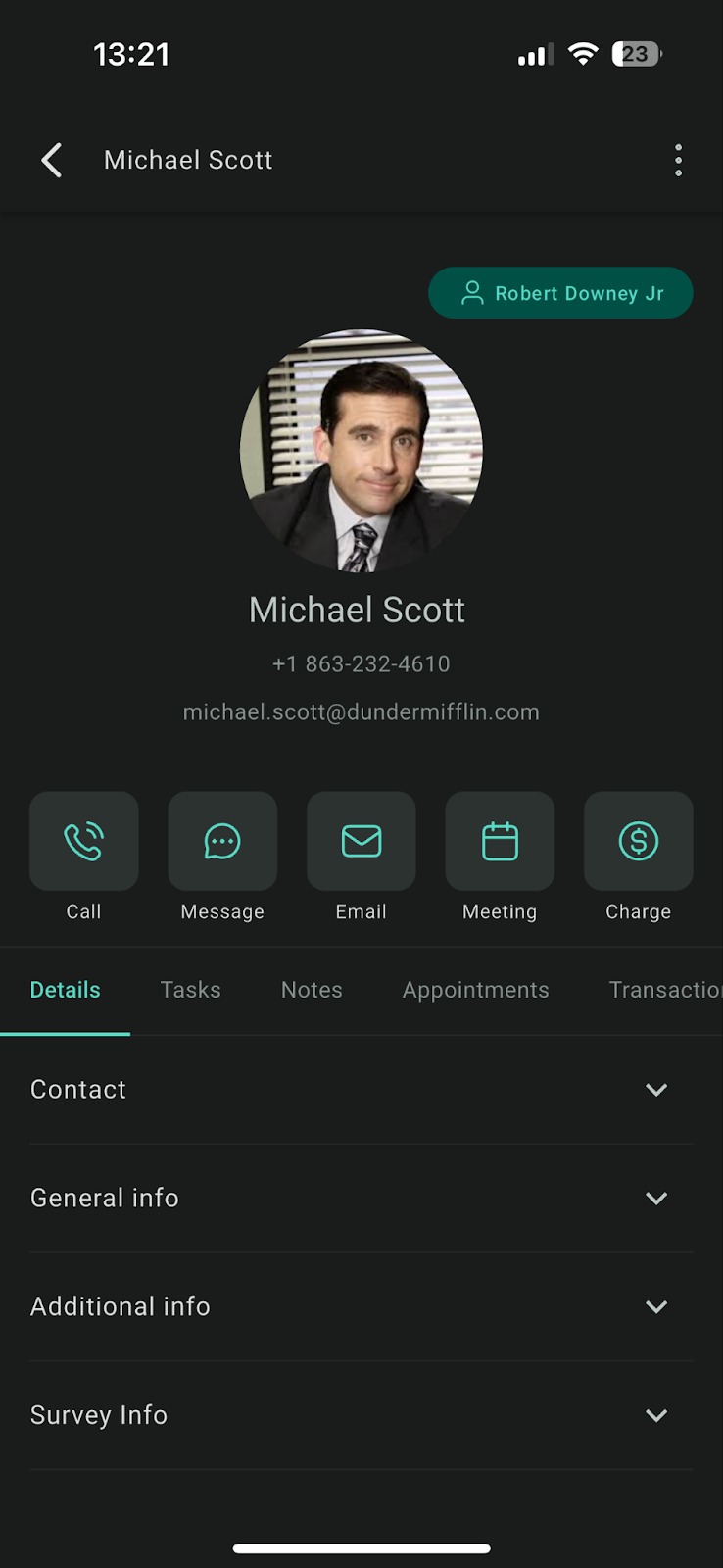
The Contacts Workspace replaces scattered screens with a tab driven hub that shows a contact’s general info, tasks, notes and a chronological activity feed. Actions such as Call, SMS and Email appear as one tap tiles at the top of the screen.
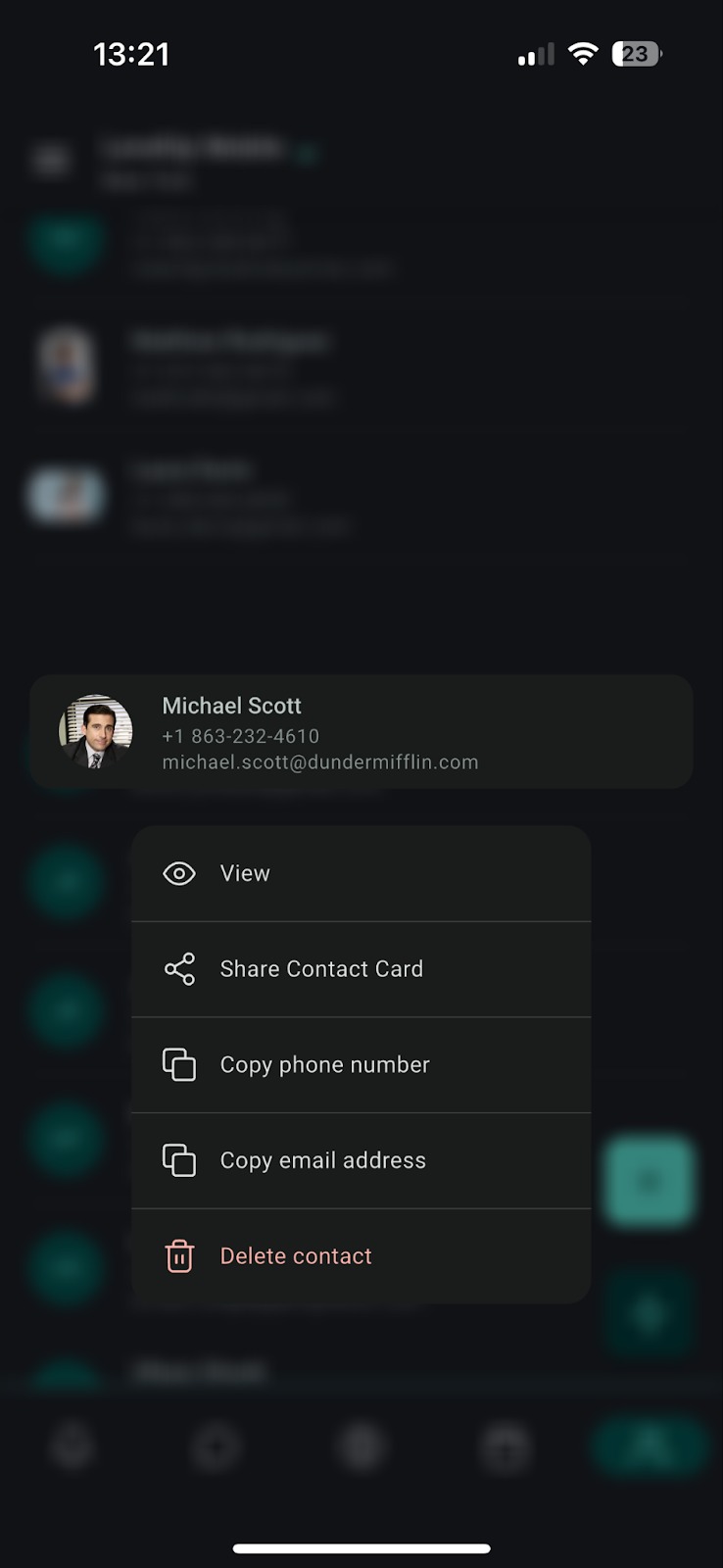
Tabs let users switch between Details, Tasks & Notes, and Activities without leaving the view. Long pressing a contact reveals a quick action tray, and a multi select mode enables bulk tagging of up to 500 contacts with up to 10 tags per operation.
03How businesses use the Unified Contact Workspace
- Real estate agency. Agents open the Contacts Workspace, swipe to the Activities tab to review recent calls and showings, then bulk tag all buyers interested in a new development. The tag syncs right away to the web platform for targeted follow up.
- Dental practice. Front desk staff long press a patient record, tap Email to send appointment reminders, and add a "Recall" tag to multiple patients at once. The tags appear on the web dashboard for automated recall campaigns.
- Online education provider. Course administrators select several student contacts, apply a "Course Completed" tag in bulk, and then use the tag in workflow automations to trigger certificate emails. Custom values stored on each contact personalize the messages.
04The numbers and rules that matter
- Requires app version v3.9+ (or LeadConnector v3.9+) on iOS or Android.
- Whitelabel apps must request the 3.9 build from support.
- Bulk apply tags to up to 500 contacts and 10 tags per operation.
05Before you start
- Install HighLevel mobile app version 3.9 or higher on iOS or Android.
- Ensure the device has an internet connection to sync tag changes.
06How to set up and use the Unified Contact Workspace in HighLevel
Navigate contacts workspace
- Open the Contacts tab in the mobile app.
- Long press a contact tile to display the quick action tray.
- Tap Details to view folded sections such as General Info and Custom Values.
- Swipe left or right on the tab bar to move to Tasks & Notes or Activities.
Bulk tag contacts
- Tap the ••• menu and choose Select to enable multi select mode.
- Tick the check boxes of the contacts you want to tag.
- Tap Add Tags in the bottom action bar.
- Choose the tags you wish to apply and confirm.
07What it looks like in HighLevel
08Settings that matter
- Additional Info. holds custom values for a contact that can be referenced in templates, workflows and SMS messages.
09Things to know before you rely on it
- Bulk tagging can affect up to 500 contacts and a maximum of 10 tags per operation.
- Multi select works offline, but tag updates wait until the device reconnects.
- Legacy contact list view is no longer available after the update.
10How it connects to the rest of HighLevel
- Explore other mobile features that complement the Contacts Workspace All Mobile & Desktop App features
- Review plan options if you need to upgrade to access version 3.9+ HighLevel pricing and plans
- Start a free trial to test the new workspace before committing Start a 30 day HighLevel trial
Michael's take

The Unified Contact Workspace can feel overwhelming at first because it consolidates a lot of information into one screen. If you miss the old list view, you won’t get it back, so spend a few minutes getting comfortable with the tab layout and quick action tray.
After the initial learning curve, the bulk tag feature lets you apply tags to many contacts in one step, which can be useful when cleaning up a large database.