
01Who this is for
- Founders of brick and mortar retail stores, they can turn any tablet into a checkout station without extra dongles.
- Service based business owners, they can accept card present payments at client site appointments using a mobile device.
- Operators of multi lane checkout areas, unlimited readers let each lane have its own terminal while keeping reporting unified.
02Stripe internet readers, explained
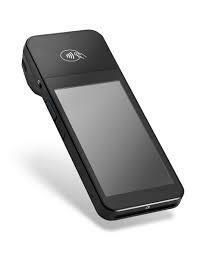
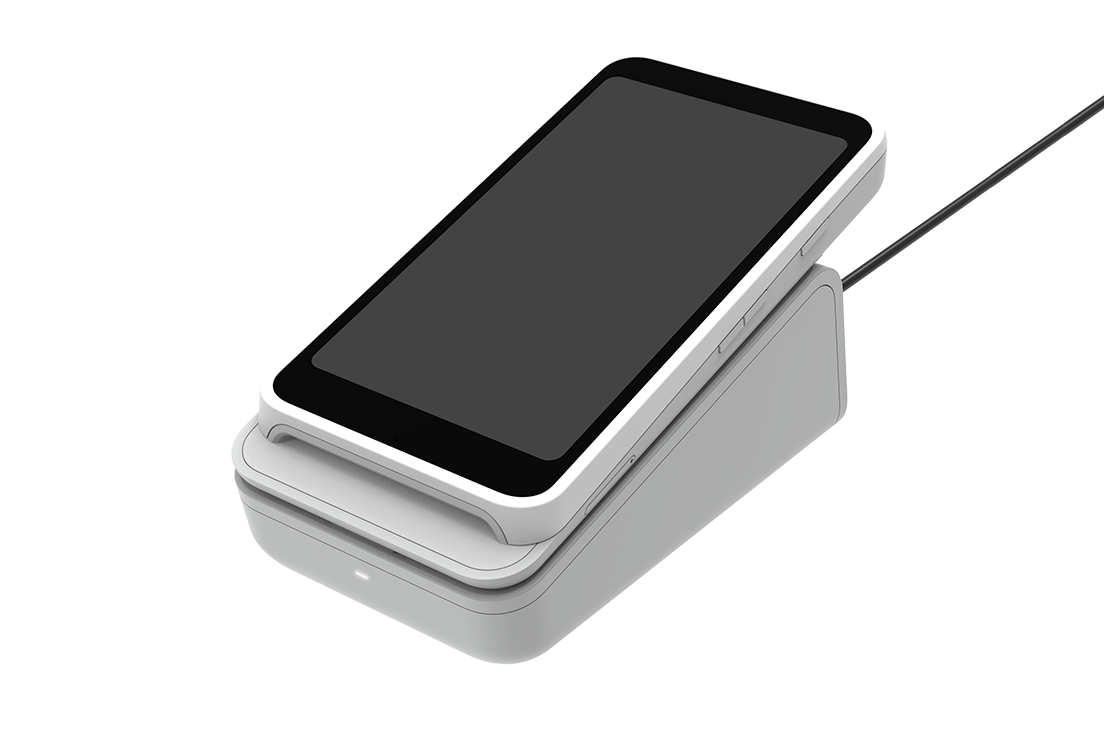
The feature lets you pair Stripe’s Wi Fi enabled WisePOS E or S700 terminals with the HighLevel mobile (or white label) app. Pairing registers the hardware to a specific subaccount, so the device shows up in the Payment Instruments list for every sale.
The readers communicate over the local Wi Fi network and send each transaction through Stripe’s PCI certified flow. Once a sale is completed, the approval appears right away in Transaction History, and the same dashboard aggregates in person and online sales.
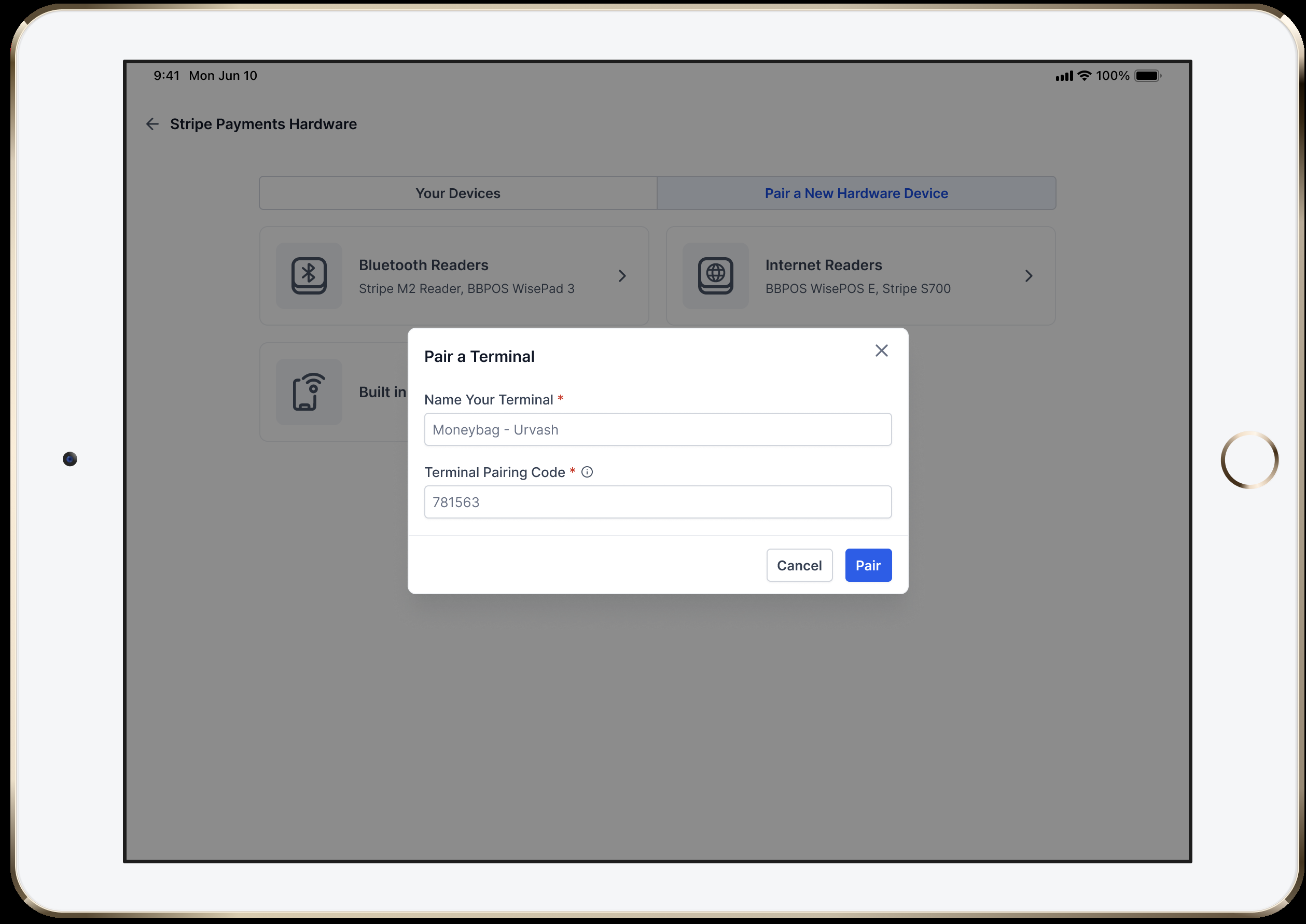
You find the pairing controls under Settings > Stripe Payment Hardware > Pair New Devices > Internet Readers inside the mobile app. After registration, select the reader from Payment Instruments when processing a checkout.
03How businesses use the Stripe internet readers
- Coffee shop. The owner registers a WisePOS E on the counter tablet, then selects that reader at checkout. Customers tap or swipe their cards, and the sale records right away, keeping line times short.
- Hair salon. A stylist registers an S700 on a mobile device used for walk in appointments. At the end of a service, the stylists choose the reader, present it to the client, and collect payment without leaving the chair.
- Home services contractor. A contractor enrolls a WisePOS E on a tablet carried to job sites. When the job is finished, they open the POS, select the registered reader, and accept the customer's card on the spot.
04The numbers and rules that matter
- Unlimited Readers Per Location: Register as many devices as you need; each appears in the Payment Instruments list.
- Mobile app version v 3.103.4 or later is required.
- Pairing codes last 60 seconds.
05Before you start
- A live Stripe account connected in Payments > Integrations.
- Both mobile device and reader must share the same 2.4 GHz or 5 GHz Wi Fi network.
- The device must be enrolled in the HighLevel / LeadConnector public beta on the App Store or Google Play.
- Mobile app version v 3.103.4 or later must be installed.
06How to set up and use the Stripe internet readers in HighLevel
Register a WisePOS E or S700 reader
- Power on the WisePOS E or S700 reader.
- Tap Generate Pairing Code on the idle screen to display a six digit code.
- Open the HighLevel mobile app and select the appropriate subaccount.
- Navigate to Settings > Stripe Payment Hardware > Pair New Devices > Internet Readers.
- Enter a recognizable name for the reader.
- Type the six digit pairing code shown on the reader.
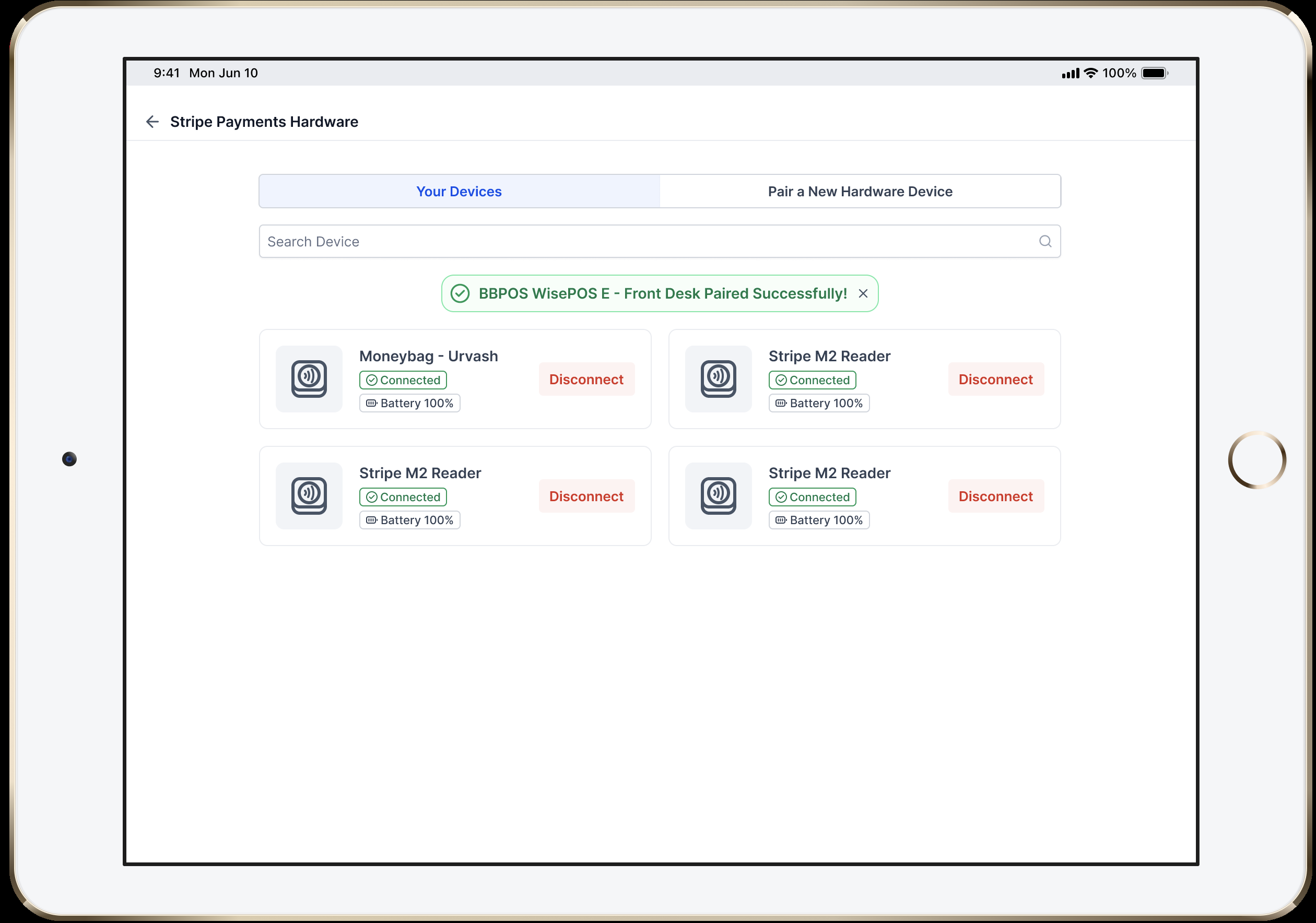
- Tap Pair and watch for the success toast confirming registration.
- Repeat the entire process for any additional readers you wish to add.
Take a payment with a registered reader
- Start a new sale in the POS and add items to the cart.
- Open the Payment Instruments list and select the registered reader.
- Present the reader to the customer for tap, insert, or swipe.
- Wait for the 5 minute timer and for the reader to display “Approved.”
- Confirm the approval on the mobile screen.
- Verify that the transaction appears in Transaction History.
07What it looks like in HighLevel
08Settings that matter
- Stripe Payment Hardware. Controls the pairing process for internet readers and determines which devices appear in the Payment Instruments list.
- Prompt for Tip. Enables a tip prompt on the reader during a transaction, allowing customers to add gratuity.
09Things to know before you rely on it
- You can register unlimited internet readers per subaccount; each appears individually in Payment Instruments.
- Pairing codes expire after 60 seconds; generate a new code if the previous one times out.
- A five minute payment timer runs on the mobile screen; if it expires, restart the sale.
- Readers require an active internet connection; offline transactions are not supported.
- Device must be enrolled in the public beta and run version v 3.103.4 or later.
10If something goes wrong
- Reader not found. Make sure both devices are on the same Wi Fi SSID, restart the reader, and ensure ports 443 and 4070 are open.
- Pairing code expired. Generate a new code on the reader and retry within 60 seconds.
- Payment timer expired. Relaunch the sale and ask the customer to keep the card in place until the beep.
- Need to move readers between stores. Unpair the device in Payment Devices, then repeat the pairing steps on the new Wi Fi network.
11How it connects to the rest of HighLevel
- Learn how to use Stripe hardware terminals with HighLevel mobile POS. Stripe hardware terminals guide
- See the consolidated payment hub that aggregates all sales in the mobile app. Consolidated payment hub
- Review pricing and plan options for accessing the public beta. HighLevel pricing
Michael's take

Most people assume the reader has to stay glued to the device or that Bluetooth is required. In reality the pairing is a one time Wi Fi step and after that the terminal works independently, letting the mobile app simply hand off the transaction.
If I were setting up a new retail floor, I would register each terminal right away, give each a clear name, and test a payment on the first lane before opening. A quick check of the Wi Fi network and open ports is recommended.