
01Who this is for
- Sales representatives who need to call leads while traveling and want to capture notes right away.
- Customer support agents who follow up on tickets and require quick access to contact profiles during calls.
- Team managers who must transfer calls to other staff members without switching apps.
02Outbound calling in the HighLevel mobile app, explained
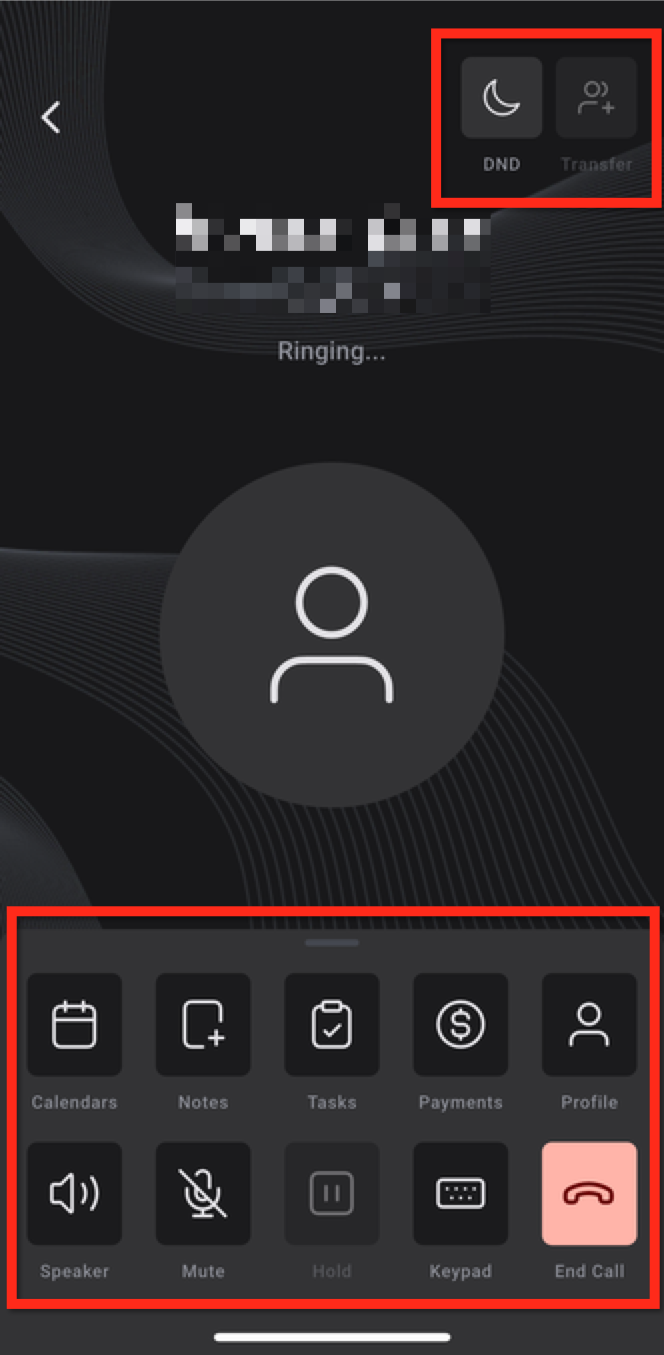
The mobile app extends HighLevel’s phone system to iOS and Android devices. Users can start an outbound call from a conversation, a contact record, or the device’s native contacts list. While the call is active, the screen displays standard call controls plus shortcuts for Do Not Disturb, call transfer, calendar scheduling, note taking, task creation, payment review, and profile viewing.
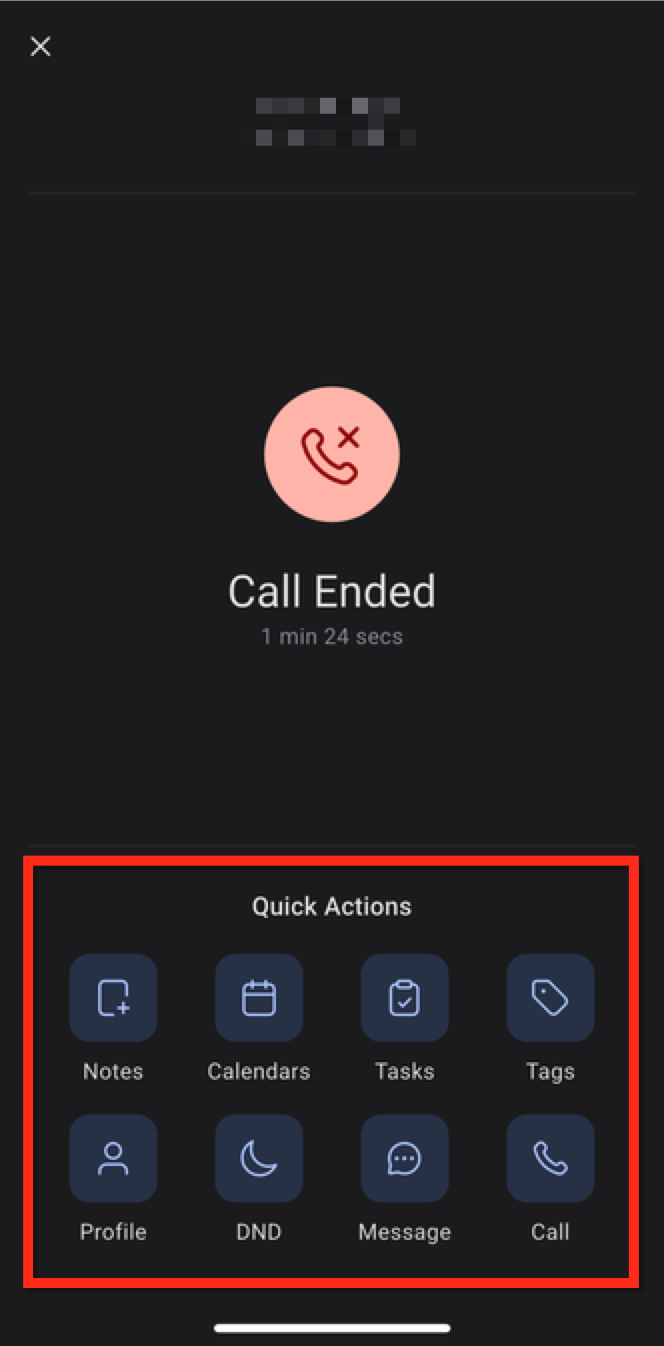
All call activity, recordings, and billing are synchronized with the desktop environment. After the call ends, a summary screen offers actions such as editing notes, adding follow up tasks, applying tags, and initiating callbacks. The feature lives under the bottom navigation bar in the Conversations and Contacts tabs, as well as through the native phone integration option.
03How businesses use outbound calling in the HighLevel mobile app
- Real estate agency. Agents open a conversation with a prospect in the app, tap the Call button, and schedule a property tour directly from the in call screen. After the call, they add a follow up task and tag the contact as "Showing Scheduled".
- Dental practice. Front desk staff locate a patient record, place the call, and use the payment shortcut to confirm any outstanding balances while speaking. They then log notes and set a reminder for the next appointment.
- HVAC service contractor. Technicians call a homeowner from the contact list, toggle Do Not Disturb for the client, and create a service task on the spot. Post call, they tag the job as "Urgent" and schedule a follow up call.
04Before you start
- Install the HighLevel mobile app on the device.
- Enable Local Presence Dialing for the subaccount if caller ID selection is required.
05How to set up and use outbound calling in the HighLevel mobile app in HighLevel
Place outbound call from an existing conversation
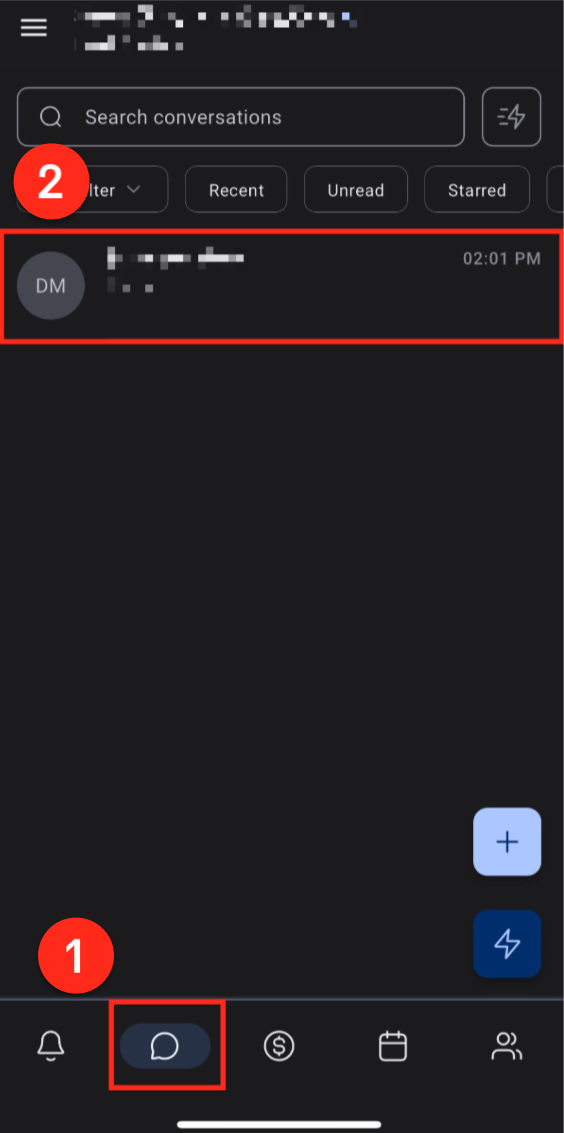
- Open the Conversations tab using the bottom navigation bar.
- Find and tap the conversation that belongs to the contact you wish to call.
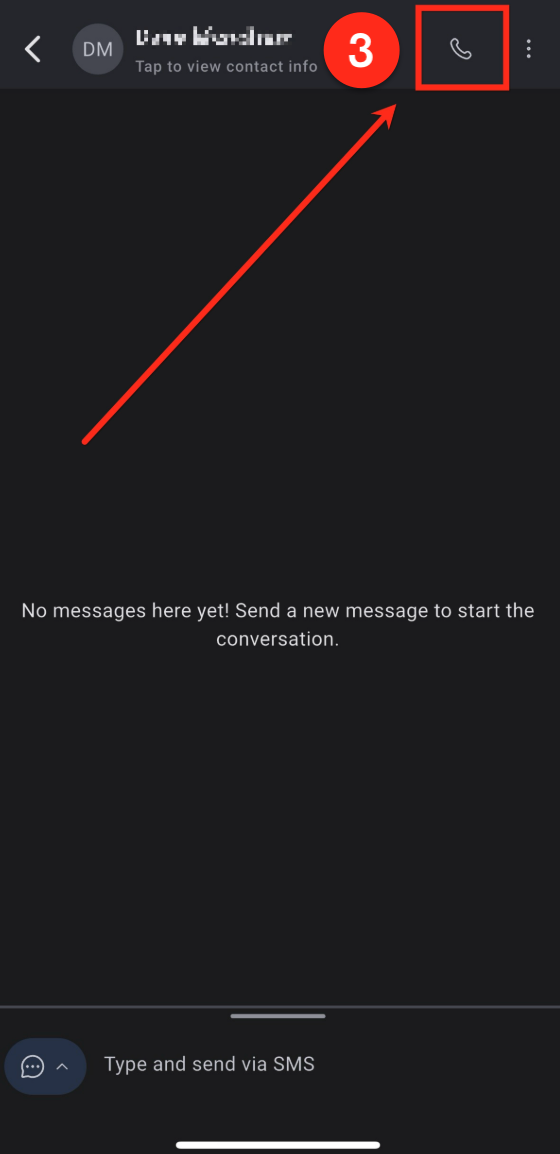
- Press the Call icon located at the top right of the screen.
Place outbound call from an existing contact
- Select the Contacts tab from the bottom navigation bar.
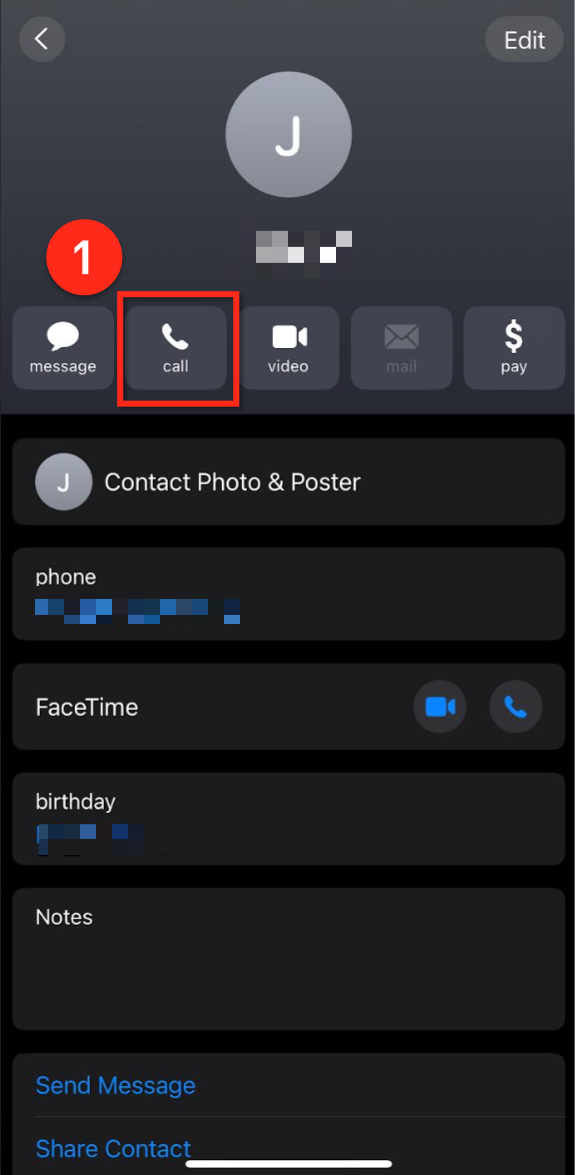
- Tap the desired contact to view its details page.
- Tap the Call button to start the outbound call.
Place outbound call using the native phone app
- Open the phone’s native Contacts application.
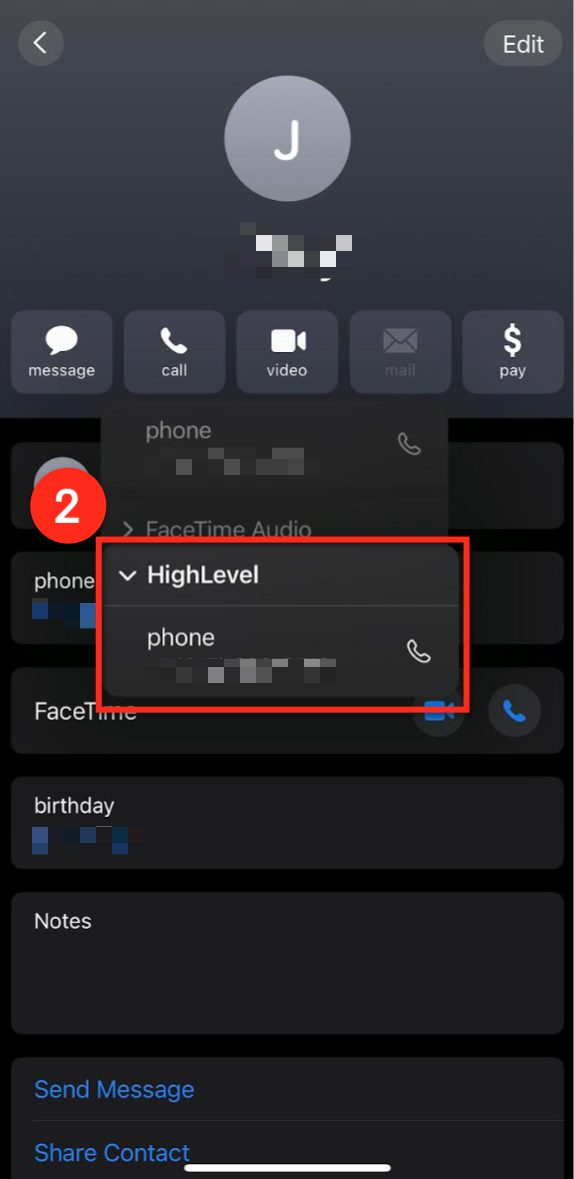
- Long press the call icon next to the contact’s number.
- When prompted, choose HighLevel or LeadConnector as the dialing method.
Place outbound call using the Floating Lightning button
- Tap the Lightning icon in the bottom right corner of the screen.
- Select the "Make a Call" option in the lower left corner.
- Enter the phone number or select a contact and tap Call.
Place outbound call using the Floating Phone button
- From the Notifications tab, tap the phone button in the lower right hand corner.
- Enter the phone number on the dialer screen.
- Tap the Call button to initiate the outbound call.
06What it looks like in HighLevel
07Settings that matter
- Local Presence Dialing. Controls which caller ID number appears for outbound calls made through the mobile app, using the HighLevel phone system rather than the device’s carrier number. Configure it in the web app under Settings > Phone System > Voice > Other Settings > Outbound Calls.
08Things to know before you rely on it
- Local Presence Dialing is applied only to calls routed through the HighLevel phone system; it does not affect SIM based calls.
- Caller ID selection works only for supported countries as defined in the Local Presence documentation.
- All call minutes are billed according to the Twilio or HighLevel phone system usage plan.
09How it connects to the rest of HighLevel
- View all features available in the mobile and desktop apps Mobile & Desktop App features
- Check pricing details for phone usage and plans HighLevel pricing
- Start a free trial to explore outbound calling 30 day trial
Michael's take

The mobile app keeps the actions you need. Notes, tasks, appointments. Right on the call screen, so nothing slips through the cracks.