
01Who this is for
- Sales managers who need to see key deal information at a glance while traveling.
- Field agents who must log calls, notes and tasks directly from a mobile opportunity card.
- Founders of small teams who want a unified screen to edit and track every aspect of a lead.
02Opportunities V2 mobile app, explained
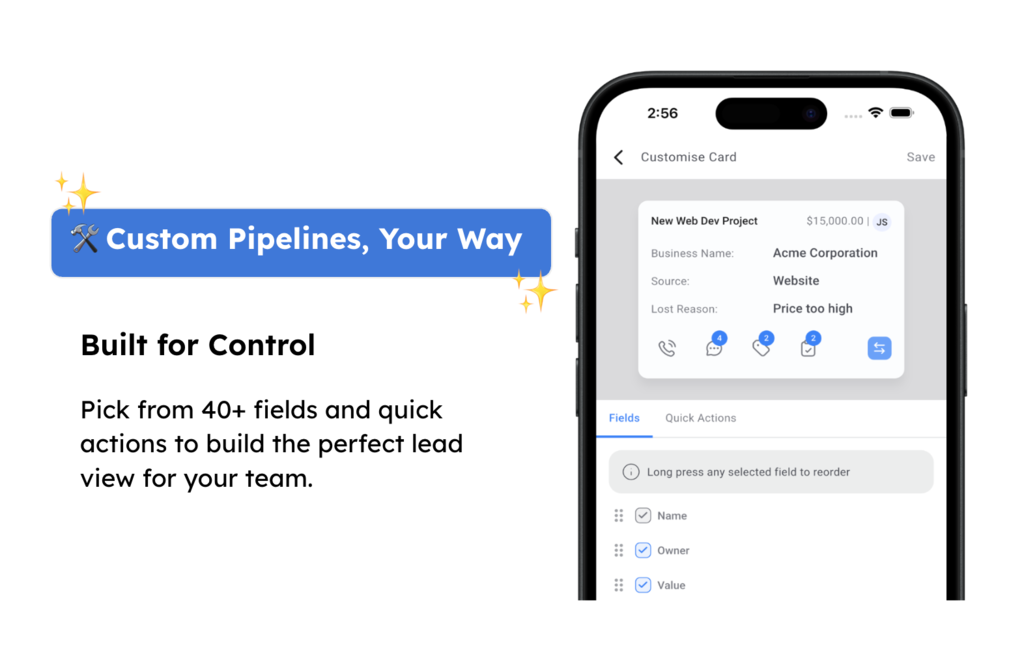
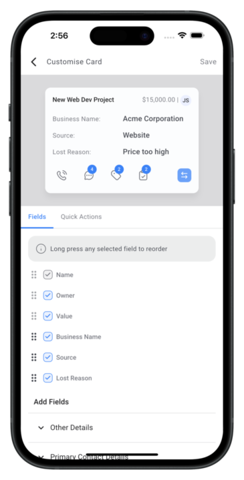
Opportunities V2 adds a customizable card layout to the HighLevel mobile app. Each card can show up to seven selected fields, including the three default fields, Name, Value and Owner, and up to four additional custom fields. Quick actions such as Message, Add Tag, Add Task and Move Opportunity can be placed on the cards for instant use.
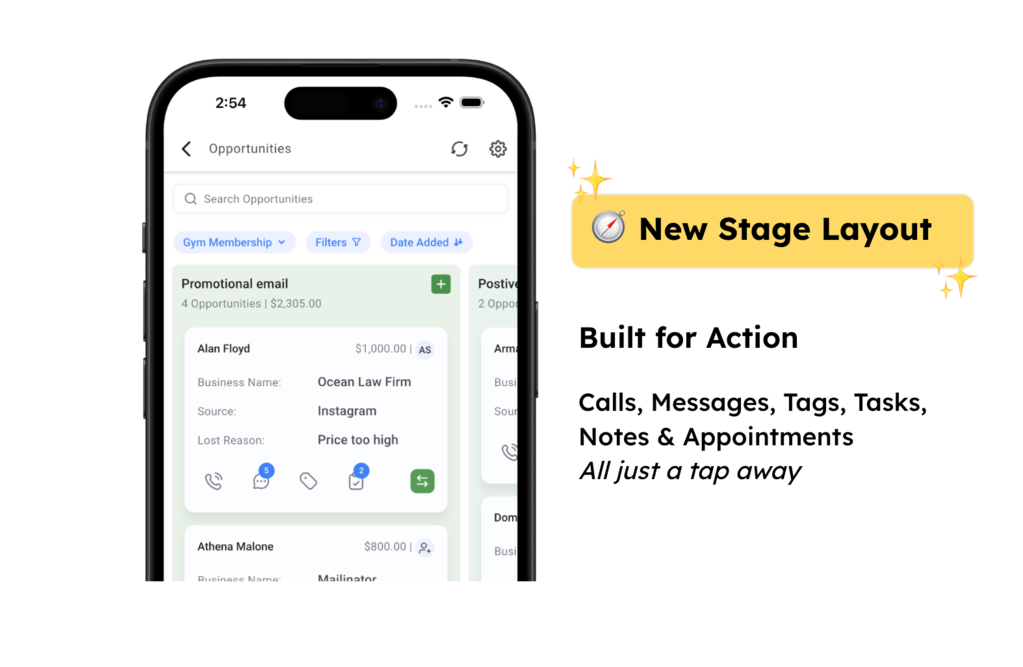
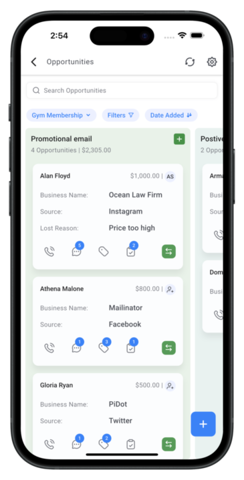
The pipeline view now displays interactive cards that let users call, add notes, create tasks, apply tags and change stages without opening a separate record. Visual badges on each card indicate the count of conversations, notes, tasks and tags, giving instant insight into activity.
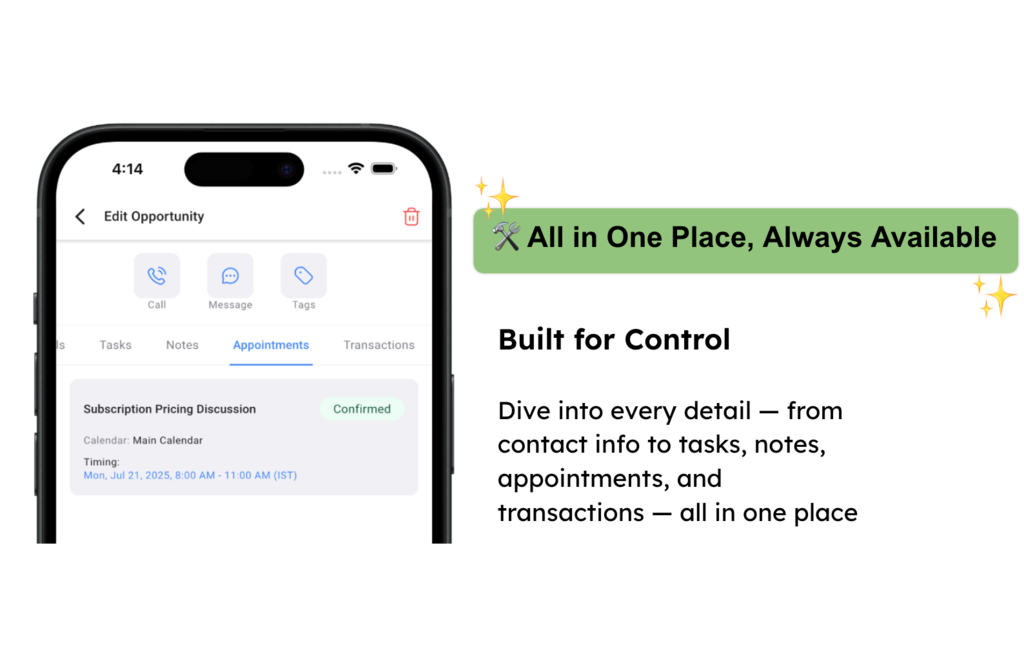
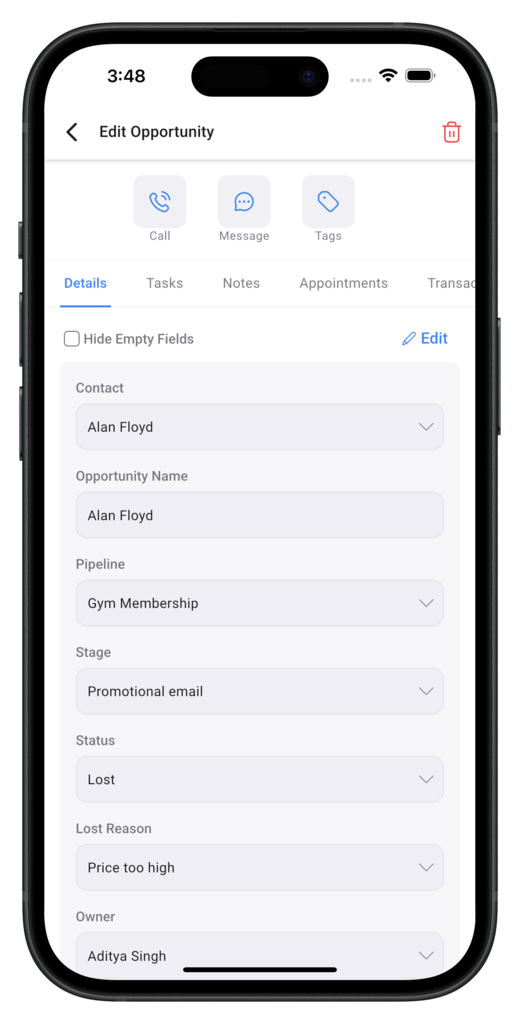
The all in one detail view consolidates all lead information under one screen with tabs for Details, Tasks, Notes, Appointments and Transactions. A top action bar provides immediate calls, messages and tagging, allowing users to engage leads while staying in the same interface.
03How businesses use opportunities V2 mobile app
- Real estate agency. Agents select fields like Property Type, Listing Price and Client Source for cards, then use the on card call and note actions to follow up with prospects while showing homes.
- Dental practice. Front desk staff configure cards to display Patient Name, Appointment Date and Treatment Plan, and tap the message quick action to send reminders directly from the mobile view.
- SaaS startup. Founders customize cards to include Trial End Date and Lead Source, then use the tag and task actions on each card to move prospects through onboarding stages without leaving the pipeline.
04The numbers and rules that matter
- Over 40 available fields.
- Up to 7 Custom Fields per card.
- Up to 4 additional Custom Fields on each card.
05Before you start
- The HighLevel mobile app must be updated to the latest version to access Opportunities V2.
06How to set up and use opportunities V2 mobile app in HighLevel
Customize your opportunity cards
- Open the mobile app and go to Opportunities > Settings > Customize Cards.
- Pick from the list of over 40 fields and choose the quick actions you want on the cards.
- Select up to seven fields, including the three default ones, and set your preferred quick actions.
- Tap Save so the new card layout appears right away in the pipeline view.
Navigate the updated pipelines
- In the mobile app, open Opportunities and select Pipelines to see the stage layout.
- Work with the customized cards and run quick actions such as calling, adding notes, creating tasks, tagging or moving the opportunity.
- Observe activity badges on each card for counts of conversations, notes, tasks and tags.
Use the all in one detail view
- Tap any opportunity card in the pipeline to open its detailed view.
- Use the top action bar to call, message or tag the lead right away.
- Switch among the Details, Tasks, Notes, Appointments and Transactions tabs to edit and manage all information without leaving the screen.
Reset warning
- Note that updating the app will reset the mobile card layout to the default configuration.
- After the update, repeat the customization steps to restore your preferred fields and actions.
07What it looks like in HighLevel
08Settings that matter
- Customize Cards. Controls which fields and quick actions appear on each opportunity card in the mobile app.
09Things to know before you rely on it
- Over 40 fields are available for selection.
- A maximum of seven fields can be selected for each card, including the three default fields.
- Only four additional custom fields can be displayed on a card alongside the default fields.
- Four default quick actions, Message, Add Tag, Add Task and Move Opportunity, are provided and can be rearranged.
- Updating the app resets the mobile card layout to the default; preferences must be re configured afterwards.
10If something goes wrong
- The update resets the current mobile card layout and fields.. Open Opportunities > Settings > Customize Cards and re select the desired fields and quick actions.
11How it connects to the rest of HighLevel
- Explore all mobile and desktop features Mobile & Desktop App features
- Review HighLevel pricing and plan options HighLevel pricing
- Start a 30 day trial of HighLevel 30 day trial
Michael's take

Most people think they can just update the app and keep using their old card setup. The reset means you lose the layout you spent time building, so you end up scrambling to find information again. Instead, I would treat the reset as a chance to rethink which fields truly drive action for the team and only keep the essentials.
If I were configuring Opportunities V2, I would map the three default fields to the top line, then add the two or three data points my reps check every morning. A quick glance at those fields plus the call and message actions cuts the time they spend digging, and the team can focus on moving deals forward.