
01Who this is for
- Digital marketers who need instant access to graphics for social planner posts.
- Service based Founders who want to keep contracts and promotional assets together on the go.
- Small business owners who capture receipts or product photos with their phone and need to organize them quickly.
02Media library, explained
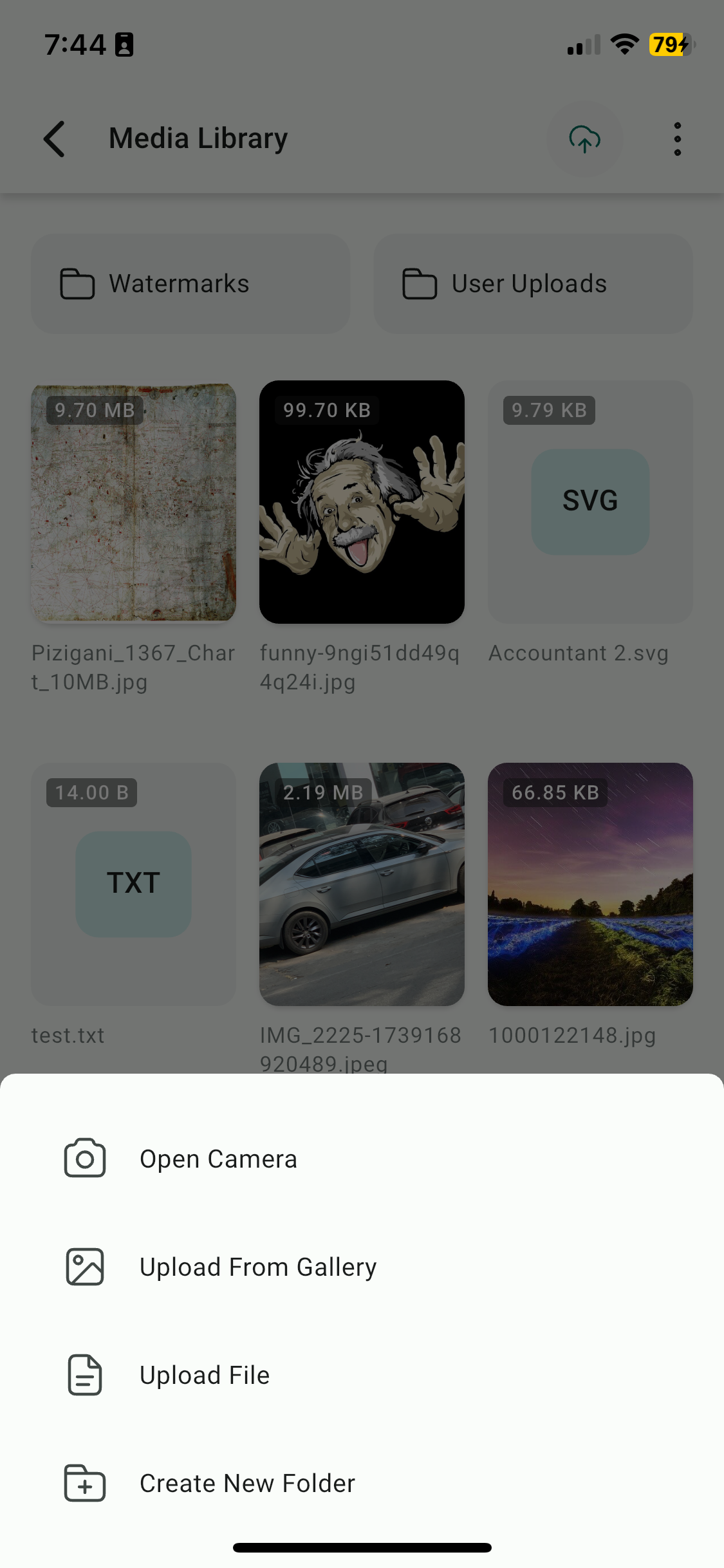
The Media Library lives inside the GoHighLevel mobile app. It gathers all supported file types, images, videos, PDFs and similar, into one searchable hub. Users open the library from the main hamburger menu and can upload files directly from the device’s gallery, camera, or files app.
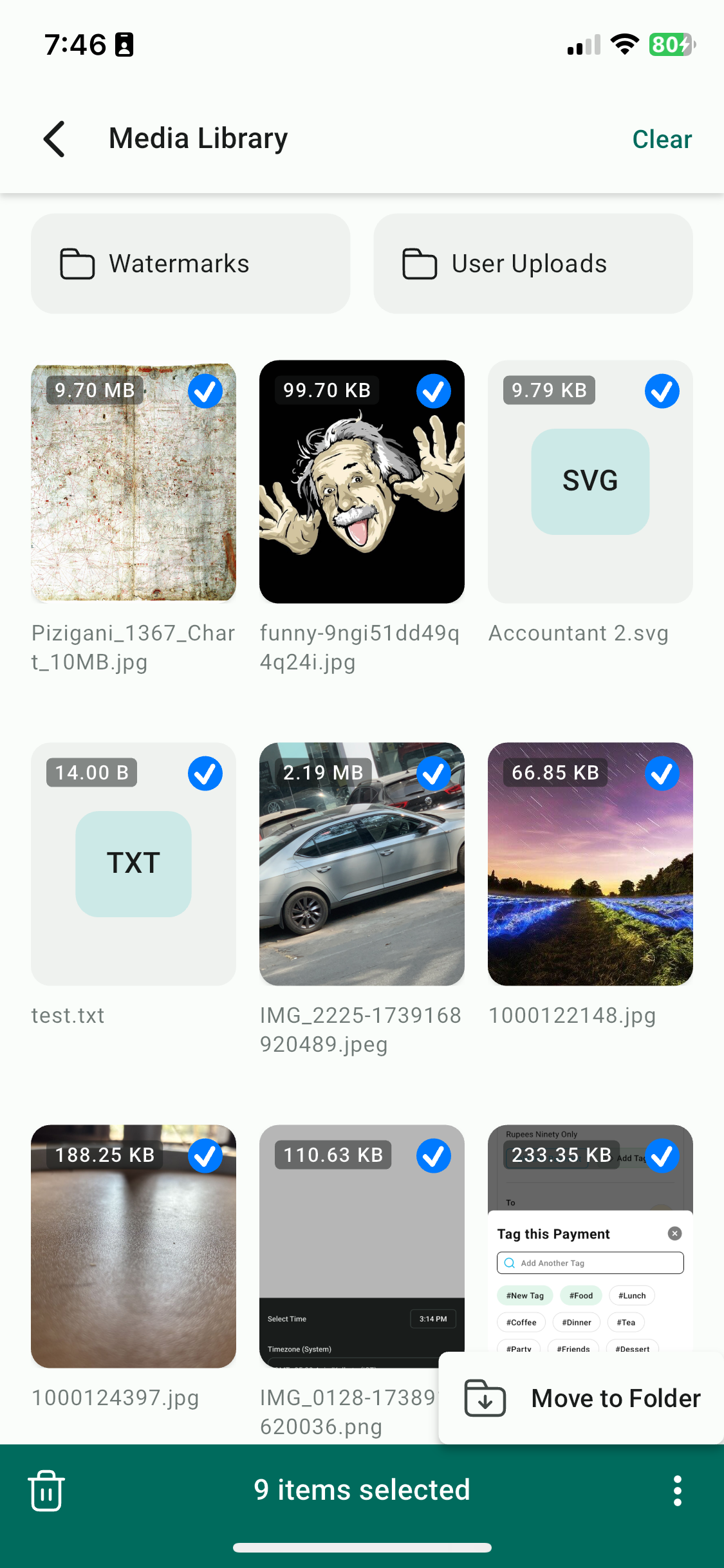
Once files are inside, users can create custom folders, drag or move items into those folders. A search bar and sort options let users locate media by name, size or the most recent upload. Multi select mode enables bulk actions such as deleting several files at once or moving them to a folder.
An Upload Manager, accessed via a top right icon, shows real time progress for ongoing uploads and confirms when files have finished uploading. The library integrates with other GoHighLevel modules, allowing media to be inserted directly into Social Planner posts or Conversations.
03How businesses use media library
- Digital marketing agency. Agents open the Media Library, upload client logos and video clips, then create folders for each campaign. When drafting social posts in the Mobile Social Planner, they insert the needed assets directly from the library without switching apps.
- Real estate brokerage. Agents capture property photos with their phone camera, upload them right away to the Media Library, and sort them into folders per listing. While sending a contract through the Conversations feature, they attach the appropriate files straight from the library.
- Health coaching practice. Coaches record short video tips, upload the videos to the library, and organize them by client. When preparing a follow up email or message in the app, they locate the video via the search bar and attach it directly from the library.
04The numbers and rules that matter
- Supported file types: Images, videos, PDFs, and other common file types.
05How to set up and use media library in HighLevel
Access the Media Library
- Open the GoHighLevel mobile app.
- Tap the hamburger menu (☰) in the top left corner.
- Select Media Library from the menu.
Manage Multiple Files
- Tap and hold a file to start multi select mode.
- Tap additional files to include them in the selection.
- Choose a bulk action such as Delete or Move to Folder.
06What it looks like in HighLevel
07How it connects to the rest of HighLevel
- Use library media in Social Planner posts Social Planner integration
- View all mobile app capabilities, including Media Library Mobile & Desktop App overview
Michael's take

People often think the Media Library is just another photo album and end up letting files sit scattered across their phone, email and desktop. The real advantage is treating it as the single source of truth for every image, video or PDF you need in your business workflow.
If I were setting up a new client, I’d immediately create a folder structure that matches their service areas, then start pulling in all brand assets. That way the team can drop the right graphic into Social Planner or a client chat without hunting through multiple apps.