
01Who this is for
- Founders of service businesses who need to route calls to team members without assigning individual phone numbers, ensuring every call finds an available device.
- Customer support managers who want to shift callers to specialists while maintaining context, using the existing Web or Mobile apps as ringing endpoints.
- Sales leaders who require quick hand offs during outbound outreach without provisioning separate lines for each rep.
02Call transfers, explained
The feature enables moving an ongoing call from one staff user to another directly within the HighLevel mobile app. It does not require the receiving user to have a personal phone number; instead, any destination marked in their Call & Voicemail Settings, Web App, Mobile App, My Phone Number, or Deskphone (SIP), can answer.
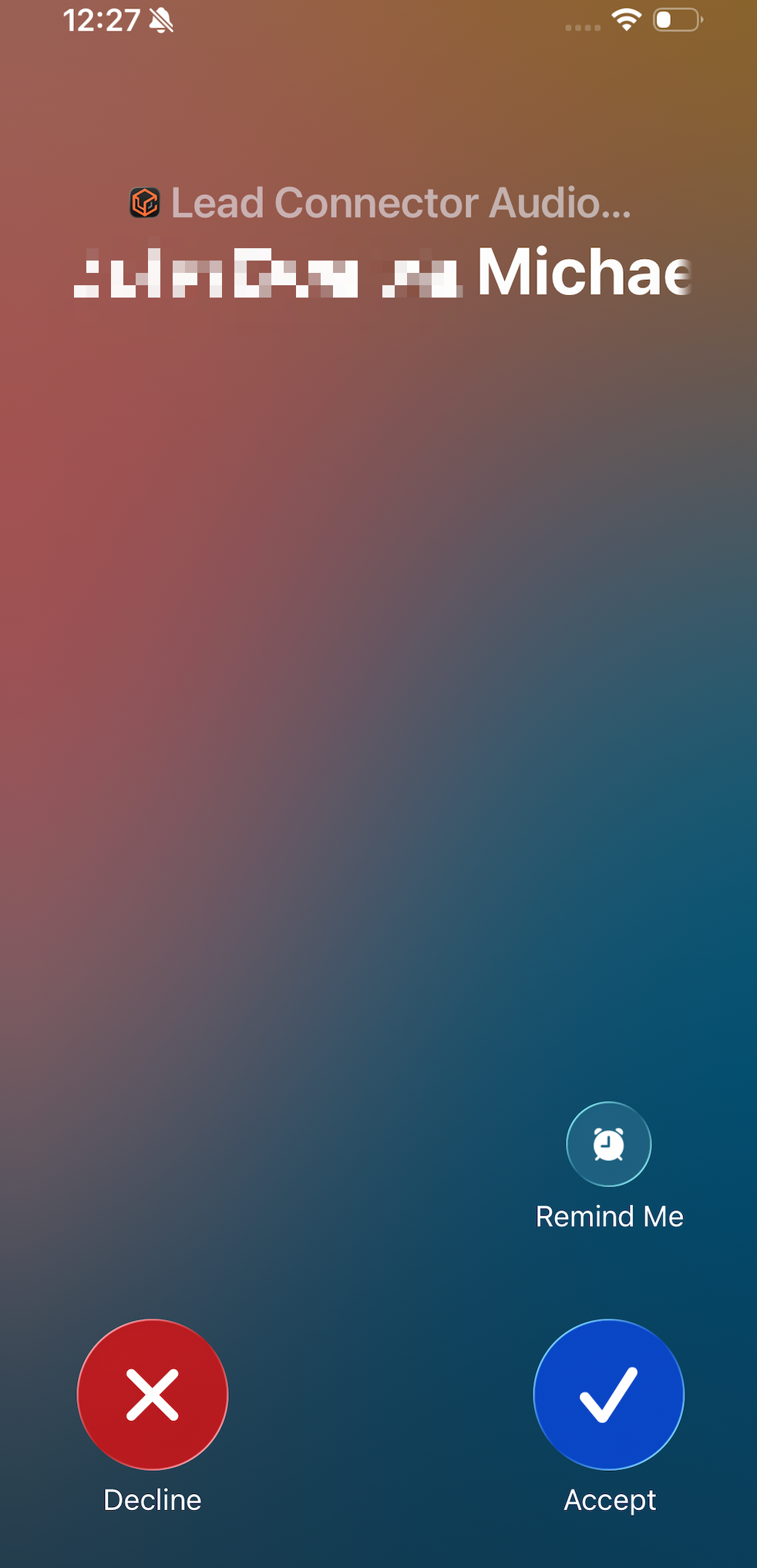
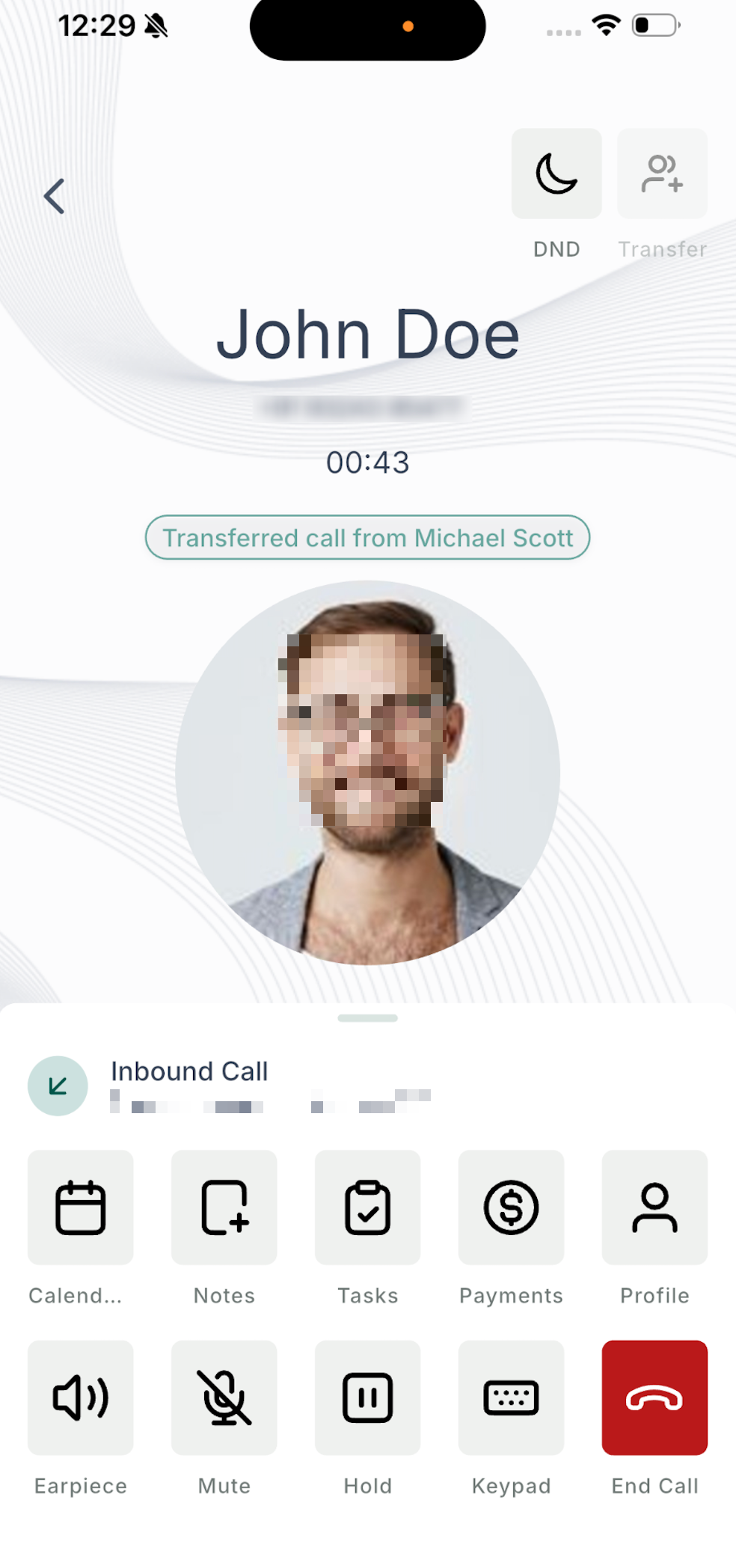
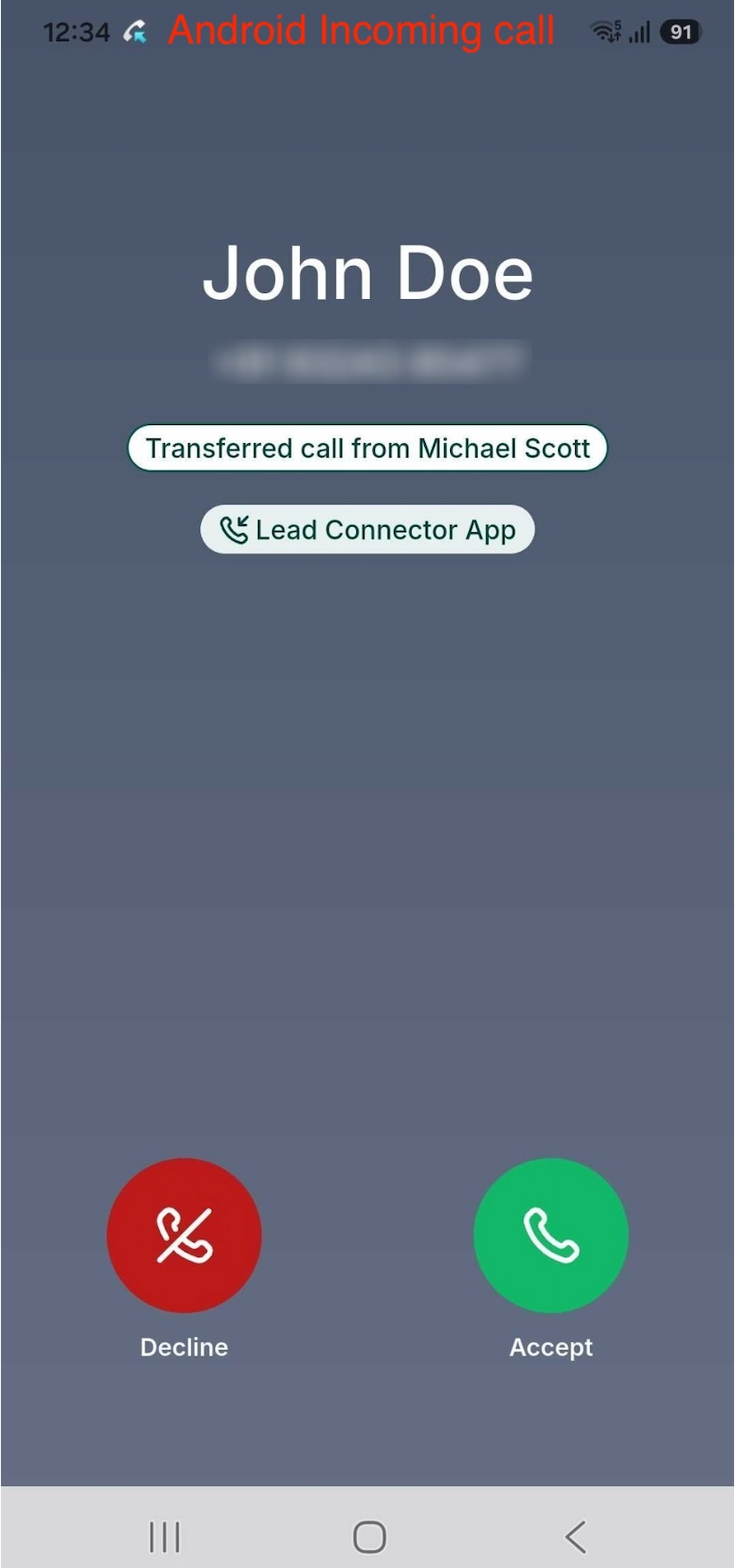
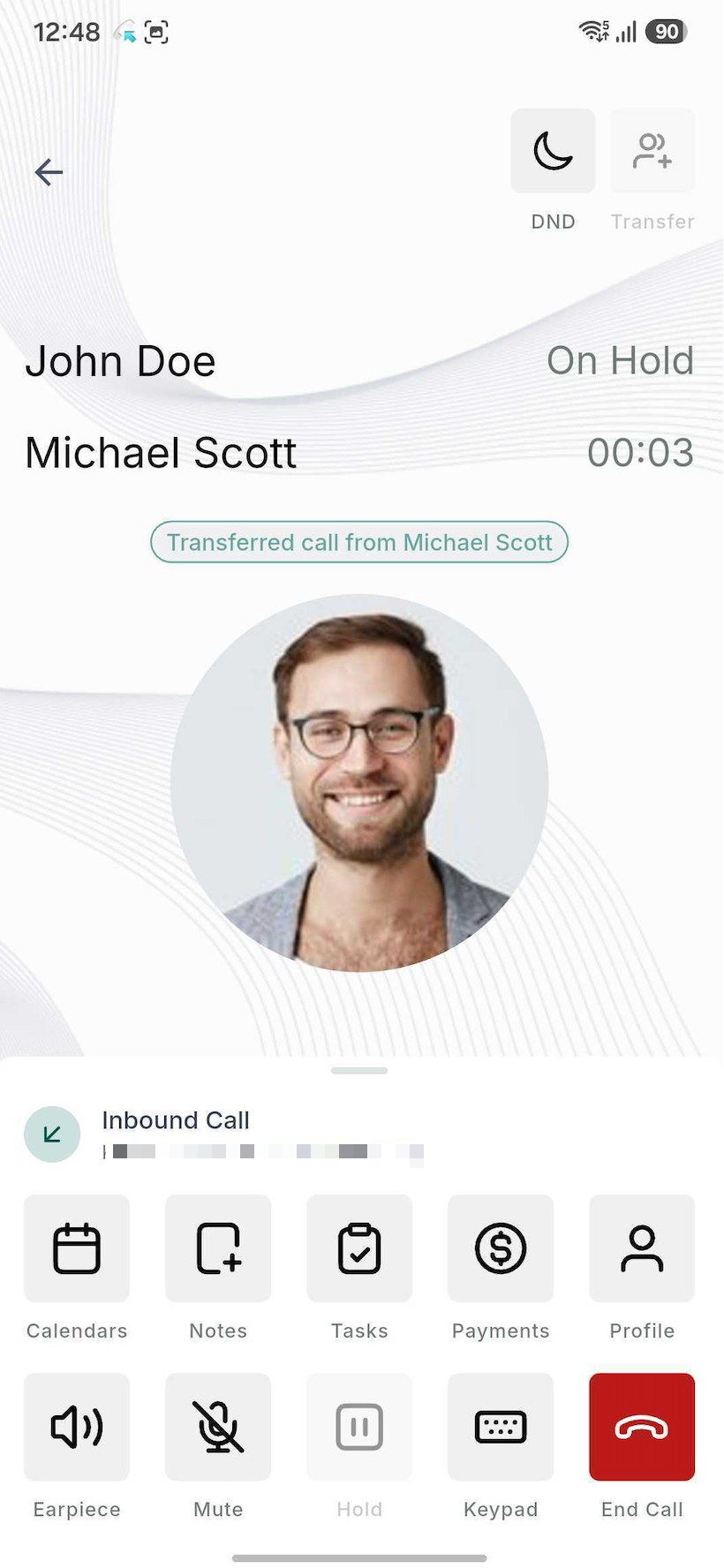
When a transfer is started, HighLevel evaluates the selected staff member’s enabled destinations and rings all of them simultaneously. The caller stays on hold for warm transfers while the transferring user speaks with the recipient. The receiving user sees the call labeled with the original contact name and the name of the person who transferred it.
All of this functionality lives inside the mobile app’s call screen. The Transfer icon opens a dialog where you pick a staff member, view their available devices, and choose between a warm (call and hold) or blind (transfer and end) hand off.
03How businesses use call transfers
- Real estate brokerage. An agent can answer a buyer’s call on the Web App and then transfer the call to a closing specialist who only uses a SIP deskphone. The specialist receives the call on the deskphone without needing a separate personal number.
- Dental practice. The front desk staff member takes a patient’s inbound call on the Mobile App and transfers it to the dentist, who has the Mobile App enabled but no My Phone Number. The dentist receives the call on their phone through the app.
- IT support firm. A technician makes an outbound call to a client from the Mobile App, then uses a blind transfer to route the call to a senior engineer whose only configured destination is the Web App, allowing the engineer to answer via a browser.
04The numbers and rules that matter
- Supported destinations: Web App, Mobile App, My Phone Number, Deskphone (SIP).
05Before you start
- Ensure the receiving staff member has at least one destination enabled under Forward Calls to in their Call & Voicemail Settings.
06How to set up and use call transfers in HighLevel
Configure where staff can receive calls
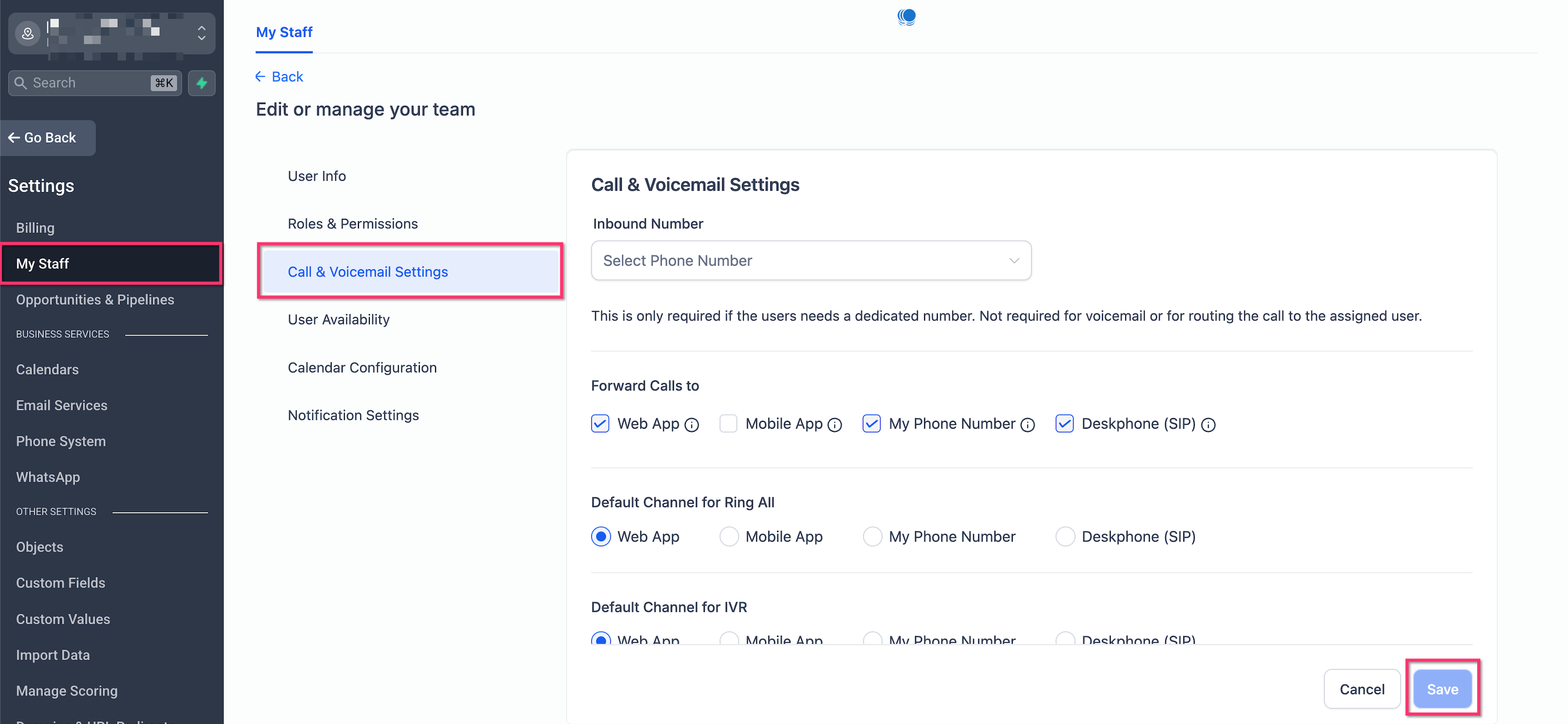
- Open Settings > My Staff, select the team member, and open their Call & Voicemail Settings.
- Locate the Forward Calls to section.
- Activate one or more destinations such as Web App, Mobile App, My Phone Number, or Deskphone (SIP).
- Confirm that at least one destination is enabled; otherwise the staff member will appear disabled in the transfer list.
Start a transfer from the mobile app
- Place an outbound call or answer an inbound call using the HighLevel mobile app.
- While the call is active, tap the Transfer icon in the upper right corner of the call screen.
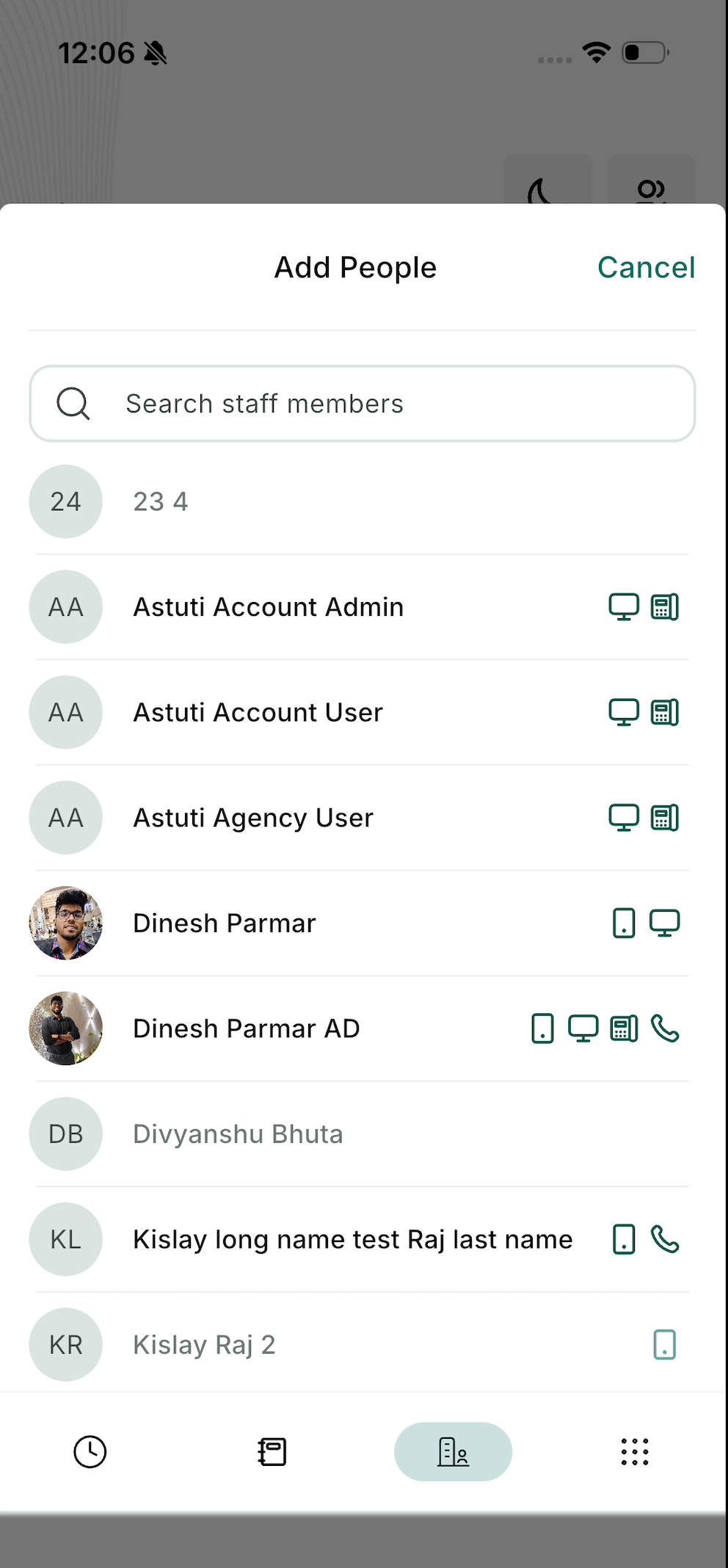
- In the transfer dialog, tap the Staff Members tab to view available teammates.
- Search for and select the desired staff member; verify the device icons indicate enabled destinations.
- Choose either Call and Hold for a warm transfer or Transfer and End for a blind transfer.
Complete a warm transfer
- After selecting Call and Hold, wait for the chosen staff member to answer; the original caller remains on hold.
- Speak privately with the staff member to provide context for the hand off.
- When ready, use the normal transfer controls to finish the hand off.
- The receiving staff member now continues the conversation with the original caller.
07What it looks like in HighLevel
08Settings that matter
- Forward Calls to. Controls which devices or numbers will ring when a call is transferred to the user. Options include Web App, Mobile App, My Phone Number, and Deskphone (SIP).
- Call & Voicemail Settings. The section where a staff member’s forwarding destinations are managed and where the Forward Calls to option resides.
09Things to know before you rely on it
- If a staff member has multiple destinations enabled, all of them may ring at the same time during a transfer.
- The mobile app can serve as both the source of a transfer and the destination for a received transfer.
- Transfers work with both inbound and outbound calls.
- Calls that have already been transferred to a user cannot be transferred again to another user.
- A staff member without any enabled Forward Calls to destination will appear disabled and cannot be selected.
10If something goes wrong
- Staff member appears grayed out in the transfer list. Open the staff member’s Call & Voicemail Settings and enable at least one option under Forward Calls to.
- No devices ring when a transfer is sent. Confirm that the selected staff member has the appropriate destinations enabled in Forward Calls to and that those devices are online.
11How it connects to the rest of HighLevel
- Explore all mobile and desktop app capabilities All Mobile & Desktop App features
- Review pricing and plan options for mobile calling features HighLevel pricing and plans
- Start a free trial to test call transfers Start a 30 day HighLevel trial
Michael's take

Adding call transfers to a team’s workflow is a small convenience that can quickly feel like a real shift in how you handle support calls. It lets anyone on the team pick up a conversation without having to give out personal numbers, keeping the process clean and professional.
A virtual assistant business fits this feature perfectly. One assistant can take the initial call, then warm transfer it to the specialist who actually resolves the issue, all while staying on the same devices the team already uses.